
QuickBooks Desktop freezes during invoicing or payroll when an issue affects the program, company file, transaction, printing or PDF component, email configuration, or network connection. The correct troubleshooting method depends on the exact point where QuickBooks Desktop stops responding.
For program-related issues, QuickBooks Tool Hub provides several QuickBooks Desktop troubleshooting utilities, including Quick Fix my Program, the QuickBooks Install Diagnostic Tool, and the QuickBooks Print & PDF Repair Tool. Identifying the freeze location establishes the appropriate troubleshooting path.
The main troubleshooting paths include:
- General freezes require program and installation troubleshooting.
- Company-file freezes require data verification and rebuilding.
- Invoice printing and PDF freezes require print and PDF repair.
- Payroll printing freezes require printer configuration checks, while pay stub email freezes require email configuration checks.
- Network-related freezes require hosting, firewall, and connection troubleshooting.
This guide shows how to identify the source of a QuickBooks Desktop freeze and apply the corresponding troubleshooting method to restore invoicing or payroll functions.
Table of Contents
Why Does QuickBooks Desktop Freeze During Invoicing or Payroll?
QuickBooks Desktop can freeze at different points while you’re invoicing or handling payroll. The problem may come from damaged program or company-file data, printing and PDF issues, email settings, or network problems. The best first fix depends on where QuickBooks freezes. The table below helps you identify the problem area and choose the right troubleshooting step.
| Where QuickBooks Freezes | Possible Reason | What to Try First |
| On the QuickBooks screen in general | QuickBooks program files may be damaged | Run Quick Fix my Program from QuickBooks Tool Hub |
| While opening a specific company file | The company file may have data damage | Run Verify Data and Rebuild Data if needed |
| While creating or editing a specific invoice or transaction | The transaction or form may have a data problem | Run Verify Data and Rebuild Data if needed |
| While printing an invoice or creating a PDF | QuickBooks’ printing or PDF components may have a problem | Run the Print & PDF Repair Tool |
| While printing a paycheck or pay stub | Printer or printing components may have a problem | Check the printer setup and run the Print & PDF Repair Tool if needed |
| While emailing a pay stub | Email configuration or connection may have a problem | Check the QuickBooks email settings and email service |
| While accessing a company file over a network | Network, firewall, or hosting problems may be involved | Check the network, hosting, and firewall settings |
How to Fix QuickBooks Desktop Freezing During Invoicing or Payroll?
A general QuickBooks Desktop freeze affects invoicing, payroll, and other functions at the same time. Five fixes resolve most general freezes:
- Quick Fix my Program,
- a company-file test,
- a QBWUSER.INI reset,
- an installation repair, and
- a data verification and rebuild.
Solution 1: Quick Fix my Program
Quick Fix my Program shuts down QuickBooks-related background processes and performs a quick program repair. Intuit recommends this tool as the first response to a general freeze or a “not responding” message.
Step 1. Close QuickBooks Desktop completely. Download the latest version of QuickBooks Tool Hub from Intuit’s official support page.

Step 2. Open QuickBooks Tool Hub. Tool Hub is a free Intuit utility that groups several repair tools in one place.
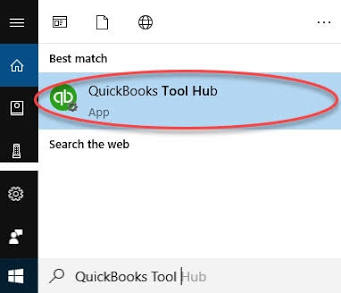
Step 3. Select Program Problems from the Tool Hub menu.
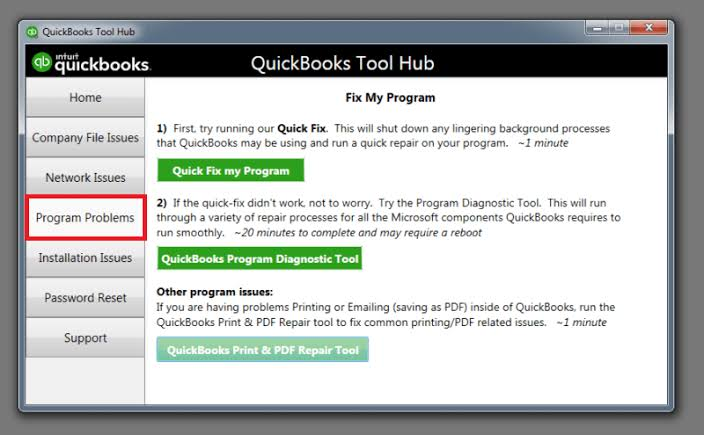
Step 4. Select Quick Fix my Program.

Step 5. Wait for the tool to finish the repair process.
Step 6. Reopen QuickBooks Desktop.
Step 7. Open the company file. A company file stores one business’s accounting data in QuickBooks Desktop.
Step 8. Repeat the invoicing or payroll action that caused the freeze.
Solution 2: Test the Company File
Testing the company file separates a program problem from a company-file problem. The test opens QuickBooks Desktop without loading any company file first.
Step 1. Hold the Ctrl key on the keyboard.
Step 2. Double-click the QuickBooks Desktop icon while continuing to hold Ctrl.
Step 3. Keep holding Ctrl until the No Company Open window appears.

Step 4. Release Ctrl and open a sample company file from the No Company Open window.
Step 5. Try the same invoice or payroll task in the sample company file.
Step 6. Check if QuickBooks freezes again.
- If it freezes: The problem may be with QuickBooks Desktop.
- If it does not freeze: The problem may be with your original company file.
A sample company file that works normally while the regular company file freezes points to company-file damage, file permissions, or a folder problem. A sample company file that also freezes points to the QuickBooks installation, Windows, or a system-level setting.
Solution 3: Rename QBWUSER.INI
QBWUSER.INI stores QuickBooks Desktop user settings, including the list of previously opened company files. A damaged or missing QBWUSER.INI file causes QuickBooks Desktop to stop responding or freeze.
The file sits in this folder, where [Your User Name] is the Windows account name and [year] is the QuickBooks Desktop version year:
C:\Users\[Your User Name]\AppData\Local\Intuit\QuickBooks [year]
Windows must show hidden files and folders before this folder becomes visible.
Step 1. Close QuickBooks Desktop.
Step 2. Open File Explorer and navigate to the folder listed above.
Step 3. Locate the file named QBWUSER.INI.
Step 4. Right-click QBWUSER.INI.
Step 5. Select Rename.
Step 6. Change the file name to QBWUSER.ini.old.

Step 7. Reopen QuickBooks Desktop.
Step 8. Test the invoicing or payroll function that previously froze.
Renaming this file removes the list of previously opened company files from QuickBooks Desktop. The company data itself remains intact. Each company file needs a manual reopen through File, then Open or Restore a company file..
Solution 4: Repair Installation Components
The QuickBooks Install Diagnostic Tool repairs Microsoft components that QuickBooks Desktop depends on, including .NET Framework, MSXML, and C++ components. This tool applies when the installation or a program component shows damage.
Step 1. Open QuickBooks Tool Hub.
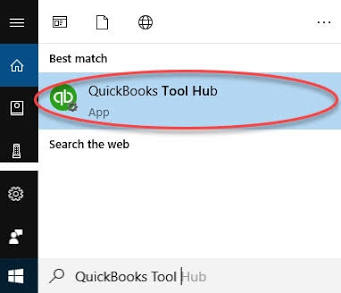
Step 2. Select Installation Issues.
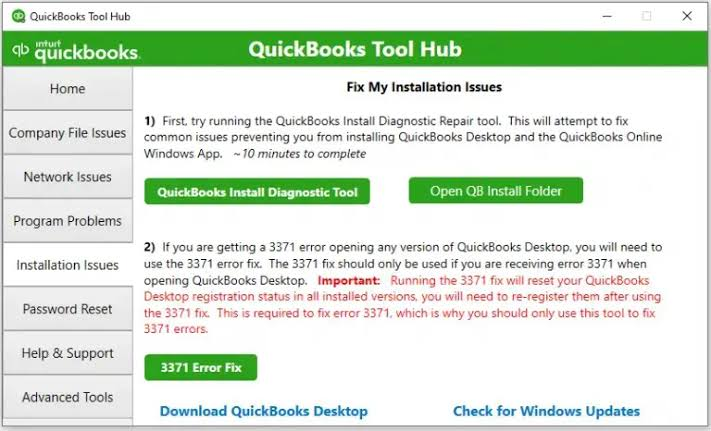
Step 3. Select QuickBooks Install Diagnostic Tool.
Step 4. Allow the tool to run. The process takes up to 20 minutes.
Step 5. Restart the computer once the tool finishes.
Step 6. Reopen QuickBooks Desktop and test the affected function.
Solution 5: Verify and Rebuild Company Data
The Verify Data utility checks a company file for data integrity problems. The Rebuild Data utility fixes the problems that Verify Data finds. Assisted Payroll users need to contact Payroll Support before running Rebuild Data.
Step 1. Open the company file inside QuickBooks Desktop.
Step 2. Select File, then Utilities, then Verify Data.
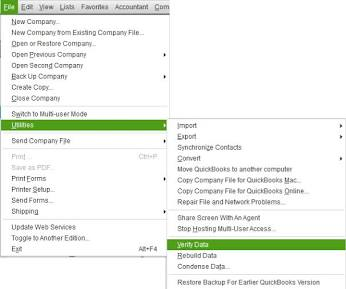
Step 3. Review the result. A message reporting no problems means the file passed the check.
Step 4. Create a company file backup when Verify Data reports integrity problems.
Step 5. Select File, then Utilities, then Rebuild Data.
Step 6. Run Verify Data again to confirm the problems no longer appear.
QuickBooks Desktop can display a “not responding” message during the rebuild process. A moving mouse cursor during that message means the rebuild continues to run in the background rather than a true freeze.
Fix QuickBooks Freezing While Invoicing
An invoice that saves successfully but freezes during printing, PDF creation, or emailing needs a different set of fixes. These fixes target the print and PDF components rather than the company file.
Solution 1: Print & PDF Repair Tool
The QuickBooks PDF & Print Repair Tool addresses common printing, PDF saving, and PDF emailing failures inside QuickBooks Desktop.
Step 1. Open QuickBooks Tool Hub.
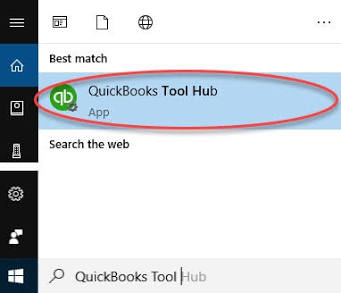
Step 2. Select Program Problems.

Step 3. Select QuickBooks Print & PDF Repair Tool.
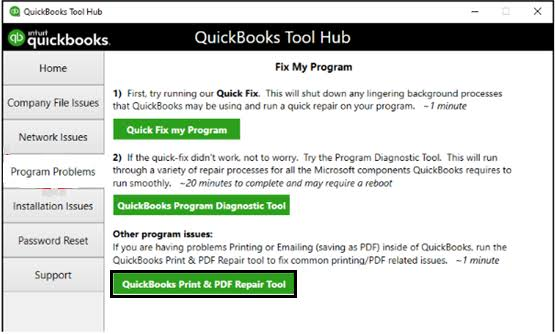
Step 4. Allow the tool to finish running.
Step 5. Print, email, or save the invoice as a PDF again to confirm the fix.
Solution 2: Printer and PDF Settings
Windows 11 uses Microsoft XPS Document Writer for some QuickBooks Desktop printing and PDF functions. Check that this Windows feature is enabled before trying further PDF troubleshooting.
Step 1. Select the Start button on the Windows taskbar, type Control Panel in the search box, and select Control Panel from the results.
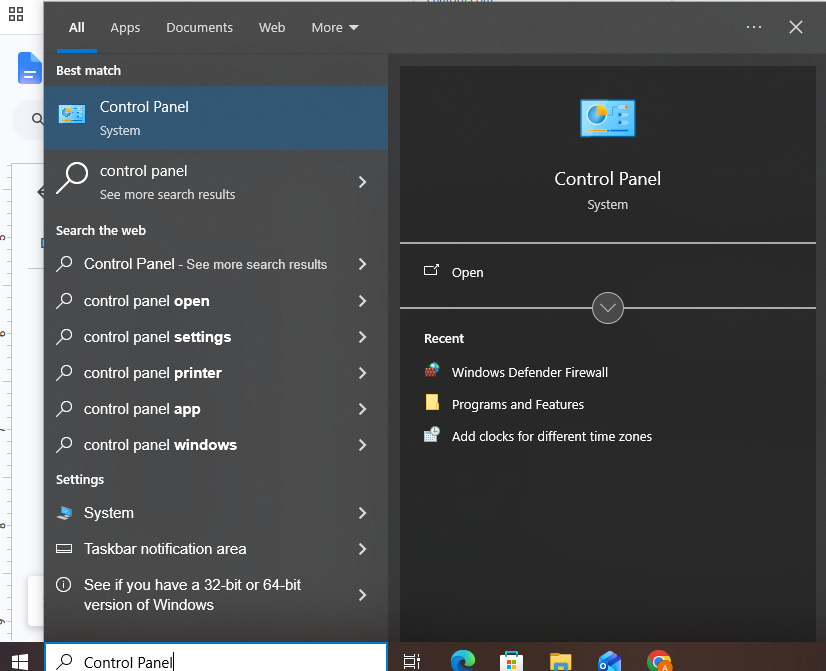
Step 2. In the Control Panel, select Programs.

Step 3. Under Programs and Features, select Turn Windows features on or off.
Step 4. In the Windows Features window, find Microsoft XPS Document Writer.

Step 5. Select the checkbox next to Microsoft XPS Document Writer, then select OK.
Step 6. Restart your computer.
Step 7. Open QuickBooks Desktop and test the printing or PDF function again.
Solution 3: Test the Invoice or Form
If QuickBooks freezes only when you work with a specific invoice or form, test another invoice to see whether the problem is limited to that particular form or template.
Step 1. Open QuickBooks Desktop and open your company file.
Step 2. Open the Customers menu and select Create Invoices.
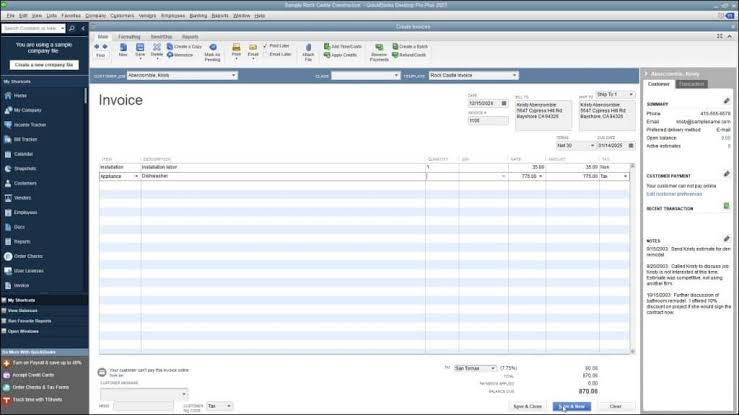
Step 3. Select a different customer and create a test invoice using the same invoice template.
Step 4. Save or print the test invoice as a PDF.
Step 5. Check whether QuickBooks freezes while creating or printing the test invoice.
- If the test invoice works normally: The problem may be related to the original invoice or its template.
- If the test invoice also freezes: The problem may not be limited to that particular invoice or template.
Step 6. If only one template causes the freeze, edit that template and remove or replace its logo or other customized elements. Then test the invoice again.
Fix QuickBooks Freezing During Payroll
Payroll freezes split into two categories: freezes during paycheck or pay stub printing, and freezes during pay stub email delivery. Each category needs a separate check.
Solution 1: Payroll Printing and Pay Stub Settings
QuickBooks Desktop uses printer settings for printing paychecks and pay stubs. Checking these settings can help if QuickBooks freezes while printing payroll forms.
Step 1. Open QuickBooks Desktop and open your company file.
Step 2. From the QuickBooks Desktop menu bar, select File, then select Printer Setup.
Step 3. In the Printer Setup window, select Pay Stub from the Form Name drop-down menu.

Step 4. Select the printer you want to use for printing pay stubs.
Step 5. Select OK to save the printer setting.
Step 6. In Windows, select Start, search for Printers & scanners, and open it.
Step 7. Select the printer you want to use and choose Set as default if it is not already the default printer.
Step 8. Return to QuickBooks Desktop and try printing the pay stub or paycheck again.
Solution 2: Paystub Email Troubleshooting
If QuickBooks Desktop freezes when you try to email a pay stub, check the email settings in QuickBooks Desktop first. QuickBooks Desktop can send email through Outlook or a supported Webmail account.
Step 1. Open QuickBooks Desktop and open your company file.
Step 2. From the QuickBooks Desktop menu bar, select Edit, then select Preferences.
Step 3. In the Preferences window, select Send Forms from the list on the left.
Step 4. Under My Preferences, check which email option is selected: Outlook or Webmail.
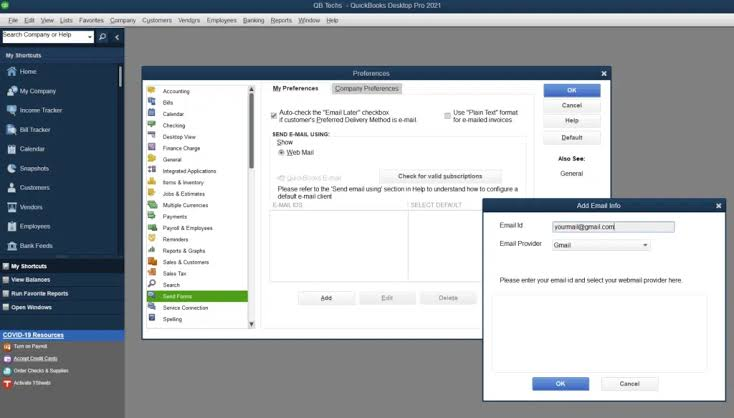
Step 5. If you use Outlook, select Outlook and make sure the correct Outlook account is set up on your computer.
Step 6. If you use Webmail, select Webmail, choose your email provider, and make sure the email account is connected correctly.
Step 7. Select OK to save the settings.
Step 8. Try emailing a test pay stub again.
If QuickBooks still freezes, continue with the next troubleshooting solution. If the pay stub is created as a PDF but QuickBooks freezes when sending it, also troubleshoot QuickBooks’ printing and PDF components.
Fix QuickBooks Freezing on Multiple Computers
Solution 1: Network and Hosting Configuration
A company file stored on a network server depends on a stable connection between each workstation and the host computer. Unstable connections, firewall interference, incorrect folder permissions, hosting configuration errors, server problems, power-saving settings, and Database Server Manager problems all disrupt that connection. Database Server Manager is the Intuit service that manages multi-user access to a hosted company file.
Wireless networking does not provide a reliable connection for a hosted QuickBooks Desktop company file. A wired local area network connection supports multi-user access more reliably.
Step 1. Open QuickBooks Tool Hub.

Step 2. Select Company File Issues.
Step 3. Select QuickBooks File Doctor.
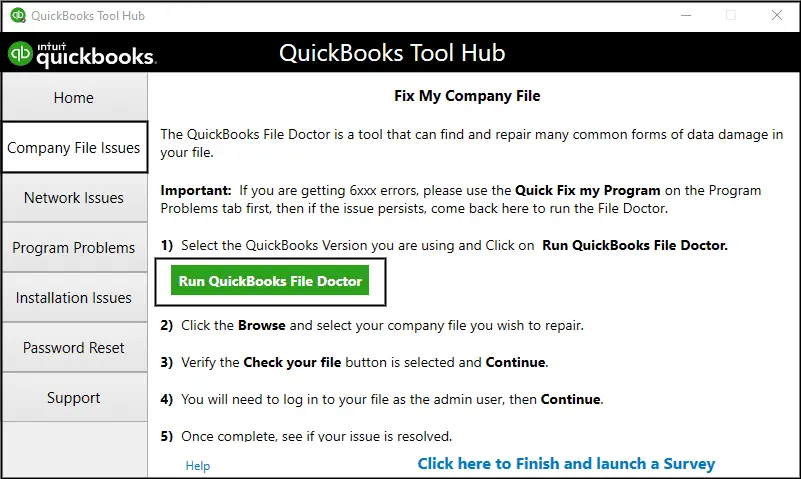
Step 4. Select the affected company file and select Check your file.
Step 5. Confirm Database Server Manager runs on the host computer through Tool Hub, then Network Issues, then QuickBooks Database Server Manager.
Step 6. Confirm the firewall allows QuickBooks Desktop network ports on every workstation.
Step 7. Switch any wireless workstation to a wired connection when the freeze continues.
Repair or Reinstall QuickBooks Desktop
A repair or reinstall becomes necessary when earlier fixes fail to resolve a program-level freeze. A repair fixes the current installation. A clean install removes and reinstalls QuickBooks Desktop completely.
Solution 1: Repair
Step 1. Close QuickBooks Desktop.
Step 2. Open Control Panel, then Programs and Features.

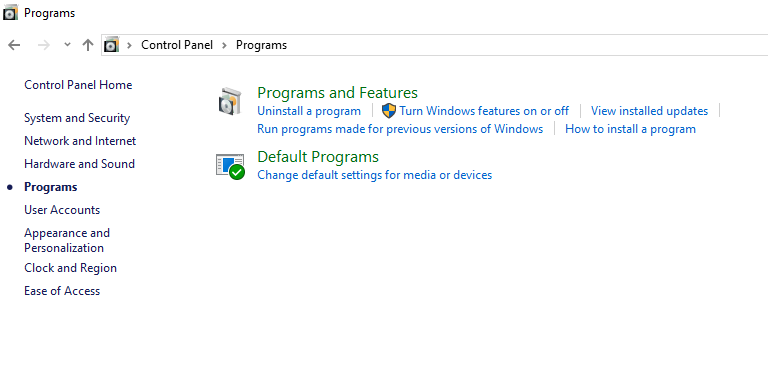
Step 3. Select QuickBooks Desktop from the program list.
Step 4. Select Uninstall/Change.
Step 5. Select Repair and follow the on-screen prompts.
Step 6. Restart the computer once the repair finishes.
Step 7. Reopen QuickBooks Desktop and test the affected function.
Solution 2: Clean Install
Step 1. Open QuickBooks Tool Hub.
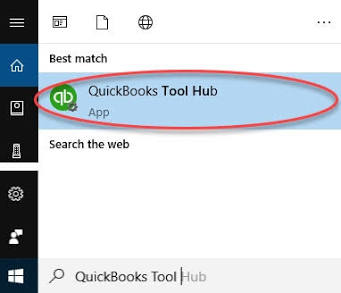
Step 2. Select Installation Issues.
Step 3. Select Clean Install Tool.

Step 4. Select the installed QuickBooks Desktop version and confirm.
Step 5. Reinstall QuickBooks Desktop using the original installer or download.
Step 6. Restart the computer and open the company file to confirm the fix.
Check QuickBooks and Windows Updates
An outdated QuickBooks Desktop release or an outdated Windows version misses fixes that Intuit and Microsoft publish for known freeze causes.
Step 1. Open QuickBooks Desktop.
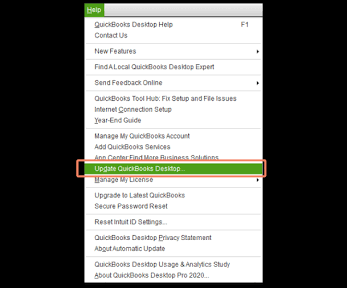
Step 2. Select Help, then Update QuickBooks Desktop.
Step 3. Select Update Now, then Get Updates.
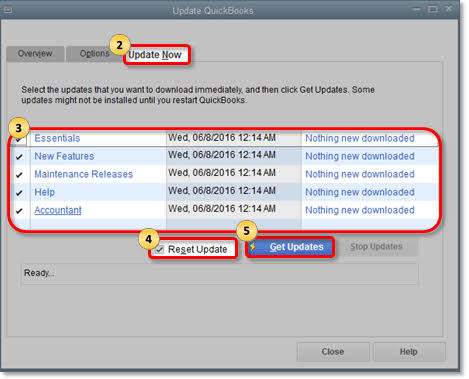
Step 4. Restart QuickBooks Desktop once the update finishes.
Step 5. Open Windows Settings, then Windows Update.
Step 6. Select Check for updates and install any available update.
Step 7. Restart the computer to complete the Windows update.
Do These Fixes Vary by QuickBooks Desktop Version?
The troubleshooting method stays consistent across supported QuickBooks Desktop versions. Specific menus, payroll features, email integration options, and Windows compatibility details vary by version and release year. The table below separates the fixes that stay constant from the fixes that change by version.
| Fix | Version-Dependent | What Changes By Version |
|---|---|---|
| Quick Fix my Program | No | The Tool Hub version updates over time. |
| QBWUSER.INI reset | No | The folder path includes the QuickBooks year. |
| Verify Data and Rebuild Data | No | Assisted Payroll users need extra caution. |
| Print and PDF Repair Tool | No | The Windows and printer environment affects results. |
| Outlook or Webmail configuration | Somewhat | Email integration options change by release. |
| Payroll printing and features | Yes | Payroll services vary by product and year. |
| Network and hosting setup | Yes | Enterprise adds extra multi-user and server settings. |
| Windows compatibility | Yes | Supported Windows versions vary by QuickBooks year. |
| QuickBooks and Windows updates | Yes | Each QuickBooks year has its own release schedule. |
QuickBooks Desktop 2024 is the final Pro and Premier release, and Intuit supports it through September 30, 2027. QuickBooks Desktop Enterprise continues to receive new releases every year, including 2025 and 2026, on a separate support schedule from Pro and Premier. QuickBooks Desktop 2023 support ended May 31, 2026, so payroll, bank feeds, and security updates no longer function on that version.
Microsoft ended support for Windows 10 on October 14, 2025, and QuickBooks Desktop no longer supports installations on Windows 10 as a result. A workstation running QuickBooks Desktop on Windows 10 needs an upgrade to Windows 11 before the fixes in this article produce a reliable result.
QuickBooks Desktop Pro, Premier, and Enterprise share the same core troubleshooting logic for a freeze. The QuickBooks Desktop release year and the Windows version installed on the computer create more variation in the exact steps than the product edition alone.
What to Do If QuickBooks Still Freezes
Contact Intuit Support when the fixes in this article do not resolve the freeze. Gathering specific details before contacting support speeds up the diagnosis.
Step 1. Write down the exact QuickBooks Desktop version and release number from Help, then About QuickBooks.
Step 2. Note the exact action that triggers the freeze, such as saving an invoice or printing a pay stub.
Step 3. Note whether the freeze happens on one computer or on multiple computers.
Step 4. Note whether the sample company file also freezes.
Step 5. Contact Intuit Support through the Help menu inside QuickBooks Desktop or through the official Intuit support website.
Step 6. Share the gathered details with the support representative to speed up diagnosis.
Conclusion
The procedures in this guide follow Intuit’s official QuickBooks Desktop troubleshooting guidance and apply the relevant repair tools to program, company-file, printing, payroll, and network issues. Following the appropriate troubleshooting path based on the affected QuickBooks Desktop function provides a structured way to resolve the freeze.

Anusmita is a seasoned content writer who brings perspective to words. As a writer, she enriches her work with a journalistic aptitude, utilising her training in Mass Communication and Journalism. She loves to travel and explore, which imparts a greater sense of understanding, maturity, and experience that are reflected in her content.
Beyond her professional work, Anusmita enjoys painting, singing, dancing, and spending time planting. She is also a self-proclaimed foodie who loves exploring different cuisines, an interest that further adds to her curiosity and perspective as a writer.
Leave a Reply