
QuickBooks Desktop multi-user mode lets several people in a business open the same company file at the same time from different computers. The company file — the .QBW file that stores all accounting data — lives on one computer called the host, and every other computer on the network is a workstation. Errors that appear specifically when opening the file in multi-user mode signal that something in this setup is broken, not that the accounting data itself is damaged.
The errors that block multi-user access fall into clear groups. Some errors appear because the host computer lost permission to share its files. Some appear because two computers are both trying to act as the host at the same time. Some appear because a small helper file that records the company file’s network address became outdated or damaged. Each group has a direct cause and a direct fix, and distinguishing between them saves hours of guesswork.
This article covers every major error that blocks QuickBooks Desktop from opening a company file in a multi-user environment — what each error means, what causes it, what breaks in your business if you ignore it, and the exact steps that get every workstation back into the file. All fixes are based on Intuit’s official documentation.
Table of Contents
Find Your Error in 60 Seconds
Match your symptom to the section that covers it before reading further:
| What You See on Screen | What It Means | Go to Section |
| Error H202 or H505 in multi-user mode | Workstation cannot reach the host computer | Section 2: H-Series Errors |
| Error 6189, 816 or 6190, 816 when opening file | Multi-user network setup problem, not data damage | Section 3: 6189 and 6190 Errors |
| Error -6000, -77 or -6000, -83 | Company file path, permissions, or host conflict | Section 4: 6000-Series Errors |
| Error -6073, -99001 | File open in single-user mode on another computer | Section 5: Single-User Lock Errors |
| Company File in Use / Another user is performing a task | Task locked to one user at a time in multi-user mode | Section 6: Locked File Errors |
| File opens but data looks wrong or reports mismatch | ND or TLG file is outdated or damaged | Section 7: ND and TLG File Problems |
Tip: If you see an error code, match the number series first — it immediately tells you which layer of the setup failed.
1. How Multi-User Mode Works and Why It Fails
The Setup QuickBooks Needs to Share a Company File
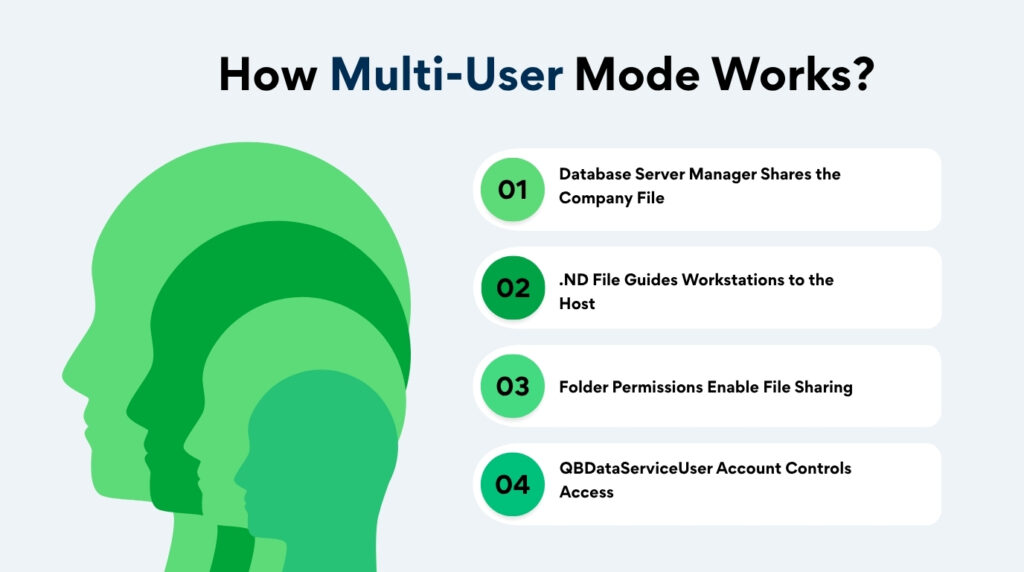
QuickBooks Desktop multi-user mode works by running a background application on the host computer called QuickBooks Database Server Manager. This application — not the main QuickBooks program — handles the job of sharing the company file with every workstation on the network. It keeps the file available, manages simultaneous access from multiple users, and creates two small helper files alongside the company file: the .ND file and the .TLG file.
The .ND file — which stands for Network Descriptor — records the host computer’s name and location so that workstations know exactly where to connect when they open QuickBooks. The .TLG file — which stands for Transaction Log — records every accounting entry in real time as a running safety backup. Both files must be present, readable, and current for multi-user access to work correctly. Intuit confirms that damaged or outdated .ND and .TLG files cause errors when opening QuickBooks in a network or multi-user environment.
The host computer must also have the correct folder permissions — the Windows settings that control which users and programs can read, write, and share files in a specific folder. Every version of QuickBooks has a corresponding service account called QBDataServiceUserXX (where XX is the version number) that needs Full Control permission over the folder where the company file is stored. Without that permission, the Database Server Manager cannot share the file with the network, and workstations get access errors.
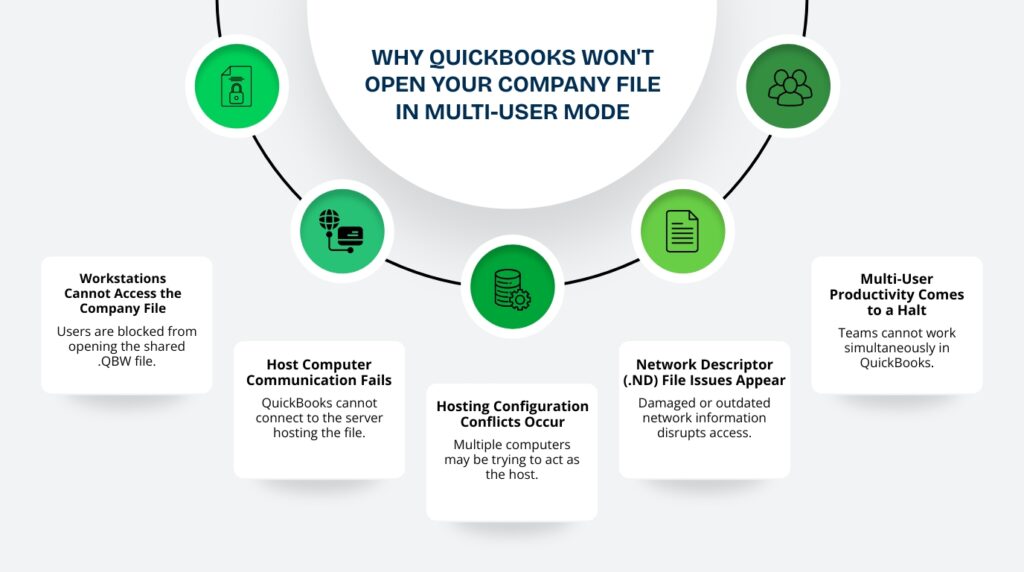
The Five Most Common Causes of Multi-User Open Errors
- Incorrect hosting setup: More than one computer on the network is set to host the company file, creating a conflict over which machine has authority. Only the computer that physically stores the company file should have hosting turned on.
- Damaged or outdated .ND file: The .ND file that records the company file’s network location becomes outdated whenever the host computer’s name or network address changes, or becomes damaged after an interrupted save or shutdown.
- Folder permissions not set correctly: The Windows folder that stores the company file does not grant the QuickBooks service account Full Control access, blocking the Database Server Manager from sharing the file over the network.
- Company file open in single-user mode: One user on the network has the file open in single-user mode — the mode used for tasks like verify and rebuild that only one person can perform at a time — locking every other workstation out.
- File path too long: Intuit documents a 210-character limit on the full path to the company file. A path longer than 210 characters causes QuickBooks to fail when opening the file, producing 6000-series errors with no other obvious explanation.
2. H-Series Errors (H202, H505, H101, H303): Workstations Cannot Reach the Host
What H-Series Errors Mean?
H-series errors — H202, H505, H101, and H303 — all appear when a workstation tries to open a company file stored on another computer and the connection fails. QuickBooks Error H202 displays the message: This company file is on another computer, and QuickBooks needs some help connecting. Error H505 appears when one or more workstations are incorrectly set to act as the host computer. H101 and H303 also indicate hosting conflicts where a workstation has taken over the host role.
These errors are exclusively multi-user problems. A person using QuickBooks alone on a single computer never sees them. H-series errors tell you that the workstation reached out to the host computer but could not complete the connection — the request was either blocked by the firewall, the Database Server Manager service was not running on the host, or the workstation itself was incorrectly configured as a host.
Root Causes and Fixes for H202 and H505?
The most reliable first step is to open QuickBooks Database Server Manager on the host computer and run a scan. Intuit states that running the Database Server Manager scan repairs firewall permissions automatically and rebuilds the .ND file for every company file in the scanned folder. Open the Windows Start menu on the host computer, search for QuickBooks Database Server Manager, open it, confirm the folder containing the company file is listed under Scan Folders, and click Start Scan. Close the window after the scan finishes, then try opening the company file from each workstation.
If the scan does not resolve H202, check the hosting configuration on each workstation. Open QuickBooks on the workstation without opening the company file. Click the File menu and hover over Utilities. The option should read Host Multi-User Access — meaning hosting is currently off on that workstation, which is correct. If it instead reads Stop Hosting Multi-User Access, click it to turn hosting off. Intuit confirms that H505, H101, and H303 appear specifically when one or more workstations are incorrectly set as the host.
After fixing hosting on all workstations, open QuickBooks on the host computer and switch to multi-user mode by going to File and selecting Switch to Multi-User Mode. Then open QuickBooks on each workstation and select File, then Switch to Multi-User Mode. If all workstations connect successfully, the problem is resolved. If H202 persists on any workstation, run QuickBooks File Doctor from the QuickBooks Tool Hub — download Tool Hub from Intuit’s official website, open it, go to Network Issues, and select Run QuickBooks File Doctor.
H-Series Error Diagnosis and Fix Summary
| Error Code | Root Cause | Fix |
| H202 | Workstation cannot connect to host — firewall or service issue | Run Database Server Manager scan; run File Doctor from Tool Hub |
| H505 | Workstation incorrectly set to host the company file | Turn off Host Multi-User Access on the affected workstation |
| H101, H303 | One or more workstations acting as host instead of server | Turn off hosting on all workstations; enable only on the server |
| H202 after correct hosting setup | QuickBooksDBXX or QBCFMonitorService not running on host | Set both services to Automatic in services.msc on the host computer |
3. Error 6189, 816 and 6190, 816: Multi-User Network Setup Problem
What These Errors Mean?
QuickBooks Error 6189, 816 and Error 6190, 816 both display the message: An error occurred when QuickBooks tried to access the company file. Intuit explicitly states that these errors point to a problem with the multi-user network setup — not with the company file’s data. The accounting data in the .QBW file is intact. The errors appear because the network layer between the host computer and the workstations is broken, not because the file itself is corrupted.
Error 6189, 816 appears when the .TLG file — the Transaction Log file that records every accounting entry — does not match the company file it belongs to. A mismatch between the .TLG file and the .QBW company file happens after an abrupt shutdown, a power outage while QuickBooks was saving data, or an interrupted network connection that stopped a write operation partway through. The .TLG file ends up in a different state from the company file, and QuickBooks rejects the file as untrustworthy when the next user tries to open it.
Error 6190, 816 appears when a user on another computer has the company file open in single-user mode, which is a restricted mode where only one person can use QuickBooks at a time. Single-user mode is required for tasks like rebuilding data or condensing the company file. When that task-specific lock is active, every other workstation receives error 6190, 816 because multi-user access is incompatible with single-user mode.
How to Fix Errors 6189 and 6190?
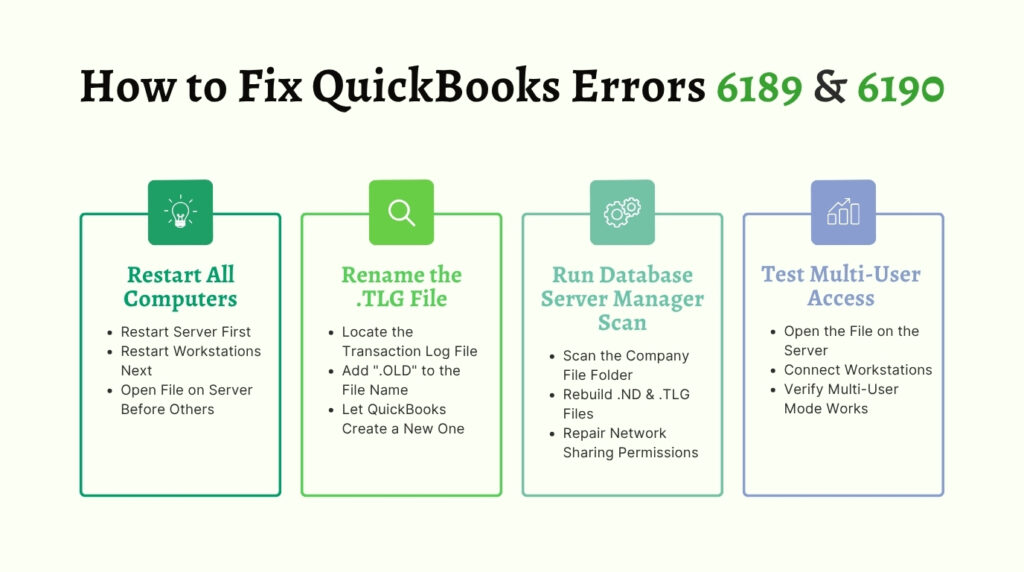
Start with a full restart of all computers. Intuit’s documented solution for 6189 and 6190 errors begins with closing QuickBooks on every computer, restarting the server computer first, then restarting each workstation. After all computers restart, open QuickBooks on the server and open the company file there first. Then open QuickBooks on each workstation and switch to multi-user mode. A restart clears the service state, resets the database server connection, and resolves the conflict caused by a stale or mismatched .TLG file in most cases.
If the restart does not resolve the error, rename the .TLG file to force QuickBooks to create a fresh one. Open the folder that contains the company file — the default location is C:\Users\Public\Public Documents\Intuit\QuickBooks\Company Files. Find the file with the same name as the company file but with the extension .TLG — for example, if the company file is named CompanyName.QBW, the transaction log is CompanyName.QBW.TLG. Right-click it, select Rename, and add .OLD to the end of the name. QuickBooks creates a new .TLG file automatically the next time the company file opens.
After renaming the .TLG file, open QuickBooks Database Server Manager on the host computer and run a scan of the folder containing the company file. Intuit’s Tool Hub also includes a Database Server Manager scan under the Network Issues tab. The scan rebuilds both the .ND and .TLG files and repairs the firewall permissions that Database Server Manager requires to share the file. Run the scan, then try opening the company file in multi-user mode from each workstation.
4. Error -6000 Series: Company File Cannot Be Reached or Opened
What -6000 Series Errors Mean in Multi-User Mode?
The 6000-series errors appear when QuickBooks cannot open, access, or restore a company file. In a multi-user environment the most common codes are -6000, -77 and -6000, -83. Error -6000, -77 means QuickBooks cannot find the company file at the path it last used — the file has moved, the network drive path has changed, or the folder is not shared correctly. Error -6000, -83 means the company file is locked by another user or process that has exclusive access to it, preventing anyone else from opening it.
A file path that is too long is one of the documented causes of 6000-series errors that many users overlook. Intuit confirms that the full path to the company file — including every folder name, subfolder name, and the file name itself — must be 210 characters or fewer. A path longer than 210 characters causes QuickBooks to fail when trying to open the file. Check the file path by opening the folder in Windows Explorer and copying the address from the address bar into Notepad, then counting the characters including spaces.
How to Fix -6000 Series Errors?
Start by renaming the .ND file that sits alongside the company file, which forces QuickBooks to create a new one with the correct current network information. Open the folder containing the company file, find the file with the same name as the company file but with the .ND extension — for example CompanyName.QBW.ND — right-click it, select Rename, and add .OLD to the end. Intuit confirms that renaming the .ND file causes no data loss because QuickBooks recreates it automatically when you scan with Database Server Manager or open the company file.
After renaming the .ND file, open QuickBooks Database Server Manager on the host computer and run a scan of the company file folder. The scan rebuilds a fresh .ND file with the correct host computer name and network address, resolving 6000 errors caused by outdated or damaged network descriptor information. Once the scan completes, try opening the company file from the workstation. If the error was caused by a stale .ND file pointing to an incorrect network location, the error clears immediately.
If the error persists, check the folder permissions on the host computer. Open Windows Explorer on the host, right-click the folder containing the company file, select Properties, and go to the Security tab. Confirm that the QBDataServiceUserXX account — where XX matches your QuickBooks version year plus 10, so QuickBooks 2024 uses QBDataServiceUser34 — has Full Control permission over that folder. Select the account, click Edit, check Full Control under Allow, and click Apply. Incorrect folder permissions block the Database Server Manager from sharing the file and produce 6000-series errors on every workstation that tries to connect.
-6000 Error Code Reference
| Error Code | What It Means | First Fix Step |
| -6000, -77 | File not found at the path QuickBooks last used | Rename .ND file; run Database Server Manager scan |
| -6000, -83 | Company file locked by another user or process | Check who has the file open; end locked QuickBooks processes |
| -6000, -301 | Company file path longer than 210 characters | Move file to a shorter folder path; rescan with Database Server Manager |
| -6000 series (any) | File on external drive or non-shared network location | Move file to host computer’s local drive; rescan and reshare |
5. Error -6073, -99001: File Locked in Single-User Mode
What This Error Means?
Error -6073, -99001 displays the message: QuickBooks is unable to open this company file. This error appears when the company file is already open in single-user mode on another computer. Single-user mode is a restricted access state that QuickBooks uses for administrative tasks — running the Verify Data or Rebuild Data tools, condensing old transactions, or performing certain payroll operations. Only one person can use QuickBooks during single-user mode, and every other workstation is locked out until that mode ends.
A common cause of persistent -6073, -99001 errors is a file that appears to be in single-user mode even though no one is actively working in that mode. This happens after a QuickBooks session ends abruptly — a crash, a forced shutdown, or a network drop while the file was open — because QuickBooks does not always release the single-user lock cleanly. The lock file remains, and every workstation that tries to open the company file receives -6073, -99001 until the lock is cleared.
How to Fix Error -6073, -99001?
Close QuickBooks on every computer on the network. Open QuickBooks on the host computer — the computer that stores the company file — and open the company file there first. Go to the File menu and select Switch to Multi-User Mode. Intuit’s documented fix for this error starts with opening the file on the host and explicitly switching it to multi-user mode before any workstation tries to connect. After the host successfully enters multi-user mode, open QuickBooks on each workstation and open the company file normally.
If the file is stuck in single-user mode because the previous session ended abruptly, close QuickBooks on all computers and restart both the host computer and all workstations. The restart clears the leftover single-user lock from the abrupt shutdown. After all computers restart, open the company file on the host first, switch to multi-user mode, and then allow workstations to connect. Restarting all computers in the correct order — host first, then workstations — is the step that clears the lock in most cases.
If the company file is stored on a read-only network folder, error -6073, -99001 also appears because QuickBooks cannot write the multi-user lock file it needs to manage simultaneous access. Go to the host computer, open Windows Explorer, right-click the folder containing the company file, select Properties, go to the Security tab, and confirm the folder is not set to Read Only. Grant the QBDataServiceUserXX account Full Control over the folder, as described in Intuit’s folder permissions guide, and try opening the file again.
6. Company File in Use: Task Locked to One User at a Time
What These Messages Mean?
In multi-user mode, certain QuickBooks tasks are restricted to one user at a time even when the company file is open and accessible to everyone. Intuit documents a group of messages that appear when a user tries to start a task that someone else on the network is already performing: Company File in Use — Please wait; Only one user at a time is allowed to do this task; Another QuickBooks user is currently performing a task which must finish before you can continue; and Sorry, you cannot change this transaction now. These messages do not indicate a network problem or file corruption.
The tasks that trigger these messages include reconciling a bank account, merging accounts, performing payroll operations, running verify or rebuild data, and exporting reports. QuickBooks restricts these tasks to one user at a time because they modify the company file in ways that would conflict if two people performed the same task simultaneously. The restriction is intentional — it protects the integrity of the accounting data.
How to Handle Locked Task Errors?
Identify which user is performing the task that triggered the lock. Open QuickBooks and go to the Company menu, select Users, then View Users. The list shows every person currently logged into the company file and their activity status. Find the user named in the error message. Ask that user to finish their task and exit the restricted mode. Once they finish, try the task again from the workstation that received the error.
If the user named in the error message has already closed QuickBooks but their name still appears in the user list, QuickBooks did not release the lock cleanly. Go to the server computer and stop and restart the QuickBooks services. Open the Windows Start menu, select Run, type services.msc, find QuickBooksDBXX in the list, right-click it, and select Restart. Intuit’s fix for persistent locked-file messages includes restarting QuickBooks services on the server to clear stale user sessions that did not close correctly.
If locked-file messages appear regularly — on multiple workstations throughout the day — the cause is often network performance rather than a specific user action. Intuit documents that Company File in Use and Waiting for Company File messages indicate network issues, database issues, conflicting background programs, or a server that does not meet QuickBooks system requirements. A server that runs too slowly, a network connection that drops packets, or a company file stored on a remote or wireless connection produces these interruptions during normal multi-user work.
7. Damaged .ND and .TLG Files: The Hidden Cause of Repeated Multi-User Errors
What .ND and .TLG Files Do?
The .ND file is a small configuration file that QuickBooks creates alongside every company file. It records the name and network address of the host computer, so that any workstation on the network can find where the company file lives. The .TLG file — Transaction Log — records every accounting transaction as it happens, providing a real-time backup that QuickBooks uses to recover incomplete saves after a crash or power failure. Intuit confirms that both files are created automatically and that renaming or deleting them causes no data loss because QuickBooks rebuilds them during the next scan or file open.
Damaged .ND and .TLG files are the hidden cause of many multi-user open errors that do not display a clear error code. A workstation gets repeated connection failures. The company file opens on the host but not on workstations. H202 persists even after the firewall and services are confirmed correct. 6000-series errors appear even though the file and folder paths are unchanged. In each of these cases, an outdated or damaged .ND or .TLG file is the most likely cause, and rebuilding those files resolves the error.
How to Rebuild .ND and .TLG Files?
Open the folder that contains the company file on the host computer. The default location is C:\Users\Public\Public Documents\Intuit\QuickBooks\Company Files. Find the two files that have the same name as the company file but with .ND and .TLG extensions. For a company file named CompanyName.QBW, the files are CompanyName.QBW.ND and CompanyName.QBW.TLG. Right-click each file, select Rename, and add .OLD to the end of the file name — for example CompanyName.QBW.ND.OLD. This step does not delete any accounting data.
After renaming both files, open QuickBooks Database Server Manager on the host computer. Go to the Scan Folders tab, confirm the folder containing the company file appears in the list, and click Start Scan. The scan creates fresh .ND and .TLG files with the current host computer name, current network address, and current company file information. Close Database Server Manager after the scan finishes, then open the company file from the host and switch to multi-user mode before opening it from workstations.
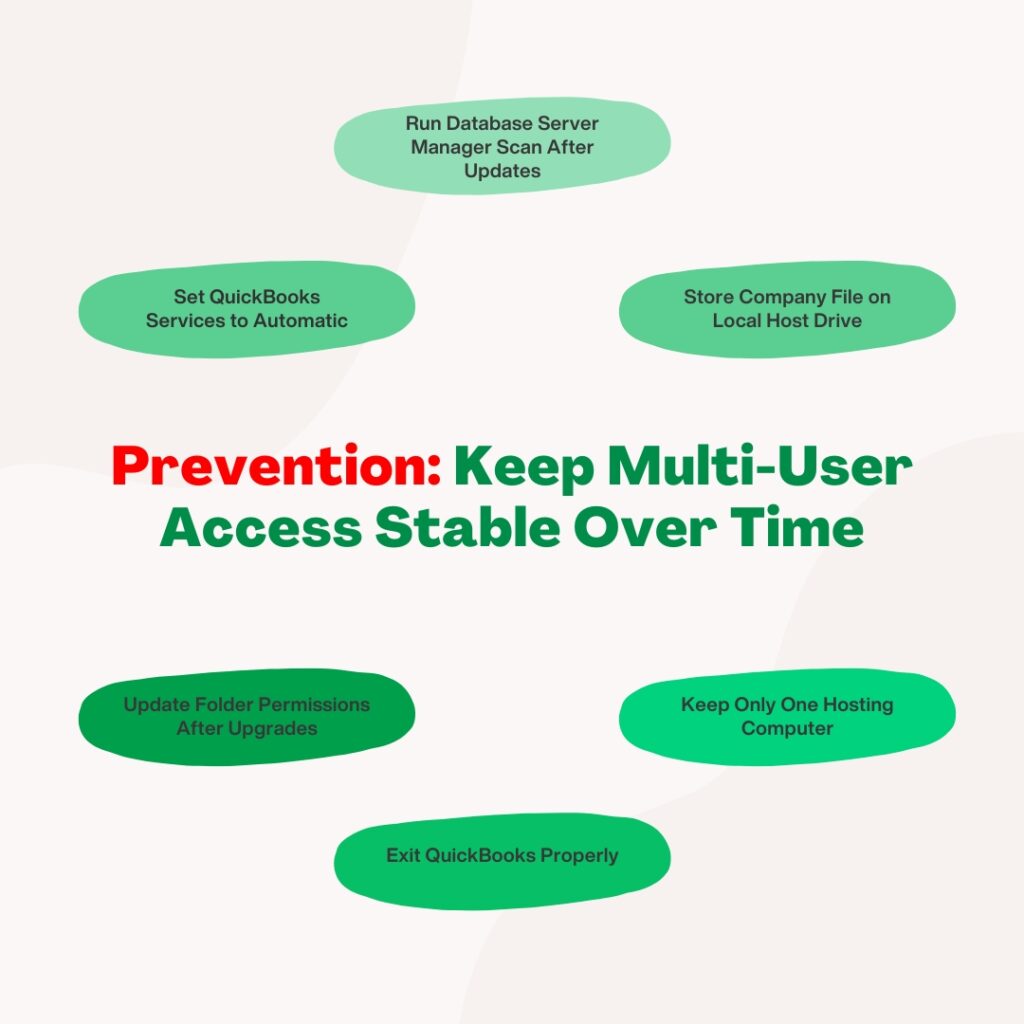
8. Prevention: Keep Multi-User Access Stable Over Time
Multi-user errors are almost always preventable. The conditions that cause them — a stale .ND file, incorrect hosting, insufficient folder permissions, or services that stop after a reboot — do not appear randomly. They follow predictable events: a computer restarts, a version upgrade changes service account names, a folder gets moved, or a session ends abruptly. The steps below eliminate those conditions before they cause an error during work hours.
- Set QuickBooks services to Automatic on the host computer: Open services.msc on the host, find QuickBooksDBXX and QBCFMonitorService, set both to Automatic startup, and configure their Recovery tab to Restart the Service on every failure. This ensures the services survive any unplanned restart or update.
- Run a Database Server Manager scan after every QuickBooks or Windows update: Updates change service account names, file paths, and firewall rules. A scan after each update rebuilds the .ND file with current network information and re-applies the firewall permissions that the update may have cleared.
- Store the company file on the host computer’s local hard drive only: Intuit recommends storing the company file on the local drive of the dedicated host computer. External drives, USB drives, and network-attached storage devices add extra connection points that fail independently of QuickBooks configuration.
- Check and set folder permissions after every QuickBooks version upgrade: Each QuickBooks version uses a different service account name (QBDataServiceUser34 for 2024, QBDataServiceUser33 for 2023, and so on). After an upgrade, grant the new service account Full Control over the folder containing the company file.
- Always exit QuickBooks using File > Exit, not by closing the window: Closing QuickBooks by clicking the X or shutting down Windows without closing the program leaves the .TLG file in an incomplete state. The next user to open the file may see a 6189 or 6190 error because the transaction log does not match the company file.
- Keep only one computer set to host the company file: Open QuickBooks on every workstation, go to File, hover over Utilities, and confirm the menu reads Host Multi-User Access — not Stop Hosting Multi-User Access. Only the computer that stores the company file should show Stop Hosting Multi-User Access.
- Run QuickBooks File Doctor from Tool Hub any time multi-user errors begin: Download QuickBooks Tool Hub from Intuit’s official website. Open it, go to Network Issues, and run QuickBooks File Doctor. The tool diagnoses and repairs the most common multi-user problems — .ND file issues, hosting conflicts, and firewall port blocks — automatically, without requiring manual steps for each issue.
Conclusion
QuickBooks errors when opening a company file in a multi-user environment are not signs of data corruption. They are signs that one specific layer of the multi-user setup broke — a hosting conflict, a damaged .ND file, a mismatched .TLG file, incorrect folder permissions, a stopped service, or a file stuck in single-user mode. Each error code points directly to which layer failed, which is what makes them fixable without specialized technical knowledge.
Intuit’s QuickBooks Tool Hub, available free from Intuit’s official website, resolves the majority of multi-user open errors through its File Doctor and Database Server Manager tools. For errors the tool does not fix automatically — like -6073, -99001 from a read-only folder, or -6000, -83 from a lingering file lock — the step-by-step instructions in each section of this article restore access by addressing the specific cause directly.
The most reliable protection against recurring multi-user errors is a consistent maintenance routine: confirm hosting is active only on the host computer, run a Database Server Manager scan after every update, verify folder permissions after every version upgrade, and always exit QuickBooks correctly before closing or restarting a computer. These four habits eliminate the conditions that produce multi-user errors and keep every workstation connected to the company file through normal business operations.
Frequently Asked Questions
Q1. The company file opens on the host but not on any workstation — where do I start?
This pattern confirms the problem is on the host side. Start by opening QuickBooks Database Server Manager on the host computer, confirming the company file folder is listed, and clicking Start Scan. The scan rebuilds the .ND file and restores firewall permissions. Then confirm hosting is turned on for the host computer by going to File > Utilities > Stop Hosting Multi-User Access — if that option is visible, hosting is correctly active. Check that no workstation shows Stop Hosting Multi-User Access, which would indicate an incorrect hosting conflict.
Q2. What is the fastest way to check whether a .ND file problem is causing the error?
Rename the .ND file to .ND.OLD and immediately run a Database Server Manager scan. Intuit confirms the .ND file is recreated automatically during the scan, causing no data loss. If renaming the .ND file and running the scan resolves the error, the original .ND file contained outdated or incorrect network information. Common triggers for a stale .ND file include a change to the host computer’s IP address, a Windows update that reset the network adapter, or a move of the company file to a different folder.
Q3. Multiple users get ‘Company File in Use’ messages throughout the day — is the network the problem?
Persistent Company File in Use messages across multiple workstations throughout the day indicate a performance issue rather than a configuration error. Intuit specifically lists network issues, database issues, conflicting background programs, and a server that does not meet system requirements as causes for these frequent interruptions. Check that the host computer meets the hardware requirements for your QuickBooks version, that the company file is stored on a wired network connection rather than wireless, and that no unnecessary programs are running on the host computer during business hours.
Q4. Can renaming the .TLG file cause data loss?
Renaming the .TLG file does not cause data loss. Intuit confirms that the Transaction Log file is a helper file that QuickBooks recreates automatically the next time the company file opens. The accounting data is stored in the .QBW company file, not in the .TLG file. Renaming the .TLG file forces QuickBooks to build a fresh, correctly matched transaction log, which resolves the mismatch errors that cause 6189 and 6190. Always create a backup of the company file before renaming either the .ND or .TLG file, as a general precaution.
Q5. We just upgraded QuickBooks to a new version and now multi-user stops working — what changed?
A QuickBooks version upgrade changes the service account name that Database Server Manager uses to access the company file folder. Each version has its own account — for example, QuickBooks 2024 uses QBDataServiceUser34, while QuickBooks 2023 uses QBDataServiceUser33. The new account does not automatically inherit the folder permissions that the previous account had. Open the company file folder’s Properties in Windows Explorer, go to the Security tab, add the new QBDataServiceUserXX account, and grant it Full Control. Run a Database Server Manager scan after updating permissions to rebuild the .ND file and restore multi-user access.

Anusmita is a seasoned content writer who brings perspective to words. As a writer, she enriches her work with a journalistic aptitude, utilising her training in Mass Communication and Journalism. She loves to travel and explore, which imparts a greater sense of understanding, maturity, and experience that are reflected in her content.
Beyond her professional work, Anusmita enjoys painting, singing, dancing, and spending time planting. She is also a self-proclaimed foodie who loves exploring different cuisines, an interest that further adds to her curiosity and perspective as a writer.
Leave a Reply