
QuickBooks Error H202 appears the moment a workstation computer tries to open a company file stored on another computer (the server) and cannot reach it. The exact error message reads: “This company file is on another computer, and QuickBooks needs some help connecting.” Every accounting team member on that workstation loses access to the company file the instant this error appears.
H202 belongs to the H series of QuickBooks errors, and the H series exclusively covers multi-user and network problems. The error does not appear when only one person uses QuickBooks on a single computer — it only shows up when two or more people try to share one company file over a network.
The five documented causes behind H202 are stopped QuickBooks background services, a firewall blocking the network ports QuickBooks uses, a damaged network configuration file (.ND file), an incorrect hosting setup where the wrong computer is in charge of the file, and DNS or network issues that stop workstations from finding the server by name.
This guide covers every cause and every fix in plain steps — no jargon, no filler. Each solution below targets one specific root cause so you can go directly to the one that matches your situation.
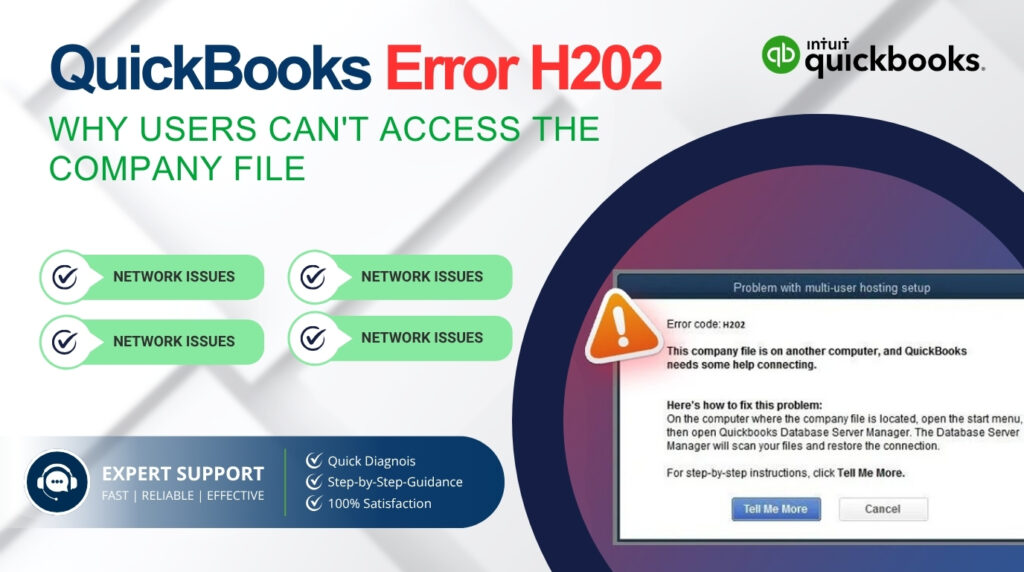
Table of Contents
Find Your Situation in 60 Seconds
Match what you are seeing right now to the table below. Each row points you directly to the correct fix so you do not have to work through every step.
| What You See | What It Means / What to Check |
| H202 on one workstation only | That workstation cannot reach the server — check network cable, Wi-Fi, or DNS |
| H202 on all workstations | QuickBooks services have stopped on the server — check QuickBooksDBXX in Windows Services |
| File opens fine in single-user mode | Firewall is blocking multi-user ports — add port exceptions for QuickBooks |
| H202 after a Windows update | Services were reset to Manual startup — set QuickBooksDBXX back to Automatic |
| H202 after adding a new workstation | New computer is hosting the file by mistake — turn off hosting on the new workstation |
What QuickBooks Error H202 Actually Means?
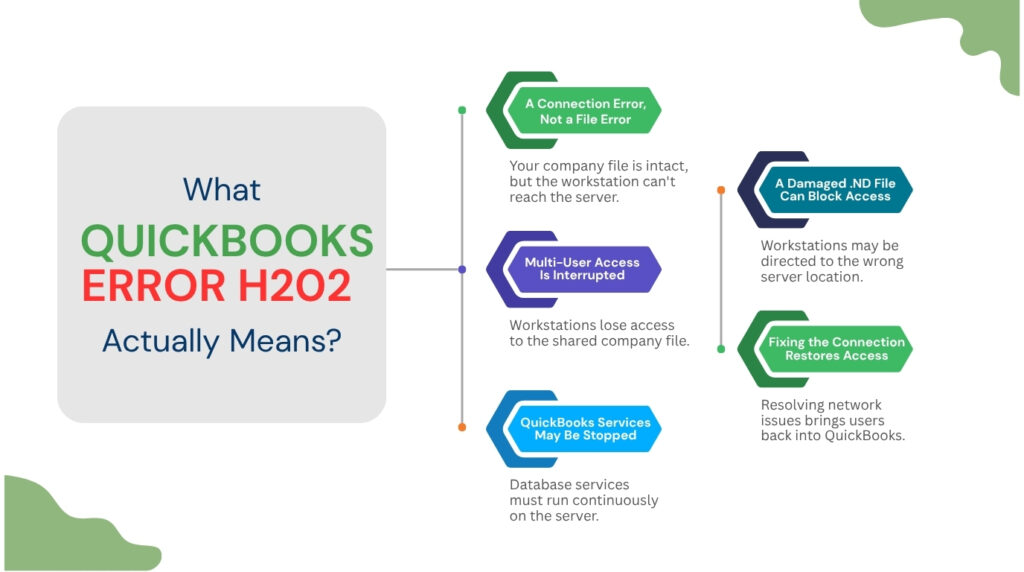
QuickBooks stores all of a business’s accounting data in a single company file with the extension .QBW. In a multi-user office, this file lives on one central computer called the server or host computer, and every other computer (called a workstation) connects to it over the office network. Error H202 means that a workstation tried to reach the server to open that file and the connection was blocked or never established.
QuickBooks uses two background services to keep this multi-user connection alive: QuickBooksDBXX (XX is a number that matches your QuickBooks version — for example, QuickBooksDB34 for QuickBooks 2024) and QBCFMonitorService. QuickBooksDBXX is the database engine that serves the company file to all connected workstations. QBCFMonitorService monitors the connection and keeps it stable. If either service stops running on the server, every workstation gets H202 instantly.
The error also uses a small helper file called the .ND file (Network Descriptor file). This file sits in the same folder as the company file and stores the server’s name and network address. Every workstation reads this file to find where the company file lives on the network. A corrupted or outdated .ND file sends workstations to the wrong address, and H202 follows.
H202 is not a company file error — the accounting data inside the .QBW file is not damaged when this error appears. H202 is a connection error, which means fixing the connection restores full access without touching or risking the financial data.
Root Causes of QuickBooks Error H202 at a Glance
| Root Cause | What Breaks | Fix Section |
| QuickBooksDBXX stopped | Workstations cannot reach the company file | Fix 1 – Restart QuickBooks Services |
| Firewall blocking ports | Multi-user connection is cut before it starts | Fix 2 – Configure Firewall |
| Damaged .ND file | Workstations cannot locate the company file on the network | Fix 3 – Run QuickBooks File Doctor |
| Wrong hosting setup | Multiple computers fight for control of the file | Fix 4 – Correct Hosting Settings |
| DNS / network failure | Workstations cannot find the server by name | Fix 5 – Test and Fix Network |
| Missing folder permissions | QuickBooks services cannot read or write the file | Fix 6 – Set Folder Permissions |
How to Fix QuickBooks Error H202 – Step-by-Step?
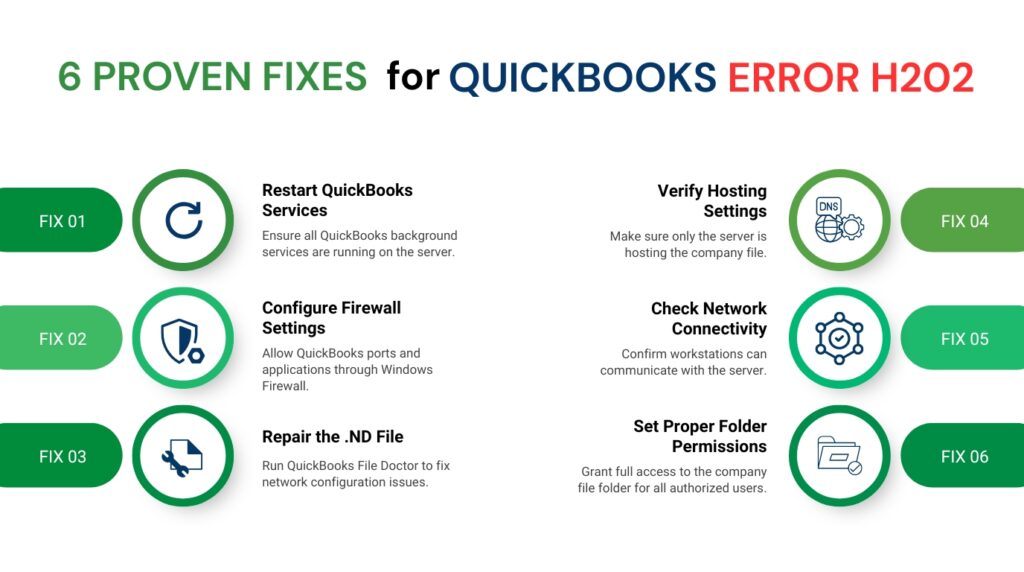
Work through the fixes below in order. Each fix is self-contained and takes only a few minutes. Start with Fix 1 because stopped QuickBooks services are the most frequent cause of H202.
Fix 1: Restart the QuickBooks Background Services on the Server
QuickBooks uses two Windows services that must run continuously on the server: QuickBooksDBXX (the database engine) and QBCFMonitorService (the connection monitor). Windows sometimes stops these services automatically after a system update or a server restart. When either service is stopped, no workstation can connect to the company file, and H202 appears on every machine.
Do this on the server computer only — not on the workstations. Open the Windows Start menu, type Run in the search bar, and open the Run window. Type services.msc and press Enter. The Windows Services list opens. Scroll down and find QuickBooksDBXX — the XX matches your QuickBooks version plus 10 (QuickBooks 2024 uses QuickBooksDB34, QuickBooks 2025 uses QuickBooksDB35, QuickBooks 2026 uses QuickBooksDB36). Double-click it to open its settings.
Set Startup Type to Automatic. Check the Service Status field — it must show Running or Started. If it shows Stopped, click the Start button. Now click the Recovery tab. Set all three dropdown menus (First failure, Second failure, Subsequent failures) to Restart the Service. This setting makes Windows automatically restart the service if it ever stops unexpectedly, which prevents H202 from coming back after the next server reboot. Click Apply and then OK.
Repeat these same steps for QBCFMonitorService. Once both services are running, go to each workstation, open QuickBooks, and go to File > Switch to Multi-User Mode. If the error is gone, the stopped services were the cause. If H202 still appears, move to Fix 2.
Fix 2: Configure Firewall to Allow QuickBooks Through
The Windows Firewall and third-party antivirus programs monitor all network traffic and block connections they do not recognize. QuickBooks communicates over specific numbered ports (ports are like designated channels for different types of network traffic) between the server and the workstations. When the firewall on the server blocks these ports, the workstations cannot get through to the company file — and H202 appears even though the services are running fine.
On the server computer, open the Windows Start menu and search for Windows Defender Firewall with Advanced Security. Click Inbound Rules in the left panel, then click New Rule on the right. Select Port, then click Next. Choose TCP and enter the port numbers for your QuickBooks version. According to Intuit’s published port documentation: QuickBooks 2019 and newer use port 8019 plus a dynamic port automatically assigned by the Database Server Manager — open the Database Server Manager on your server, click the Port Monitor tab, and note the exact port number shown for your version. For QuickBooks 2024 and 2025, the static firewall ports are 8019, 56728, and 55378–55382.
Select Allow the Connection, click Next twice, give the rule a name like “QBPorts”, and click Finish. Now repeat the exact same steps under Outbound Rules so QuickBooks can both send and receive data through the firewall. After adding both rules, also add program exceptions: allow QBW32.exe, QBDBMgrN.exe, and QBCFMonitorService.exe through the firewall by creating Program rules pointing to those files in the QuickBooks installation folder. If a third-party antivirus is installed, temporarily disable it on the server for 5 minutes and test multi-user mode — if H202 disappears, the antivirus needs a QuickBooks exception added.
Fix 3: Run QuickBooks File Doctor to Repair the .ND File
The .ND file (Network Descriptor file) is a small file that QuickBooks automatically creates alongside every company file. Its sole job is to store the server’s name and network location so that workstations know exactly where to find the company file on the network. When this file gets corrupted — which happens after an abrupt server shutdown, a failed QuickBooks update, or a power outage — workstations read the wrong address and cannot connect. H202 is the result.
The fastest way to repair a damaged .ND file is to use QuickBooks File Doctor, which is Intuit’s official repair tool built into the QuickBooks Tool Hub. Download the QuickBooks Tool Hub from Intuit’s official website (search “QuickBooks Tool Hub download” on intuit.com). Install it on the server computer. Open the Tool Hub and click Company File Issues. Click Run QuickBooks File Doctor.
Select your company file from the dropdown list or browse to it manually. Choose Check your file and network, enter your QuickBooks admin password when asked, and click Continue. File Doctor scans the .ND file, detects corruption, and writes a fresh, accurate .ND file automatically. The scan takes 5–15 minutes depending on file size. When it finishes, open QuickBooks on each workstation and test multi-user mode.
You can also delete the .ND file manually and let QuickBooks recreate it — go to the folder where the company file is stored, find the file with the same name as the company file but with the extension .ND (example: CompanyName.ND), and delete it. The next time QuickBooks Database Server Manager scans that folder, it automatically creates a fresh .ND file. Manual deletion is safe because this file contains only network configuration data, not accounting data.
Fix 4: Correct the Hosting Configuration
In a multi-user QuickBooks setup, exactly one computer should be set to host the company file — the server. Every other computer (the workstations) must have hosting turned off. Hosting is a QuickBooks setting that declares: “I am the computer responsible for serving this file to everyone else.” When more than one computer has hosting turned on, they conflict with each other for control of the file, and H202 appears on the workstations that are not winning the conflict.
Check every workstation in the office. On each workstation, open QuickBooks and go to the top menu: File > Utilities. Look at the list of options. If the option reads Stop Hosting Multi-User Access, that means hosting is currently turned on for that workstation — click it to turn hosting off. If the option reads Host Multi-User Access, hosting is already off on that computer — leave it alone. Repeat this check on every workstation.
On the server computer, go to File > Utilities and confirm the option reads Stop Hosting Multi-User Access, which means hosting is currently active on that machine. The server is the only computer that should show this. If the server shows Host Multi-User Access, hosting is off on the server — click it to turn hosting on. After correcting hosting on all computers, test multi-user mode from each workstation.
Fix 5: Test the Network Connection Between Workstation and Server
Every workstation that shows H202 needs to be able to reach the server by name over the network. Workstations use the server’s computer name (not its IP address) to find the company file, because QuickBooks relies on a network name-resolution system called DNS to translate that computer name into a network address. When DNS is not working correctly, or when the workstation cannot physically reach the server, H202 appears even though the services and firewall are correctly configured.
Test the connection from any workstation showing H202. Open the Windows Start menu, search for Command Prompt, and open it. Type ping [ServerName] — replace [ServerName] with the actual name of your server computer (you can find the server’s name by right-clicking on Computer/This PC on the server and selecting Properties) — and press Enter. If you see four lines of “Reply from” responses, the workstation can reach the server. If you see “Request timed out” or “Destination host unreachable,” the network connection itself is broken.
A broken network connection (no ping response) means checking the physical network cable on the workstation, confirming both computers are on the same network, and ensuring Network Discovery is turned on. On the server, go to Settings > Network and Internet > Sharing Options and confirm that Turn on Network Discovery and Turn on File and Printer Sharing are both selected. On a workstation that pings successfully but still shows H202, the issue is services, firewall, or hosting — not the network itself.
Fix 6: Set Correct Folder Permissions for the Company File
QuickBooks Database Server Manager — the program that serves the company file to all workstations — runs as a Windows service account, not as a regular user. For it to open, read, and write to the company file, it needs Full Control permission over the folder where the company file is stored. If that folder is locked down to only specific user accounts, the Database Server Manager cannot access the file, and the workstations receive H202 even though all services are running correctly.
On the server computer, open File Explorer and navigate to the folder that contains the company file. The default location is C:\Users\Public\Documents\Intuit\QuickBooks\Company Files. Right-click the folder and select Properties. Click the Security tab. Click Edit to change permissions. In the list of users and groups, look for QBDataServiceUserXX (where XX matches your QuickBooks version number). If it is not listed, click Add, type QBDataServiceUserXX, and click OK. Select that user from the list and check the Full Control checkbox under Allow. Click Apply and OK.
After setting permissions, also share the folder so it is accessible over the network. Right-click the folder, select Properties, go to the Sharing tab, and click Advanced Sharing. Check Share this folder, name the share, click Permissions, and give the QBDataServiceUserXX account Full Control. Click Apply and OK on all open windows. Open QuickBooks on each workstation and test multi-user mode.
After Applying Any Fixing Steps: Verify the Fix on Every Workstation
After applying any fix, test multi-user mode on all workstations — not just the one where you noticed the error. Open QuickBooks on each workstation, go to File, and click Switch to Multi-User Mode. If QuickBooks switches without showing H202, the fix worked on that machine. If one specific workstation still shows the error while others work fine, that workstation has a local problem — check its network connection, confirm hosting is off on it, and confirm it can ping the server by name.
Intuit’s support documentation confirms that H202 can affect individual workstations or all workstations depending on the root cause. All workstations failing at once points to a server-side problem — stopped services, firewall, or hosting configuration. One workstation failing while others work points to a problem with that specific machine’s network connection or local settings.
QuickBooks Prevention: Stop H202 from Coming Back
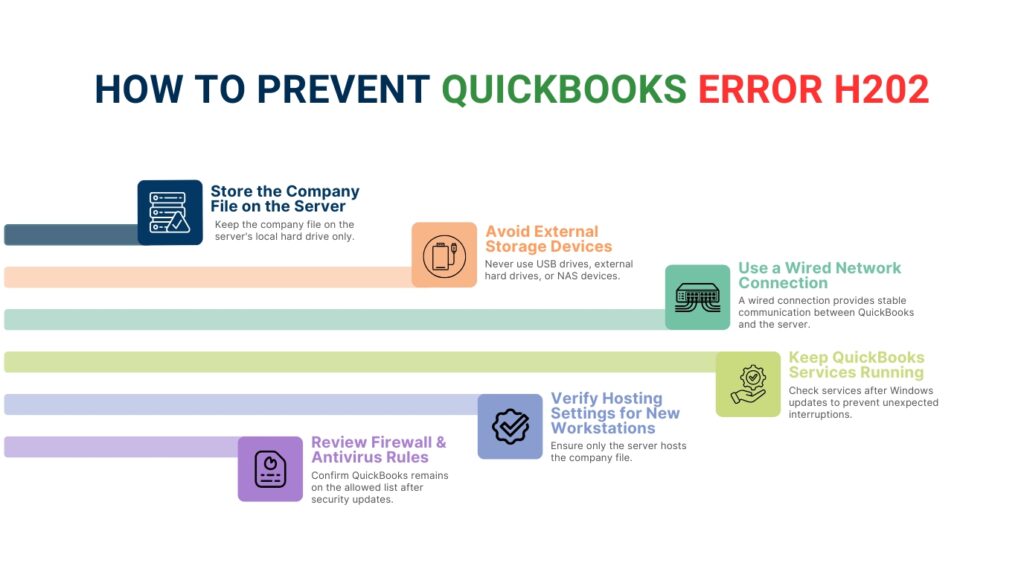
H202 is a recurring error for offices that do not address the underlying conditions that cause it. Three situations trigger it repeatedly: Windows updates that reset service startup types, new workstations added to the network without turning off hosting, and antivirus software updates that add QuickBooks back to the block list. The table below covers exactly when to act and what to do.
| When | Action |
| After every Windows update | Open Services and confirm QuickBooksDBXX is still set to Automatic |
| After adding a new computer | Go to Utilities > Stop Hosting Multi-User Access on the new machine immediately |
| Monthly | Run QuickBooks File Doctor from the Tool Hub to check .ND file health |
| When updating QuickBooks | Update Database Server Manager on the server to match the new QuickBooks version |
| When changing antivirus | Re-add QuickBooks ports and executable files to the new software’s exception list |
Store the company file on the server’s local hard drive — never on a USB drive, external hard drive, or network-attached storage device. QuickBooks requires a direct, stable connection to the file it is serving. External and removable storage devices disconnect briefly and interrupt QuickBooks’ ability to write data, which damages the .ND file and triggers H202 repeatedly.
Use a wired network connection on the server. Wireless connections experience signal drops that are too short for a person to notice but long enough to disconnect the QuickBooks Database Server Manager from the file it is serving. A wired connection eliminates this source of recurring H202 errors entirely.
What Happens If You Leave QuickBooks Error H202 Unresolved?
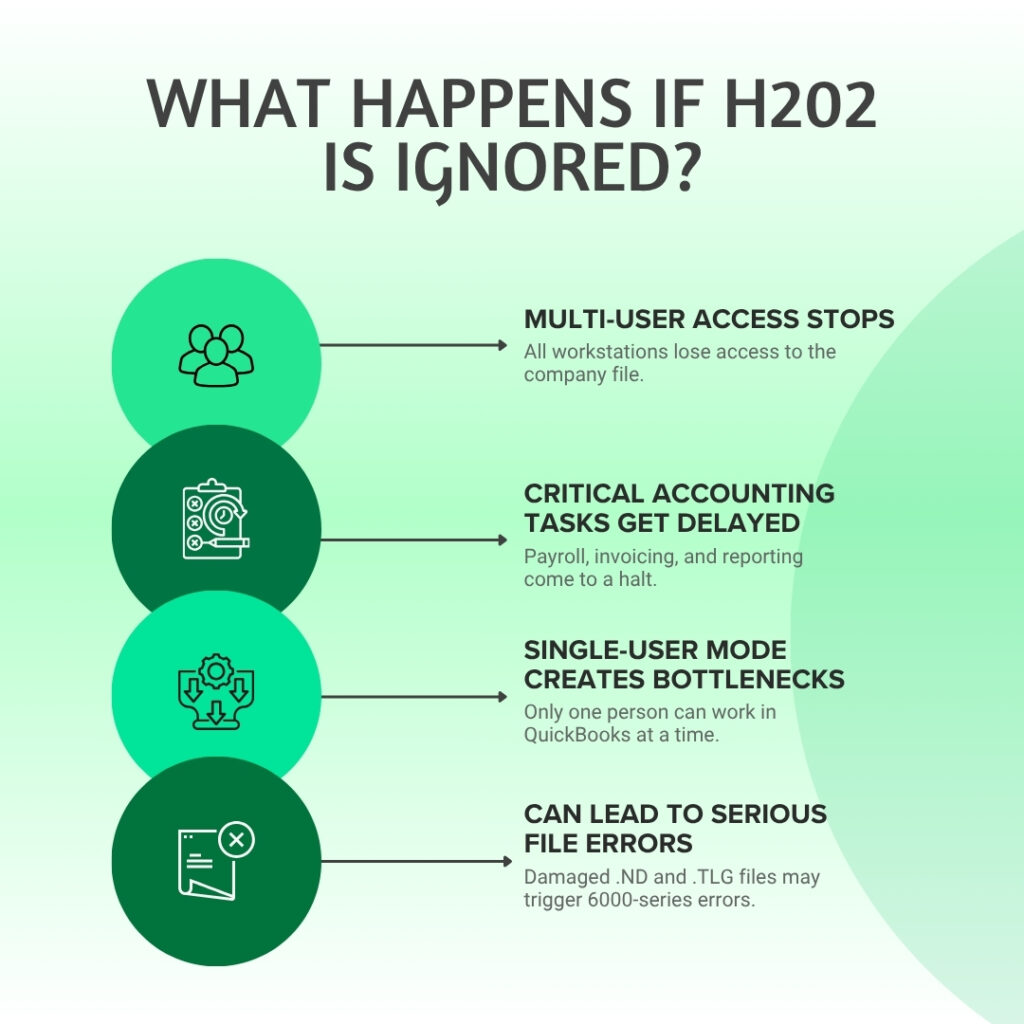
H202 locks all workstations out of the company file while the server computer can still open it locally. Every person on the accounting team — accounts payable, accounts receivable, payroll staff — loses access at the same time. Any deadline-driven task, including payroll runs, vendor payments, customer invoicing, and month-end reporting, stops completely until the connection is restored.
Repeated H202 errors that users work around by switching to single-user mode create a different risk. Single-user mode means only one person can work in QuickBooks at a time, which forces staff to take turns, creates a bottleneck during busy periods, and increases the chance of data entry errors caused by rushing.
Forcing QuickBooks closed while the connection error is active — by using Task Manager’s End Task option or simply shutting off the computer — interrupts the QuickBooks Database Server Manager while it is actively managing the company file. This does not damage the accounting data inside the .QBW file directly, but it leaves the .ND and .TLG (Transaction Log) files in an unfinished state. A damaged .TLG file is one of the root causes of the more serious 6000 series errors that stop the company file from opening at all.
Conclusion
QuickBooks Error H202 is a multi-user connection problem with five documented root causes — stopped background services, blocked firewall ports, a damaged .ND file, an incorrect hosting setup, and network or DNS failures. Each cause has a direct fix that takes 5–15 minutes when applied to the right component.
Intuit’s QuickBooks Tool Hub handles the most common H202 causes automatically: File Doctor repairs .ND files, and the Network Issues tab restarts the Database Server Manager. Running the Tool Hub first before manual steps often resolves H202 in under 10 minutes without touching firewall or Windows settings manually.
The offices that rarely see H202 again after fixing it are the ones that set QuickBooks services to Automatic restart in Windows Services, keep the Database Server Manager updated every time QuickBooks is updated, and check hosting settings whenever a new computer joins the network. These three actions eliminate the three most common sources of recurring H202 and keep every workstation connected and productive.
Frequently Asked Questions
1. Does H202 mean my company file is damaged or data is lost?
H202 is a connection error, not a data error. The company file and all accounting data inside it are intact. H202 means the workstation cannot reach the file — it does not mean the file itself has a problem. Fixing the connection restores access without any risk to the data.
2. Why does H202 appear only on some workstations but not others?
When H202 appears on specific workstations while others connect fine, the problem is local to those machines. The most common causes are: that workstation accidentally has hosting turned on (check File > Utilities > Stop Hosting Multi-User Access), a firewall or antivirus on that specific machine is blocking QuickBooks, or that machine cannot reach the server by name over the network (test with a ping command from Command Prompt).
3. H202 came back after a Windows update. Why?
Windows updates occasionally reset Windows Service startup settings back to Manual, stopping QuickBooks services from starting automatically at reboot. After every major Windows update on the server, open services.msc, find QuickBooksDBXX and QBCFMonitorService, and confirm both are set to Automatic startup. This takes under two minutes and prevents H202 from returning after updates.
4. Can I just use single-user mode to avoid H202?
Single-user mode avoids H202 by removing the network connection entirely — only one person can use QuickBooks at a time. For a team of two or more people who need to enter transactions simultaneously, single-user mode is not a workable long-term solution. It creates a bottleneck where staff must take turns, slows down operations during busy periods, and does not address the underlying problem that will continue to worsen.
5. I ran QuickBooks File Doctor and H202 still appears. What next?
File Doctor addresses .ND file corruption and basic network connectivity. If H202 continues after running File Doctor, work through Fix 1 (check QuickBooks services), Fix 4 (verify hosting is on the server only and off all workstations), and Fix 2 (add firewall port exceptions). If all six fixes have been applied and H202 persists, the problem is likely a deeper network infrastructure issue — an IT professional who can inspect the server’s network configuration, DNS settings, and Windows permissions is the right next step.

Anusmita is a seasoned content writer who brings perspective to words. As a writer, she enriches her work with a journalistic aptitude, utilising her training in Mass Communication and Journalism. She loves to travel and explore, which imparts a greater sense of understanding, maturity, and experience that are reflected in her content.
Beyond her professional work, Anusmita enjoys painting, singing, dancing, and spending time planting. She is also a self-proclaimed foodie who loves exploring different cuisines, an interest that further adds to her curiosity and perspective as a writer.
Leave a Reply