
QuickBooks multi-user mode stops working after a firewall update because the update resets or overwrites the rules that allowed QuickBooks to send and receive data across the office network. Multi-user mode works by sending accounting data between workstations and the server computer over specific numbered network channels called ports. A firewall update that clears these rules closes every one of those channels instantly, and every workstation loses access to the company file at the same moment.
This problem affects all versions of QuickBooks Desktop — Pro, Premier, and Enterprise. It happens after Windows Defender Firewall updates, third-party antivirus updates, and full Windows security updates that include firewall component changes. The error messages workstations receive after the block are H202, H101, H303, or H505 — all four are network connection errors that appear when the firewall cuts the path between the workstation and the company file on the server.
Turning the firewall off entirely is not a safe or permanent fix. QuickBooks can connect immediately when the firewall is completely disabled, and many offices test this as a confirmation step — but a disabled firewall leaves the server and all company data exposed to every other device on the network. The correct fix is to re-add the specific QuickBooks port and program rules that the update removed, so QuickBooks gets through the firewall without the firewall being switched off.
This guide covers every step needed to restore multi-user access after a firewall update — from running Intuit’s automatic repair tool to manually re-entering every port and program exception by version, plus the exact program files that need individual firewall exceptions on the server.
Table of Contents
Diagnose Your Situation Before Starting
Match what you are seeing right now to the table below. This step saves significant time because the correct fix depends on exactly what the firewall update changed on your specific setup.
| What You See After the Update | What It Means | First Step |
| H202, H101, H303, or H505 errors on all workstations | Firewall blocked QuickBooks ports or stopped QuickBooks services | Fix 1 – Run QuickBooks File Doctor on the server |
| Multi-user mode fails on some workstations, works on others | Local firewall or antivirus on specific machines is blocking QuickBooks | Fix 2 – Check firewall on each affected workstation individually |
| QuickBooks works fine after disabling the firewall temporarily | Firewall is confirmed as the block – rules were wiped by the update | Fix 3 – Re-add port and program rules to Windows Firewall manually |
| QuickBooks still fails even after re-entering firewall rules | Third-party antivirus added its own block on top of Windows Firewall | Fix 4 – Add QuickBooks exceptions to the antivirus program separately |
| Multi-user mode worked before the update, fails immediately after | Windows update reset QuickBooks services to Manual startup | Fix 5 – Restart QuickBooks services and set them to Automatic |
Why a Firewall Update Breaks QuickBooks Multi-User Mode?
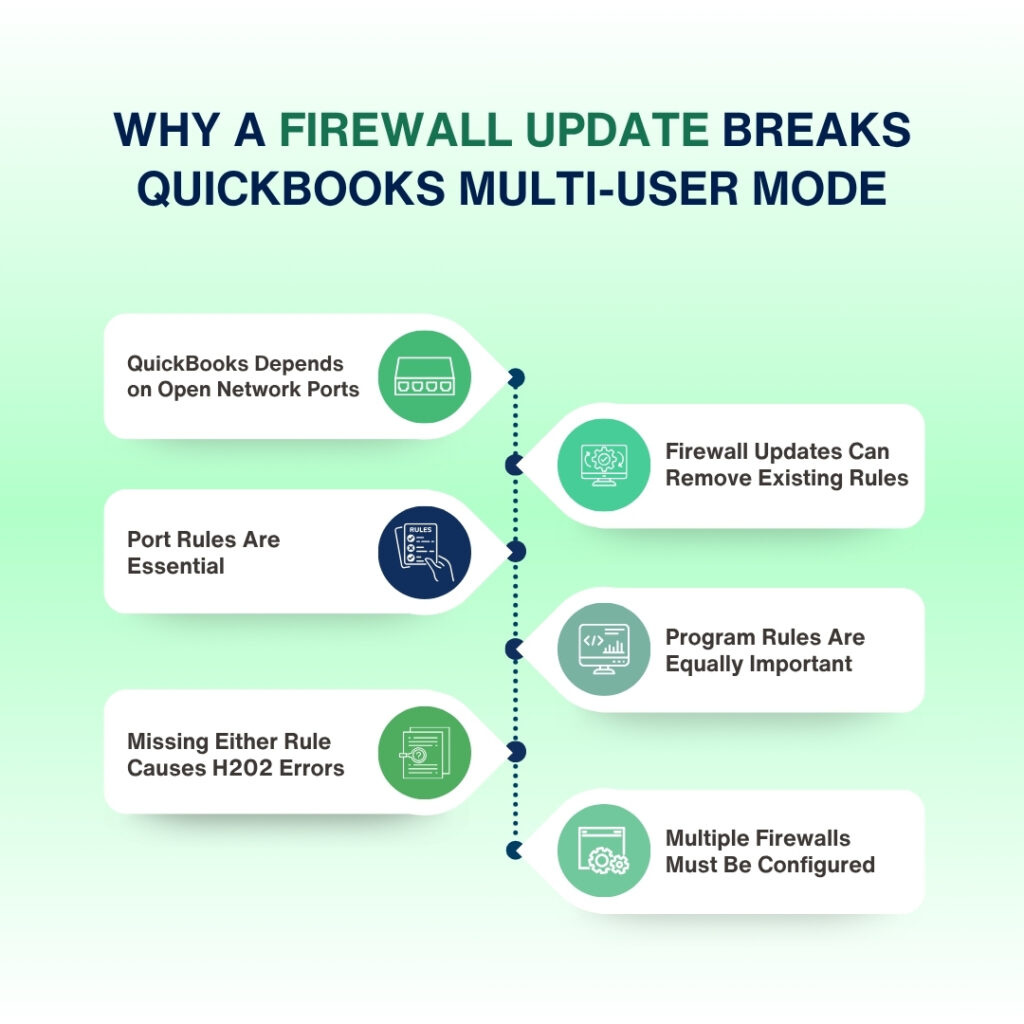
QuickBooks multi-user mode requires a continuous, open channel between the server and every workstation in the office. The server computer runs a program called the QuickBooks Database Server Manager, which is the engine that serves the company file to all connected workstations. This program communicates over specific numbered TCP ports — TCP stands for Transmission Control Protocol, which is the standard method computers use to send reliable data packets to each other over a network.
A firewall is a security program that monitors all network traffic coming into and going out of a computer. It blocks any traffic on ports that do not have an approved rule. Before a firewall update, QuickBooks had approved rules — called inbound and outbound rules — that told the firewall: “Traffic on these specific ports belongs to QuickBooks, allow it through.” A firewall update can delete all existing rules, reset them to factory defaults, or install a new rule set that does not include the QuickBooks exceptions. All three outcomes have the same result: QuickBooks traffic gets blocked and multi-user mode fails.
QuickBooks uses two types of firewall rules: port rules and program rules. Port rules allow traffic on specific numbered channels. Program rules allow specific QuickBooks program files to send and receive data regardless of which port they use at a given moment. Both types are required. A firewall update that clears either type of rule breaks multi-user mode, even if the other type of rule is still present.
Windows Defender Firewall and third-party antivirus programs with built-in firewalls operate independently. An update to Windows Defender Firewall does not automatically update the rules in a third-party antivirus firewall, and vice versa. Both firewalls must have QuickBooks exceptions — a gap in either one blocks multi-user connections even if the other firewall is correctly configured.
What QuickBooks Requires from the Firewall to Run in Multi-User Mode?
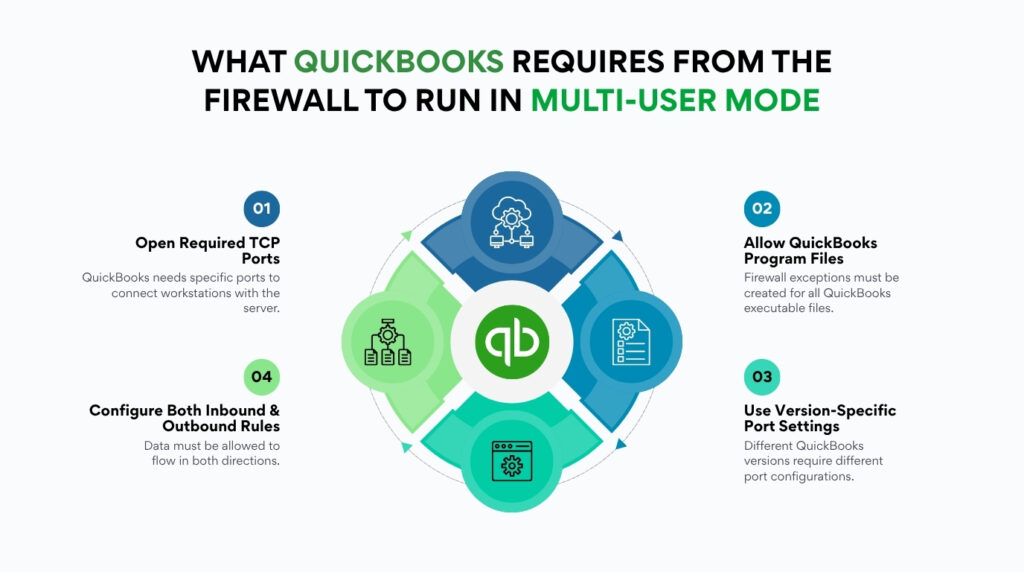
QuickBooks Desktop needs three things from the firewall on the server computer: open TCP ports for the version of QuickBooks in use, program exceptions for seven specific QuickBooks executable files (executable files are the programs that actually run QuickBooks and its services), and the same set of rules applied to both inbound traffic (data coming into the server from workstations) and outbound traffic (data the server sends back to workstations). Missing any one of these three requirements blocks multi-user connections.
Port 8019 is the primary port QuickBooks uses for all versions from 2017 onward. This port handles the initial connection request from a workstation to the server. QuickBooks 2019 and later also use a second dynamic port — a port number that QuickBooks assigns automatically during installation and that stays fixed for that installation. The exact dynamic port number for any given installation is visible in the QuickBooks Database Server Manager under the Port Monitor tab on the server.
QuickBooks 2018 and earlier versions use fixed secondary port ranges rather than a dynamic port. Each version has its own fixed range, and those ranges never change between installations of the same version. The firewall rules must include the complete range — not just the starting number — for the version of QuickBooks installed on the server.
QuickBooks Firewall Port Numbers by Version
Use the table below to find the correct port numbers for the version of QuickBooks Desktop installed on the server. For QuickBooks 2019 and later, open the QuickBooks Database Server Manager on the server and click the Port Monitor tab to find the exact dynamic port number assigned to your installation — the table shows the static port that applies to all installations plus the range where the dynamic port will fall.
| QuickBooks Version | TCP Ports to Open in Windows Firewall (Inbound and Outbound) |
| QuickBooks 2024 | 8019, 55378–55382 (confirm dynamic port in Database Server Manager > Port Monitor tab) |
| QuickBooks 2023 | 8019, 55373–55377 (confirm dynamic port in Database Server Manager > Port Monitor tab) |
| QuickBooks 2022 | 8019, 55368–55372 (confirm dynamic port in Database Server Manager > Port Monitor tab) |
| QuickBooks 2021 | 8019, 55363–55367 (confirm dynamic port in Database Server Manager > Port Monitor tab) |
| QuickBooks 2018 | 8019, 56728, 55378–55382 |
| QuickBooks 2017 | 8019, 56727, 55373–55377 |
How to Fix QuickBooks Multi-User Mode After a Firewall Update – Step by Step
Fix 1: Run QuickBooks File Doctor First (Fastest Starting Point)
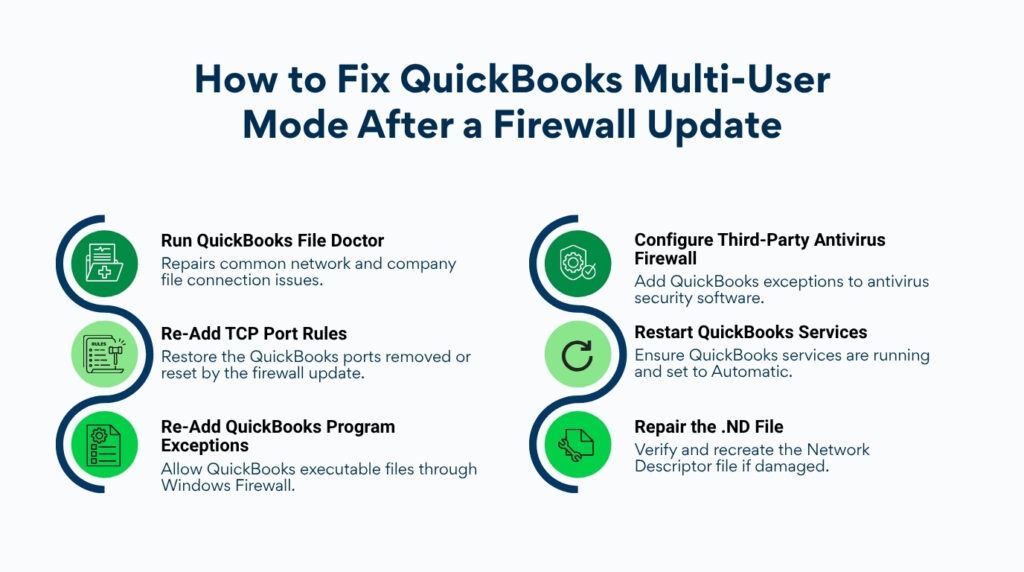
QuickBooks File Doctor is Intuit’s official repair tool, available inside the QuickBooks Tool Hub. It automatically scans the firewall configuration on the server, identifies which QuickBooks rules are missing, and attempts to repair them without manual entry of port numbers or program paths. Running File Doctor first resolves the firewall block in many cases within 10 minutes and without requiring any manual firewall configuration.
Download the QuickBooks Tool Hub from Intuit’s official website at intuit.com and install it on the server computer. Open the Tool Hub and click Network Issues. Click QuickBooks Database Server Manager. In the Database Server Manager, click Scan Folders, add the folder where the company file is stored, and click Scan Now. According to Intuit’s documentation, the Database Server Manager scan repairs firewall permissions automatically as part of the scan process.
After the scan finishes, click Close in the Database Server Manager. Go back to the Tool Hub and click Company File Issues. Click Run QuickBooks File Doctor. Select the company file, choose Check your Network, and click Continue. File Doctor runs a separate network scan that checks connectivity and firewall settings between the server and workstations. After both scans complete, go to each workstation and test multi-user mode by going to File > Switch to Multi-User Mode.
File Doctor does not fix every firewall update scenario. It repairs rules that are damaged or partially missing but cannot add rules that the update deleted completely. If multi-user mode still fails after File Doctor, the firewall rules need to be re-entered manually using the steps in Fix 2 and Fix 3 below.
Fix 2: Re-Add TCP Port Rules to Windows Firewall on the Server
Port rules are the foundation of QuickBooks firewall configuration. Each port rule tells Windows Firewall: “Allow network traffic on this specific port number to pass through to QuickBooks.” A firewall update that wipes the rule set removes these permissions, and no workstation can connect to the server over those ports until the rules are re-added. This step must be done on the server computer — the machine where the company file is stored and the Database Server Manager is running.
On the server, open the Windows Start menu and type Windows Defender Firewall with Advanced Security. Open it. Click Inbound Rules in the left panel, then click New Rule on the right side. Select Port as the rule type and click Next. Make sure TCP is selected. In the field labeled Specific local ports, enter the port numbers for your QuickBooks version from the port table above. For QuickBooks 2024, enter: 8019, 55378-55382. Also open the Database Server Manager, go to the Port Monitor tab, note the dynamic port number for your version, and add that number to the list as well.
Click Next, select Allow the Connection, and click Next again. On the profile screen, check all three boxes: Domain, Private, and Public. Click Next, name the rule QuickBooks Ports [Year], and click Finish. The inbound rule is now active. Now repeat every step above by clicking Outbound Rules instead of Inbound Rules at the start. The outbound rule lets the server send responses back to workstations. Both the inbound and outbound rules are required — having only one direction covered still blocks multi-user connections.
After adding both rules, go to the workstations and test multi-user mode. If some workstations still fail, those machines have a local firewall blocking the connection on their end. Repeat the same port rule steps on each affected workstation, using the same port numbers. Workstation firewalls block outgoing connection attempts to the server, so the port rules on the workstation are outbound rules that allow the workstation to reach the server.
Fix 3: Re-Add Program Exceptions for QuickBooks Executable Files
Program exceptions tell the firewall: “This specific program file is trusted — allow all network traffic it sends or receives, on any port.” QuickBooks runs multiple background programs on the server, each handling a different part of the multi-user connection. Port rules alone are not enough if the firewall is also blocking the programs that use those ports. According to Intuit’s published firewall documentation, seven program files need individual firewall exceptions on the server.
On the server, open Windows Defender Firewall with Advanced Security. Click Inbound Rules, then New Rule. Select Program as the rule type and click Next. Select This Program Path and click Browse. Navigate to the location of the first file from the program exceptions table above. Select the file and click Open, then click Next. Select Allow the Connection, click Next, check all three profile boxes (Domain, Private, Public), click Next, name the rule using the file name (example: QBFirewallException_QBDBMgrN), and click Finish.
Repeat these steps for every file in the program exceptions table. Each file gets its own rule — one rule per file, each named distinctly so you can identify and manage them individually later. After all inbound program rules are created, click Outbound Rules and repeat the entire process for every file. All seven files need both an inbound and outbound program exception. This produces 14 program rules in total, in addition to the port rules from Fix 2.
QuickBooks Program Files That Need Individual Firewall Exceptions
The table below lists every QuickBooks program file that needs a firewall exception on the server, along with the default folder location. The XX in the folder path is replaced with the QuickBooks version year — for example, QuickBooks 2024 files are in a folder named QuickBooks 2024. If the path on your server shows Program Files (x86) instead of Program Files, use the (x86) path — this simply means the server is running a 64-bit version of Windows.
| File Name | Default Location on the Server (XX = QuickBooks version year) |
| QBDBMgrN.exe | C:\Program Files\Intuit\QuickBooks 20XX\ |
| QBCFMonitorService.exe | C:\Program Files\Common Files\Intuit\QuickBooks\ |
| QBW32.exe | C:\Program Files\Intuit\QuickBooks 20XX\ |
| AutoBackupExe.exe | C:\Program Files\Intuit\QuickBooks 20XX\ |
| DBManagerExe.exe | C:\Program Files\Intuit\QuickBooks 20XX\ |
| FileManagement.exe | C:\Program Files\Intuit\QuickBooks 20XX\ |
| IntuitSyncManager.exe | C:\Program Files\Common Files\Intuit\Sync\ |
Fix 4: Add QuickBooks Exceptions to Third-Party Antivirus Software
Third-party antivirus programs — software like Norton, McAfee, Bitdefender, Kaspersky, Avast, and others — include their own firewall engines that run independently of Windows Defender Firewall. Adding rules to Windows Firewall has no effect on a third-party antivirus firewall. The antivirus must receive its own set of QuickBooks exceptions. According to Intuit’s documentation, Intuit cannot provide specific configuration steps for third-party antivirus programs because each product has a different interface and rule system — the configuration must be done through each product’s own settings.
The fastest way to confirm whether the antivirus is the block is to temporarily disable the antivirus on the server for five minutes and test multi-user mode from a workstation. Keep Windows Defender Firewall active during this test. If multi-user mode works with the antivirus disabled but Windows Firewall still on, the antivirus is confirmed as the source of the block. Re-enable the antivirus immediately after the test — do not leave it disabled.
Open the antivirus program’s settings and look for a Firewall, Network Protection, or Application Control section. Add the same seven QuickBooks executable files from the program exceptions table as trusted programs or exclusions. Also add the QuickBooks installation folder (C:\Program Files\Intuit\QuickBooks 20XX\) and the company file folder as directory exclusions. Add the same TCP port numbers from the port reference table to the antivirus firewall’s port exception list. After saving all changes, test multi-user mode from each workstation.
Fix 5: Restart QuickBooks Services That the Update Reset to Manual
Windows updates frequently reset the startup type of background services from Automatic to Manual. A service set to Manual startup does not start when the server boots — it only starts when a user or program explicitly requests it. QuickBooks uses two background services on the server that must start automatically at every boot: QuickBooksDBXX (where XX matches the QuickBooks version number plus 10 — QuickBooks 2024 uses QuickBooksDB34, QuickBooks 2025 uses QuickBooksDB35) and QBCFMonitorService. Both services must run continuously for multi-user mode to work.
On the server, open the Windows Start menu, type Run, open the Run window, type services.msc, and press Enter. The Windows Services list opens. Scroll to QuickBooksDBXX and double-click it. Check the Startup Type field. If it shows Manual or Disabled, change it to Automatic. Check the Service Status field — if it shows Stopped, click Start. Click the Recovery tab, set all three dropdowns (First failure, Second failure, Subsequent failures) to Restart the Service, and click Apply and OK. This setting makes Windows automatically restart the service if it stops unexpectedly for any reason.
Repeat every step above for QBCFMonitorService. After both services show Running status and Automatic startup type, go to each workstation and test multi-user mode. Services that were reset to Manual by a Windows update will reset again after the next Windows update unless the Recovery tab is configured to restart them automatically — setting that Recovery option now prevents the problem from returning after every future update.
Fix 6: Verify the .ND File Was Not Corrupted During the Update
The .ND file (Network Descriptor file) is a small configuration file that QuickBooks creates alongside the company file. It stores the server’s name and network address so that workstations know exactly where to find the company file on the network. A firewall update that temporarily interrupts the QuickBooks Database Server Manager while it is running can leave the .ND file in a corrupted state. A corrupted .ND file sends workstations to a wrong or blank address, and the connection fails before it even reaches the firewall.
Check the .ND file by navigating to the company file folder on the server — the default location is C:\Users\Public\Documents\Intuit\QuickBooks\Company Files. Look for a file with the same name as the company file but with the extension .ND, for example CompanyName.ND. Delete this file. The QuickBooks Database Server Manager automatically creates a fresh, accurate .ND file the next time it scans the company file folder. Deleting the .ND file is safe — it contains only network path information, not accounting data.
To trigger the scan immediately after deleting the .ND file, open the QuickBooks Database Server Manager on the server, go to the Scan Folders tab, confirm the company file folder is listed, and click Scan Now. The scan creates a new .ND file within seconds. After the scan completes, test multi-user mode from each workstation. If workstations can now connect, the corrupted .ND file was contributing to or causing the connection failure.
Prevention: Stop This from Happening After Future Updates
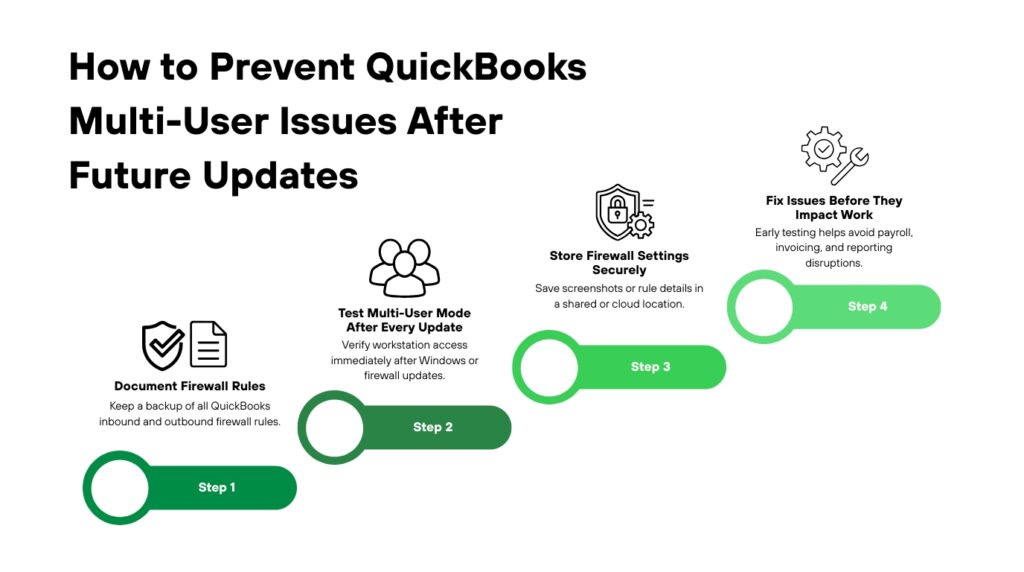
Firewall updates that break QuickBooks multi-user mode follow a predictable pattern: an update runs on the server or a workstation, the update resets or replaces firewall rules, and QuickBooks loses its network access before anyone notices. Taking four specific actions creates a safety net that either prevents the disruption entirely or reduces recovery time from hours to minutes.
| When to Act | What to Do |
| After every Windows update on the server | Open services.msc and confirm QuickBooksDBXX and QBCFMonitorService are both set to Automatic startup |
| After every Windows update on a workstation | Temporarily disable the firewall and test multi-user mode to confirm the update did not reset firewall rules |
| After installing new antivirus software | Add QuickBooks port exceptions and program exceptions to the new antivirus before testing multi-user mode |
| After upgrading QuickBooks to a new version | Update the port numbers in all firewall rules to match the new version’s ports from the Database Server Manager |
| Monthly | Run QuickBooks File Doctor from the Tool Hub on the server to scan network health and .ND file integrity |
Keep a written record of every QuickBooks firewall rule that is currently active on the server. Open Windows Defender Firewall with Advanced Security, click Inbound Rules, and take a screenshot or written note of every rule that starts with “QB” or “QuickBooks.” Repeat for Outbound Rules. Store this record somewhere accessible outside the server — a shared folder, a printed copy, or a cloud document. Recovering from a firewall update becomes a matter of minutes when the exact rules to re-enter are already documented and saved.
Test multi-user mode from at least one workstation immediately after every Windows update on the server. This 30-second test confirms whether the update affected QuickBooks firewall rules before accounting staff arrive and discover the problem themselves. A failed test right after an update means the fix can be applied immediately, before any payroll deadline, invoice cycle, or bank reconciliation is disrupted.
What Happens If the Firewall Block Is Not Fixed Promptly
A firewall block that cuts multi-user access removes the ability for the entire accounting team to work simultaneously in QuickBooks. The server computer can still open the company file in single-user mode, but no workstation can connect. Payroll processing, accounts payable, accounts receivable, and financial reporting all stop at the same time for every staff member except the one person at the server.
Offices that respond to multi-user failures by having staff work around the block — entering transactions in a separate spreadsheet or delaying entries until the issue is fixed — create a data integrity risk. Transactions entered outside QuickBooks and manually imported later can create duplicate entries, missed entries, or reconciliation differences that require hours of correction work. The financial records for the period during the outage become unreliable until the backlog is reconciled.
Forcing QuickBooks closed repeatedly during a firewall block — by using Task Manager to end the process or by shutting the workstation off without closing QuickBooks — leaves the company file’s Transaction Log file (.TLG) in an unfinished state. The .TLG file records every accounting entry in real time as a safety backup. Repeated incomplete writes to the .TLG file damage it, and a damaged .TLG file is one of the leading causes of the 6000 series QuickBooks errors that stop the company file from opening at all.
Conclusion
QuickBooks multi-user mode stops working after a firewall update because the update removes the specific port and program rules that allowed QuickBooks network traffic to pass through the firewall. Restoring multi-user access requires re-adding those rules — not disabling the firewall. The rules cover two categories: TCP port rules for the port numbers QuickBooks uses for each version, and program exceptions for the seven QuickBooks executable files that handle database connections, monitoring, and data movement on the server.
Intuit’s QuickBooks Tool Hub handles the fastest part of the recovery. Running the Database Server Manager scan and then QuickBooks File Doctor from the Tool Hub repairs the majority of firewall blocks automatically, without manual rule entry, in most update scenarios. Manual port and program rules are the follow-up step for cases where the update deleted rules completely rather than just corrupting them.
The offices that recover fastest from firewall update disruptions are the ones that already have a documented list of their QuickBooks firewall rules saved outside the server, set QuickBooks services to Automatic restart in Windows Services, and test multi-user mode immediately after every Windows update. These three habits turn a potential hours-long outage into a five-minute recovery and keep every workstation, every team member, and every accounting deadline on track.
Frequently Asked Questions
1. Can I just turn the firewall off permanently to stop this from happening again?
Turning the firewall off permanently is not a safe option. The Windows Firewall protects the server and the company file from unauthorized access by every other device on the office network. An accounting company file contains complete financial records, bank account information, payroll data, and vendor details — data that must be protected. The correct fix is to add QuickBooks-specific exceptions to the firewall, not remove the firewall entirely. The exceptions allow QuickBooks through while the firewall continues to block everything else.
2. How do I find the dynamic port number for QuickBooks 2019 and later?
The dynamic port number is visible in the QuickBooks Database Server Manager on the server computer. Open the Database Server Manager from the Windows Start menu (search for “QuickBooks Database Server Manager”). Click the Port Monitor tab. Find your QuickBooks version in the list and note the port number shown next to it. This number is the specific port assigned to your QuickBooks installation and must be included in the firewall port rules in addition to port 8019. If the port number was changed at any point, click Renew to assign a new one, then click Scan Now in the Scan Folders tab to update the .ND file.
3. The firewall rules are already there but multi-user mode still fails. What is wrong?
The presence of a firewall rule does not guarantee the rule is active and correctly configured. Check each rule by double-clicking it in the Windows Firewall Advanced Settings window. Confirm the rule is set to Allow the Connection — not Block the Connection. Confirm all three profiles (Domain, Private, and Public) are checked. Confirm the port numbers in the rule exactly match the ports for the QuickBooks version on the server. A single incorrect port number or a rule set to Block instead of Allow produces the same result as having no rule at all.
4. The fix worked on the server but two workstations still show H202. Why?
H202 on specific workstations after the server is fixed means those workstations have a local firewall blocking their outgoing connection to the server. Each workstation runs its own copy of Windows Defender Firewall, and each one needs outbound rules that allow QuickBooks traffic to reach the server. Open Windows Defender Firewall with Advanced Security on each affected workstation, go to Outbound Rules, and add the same port rules and program exceptions used on the server. If the workstation has third-party antivirus installed, add the same exceptions to the antivirus on that machine as well.
5. QuickBooks File Doctor says everything is fine but multi-user mode still fails. What next?
QuickBooks File Doctor checks for .ND file corruption and basic network connectivity. It does not audit every firewall rule individually. A passing File Doctor result with a continuing multi-user failure means the block is in the firewall rules that File Doctor did not repair — typically deleted rules from a full update reset. Proceed with Fix 2 (re-add port rules) and Fix 3 (re-add program exceptions) in full, even if File Doctor reported no problems. After completing both, also test whether temporarily disabling the antivirus resolves the issue, which would confirm Fix 4 is also needed.

Anusmita is a seasoned content writer who brings perspective to words. As a writer, she enriches her work with a journalistic aptitude, utilising her training in Mass Communication and Journalism. She loves to travel and explore, which imparts a greater sense of understanding, maturity, and experience that are reflected in her content.
Beyond her professional work, Anusmita enjoys painting, singing, dancing, and spending time planting. She is also a self-proclaimed foodie who loves exploring different cuisines, an interest that further adds to her curiosity and perspective as a writer.
Leave a Reply