
Multi-user mode in QuickBooks Desktop allows several people to work in the same company file at the same time across a shared office network. The company file — the .QBW file that holds every invoice, payment, payroll record, and account balance — is stored on one central computer called the server, and every other computer (called a workstation) connects to it over the network. More connections mean more read and write operations happening simultaneously, and each one is an opportunity for something to go wrong if the network, permissions, hosting settings, or hardware are not set up correctly.
Company file damage in multi-user mode has specific, documented causes that are different from single-user damage. The most common causes are: incorrect hosting settings that put two computers in conflict over who owns the company file; folder permission settings that block QuickBooks’ background service from reading or writing the file; Windows Firewall rules that block network communication between workstations and the server; the company file stored in a cloud-sync folder where sync conflicts interrupt write operations; and leaving QuickBooks open overnight on the server. Intuit support representatives confirmed directly: “QuickBooks should never be left open overnight or even for long periods of inactivity, as this increases the chances of data corruption.”
This article covers every documented risk factor for company file damage in a multi-user QuickBooks environment, the exact settings that prevent each one, and the maintenance schedule that keeps the company file clean over time. Every prevention step includes what to configure, why it protects the file, and the exact path inside QuickBooks or Windows to apply it. Following this setup correctly protects the company file from the most common causes of multi-user corruption before they reach the file.
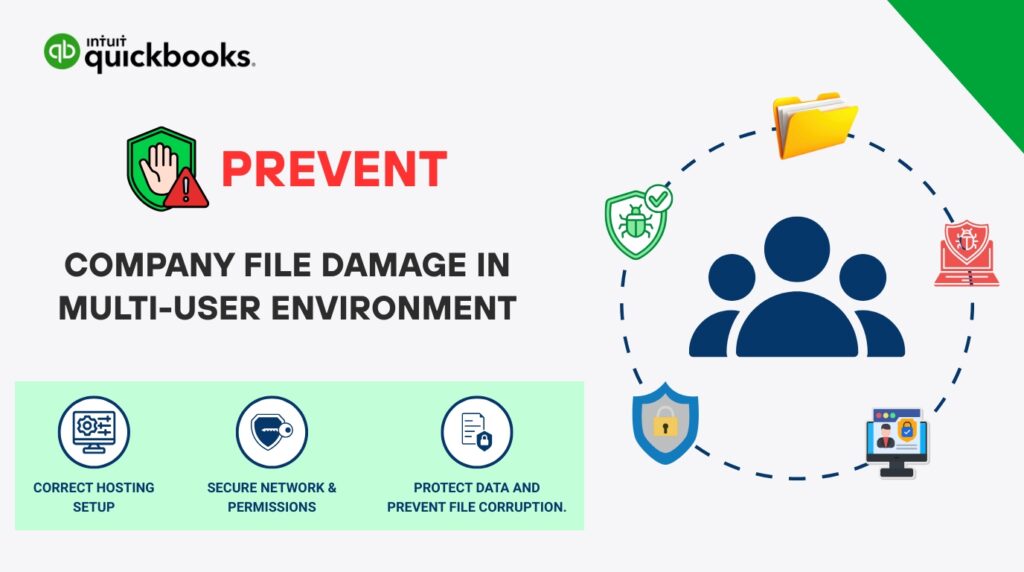
Table of Contents
How Multi-User Mode Works and Where Damage Enters?
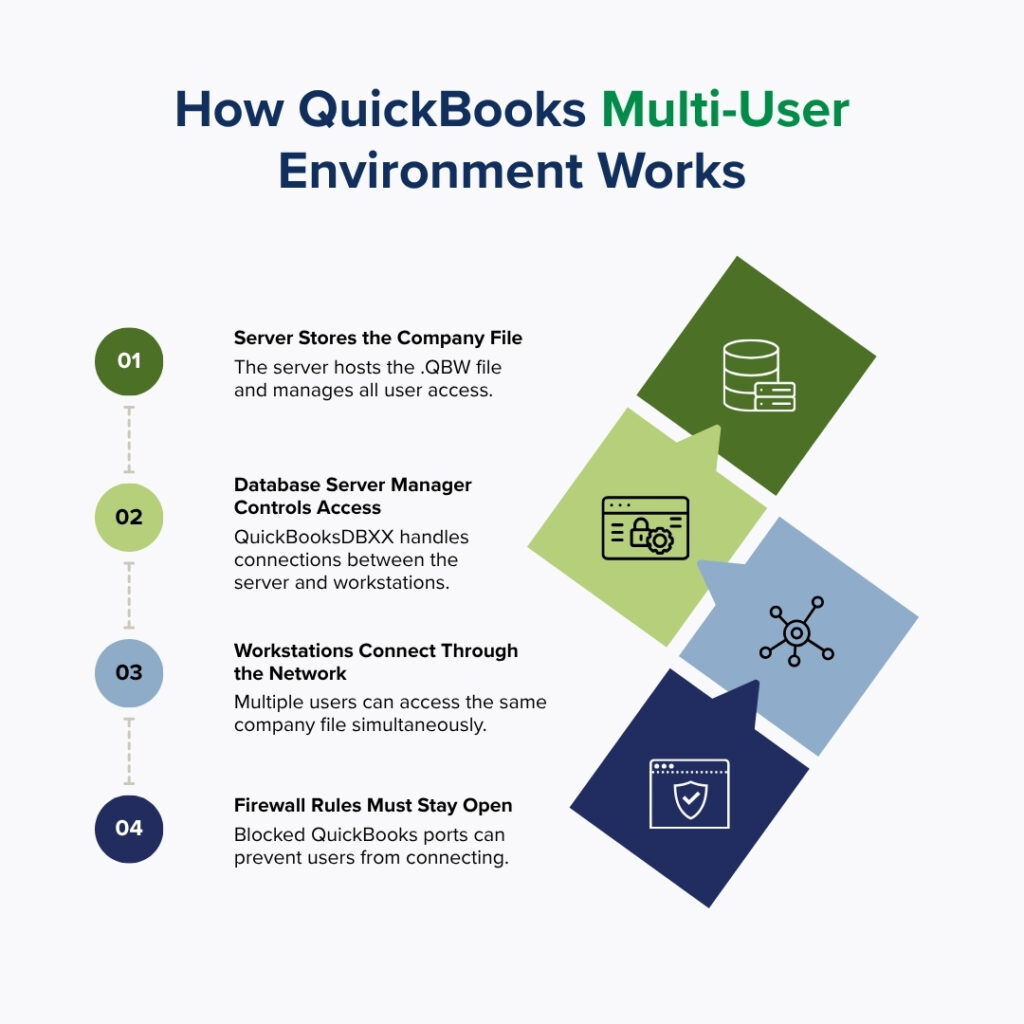
The Server, Workstations, and the QuickBooks Database Server Manager
Multi-user mode works through a specific arrangement: one computer — the server — stores the company file and runs a background program called the QuickBooks Database Server Manager, which manages all incoming connections from workstations. The Database Server Manager runs as a Windows service named QuickBooksDBXX (where XX is a two-digit number that corresponds to the QuickBooks version — for example, QuickBooksDB34 for QuickBooks Desktop 2024). It also operates under a Windows user account named QBDataServiceUserXX. Intuit’s own documentation confirms: “As long as the computer is on, the service QuickBooksDBXX is always running.” This service is what allows workstations to access the company file over the network — if it stops running or loses access to the file, every workstation loses its connection.
Every workstation communicates with the server through specific network ports — numbered channels through which programs send and receive data. QuickBooks uses TCP port 8019 and dynamically assigned ports in the range 55378–55382 to communicate between workstations and the Database Server Manager on the server. Windows Firewall, the security program built into Windows, controls which ports are open. A Windows update that resets the firewall rules closes these ports, and every workstation immediately loses its connection to the company file. This is why adding QuickBooks firewall exceptions is a required setup step, not a one-time fix.
Why the First User to Open the Company File Matters Most?
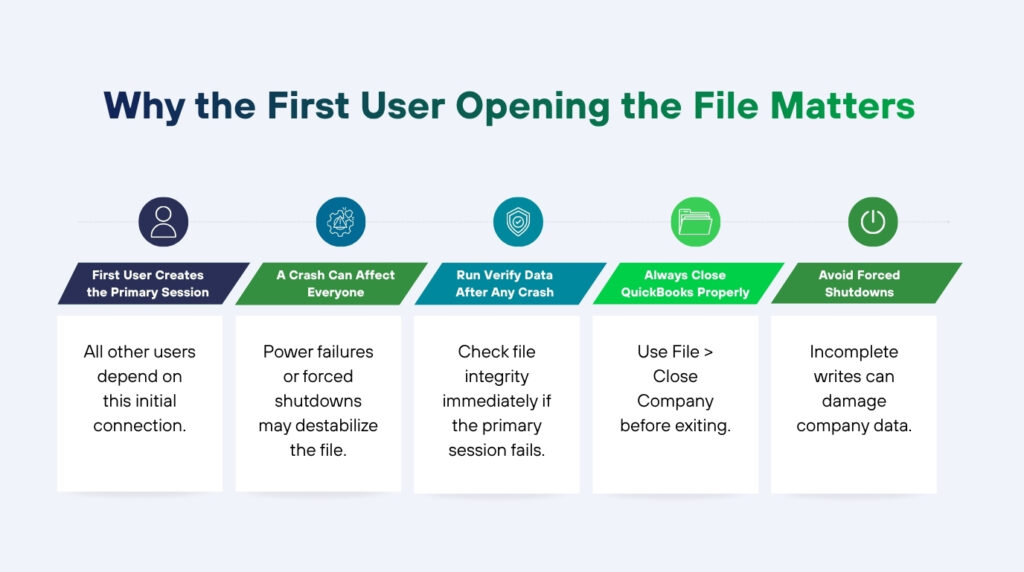
Intuit support representatives have confirmed a specific multi-user risk: “When a company file is being used in multi-user mode, the first person that opens the company file is the most important user.” The first user to open the company file in multi-user mode establishes the primary session — the session that initialises the file’s open-state data, which all other users’ connections depend on. A crash by this primary user — caused by a power failure, a forced QuickBooks close, or a network disconnect — corrupts the open-session data and can leave the company file in an unstable state. Intuit’s guidance for this specific event: “If that user’s QuickBooks session crashes, a data integrity check must be performed ASAP” through File > Utilities > Verify Data.
Closing QuickBooks correctly at the end of every session is a direct protection against this risk. The correct close sequence is File > Close Company first, then exiting QuickBooks from the taskbar or start menu — not clicking the red X button while transactions are open. Closing QuickBooks correctly completes all pending write operations to the company file before the program exits. Forcing QuickBooks closed by clicking the X while data is being saved leaves the file with incomplete write operations, exactly the same type of damage caused by a power cut mid-session.
How Cloud-Sync Programs Damage the Company File in Multi-User Mode?
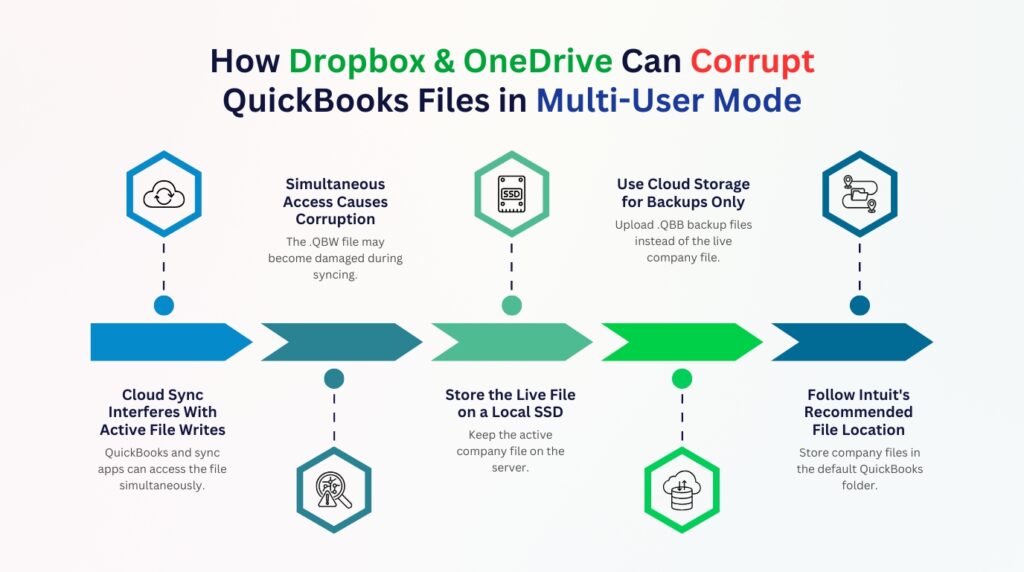
Cloud-sync programs like Dropbox, OneDrive, and Google Drive work by watching a selected folder on the computer and uploading any changed file to the cloud immediately after it changes. The QuickBooks company file changes continuously during normal use — every transaction saved triggers a write to the .QBW file. When a cloud-sync program detects the .QBW file changing, it attempts to upload the current version of the file to the cloud at the same moment QuickBooks is still writing new data to it. This simultaneous access — the sync program reading the file while QuickBooks is writing to it — interrupts the write operation and leaves the file structurally incomplete.
Documented best practice from QuickBooks professionals confirms this directly: “DO NOT place the working company file in any CLOUD STORAGE environment. This will cause QuickBooks to have issues. Only run BACKUPS to cloud storage — the constant sync of the database is problematic for services that want to constantly keep files in sync.” The company file must be stored on a local solid-state drive (SSD) on the server at Intuit’s recommended default path: C:\Users\Public\Documents\Intuit\QuickBooks\Company Files. Cloud storage can be used as a backup destination — a place to store the .QBB backup files — but must never contain the live, actively used .QBW company file.
Multi-User Risk Factors and QuickBooks Prevention Actions at a Glance
Each risk factor below has caused documented company file damage in multi-user QuickBooks environments. Address every item in this table during the initial server setup and re-verify each one after every Windows update or network change.
| Risk Factor | Why It Damages the Company File | Prevention Action |
| Two or more workstations have hosting turned on | QuickBooks receives conflicting location signals for the company file from multiple computers — it cannot determine which computer is the correct source and produces H-series errors | Turn off hosting on every workstation through File > Utilities. Leave hosting on only the server |
| Company file folder does not give QBDataServiceUser full-control permissions | QuickBooks Database Server Manager cannot read or write to the company file because Windows blocks the access — multi-user connections fail | Set full-control permissions on the company file folder for QBDataServiceUserXX, the current Windows user, and NETWORK SERVICE |
| Windows Firewall blocks QuickBooks on the server after a Windows update | The Windows update reset the firewall rules and removed the QuickBooks exceptions — workstations cannot reach the server on the ports QuickBooks uses | Add QuickBooks firewall exceptions using the QuickBooks Database Server Manager scan or manually through Windows Defender Advanced Settings |
| QuickBooks is left open overnight on the server without being closed | Intuit support representatives have confirmed that leaving QuickBooks open for long periods of inactivity increases the risk of data corruption | Close QuickBooks properly at the end of every workday — use File > Close Company, not the X button |
| The first user who opened the company file in multi-user mode had a session crash | The first user to open a company file in multi-user mode is the primary host of that session — a crash by this user can corrupt the file’s open-session data | Run Verify Data immediately after any crash by the first user in a multi-user session |
| The company file is stored in a cloud-sync folder like Dropbox or OneDrive | The sync program and QuickBooks write to the same file at the same time, interrupting each other’s writes and causing file damage | Store the company file only at C:\Users\Public\Documents\Intuit\QuickBooks\Company Files on a local SSD — run backups to cloud storage, not the live file |
| All workstations are on the same version but the server is on an older version | A version mismatch between the server and workstations causes communication errors and can corrupt the company file during multi-user transactions | Keep every computer — server and all workstations — on the same QuickBooks version at all times |
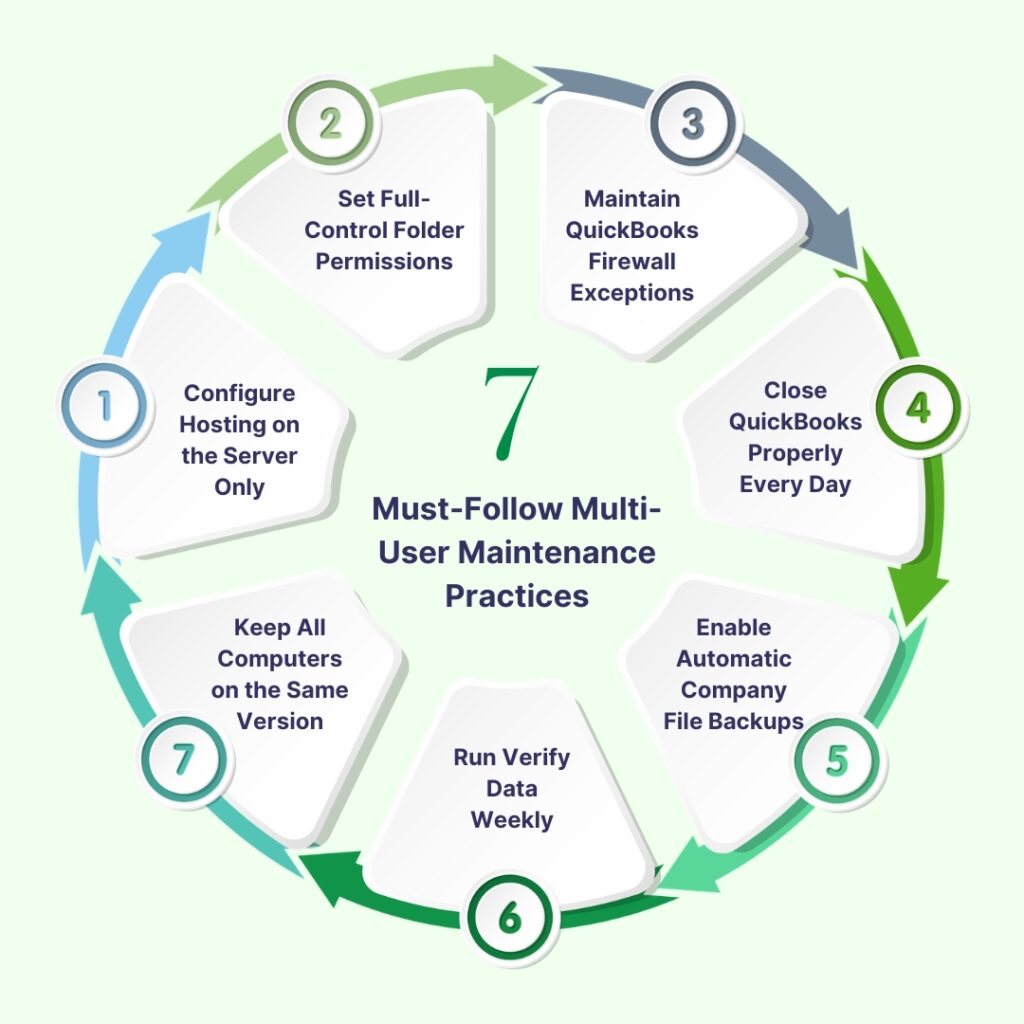
QuickBooks Prevention Practices: Complete Setup and Maintenance for Multi-User File Safety
Practice 1: Configure Hosting on Exactly One Computer — the Server Only
Hosting in QuickBooks controls which computer is responsible for sharing the company file with other computers on the network. Only the server — the computer that physically stores the company file — should have hosting turned on. Every workstation on the network must have hosting turned off. Intuit’s own documentation states this explicitly: “Your server (the computer that hosts your company files) should be the only computer set to host multi-user mode. The Host Multi-User Access option should be turned off on your workstations.” When any workstation has hosting turned on, QuickBooks receives conflicting signals about where the company file is located, which causes H-series errors (H101, H202, H303, H505) and can corrupt the file’s network descriptor files.
Steps — verify and correct hosting settings: Open QuickBooks on each workstation. Go to File > Utilities. If the menu shows “Stop Hosting Multi-User Access”, click it — hosting is on and must be turned off on this workstation. If the menu shows “Host Multi-User Access“, hosting is already off — no action needed. Repeat on every workstation. On the server, open QuickBooks, go to File > Utilities. The server must show “Stop Hosting Multi-User Access” — confirming hosting is on. If it shows “Host Multi-User Access”, click it to enable hosting on the server. After correcting all computers, open the company file on the server and go to File > Switch to Multi-User Mode to allow workstations to connect.
Practice 2: Set Full-Control Folder Permissions for the QuickBooks Service Account
The QuickBooks Database Server Manager accesses the company file using a Windows service account named QBDataServiceUserXX — where XX is the two-digit version number of QuickBooks installed on the server (for example, QBDataServiceUser34 for QuickBooks Desktop 2024). This service account must have full-control permissions on the folder that contains the company file. Full-control permissions mean the account can read the file, write changes to it, create new files in the folder, and delete files — all of which the Database Server Manager needs to do when managing multi-user connections. Intuit’s multi-user documentation confirms: “Set the permission level of QBDataServiceUserXX to Full Control and Share.”
Three accounts need full-control permissions on the company file folder: QBDataServiceUserXX (the QuickBooks service account), the current Windows user account on the server, and the NETWORK SERVICE account (a built-in Windows account that services use to access network resources). Setting permissions for all three ensures the company file folder is accessible to every process that QuickBooks needs during normal multi-user operation. Missing permissions on any one of these three accounts is enough to cause workstations to lose their connection or to produce write errors that damage the file.
Steps: On the server, open File Explorer. Navigate to the company file folder — the default location is C:\Users\Public\Documents\Intuit\QuickBooks\Company Files. Right-click the folder and select Properties > Security tab. Click Edit. For each of the three accounts (QBDataServiceUserXX, the current Windows user, and NETWORK SERVICE): click the account name, check Full Control in the Allow column, and click Apply. After setting all three accounts, click OK to close. Then right-click the folder again, select Properties > Sharing > Share. Add QBDataServiceUserXX to the share list and set its permission level to Full Control. Click Share, then Done. Restart QuickBooks Database Server Manager through the Windows Start menu > search “QuickBooks Database Server Manager” > click Start Scan to confirm the service can access the folder correctly.
Practice 3: Set and Maintain QuickBooks Firewall Exceptions on the Server
Windows Firewall on the server controls which programs can receive incoming connections from the network. QuickBooks workstations connect to the server’s QuickBooks Database Server Manager by sending a request through specific network ports. Windows Firewall blocks all incoming connections by default and only allows connections for programs that have been added to the exceptions list. A server without a QuickBooks firewall exception blocks every workstation connection attempt — the workstations produce H202 or H505 errors and cannot access the company file.
The QuickBooks Database Server Manager Start Scan function automatically adds the correct firewall exceptions to Windows Defender. Intuit’s documentation confirms this: clicking Start Scan in the Database Server Manager “will repair the firewall permissions to allow QuickBooks to communicate over your network.” Running Start Scan after every Windows update re-adds any firewall exceptions that the update removed. The manual path for adding exceptions — Windows Defender Firewall > Advanced Settings > Inbound Rules > New Rule — is the backup method when the Database Server Manager scan does not resolve the firewall block.
Steps: On the server, open the Windows Start menu and search for “QuickBooks Database Server Manager“. Open it. Click Browse if the company file folder is not already listed, and navigate to the company file folder. Click Start Scan. Wait for the scan to complete — it adds the firewall exceptions automatically. After the scan, open QuickBooks on a workstation and confirm that multi-user mode works correctly. Re-run this scan after every Windows update on the server, because Windows updates can reset firewall rules and remove the QuickBooks exceptions without warning.
Practice 4: Close QuickBooks Correctly at the End of Every Working Day
Leaving QuickBooks open overnight is a documented cause of company file damage specifically in multi-user environments. Intuit support representatives confirmed this pattern: “QuickBooks should never be left open overnight or even for long periods of inactivity, as this increases the chances of data corruption.” The reason is that Windows performs automatic background maintenance tasks — updates, security scans, scheduled backups — during overnight periods. These tasks sometimes interact with open program files, including the company file that QuickBooks has locked for active use. An overnight system update that restarts the server while QuickBooks is open leaves the company file in an open-session state that it cannot recover from cleanly.
The correct close sequence for multi-user environments is: all workstation users close their QuickBooks sessions first, then the server user closes QuickBooks last. The workstation users close QuickBooks through File > Close Company and then exit the program. The server user waits until all workstations confirm they have closed QuickBooks, then closes the company file through File > Close Company, switches from multi-user mode to single-user mode through File > Switch to Single-User Mode, and then exits QuickBooks. This ordered close sequence ensures all write operations are completed and no workstation sessions are left open when the server shuts QuickBooks down.
Practice 5: Back Up the Company File Every Time It Closes Using Auto-Backup
An auto-backup in QuickBooks creates a complete copy of the company file — a .QBB backup file — every time the company file is closed. The auto-backup setting is found at File > Back Up Company > Set Up Automatic Backup. Setting the auto-backup count to 1 means a new backup is created every time the file closes, and the previous backup is kept alongside it. Documented multi-user best practices confirm this setting: “Run a backup every time the company file closes — set auto backup to 1 so the backup runs every time the file is closed.” In a multi-user environment where any session crash can damage the file, having a backup from the most recent close is the fastest recovery path.
The backup must be saved to a location outside the company file folder and outside any cloud-sync folder. Intuit’s recommended default company file location is C:\Users\Public\Documents\Intuit\QuickBooks\Company Files. The backup should go to an external drive or a separate folder on a different drive — for example, D:\QuickBooks Backups. Saving the backup in the same folder as the company file provides no protection if the company file folder itself is damaged or the drive fails. Each backup file should include the date in its name — for example, “CompanyFile_2024_06_15.QBB” — so the most recent clean backup before any damage is immediately identifiable when a restore is needed.
Practice 6: Run Verify Data Weekly and Rebuild Immediately on Any Error
Verify Data scans the company file for structural errors — broken record links, inconsistent account balances, damaged transaction records — and reports whether the file is clean. Running Verify Data weekly through File > Utilities > Verify Data catches errors while they are still small, before they accumulate into damage that requires a backup restore. Multi-user environments accumulate errors faster than single-user setups because more simultaneous write operations increase the chance that a minor network interruption leaves a record partially written. A weekly scan catches these partial writes before they compound.
Steps: Close all workstation QuickBooks sessions. On the server, switch to single-user mode through File > Switch to Single-User Mode. Go to File > Utilities > Verify Data. If the result is “QuickBooks detected no problems with your data”, the file is clean — switch back to multi-user mode and resume normal work. If the result is “Your data has lost integrity”, run File > Utilities > Rebuild Data immediately. Create the required backup when prompted, using a new file name with the date. After Rebuild completes, run Verify Data again to confirm the file is clean. Never skip the second Verify run — Rebuild completing is not the same as Rebuild fixing every error, and the second Verify confirms the result.
Read More: QuickBooks Verify and Rebuild Data Not Fixing Issues
Practice 7: Keep Every Computer on the Same QuickBooks Version
Every computer in a multi-user QuickBooks network — the server and all workstations — must run the same version of QuickBooks Desktop. A version mismatch, where the server is on QuickBooks 2024 and a workstation is still on QuickBooks 2023, causes communication errors between the two programs because they use different protocols to exchange data. These communication errors can produce incomplete writes to the company file during multi-user transactions. Intuit’s multi-user upgrade guidance confirms this directly: update every computer to the new version before converting the company file to the new format — no computer should be left on the old version after the upgrade.
Steps to confirm all computers are on the same version: On each computer, open QuickBooks. Go to Help > About QuickBooks. The version number and release number are shown in this window. Every computer must show the same version and release number. If any computer shows a different version, open Help > Update QuickBooks Desktop on that computer, click the Update Now tab, check Reset Update, and click Get Updates. Install the update and restart the computer. Check the version again through Help > About QuickBooks to confirm it now matches all other computers.
QuickBooks Multi-User File Safety Maintenance Checklist
Use this checklist during initial server setup and as a recurring maintenance schedule. Complete every item after any Windows update, network change, or new computer addition to the office network.
| Check | What to Confirm | Frequency |
| Hosting settings | Only the server has hosting turned on — all workstations show “Host Multi-User Access” (off) | Monthly |
| Folder permissions | QBDataServiceUserXX has full-control permissions on the company file folder | After any server OS update |
| Firewall exceptions | QuickBooks is listed as an allowed program in Windows Defender Advanced Settings on the server | After any Windows update |
| Backup completion | A full-verification backup completed successfully and the TLG file is near-zero in size | Daily |
| File size check | Company file is under 200 MB (Pro/Premier) or 450 MB (Enterprise) — checked via F2 in QuickBooks | Monthly |
| Verify Data result | Verify Data reports “QuickBooks detected no problems with your data” | Weekly |
| QuickBooks version match | Server and all workstations show the same version number in Help > About QuickBooks | After every update |
| Company file location | Company file is stored at C:\Users\Public\Documents\Intuit\QuickBooks\Company Files on a local SSD | After any file move |
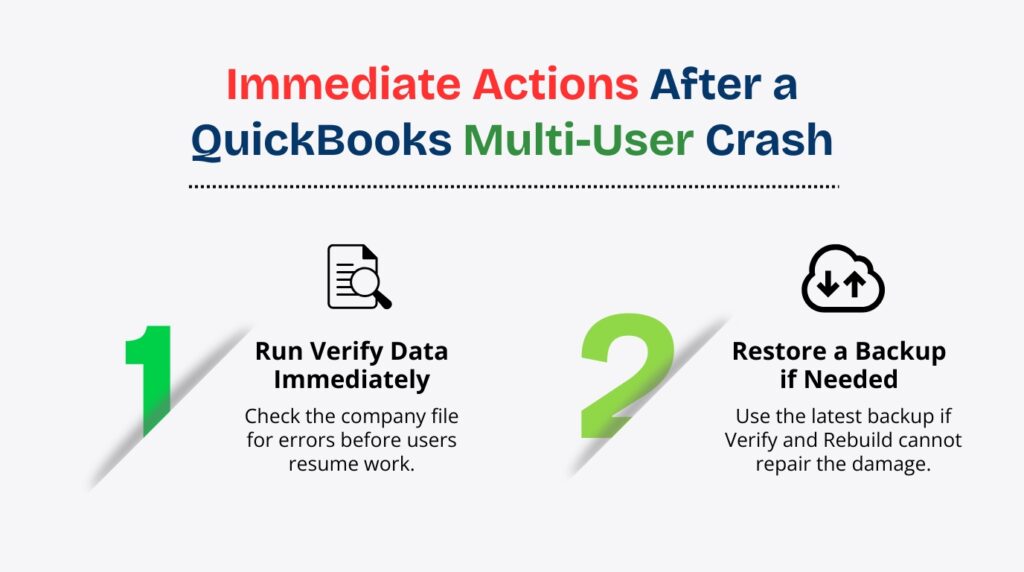
What to Do Immediately After Any Multi-User Session Crash in QuickBooks?
Step 1: Run Verify Data Before Resuming Any Work
A session crash in multi-user mode — caused by a power failure, a forced program close, or a network disconnect while QuickBooks was saving data — must be followed immediately by a Verify Data scan before any other user opens the company file. The crash may have left the file with an incomplete write operation that is not yet visible as an error but that will grow worse if more transactions are written on top of it. Running Verify Data first identifies whether damage occurred during the crash, so the damage can be repaired before it affects more records.
Steps: On the server, switch to single-user mode: File > Switch to Single-User Mode. Run File > Utilities > Verify Data. If Verify reports no problems, the file survived the crash without damage — switch back to multi-user mode and allow workstations to reconnect. If Verify reports “Your data has lost integrity”, run File > Utilities > Rebuild Data immediately — create a new backup when prompted. After Rebuild completes, run Verify Data again. Confirm the file is clean before allowing any workstation to reconnect. Intuit support confirmed this sequence directly: “If that user’s QuickBooks session crashes, a data integrity check must be performed ASAP. If the integrity check fails, it is recommended to restore the most recent version of the company file.”
Step 2: Restore the Most Recent Backup If Verify Reports Damage That Rebuild Cannot Fix
A company file that Rebuild cannot fully repair after a crash needs to be restored from the most recent clean backup. The most recent backup is the .QBB file from the last successful auto-backup or manual backup before the crash occurred. Restoring from this backup brings the company file back to its last clean state — which, with daily or close-on-every-close auto-backup enabled, is never more than one working session out of date. The transactions entered during the crashed session need to be re-entered from bank statements, invoices, or receipts, but the underlying company file is fully clean and stable for continued multi-user use.
Steps: Open QuickBooks on the server. Go to File > Open or Restore Company > Restore a backup copy. Choose Local Backup. Browse to the most recent .QBB backup file. In the Save Company File As dialog box, save the restored file with a new name that includes the date and the word “Restored” — for example, “CompanyFile_Restored_2024_06_15.QBW”. Open the restored file. Run Verify Data to confirm it is clean. Move the damaged .QBW file and its .TLG file to a separate archive folder. Copy the restored file to the original company file location. Switch to multi-user mode and allow workstations to reconnect.
Conclusion
Company file damage in a multi-user QuickBooks environment has specific, preventable causes — and every one of them is addressable through correct setup and regular maintenance. The three most important protections are: hosting turned on only on the server (never on any workstation), full-control permissions set correctly on the company file folder for the QBDataServiceUserXX service account, and QuickBooks firewall exceptions maintained on the server after every Windows update. These three settings address the causes of the most common multi-user file errors — H202, H505, and the 6000-series access errors — before they produce any damage.
Daily auto-backups, weekly Verify Data runs, and the correct close sequence at the end of every working day prevent the four other documented causes of multi-user file damage: crashes leaving incomplete writes, TLG files growing too large to reset cleanly, accumulated structural errors compounding over time, and overnight Windows maintenance interacting with an open company file. Intuit’s documentation and the confirmed best practices of QuickBooks professionals agree on the company file storage location: C:\Users\Public\Documents\Intuit\QuickBooks\Company Files on a local SSD, with backups going to a separate external drive or cloud destination — never the live company file in a cloud-sync folder.
Multi-user QuickBooks setups that follow these prevention practices consistently produce very few company file errors. The setup takes an hour to configure correctly on a new server and 15 minutes per week to maintain through the Verify Data check and backup confirmation. That investment prevents the hours or days of recovery work that a damaged company file requires — and it protects every transaction, every account balance, and every payroll record the business has entered from being lost to a preventable multi-user write conflict.
Frequently Asked Questions
1. QuickBooks runs in multi-user mode without any visible errors, but Verify Data finds small integrity issues every week. What is causing these recurring minor errors?
Recurring minor errors that appear weekly in a multi-user environment point to a network-level write interruption happening regularly during normal work. The most common cause is a network switch or router that briefly drops connections — even for a fraction of a second — during peak traffic, which interrupts QuickBooks write operations in progress.
Check the server’s network connection by opening Device Manager > Network Adapters and confirming the server’s network card is operating at 1 Gbps (gigabit per second) on a wired Cat 6 connection. A connection below 1 Gbps, or a connection that fluctuates, causes write interruptions that accumulate as minor file errors. A second common cause is anti-virus software scanning the company file folder in real-time — adding the company file folder to the anti-virus exclusion list stops it from interrupting QuickBooks write operations.
2. A new computer was added to the office network and now every user gets H202 errors. What did the new computer change?
A new computer added to the network most likely had QuickBooks installed on it with hosting accidentally turned on during setup. QuickBooks’ default installation does not automatically configure hosting correctly for a workstation — it requires a manual check through File > Utilities on the new computer to confirm that “Host Multi-User Access” is the option shown (meaning hosting is off).
A new workstation with hosting turned on sends QuickBooks a conflicting location signal for the company file, which produces H202 errors for every other user on the network immediately. Open QuickBooks on the new computer, go to File > Utilities, and if “Stop Hosting Multi-User Access” is shown, click it to turn hosting off. Restart QuickBooks on all workstations after making this change.
3. The server was updated to a new Windows version overnight and now workstations cannot connect to the company file. How did a Windows update break multi-user access?
A Windows update that installs on the server overnight can reset Windows Firewall rules, removing the QuickBooks exceptions that allowed workstation connections through the firewall. The update does not change QuickBooks itself — it changes the firewall settings that control which programs can receive incoming network connections.
The fix takes two steps. First: open QuickBooks Database Server Manager on the server (search “QuickBooks Database Server Manager” in the Windows Start menu), click Browse to confirm the company file folder is listed, then click Start Scan — this automatically re-adds the QuickBooks firewall exceptions. Second: restart QuickBooks on each workstation after the scan completes to reset the workstation’s connection attempt. If the Start Scan does not resolve the issue, re-add the QuickBooks firewall exceptions manually through Windows Defender Firewall > Advanced Settings > Inbound Rules > New Rule.
4. QuickBooks shows a locked file error message saying another user is editing a transaction, but that user is not in QuickBooks. How is this resolved?
A locked file error that persists after a user closes QuickBooks is caused by QuickBooks not completing its session close correctly — the user’s session is still registered as open in the company file even though the program is no longer running. Intuit’s locked file error documentation addresses this directly: if you are sure the error is not because of another active user, check whether QuickBooks is still running in the background.
On the server, press Ctrl+Alt+Del to open Task Manager. Look for QBW32.exe in the Processes tab. If it appears more than twice, QuickBooks has a background session still running. To close it: go to Company > Users > View Users in QuickBooks and ask the listed user to sign out. If that is not possible, restart the QuickBooks Database Server Manager service through the Windows Start menu > search “services.msc” > find QuickBooksDBXX > right-click > Restart. This clears all open sessions and releases the locked file.
5. The company file was correctly stored on the local SSD on the server, but the server’s SSD failed and was replaced with a new one. What steps are needed to restore the multi-user setup correctly?
Replacing the server SSD requires restoring the company file, reinstalling QuickBooks, and reconfiguring all multi-user settings from the beginning — the new drive starts completely empty. The recovery sequence is: install Windows on the new SSD, install QuickBooks Desktop on the server using the same version as the workstations (confirm the version by checking Help > About QuickBooks on any workstation), restore the most recent .QBB backup file to the default company file location (C:\Users\Public\Documents\Intuit\QuickBooks\Company Files), set full-control folder permissions for QBDataServiceUserXX on the company file folder, open QuickBooks Database Server Manager and run Start Scan to register the company file and reset firewall exceptions, and turn hosting on through File > Utilities > Host Multi-User Access. After completing these steps, confirm each workstation can connect by opening QuickBooks on each one and accessing the company file in multi-user mode.

Anusmita is a seasoned content writer who brings perspective to words. As a writer, she enriches her work with a journalistic aptitude, utilising her training in Mass Communication and Journalism. She loves to travel and explore, which imparts a greater sense of understanding, maturity, and experience that are reflected in her content.
Beyond her professional work, Anusmita enjoys painting, singing, dancing, and spending time planting. She is also a self-proclaimed foodie who loves exploring different cuisines, an interest that further adds to her curiosity and perspective as a writer.
Leave a Reply