
Restoring a QuickBooks company file from a backup brings back all accounting data – every transaction, every customer record, every report – from the point in time when the backup was created. The backup file is stored in the .QBB format, which stands for QuickBooks Backup. A .QBB file is a compressed, complete copy of the company file that QuickBooks can unpack and convert back into a working .QBW company file. The restore process takes 5 to 20 minutes depending on the file size and produces a fully usable company file that opens and operates identically to the original.
Intuit’s official restore documentation confirms: you can restore a company file from a local backup (.QBB) file. The restore process does not overwrite the backup file – it creates a new .QBW company file from the backup’s contents while leaving the original .QBB backup intact. This means the backup can be restored multiple times without being used up or damaged. Keeping the backup file after a successful restore provides an additional safety copy of the data from that point in time.
This guide covers every method of restoring a QuickBooks company file: restoring from a local backup on the same computer, restoring from a backup stored on an external drive or USB drive, restoring from a backup created in an older QuickBooks version, and restoring from a portable company file (.QBM format). It also covers the specific errors that appear during restore operations and the fix for each one, so the restore completes successfully the first time.
Table of Contents
Understanding the Three QuickBooks Backup File Formats
- The .QBB File: The Standard Backup Format
The .QBB file is the primary QuickBooks backup format and the one created by the standard backup process (File > Back Up Company > Create Local Backup). A .QBB file is a compressed archive – a single file that contains all of the company file’s data in a format that takes less space than the original .QBW file. The .QBB file cannot be opened directly by double-clicking it. It must be restored through QuickBooks using the File > Open or Restore Company > Restore a Backup Copy process. A .QBB file can only be restored in the same version of QuickBooks that created it, or in a newer version.
- The .QBM File: The Portable Company File Format
The .QBM file is a portable company file – a compressed version of the company file designed to be sent by email or copied to a USB drive for transfer between computers. Intuit’s documentation confirms: a portable company file is a compact version of your company file that you can email or move from one location to another. The .QBM file is smaller than a .QBB backup because it contains only the core accounting data without attached documents, logos, and other supplementary files. Restoring a .QBM file uses the same process as restoring a .QBB file but selects Restore a Portable File instead of Restore a Backup Copy.
- The .QBW File: The Live Company File (Not a Backup)
The .QBW file is the live company file itself – the file that QuickBooks opens and writes to during every session. A .QBW file is not a backup. Copying a .QBW file to an external drive creates a copy of the company file at that moment, but this is not the same as a proper .QBB backup because the copy may contain open transactions, incomplete write operations, or other session-related data that makes it unreliable as a restore source. Only .QBB files created through the proper backup process provide a guaranteed, clean restore point. Moving a .QBW file to a new location and opening it directly is the correct approach for relocating a working company file, not for restoring from damage.
Before Restoring QuickBooks Company File from Backup: Follow Four Required Steps
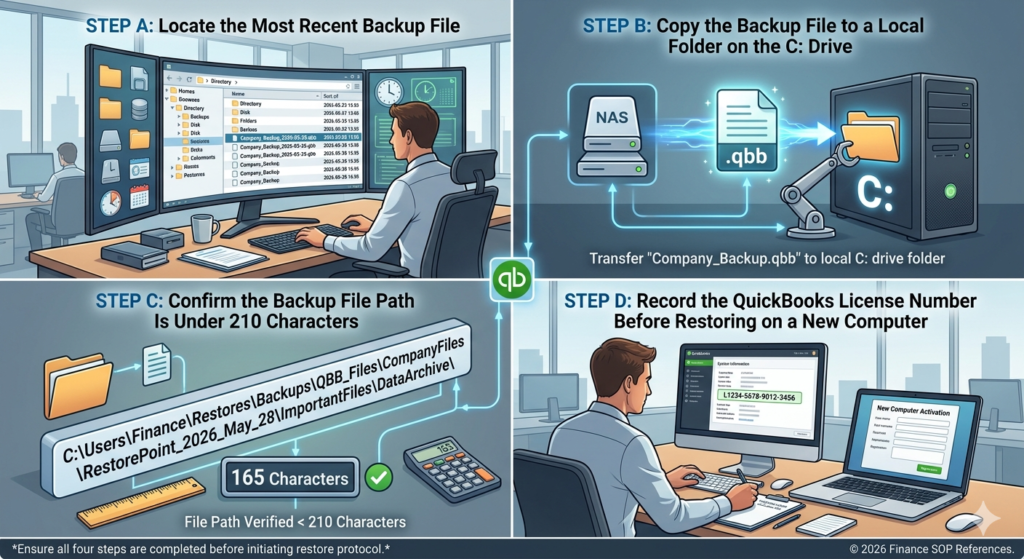
Step A: Locate the Most Recent Backup File
The backup file is stored wherever the user directed QuickBooks to save it when the backup was created. The default backup location in QuickBooks is the QuickBooks Backup folder inside the Documents folder: C:\Users[Username]\Documents\QuickBooks[Year]\Backup. If the backup was saved to a custom location – an external drive, a USB drive, a network folder, or a cloud storage folder – navigate to that location to find the .QBB file. Backup files are named with the company name, the date, and the time of the backup (for example, CompanyName_backup_2025_01_15.qbb). The most recent backup is the file with the most recent date in its name.
Step B: Copy the Backup File to a Local Folder on the C: Drive
Restoring a backup directly from an external drive, a USB drive, a network folder, or a cloud sync service like Dropbox or OneDrive produces Error -6147, 0 during the restore process because these storage locations may interrupt the restore read. External drives disconnect momentarily, network connections have brief drops, and cloud sync services lock files during upload. Any interruption during the restore read causes the restore to fail. Copying the .QBB backup file to a folder on the local C: drive before starting the restore eliminates all of these interruption risks.
Create a folder on the C: drive: open File Explorer, click on the C: drive, right-click in an empty area, select New > Folder, and name it QBRestore. Navigate to wherever the backup file is stored. Right-click the .QBB file and select Copy. Open the QBRestore folder on the C: drive and paste the file there (Ctrl + V). Confirm the full file path is under 210 characters – for example, C:\QBRestore\Company.qbb is 27 characters, well within the limit.
Step C: Confirm the Backup File Path Is Under 210 Characters
QuickBooks restore operations fail with Error -6147, 0 when the file path to the backup file exceeds 210 characters. A file path is the complete address of the file on the computer, including the drive letter, every folder name in the chain, and the filename itself. A backup file saved inside multiple nested folders with long names can exceed this limit. Copying the backup to a folder at the root of the C: drive (like C:\QBRestore) and renaming it to a short filename (like Company.qbb) produces a path of approximately 25 characters – comfortably within the limit. If the file path is too long, the restore fails immediately when QuickBooks tries to read the file.
Step D: Record the QuickBooks License Number Before Restoring on a New Computer
Restoring a QuickBooks backup on a computer where QuickBooks has not been installed requires installing QuickBooks first. QuickBooks must be installed and activated before a backup can be restored. If restoring on a new computer, record the license number and product number from the original purchase email or from the Intuit Customer Account Management Portal at camps.intuit.com before starting. The license number activates QuickBooks on the new computer, and the backup then provides the company data. Do not attempt to restore a backup before QuickBooks is installed and activated.
How to Restore a QuickBooks Backup: Step-by-Step
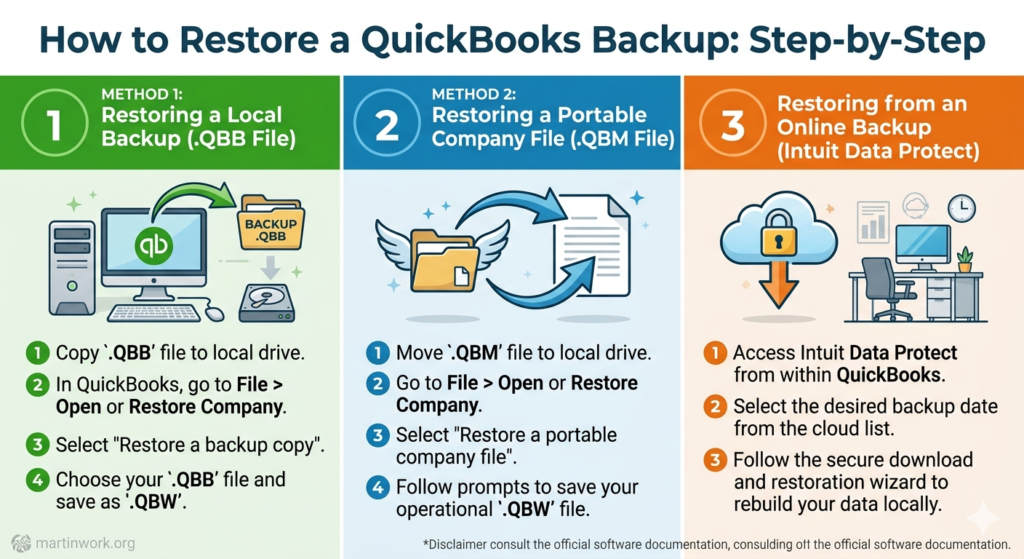
Method 1: Restoring a Local Backup (.QBB File)
Open QuickBooks. Go to File in the top menu. Select Open or Restore Company. Select Restore a Backup Copy and click Next. Select Local Backup and click Next.
In the Open Backup Copy window, navigate to the QBRestore folder on the C: drive (or wherever the backup was copied to). Select the .QBB file and click Open.
On the “Save Company File as” screen: choose a location to save the restored company file. Do not save it over the existing .QBW company file – this prevents overwriting a working file before the restored version is confirmed. Save it to a new folder on the C: drive with a name that identifies it as a restored copy, for example: C:\QB_Company\CompanyName_Restored.qbw. Click Save.
QuickBooks will show a warning message: “Opening this backup will overwrite your existing company file. Are you sure you want to proceed?” This message refers to the file at the location chosen in the Save screen, not to the currently open company file. Confirm the save location is the new folder, not the original company file location, and click Yes.
Wait for the restore to complete. Do not close QuickBooks, click anything, or interrupt the computer while the restore runs. A progress bar shows the restore status. After the restore completes, QuickBooks opens the restored company file automatically. Run Verify Data immediately after the restore to confirm the restored file is clean: go to File > Utilities > Verify Data.
Method 2: Restoring a Portable Company File (.QBM File)
Open QuickBooks. Go to File > Open or Restore Company. Select Restore a Portable File and click Next. Navigate to the folder containing the .QBM portable file. Select the .QBM file and click Open. On the Save Company File As screen, choose a save location and filename for the restored company file. Click Save. QuickBooks restores the portable file. Note: portable files do not include attachments, logos, or letter templates. Only the core accounting data is restored.
Method 3: Restoring from an Online Backup (Intuit Data Protect)
Intuit Data Protect is a paid cloud backup service that stores QuickBooks backups on Intuit’s own servers. Restoring from an Intuit Data Protect backup uses a different process from local backup restoration. Intuit’s own documentation confirms the process for Intuit Data Protect: go to File > Back Up Company > Set Up/Activate Online Backup. In the Intuit Data Protect window, click Restore, select the backup to restore, and click Restore. The file downloads from Intuit’s servers and restores to the local computer.
If the Intuit Data Protect service is no longer active on the current computer (for example, after a QuickBooks reinstall or a computer migration), log in to the Intuit Data Protect portal at backup.intuit.com using the Intuit account credentials to access and download stored backups. The downloaded backup is a .QBB file that can then be restored using Method 1 above.
| Version Compatibility: Which Backup Can Be Restored in Which QuickBooks Version? | ||
|---|---|---|
| Backup Was Created In | Can It Be Restored In | What Happens to the File During Restore |
| QuickBooks 2022 | QuickBooks 2022, 2023, 2024, or 2025 | Restores as 2022 format; opening in 2023+ upgrades the format permanently (irreversible) |
| QuickBooks 2023 | QuickBooks 2023, 2024, or 2025 | Restores as 2023 format; opening in 2024+ upgrades the format permanently |
| QuickBooks 2024 | QuickBooks 2024 or 2025 | Restores as 2024 format; opening in 2025 upgrades the format permanently |
| QuickBooks 2025 | QuickBooks 2025 only | Cannot be restored in any older QuickBooks version |
| QuickBooks 2021 (end of support May 2024) | QuickBooks 2021, 2022, 2023, 2024, or 2025 | Restores as 2021 format; upgrades permanently when opened in a newer version |
| Backup created on QuickBooks for Mac | QuickBooks for Mac of the same or newer year only | Cannot be restored in QuickBooks for Windows; different platform and file format |
QuickBooks Errors During Restore and Their Fixes
- Error -6147, 0: Cannot Open the Backup File
Error -6147, 0 during a restore means QuickBooks cannot read the .QBB backup file from its current location. The two most common causes are that the backup is stored on an external drive, network, or cloud sync service that interrupted the restore read, and that the file path to the backup is too long. Copy the backup to a local folder on the C: drive (Fix B in the Before Restoring section) and confirm the path is under 210 characters. Both actions together resolve Error -6147, 0 in the majority of restore attempts.
- Error 6000-83 or 6000-301: Backup File Is Damaged
Error 6000-83 or 6000-301 during a restore indicates the .QBB backup file itself has internal damage and cannot be decompressed or read correctly. A backup file becomes damaged if the computer lost power while the backup was being created, if the backup was stored on a failing hard drive, or if the backup was partially transferred (a transfer that was interrupted before the full file was copied). A damaged .QBB backup cannot be repaired – the correct action is to locate an older backup and restore from that. This is why keeping multiple backup copies covering different dates is critical: a single backup provides no protection if that backup itself is damaged.
- QuickBooks Asks for a Newer Version When Opening the Restored File
QuickBooks shows a message asking to update the company file when a backup created in an older version is restored in a newer version of QuickBooks. This update converts the file from the old version’s format to the new version’s format. The conversion is one-way and permanent – once the file is converted to a newer format, it cannot be opened in the older version. The backup .QBB file is not affected by this conversion – it retains its original format permanently. The conversion only applies to the restored .QBW file. Click Yes to allow the conversion and proceed. The restored file then opens normally in the new QuickBooks version.
- The Restored Company File Opens but Verify Data Shows Errors
A restored company file that opens but shows errors in Verify Data means the backup itself contained damage at the time it was created. The backup preserved the damage along with the accounting data. Run Rebuild Data (File > Utilities > Rebuild Data) on the restored file to repair whatever damage Verify Data found. Run Verify Data again after Rebuild to confirm the repair succeeded. If errors persist after Rebuild, an older backup – one made before the damage was introduced – may need to be restored. This is why monthly backup testing that includes a Verify Data check on the restored file is recommended: it confirms each backup is clean before it is ever needed in an emergency.
Restoring QuickBooks Company File from Backup on a New or Different Computer
What Changes When Restoring on a Different Computer?
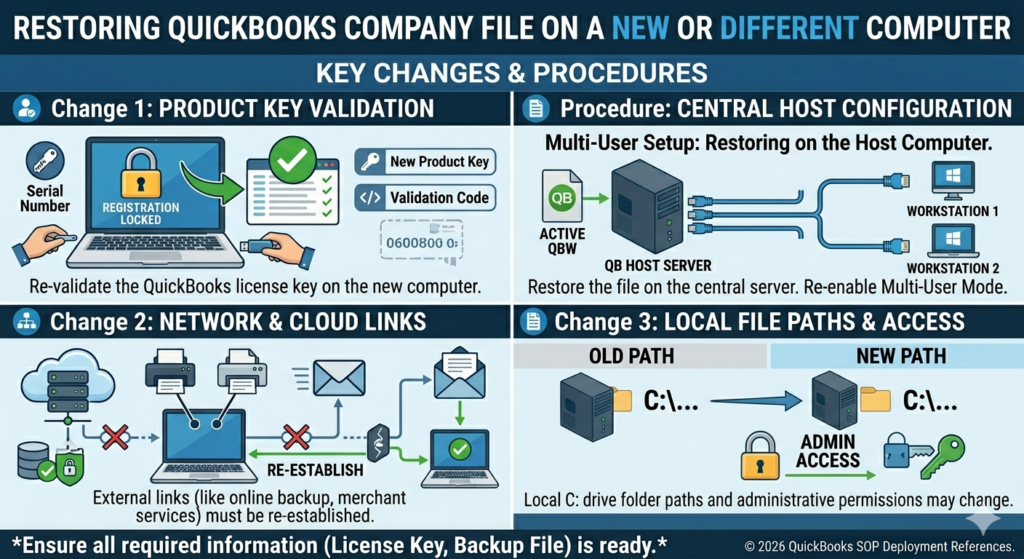
Restoring a QuickBooks company file on a different computer requires QuickBooks to be fully installed and activated on the new computer before the restore begins. The restored company file is the same data regardless of which computer it is restored to – the company file contains all accounting records and is not tied to the hardware of the original computer. Only the QuickBooks program, its license, and its configuration settings are specific to the computer. The accounting data in the company file travels with the file itself.
After restoring on a new computer, bank feed connections must be re-established manually. Bank feeds are the automatic connections between QuickBooks and the business’s bank accounts that download transactions automatically. These connections are authenticated to the specific computer and QuickBooks installation and must be set up again on the new computer by going to Banking > Bank Feeds > Set Up Bank Feed for an Account and re-entering the bank login credentials.
Multi-User Setup: Restoring on the Host Computer
In a multi-user QuickBooks setup where multiple computers access the same company file over an office network, restoring the backup must be done on the host computer – the computer that stores and serves the company file to all other computers. Restoring the backup on a workstation (any computer other than the host) and then trying to share it over the network requires additional configuration steps to make the restored file accessible in multi-user mode. After restoring on the host computer, run the QuickBooks Database Server Manager scan (Tool Hub > Network Issues > QuickBooks Database Server Manager > Scan Folders) to register the restored file’s location and generate the .ND network configuration file that workstations use to connect.
| After the QuickBooks Company File Restore from Backup: Post-Restore Checklist | ||
|---|---|---|
| Action | How to Do It | Why It Matters |
| Run Verify Data on the restored file | File > Utilities > Verify Data | Confirms the restored file is clean and free of damage before beginning work |
| Confirm the correct date range is present | Run a Profit and Loss report for a known period | Verifies the restore recovered the expected date range of data |
| Re-enter any transactions from after the backup date | Review paper records, emails, or bank statements from the gap period | The restore captures data only up to the backup date; newer transactions must be re-entered |
| Reconnect bank feeds (if applicable) | Banking > Bank Feeds > Set Up Bank Feed for an Account | Bank feed connections are not stored in the backup and must be re-authenticated |
| Set up the automatic backup schedule on the restored file | File > Back Up Company > Create Local Backup > Options > Schedule | Restoring clears the previous backup schedule; set it up again to resume daily protection |
| Confirm payroll tax tables are current (if applicable) | Employees > Get Payroll Updates | A restored file may have an old payroll tax table; downloading the latest update ensures correct payroll calculations |
Prevention: Avoid Needing a Restore by Protecting the Backup
- Keep Three Backup Copies at All Times
Keeping three backup copies covering three different dates provides protection against a backup file itself being damaged or corrupted. Intuit’s own backup documentation recommends keeping multiple backup copies. QuickBooks’ automatic backup settings include an option to keep a specific number of backup copies: go to File > Back Up Company > Create Local Backup > Options and set the number of backup copies to 3.
This setting causes QuickBooks to automatically delete the oldest backup once three backups have been saved, maintaining a rotating set of three recent backups at all times. A business with three daily backups can restore to yesterday, two days ago, or three days ago if the most recent backup turns out to be damaged.
- Store Backups in Two Separate Locations
Storing backup files in two separate physical locations protects against hardware failure destroying both the company file and its backup simultaneously. The two-location approach: save one backup to a local external hard drive and copy the same backup to a cloud storage service (OneDrive, Dropbox, or Google Drive are acceptable for storing backup .QBB files – cloud storage is safe for backups even though it is not recommended for the active company file).
The external drive backup is immediately accessible for a fast restore. The cloud copy is accessible even if the office’s hardware is stolen, destroyed, or damaged by water or fire.
- Test Each Backup by Restoring It to a Test File Once a Month
A backup that was never tested may not restore correctly when it is needed. The backup file might be damaged, the file path might be too long, or the file might have been created from an already-damaged company file.
Testing the backup once a month by restoring it to a test filename (such as Company_TEST.qbw) on the same computer, then running Verify Data on the restored test file, confirms that the backup is both restorable and clean. This monthly test takes about 20 minutes and provides confidence that the backup will work when a real emergency requires it.
Conclusion
Restoring a QuickBooks company file from a backup follows a straightforward process: copy the .QBB backup file to a local folder on the C: drive, open QuickBooks and go to File > Open or Restore Company > Restore a Backup Copy > Local Backup, select the backup file, save the restored company file to a new location with a new name, and run Verify Data after the restore completes. This process takes 5 to 20 minutes and recovers all accounting data from the point in time the backup was created.
The most common restore errors are Error -6147, 0 (caused by restoring from an external or network location, or by a file path longer than 210 characters) and a damaged backup file (caused by the backup being created on a failing drive or during an interrupted save). Both errors are avoidable by copying the backup to a short local path on the C: drive before restoring. A damaged backup can only be resolved by using an older, undamaged backup copy – which is why keeping three rotating backup copies is the correct protection strategy.
Every business running QuickBooks Desktop should have a tested, current backup at all times. Intuit’s recommended backup routine is a daily backup through File > Back Up Company > Create Local Backup, saved to both a local external drive and a cloud location, with three copies maintained at all times and a monthly restore test confirming each backup is both restorable and clean. Following this routine means that if the company file is ever damaged, corrupted, or lost, the restore process takes 20 minutes and loses at most one day’s transactions.
Frequently Asked Questions
1. The backup file has a .QBB extension but QuickBooks says it cannot open it. Is the backup damaged?
A .QBB file that QuickBooks cannot open is not necessarily damaged – the most common reason is that the backup was created in a newer version of QuickBooks than the version currently installed. A backup created in QuickBooks 2025 cannot be opened in QuickBooks 2024.
Check the backup filename for the QuickBooks version year – QuickBooks often includes the version in the backup filename. If the installed version is older than the version that created the backup, upgrading QuickBooks to the same or a newer version allows the backup to be restored. If the version matches and QuickBooks still cannot open the backup, the file may be damaged and an older backup should be used.
2. The restore completed but transactions from last week are missing. Did the restore delete recent data?
The restore did not delete recent data – the backup file simply did not contain those transactions because the backup was created before those transactions were entered. The backup captures only the data that existed at the moment the backup was made.
Transactions entered after the backup date are not in the backup and must be re-entered from paper records, emailed invoices, bank statements, or other source documents. This is why the date shown in the backup filename matters: a backup named with last Monday’s date contains data only through last Monday, and all transactions from Tuesday through the day of the restore must be manually re-entered.
3. The backup is large and the restore is taking a very long time. Is this normal?
Yes. A QuickBooks backup restore takes longer than most file operations because QuickBooks does not simply copy the backup file – it decompresses the .QBB archive, reads every record inside it, and writes each record into the new .QBW company file’s database structure. A 100 MB backup file takes approximately 5 to 10 minutes to restore. A 300 MB backup file takes 15 to 30 minutes.
A backup from a large Enterprise company file can take 45 minutes to over an hour. The QuickBooks window appears to be frozen during the restore because it does not show a detailed progress indicator – this is normal. Do not close QuickBooks or click anything during the restore. The process is complete only when QuickBooks opens the restored file automatically.
4. The backup was made on a different Windows user account. Can it be restored on a different user account on the same computer?
Yes. A QuickBooks backup made under one Windows user account can be restored under any other Windows user account on the same computer, as long as QuickBooks is installed and the new user account has administrator rights. Copy the backup file to a folder on the C: drive that is accessible to all users (such as C:\QBRestore, which is at the root of the system drive).
Open QuickBooks under the new user account, go to File > Open or Restore Company > Restore a Backup Copy, navigate to C:\QBRestore, and select the backup. Save the restored file to a folder on the C: drive that the new user account has Full Control permission to access. The restored company file contains all the same data regardless of which Windows account performs the restore.
5. Can a QuickBooks backup be opened on a Mac?
A QuickBooks Desktop for Windows backup (.QBB file) cannot be restored in QuickBooks Desktop for Mac. The two products use different file formats and the backup files are not compatible between platforms. Intuit confirmed: QuickBooks Desktop for Mac and QuickBooks Desktop for Windows are two different platforms.
An accounting professional who needs to work with a Windows QuickBooks backup on a Mac has two options: run QuickBooks for Windows inside a Windows virtual machine on the Mac (using software like Parallels Desktop) and restore the backup inside that Windows environment, or use QuickBooks Online, which is browser-based and works on any platform, and import the data through Intuit’s migration tools.

Anusmita is a seasoned content writer who brings perspective to words. As a writer, she enriches her work with a journalistic aptitude, utilising her training in Mass Communication and Journalism. She loves to travel and explore, which imparts a greater sense of understanding, maturity, and experience that are reflected in her content.
Beyond her professional work, Anusmita enjoys painting, singing, dancing, and spending time planting. She is also a self-proclaimed foodie who loves exploring different cuisines, an interest that further adds to her curiosity and perspective as a writer.
Leave a Reply