
QuickBooks Error 6190 and 816 is a multi-user file locking error that prevents users from opening the company file. The full error message reads: “QuickBooks was unable to open the file [path] on the host computer. Try opening the file with QuickBooks on the host computer.” This error occurs when the Transaction Log file (.TLG) and the company file (.QBW) are out of sync, or when a user is trying to open a company file that is currently locked by another user, another process, or a residual lock left behind after a crash.
The root cause of Error 6190, 816 is always related to how QuickBooks manages file access in a multi-user environment. QuickBooks uses a system of lock files and network descriptor files to coordinate which computer can write to the company file at any given moment. When the .TLG file — which records every transaction before it is written to the main .QBW file — attempts to communicate with the .QBW file and finds that the .QBW file is locked by a different session, QuickBooks triggers the 6190, 816 error to prevent two simultaneous writes that would corrupt the data.
The good news is that Error 6190, 816 is almost always a configuration or residual lock issue, not permanent data corruption. QuickBooks provides specific tools and manual procedures to resolve it: verifying the hosting configuration, running QuickBooks File Doctor to repair network descriptor files, and manually renaming the .ND and .TLG files to force QuickBooks to recreate them cleanly.
This article covers the exact mechanics of the file locking system, how to identify which variation of the error is present, the step-by-step recovery sequence, and the hosting best practices that prevent the error from recurring.
Table of Contents
What Happens During QuickBooks Error 6190 and 816?
QuickBooks Desktop uses three supporting files in addition to the main company file (.QBW) to manage multi-user access. The first is the Network Descriptor file (.ND), which QuickBooks creates automatically in the same folder as the company file. The .ND file stores the IP address or computer name of the server hosting the company file and routes all workstation requests to that correct location. The second is the Transaction Log file (.TLG), which acts as a staging area for all data changes before they are written to the .QBW file. In a multi-user environment, all users write their changes to the .TLG file first, and QuickBooks then sequentially writes those changes from the .TLG file into the main .QBW file.
The third component is the internal file locking mechanism. When a user opens the company file in multi-user mode, QuickBooks places a lock on the specific records that user is viewing or editing. This lock prevents another user from editing the exact same invoice or customer record at the same time, which would cause data collisions. These locks are managed through the .ND file and are released the moment the user navigates away from the record or closes QuickBooks properly.
What Triggers 6190, 816 Error in QuickBooks?
Error 6190, 816 occurs when the .TLG file tries to write to the .QBW file but finds the .QBW file is locked in a way that prevents the write. There are four specific conditions that cause this mismatch. First, a user is trying to open the company file in single-user mode on a workstation while another user already has the file open in multi-user mode on the server. Second, the .TLG file has grown too large or become corrupted and is sending incorrect lock requests to the .QBW file. Third, a previous QuickBooks session ended unexpectedly — due to a crash, power loss, or force-close through Task Manager — leaving a “ghost lock” on the .QBW file that was never released. Fourth, the hosting configuration is incorrect, meaning a workstation is trying to host the file instead of the server, creating conflicting lock claims.
In all four scenarios, QuickBooks detects that the .TLG file cannot safely communicate with the .QBW file and blocks access with the 6190, 816 error. This is a protective action. Allowing the .TLG file to force a write into a locked .QBW file would cause the exact type of database structure damage that requires Rebuild Data to repair.
Signs of File Locking Issues Leading to QuickBooks Error 6190, 816
Check the table below to identify which specific condition is causing the error. The exact symptom points directly to the repair step needed.
| Symptom | What It Indicates | Which Repair Step to Use |
| Error 6190, 816 appears on a workstation, but the server can open the file normally | The workstation’s .ND file is pointing to the wrong location, or the workstation is set to host the file | Verify hosting is off on the workstation; run File Doctor; rename the .ND file |
| Error 6190, 816 appears on all computers, including the server | A “ghost lock” from a crashed session is holding the .QBW file, or the .TLG file is corrupted | Rename the .ND and .TLG files to force QuickBooks to recreate them |
| Error 6190, 816 appears immediately after a network drop or power flicker | The network interruption left an open lock on the file that did not close properly | Have all users log out; rename the .ND file; restart the QuickBooks Database Server Manager |
| Error 6190, 816 appears every morning when the first user logs in | A backup program, sync service (like OneDrive/Dropbox), or antivirus scan is locking the .QBW file overnight | Exclude the company file folder from sync and overnight antivirus scans; check backup schedules |
| Error 6190, 816 appears for one specific user, but other users can log in | That specific user does not have Windows permissions to read/write to the folder where the .QBW file is stored | Verify Windows folder permissions; grant Full Control to the user |
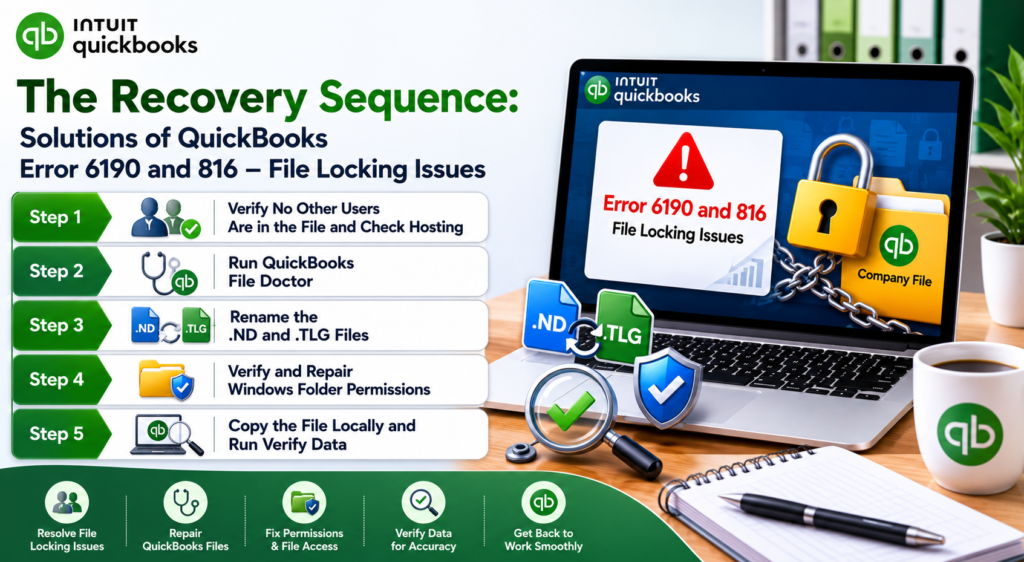
The Recovery Sequence: Solutions of QuickBooks Error 6190 and 816 – File Locking Issues
Applying the recovery steps in the wrong order wastes time and can make the locking issue worse. The correct sequence is: confirm no other users are actually in the file and verify the hosting configuration first (because the error might simply be a legitimate lock by another active user), then run QuickBooks File Doctor (because it can automatically repair the .ND file and resolve basic network routing issues), then manually rename the .ND and .TLG files (the core fix for residual locks and out-of-sync files), and finally verify Windows folder permissions (because a lock error is occasionally a permissions error disguised as a file lock).
Step 1: Verify No Other Users Are in the File and Check Hosting
The most common cause of Error 6190, 816 is not a technical glitch but a human one: a user is trying to open a file that another user already has open, and the first user is in single-user mode. Before modifying any files or running repair tools, confirm that the file is actually locked when it should not be. After confirming no one is in the file, verify that the computer throwing the error is not incorrectly set to host the multi-user file. Only one computer on the network — the server or the host computer — should have hosting turned on. If two computers are both trying to host, they create conflicting lock claims that trigger the 6190, 816 error.
Contact all users who have access to the company file and confirm they are completely logged out of QuickBooks. On the computer receiving the error, open QuickBooks but do not attempt to open the company file. Go to File > Utilities. Look at the options listed. If Host Multi-User Access is listed, hosting is currently OFF on this computer, which is correct for a workstation. If Stop Hosting Multi-User Access is listed, hosting is ON. If this computer is a workstation and not the server, click Stop Hosting Multi-User Access and confirm. Repeat this check on all workstations. Only the server or the primary host computer should have hosting enabled.
Step 2: Run QuickBooks File Doctor
QuickBooks File Doctor is designed to diagnose and repair the .ND file automatically. Because the .ND file routes network traffic to the company file, a corrupted .ND file causes workstations to look for the lock status in the wrong location, triggering the 6190, 816 error. File Doctor scans the .ND file, identifies if it is pointing to the wrong IP address or computer name, deletes the corrupted .ND file, and creates a fresh one that correctly identifies the host server.
Open the QuickBooks Tool Hub. Click Company File Issues in the left menu. Click Run QuickBooks File Doctor. Select the company file from the dropdown, or click Browse to navigate to the .QBW file. Select Check your file and network (do not select “Both” unless specifically troubleshooting a multi-user network failure, as the full network scan takes significantly longer). Enter the QuickBooks administrator password when prompted. Allow the scan to run. If File Doctor repairs the .ND file, open QuickBooks on the workstation and try to access the company file again.
Step 3: Rename the .ND and .TLG Files
When File Doctor does not resolve the error, the residual lock or the out-of-sync state is stored in the .ND or .TLG files themselves. Renaming these files does not delete any accounting data — the .ND file contains only network routing information, and the .TLG file contains only a temporary log of transactions that have likely already been written to the .QBW file. Renaming them forces QuickBooks to create brand new, clean .ND and .TLG files the next time the company file is opened, completely eliminating the corrupted lock state.
Important Warning: Never rename, move, or delete the .QBW company file itself. Only rename the .ND and .TLG files that share the exact same file name as the company file.
Ensure all users are logged out of QuickBooks completely. Open File Explorer and navigate to the folder where the company file is stored. You may need to enable Hidden Items (click View > Show > Hidden items) to see all file extensions. Locate the file named [CompanyName].nd. Right-click it and select Rename. Change the file extension to .nd.old (for example, CompanyName.nd.old). Locate the file named [CompanyName].tlg. Right-click it and select Rename. Change the file extension to .tlg.old (for example, CompanyName.tlg.old). Open QuickBooks on the host server first and open the company file. QuickBooks will automatically create fresh .ND and .TLG files. Once the server opens the file successfully, have workstations open it.
Step 4: Verify and Repair Windows Folder Permissions
If the .ND and .TLG files have been renamed and the error persists for a specific user, the issue is likely Windows folder permissions rather than a QuickBooks file lock. When a user does not have Full Control permissions over the folder where the .QBW file is stored, Windows prevents QuickBooks from creating the new .ND and .TLG files when the company file is opened. QuickBooks interprets this Windows block as a file lock and displays Error 6190, 816.
On the computer receiving the error, close QuickBooks. Open File Explorer and navigate to the folder where the company file is stored. Right-click the folder and select Properties. Click the Security tab. Click Edit to change permissions. Select the Windows user group or specific username that the user logs in with. In the Permissions column, check the box for Full Control in the Allow column. Click Apply and OK. Have the user open QuickBooks and attempt to open the company file again. Full Control is required because QuickBooks must be able to read the .QBW file and write (create) the .ND and .TLG files in that same folder.
Step 5: Copy the File Locally and Run Verify Data
In rare cases, deep network configuration issues or a failing network switch can cause constant 6190, 816 errors across the entire office network that cannot be resolved by renaming files or checking permissions. When this occurs, the immediate priority is getting access to the company data. Copying the company file locally to a workstation allows it to be opened outside the network locking environment entirely.
On the server or host computer, copy the .QBW file (do not copy the .ND or .TLG files) to a USB drive or directly to the desktop of a workstation. On the workstation, open QuickBooks. Go to File > Open or Restore Company and open the local copy of the file. Once open, go to File > Utilities > Verify Data. If Verify Data runs clean, the file is undamaged and the issue is purely network-related. If Verify Data shows errors, run Rebuild Data on the local copy to repair any damage that may have occurred during the network lock conflicts. Once the local file is verified clean, resolve the network issue (check switches, routers, and firewall settings for QuickBooks ports) before returning the file to the server folder.
All QuickBooks Recovery Steps at a Glance
| Step | Tool Used | Time Required | When to Apply It |
| Step 1: Verify Users and Hosting | File > Utilities > Stop Hosting Multi-User Access | 2–5 min | First — always; confirms the error is not caused by a legitimate active user or dual-hosting |
| Step 2: QuickBooks File Doctor | QuickBooks Tool Hub > Company File Issues > Run File Doctor | 5–15 min | After confirming no users are in the file; automatically repairs corrupted .ND routing files |
| Step 3: Rename .ND and .TLG Files | File Explorer > Rename file extensions to .old | 2–5 min | When File Doctor fails; clears residual ghost locks and forces creation of clean lock files |
| Step 4: Verify Windows Permissions | Folder Properties > Security > Full Control | 2–5 min | When the error persists for one specific user after .ND/.TLG files are renamed |
| Step 5: Local Copy and Verify | File > Open or Restore Company > File > Utilities > Verify Data | 10–20 min | When all network-based fixes fail; isolates the file from the network to confirm data integrity |
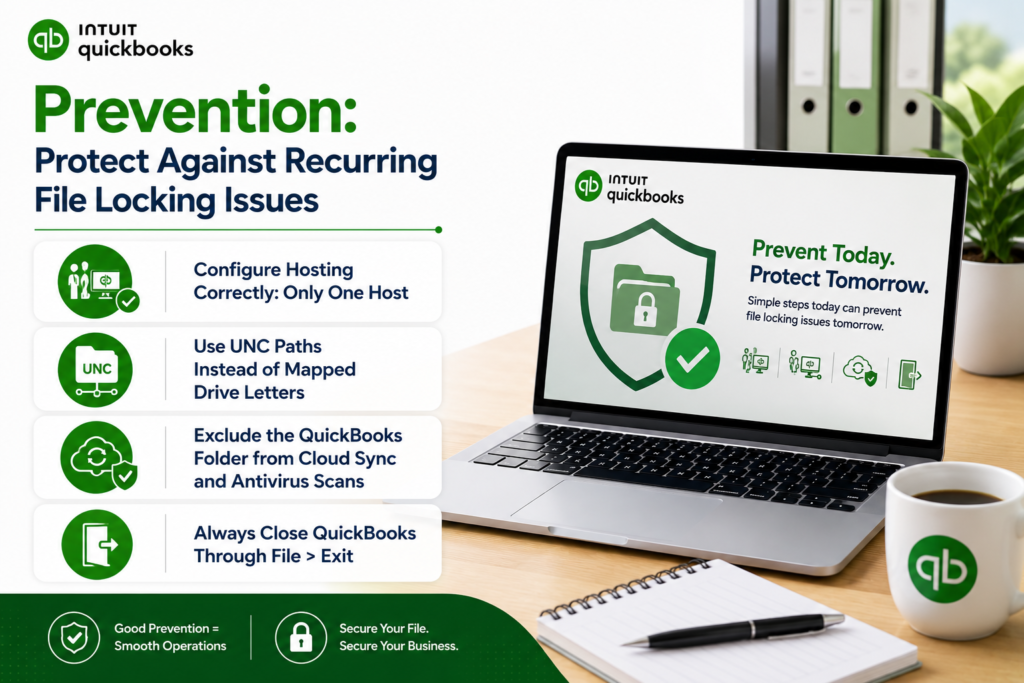
QuickBooks Prevention: Protect Against Recurring File Locking Issues
- Configure Hosting Correctly: Only One Host
The single most common cause of recurring 6190, 816 errors is incorrect hosting configuration. In a standard multi-user setup, only the computer that physically stores the company file — usually a server or a dedicated host computer — should have hosting turned on. Every other computer in the office must have hosting turned off. If a workstation goes into sleep mode or hibernation while hosting is accidentally turned on, it drops the network connection to the .ND file, leaving a lock on the .QBW file that blocks all other users when they try to log in the next morning. Verify hosting settings on every computer in the office by opening QuickBooks and checking File > Utilities. If “Stop Hosting Multi-User Access” appears on a workstation, stop it.
- Use UNC Paths Instead of Mapped Drive Letters
QuickBooks multi-user access is more stable when the company file is opened using its Universal Naming Convention (UNC) path rather than a mapped drive letter (like Q: or S:). A UNC path looks like \ServerName\QuickBooks\CompanyName.qbw. Mapped drive letters can disconnect during Windows updates, policy refreshes, or after a reboot, which drops the connection to the .ND file and triggers file locking errors. Opening the file via the UNC path creates a direct, persistent connection to the server folder that is less susceptible to Windows network mapping dropping. Change the file shortcut on all workstations to use the UNC path instead of the mapped drive letter.
- Exclude the QuickBooks Folder from Cloud Sync and Antivirus Scans
Cloud storage sync services (OneDrive, Dropbox, Google Drive) and aggressive antivirus real-time scanning both attempt to place their own locks on files when they read or upload them. If OneDrive attempts to sync the .QBW file at the same moment QuickBooks attempts to write a transaction, a lock conflict occurs that triggers Error 6190, 816. The company file folder must be excluded from all cloud sync services. Open the settings for the cloud sync application on the server and add the QuickBooks data folder to the exclusion list. Similarly, configure the antivirus software on the server to exclude the folder containing the .QBW, .ND, and .TLG files from real-time scanning. The files remain protected by on-access scanning for active threats, but excluding the folder prevents the antivirus from locking the files during scheduled or real-time scans.
- Always Close QuickBooks Through File > Exit
As with power outage protection, closing QuickBooks by clicking the X button, shutting down Windows while QuickBooks is open, or ending the QuickBooks task through Task Manager all bypass the normal shutdown sequence. The normal shutdown sequence releases the record locks and closes the .TLG file cleanly. Bypassing this sequence leaves the .TLG file open and the record locks active on the server. The next user who attempts to open the company file encounters Error 6190, 816 because the server believes the previous user is still actively editing records. Training all users to close QuickBooks exclusively through File > Exit eliminates the ghost locks that cause this error.
Conclusion
QuickBooks Error 6190 and 816 is a file locking error caused by a mismatch between the Transaction Log file (.TLG) and the company file (.QBW), or by a residual lock left on the .QBW file by a previous session that did not close properly. The error is a protective mechanism that prevents simultaneous, conflicting writes to the database, which would cause structural data corruption. Because the error is a lock state and not data corruption itself, it is resolved by clearing the incorrect lock state and re-establishing the correct communication between the supporting files and the company file.
The recovery sequence follows a strict order: confirm the error is not caused by a legitimate active user or incorrect hosting configuration, run QuickBooks File Doctor to repair the Network Descriptor file, manually rename the .ND and .TLG files to force QuickBooks to recreate them without the corrupted lock state, and verify Windows folder permissions if a specific user continues to be blocked. Renaming the .ND and .TLG files is the definitive fix for the majority of 6190, 816 cases because it completely removes the corrupted lock routing and transaction log staging that QuickBooks is conflicting with.
Preventing Error 6190, 816 from recurring requires strict control over the multi-user environment: ensuring only one computer hosts the company file, opening the file via UNC paths instead of mapped drive letters to prevent network dropping, excluding the QuickBooks folder from cloud sync and real-time antivirus scanning to prevent external applications from locking the files, and closing QuickBooks exclusively through File > Exit to ensure all locks are released at the end of every session.
Frequently Asked Questions
1. I am the only user in the office today. Why am I getting Error 6190, 816?
If you are certain no other user has the file open, the lock causing the error is a “ghost lock” left behind by a previous session that did not close cleanly. This happens when QuickBooks was closed by clicking the X button, when the computer crashed, or when Windows forced a shutdown while QuickBooks was running.
The ghost lock remains attached to the .QBW file on the server. The fix is to rename the .ND and .TLG files in the company file folder. This breaks the connection to the ghost lock and forces QuickBooks to create fresh, unlocked communication files when you open the company file again.
2. I renamed the .TLG file as instructed. Did I lose the transactions that were in it?
No. Renaming the .TLG file does not delete accounting data. The .TLG file is a temporary staging area (a transaction log) that holds transactions for a few seconds before QuickBooks writes them into the permanent .QBW company file. In the vast majority of cases, all transactions in the .TLG file have already been written to the .QBW file. By renaming the .TLG file rather than deleting it, you preserve it as a backup.
If QuickBooks discovers that a transaction was staged in the .TLG file but not yet written to the .QBW file, Intuit Data Services can use the renamed .TLG file to manually recover those specific transactions. Never delete the .TLG file; always rename it.
3. Error 6190, 816 keeps coming back every single morning. What is causing the overnight recurrence?
An error that returns consistently every morning is almost always caused by an automated process that runs overnight and locks the company file. The two most common culprits are a cloud sync service (like OneDrive or Dropbox) that attempts to upload the .QBW file overnight, and an antivirus software that runs a deep scan of the server hard drive overnight. Both processes place a Windows-level lock on the .QBW file.
When the first user arrives in the morning and tries to open QuickBooks, the .TLG file encounters the lock placed by the sync or scan service and triggers Error 6190, 816. Exclude the QuickBooks data folder from all cloud sync services and configure the antivirus to exclude that folder from scheduled scans.
4. Can I just delete the .ND file instead of renaming it?
While deleting the .ND file will not destroy accounting data (because the .ND file contains only network routing information, not financial records), renaming it is the standard and safer practice. Renaming the file to .nd.old preserves the file in case the QuickBooks Database Server Manager does not automatically recreate a new .ND file correctly.
If the new .ND file fails to route workstations properly, having the old .ND file available allows comparison or manual reconstruction of the routing data. Delete the .nd.old file only after the company file has been opened successfully by both the server and all workstations in multi-user mode, confirming the new .ND file is fully functional.
5. The File Doctor ran and said it found no problems, but I still get Error 6190, 816. What now?
When File Doctor reports no problems but the error persists, the issue is beyond the automatic repair capability of the .ND file reconstruction. Proceed directly to manually renaming the .ND and .TLG files in File Explorer. File Doctor repairs the .ND file, but it does not clear a residual lock held inside the .TLG file, nor does it fix Windows folder permissions.
If manual renaming of the .ND and .TLG files does not resolve the error either, the cause is a Windows permissions issue. Verify that the user receiving the error has Full Control permissions over the folder where the company file is stored, as detailed in Step 4.

Anusmita is a seasoned content writer who brings perspective to words. As a writer, she enriches her work with a journalistic aptitude, utilising her training in Mass Communication and Journalism. She loves to travel and explore, which imparts a greater sense of understanding, maturity, and experience that are reflected in her content.
Beyond her professional work, Anusmita enjoys painting, singing, dancing, and spending time planting. She is also a self-proclaimed foodie who loves exploring different cuisines, an interest that further adds to her curiosity and perspective as a writer.
Leave a Reply