
Moving a QuickBooks company file to a new computer or server transfers all financial records to a new hardware location without losing data. This process requires installing the QuickBooks software on the new machine and creating a backup on the old machine to move the data safely. A proper migration ensures the new setup has the same financial accuracy as the old one. Users often underestimate the complexity because a simple copy-paste of the file fails due to hidden configuration files.
This guide covers the exact steps to move the company file for both single-user installations and multi-user server environments. The process differs based on whether the file moves to a single desktop or a central server that multiple computers access. Following the correct order of operations prevents data corruption and “6000-series” errors that lock the file. Intuit provides specific tools for this transfer to ensure the file structure remains intact during the move.
Table of Contents
Why Moving the QuickBooks Company File to a New Computer or Server Requires More Than Copying?
- The Role of the QBW, QBB, and ND Files
The QuickBooks company file (.QBW) acts as the live database containing all transactions and lists. This file relies on supporting files to function correctly in a specific environment. Copying only the .QBW file to a new computer causes the file to fail or display error messages because the supporting files are missing or mismatched. The .QBB backup file contains the company data in a compressed format that allows for safe transport. The .ND file (Network Data) acts as a map that tells computers where the file is located on the network.
Moving just the .QBW file ignores these dependencies and creates a broken installation. The .ND file on the new computer will point to the old computer’s path. QuickBooks will fail to open the file because it cannot verify its location. Using the .QBB backup file forces QuickBooks to create a new .ND file and a fresh .TLG (Transaction Log) file on the new computer. This “fresh start” ensures the file integrates properly with the new hardware and operating system.
- Software and Environment Dependencies
QuickBooks software must match the version used to create the company file. A newer version of QuickBooks can update an older file, but an older version cannot open a newer file. Installing the correct version on the new computer is a mandatory first step. Windows registry entries on the new computer must be clean to avoid conflicts with old configurations. Third-party applications, like antivirus software, often block QuickBooks on a new machine because they do not recognize the new installation.
The migration requires transferring the license information to the new computer. Intuit requires deactivation of the license on the old computer if moving to a new one permanently. Failing to deactivate the old license can prevent the new installation from activating. Activation links the specific license number to the new hardware. Without valid activation, QuickBooks runs in read-only mode or shuts down after opening, halting the migration process.
Required Actions on the Source Computer
- Create a Verified Backup
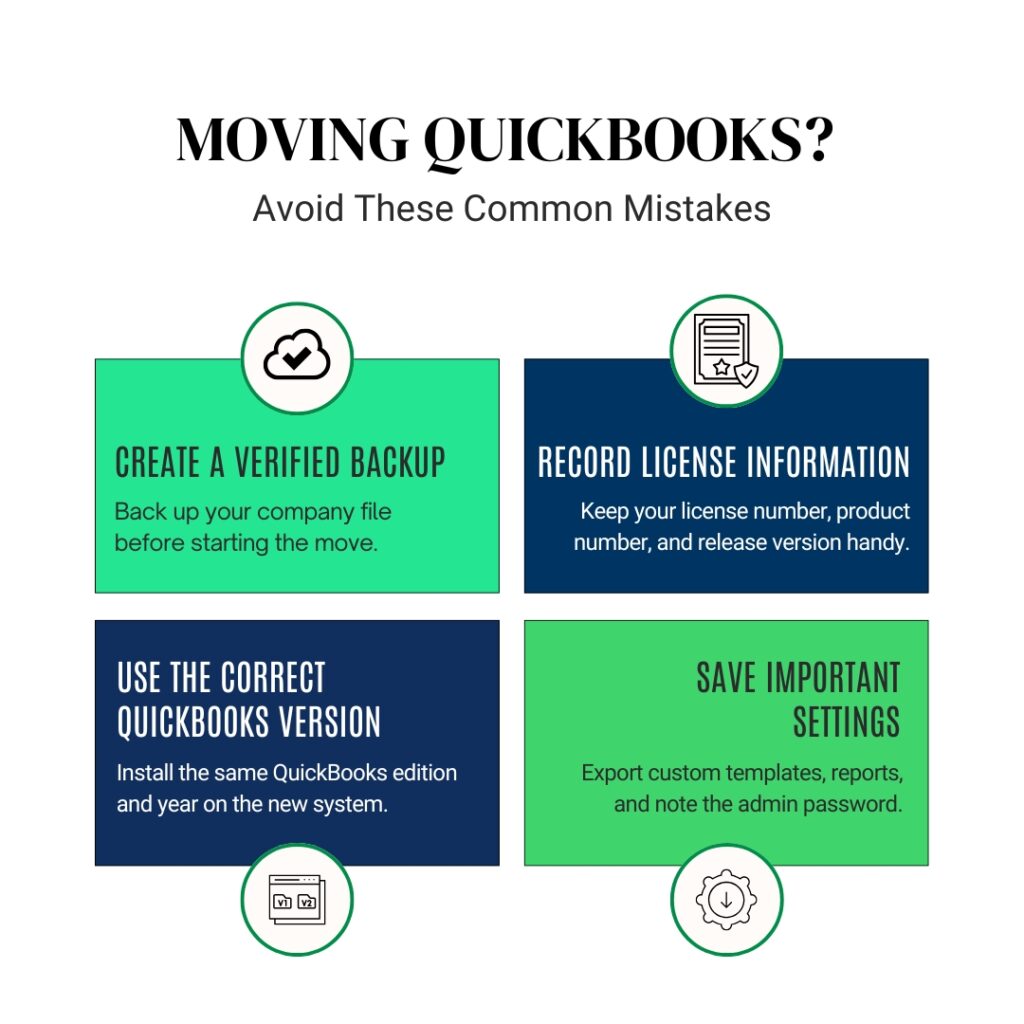
Creating a backup on the source (old) computer captures the data at its current state. This backup serves as the transport medium for the data. A backup created without verification might contain errors that transfer to the new computer. Using the “Create Local Backup” function with “Complete Verification” selected ensures the backup is error-free before the move.
Switching to Single-User mode before creating the backup prevents data corruption. Multi-user mode allows other users to edit the file while the backup is running, which creates a snapshot that misses recent changes. A backup created in Single-User mode guarantees every transaction saved to the backup file. Saving the backup to a USB drive or external hard drive makes it easy to transfer to the new computer.
- Record Installation Information
The new installation requires the same license and product numbers as the original. These numbers are found in the “Help” menu under “About QuickBooks” or in the original purchase email. Recording the release number (e.g., R9P) ensures the new installation matches the old one exactly. Different release numbers within the same year can cause minor compatibility issues.
Users should also export any custom templates or reports that reside locally. Company file backups include data, but they sometimes exclude locally saved templates or printer settings. Exporting these settings separately saves time when setting up the new computer. Locating the admin password is crucial because the new computer requires authentication to open the file.
Step-by-Step Process for a Single User Move
- Install and Verify on the New Computer
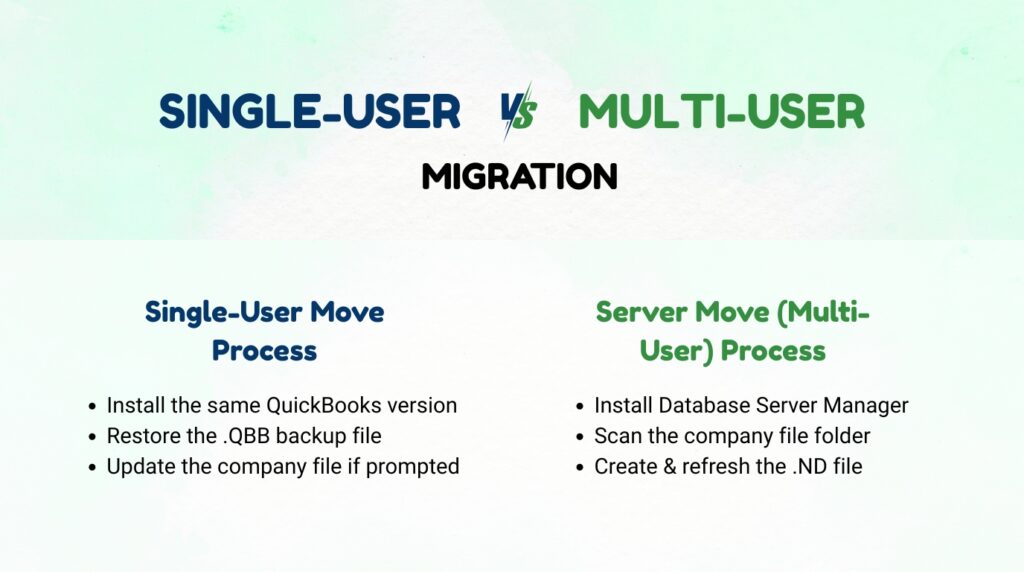
Install the QuickBooks software on the new computer using the recorded license number. The installation must be the same year (e.g., QuickBooks 2024) and the same version (e.g., Pro vs. Premier) as the old one. Installing a different version requires upgrading the company file, which is a permanent change. Opening the software once without a file confirms the installation works properly.
Updating the new installation to the latest release is essential before restoring the backup. Intuit releases updates (R-releases) that fix bugs and improve stability. An outdated installation on a new computer might not handle the file correctly. Running “Update QuickBooks” from the Help menu downloads the latest patches. This step prevents “Update File” errors during the restore process.
- Restore the Backup File
Copy the .QBB backup file from the USB drive to the Desktop of the new computer. Restoring from an external drive directly often fails due to path length issues. Copying the file to the Desktop ensures the file path is short and accessible. Open QuickBooks on the new computer and select “File” > “Open or Restore Company” > “Restore a Backup Copy”.
Browse to the Desktop and select the .QBB file. QuickBooks will ask where to save the restored company file. Users should choose a new folder on the C: drive (e.g., “C:\QuickBooks_Company_Files”) rather than the default location. This keeps the restored file separate from any sample files. QuickBooks will decompress the backup and create a new .QBW file on the new hard drive.
- Update the Company File for the New Version
If the new computer has a newer version of QuickBooks (e.g., moving from 2023 to 2024), QuickBooks prompts to update the file. This update rewrites the internal structure of the company file. The update is irreversible; the file cannot go back to the older version. Creating a backup immediately before this update provides a safety net.
Clicking “Yes” to the update prompt converts the file to the new format. This process may take several minutes depending on the file size. The computer must not lose power or internet connection during this update. Interruption during the update process corrupts the company file, requiring a restore from the backup just created. A successful update allows the file to open in the newer QuickBooks environment.
Step-by-Step Process for a Server Move (Multi-User)
- Install Database Server Manager
Moving a company file to a server for multi-user access requires a different installation method than a single user. The server needs the “QuickBooks Database Server Manager” installed, not the full QuickBooks application. This tool manages the connection between the company file and the workstations. Installing the full application on a server is unnecessary and consumes resources.
The Database Server Manager is available in the “Tools” folder of the QuickBooks installation disc or download file. Users must select “Install Database Server Only” during the setup wizard. This installation ensures the server can host the file without consuming a user license. After installation, the server allows multiple workstations to access the file simultaneously without data conflicts.
- Scan the Folder and Create the Network Descriptor
The QuickBooks Database Server Manager must scan the folder containing the company file. Open the Database Server Manager on the server and click “Add Folder”. Navigate to the location where the company file resides and click “Scan”. Scanning creates the .ND (Network Data) file for that specific folder.
The .ND file acts as a traffic controller that directs workstation traffic to the correct file location. Without this scan, workstations receive Error -6000, -83 because they cannot find the file. The scan also monitors the folder for changes. Moving a file to a new folder on the server requires re-scanning that new folder to update the .ND file.
- Configure Workstations to Connect
Workstations (the other computers in the office) need the full QuickBooks application installed. They do not need the Database Server Manager. Users must map the network drive on the workstation to access the server folder. This mapping assigns a drive letter (e.g., Q: drive) to the server location.
Open QuickBooks on the workstation and select “File” > “Open or Restore Company” > “Open a company file”. Browse to the mapped network drive and select the .QBW file. QuickBooks uses the .ND file created by the server to connect. If the connection fails, verify the firewall on the server allows QuickBooks traffic (typically on port 8019). Proper firewall configuration prevents the server from blocking the workstation’s request.
Common Post-Move Configurations
- Repair the PDF Converter Driver
QuickBooks relies on a specific driver to save forms and reports as PDF files. Moving to a new computer often breaks the link to this driver because the Windows registry is new. Attempting to print a PDF immediately after a move usually results in an error like “Problem connecting to the PDF converter”.
The QuickBooks Tool Hub provides a utility to fix this issue. Download the QuickBooks Tool Hub from Intuit and run it. Open the “Program Problems” tab and select “QuickBooks PDF & Print Repair Tool”. This tool re-registers the PDF components with Windows. Running this repair restores the ability to save invoices and estimates as PDFs on the new computer.
- Re-establish Email and Outlook Integration
Email links in QuickBooks rely on the email configuration of the host computer. Moving to a new computer resets this configuration. Clicking “Email” inside QuickBooks will likely fail until the user re-enters the email password. QuickBooks must synchronize with the new email profile in Outlook or the webmail settings.
Go to “Edit” > “Preferences” > “Send Forms” and select “Web Mail” or “Outlook”. Configuring the correct email provider ensures invoices reach customers. Updating the “My Preferences” tab confirms the correct email address is sending the documents. This step ensures daily operations like sending invoices continue without interruption after the move.
- Update Payroll Tax Tables
A restored company file retains the payroll data but not the latest tax tables. The new computer downloads the current tax tables automatically if connected to the internet. However, if the old computer had an outdated version, the new one might default to the old tables during the restore.
Go to “Employees” > “Get Payroll Updates” immediately after the move. This checks for the latest tax rates from Intuit. Downloading the update ensures payroll calculations are accurate for the current pay period. Using outdated tax tables results in incorrect paycheck withholdings and tax filing errors.
Troubleshooting Common Move Errors
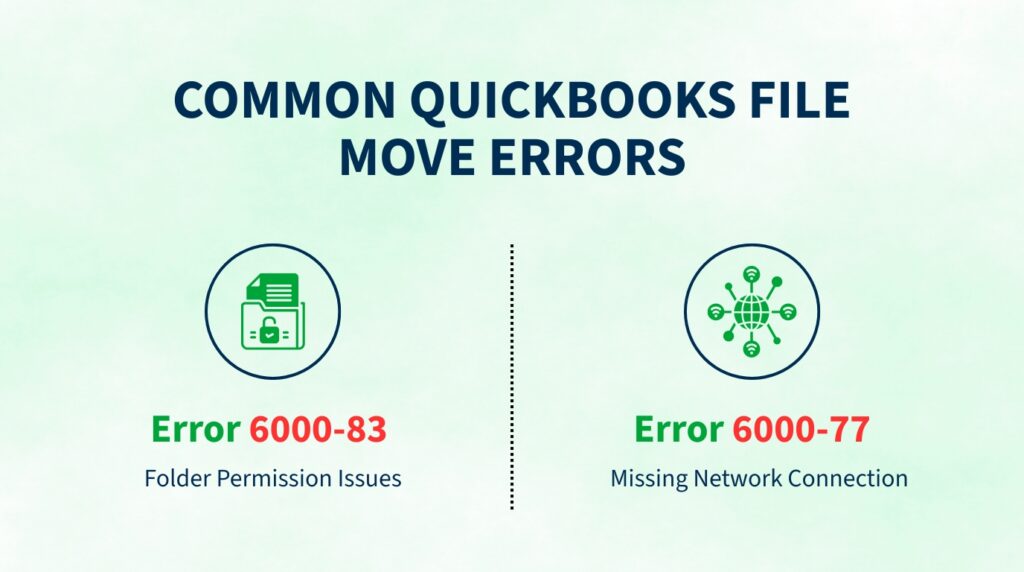
QuickBooks Error 6000-83 and 6000-301: Permission Issues
Error 6000-83 or 6000-301 indicates that QuickBooks cannot read the file due to folder permission settings. Windows User Account Control (UAC) often blocks access to the folder where the backup was restored. This error is common when saving the file to the “Documents” folder or a protected system folder.
Fixing this error requires changing the folder permissions. Right-click the folder containing the company file, select “Properties”, and go to the “Security” tab. Click “Edit” and ensure “Users” or “Administrators” have “Full Control”. Moving the company file to the root of the C: drive (e.g., C:\QB_Data) often bypasses these permission restrictions entirely.
QuickBooks Error -6000, -77: Missing Network Connection
Error -6000, -77 occurs when a workstation cannot connect to the server hosting the company file. This error means the .ND file is missing or the network path is incorrect. The workstation is trying to find the file but the server is not responding.
Resolving this error requires verifying the network connection. Ensure the workstation can “see” the server in the Network folder of File Explorer. Ping the server IP address to confirm connectivity. If the connection works, open the QuickBooks Database Server Manager on the server and re-scan the folder. This rebuilds the .ND file and re-establishes the connection path for the workstations.
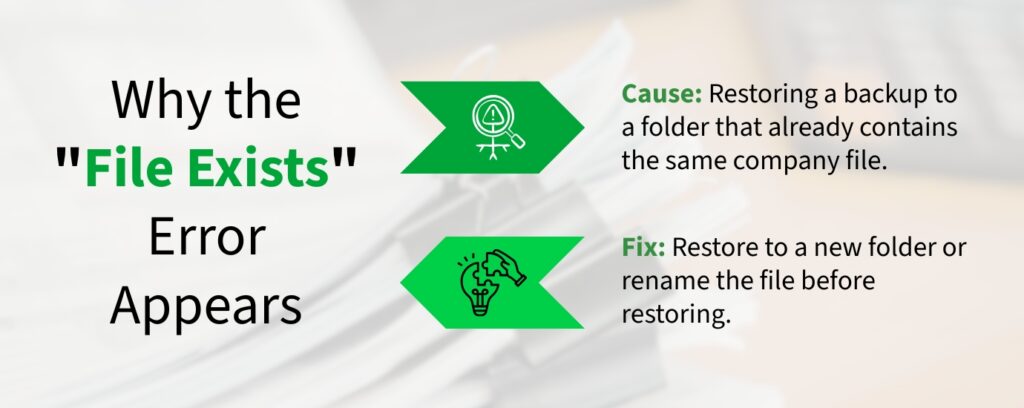
“File Exists” QuickBooks Errors During Restore
A “File Exists” error happens when the user tries to restore a backup to the exact same location where the damaged or old file resides. QuickBooks detects a conflict between the incoming file and the existing file. This prevents overwriting the old file before the new one is verified.
The fix is simple: change the save location during the restore. Save the restored file to a new folder or rename the file. Restoring to a different location preserves the original file as a backup. This prevents accidental deletion of the original data if the restore fails or contains errors.
Conclusion
Moving a QuickBooks company file to a new computer or server requires a methodical approach of backing up, installing, and restoring. The .QBB backup file serves as the bridge that carries the data safely from the old environment to the new one. Relying on simple file copying ignores the complex dependencies between the company file, the software, and the Windows operating system.
The post-move steps are just as critical as the move itself. Repairing the PDF converter, re-setting email preferences, and updating payroll ensures the new computer functions as a complete replacement for the old one. Skipping these configuration steps leads to daily operational failures that disrupt business workflows.
Troubleshooting errors like 6000-83 immediately after the move saves hours of downtime. Understanding that these errors are usually permission or path-related allows for quick fixes. A successful migration means the user can log in, view reports, and process transactions on the new computer exactly as they did on the old one, with no loss of data or functionality.
Frequently Asked Questions
1. Can I use the same USB drive for the backup and the restore process?
Yes, using the same USB drive is the standard method for transferring the backup. The USB drive acts as the physical transport medium. However, copying the backup file from the USB drive to the Desktop of the new computer before restoring is crucial.
Restoring directly from the USB drive often causes errors due to slow transfer speeds or unstable connections. Copying the file to the Desktop ensures the data sits on the local hard drive, which speeds up the restore process and reduces the risk of corruption.
2. Do I need to reinstall third-party plugins after moving the file?
Yes, third-party plugins do not transfer with the company file. Plugins are applications installed locally on the computer’s operating system. The company file may contain data created by the plugin, but the plugin engine itself is missing on the new computer.
Reinstalling the plugins (like payment processing or inventory scanners) is necessary for them to function. The installation files for these plugins must be downloaded and installed on the new computer separately.
3. Why does QuickBooks ask for a password after the move?
QuickBooks asks for the password because the file is the same, and it remembers its security settings. The file requires the Administrator password to open, regardless of where it lives. The password protects the financial data from unauthorized access.
Users must use the same password they used on the old computer. If the password is lost, Intuit provides a password removal tool, but it requires verifying the license information to prove ownership.
4. Will my old computer still work after moving the file?
The old computer will still work and can open the file if it retains a copy of the .QBW file. However, using both computers to enter data creates two different sets of books. Users must decide which computer is the primary one.
Entering data on both and then trying to merge them manually is nearly impossible and prone to errors. Typically, the old computer is decommissioned or used for other tasks to avoid data duplication.
5. What happens if I move a file from QuickBooks Pro to QuickBooks Enterprise?
Moving a file from a lower version (Pro) to a higher version (Enterprise) works, but it is a one-way street. QuickBooks Enterprise will update the file to its larger database format. This updated file will never open in QuickBooks Pro again.
Users must ensure they are ready to upgrade permanently to Enterprise before performing this move. Rolling back to Pro requires restoring a backup made before the move to Enterprise, losing any work done in Enterprise.

Anusmita is a seasoned content writer who brings perspective to words. As a writer, she enriches her work with a journalistic aptitude, utilising her training in Mass Communication and Journalism. She loves to travel and explore, which imparts a greater sense of understanding, maturity, and experience that are reflected in her content.
Beyond her professional work, Anusmita enjoys painting, singing, dancing, and spending time planting. She is also a self-proclaimed foodie who loves exploring different cuisines, an interest that further adds to her curiosity and perspective as a writer.
Leave a Reply