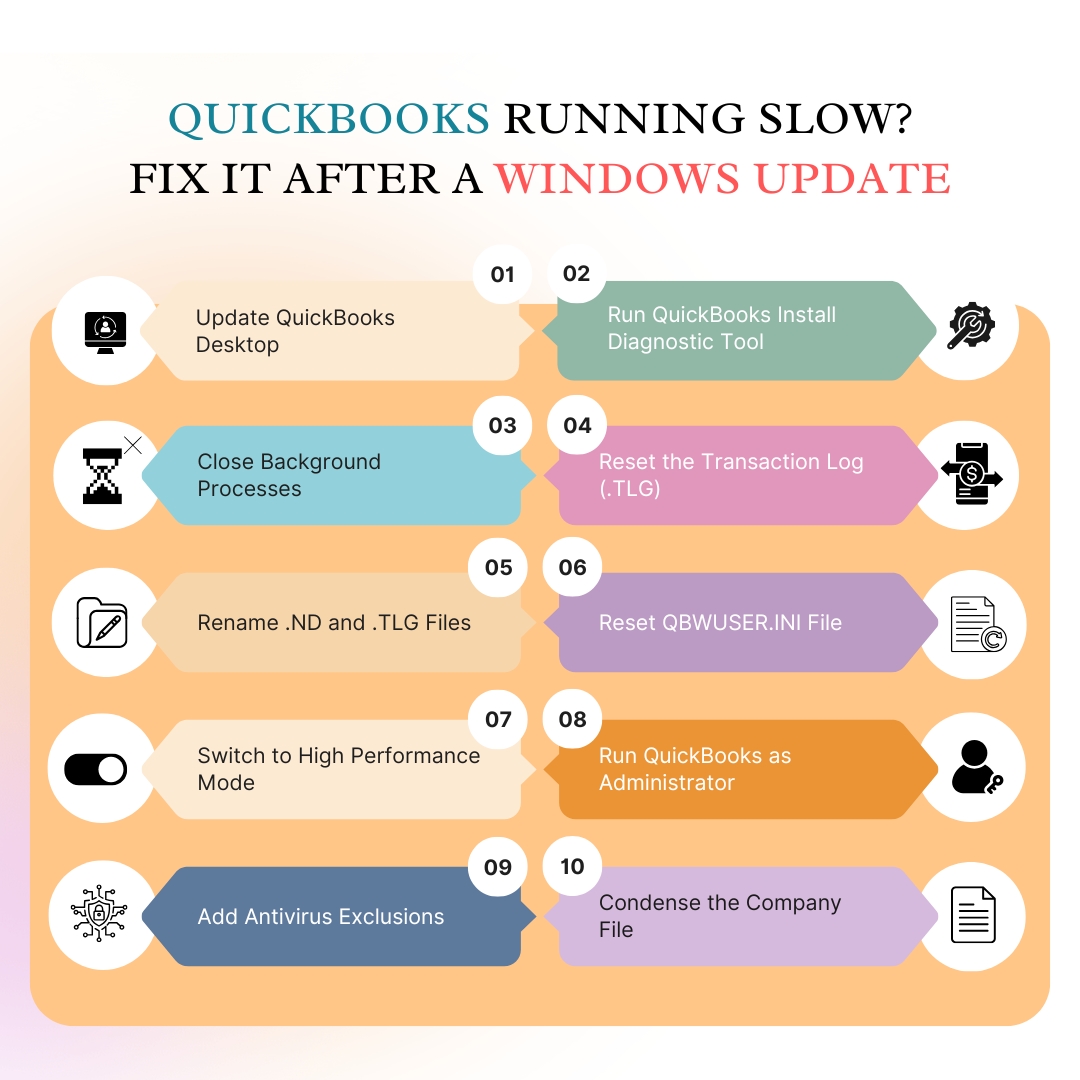
QuickBooks Desktop slows down after a Windows update because the update changes components on the computer that QuickBooks relies on to run and the installed version of QuickBooks has not yet been updated to match those changes. The slowdown is not accidental or random. Windows updates frequently replace internal software libraries, adjust how programs access memory, and modify how background processes interact with each other. QuickBooks depends on all three of these things to function at normal speed, and a mismatch in any one of them produces visible lag throughout the program.
The documented cause of QuickBooks slowing down after a Windows update has a specific, fixable root cause. Users on Intuit’s community forums have reported QuickBooks Desktop Pro 2024 becoming extremely slow after specific Windows releases, with the program taking more than ten minutes to open even small company files with fewer than ten transactions. That level of slowdown has a clear origin, and this article covers each one with the exact steps needed to restore normal QuickBooks speed.
This article applies to QuickBooks Desktop Pro, Premier, and Enterprise versions 2021 through 2025 on Windows 10 and Windows 11. The fixes are arranged from fastest to apply to most thorough, so starting from the top is the most efficient path to resolving the slowdown.
Table of Contents
Quick Diagnosis: Match Your Slowdown to Its Cause
Find the pattern that matches what you are experiencing before reading further. This takes you directly to the right fix.
| What You Are Experiencing | Most Likely Cause | Go Directly to This Fix |
|---|---|---|
| QuickBooks became slow immediately after a Windows update | Windows update changed shared software components QuickBooks uses | Fix 1 and Fix 2 |
| QuickBooks takes 10+ minutes to open even small company files | Damaged software components or stale background processes | Fix 2 and Fix 3 |
| QuickBooks is slow on every task, not just one specific action | Outdated QuickBooks version or damaged installation files | Fix 1 and Fix 6 |
| Slowdown happens only when opening or switching company files | Oversized or partially damaged company file | Fix 4 |
| QuickBooks slows down gradually throughout the day | Stale background processes or oversized transaction log (.TLG) file | Fix 3 and Fix 5 |
| QuickBooks is slow only in multi-user mode on workstations | Network scan interference or multi-user configuration conflict | Fix 7 |
| Slowdown started after Windows update and affects only one user account | Corrupted Windows user profile | Fix 8 |
| QuickBooks is slow and antivirus was also updated recently | Antivirus software now scanning QuickBooks files more aggressively | Fix 9 |
Why Does a Windows Update Slows Down in QuickBooks Desktop?
QuickBooks Desktop does not operate in isolation. It runs on top of three Microsoft software components that Windows installs and manages. These three components are updated by Windows regularly, and when a Windows update changes any of them, QuickBooks must also be updated to work correctly with the new version.
- Microsoft .NET Framework (a software layer that QuickBooks uses to run its internal screens, calculations, and background tasks),
- MSXML – short for Microsoft XML Core Services (which QuickBooks uses to process and send data), and
- Microsoft Visual C++ Redistributable files (shared program code that QuickBooks and Windows both use to perform core operations).
The compatibility gap – the period between a Windows update installing and the matching QuickBooks update being applied – is when the slowdown occurs. QuickBooks is calling functions in these components that were updated by Windows, but it is using the old way of calling them. Every time QuickBooks tries to complete any task that touches a changed component, it takes longer than it should because the process is working against incompatible instructions. This explains why the slowdown affects the whole program, not just one screen or function.
A real documented example of this occurred in August 2024, when QuickBooks Desktop Pro 2024 version R15_81 became extremely slow on Windows. Users on Intuit’s community forums reported that the program took more than ten minutes to open company files that had previously opened in seconds, and that clicking anything in the menu bar triggered delays of multiple minutes. The underlying cause, as confirmed in the community thread, was a software conflict introduced by the update – not the company file, not the hardware, and not the network.
A separate documented case from Intuit’s community forums involved QuickBooks Desktop Enterprise users who noticed QuickBooks workstations opening dozens of files from the transaction file folder (“Txn folder”) on every window opening, which caused long pauses in multi-user mode. Intuit confirmed this was a known issue tied to a specific update release, assigned it investigation number INV-129564, and advised affected users to call support and register their email for the fix notification. These are not isolated incidents – they follow a consistent pattern of Windows or QuickBooks update releases creating temporary but significant performance problems.

Root Causes Behind QuickBooks Desktop Performance Slowdown After Recent Windows Update
The root causes behind Quickbooks Desktop performance slowdown after recent windows update are given below in seven different versions:
- Root Cause 1: QuickBooks Version Is Behind the Windows Update
- Root Cause 2: Windows Update Damaged the Shared Software Components QuickBooks Uses
- Root Cause 3: Stale QuickBooks Background Processes
- Root Cause 4: Oversized or Damaged Company File
- Root Cause 5: Oversized Transaction Log (.TLG) File
- Root Cause 6: Windows Update Changed How the Computer Manages Memory and Background Tasks
- Root Cause 7: Antivirus Program Updated Alongside Windows and Now Scans QuickBooks Files More Aggressively
Root Cause 1: QuickBooks Version Is Behind the Windows Update
Every major Windows update that modifies .NET Framework, MSXML, or C++ Redistributable files requires a matching QuickBooks update to restore full compatibility. The QuickBooks version number – for example, R15_81 for QuickBooks Desktop Pro 2024 – represents the specific release that includes fixes for a set of Windows compatibility issues. Running an older QuickBooks release after a new Windows update creates a gap where QuickBooks is working with components it was not built for, and the result is slower performance across every task.
According to Intuit, updating QuickBooks Desktop to the latest available release is the primary recommended step for resolving performance issues, specifically because each release includes patches for known Windows compatibility problems identified since the previous release. Skipping QuickBooks updates while keeping Windows fully updated accelerates this compatibility gap.
Root Cause 2: Windows Update Damaged the Shared Software Components QuickBooks Uses
Windows updates are generally reliable, but an interrupted Windows update – one that lost power or was stopped mid-process – can leave .NET Framework, MSXML, or C++ Redistributable files in a partially updated or damaged state. QuickBooks calls these components constantly while running. A partially updated .NET Framework file causes QuickBooks to pause and retry every time it needs to access that file, which produces the “slow on every task” pattern that users notice immediately after a Windows update.
Users on Intuit’s official community page confirmed this pattern, reporting 20-second delays when opening and closing QuickBooks windows – and that running the QuickBooks Install Diagnostic Tool resolved the issue completely. The tool specifically targets .NET Framework, MSXML, and C++ files, detects which are damaged or incompatible, and reinstalls them to the correct version.
Root Cause 3: Stale QuickBooks Background Processes
QBW32.exe is the main QuickBooks program process – it is the background task that keeps QuickBooks running while the program is open. When Windows restarts after an update, any programs that were open before the update closed mid-session, which means QuickBooks did not shut down in an orderly way. This leaves old QBW32.exe processes still occupying memory on the next launch of QuickBooks. The new session competes with the leftover old processes for the same memory and processing resources, which makes QuickBooks significantly slower than it should be.
Background process buildup is also a cumulative issue – each session where QuickBooks is not closed properly adds more leftover processes that were never cleared. Clearing all QuickBooks background processes before launching the program removes this competition and allows QuickBooks to use the full resources available to it.
Root Cause 4: Oversized or Damaged Company File
The company file – the .QBW file that holds all of a business’s accounting records – requires more processing power and memory to open and work with as it grows larger. According to Intuit’s community support representatives, there is no fixed size limit for QuickBooks company files, but performance deteriorates as the file grows, particularly for QuickBooks Pro and Premier users with files approaching or exceeding 150–200 MB, and for Enterprise users with files approaching 1 GB. A Windows update that increases the memory demand on the computer reduces the memory available to QuickBooks, which makes the existing slowdown from a large company file worse.
Damage to the company file creates a separate but related problem: QuickBooks tries to read a damaged record, cannot complete the read, retries it, and eventually moves on – but every retry adds delay. A company file that has any damaged records becomes noticeably slower after a Windows update because the update reduces the available system resources that QuickBooks was previously relying on to mask the delay from those retries.
Root Cause 5: Oversized Transaction Log (.TLG) File
The .TLG file – called the Transaction Log file – is a file QuickBooks automatically creates and stores in the same folder as the company file. Its role is to record every change made to the company file in real time, so that if QuickBooks closes unexpectedly, no data is lost. The .TLG file grows continuously as transactions are added, and it is only reset to a smaller size when a full backup is completed through File > Back Up Company > Create Local Backup.
A .TLG file that has not been reset through a proper backup in a long time can grow very large. QuickBooks reads the .TLG file every time it opens the company file, and a large .TLG file makes this opening process significantly slower. After a Windows update that changes how Windows handles file reads, a large .TLG file takes even longer to process, which compounds into noticeable slowness at startup and during file switching.
Root Cause 6: Windows Update Changed How the Computer Manages Memory and Background Tasks
Windows updates sometimes change the computer’s default power plan settings or background process priority settings. The power plan – a group of settings that controls how much processing power the computer uses – can be shifted to a more energy-efficient setting by a Windows update. A “Balanced” or “Power Saver” power plan reduces the processor’s speed during tasks it detects as low-priority, and QuickBooks background operations are sometimes incorrectly flagged as low-priority. The result is that QuickBooks runs slower than it should because the processor is deliberately being held back by Windows.
Windows 11 updates have also changed how background programs compete for memory in ways that give newer Microsoft services higher priority over third-party programs like QuickBooks. This means the computer’s available memory for QuickBooks effectively decreases after some updates, even if nothing else was changed. This is particularly noticeable on computers that were already running close to the minimum 8 GB RAM requirement that Intuit specifies for QuickBooks Desktop 2024.
Root Cause 7: Antivirus Program Updated Alongside Windows and Now Scans QuickBooks Files More Aggressively
Windows updates frequently include updates to Windows Security – the built-in antivirus program. Third-party antivirus programs also update themselves around the same time as major Windows updates to add coverage for new threats. A more aggressive antivirus scan setting, or a new scan rule added by the update, can start intercepting QuickBooks file writes that it previously allowed through without delay. QuickBooks writes to the company file, the .TLG file, and the payroll folder continuously while running. Each intercepted write adds a fraction of a second of delay, and collectively these delays produce a program that feels slow across every action.

How to Fix QuickBooks Desktop Running Slow After a Windows Update?
To fix Quickbooks Desktop running slow after a windows update apply ten solutions given below:
- Fix 1: Update QuickBooks Desktop Immediately After Every Windows Update
- Fix 2: Run the QuickBooks Install Diagnostic Tool to Repair Damaged Windows Components
- Fix 3: Clear Stale QuickBooks Background Processes
- Fix 4: Reset the Transaction Log (.TLG) File by Running a Full Backup
- Fix 5: Rename the .ND and .TLG Configuration Files
- Fix 6: Reset the QBWUSER.INI Settings File
- Fix 7: Switch Windows Power Plan to High Performance
- Fix 8: Run QuickBooks as Administrator
- Fix 9: Add QuickBooks Exclusions to the Antivirus Program
- Fix 10: Condense the Company File to Reduce Its Size
Fix 1: Update QuickBooks Desktop Immediately After Every Windows Update
Updating QuickBooks Desktop to the latest release is the first and most important step after any Windows update causes a slowdown. Intuit releases QuickBooks updates specifically to address compatibility problems that Windows updates introduce. Each QuickBooks release number – such as R15_82 for QuickBooks Pro 2024 – contains patches for the Windows component changes that were included in the matching period’s Windows updates. Installing the update closes the compatibility gap and restores normal QuickBooks performance.
Open QuickBooks. Go to Help > Update QuickBooks Desktop > click the Update Now tab > check Reset Update to discard any incomplete previous download > click Get Updates. When the download finishes, close QuickBooks, reopen it, and click Yes when it prompts to install. Restart the computer after installation.
If QuickBooks is too slow to navigate to the update menu, download the latest QuickBooks Desktop update directly from Intuit’s official support website by searching for the QuickBooks Desktop version and year. Right-click the downloaded file and select Run as Administrator to install it manually. This bypasses QuickBooks entirely and installs the update directly.
Fix 2: Run the QuickBooks Install Diagnostic Tool to Repair Damaged Windows Components
The QuickBooks Install Diagnostic Tool is a free program from Intuit that automatically detects and repairs damage to the three Windows components QuickBooks depends on: .NET Framework, MSXML, and Visual C++ Redistributable files. Users on Intuit’s official community page documented that running this tool eliminated 20-second delays when opening and closing QuickBooks windows – resolving slowdowns that had persisted through multiple other troubleshooting steps.
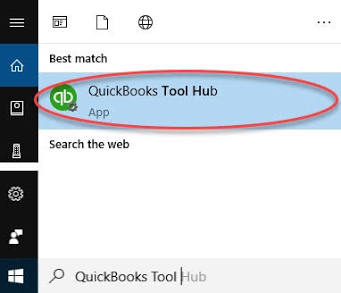
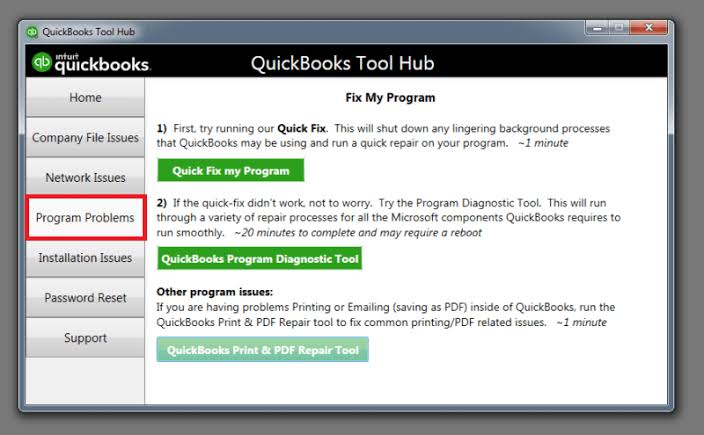
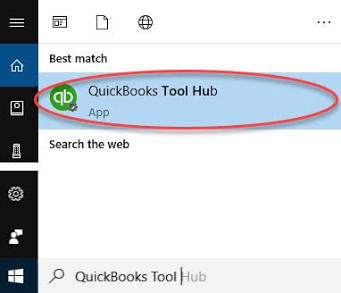
Download the QuickBooks Tool Hub from Intuit’s official support page. Open it and click Installation Issues in the left menu. Click QuickBooks Install Diagnostic Tool. Allow it to run – it can take up to 20 minutes because it downloads and verifies each component individually. Restart the computer when it finishes. Open QuickBooks and test performance.
The tool runs silently without showing progress details, which is normal. Do not close it while it is running. After the restart, QuickBooks should open at its normal speed. If performance is still slower than before the Windows update, continue to Fix 3.
Fix 3: Clear Stale QuickBooks Background Processes
Clearing all QuickBooks background processes that are still running in memory from previous sessions removes the competition for system resources that slows QuickBooks down. This is particularly effective when the slowdown started immediately after a Windows restart following the update, because QuickBooks was likely open when Windows restarted and did not close cleanly.
Open the QuickBooks Tool Hub. Click Program Problems > Quick Fix My Program. This automatically stops all QuickBooks background processes and runs a basic program repair. It takes about two minutes.
To clear processes manually without the Tool Hub: press Ctrl + Shift + Esc to open Task Manager. Click the Processes tab. Look for QBW32.exe, QBDBMgrN.exe (the QuickBooks Database Server Manager – the process that manages multi-user file access), and QBCFMonitorService.exe (the QuickBooks Connection Monitor – the process that watches for network activity). Right-click each one and select End Task. Wait 30 seconds and then open QuickBooks.
Fix 4: Reset the Transaction Log (.TLG) File by Running a Full Backup
Running a full backup of the company file resets the .TLG file – the Transaction Log file that records every change to the company file. When the backup completes, QuickBooks creates a new, empty .TLG file and the old oversized one is archived with the backup. A fresh .TLG file is much smaller and significantly faster for QuickBooks to read at startup. This fix specifically resolves slowness that happens when opening QuickBooks or switching company files.
Open QuickBooks and the company file. Go to File > Back Up Company > Create Local Backup. Select Local Backup and click Next. On the Options screen, select Complete Verification – this ensures the backup is valid. Choose a backup location and complete the process. When the backup finishes, close and reopen QuickBooks to load the new, smaller .TLG file.
For businesses that have not run a full backup in several weeks or months, the difference in startup speed after this step is often significant. The .TLG file can grow to hundreds of megabytes if backups are not run regularly, and QuickBooks reads the entire file at launch. A smaller .TLG file directly translates to faster load times.
Fix 5: Rename the .ND and .TLG Configuration Files
The .ND file – Network Data file – is a configuration file QuickBooks creates automatically in the same folder as the company file. It stores the settings QuickBooks uses to connect to the company file over a network in multi-user mode. The .TLG file stores the transaction log. When either of these files is damaged or contains outdated settings – which a Windows update can cause by changing how Windows handles file connections – QuickBooks slows down every time it tries to open the company file.
Open File Explorer and navigate to the folder where the company file (.QBW file) is stored. Look for files with the same name as the company file but with .ND and .TLG extensions. Right-click the .ND file and select Rename. Add .old to the end of its name (for example, CompanyFile.qbw.nd.old). Do the same for the .TLG file. Open QuickBooks – it will automatically create new, clean versions of both files. Test QuickBooks speed after reopening.
Renaming these files does not delete any accounting data. The company file itself (.QBW) is completely separate and is not touched. QuickBooks regenerates both the .ND and .TLG files automatically the next time it opens the company file, and the new versions start fresh without any outdated or damaged configuration data.
Fix 6: Reset the QBWUSER.INI Settings File
The QBWUSER.INI file is a small settings file stored in a hidden Windows folder that tells QuickBooks which company file to open at startup and stores basic program preferences. A Windows update that changes folder permissions or rewrites user profile settings can damage this file, causing QuickBooks to slow down at startup as it tries repeatedly to read settings it can no longer access. Renaming this file forces QuickBooks to create a clean, working version automatically.
Open File Explorer. Click View > Show > Hidden Items to make the hidden AppData folder visible. Navigate to C:\Users\[Your Username]\AppData\Local\Intuit\QuickBooks\[Year] – replace [Your Username] with your Windows login name and [Year] with the QuickBooks version year. Right-click QBWUSER.INI and select Rename. Add .old to the end so it reads QBWUSER.INI.old. Open QuickBooks and use the No Company Open window to navigate to the company file manually.
Fix 7: Switch Windows Power Plan to High Performance
Windows updates sometimes reset the computer’s power plan to Balanced or Power Saver – settings that deliberately reduce the processor’s speed to conserve energy. A Balanced power plan throttles the processor when Windows determines a task is low-priority. QuickBooks background operations – indexing transactions, loading the company file, checking payroll data – are often flagged as low-priority because they are not directly tied to what the user is typing at that moment. Switching to a High Performance power plan keeps the processor running at full speed while QuickBooks is open, which removes this artificial slowdown.
Press Windows + R, type powercfg.cpl, and press Enter. The Power Options window opens. Click Show additional plans if it appears. Select High Performance. Close the window. Open QuickBooks and test speed.
This fix is particularly effective on laptop computers, where Windows updates frequently reset the power plan to a battery-conserving setting. Desktop computers plugged into a wall outlet and dedicated server machines should also use High Performance when running QuickBooks as the primary application, because there is no battery to protect and maximum speed is always preferable.
Fix 8: Run QuickBooks as Administrator
Windows updates sometimes tighten permission settings in ways that prevent QuickBooks from writing freely to the folders it needs – the company file folder, the QuickBooks installation directory, and the payroll data folder. When QuickBooks does not have administrator-level access to these folders, Windows blocks some of the file writes and makes QuickBooks wait for permission before proceeding. These waits happen silently, but they add up to visible slowness across every task. Running QuickBooks as administrator gives it full access to all folders it needs.
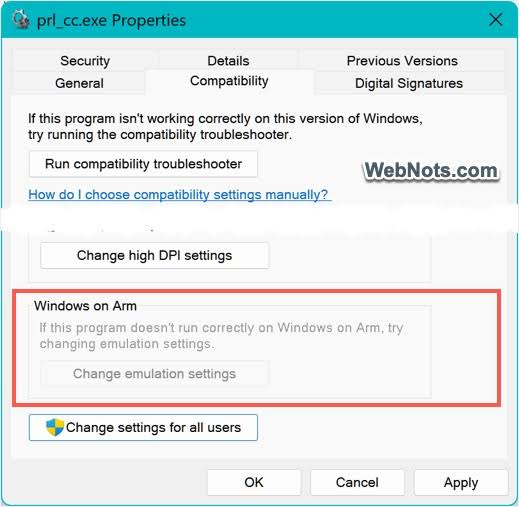
Right-click the QuickBooks Desktop icon on the desktop or in the Start menu. Select Run as Administrator. Click Yes when Windows asks for permission. Test QuickBooks speed. To make this permanent: right-click the icon > Properties > Compatibility tab > check Run this program as an administrator > click Apply > OK.
Fix 9: Add QuickBooks Exclusions to the Antivirus Program
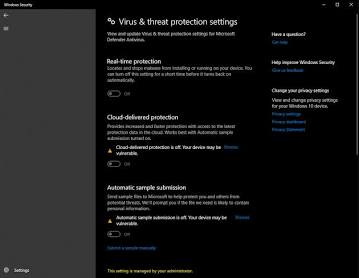
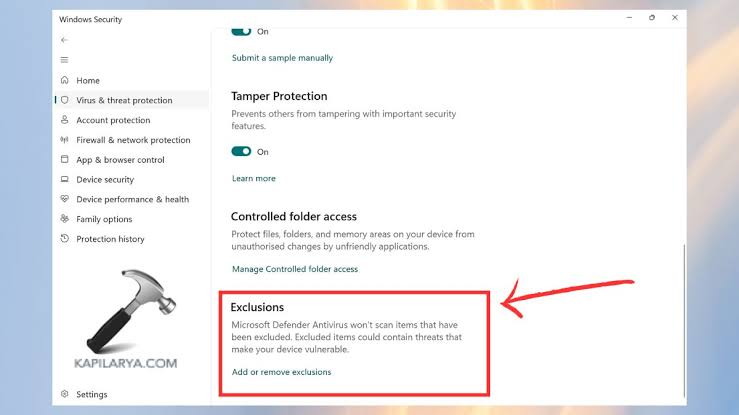
Adding QuickBooks folders and program files to the antivirus exclusion list stops the antivirus from scanning QuickBooks file writes in real time. Each file write that the antivirus intercepts adds a delay to whatever task QuickBooks is performing. When QuickBooks is writing to the company file during data entry, or to the .TLG file during any transaction, or to the payroll folder during payroll runs, these intercept delays stack up into visible program slowness. Antivirus exclusions allow QuickBooks to write at full speed without interruption, while the antivirus continues protecting all other files.
Add the following locations to the antivirus exclusion list. The exact menu path varies by antivirus program – look for Settings > Exclusions, Exceptions, or Protected Folders.
- QuickBooks installation folder: C:\Program Files\Intuit\QuickBooks [Year]
- Company file folder: wherever the .QBW file is stored on this computer
- QuickBooks data folder: C:\ProgramData\Intuit\QuickBooks (includes the payroll CPS folder)
- QuickBooks program files: QBW32.exe, QBDBMgrN.exe, QBCFMonitorService.exe
Fix 10: Condense the Company File to Reduce Its Size
The Condense Data feature in QuickBooks archives closed, older transactions and reduces the active company file size. According to Intuit, the Condense Data utility creates a permanent archived copy of the QuickBooks data file and makes the active file smaller by summarizing old closed or detailed transactions. A smaller company file opens faster, generates reports faster, and places less demand on the computer’s memory – all of which offset the extra memory pressure that a Windows update places on the system.
Intuit recommends running Condense Data when the company file is large, when the user is approaching list limits (the maximum number of customers, vendors, or items QuickBooks can store), or when hardware has already been upgraded and performance is still slow. A backup must be created before running Condense Data because the process permanently modifies the company file. According to Intuit, users should only run Condense Data after consulting with their accountant and technical support, because the operation changes the transaction history stored in the active file.
Create a full backup first: File > Back Up Company > Create Local Backup. Then go to File > Utilities > Condense Data. Follow the on-screen prompts. Choose the date range to condense – transactions before a specific date will be summarized. Allow the process to complete without interruption.
Fixes at a Glance: Slow QuickBooks After Windows Update
| Fix | What It Resolves | Time Needed | Where to Start |
|---|---|---|---|
| Fix 1: Update QuickBooks | Compatibility gap from Windows update | 10–20 min | Help > Update QuickBooks Desktop |
| Fix 2: Install Diagnostic Tool | Damaged .NET / MSXML / C++ files | 15–20 min | QuickBooks Tool Hub > Installation Issues |
| Fix 3: Clear Background Processes | Stale processes competing for memory | 2 min | QuickBooks Tool Hub > Quick Fix My Program |
| Fix 4: Run Full Backup | Oversized .TLG file slowing startup | 5–15 min | File > Back Up Company |
| Fix 5: Rename .ND and .TLG Files | Damaged network or log configuration files | 5 min | Company file folder in File Explorer |
| Fix 6: Reset QBWUSER.INI File | Damaged startup settings file | 5 min | AppData > Intuit > QuickBooks folder |
| Fix 7: Switch to High Performance Power Plan | Processor being throttled by Windows | 2 min | powercfg.cpl in Run dialog |
| Fix 8: Run as Administrator | Windows blocking QuickBooks file writes | 2 min | Right-click QuickBooks icon |
| Fix 9: Add Antivirus Exclusions | Antivirus scanning QuickBooks files during operation | 10 min | Antivirus Settings > Exclusions |
| Fix 10: Condense Company File | Oversized company file slowing all operations | 30–60 min | File > Utilities > Condense Data |
Multi-User Slowdown After Windows Update: Specific Steps
QuickBooks Desktop in multi-user mode – where multiple people on different computers access the same company file stored on a central server or host computer – is more sensitive to Windows update disruptions than single-user mode. This is because multi-user mode depends on additional QuickBooks components running on the server and on each workstation simultaneously. When a Windows update changes how network communication works between computers, QuickBooks multi-user performance degrades first and most severely.
- Confirmed Issue: QuickBooks Scanning the Transaction Folder on Every Window Open
A documented case on Intuit’s community forum involved QuickBooks Desktop users experiencing multiple-minute pauses every time a new QuickBooks window was opened. A technical investigation using Windows process monitoring tools revealed that QuickBooks was scanning a very large number of files from the Txn (transaction) folder on the server every time a window was opened. Intuit confirmed this was a known issue introduced by a specific update release, assigned it investigation number INV-129564, and advised users to contact support and register for the fix notification.
For users experiencing this specific pattern – long pauses when opening any QuickBooks window in multi-user mode, specifically after an update – the confirmed temporary fix was to move the files out of the Txn folder to a different directory. This reduced the number of files QuickBooks had to scan on each window open and allowed users to continue working while waiting for Intuit’s permanent fix. Users were specifically advised to copy files out (not delete them), to preserve the data until the permanent patch arrived.
- General Multi-User Fix: Run QuickBooks Database Server Manager
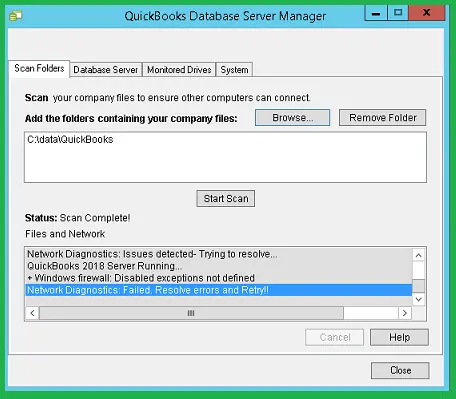
The QuickBooks Database Server Manager is a program that runs on the computer hosting the company file. Its job is to manage all the connections from other computers accessing the file. After a Windows update, the Database Server Manager sometimes loses its configuration and needs to be refreshed before it can serve files at normal speed. Running a scan in the Database Server Manager re-establishes the connection configuration without requiring any changes to the company file.
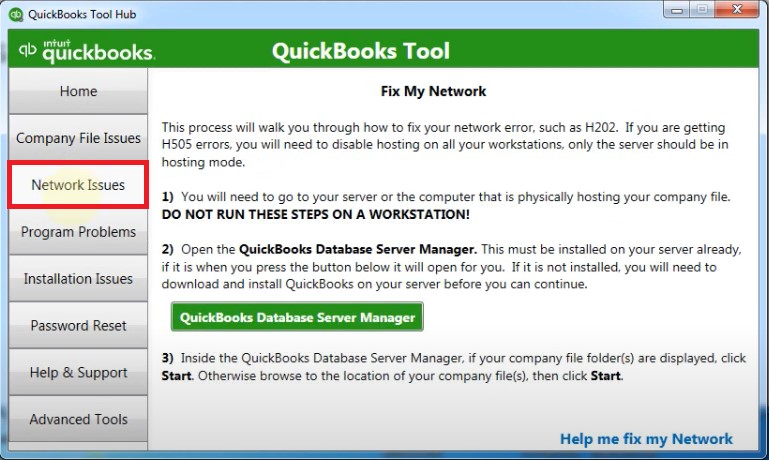
Open the QuickBooks Tool Hub on the server or host computer. Click Network Issues in the left menu. Click QuickBooks Database Server Manager. In the window that opens, click Scan Folders. Add the folder where the company file is stored if it is not already listed. Click Scan. When the scan finishes, test QuickBooks speed on all workstations.
Prevention: Keep QuickBooks Fast After Every Future Windows Update
Four maintenance habits protect QuickBooks Desktop performance after every future Windows update and prevent the same slowdowns from recurring.
- Update QuickBooks Within 48 Hours of Every Windows Update
The compatibility gap between a Windows update and the matching QuickBooks release is the most consistent cause of post-update slowdowns. Intuit typically releases QuickBooks Desktop updates within a short window of major Windows releases. Going to Help > Update QuickBooks Desktop and installing available updates within 48 hours of any Windows update closes this gap before it causes a noticeable performance problem. Setting a reminder to check for QuickBooks updates every time Windows updates makes this automatic.
- Run a Full Backup Every Week to Reset the .TLG File
A weekly full backup through File > Back Up Company > Create Local Backup resets the .TLG transaction log file to a small size. A small .TLG file means QuickBooks reads it faster every time the company file is opened. Businesses that process a high volume of daily transactions – such as retail operations or payroll-heavy businesses – should run a full backup every day to prevent the .TLG file from growing large enough to slow startup. The backup itself protects accounting data at the same time, making this habit beneficial on two fronts.
- Add QuickBooks Exclusions to Antivirus Before Every Windows Update
Windows updates frequently update Windows Security settings, which can overwrite or reset antivirus exclusion lists in some configurations. Before applying a Windows update, verify that the QuickBooks exclusions are in place in the antivirus program. After the Windows update installs, check the exclusions again to confirm they are still active. Antivirus programs that sync their settings with a central console – common in business environments – should have the QuickBooks exclusions added at the console level so they survive individual computer updates.
- Store the Company File on a Solid State Drive (SSD)
Intuit’s own system requirements documentation states that users can store their QuickBooks data files on a Solid State Drive (SSD) for best performance. An SSD reads and writes data significantly faster than a traditional mechanical hard drive (HDD). QuickBooks reads from the company file and the .TLG file continuously while running. On an HDD, this continuous reading contributes to the slow-down effect that Windows updates amplify. On an SSD, the same reads happen fast enough that Windows update-related resource changes have a smaller overall impact on QuickBooks’ perceived speed. Moving the company file from an HDD to an SSD is one of the most consistent hardware upgrades for improving QuickBooks performance.
Conclusion
QuickBooks Desktop slows down after a Windows update for a specific, identifiable set of reasons: a compatibility gap between the Windows and QuickBooks versions, damaged software components that Windows uses and QuickBooks depends on, stale background processes left over from the update restart, an oversized transaction log file, changed power settings, or antivirus programs that became more aggressive alongside the update. Each of these causes has a direct fix that can be applied in order from fastest to most thorough.
The fastest path to resolving post-update QuickBooks slowness in most cases is two steps: update QuickBooks Desktop to the latest release (Fix 1), then run the QuickBooks Install Diagnostic Tool (Fix 2). These two steps together address the compatibility gap and repair any Windows component damage the update may have caused. If slowness persists after both steps, Fix 3 (clearing background processes) and Fix 4 (running a full backup to reset the .TLG file) resolve the next most common causes.
Long-term stability comes from two consistent habits: updating QuickBooks within 48 hours of every Windows update, and running a full company file backup every week. Both habits take only a few minutes and prevent the most common post-update performance problems before they develop into full slowdowns. Intuit’s QuickBooks Tool Hub provides the Install Diagnostic Tool, Quick Fix My Program, the Database Server Manager, and QuickBooks File Doctor in one free application – keeping it installed on every computer running QuickBooks means the right repair tool is always available the moment a Windows update causes a performance change.
Frequently Asked Questions
1. QuickBooks was updated to the latest release but is still slow after the Windows update. What is the next step?
A QuickBooks update that does not resolve the slowdown means the issue is not the compatibility gap between QuickBooks and Windows – it is one of the other root causes. The next step is to run the QuickBooks Install Diagnostic Tool from the Installation Issues tab in the QuickBooks Tool Hub. This repairs the underlying Windows components (.NET Framework, MSXML, C++) that the Windows update may have damaged.
After running the tool and restarting, test QuickBooks again. If slowness persists, run Quick Fix My Program from the Program Problems tab to clear stale background processes. These three steps resolve the large majority of post-update slowdowns that persist after the initial QuickBooks update.
2. QuickBooks opened normally this morning, a Windows update installed automatically during the day, and now it is slow. Is this definitely the update?
A sudden performance change that happens on the same day as a Windows update, with no other changes to the computer, is almost certainly caused by the update. The simplest way to confirm this is to check Windows Update history: go to Settings > Windows Update > Update History and look for an update installed today or yesterday.
If an update appears in that window, update QuickBooks to its latest release immediately – this is the documented first response from Intuit when a performance change follows a Windows update. Noting the specific Windows update name (for example, KB followed by a number) also helps in case the specific update needs to be identified as a known QuickBooks conflict.
3. The company file is 900 MB and QuickBooks is slow on every computer. Will condensing the file fix this?
A 900 MB company file is documented in Intuit’s community forums as a direct cause of performance problems across all computers accessing it. Condense Data will reduce the active file size and improve speed, but Intuit’s community support team recommended running Condense Data again and testing performance after each condense, because the performance improvement is proportional to how much the file size is reduced.
In one documented case with a 900 MB file (condensed from 1.2 GB), users reported no speed improvement – which led Intuit’s team to recommend condensing further. For files this large, condensing down to only the current and most recent prior year’s data produces the most significant speed improvement. Always create a full backup before running Condense Data.
4. QuickBooks is slow only when multiple users are connected. Single-user mode is fast. What is causing this?
Fast performance in single-user mode with slow performance in multi-user mode specifically points to the QuickBooks Database Server Manager – the component that manages connections between multiple computers and the company file. A Windows update that changes network communication settings on the server or any workstation disrupts this component.
Running the QuickBooks Database Server Manager scan from the Network Issues tab in the QuickBooks Tool Hub (on the server computer) refreshes all connection settings and resolves most multi-user slowdowns without requiring any changes to the company file or individual workstations.
5. Is it safe to roll back a Windows update to restore QuickBooks speed?
Rolling back a Windows update is possible but is not recommended as a long-term solution. Windows updates include security patches that protect the computer from known threats, and removing them leaves the computer exposed to those threats. The documented case from Intuit’s community forum where rolling back a specific Windows update temporarily restored QuickBooks speed is an exception intended for emergency situations – not ongoing use.
The permanent solution is to wait for Intuit to release the matching QuickBooks patch that restores compatibility, which Intuit typically publishes within days to weeks of identifying a specific Windows update conflict. Registering with Intuit’s support team when a known issue is confirmed – as Intuit advised for investigation INV-129564 – ensures notification when the fix is released.


Leave a Reply