How US Small Businesses Can Minimize QuickBooks Downtime?

[contact-form-7 id="38f6811" title="Download Area Form"]
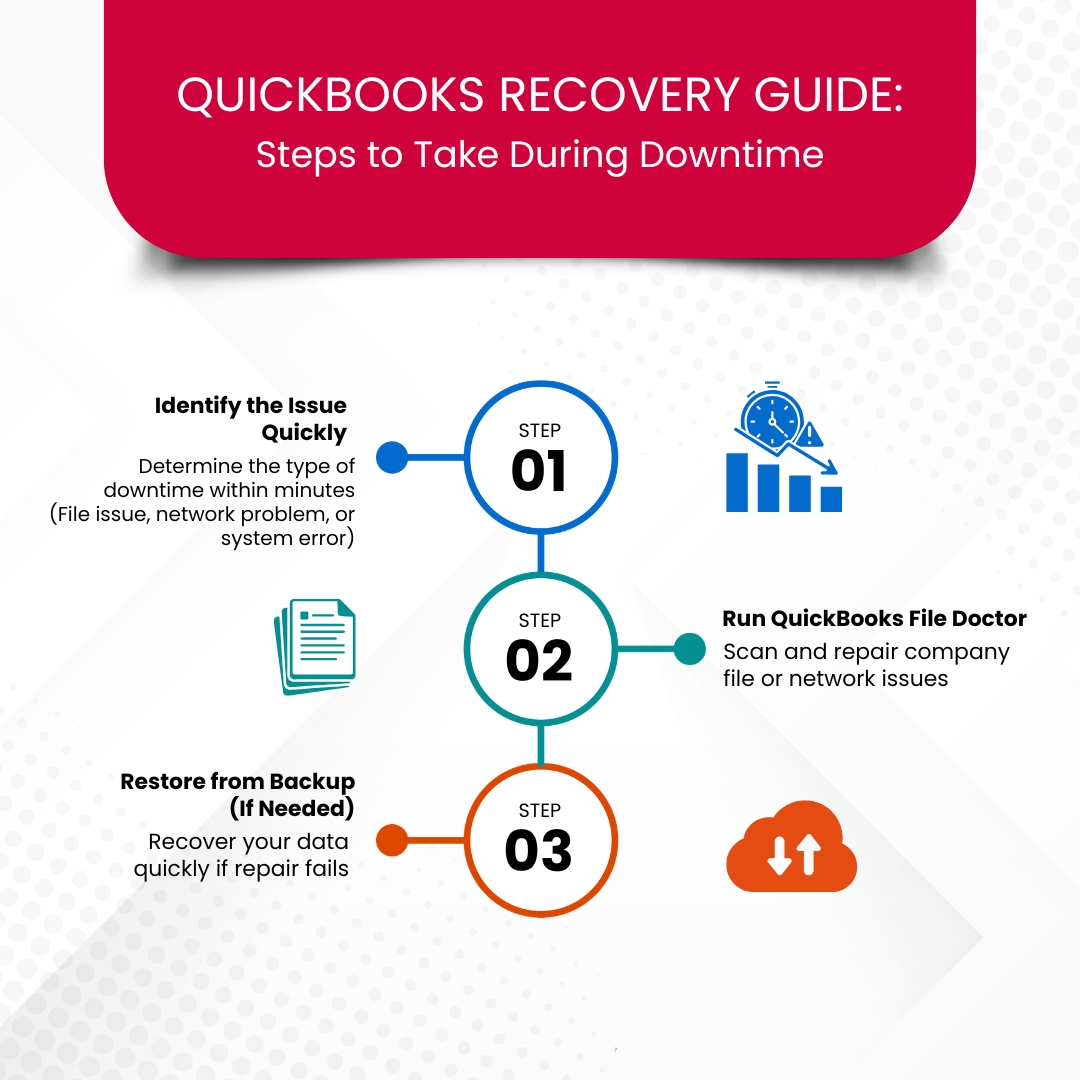
A vertical flowchart titled "QUICKBOOKS RECOVERY GUIDE: Steps to Take During Downtime." Step 01: Identify the Issue Quickly (determine if it is a file, network, or system error). Step 02: Run QuickBooks File Doctor (scan and repair company file or network issues). Step 03: Restore from Backup (If Needed) (recover data quickly if repair fails).

QuickBooks downtime stops a small business from processing invoices, running payroll, reconciling bank accounts, and generating the financial reports that drive day-to-day decisions. Every hour QuickBooks is unavailable is an hour of accounting work that either gets delayed or has to be recreated from paper records after the system comes back up. For the 10 million small businesses in the US that use QuickBooks as their primary accounting tool, downtime is not a software inconvenience — it is a direct hit to business operations.

The 2024 Intuit QuickBooks Business Solutions Survey of 630 US small business owners and executives found that 95% of respondents reported challenges with their current digital business solutions. On average, those businesses were spending 25 hours a week on manual data entry or reconciling data across disconnected systems. Downtime adds to that burden directly — every period where QuickBooks is unavailable generates additional manual catch-up work that consumes time the business does not have.

QuickBooks downtime has six documented causes, and each has a specific prevention strategy that small businesses can put in place today. This article covers all six causes and all six prevention strategies, plus a recovery framework for the situations where downtime happens despite best efforts. The goal is to keep QuickBooks available every working hour the business needs it, without requiring technical expertise to maintain.

Table of Contents

An infographic titled "MULTI-USER QUICKBOOKS: Common Risks & Prevention Tips" featuring three main points with icons. 1. Use a Wired Network for the Host Computer (orange icon of a network hub); 2. Avoid Third-Party Cloud Storage for Company Files (teal icon of a cloud server); 3. Keep All Systems on the Same QuickBooks Version (blue icon of folder comparison).

The Six Documented Causes of QuickBooks Desktop Downtime

Understanding what causes QuickBooks downtime is the first step to preventing it. These are not random failures — each one follows a predictable pattern, and each one can be stopped before it disrupts the business.

Cause 1: Company File Damage

The company file — the .QBW file that holds every transaction, invoice, payroll record, and financial entry the business has ever entered — is the most common source of QuickBooks downtime. Company file damage happens when QuickBooks is closed incorrectly (by shutting down the computer while it is still open), during a power outage while the file is being saved, during a network interruption in multi-user mode while a transaction is being written, or when the hard drive the file is stored on develops a disk error.

A damaged company file can range from minor corruption that causes slow performance and occasional errors, to severe damage that prevents QuickBooks from opening the file at all. Intuit’s own community forum contains hundreds of documented cases where damaged company files caused complete QuickBooks access loss — some lasting hours, others lasting days while the file was recovered. The most important fact about company file damage is that it builds up gradually over time and is detectable before it causes a full outage, which means a monthly scan using the Verify Data tool can catch it early.

Cause 2: Outdated QuickBooks Version

Intuit releases QuickBooks Desktop updates to fix bugs, patch security issues, and restore compatibility after Windows updates. Running an outdated QuickBooks version creates an increasing gap between the software and the operating system it runs on — and that gap produces errors, crashes, and eventually full program failures that count as downtime. This is a documented pattern on Intuit’s community forums: users who delayed QuickBooks updates while keeping Windows current reported program failures that were directly resolved by installing the available QuickBooks update.

QuickBooks Desktop Pro Plus and Premier Plus — the versions most widely used by small businesses — are supported through their respective service end dates. QuickBooks Desktop 2024 is currently supported through mid-2027. After the service end date, Intuit stops releasing updates, which means the software no longer receives security patches or compatibility fixes for new Windows releases. Running past the service end date without upgrading dramatically increases downtime risk from both security incidents and compatibility failures.

Cause 3: Missing or Failed Backup

A missing or failed backup does not cause downtime directly — it makes downtime last significantly longer when another cause produces a problem. A business with a current backup recovers from company file damage, a hard drive failure, or a computer crash in minutes by restoring the backup file and re-entering only the transactions that occurred since the last backup. A business without a current backup faces hours or days of reconstruction work, or permanent data loss that cannot be recovered.

QuickBooks Desktop stores the backup file in the .QBB format — QuickBooks Backup — which is a complete, compressed copy of the company file. The backup file is only usable if it was created while the company file was in a healthy state. A backup of an already-damaged company file restores the damage along with the data, which is why Intuit’s recommendation is to run Verify Data before creating a backup — to confirm the file is clean before saving the copy.

Cause 4: Windows Update Conflicts

Windows updates change three software components that QuickBooks depends on: Microsoft .NET Framework (a software layer Windows provides that QuickBooks uses to run its internal screens and calculations), MSXML (Microsoft XML Core Services, which QuickBooks uses to process and communicate data), and Microsoft Visual C++ Redistributable files (shared program libraries that QuickBooks and Windows both need to operate). When a Windows update modifies these components in a way that the current QuickBooks version is not compatible with, QuickBooks can slow to a halt, show errors, or stop opening entirely.

This specific cause of downtime is entirely preventable by updating QuickBooks within 48 hours of any Windows update. Intuit releases compatibility patches alongside major Windows releases. The compatibility gap — the period between the Windows update installing and the matching QuickBooks patch being applied — is the window during which this type of downtime can occur. Closing that gap quickly eliminates it as a downtime source.

Cause 5: Antivirus or Firewall Interference

Antivirus programs and Windows Firewall both scan files as they are being read and written. QuickBooks writes to the company file, the transaction log (.TLG) file, and the payroll data folder continuously while running. When an antivirus program intercepts a QuickBooks file write in real time and holds it for scanning before allowing it to complete, QuickBooks waits for access to be returned. If the scan takes too long, QuickBooks goes into a not-responding state. If this happens during a critical operation — a payroll run, a bank reconciliation save, a large report generation — the result is a QuickBooks session that must be force-closed, producing downtime and a risk of data loss from the interrupted write.

Antivirus interference is a preventable cause of downtime. Adding QuickBooks program files and data folders to the antivirus exclusion list stops the real-time scanning interference without reducing protection for other files on the computer. This is a one-time setup task that eliminates an ongoing source of unpredictable downtime.

Cause 6: Hardware Failure

QuickBooks Desktop stores the company file on a physical hard drive on the computer or server. Hard drives — particularly traditional mechanical hard drives (HDDs) as distinct from Solid State Drives (SSDs), which have no moving parts and are more reliable — fail over time. A hard drive failure that occurs on the computer hosting the QuickBooks company file makes QuickBooks completely inaccessible until either the drive is replaced or the company file is restored from backup to a different computer. Hardware failures are not fully preventable, but their impact on QuickBooks availability is almost entirely preventable through backups stored on a separate drive or in a separate location.

An infographic titled "The Real Cost of QuickBooks Downtime for Small Businesses" showing a circular six-step maintenance cycle. The steps are: 1. Back Up Your Company File Daily; 2. Run Verify Data Monthly; 3. Update QuickBooks Within 48 Hours of Windows Updates; 4. Maintain a Manageable Company File Size; 5. Set and Maintain Antivirus Exclusions; 6. Always Exit QuickBooks Properly.

What QuickBooks Downtime Actually Costs a Small Business?

QuickBooks downtime costs a small business in three specific ways: lost employee productivity during the outage, catch-up work after the outage ends, and delayed financial reporting that affects decisions. According to the 2024 Intuit QuickBooks Business Solutions Survey, businesses were spending 25 hours per week on manual data entry and reconciliation even without downtime events. QuickBooks downtime adds to this baseline directly because every transaction that could not be entered during the outage must be entered manually after it ends.

Payroll is the highest-stakes QuickBooks function for downtime timing. QuickBooks Desktop payroll runs on a schedule tied to pay dates, and payroll tax deposits in the US have IRS deadlines. A QuickBooks outage that occurs on a payroll processing day and cannot be resolved quickly forces the business to either run payroll manually, delay payroll (which has legal implications in some US states), or extend the outage recovery into a critical compliance window. Businesses that keep QuickBooks available through preventive maintenance avoid this scenario entirely.

The 2025 Intuit Small Business Late Payments Report found that the average US small business is dealing with $17,500 in outstanding unpaid invoices at any given time. QuickBooks downtime that prevents invoice creation or follow-up on late payments directly extends the time those receivables remain unpaid. Even a one-day outage on an invoicing day delays the payment cycle by the full invoice payment term — typically 30 days for net-30 invoices — for every invoice that could not be sent during the downtime.

Prevention Strategy 1: Back Up the Company File Every Single Day

Why Daily Backups Are Non-Negotiable?

A daily backup ensures that the maximum data loss from any QuickBooks incident is limited to one day’s worth of transactions. QuickBooks Desktop stores the company file’s backup in the .QBB format — a complete, compressed copy that can be restored to any computer running the same or a newer version of QuickBooks. Without a daily backup, a hard drive failure or severe company file corruption means re-entering every transaction since the last backup was created, which for businesses that skip weeks or months between backups can mean days of reconstruction work.

High-volume businesses — retail operations, businesses processing payroll for many employees, or businesses with high daily invoice counts — should back up twice a day: once at midday and once at day’s end. The standard to apply is straightforward: never risk losing more data than the business is willing to re-enter by hand. A business that processes 50 invoices daily will find losing half a day’s invoices far more painful than losing two hours of light bookkeeping.

How to Set Up Automatic Backups in QuickBooks Desktop?

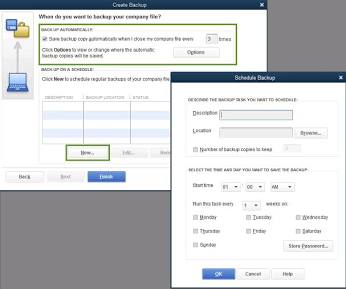
Open QuickBooks. Go to File > Back Up Company > Create Local Backup. Select Local Backup and click Next. On the Options screen, choose a backup location on a drive separate from the one storing the company file — an external hard drive or a network drive. Set the number of backup copies to keep to at least 3. Select Complete Verification to run a data integrity check before each backup. Click Save it now and schedule future backups. Set the schedule to Daily and choose a time outside of business hours. Click OK.

QuickBooks Desktop’s automatic backup runs through Windows Task Scheduler — the Windows program that runs scheduled tasks. The auto-backup setting in QuickBooks saves a backup copy every time the company file is closed, which is the most reliable backup trigger for small businesses that close QuickBooks at the end of each working day. Setting the auto-backup counter to 1 in the scheduled backup options means a backup runs every time the company file closes, without any manual action required.

Where to Store the Backup?

Storing the backup on the same hard drive as the company file provides no protection from a hard drive failure — both the original and the backup would be lost together. Intuit’s own support documentation confirms that QuickBooks does not support storing the working company file on cloud storage services like Dropbox or OneDrive, because the constant sync those services perform conflicts with how QuickBooks writes data. However, backup copies (.QBB files) can and should be saved to cloud storage as an additional safety layer. Storing one backup on an external drive at the office and one copy in cloud storage protects against both hardware failure and physical events like fire or theft.

Prevention Strategy 2: Run Verify Data on the Company File Every Month

What Verify Data Does and Why It Matters?

The Verify Data tool is a built-in QuickBooks function that scans the company file for internal damage — corrupted transaction records, broken links between entries, or data integrity errors introduced by power outages or interrupted saves. Verify Data reads the entire company file and reports whether any records are damaged, and if so, which ones. Running it monthly catches damage at an early, repairable stage before it compounds into a full file corruption that prevents QuickBooks from opening.

Intuit’s documentation recommends running Verify Data as part of regular company file maintenance, not only after a problem has already appeared. The reason is that company file damage accumulates gradually and may not produce visible symptoms — no error messages, no crashes — until the damage is extensive enough to prevent QuickBooks from processing the affected records. Monthly verification catches these invisible problems while they are still small enough for the Rebuild Data tool to repair them completely.

How to Run Verify and Rebuild Data?

Open QuickBooks and the company file. Go to File > Utilities > Verify Data. Allow the scan to complete — it takes a few minutes depending on file size. If Verify Data reports “Your data has lost integrity,” create a full backup immediately before taking any other action. Then go to File > Utilities > Rebuild Data and follow the prompts. Run Verify Data again after the rebuild finishes to confirm the repair was successful.

Verify Data must always be run before creating a backup, and Rebuild Data must always be followed by a second Verify Data run. Creating a backup of a file that Verify Data has already flagged as damaged saves the damage into the backup — which means restoring that backup restores the problem. Running the sequence in the correct order — Verify, then Rebuild, then Verify again, then backup — ensures the backup copy is a clean, reliable restore point.

Prevention Strategy 3: Update QuickBooks Within 48 Hours of Every Windows Update

Why the 48-Hour Window Matters?

Intuit releases QuickBooks Desktop updates to address compatibility changes that Windows updates introduce. The 48-hour window is not arbitrary — it is the practical window during which the compatibility gap between a new Windows version and an unpatched QuickBooks version can produce crashes, errors, and program failures. Updating QuickBooks within 48 hours of a Windows update closes this gap before it causes a downtime event. Waiting longer increases the exposure window and the likelihood that a QuickBooks user encounters the compatibility problem mid-task.

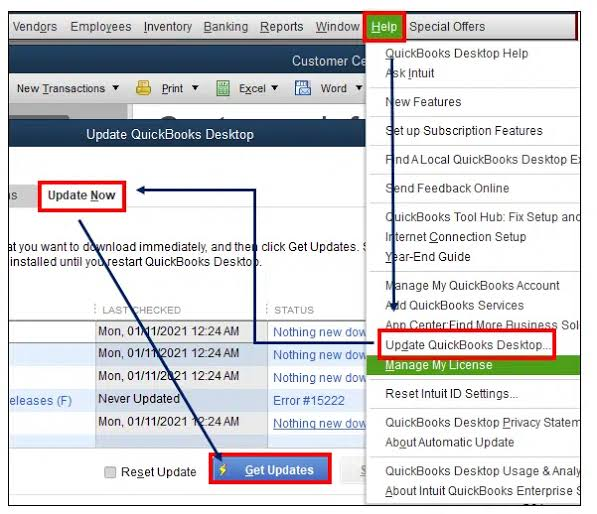
The update check takes less than two minutes. Going to Help > Update QuickBooks Desktop > Update Now tab > Reset Update > Get Updates downloads the latest available patch. For businesses with multiple computers running QuickBooks, each computer needs the same update applied. Running different QuickBooks version numbers across computers in a multi-user setup creates data file conflicts and network errors that cause additional downtime.

Schedule Updates for Off-Hours?

QuickBooks requires all users to close the program before an update installs. Scheduling updates for before business hours — early morning, or on a weekend for businesses that do not use QuickBooks on weekends — avoids disrupting active work sessions. One person applies the update on one computer first, confirms QuickBooks opens and runs correctly, and then the same update is applied to remaining computers. This staged approach catches any update-related issues before they affect the entire office.

A documented best practice for multi-user setups: version conflicts where one computer has a newer QuickBooks release and another still has the older release produce data file errors because the two versions write data slightly differently. Updating all computers to the same release on the same day — during off-hours — prevents these version mismatch errors entirely.

Prevention Strategy 4: Keep the Company File at a Manageable Size

Why File Size Directly Affects Availability?

QuickBooks Desktop reads from the company file continuously while running — every transaction lookup, every report, every payroll calculation requires reading data from the file. As the file grows larger, these reads take longer, and the program slows down proportionally. Intuit’s community support team has confirmed in multiple documented cases that large company files are a direct performance and stability issue: a 900 MB company file caused 60-second delays between operations in one documented Enterprise case, and that file had already been condensed from 1.2 GB. A 660 MB company file was identified as “too large” by QuickBooks tech support in another documented case.

A slow company file eventually becomes an unavailable company file — because QuickBooks times out waiting for a file read that takes too long. Keeping the file at a manageable size prevents performance degradation from becoming a downtime event. Intuit’s recommended tool for reducing file size is the Condense Data utility, which archives old completed transactions and reduces the active file size without deleting accounting history.

How to Use the Condense Data Utility?

Create a full backup before starting: File > Back Up Company > Create Local Backup. Then go to File > Utilities > Condense Data. Choose the date before which transactions should be condensed — transactions before that date will be summarized rather than stored in full detail. Follow the prompts and allow the process to complete without interruption. Run Verify Data after the condense finishes to confirm the file is clean.

Intuit recommends running Condense Data when the company file is large, when the business is approaching list limits (the maximum number of customers, vendors, or items QuickBooks can store in a single file), or when hardware has been upgraded and performance is still slow. Always consult with an accountant before running Condense Data, because it permanently changes the transaction detail stored in the active file — summarized transactions cannot be expanded back to line-item detail after the condense completes.

Store the Company File on a Solid State Drive?

Intuit’s own system requirements documentation states that users can store their QuickBooks data files on a Solid State Drive (SSD) for best performance. An SSD — a type of storage drive with no moving parts that reads and writes data significantly faster than a traditional mechanical hard drive (HDD) — reduces the time QuickBooks spends reading from the company file on every operation. Faster reads mean QuickBooks stays responsive longer as the file grows, which directly extends the usable life of the company file before a condense is required and reduces the frequency of slowdowns that can lead to downtime.

Prevention Strategy 5: Configure Antivirus Exclusions Once and Keep Them in Place

What to Exclude and Why?

Adding QuickBooks to the antivirus exclusion list is a one-time setup that prevents an ongoing cause of unpredictable downtime. The antivirus exclusion list tells the antivirus program which files and folders to skip during real-time scanning — this does not disable the antivirus, it only removes QuickBooks file operations from the list of things the antivirus scans in real time. QuickBooks data files are not executable files (programs that can run code), so scanning them in real time provides no security benefit while actively disrupting QuickBooks operations.

Add the following to the antivirus exclusion list to eliminate real-time scan interference:

  • QuickBooks installation folder:
  •   C:\Program Files\Intuit\QuickBooks [Year]
  • Company file storage folder: wherever the .QBW file is saved on the computer or server
  • QuickBooks data folder: C:\ProgramData\Intuit\QuickBooks (holds payroll and program data)
  • QuickBooks program files: QBW32.exe, QBDBMgrN.exe, and QBCFMonitorService.exe

Windows Firewall also needs QuickBooks exceptions added for multi-user environments. Go to Settings > Privacy & Security > Windows Security > Firewall & Network Protection > Allow an App Through Firewall > Change Settings > Allow Another App. Add QBW32.exe from the QuickBooks installation folder with both Private and Public network access enabled. This allows QuickBooks to communicate between computers on the office network without Firewall interrupting those connections.

Check Exclusions After Every Windows Update

Windows Security — the built-in Windows antivirus — resets some exclusion settings when major Windows updates install. After every significant Windows update, open Windows Security > Virus & Threat Protection > Manage Settings > Exclusions and verify that the QuickBooks exclusions are still in the list. If any were removed by the update, re-add them immediately. This five-minute check after each update prevents the update from reinstating a source of QuickBooks interference that the original exclusion setup had eliminated.

Prevention Strategy 6: Always Exit QuickBooks Through File > Exit

Why the Exit Method Determines QuickBooks Stability?

QuickBooks Desktop maintains two files in addition to the company file during every active session: the .TLG file (Transaction Log — a real-time record of every change made during the session) and a set of internal lock files that signal to other users on the network that the file is in use. Closing QuickBooks through File > Exit allows the program to write the final entries to the .TLG file, release all lock files, close the company file database connection, and shut down background processes in the correct order. This orderly shutdown takes about three to five seconds.

Closing QuickBooks by clicking the X button on the window title bar does not always trigger the same orderly shutdown sequence. Shutting down the computer while QuickBooks is open, or using Task Manager to force-close it, skips the shutdown sequence entirely. The .TLG file is left open and incomplete, lock files are not released, and the last few seconds of data may not be written to the company file. Over time, repeated improper shutdowns accumulate damage in the .TLG file that eventually produces company file errors or a failed backup. Training every person who uses QuickBooks to close it through File > Exit is the lowest-cost, highest-impact downtime prevention habit a small business can establish.

A hexagonal diagram titled "6 Reasons Your QuickBooks Keeps Crashing." The six segments include: Hardware Failure (listed twice), Outdated QuickBooks Version, Missing or Failed Backup, Windows Update Conflicts, and Antivirus or Firewall Interference. Each segment contains a relevant icon, such as a gear for hardware or a cloud with an "X" for failed backups.

QuickBooks Downtime Recovery Framework: What to Do When It Happens?

Prevention keeps downtime rare, but recovery procedures keep it short when it does happen. Having a documented recovery sequence means the business does not lose additional time figuring out what to do during the outage.

Step 1: Identify the Type of Downtime in Under Two Minutes

The recovery action depends entirely on which type of downtime is occurring. Three quick checks identify it: first, can QuickBooks open at all? Second, can QuickBooks open the company file? Third, does the company file open but behave incorrectly — crashing during specific tasks or producing error messages? The answer to these three questions routes to the correct recovery tool immediately and eliminates time spent applying the wrong fix.

QuickBooks SymptomDowntime TypeFirst Recovery Tool to Use
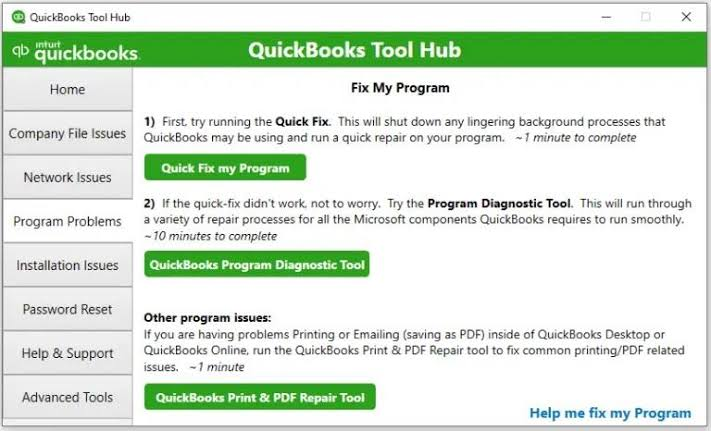
QuickBooks will not open at allProgram-level failureQuickBooks Tool Hub > Quick Fix My Program
QuickBooks opens but company file will not openCompany file damage or path errorQuickBooks Tool Hub > QuickBooks File Doctor
Company file opens but data appears wrong or missingPartial data corruptionFile > Utilities > Verify Data, then Rebuild Data
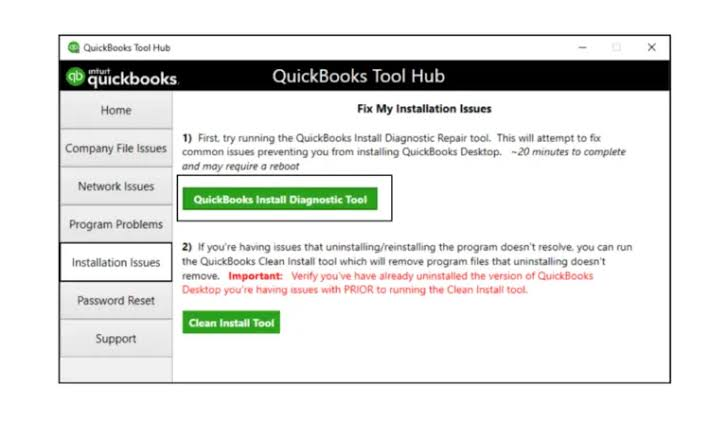
QuickBooks was working, then stopped after a Windows updateWindows compatibility failureQuickBooks Tool Hub > Install Diagnostic Tool
QuickBooks is extremely slow on all tasksPerformance issue or large fileQuickBooks Tool Hub > Quick Fix My Program, then check file size
Company file is missing entirely (drive failure)Hardware failureRestore most recent .QBB backup to a working computer
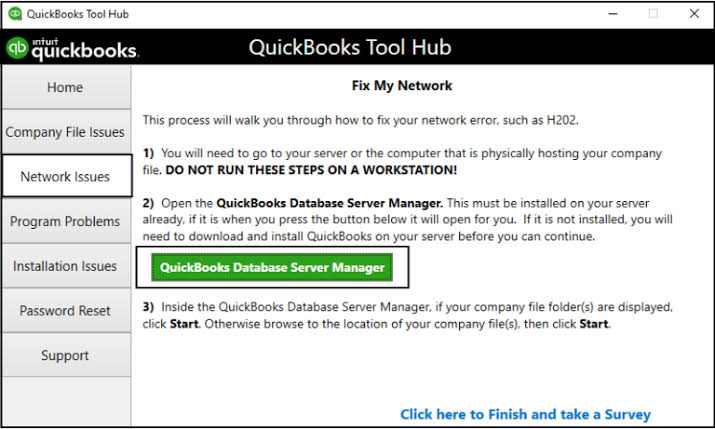
Multi-user access works on server but fails on workstationsNetwork or hosting configurationQuickBooks Tool Hub > Network Issues > Database Server Manager

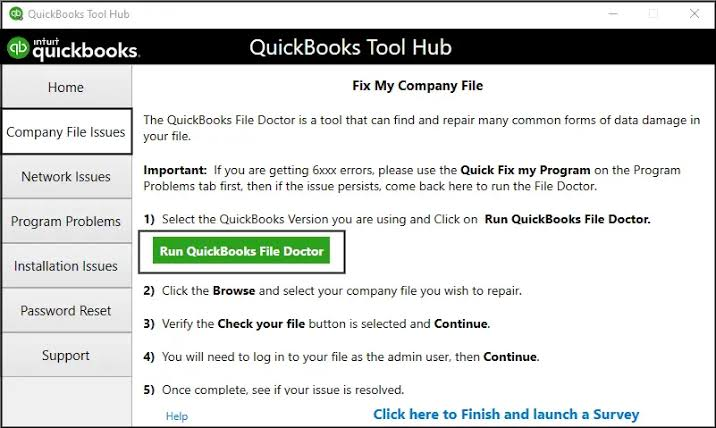
Step 2: Run QuickBooks File Doctor for Company File Problems

QuickBooks File Doctor is a tool available in the QuickBooks Tool Hub under Company File Issues. It performs two functions: it checks the company file for damage and repairs what it can, and it checks the network setup that allows multiple computers to access the file in multi-user mode. File Doctor is the single most effective recovery tool for company file – related downtime because it combines diagnosis and repair in one automated process. For most company file errors, File Doctor resolves the issue without requiring manual file manipulation.

Open the QuickBooks Tool Hub. Click Company File Issues in the left menu. Click Run QuickBooks File Doctor. Select the company file from the dropdown list or browse for it. Choose Check your file and enter the QuickBooks administrator password when prompted. Allow File Doctor to run — it takes 5 to 15 minutes depending on file size. Restart QuickBooks and test access after it completes.

Step 3: Restore From Backup If File Doctor Cannot Repair the File

A company file that File Doctor cannot repair needs to be restored from the most recent clean backup. The backup file — the .QBB file — replaces the damaged company file with the last saved clean version. Transactions entered between the backup and the damage need to be re-entered manually after the restore. This is why the backup frequency directly determines the recovery time: a daily backup limits re-entry to one day’s transactions, while a weekly backup requires a full week of re-entry.

Open QuickBooks. Go to File > Open or Restore Company > Restore a Backup Copy > Local Backup. Browse to the .QBB backup file location. Follow the prompts to restore. When QuickBooks asks for a save location for the restored file, save it to a different file name than the original to preserve the damaged file as a reference while testing the restored version.

Monthly QuickBooks Maintenance Schedule for Small Businesses

A consistent monthly maintenance routine prevents the six documented causes of QuickBooks downtime from developing undetected. This schedule takes less than 30 minutes total per month and protects the business from hours or days of downtime recovery work.

TaskFrequencyTime RequiredWhere to Do It
Run Verify Data on company fileMonthly5–10 minutesFile > Utilities > Verify Data
Run Quick Fix My ProgramWeekly2 minutesQuickBooks Tool Hub > Program Problems
Create a full backup and test restoreMonthly10–20 minutesFile > Back Up Company
Check QuickBooks for available updatesAfter every Windows update (at minimum monthly)5 minutesHelp > Update QuickBooks Desktop
Verify antivirus exclusions are still in placeAfter every Windows update5 minutesAntivirus Settings > Exclusions
Check company file sizeMonthly2 minutesFile > Properties on the .QBW file
Run Condense Data if file is above 200 MB (Pro/Premier)As needed30–60 minutesFile > Utilities > Condense Data
Confirm all users are closing QuickBooks via File > ExitOngoing (staff training)N/ATeam communication and policy

Multi-User Mode: Additional Downtime Risks and How to Prevent Them

Businesses running QuickBooks in multi-user mode — where two or more people on different computers access the same company file at the same time — have additional downtime risks beyond what single-user setups face. Multi-user mode adds a network connection between each workstation and the server (the computer that hosts the company file), and each connection is a point where a disruption can take that workstation offline.

  • Use a Wired Network Connection for the Host Computer

The host computer — the computer where the company file is stored and accessed by other workstations — must have a stable, fast network connection. A Wi-Fi connection on the host computer introduces instability because Wi-Fi signal strength fluctuates, and a signal drop while QuickBooks is writing data to the company file can corrupt the current transaction. A wired Ethernet connection (a physical cable connecting the computer directly to the network router or switch) provides a consistent, reliable connection that eliminates Wi-Fi signal disruptions as a source of downtime.

  • Do Not Store the Company File on a Third-Party Cloud Storage Drive

Storing the active QuickBooks company file on a cloud storage service like Dropbox, OneDrive, or Google Drive — as opposed to on a local hard drive on the host computer — causes QuickBooks conflicts. Cloud storage services continuously monitor the files they sync and upload any changes in real time. QuickBooks also writes to the company file continuously while it is open. These two processes conflict because the cloud service tries to sync a file that QuickBooks is actively writing, which causes file locking errors and data corruption. Intuit’s best practices documentation explicitly advises against storing the working company file in cloud storage. Backup copies (.QBB files) can be saved to cloud storage, but the active company file must remain on a local drive.

  • Keep All Computers on the Same QuickBooks Release Version

In a multi-user environment, every computer accessing the company file must run the same QuickBooks version number and release number — for example, all computers should run QuickBooks Desktop Pro 2024 R15_82, not a mix of R15_27 on some and R15_82 on others. Different release numbers write data to the company file differently, and a version mismatch between computers produces data file conflicts that generate errors and can cause QuickBooks to lock the company file, creating downtime for all users. Updating all computers to the same release on the same night, outside of business hours, prevents this entirely.

Conclusion

QuickBooks downtime is preventable, and the prevention cost is low: daily backups, monthly Verify Data scans, timely QuickBooks updates after Windows updates, antivirus exclusion configuration, company file size management, and the habit of always closing QuickBooks through File > Exit. These six strategies address all six documented causes of QuickBooks downtime. Businesses that maintain all six eliminate the large majority of QuickBooks access problems before they disrupt a working day.

The QuickBooks Tool Hub from Intuit puts the most important recovery tools in one free application: Quick Fix My Program for program-level failures, the Install Diagnostic Tool for Windows component damage, QuickBooks File Doctor for company file and network problems, and the Database Server Manager for multi-user configuration issues. Downloading the Tool Hub and keeping it on every computer running QuickBooks means the right repair tool is available the moment a problem appears, which shortens any downtime that does occur.

Small businesses using QuickBooks Desktop also need to be aware of the product timeline. QuickBooks Desktop 2024 is supported through mid-2027, after which Intuit will stop releasing updates, security patches, and payroll tax table updates for that version. Planning the next QuickBooks version decision before the end-of-support date — whether that means upgrading to QuickBooks Desktop Enterprise (the only Desktop version still available to new subscribers), moving to QuickBooks Online, or finding a hosting solution — ensures continuity of accounting operations without a forced migration under pressure.

Frequently Asked Questions

1. How long does it take to restore a QuickBooks company file from a backup?

Restoring a QuickBooks company file from a local backup takes 5 to 15 minutes for most small business files, depending on the file size and the speed of the hard drive. The restoration process opens the .QBB backup file through File > Open or Restore Company > Restore a Backup Copy, selects the backup file from its storage location, and saves the restored version to the computer.

After the restoration completes, QuickBooks opens the restored file and any transactions entered between the backup date and the failure date need to be re-entered manually. A daily backup limits this re-entry to one business day’s worth of transactions.

2. QuickBooks is running slowly but has not fully stopped working yet. Does this count as downtime?

Severe slowness that prevents users from completing tasks within a reasonable time is effectively partial downtime — the business cannot process invoices, run payroll, or generate reports at the speed the work requires. The most common causes of QuickBooks slowness are an oversized company file, an oversized .TLG transaction log file, stale background processes, or antivirus interference.

Running Quick Fix My Program from the QuickBooks Tool Hub and creating a full backup (which resets the .TLG file) resolves most cases of significant slowness within 20 to 30 minutes. If slowness persists after both steps, check the company file size — a file above 200 MB for QuickBooks Pro or Premier should be condensed using the Condense Data utility.

3. A staff member deleted important transactions by mistake. Is this a form of downtime, and how is it recovered?

Accidental deletion of transactions is a form of data loss that produces the same recovery need as a technical downtime event. The recovery is identical: restore the most recent backup taken before the deletion, re-enter any legitimate transactions that occurred between that backup and the deletion, and leave out the mistakenly deleted items.

This is why testing backup restores monthly matters — a backup that was never tested may fail to open during a recovery, leaving the business without a working restore point. Restoring a test backup to a different computer or a different file name every month confirms the backup files are valid and the restore process works correctly.

4. Can QuickBooks Desktop be accessed remotely to reduce downtime when a staff member works from home?

QuickBooks Desktop can be accessed remotely through Intuit’s authorized hosting providers, which place the QuickBooks software and company file on a secure server that any computer can connect to via the internet. Intuit maintains a list of authorized QuickBooks Desktop hosting providers on its official website.

Hosted QuickBooks removes the dependency on a specific office computer being powered on and connected, which eliminates one of the most common causes of QuickBooks availability problems for businesses with remote workers. The company file on a hosted server is also typically backed up by the hosting provider on a daily basis, which adds an additional backup layer on top of whatever backup schedule the business runs within QuickBooks itself.

5. QuickBooks shows an error about reaching a list limit. What is a list limit and does it cause downtime?

A list limit is the maximum number of items QuickBooks can store in a specific category. QuickBooks Desktop Pro and Premier can store a maximum of 14,500 combined items in the Items list (the list of products and services the business sells), 14,500 in the Customer list, and 14,500 in the Vendor list. When the business reaches a list limit, QuickBooks cannot add new items to that list, which blocks certain operations and can cause errors during sales, purchasing, or payroll tasks.

The Condense Data utility (File > Utilities > Condense Data) reduces the active data in the file but does not remove list items — unused list items need to be manually marked as inactive through the list itself, which removes them from the active count without deleting their history. Intuit’s community support recommends running a report to identify which transactions will not be condensed before running the utility, to understand what data will be summarized.


Comments

Leave a Reply

Your email address will not be published. Required fields are marked *