QuickBooks Desktop and Windows 11 have a defined compatibility relationship that depends entirely on which QuickBooks version is installed and how Windows 11 is set up on the computer. Get both conditions right and QuickBooks runs without issues. Get either one wrong and the result is crashes, printing failures, payroll errors, startup problems, or an installation that simply will not complete.
This article covers every documented compatibility requirement, every known conflict between specific Windows 11 configurations and QuickBooks versions, and the fix for each one.
R3 in QuickBooks Desktop 2022 means Release 3 – the third maintenance update released by Intuit for the 2022 version. It includes bug fixes, performance improvements, security patches, and Windows 11 compatibility updates.
The compatibility picture changed significantly starting with QuickBooks Desktop 2022 R3. According to Intuit’s official community support team, QuickBooks Desktop 2021 and all older versions are not compatible with Windows 11.
QuickBooks Desktop 2022 R3 or later – meaning the third major update to the 2022 version or any newer release is fully certified to run on Windows 11. Businesses still running QuickBooks 2021 or older on a computer that upgraded to Windows 11 are running unsupported software on an unsupported operating system combination, which is the most common source of the compatibility problems reported in this article.
Microsoft ended support for Windows 10 on October 14, 2025. Intuit confirmed that QuickBooks Desktop also stopped supporting Windows 10 after that date. This means every business still using QuickBooks Desktop must now run it on Windows 11 – and the compatibility between the two must be configured correctly for QuickBooks to work as intended. This article is the complete guide to making that work.
Table of Contents
Which QuickBooks Desktop Versions Work on Windows 11
Check this table first. It shows exactly which QuickBooks version is compatible with Windows 11 and which is not, based on Intuit’s confirmed system requirements.
| QuickBooks Desktop Version | Compatible with Windows 11? | Intuit’s Position |
|---|---|---|
| QuickBooks Desktop 2025 (Pro Plus, Premier Plus, Enterprise) | Yes – fully supported | Designed for 64-bit Windows 11, natively installed |
| QuickBooks Desktop 2024 (Pro Plus, Premier Plus, Enterprise) | Yes – fully supported | Specifically designed for 64-bit Windows 11, natively installed |
| QuickBooks Desktop 2023 (Pro Plus, Premier Plus, Enterprise) | Yes – supported | Compatible with 64-bit Windows 11, natively installed |
| QuickBooks Desktop 2022 R3 or later | Yes – supported from R3 onward | R3 update was the first release certified for Windows 11 |
| QuickBooks Desktop 2022 before R3 | Partial – may work with issues | Not certified; engineers were still testing at this point |
| QuickBooks Desktop 2021 and older | No – not compatible | Intuit confirmed: Windows 11 is not compatible with 2021 and older |
| QuickBooks Desktop 2019 and older | No – not compatible | No support or updates for this combination |

The Five Hard Rules: What Intuit Requires for Windows 11 Compatibility
Compatibility between QuickBooks Desktop and Windows 11 is not just about the QuickBooks version number. Intuit’s official system requirements documentation specifies five conditions that must all be met simultaneously. Failing any one of them produces compatibility problems even if the QuickBooks version is current.
Rule 1: Windows 11 Must Be 64-Bit
QuickBooks Desktop 2022 and all newer versions require a 64-bit Windows operating system. A 64-bit operating system is a version of Windows that can use more than 4 GB of memory and run modern software at full capacity. QuickBooks Desktop 2022 and later will not install on a 32-bit Windows system – the installation process will stop and display an error. Almost all computers sold after 2010 run 64-bit Windows, but checking is straightforward: go to Settings > System > About and look at the System Type field. It will show either “64-bit operating system” or “32-bit operating system.” QuickBooks requires the 64-bit version.
Rule 2: Windows 11 Must Be Natively Installed
Natively installed means Windows 11 is the actual operating system running directly on the computer’s hardware – not running through a virtual machine (a program that simulates a separate computer inside Windows), an emulator (software that makes one operating system pretend to be another), or a compatibility layer (a software bridge that runs programs designed for a different system). Intuit’s system requirements documentation states explicitly: QuickBooks must run natively on Windows. Emulators, virtual environments, or compatibility layers are not supported.
This rule exists because QuickBooks writes directly to hardware-level storage resources, communicates with Windows system components at a low level, and requires uninterrupted access to memory. A virtual machine places a software barrier between QuickBooks and the hardware, which disrupts these operations and produces unpredictable crashes, slow performance, and data write errors that no troubleshooting step can permanently fix. The only solution is to move QuickBooks to a natively installed Windows 11 environment.
Rule 3: Windows 11 S Mode and Windows 11 IoT Are Not Supported
Windows 11 S Mode is a restricted version of Windows 11 that only allows users to install software downloaded from the Microsoft Store. QuickBooks Desktop is not available in the Microsoft Store – it is installed from an Intuit download or a physical disc. Intuit’s system requirements explicitly list Windows 10 S Mode as unsupported, and this extends to Windows 11 S Mode for the same reason: QuickBooks cannot be installed in a locked-down environment that blocks non-Store software.
Windows 11 IoT is a specialized version of Windows 11 designed for embedded devices like kiosks, point-of-sale terminals, and industrial hardware – not for standard desktop business use. Intuit’s system requirements list Windows 11 IoT as explicitly unsupported. A computer running Windows 11 IoT that displays QuickBooks compatibility problems has no fix other than switching to a standard Windows 11 edition (Home, Pro, or Enterprise). Switching from S Mode to standard Windows 11 can be done through Settings > Update & Security > Activation > Switch out of S mode, which is a one-way, permanent change.
Rule 4: The Computer Must Meet the Minimum Hardware Requirements
Intuit’s system requirements for QuickBooks Desktop 2024 and 2025 specify a minimum processor speed of 2.4 GHz, a minimum of 8 GB of RAM (with 16 GB recommended for larger company files), and a minimum of 2.5 GB of available disk space for the program files alone. RAM – Random Access Memory – is the computer’s short-term working memory that holds all currently running programs and data. Windows 11 itself uses more background memory than Windows 10 did, which means a computer that previously met the 8 GB minimum under Windows 10 may run closer to the limit under Windows 11, leaving less available memory for QuickBooks.
Intuit’s own technical specifications for QuickBooks Desktop Enterprise also confirm that a Solid State Drive (SSD) is recommended for optimal performance. An SSD is a type of storage drive with no moving parts that reads and writes data significantly faster than a traditional mechanical hard drive (HDD). Storing the QuickBooks company file on an SSD reduces the time QuickBooks spends reading and writing data, which is particularly important on Windows 11 where background system processes compete more actively with application memory.
Rule 5: The QuickBooks Version Must Be the Current Supported Release
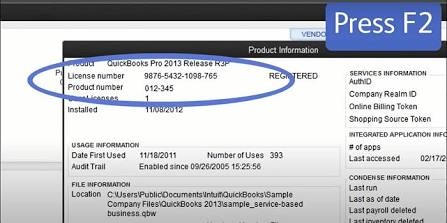
Even within a compatible QuickBooks version – for example, QuickBooks Desktop 2022 – running an outdated release number produces Windows 11 compatibility problems. Intuit releases numbered updates to each QuickBooks version throughout its support lifecycle. QuickBooks Desktop 2022 R3 was the first release of the 2022 version certified for Windows 11. Users running QuickBooks 2022 at R1 or R2 were not on a Windows 11-certified release and experienced compatibility problems that users on R3 and later did not. Checking the release number by pressing Ctrl + 1 (or F2) inside QuickBooks to open the Product Information window confirms exactly which release is installed.
Read about: QuickBooks Desktop Not Responding on Windows 11 – Quick Solutions
Known Compatibility Issues Between QuickBooks Desktop and Windows 11
Issue 1: QuickBooks Will Not Open After Windows Update KB5074109
In January 2026, Microsoft released a security update for Windows 11 ARM 24H2 identified as KB5074109. Users on Intuit’s community forums and Microsoft’s own Q&A platform reported that QuickBooks Desktop stopped opening completely after this update installed. A technical advisor on Microsoft’s platform confirmed: “The only workaround I could find was to uninstall KB5074109” for users running Windows 11 ARM 24H2. The update was independently reported by a technology news outlet to be breaking payroll and other professional software applications, causing immediate application closures and system lockups for some users.
The Windows update KB5074109 is a cumulative security update – meaning it bundles multiple security patches together in one download. Uninstalling it removes all the patches it contained, which is why Intuit advises users to monitor for a replacement QuickBooks patch rather than leaving the Windows update removed permanently. To check for and remove a Windows update: go to Settings > Windows Update > Update History > Uninstall Updates. Find KB5074109 in the list, right-click it, and select Uninstall. Restart the computer. Check Intuit’s official update page for the QuickBooks patch that restores compatibility with the corrected Windows update.
Issue 2: QuickBooks Desktop 2021 Printing Stops Working on Windows 11
A documented case on Intuit’s community forum involved a user who upgraded their computer to Windows 11 and moved from QuickBooks Desktop 2021 to a new machine. The user reported that QuickBooks 2021 would not print anything on Windows 11. Intuit’s community support team confirmed the root cause directly: QuickBooks Desktop 2021 is not compatible with Windows 11, and printing – which depends on how QuickBooks interacts with Windows print drivers – is one of the first functions to fail in an incompatible environment.
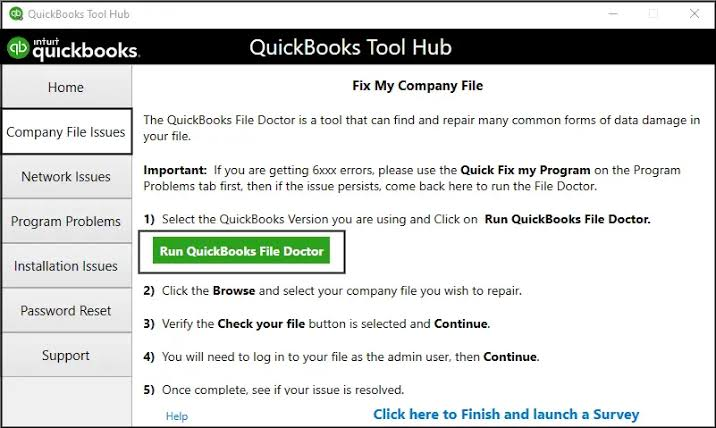
The fix in this case is not a printing repair – it is a QuickBooks version upgrade. Intuit’s support team confirmed that QuickBooks Desktop 2024 is specifically designed to work smoothly with 64-bit Windows 11 natively installed. Upgrading from QuickBooks 2021 to a supported version resolves the printing failure and all other Windows 11 compatibility problems simultaneously. Users still on 2021 who cannot immediately upgrade can use QuickBooks File Doctor from the QuickBooks Tool Hub as a temporary diagnostic step, but the incompatibility between QuickBooks 2021 and Windows 11 cannot be permanently resolved without upgrading the QuickBooks version.
Issue 3: QuickBooks Desktop 2023 Crashes During Payroll on Windows 11
A documented case on Intuit’s official community forum involved a user who purchased a new laptop running Windows 11 and upgraded to QuickBooks Desktop 2023 at the same time. The user reported that every single attempt to process payroll caused QuickBooks to crash. After three weeks of crashes on every payroll run, the user noted the crashes were consistent and reproducible. Intuit’s community support team investigated and identified the cause as a payroll data issue on the new Windows 11 environment, not a problem with the Windows 11 installation itself.
Payroll crashes on a new Windows 11 setup most commonly result from one of three sources: a damaged payroll data folder (called the CPS folder – Common Payroll Setup), antivirus software that started scanning QuickBooks payroll files more aggressively on the new machine, or a missing QuickBooks update for the new version. The documented resolution path is: update QuickBooks to the latest release, add the QuickBooks program files and data folders to the antivirus exclusion list, and run Verify Data on the company file. If payroll crashes persist after all three steps, Intuit’s support team can remotely re-initialize the payroll data files, which is the confirmed fix for persistent CPS folder-related crashes.
Issue 4: Windows 11 Memory Integrity Setting Blocks QuickBooks
Windows 11 includes a security feature called Memory Integrity, also known as Core Isolation. Memory Integrity protects the computer’s memory by creating an isolated area where Windows security processes run, separate from other programs. Some older QuickBooks component files – specifically files from QuickBooks versions 2021 and earlier that may still exist on the computer after an upgrade – are not compatible with Memory Integrity and trigger a conflict that prevents QuickBooks from starting.
Memory Integrity is controlled through Windows Security > Device Security > Core Isolation > Memory Integrity. Users who upgraded their QuickBooks installation from an older version to a newer one on the same computer sometimes have residual old component files from the previous version still present. These old files conflict with Memory Integrity even if the new QuickBooks version itself is compatible. The resolution is to perform a clean install of QuickBooks – which removes all old component files – rather than an upgrade install. Intuit’s Clean Install Tool, available free from Intuit’s support page, performs this more complete removal before the new version is installed.
Issue 5: Multi-User Mode Fails After Moving to Windows 11
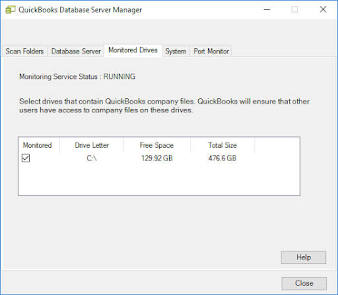
QuickBooks Desktop multi-user mode – where multiple computers access the same company file simultaneously – depends on a component called the QuickBooks Database Server Manager. This component runs as a background service on the computer that hosts the company file, and it manages all incoming connections from other computers. Moving the host computer to Windows 11 requires the Database Server Manager to be reconfigured for the new operating system. Users on Intuit’s community forum reported that after upgrading the host computer to Windows 11, workstations on the network received “You do not have permission to access this networked computer” errors, even though all computers were set up identically.
Intuit confirmed through its community support team that Windows 11 natively installed is compatible with multi-user mode, but that the Database Server Manager must be reinstalled or rescanned after the Windows 11 upgrade to register the new operating system environment. Running the Network Issues section of the QuickBooks Tool Hub > QuickBooks Database Server Manager > Scan Folders re-establishes the connection between the host computer and all workstations. For the specific permission error cited above, the user found that one of the three workstations could connect while two others could not – which indicated a network permissions issue specific to those two workstations rather than the Database Server Manager configuration.
Issue 6: QuickBooks Running on Windows 11 in a Remote Desktop Server Environment
Intuit’s community support team confirmed directly on its official forum: “Running Windows 11 natively is currently not an option for customers who run QuickBooks in a Remote Desktop Server environment.” A Remote Desktop Server environment is a setup where QuickBooks is installed on a central server and users connect to it remotely from their own computers, rather than having QuickBooks installed on each individual computer. This is a common setup for businesses with remote workers or multiple offices.
The incompatibility exists because Windows 11 in a Remote Desktop Server role uses a different code base and licensing model than Windows 11 on a standard desktop computer. Intuit’s supported server environments for QuickBooks Desktop are Windows Server 2016, Windows Server 2019, and Windows Server 2022. Businesses using Remote Desktop for QuickBooks access need to keep their server on a supported Windows Server version rather than Windows 11. The alternative is QuickBooks Desktop cloud hosting through one of Intuit’s authorized hosting providers, which places QuickBooks on a professionally managed server environment that handles remote access without the Windows 11 Server compatibility limitation.

Fixes: How to Resolve QuickBooks Desktop Compatibility Issues on Windows 11
Fix 1: Upgrade QuickBooks to a Supported Version
Running a QuickBooks version that predates 2022 R3 on Windows 11 produces compatibility problems that no repair tool can permanently resolve. The incompatibility is architectural – QuickBooks 2021 and older were built for Windows 10 and were not updated to account for the changes Windows 11 introduced. Upgrading to QuickBooks Desktop 2023, 2024, or 2025 – all of which are certified for Windows 11 – eliminates every version-related compatibility issue in one step.
Before upgrading, create a full backup of the company file: File > Back Up Company > Create Local Backup. Note the current QuickBooks license number and product key by going to Help > About QuickBooks. After the new version is installed, QuickBooks will prompt to update the company file to the new format – this is a one-way conversion, so the backup created before the upgrade is the only way to reopen the file in the older QuickBooks version if needed. QuickBooks Desktop 2024 and 2025 are the versions Intuit specifically describes as designed for 64-bit Windows 11 natively installed.
Fix 2: Perform a Clean Install Instead of an Upgrade Install
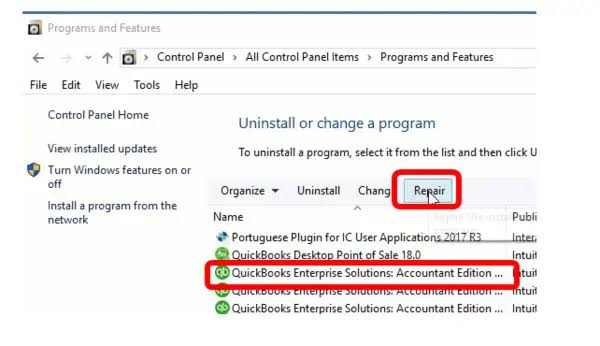
An upgrade install places the new QuickBooks version on top of the existing installation, which leaves old component files from previous versions on the computer. These residual files are a documented source of Windows 11 compatibility problems because they conflict with Windows 11’s security features, including Memory Integrity. A clean install removes all existing QuickBooks files completely before the new version is installed, which eliminates every residual file conflict.
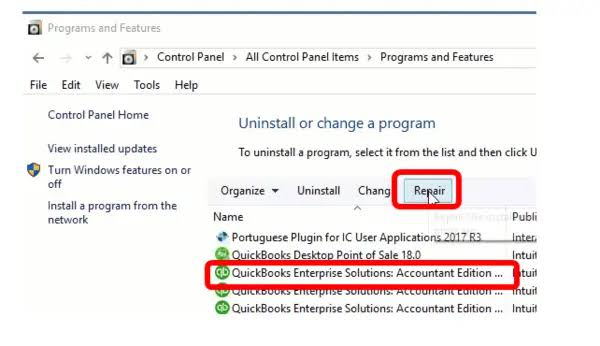
Download the QuickBooks Clean Install Tool from Intuit’s official support page. Before running it, note the QuickBooks license number and product key (Help > About QuickBooks) and create a company file backup. Run the Clean Install Tool – it removes the existing QuickBooks installation more completely than the standard Control Panel uninstall. After it finishes, download and install the new QuickBooks version from Intuit’s website using the same license number. Open QuickBooks and reopen the company file from the No Company Open window.
Fix 3: Run the QuickBooks Install Diagnostic Tool After Every Windows 11 Update
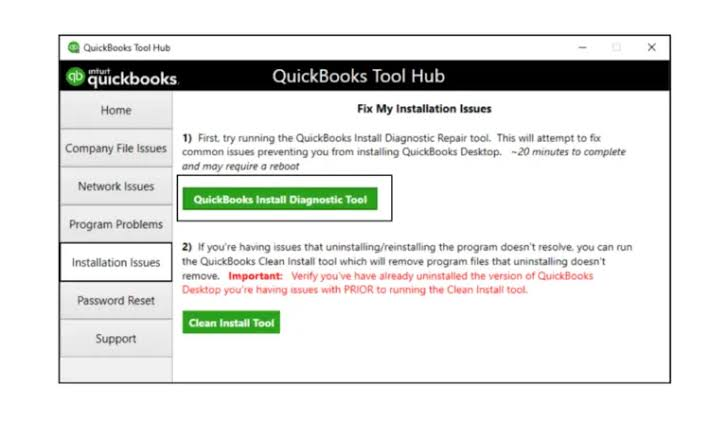
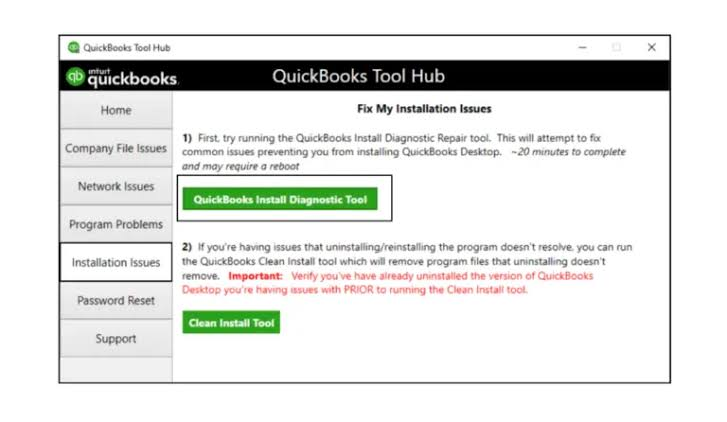
The QuickBooks Install Diagnostic Tool repairs the three Windows components that QuickBooks depends on: Microsoft .NET Framework (a software layer Windows provides that QuickBooks uses to run its internal processes), MSXML (Microsoft XML Core Services, which QuickBooks uses to communicate data), and Microsoft Visual C++ Redistributable files (shared program libraries that both QuickBooks and Windows use). Windows 11 updates frequently change these components, and each change creates a potential compatibility gap between the updated component and the current QuickBooks version.
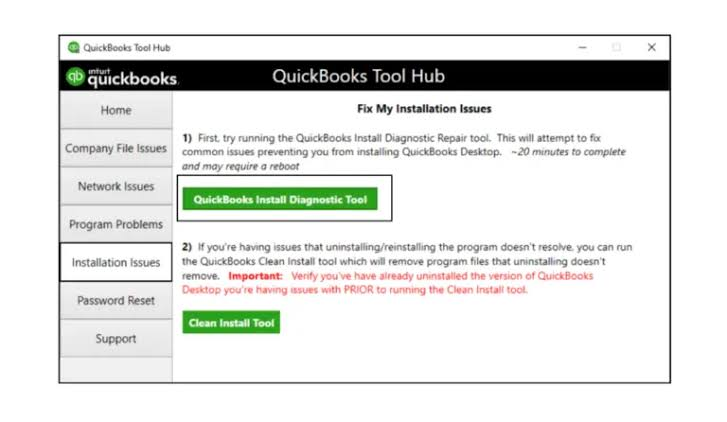
Open the QuickBooks Tool Hub. Click Installation Issues in the left menu. Click QuickBooks Install Diagnostic Tool. Allow it to run – it takes up to 20 minutes because it downloads and verifies each component individually. Restart the computer when it finishes. Open QuickBooks and test.
Fix 4: Add QuickBooks to Antivirus Exclusions on Windows 11
Windows 11 ships with Windows Security (the built-in antivirus) running at all times, and many businesses also run a separate third-party antivirus on top of it. Windows 11 updates sometimes increase the aggressiveness of Windows Security scanning, which starts intercepting QuickBooks file writes that previously passed through without interference. Adding QuickBooks to the exclusions list in both Windows Security and any third-party antivirus resolves this interference without disabling security for other files.
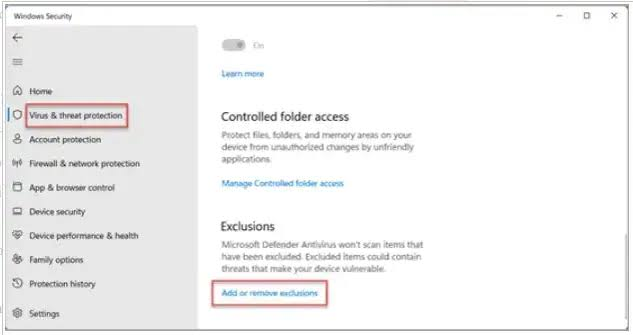
- Open Windows Security from the Start menu. Go to Virus & Threat Protection > Manage Settings > Exclusions > Add or Remove Exclusions.
- Add the QuickBooks installation folder: C:\Program Files\Intuit\QuickBooks [Year]
- Add the company file folder (wherever the .QBW file is stored)
- Add the QuickBooks data folder: C:\ProgramData\Intuit\QuickBooks
- Add QuickBooks program files: QBW32.exe, QBDBMgrN.exe, QBCFMonitorService.exe
Fix 5: Switch the Windows 11 Power Plan to High Performance
Windows 11 updates sometimes reset the computer’s power plan to Balanced, which throttles the processor speed during tasks Windows considers low-priority. QuickBooks background operations – loading the company file, processing payroll calculations, generating reports – are sometimes classified as low-priority by Windows’ power management. The Balanced plan slows the processor during these operations, producing QuickBooks slowness that appears to be a compatibility issue but is actually a power settings issue.
Press Windows + R, type powercfg.cpl, and press Enter. In the Power Options window, click Show additional plans if it appears. Select High Performance. Close the window. Open QuickBooks and test speed. This is particularly effective on laptops, where Windows 11 updates frequently reset the plan to a battery-saving setting.
Fix 6: Run QuickBooks as Administrator on Windows 11
Windows 11 applies stricter permission controls than Windows 10 did. QuickBooks needs permission to write to the company file folder, the QuickBooks installation directory, and the payroll data folder. A Windows 11 update that tightens folder permissions can block QuickBooks from writing to these locations, producing errors and crashes that look like compatibility problems but are actually permission problems.
Right-click the QuickBooks Desktop icon. Select Run as Administrator and click Yes. Test QuickBooks. To make this permanent: right-click the icon > Properties > Compatibility tab > check Run this program as an administrator > Apply > OK. QuickBooks will now always open with full permission access without requiring a right-click each time.
Fix 7: Reconfigure the QuickBooks Database Server Manager After Upgrading to Windows 11
Moving the host computer – the computer where the company file is stored – to Windows 11 requires the QuickBooks Database Server Manager to be re-scanned for the new environment. The Database Server Manager is the background service that manages connections between the host computer and all other computers accessing the company file in multi-user mode. After a Windows 11 upgrade, it loses its registered configuration and must re-discover the company file folder on the new operating system.
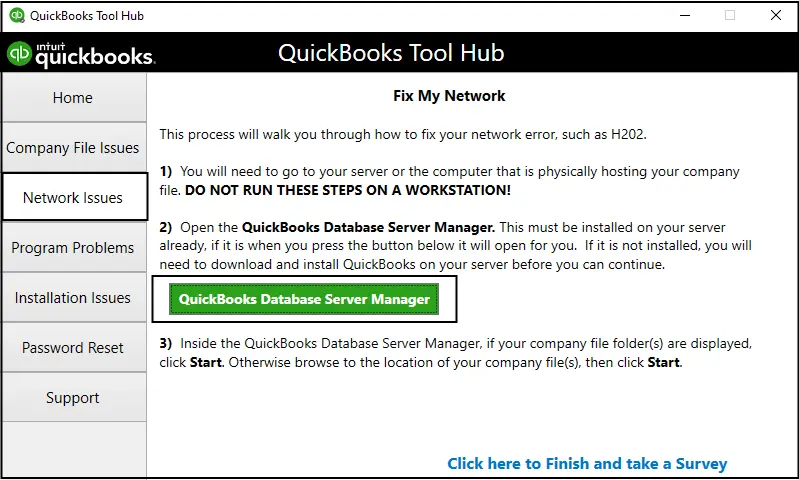
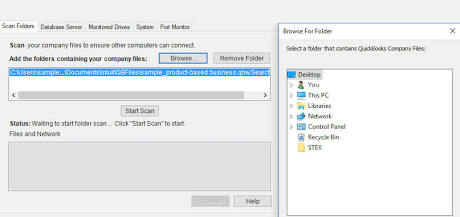
Open the QuickBooks Tool Hub on the host computer. Click Network Issues in the left menu. Click QuickBooks Database Server Manager. Click Scan Folders. Add the folder containing the company file if it is not already listed. Click Scan. When the scan completes, test multi-user access from all workstations.
Windows 11 Compatibility Issues and Fixes: Quick Reference
| Compatibility Issue | Who It Affects | Correct Fix | Time to Apply |
|---|---|---|---|
| QuickBooks 2021 or older on Windows 11 | All users on old versions | Upgrade QuickBooks to 2022 R3 or newer | 1–2 hours |
| QuickBooks will not open after Windows update KB5074109 | Windows 11 ARM 24H2 users | Uninstall KB5074109, monitor for Intuit patch | 15 minutes |
| Printing does not work on Windows 11 | QuickBooks 2021 users | Upgrade to QuickBooks 2022 R3 or newer | 1–2 hours |
| Payroll crashes on new Windows 11 laptop | All QuickBooks versions | Update QB, add antivirus exclusions, run Verify Data | 30–45 minutes |
| Memory Integrity blocks QuickBooks startup | Computers with old QB files still present | Clean install of QuickBooks using Clean Install Tool | 1–2 hours |
| Multi-user workstations cannot connect after Windows 11 upgrade | Multi-user environments | Run Database Server Manager scan on host computer | 15–20 minutes |
| QuickBooks slow after Windows 11 update | All users | Run Install Diagnostic Tool, switch to High Performance power plan | 20–30 minutes |
| Windows 11 S Mode blocks QuickBooks installation | Computers with S Mode enabled | Switch out of S Mode permanently in Settings > Activation | 5 minutes |
| Remote Desktop environment shows Windows 10 warning | RDS users | Use Windows Server 2016/2019/2022 or authorized cloud hosting | Planned migration |

Moving From Windows 10 to Windows 11: What QuickBooks Users Must Do First
Microsoft ended Windows 10 support on October 14, 2025. Intuit confirmed that QuickBooks Desktop also stopped supporting Windows 10 after that date. Every business still using QuickBooks Desktop now needs to run it on Windows 11. The transition requires four specific actions to avoid compatibility problems on the new operating system.
Step 1: Confirm the Computer Is Eligible for Windows 11
Windows 11 requires a computer with a processor released after 2018 (Intel 8th generation or AMD Ryzen 2000 series or newer), a minimum of 4 GB of RAM, and 64 GB of storage. The computer must also have a security component called TPM 2.0 – a Trusted Platform Module chip that Windows 11 uses for encryption and secure boot. Intuit specifies a minimum of 8 GB of RAM for QuickBooks Desktop 2024, so the Windows 11 minimum of 4 GB is not sufficient for QuickBooks. The hardware must meet Intuit’s QuickBooks requirements, not just the Windows 11 minimum. Microsoft’s free PC Health Check application, downloadable from Microsoft’s website, confirms whether the computer meets Windows 11 requirements before the upgrade begins.
Step 2: Update QuickBooks to the Latest Release Before Upgrading Windows
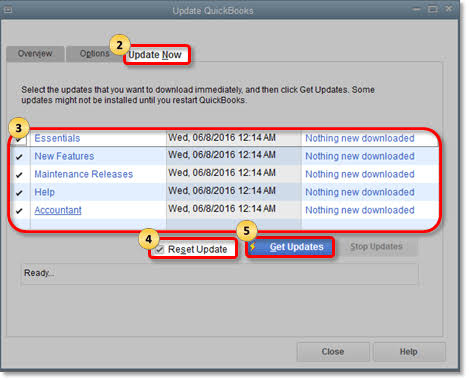
Updating QuickBooks to its latest release before upgrading the operating system ensures the QuickBooks version is as current as possible for the new Windows 11 environment. Go to Help > Update QuickBooks Desktop > Update Now tab > Reset Update > Get Updates. Install the update and restart the computer while it is still running Windows 10. Doing this before the Windows 11 upgrade means QuickBooks is already at its most Windows 11-compatible state when Windows 11 installs, which reduces the chance of a compatibility problem appearing immediately after the upgrade.
Step 3: Create a Full Company File Backup Before the Windows 11 Upgrade
A Windows operating system upgrade is a significant system change. Create a full company file backup through File > Back Up Company > Create Local Backup and save the backup to an external drive or a network location that is not on the computer being upgraded. Save the QuickBooks license number and product key from Help > About QuickBooks to a separate document. These two pieces of information – the backup and the license details – ensure the business can restore QuickBooks to a fully working state even if the Windows 11 upgrade produces a problem that requires reinstalling QuickBooks from scratch.
Step 4: Perform a Clean Install of QuickBooks After the Windows 11 Upgrade
After Windows 11 is installed, do not simply open the existing QuickBooks installation. Instead, use Intuit’s Clean Install Tool to remove all QuickBooks files from the now-Windows-11 system and install a fresh copy. This eliminates any residual files from the old Windows 10 QuickBooks installation that may conflict with Windows 11 components. The company file itself – the .QBW file – is stored in a separate data folder and is not affected by the QuickBooks reinstall. After the clean install, open QuickBooks and navigate to the company file from the No Company Open window.
Conclusion
QuickBooks Desktop runs on Windows 11 without issues when two conditions are met: the QuickBooks version is 2022 R3 or later, and Windows 11 is the standard 64-bit version natively installed on the computer – not S Mode, not IoT edition, and not inside a virtual machine. Every documented compatibility problem between QuickBooks Desktop and Windows 11 traces back to one or both of these conditions not being met, or to a specific Windows 11 update introducing a temporary conflict that a matching QuickBooks update resolves.
The most important action for any business using QuickBooks Desktop on Windows 11 today is to confirm the QuickBooks version. According to Intuit’s confirmed community support responses, QuickBooks Desktop 2021 and older versions are not compatible with Windows 11 – and Microsoft ended Windows 10 support on October 14, 2025, which means there is no longer a supported path for running QuickBooks 2021 on any supported operating system. Upgrading to QuickBooks Desktop 2023, 2024, or 2025 resolves the version compatibility issue and restores full access to all QuickBooks functions on Windows 11.
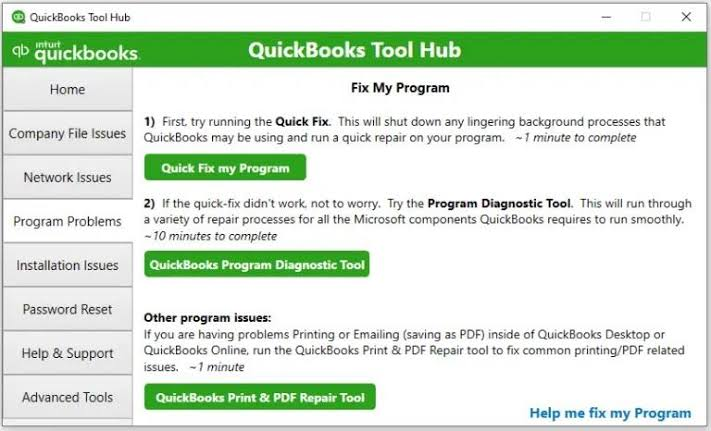
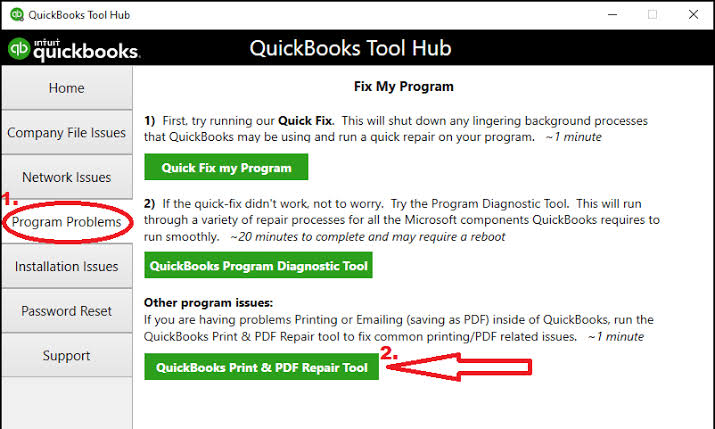
Intuit’s QuickBooks Tool Hub – available free from Intuit’s support page – provides the Install Diagnostic Tool, QuickBooks File Doctor, the Database Server Manager, and Quick Fix My Program in one application. Keeping it installed on every computer running QuickBooks Desktop means the right repair tool is always available when a Windows 11 compatibility issue appears, regardless of which type of problem it is.
Frequently Asked Questions
1. QuickBooks 2022 is installed but the Windows 11 compatibility problems are still happening. What release number is required?
QuickBooks Desktop 2022 R3 is the minimum release number certified for Windows 11. “R3” refers to the third major update to the 2022 version, not the original release. A user running QuickBooks 2022 at its first release (R1) or second update (R2) is not on a Windows 11-certified version.
Press Ctrl + 1 (or F2) inside QuickBooks to open the Product Information window, which displays the full version number including the release. Go to Help > Update QuickBooks Desktop > Get Updates to install the latest available update for QuickBooks 2022. Intuit’s confirmation of the R3 certification was documented in community support threads discussing Windows 11 compatibility during the 2022 rollout period.
2. A new laptop came with Windows 11 pre-installed and QuickBooks 2019 was transferred to it. Is there a way to make 2019 work?
Intuit confirmed directly on its official community forum: Windows 11 is not compatible with QuickBooks Desktop 2021 and older versions. QuickBooks 2019 is two generations older than the 2021 cutoff, which means no configuration, repair tool, or troubleshooting step will produce stable, supported operation of QuickBooks 2019 on Windows 11.
The only supported path is to upgrade to QuickBooks Desktop 2022 R3 or newer. As of September 30, 2024, Intuit stopped selling new subscriptions for QuickBooks Desktop Pro Plus and Premier Plus to new US subscribers, but existing subscribers can still renew. QuickBooks Desktop Enterprise remains available to all users. The company file from QuickBooks 2019 can be upgraded to a newer QuickBooks version – QuickBooks handles the file conversion automatically when the newer version opens the older company file.
3. The computer has Windows 11 Home. Is QuickBooks Desktop fully supported on Windows 11 Home?
QuickBooks Desktop 2024 and 2025 are supported on Windows 11, including the Home edition, for single-user setups. However, Windows 11 Home does not include the Group Policy tools and advanced network administration features that Windows 11 Pro and Enterprise provide.
For multi-user QuickBooks environments – where multiple computers access the same company file simultaneously – the host computer running Windows 11 Home may encounter limitations with the network permissions and administrator rights that QuickBooks Database Server Manager requires. I
ntuit’s system requirements note that when hosting many users, the server machine needs administrator rights. Windows 11 Pro is recommended for any computer serving as the QuickBooks host in a multi-user setup.
4. Can QuickBooks Desktop be moved to a Windows 11 computer immediately, or does the IT setup need to happen first?
Moving QuickBooks Desktop to a new Windows 11 computer requires four steps completed in sequence: confirm the new computer meets Intuit’s hardware requirements (2.4 GHz processor minimum, 8 GB RAM minimum, 64-bit Windows 11 natively installed, SSD recommended), create a full company file backup on the old computer, install QuickBooks on the new computer using the same license number, and restore the company file from the backup.
The company file does not need to be “moved” in the traditional sense – it is restored from the .QBB backup file through File > Open or Restore Company > Restore a Backup Copy. This process takes one to two hours for most small business setups and does not require IT expertise if the steps are followed in order.
5. QuickBooks works on Windows 11 but displays a warning about an unsupported operating system. Why does this appear if Windows 11 is compatible?
A QuickBooks message warning about an unsupported operating system on a computer running Windows 11 indicates one of two things: the QuickBooks version installed is older than 2022 R3 (which was the first version certified for Windows 11), or the computer is running QuickBooks in a Remote Desktop Server environment.
Intuit confirmed on its community forum that users running QuickBooks on Remote Desktop Server 2022 see a Windows 10 warning because Server 2022 is built on Windows 10 code, while Server 2025 – which uses Windows 11 code – is not yet supported by Intuit. For standard desktop use, the warning is resolved by updating QuickBooks to the latest release. For Remote Desktop Server environments, the warning persists until Intuit releases support for Windows Server 2025, which Intuit advised users to monitor the Intuit Update Portal for.


Leave a Reply