
To fix QuickBooks Desktop freezing or showing “Not Responding” on Windows 11, download and open the QuickBooks Tool Hub. Run the “Quick Fix my Program” tool to close stuck QuickBooks processes. If the issue continues, repair QuickBooks from the Control Panel by going to Programs and Features, selecting QuickBooks, and choosing Repair.
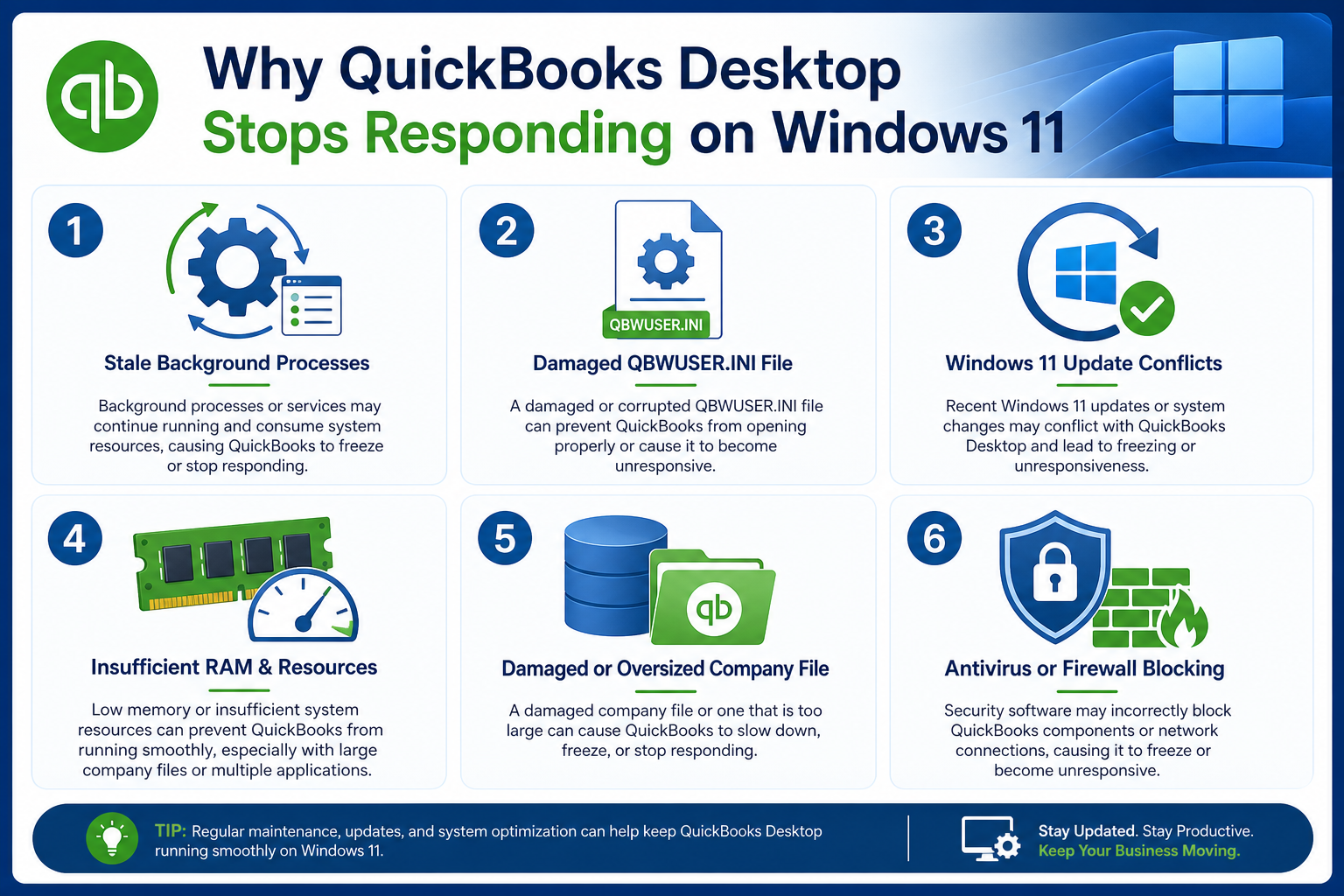
QuickBooks Desktop freezes on Windows 11 due to six specific causes: stale background processes, damaged settings files, Windows update conflicts, insufficient system resources, company file damage, and antivirus interference. Windows 11 manages memory, security permission, and background processes differently than Windows 10.
The solutions in this article apply to QuickBooks Desktop 2022, 2023, 2024, and 2025 running on Windows 11. According to Intuit, QuickBooks Desktop 2024 and 2025 are designed to run on 64-bit Windows 11 natively installed – meaning Windows 11 must be properly installed on the computer, not run through a virtual machine or emulator, for QuickBooks to work correctly.
Table of Contents
Identify What ‘Not Responding’ Actually Means in QuickBooks?
QuickBooks not responding does not always mean a crash. QuickBooks can keep working in the background on large tasks such as report generation or company file loading and recovers within a few minutes on its own. Freezing beyond two to three minutes, a blank white window, or a forced closure through Task Manager confirms a genuine freeze needing a fix.
Task Manager check: press Ctrl + Shift + Esc, find QuickBooks in the process list, and look for “Not Responding” in red text next to the QuickBooks entry. “Not Responding” in red text confirms QuickBooks is genuinely stuck.
| Quick Diagnosis: QuickBooks Desktop Not Responding on Windows 11 | ||||
|---|---|---|---|---|
| If you’re experiencing… | Most likely cause | Recommended Fix | Estimated Time | First Tool/Location |
| QuickBooks freezes every time it opens | Stale background processes or damaged startup settings | Fix 1: Clear Background Processes → If unresolved, continue to Fix 2 | 2–7 min | QuickBooks Tool Hub |
| QuickBooks shows a blank or white screen during startup | Corrupted QBWUSER.INI file | Fix 2: Reset QBWUSER.INI File | 5 min | File Explorer |
| QuickBooks started freezing after a Windows 11 update | Outdated QuickBooks release or Windows compatibility issue | Fix 3: Update QuickBooks Desktop → If the issue began immediately after a Windows update, continue to Fix 10 | 10–20 min | Help → Update QuickBooks Desktop |
| QuickBooks freezes while saving transactions or downloading payroll updates | Insufficient Windows permissions | Fix 4: Run QuickBooks as Administrator | 2 min | Right-click QuickBooks Desktop icon |
| QuickBooks freezes after opening or during routine tasks | Damaged QuickBooks installation | Fix 5: Repair QuickBooks Installation | 15–20 min | Control Panel → Programs and Features |
| Only one company file freezes | Company File corruption | Fix 6: Verify & Rebuild Company Data | 10–30 min | File → Utilities |
| QuickBooks freezes before opening the company file | Corrupted startup configuration | Fix 7: Suppress QuickBooks | 3 min | Hold Ctrl while opening QuickBooks |
| QuickBooks freezes randomly throughout the day | Antivirus or Windows Firewall interference | Fix 8: Configure Antivirus & Firewall Exceptions | 10 min | Antivirus Settings / Windows Security |
| QuickBooks freezes only on one computer | Third-party software conflict | Fix 9: Perform a Clean Boot | 20 min | msconfig (Run dialog) |
| QuickBooks started freezing immediately after installing a Windows update | Confirmed Windows compatibility issue | Fix 10: Check or Remove the Conflicting Windows Update* | 10 min | Settings → Windows Update → Update History |
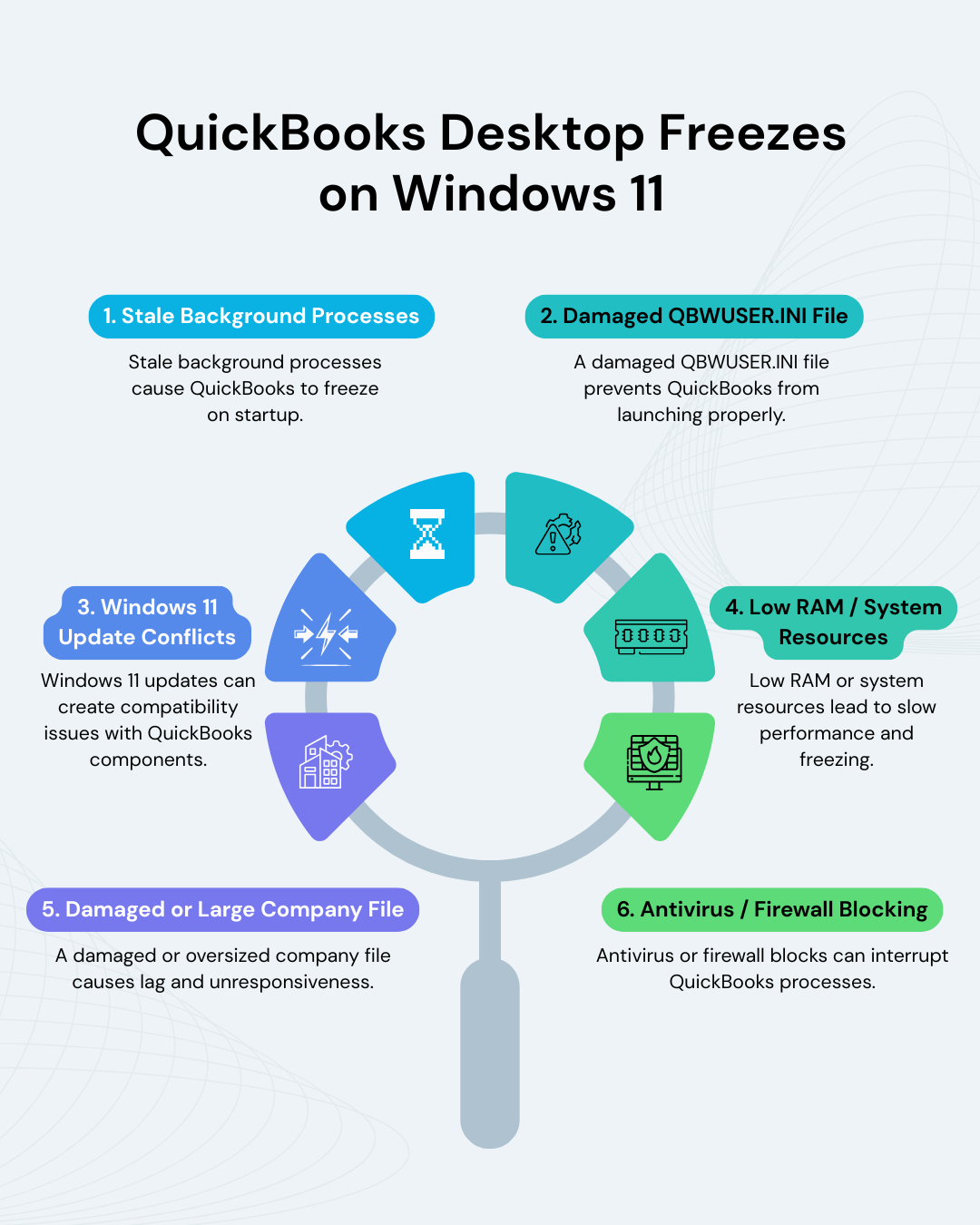
Fix 1: Clear Stale QuickBooks Background Processes
This fix stops all leftover QuickBooks processes that are still running in the background from a previous session. These processes occupy memory and prevent new QuickBooks instances from starting correctly. Clearing them gives QuickBooks a clean starting point, which resolves freezing that happens at startup or during loading.
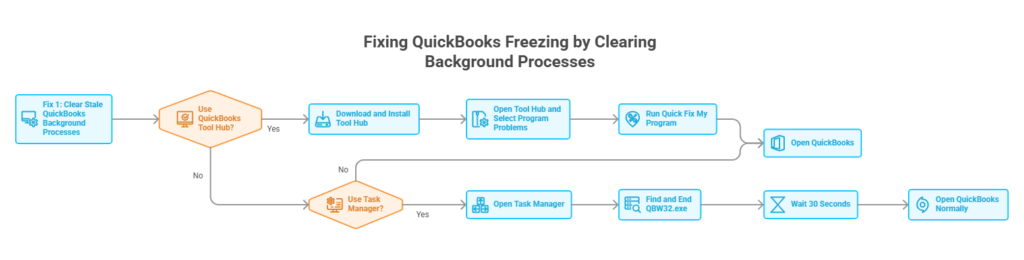
Option A: QuickBooks Tool Hub (Recommended)
Use QuickBooks Tool Hub to automatically close frozen QuickBooks processes and repair common program issues.
Steps:
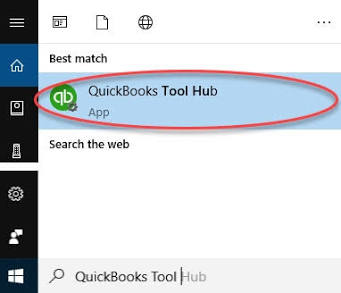
- Download the latest version of QuickBooks Tool Hub from Intuit’s official website.
- Close QuickBooks Desktop before installing Tool Hub.
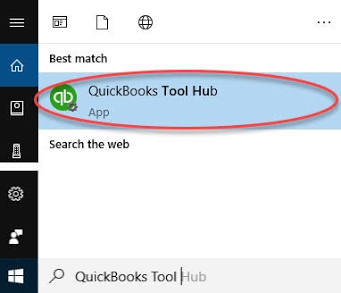
- Double-click the downloaded QuickBooksToolHub.exe file.
- Follow the on-screen instructions to complete the installation.
- Click Finish after the installation completes.
- Double-click the QuickBooks Tool Hub icon on the Windows desktop to open the application.
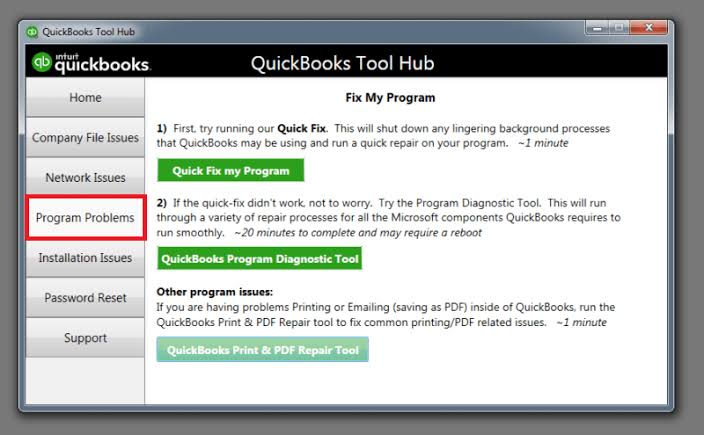
- In the left navigation pane, click Program Problems.
- On the Program Problems screen, click Quick Fix my Program.
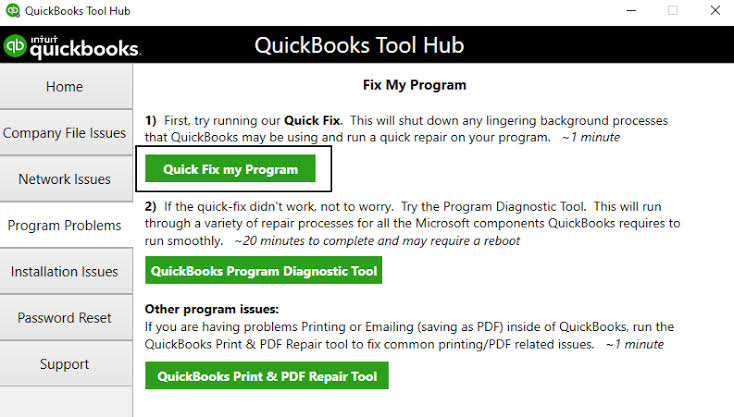
- Wait until the repair finishes. The process usually takes 1–2 minutes.
- Close QuickBooks Tool Hub after the repair completes.
- Open QuickBooks Desktop normally.
- Open your company file and verify whether QuickBooks responds without freezing.
If the issue continues, continue to Option B to manually end QuickBooks background processes.
Option B: End the Process Manually in Task Manager
Use this method when QuickBooks Tool Hub is unavailable or Quick Fix My Program does not resolve the issue.
Steps
- Close QuickBooks Desktop if the application is still open. Skip this step if QuickBooks is completely frozen.
- Press Ctrl + Shift + Esc on the keyboard to open Task Manager. Alternatively, right-click the Windows taskbar and select Task Manager.
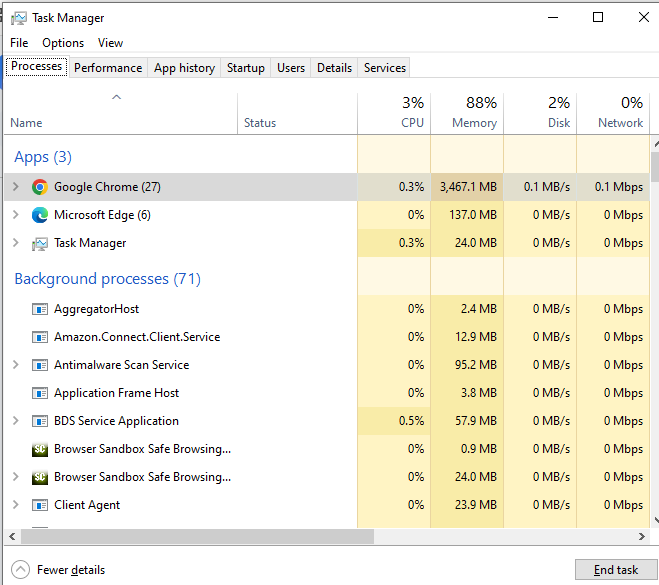
- Click More details at the bottom of the Task Manager window if only a small window appears.
- Select the Processes tab from the left navigation pane (or the top of the window on Windows 10).
- Scroll through the list of running processes and locate QuickBooks (QBW32.exe). The process may appear as QuickBooks instead of QBW32.exe, depending on your QuickBooks version.
- Click QuickBooks (QBW32.exe) to select it.
- Click End task in the upper-right corner of the Task Manager window, or right-click the process and select End task.
- Check the process list again for additional QBW32.exe or QuickBooks processes.
- Repeat End task for every QuickBooks-related process until no QuickBooks processes remain in the list.
- Close Task Manager.
- Wait 30 seconds to allow Windows to release any files that were being used by QuickBooks.
- Double-click the QuickBooks Desktop icon to launch the application.
- Open your company file and verify whether QuickBooks responds normally.
Fix 2: Reset the QBWUSER.INI Settings File
The QBWUSER.INI file stores QuickBooks startup preferences, including the last company file that was opened. Renaming this file forces QuickBooks to create a new settings file the next time it starts. The original file remains available with a .old extension if you need to restore it later.
Steps
- Close QuickBooks Desktop completely.
- Press Windows + E to open File Explorer.
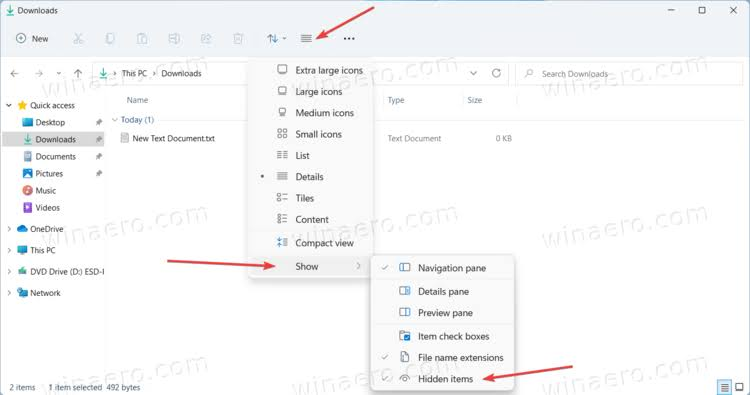
- Click View from the File Explorer toolbar.
- Select Show, then click Hidden items to display hidden folders.
In the File Explorer address bar, enter the following path and press Enter:
C:\Users\YourUserName\AppData\Local\Intuit\QuickBooks\20XX
- Replace YourUserName with your Windows user account name and 20XX with your QuickBooks version, such as 2024 or 2025.
- Locate the file named QBWUSER.INI.
- Right-click QBWUSER.INI, then select Rename.
- Change the file name to QBWUSER.INI.old.
- Press Enter to save the new file name.
- Close File Explorer.
- Open QuickBooks Desktop normally.
- Wait while QuickBooks creates a new QBWUSER.INI file automatically.
- Click Browse or Open or Restore an Existing Company when QuickBooks prompts you to select a company file.
- Navigate to the folder that contains your .QBW company file.
- Select the company file, then click Open.
- Verify that QuickBooks opens the company file without freezing.
Fix 3: Update QuickBooks Desktop to the Latest Release
QuickBooks Desktop updates patch Windows 11 compatibility issues introduced by Windows updates.
Steps
- Open QuickBooks Desktop.
- Click Help from the top menu bar.
- Select Update QuickBooks Desktop.
- Click the Update Now tab.
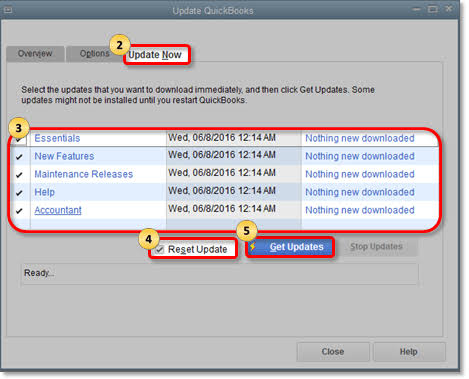
- Select the Reset Update checkbox to clear previously downloaded update files.
- Click Get Updates.
- Wait until QuickBooks finishes downloading the available updates.
- Close QuickBooks Desktop after the download completes.
- Open QuickBooks Desktop again.
- Click Yes when prompted to install the downloaded updates.
- Wait until the installation completes.
- Restart your computer if QuickBooks prompts you to restart Windows.
- Open QuickBooks Desktop and verify that the freezing issue has been resolved.
Note: QuickBooks must open to access the Update QuickBooks Desktop window. Download the latest update directly from Intuit’s official website and run the update file as Administrator if QuickBooks freezes before opening.
Fix 4: Run QuickBooks as Administrator on Windows 11
Administrator rights grant QuickBooks full write access to protected Windows 11 folders, resolving freezes tied to saving data or downloading payroll updates.
Steps
- Close QuickBooks Desktop if it is currently running.
- Locate the QuickBooks Desktop shortcut on your desktop or search for QuickBooks Desktop from the Windows Start menu.
- Right-click the QuickBooks Desktop icon.
- Select Run as administrator.
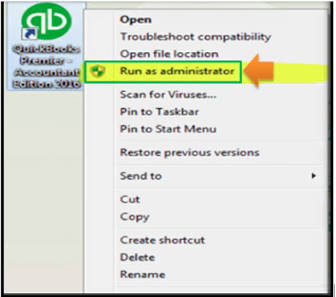
- Click Yes when the User Account Control (UAC) prompt appears.
- Wait for QuickBooks to open.
- Open your company file and verify whether QuickBooks works without freezing.
Note: Complete the steps below only if running QuickBooks as Administrator resolves the issue and you want QuickBooks to always open with administrator privileges.
Make Administrator Mode Permanent
- Close QuickBooks Desktop.
- Right-click the QuickBooks Desktop shortcut.
- Select Properties.
- Click the Compatibility tab.
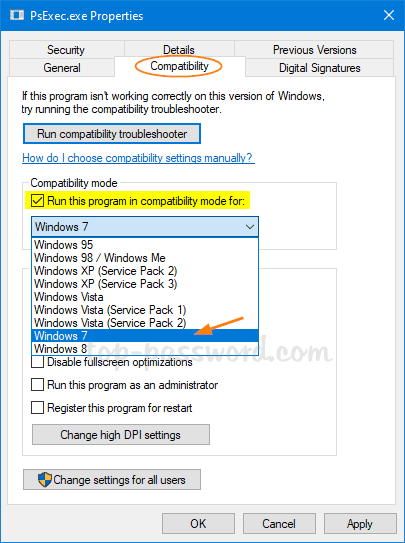
- Under Settings, select Run this program as an administrator.
- Click Apply.
- Click OK.
- Open QuickBooks Desktop normally to verify that it starts with administrator privileges.
Fix 5: Repair Damaged QuickBooks Installation Files
Windows Repair replaces damaged QuickBooks program files without removing the existing installation.
Steps
- Close QuickBooks Desktop completely.
- Press Windows + R to open the Run dialog box.
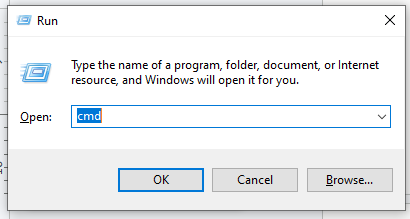
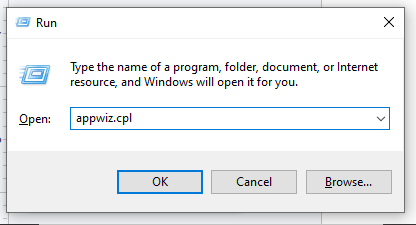
- Type appwiz.cpl, then click OK.
- This opens the Programs and Features window.
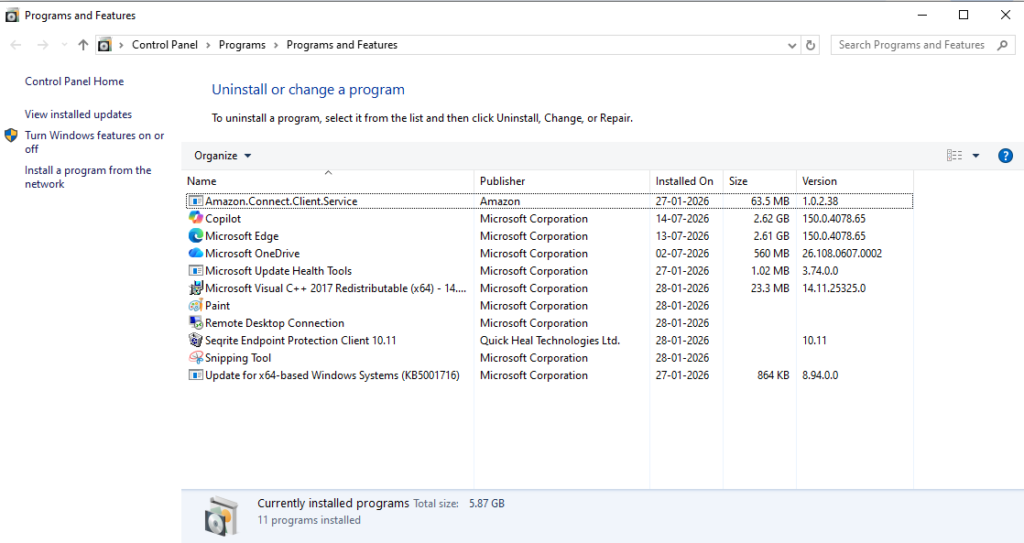
- Locate QuickBooks Desktop in the list of installed programs.
- Select QuickBooks Desktop, then click Uninstall/Change from the toolbar. On some Windows versions, you may need to right-click QuickBooks Desktop and select Uninstall/Change.
- Select Repair, then click Next.
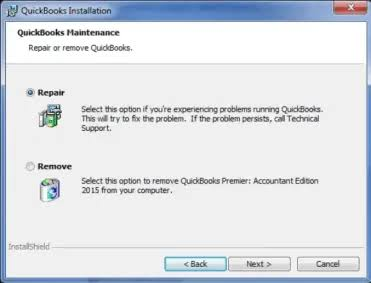
- Follow the on-screen instructions to complete the repair.
- Wait until Windows finishes repairing the QuickBooks installation.
- Restart your computer.
- Open QuickBooks Desktop.
- Open your company file and verify that QuickBooks no longer freezes.
Note: Continue with the QuickBooks Install Diagnostic Tool if QuickBooks continues to freeze after completing the repair.
Run QuickBooks Install Diagnostic Tool
- Open QuickBooks Tool Hub.
- ClickInstallation Issues from the left navigation pane.
- Click QuickBooks Install Diagnostic Tool.
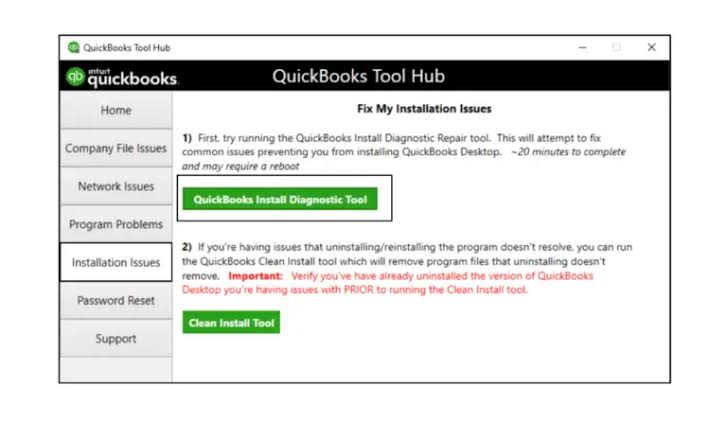
- Wait for the tool to complete the scan and repair. The process may take up to 20 minutes.
- Restart your computer after the repair finishes.
- Open QuickBooks Desktop and verify that the issue has been resolved.
Fix 6: Verify and Repair the Company File
This fix determines whether the problem is caused by the company file and repairs damaged data using QuickBooks’ built-in Verify Data and Rebuild Data utilities. This fix is slightly different because it has two dependent stages:
- Step 1: Test the Company File Using a Sample File
- Step 2: Verify and Rebuild the Company File
Step 1: Test the Company File Using a Sample File
Testing a sample company file helps determine whether the issue is with QuickBooks or your company file.
- Close QuickBooks Desktop.
- Press and hold the Ctrl key on your keyboard.
- While holding the Ctrl key, double-click the QuickBooks Desktop icon.
- Continue holding the Ctrl key until the No Company Open window appears.
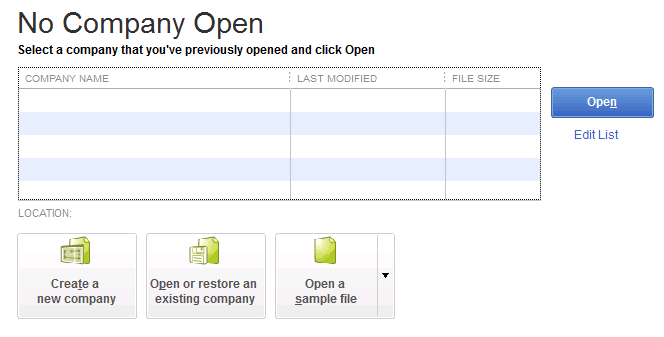
- Release the Ctrl key.
- Click Open a Sample File.
- Select any sample company file from the list.
- Wait for the sample company file to open.
Note: Proceed to Step 2 only if the sample company file opens successfully.
Step 2: Verify and Rebuild the Company File
- Open QuickBooks Desktop.
- Open the company file that is freezing.
- Click File from the top menu.
- Select Utilities.
- Click Verify Data.
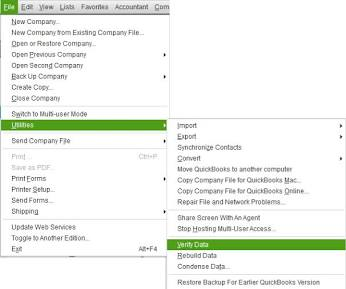
- Wait for QuickBooks to complete the verification process.
- Review the verification results.
Note: Continue with the next steps only if Verify Data reports “Your data has lost integrity.”
- Click File.
- Select Back Up Company.
- Click Create Local Backup.
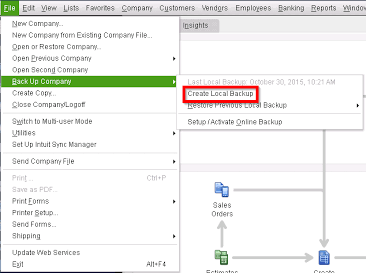
- Follow the on-screen instructions to create a backup of the company file.
- Click File again.
- Select Utilities.
- Click Rebuild Data.
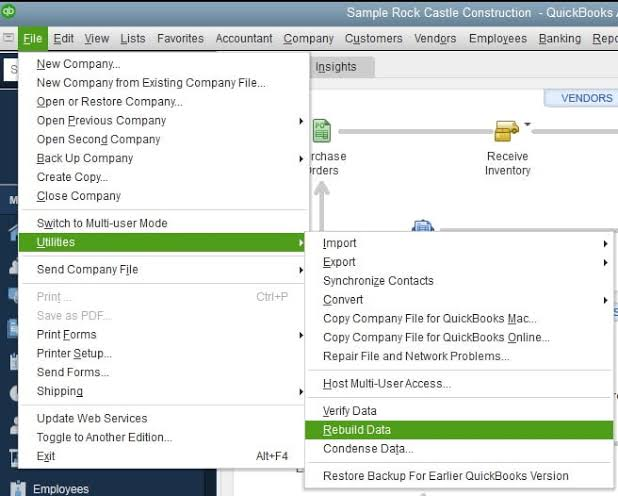
- Follow the on-screen instructions to complete the rebuild process.
- Wait until QuickBooks displays the message “Rebuild has completed.”
- Click OK.
- Click File.
- Select Utilities.
- Click Verify Data again.
- Confirm that Verify Data no longer reports data integrity errors.
Fix 7: Suppress QuickBooks to Bypass the Damaged Startup State
Suppressing QuickBooks opens the program without loading the last-used company file, clearing startup freezing tied to a corrupted cache.
Steps
- Close QuickBooks Desktop completely.
- Press and hold the Ctrl key on your keyboard.
- While holding the Ctrl key, double-click the QuickBooks Desktop icon.
- Continue holding the Ctrl key until the No Company Open window appears. This may take 10–15 seconds.
- Release the Ctrl key.
- Click Open or Restore an Existing Company.
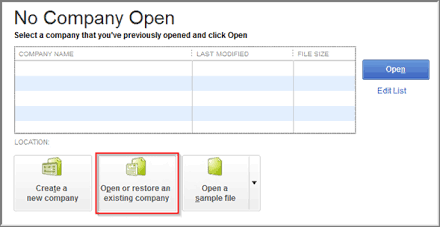
- Select Open a company file, then click Next.
- Browse to the folder that contains your QuickBooks company file (.QBW).
- Select the company file.
- Click Open.
- Verify that the company file opens without freezing.
Fix 8: Configure Antivirus and Windows Firewall Exceptions
Adding QuickBooks folders and program files to your antivirus and Windows Firewall exclusions prevents security software from blocking QuickBooks processes and company file access.
Add QuickBooks to Antivirus Exclusions
The steps vary depending on your antivirus software. Open your antivirus application and add the following QuickBooks folders and files to the Exclusions, Exceptions, or Allowed Items list.
| Exclude these folders | |
| Folder | Typical Location |
| QuickBooks installation folder | C:\Program Files\Intuit\QuickBooks 20XX |
| Company file folder | Folder containing your .QBW company file |
| QuickBooks CPS folder (if applicable) | C:\ProgramData\Intuit\QuickBooks\QBPOS 20XX\Data\CPS |
Exclude these program files
- QBW32.exe
- QBDBMgrN.exe
- QBCFMonitorService.exe
Note: Save the changes in your antivirus software before continuing.
Allow QuickBooks Through Windows Firewall
Steps
- Press Windows + I to open Settings.
- Click Privacy & Security.
- Click Windows Security.
- Click Firewall & network protection.
- Click Allow an app through the firewall.
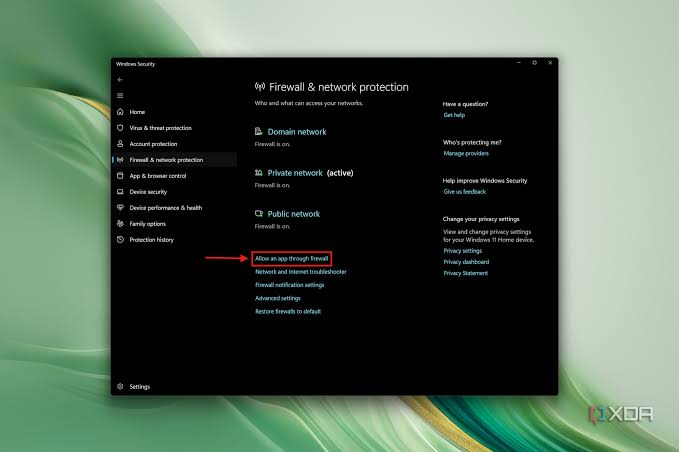
- Click Change settings.
- Click Allow another app.
- Click Browse.
Navigate to the QuickBooks installation folder. The default location is:
C:\Program Files\Intuit\QuickBooks 20XX
- Select QBW32.exe.
- Click Open.
- Click Add.
- Select both the Private and Public checkboxes for QuickBooks.
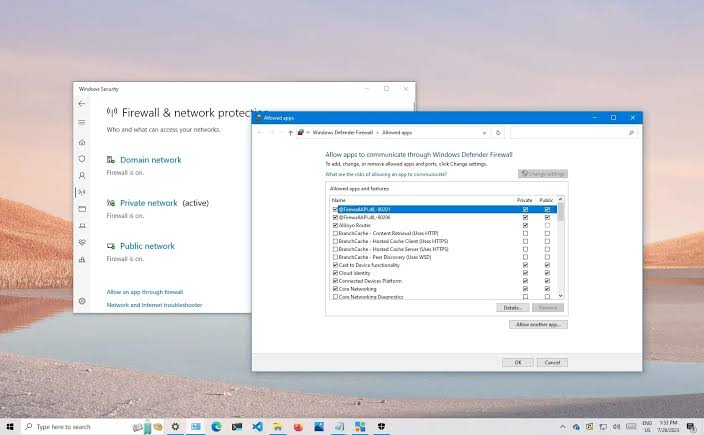
- Click OK to save the changes.
- Restart your computer.
- Open QuickBooks Desktop and verify that the freezing issue has been resolved.
Fix 9: Perform a Clean Boot to Find Conflicting Software
A clean boot starts Windows 11 with only essential Microsoft services, isolating third-party software conflicts. This helps identify whether a third-party application or startup service is causing QuickBooks to freeze.
Steps
- Close QuickBooks Desktop.
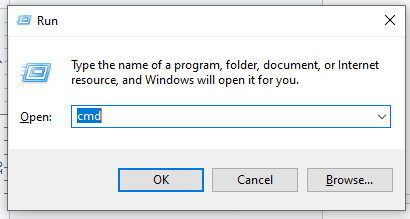
- Press Windows + R to open the Run dialog box.
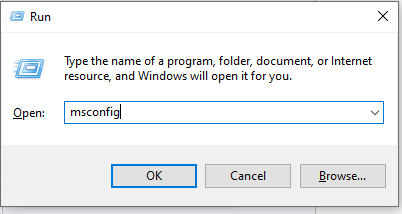
- Type msconfig, then click OK.
- In the System Configuration window, click the Services tab.
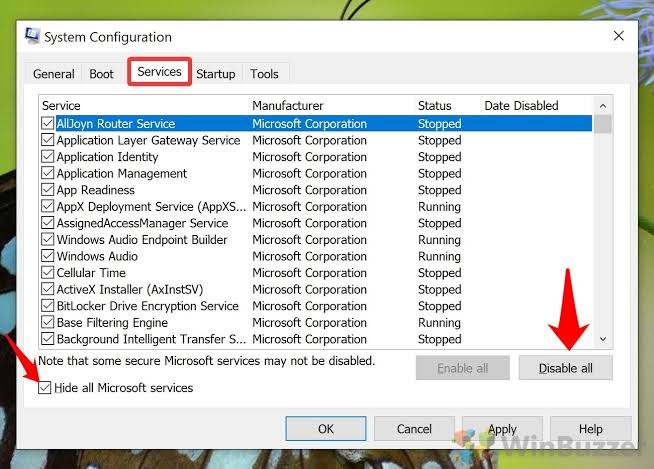
- Select Hide all Microsoft services.
- Click Disable all to disable all remaining third-party services.
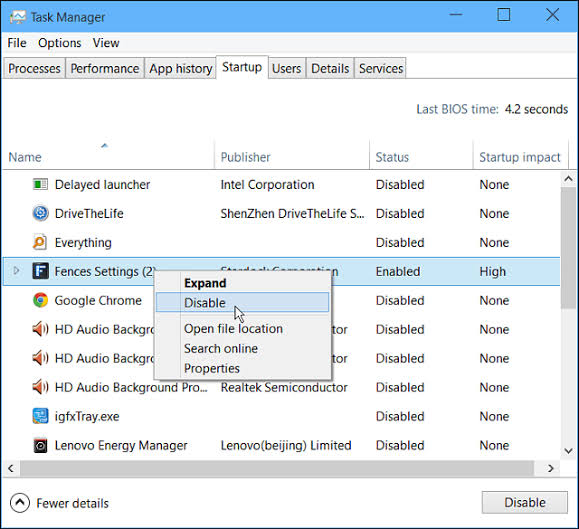
- Click the Startup tab.
- Click Open Task Manager.
- In the Startup tab of Task Manager, right-click each Enabled startup application and select Disable.
- Close Task Manager.
- Click Apply, then click OK in the System Configuration window.
- Restart your computer.
- Open QuickBooks Desktop.
- Open your company file and verify whether QuickBooks operates without freezing.
Fix 10: Check Windows 11 for Conflicting Updates
Removing a specific Windows update confirmed to break QuickBooks compatibility resolves update-triggered freezing.
Steps
- Press Windows + I to open Settings.
- Click Windows Update from the left navigation pane.
- Click Update history.
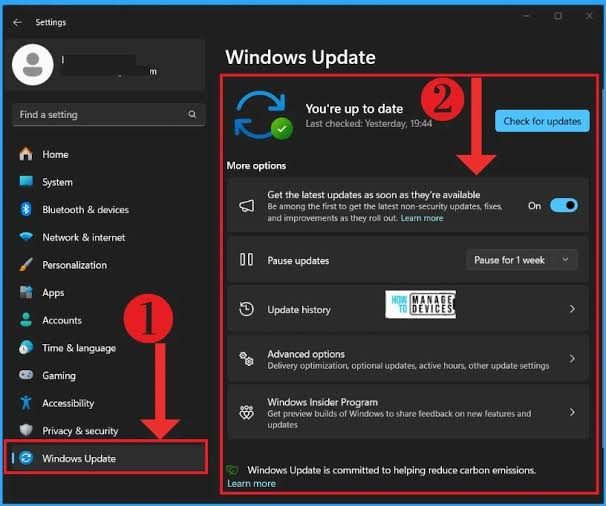
- Review the list of recently installed Windows updates.
- Identify any update that was installed immediately before the QuickBooks freezing issue began.
- Visit the Intuit QuickBooks Desktop support website or the Microsoft Windows Release Health Dashboard to verify whether the update is a known cause of QuickBooks compatibility issues.
- Continue with the next steps only if Intuit or Microsoft confirms that the update is causing the problem.
- Return to Settings > Windows Update > Update history.
- Click Uninstall updates.
- Locate the confirmed Windows update in the list.
- Select the update, then click Uninstall.
- Follow the on-screen instructions to complete the removal.
- Restart your computer.
- Open QuickBooks Desktop and verify whether the freezing issue has been resolved.
Prevention: Keep QuickBooks From Freezing Again
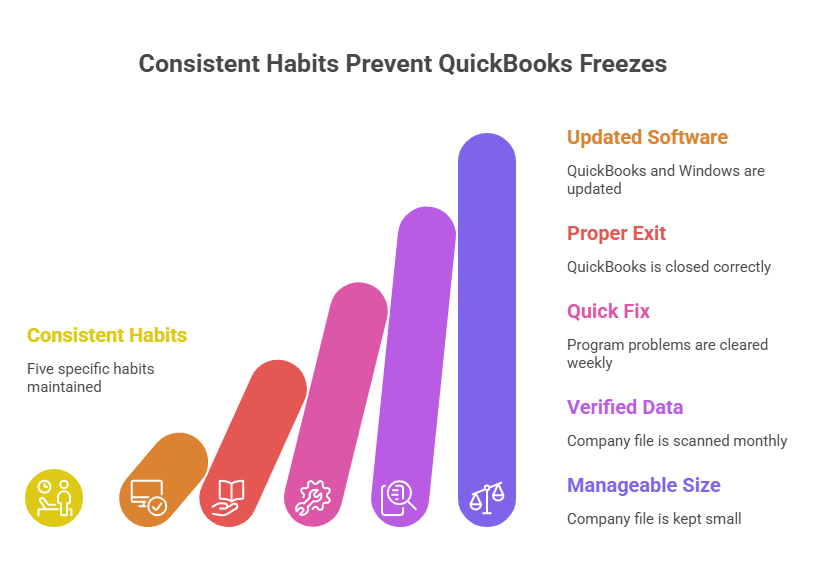
Five habits keep QuickBooks Desktop stable on Windows 11 long-term.
- Keep QuickBooks and Windows Updated
Outdated QuickBooks versions on updated Windows 11 systems cause most recurring freezes. Monthly updates through Help > Update QuickBooks Desktop prevent version mismatches. Windows Update should stay enabled for automatic security and component updates.
- Exit QuickBooks Through File > Exit
File > Exit saves open data and closes background processes correctly. Closing through the X button or shutting down the computer while QuickBooks is open damages the transaction log (.TLG) file and sets up the next startup freeze.
- Run Quick Fix My Program Weekly
Quick Fix My Program, available in QuickBooks Tool Hub under Program Problems, clears background processes before freezing starts. Weekly runs take about two minutes and prevent the most common freezing cause.
- Run Verify Data Monthly
Verify Data (File > Utilities > Verify Data) scans the company file for internal damage within a few minutes. Monthly runs catch damage from power outages, network drops, or disk errors early, before the damage grows large enough to cause freezing or data loss.
- Keep the Company File at a Manageable Size
Company files should stay under 200 to 300 MB for stable performance. Condense Data (File > Utilities > Condense Data) archives completed transactions from prior years without deleting accounting history. Solid State Drives improve QuickBooks performance over traditional mechanical hard drives.
Conclusion
QuickBooks Desktop freezing on Windows 11 traces to six identifiable causes, each with a direct fix. Fix 1 and Fix 2 resolve most freezing cases within ten minutes. Freezing after a Windows 11 update points to Fix 3 and Fix 10 first. Freezing limited to one company file points to Fix 6. QuickBooks Tool Hub provides Quick Fix My Program, Install Diagnostic Tool, QuickBooks File Doctor, and Database Server Manager in one free download.
When to Contact Intuit?
Contact Intuit Support when Fix 1 through Fix 10 fail to resolve freezing. Contact Intuit Support when Verify Data reports damage that Rebuild Data cannot repair. Contact Intuit Support before a clean install to confirm license details and product key.
Frequently Asked Questions
1. QuickBooks shows a blank screen and freezes during loading. What causes blank-screen freezing?
A damaged QBWUSER.INI file or a missing company file path causes blank-screen freezing. Fix 2 resolves the damaged file. Selecting the company file manually resolves a missing path. A missing company file needs restoration from the most recent backup.
2. QuickBooks freezes only on one specific report. Is this a company file problem?
Damaged data within the report’s date range causes freezing on a specific report. Verify Data and Rebuild Data (Fix 6) repair the damage. Narrowing the report’s date range confirms data volume as the cause when freezing continues after a rebuild.
3. QuickBooks worked fine on Windows 10 but freezes on Windows 11. Why?
QuickBooks Desktop 2021 and earlier versions lack Windows 11 certification. Intuit certified QuickBooks Desktop 2022 and later for Windows 11 compatibility. Upgrading to a certified version resolves Windows 11 compatibility freezing permanently.
4. Can a frozen QuickBooks cause data loss?
Freezes resolved through waiting or Quick Fix My Program rarely cause data loss. Force-closing QuickBooks through Task Manager risks data loss by interrupting the transaction log (.TLG) file mid-write. Backing up the company file before troubleshooting a persistent freeze protects against data loss.
5. The QuickBooks Install Diagnostic Tool ran but QuickBooks still freezes. What is the next step?
A clean install replaces all QuickBooks program files with a fresh copy. Recording the license number and product key (Help > About QuickBooks) and backing up the company file come before reinstalling. The QuickBooks Clean Install Tool, available on Intuit’s support site, removes residual damaged files more completely than a standard uninstall.

Anusmita is a seasoned content writer who brings perspective to words. As a writer, she enriches her work with a journalistic aptitude, utilising her training in Mass Communication and Journalism. She loves to travel and explore, which imparts a greater sense of understanding, maturity, and experience that are reflected in her content.
Beyond her professional work, Anusmita enjoys painting, singing, dancing, and spending time planting. She is also a self-proclaimed foodie who loves exploring different cuisines, an interest that further adds to her curiosity and perspective as a writer.
Leave a Reply