
⚠ CRITICAL: CRITICAL: Do not pay the ransom. Do not call any phone number shown in an attack pop-up. Do not attempt to rename or open encrypted company files before removing the threat. Follow the steps in this article in order.
Ransomware is a type of harmful software that locks the files on a computer by scrambling their contents and then demands payment to reverse the damage. A scrambled file is one whose data has been rewritten by a program in a way that makes it unreadable — the same way a locked safe holds money that is physically present but completely inaccessible without the correct combination. The QuickBooks company file — the .QBW file that holds every transaction, invoice, payroll record, and account balance — is a high-priority target for ransomware because it contains financial data that businesses cannot operate without.
Intuit itself issued a direct public warning about a documented phishing campaign specifically targeting QuickBooks users: “This email did not come from Intuit. The sender is not associated with Intuit, is not an authorized agent of Intuit, nor is their use of Intuit’s brands authorized by Intuit.” The attack works by sending a fake email that appears to come from Intuit, claiming the user’s QuickBooks plan has expired and asking them to click a link or open an attachment. Opening that attachment installs ransomware on the computer. Security researchers also documented a second attack method: fake QuickBooks software that, once opened, locks the company file and displays a phone number for fake “Intuit support” — calling that number connects the victim to the attacker.
This article covers every documented recovery step — from the immediate actions taken the moment an attack is discovered, to restoring the company file from backups, to the professional recovery path when no backup exists. The steps apply to QuickBooks Desktop Pro, Premier, and Enterprise on Windows. Each step explains what to do, why it works, and the exact actions required. The recovery is ordered from the fastest and most data-complete option to the most involved — follow the steps in order and stop when the company file is confirmed clean and fully restored.
Table of Contents
How Ransomware and Viruses Target QuickBooks Files?
How Ransomware Gets Onto the Computer?
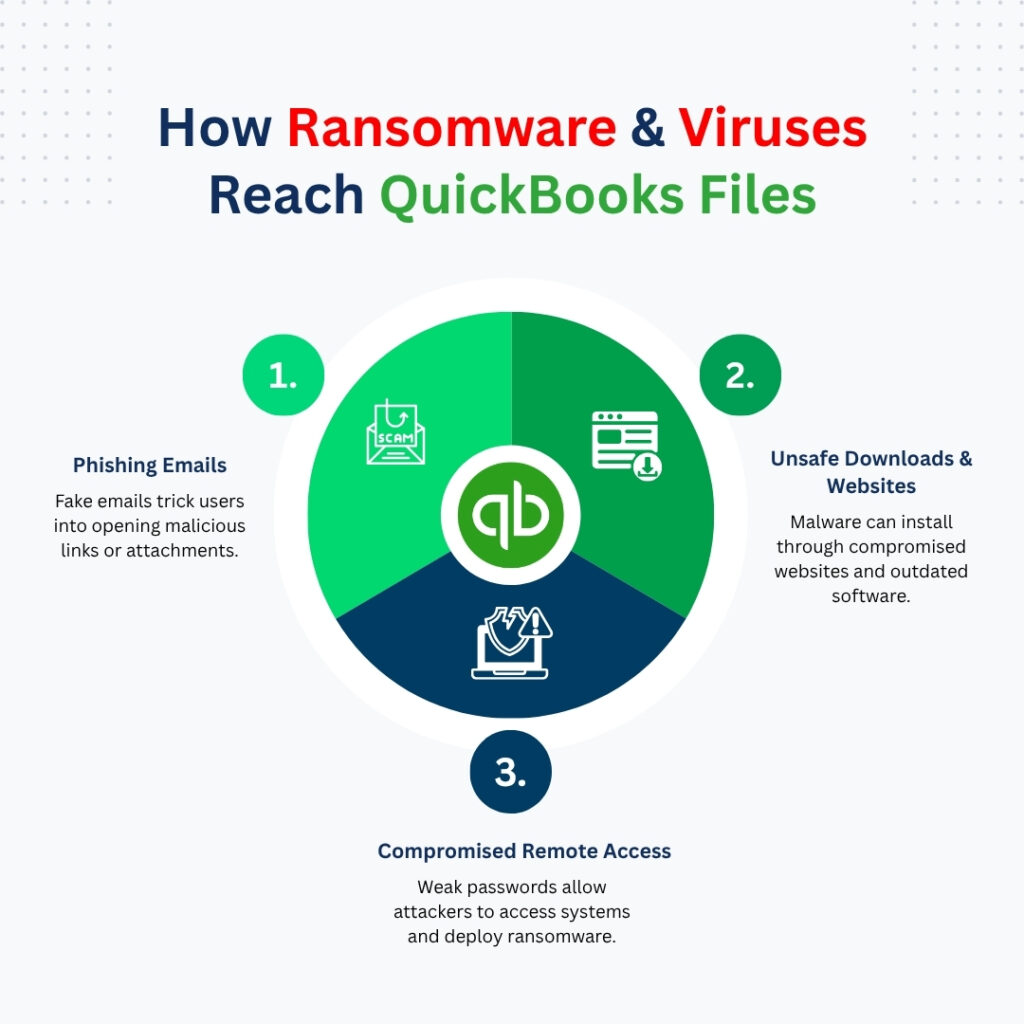
Ransomware enters a computer through a small number of well-documented entry points. The most common is a phishing email — a message that looks like it comes from a trusted company (Intuit, a bank, a vendor) but actually comes from an attacker. The email contains either a link to a fake website that downloads the ransomware, or an attachment (a PDF, a Word document, or a ZIP file) that installs the ransomware when opened. A New Jersey Cybersecurity and Communications Integration Cell advisory from 2025 confirmed an active campaign specifically targeting accounting software users: attackers signed up for legitimate services and sent phishing emails from those services’ domains to bypass standard email security filters.
A second documented entry point is a drive-by download — ransomware that installs automatically when a user visits a website that has been set up to exploit a security gap in an outdated browser or Windows version. The user does not click anything; the software installs in the background while the page loads. A third method is compromised remote access — attackers who obtain a username and password for remote desktop access (the ability to control a computer over the internet) install ransomware directly after logging in. All three methods are preventable: kept-up-to-date software, caution with email attachments, and strong remote access passwords close all three entry points.
What Ransomware Does to the QuickBooks Company File?
Once ransomware runs on a computer, it searches for specific file types by their extensions — the letters at the end of a file name that identify what type of file it is. QuickBooks company files use the extension .QBW. Backup files use .QBB. Ransomware specifically targets both extensions because it knows these files hold financial data that businesses depend on. The ransomware scrambles the contents of each file using an encryption algorithm — a mathematical process that makes the data unreadable without a specific digital key that only the attacker holds. After scrambling the file, the ransomware typically adds a new extension to the file name — for example, MyCompany.qbw becomes MyCompany.qbw.locked or MyCompany.qbw.WNCRY.
Advanced ransomware groups also specifically search for and destroy backup files before encrypting the main company file, to eliminate the simplest recovery path. A documented analysis of QuickBooks-targeting ransomware confirmed this: “the groups have developed their ransomware to specifically look for backups, to take away any option for the victim other than paying the ransom amount.” This is why backups stored on the same computer as the company file — or on a network drive connected to the infected computer — are often also encrypted or deleted in the same attack. Backups stored offline (on an external drive kept disconnected when not in use) or in a cloud service that maintains version history survive attacks on the local computer because the ransomware cannot reach them.
Why Paying the Ransom Is Not a Recovery Strategy?
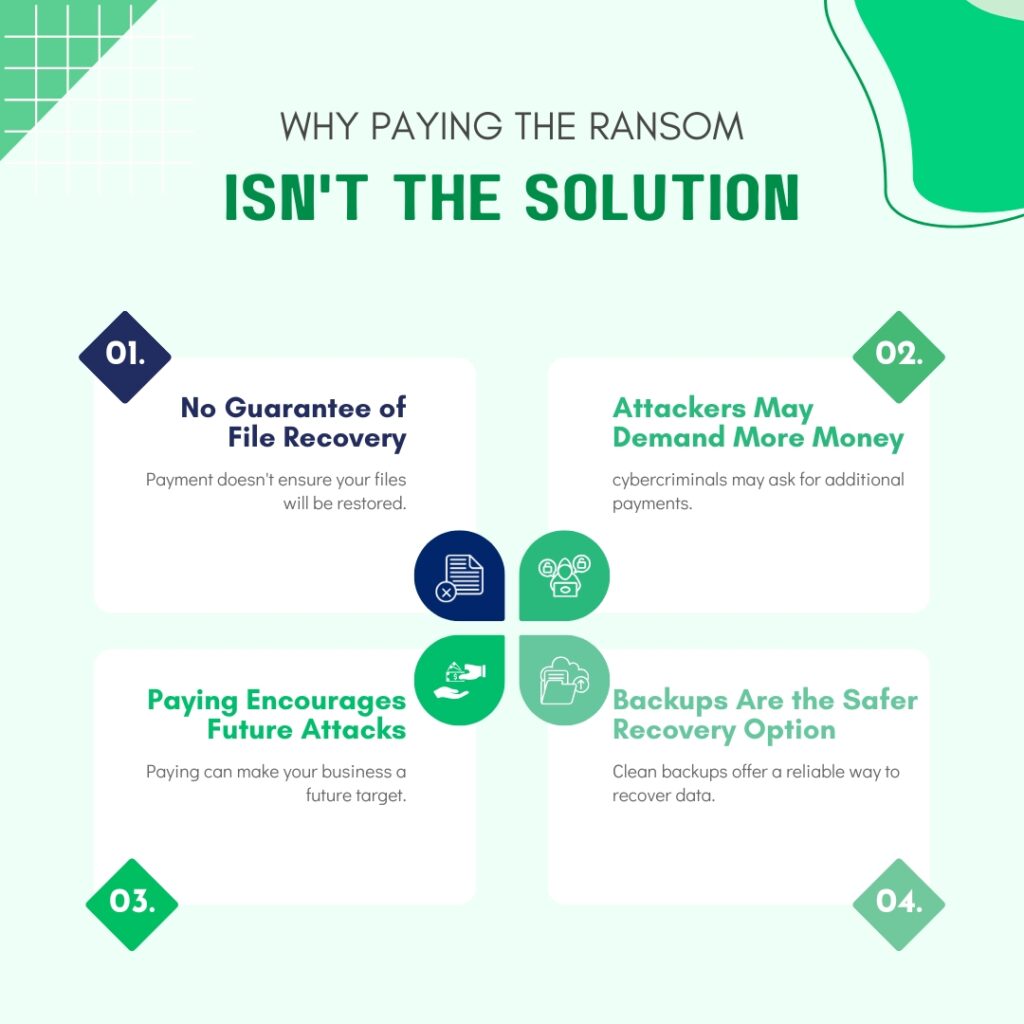
Paying the ransom does not guarantee file recovery. Cybersecurity professionals and government agencies that track ransomware attacks have documented cases where the attacker took the payment and provided no working decryption key, provided a key that decrypted only some files, or demanded additional payments after the first was made. Security researchers confirmed directly: “Paying the ransom doesn’t guarantee data recovery and may encourage further attacks.” The business that pays a ransom also marks itself as a target willing to pay, which can invite follow-up attacks from the same or other groups.
The FBI advises against paying ransoms in ransomware attacks. The practical recovery path is through backups — either local backups stored off-site, cloud backups with version history, or the QuickBooks Auto Data Recovery folder if the files there were not reached by the ransomware. Paying the ransom bypasses all of these legitimate recovery paths and funds the criminals who carried out the attack. Every step in this article provides a documented alternative to payment.
Quick Diagnosis: Match the Attack Situation to the Correct Recovery Step in QuickBooks
Identify which description matches the current situation before starting any recovery. The correct first step changes depending on what the attack encrypted and what backup copies are available.
| What Is Happening After the Attack | What This Means | First Action to Take |
| The .QBW company file has a new, unrecognised extension added to its name (e.g. .locked, .encrypted, .WNCRY) | Ransomware encrypted the file and renamed it — QuickBooks cannot read a file with an extension it does not recognise | Do not attempt to open or rename the file. Isolate the computer immediately. Proceed to Step 1 |
| The company file opens but all data inside is garbled or shows as random characters | A virus rewrote portions of the file’s internal data structure without encrypting the entire file | Proceed to Step 3: restore from a clean .QBB backup taken before the attack |
| The .QBB backup files are also encrypted or missing | Advanced ransomware specifically searched for and deleted or encrypted local backup files before locking the company file | Proceed to Step 2: check the QuickBooksAutoDataRecovery folder and any off-site or cloud backup location |
| A pop-up message inside QuickBooks instructs to call a phone number for support and the file cannot be opened | A scam program impersonating QuickBooks has modified or locked the file and is displaying a fake support number | Do not call the number. Disconnect from the internet. Run a full anti-malware scan. Do not pay or call. |
| A ransom demand appeared on screen and all files across the computer — not just QuickBooks — have changed extensions | A network-spreading ransomware attack encrypted every file on the computer and possibly the server | Isolate every connected computer from the network immediately. Contact a cybersecurity professional before touching any file |
| QuickBooks files were encrypted but a recent Intuit Data Protect backup exists in the cloud | The backup in Intuit Data Protect was taken before the attack and is stored separately from the local infected files | Proceed to Step 4: restore from Intuit Data Protect — the cloud copy was not on the infected computer |
| The company file and all local backups are unrecoverable and no cloud backup exists | The most severe outcome — no local copy survived the attack | Proceed to Step 5: contact Intuit Data Services for professional recovery of the encrypted .QBW file |
QuickBooks Recovery Steps: Restoring QuickBooks Data After an Attack
Step 1: Isolate the Infected Computer from the Network Immediately
Isolating the infected computer means disconnecting it from every shared network connection — pulling out the network cable, turning off Wi-Fi, and disconnecting any external drives or USB devices. This isolation is the single most important action to take at the moment a ransomware attack is confirmed. Ransomware that is still running on the infected computer will continue encrypting new files and will actively look for other computers connected to the same network to spread its attack. Every second the infected computer remains connected to the network is time for the ransomware to encrypt files on the server, on other workstations, and on any network-connected backup drives.
Steps: Pull the network cable out of the infected computer. Turn off Wi-Fi on the infected computer (in Windows, click the Wi-Fi icon in the taskbar and toggle it off). Disconnect all USB drives and external hard drives from the infected computer. On the server, check whether any shared network folders show files with new, unrecognized extensions — this confirms whether the ransomware reached the network before isolation. Shut down any other workstation that shows signs of the same attack (files with changed extensions, ransom demand pop-ups). Contact a cybersecurity professional before reconnecting any computer to the network or opening any file on the infected computer.
Do not turn off the infected computer by holding the power button. A forced shutdown can interrupt the encryption process mid-file and leave some files in a partially encrypted state that is harder to recover than a fully encrypted file. Use the normal Windows Start > Shut Down process to close the computer cleanly. If the ransom demand message is blocking the screen and normal shutdown is not possible, disconnecting the network cable is the most important action — the computer can remain on and isolated while the cybersecurity professional is contacted.
Step 2: Check the QuickBooksAutoDataRecovery Folder for an Unaffected Copy
QuickBooks Desktop automatically creates a recovery copy of the company file approximately every 12 hours in a folder called QuickBooksAutoDataRecovery, stored inside the same folder as the company file. This folder contains two files: a copy of the company file saved as .QBW.adr, and a copy of the transaction log saved as .TLG.adr. Intuit’s Auto Data Recovery documentation confirms the recovery process directly and provides the exact steps. The key question after an attack is whether the ransomware reached the QuickBooksAutoDataRecovery folder before isolation. If the files in that folder still have their .adr extensions and have not been given new extensions by the ransomware, they are unaffected and can be used to restore the company file.
ADR has two documented limitations that apply before starting this step. First: ADR is only available in QuickBooks Pro, Premier, and Enterprise for Windows — not in the Accountant Edition. Second: ADR does not generate recovery files for company files over 1.5 GB in size. Intuit’s ADR documentation confirms both limitations. If the ADR folder is empty or the ADR files have been encrypted by the ransomware, proceed to Step 3.
Steps: On a clean computer (not the infected one), create a new folder on the Desktop named QBTest. On the infected computer (now isolated and confirmed to have no active ransomware), open File Explorer and navigate to the company file folder — the default path is C:\Users\Public\Documents\Intuit\QuickBooks\Company Files. Open the QuickBooksAutoDataRecovery subfolder. If the files inside still have .QBW.adr and .TLG.adr extensions (without any ransomware extension added), they are clean. Copy the .QBW.adr file to the QBTest folder on the clean computer. Go back to the main company file folder (not the ADR subfolder) and copy the .TLG file (the transaction log, not .TLG.adr) to the QBTest folder as well. In the QBTest folder, right-click the .QBW.adr file and select Rename. Delete the “.adr” from the end so it ends in .QBW only. Open QuickBooks on the clean computer. Go to File > Open or Restore Company > Open a company file. Browse to the QBTest folder and open the renamed .QBW file. Run File > Utilities > Verify Data to confirm the file is intact. If it is clean, this recovered file can replace the infected one after the infected computer has been fully wiped and the operating system reinstalled.
Step 3: Restore a Clean .QBB Backup from an External or Off-Site Location
A .QBB file is a QuickBooks backup — a complete copy of the company file saved at the moment the backup was created. Restoring a clean .QBB backup brings back every transaction, account balance, and record that existed at the time that backup was taken. The backup must come from a location that was not connected to the infected computer during the attack — an external hard drive that was unplugged before the attack, a USB drive stored off-site, or a cloud backup that maintains version history and can be rolled back to a point before the attack occurred.
Intuit’s official restore documentation provides the exact steps and includes a critical rule: “If your backup company file is on an external device like a USB or a hosting service, you’ll need to move it to your local hard drive first. Then follow the steps.” The backup file must be on the clean, non-infected computer’s local drive before the restoration begins. Restoring directly from an external drive that was connected to the infected computer during the attack risks bringing a backup file that was also encrypted — checking that the backup file’s extension is still .QBB (not .QBB.locked or another ransomware extension) before proceeding confirms it was not affected.
Steps: On a clean, ransomware-free computer, copy the most recent .QBB backup file from its off-site or external location to the local Desktop. Open QuickBooks on the clean computer. Go to File > Open or Restore Company. Select Restore a backup copy and click Next. Select Local Backup and click Next. Browse to the Desktop and select the .QBB backup file. In the Save Company File As dialog box, save the restored file to the Intuit default location: C:\Users\Public\Documents\Intuit\QuickBooks\Company Files. Give the restored file a new name that includes the date — for example, CompanyFile_Restored_2024_06_15.QBW. Click Save. After QuickBooks restores the file and opens it, run File > Utilities > Verify Data to confirm the restored file has no integrity errors. Note the date of the backup — any transactions entered between the backup date and the attack date need to be re-entered from bank statements, paper invoices, or receipts.
Step 4: Restore from Intuit Data Protect Cloud Backup
Intuit Data Protect (IDP) is Intuit’s own cloud backup service for QuickBooks Desktop company files. IDP stores backup versions for up to 45 days and makes each version available for individual restoration through a restore wizard inside the IDP program. Because IDP stores backups in Intuit’s cloud servers — separate from the local computer and the local network — ransomware that encrypts the local computer does not affect the cloud-stored copies. Intuit’s own IDP restore documentation confirms: an internet connection, administrator rights, and the IDP program installed on the clean recovery computer are the three requirements to restore from IDP.
Steps: On a clean, non-infected computer, install Intuit Data Protect if it is not already installed — download it from Intuit’s official support page. Open Intuit Data Protect. Click Restore in the IDP window. The restore wizard shows all available backup versions for up to 45 days. Select the most recent backup version that pre-dates the attack — choose a date before the ransomware was installed, not the day of the attack. Intuit’s IDP documentation advises creating a short file path restore location — for example, C:\IDPRestore — because Windows limits the total length of a file path and long paths cause IDP restores to fail. Create the folder C:\IDPRestore on the Desktop and set it as the restore destination in the IDP restore wizard. After the restore completes, open File Explorer, go to C:\IDPRestore, and confirm the .QBW and .TLG files are present. Copy them to the permanent company file location: C:\Users\Public\Documents\Intuit\QuickBooks\Company Files. Open QuickBooks and open the restored company file. Run Verify Data to confirm the file is clean.
Step 5: Contact Intuit Data Services for Professional File Recovery
Intuit Data Services is a professional data recovery service provided directly by Intuit for QuickBooks company files that the built-in tools and standard backups cannot restore. This service applies specifically when the .QBW file was encrypted by ransomware and no usable backup copy survived. Intuit’s Auto Data Recovery documentation confirms the escalation path: “Intuit Data Services can help with data recovery most of the time.” The Intuit Data Services team uses tools that operate at a lower level than the standard QuickBooks repair utilities and can sometimes extract readable data from encrypted or severely damaged company files. The process requires sending the damaged .QBW and .TLG files to Intuit and takes multiple business days, with a service fee that varies based on the extent of the damage and the recovery work required.
Steps: Make a copy of the encrypted .QBW file and the .TLG file (both in their current encrypted state) to a USB drive or external drive before sending anything. Keep this copy permanently — decryption tools for specific ransomware strains are sometimes released by security researchers months after an attack, and having the encrypted file available allows decryption if a tool becomes available later. Contact Intuit support through the QuickBooks Tool Hub: open the Tool Hub > Help > QuickBooks Desktop Help > Contact Us. Describe the ransomware attack and provide the encrypted file. Intuit will confirm whether Data Services can assist and provide instructions for securely submitting the file. While waiting for Intuit Data Services, also check the FBI’s No More Ransom project (nomoreransom.org) — this collaboration between law enforcement agencies and security researchers provides free decryption tools for specific ransomware strains and may have a tool for the specific ransomware that attacked the company file.
Step 6: Re-Enter Transactions from External Records for the Gap Period
A successful restore from any backup source brings the company file back to the state it was in on the backup date. Any transaction entered between the backup date and the day of the attack is not in the restored file — those transactions must be re-entered manually. The external records that contain this information are: bank statements (showing every deposit and payment that cleared the bank account during the gap period), paper or emailed invoices and bills, payroll records, and any transaction confirmations sent to or received from customers and vendors.
Steps: Check the date of the restored backup — this is visible in the QuickBooks title bar after opening the file, or by pressing F2 and reading the file information. Identify the gap period: from the backup date to the day of the attack. Gather bank statements for every bank account the business uses for the gap period. Compare each bank statement transaction against the QuickBooks account register by opening Lists > Chart of Accounts and double-clicking the relevant bank account. For every transaction in the bank statement that is missing from the QuickBooks register, re-enter it in the correct module: invoices in Customers > Create Invoices, bills in Vendors > Enter Bills, checks in Banking > Write Checks, deposits in Banking > Make Deposits. After re-entering all gap-period transactions, run a bank reconciliation through Banking > Reconcile to confirm the restored and re-entered QuickBooks register matches the bank statement exactly.
All QuickBooks Recovery Steps at a Glance
| Step | What It Recovers | Time |
| Step 1: Isolate the infected computer immediately | Stops the attack from spreading to other computers, the server, and network backups | Under 2 min |
| Step 2: Check the QuickBooksAutoDataRecovery folder for an unaffected snapshot | Recovers the company file from a system-generated copy created before the attack — works for files under 1.5 GB | 20–45 min |
| Step 3: Restore a clean .QBB backup from an external or off-site location | Recovers all data up to the backup date using a copy stored outside the infected computer | 20–40 min |
| Step 4: Restore from Intuit Data Protect cloud backup | Recovers the company file from a cloud copy that was stored separately from the infected local files — available for up to 45 days of versions | 30–60 min |
| Step 5: Contact Intuit Data Services for professional file recovery | Professional recovery for encrypted or severely damaged .QBW files when no usable backup exists | 1–5 business days |
| Step 6: Re-enter transactions from external records if partial data is recovered | Fills the gap between the backup date and the attack date using bank statements, invoices, and receipts | Varies by gap length |
Prevention: Protect QuickBooks Data from Future Attacks
- Store Backups in Three Separate Locations — Including One That Is Always Offline
Ransomware specifically targets local backup files and network-connected backup drives because eliminating the backup eliminates the victim’s easiest recovery path. The documented defence is the 3-2-1 backup rule: three copies of the data, stored on two different types of media, with one copy stored completely off-site or offline. For QuickBooks, this means: one live company file on the server (the first copy), one daily backup on an external drive that is physically disconnected and stored in a separate room or building when not in use (the second copy), and one daily backup to a cloud service that maintains 30+ days of version history (the third copy). A ransomware attack that encrypts the server and all connected drives cannot reach a physically disconnected external drive or a cloud backup stored in a separate system.
- Recognise and Delete Fake Intuit Emails Without Clicking Anything
Intuit issued a specific public guidance on how to identify phishing emails that impersonate Intuit’s brand: “If you need to update account information, Intuit will ask you to do it by signing in to your account or contacting Intuit directly. Do not click any links or open attachments.” Intuit confirmed that it will never send an unsolicited email asking users to click a link to renew a plan, verify account details, or download a software patch. Any email that creates urgency about a QuickBooks plan expiring, an invoice needing review, or a mandatory software update is a phishing attempt. The correct action is to delete the email without clicking any link or opening any attachment, then log in to QuickBooks directly by opening the program — not through any link — to check for any actual account notices.
- Keep Windows, QuickBooks, and Anti-Virus Software Updated at All Times
Ransomware exploits security gaps — weaknesses in software that the software’s creator has not yet patched, or that the user has not yet installed the patch for. Windows updates close known security gaps that ransomware uses to install itself without any user action. QuickBooks updates close gaps in the program that attackers exploit to access or modify company files. Anti-virus updates add detection rules for newly discovered ransomware strains. All three updates must be installed promptly — a computer running a 6-month-old Windows version and outdated anti-virus has documented security gaps that current ransomware is specifically designed to exploit. Setting Windows Update, QuickBooks update, and anti-virus update to install automatically removes the maintenance burden and keeps all three current without requiring manual action.
- Restrict Network Access to the Company File Folder to Authorised Computers Only
Ransomware that infects a workstation looks for shared network folders to spread its encryption to as many files as possible. The company file folder on the server must be shared only with the specific Windows user accounts that QuickBooks uses — QBDataServiceUserXX and the authorized QuickBooks users — not with Every User or Everyone permissions that give every device on the network access to the folder. Tightening the folder sharing permissions through the server’s Properties > Sharing > Advanced Sharing > Permissions limits which computers can even see the company file folder. A ransomware attack on a workstation cannot encrypt the company file on the server if the workstation’s user account does not have write permission to the server’s company file folder.
Conclusion
Ransomware attacks on QuickBooks company files are a documented and growing threat. Intuit itself issued a direct public warning about a confirmed phishing campaign impersonating Intuit to deliver ransomware to QuickBooks users, and security researchers documented attackers using fake QuickBooks software to lock company files and demand payment. The defence against both attack types is the same: never click links or open attachments in unexpected emails, never call phone numbers shown inside QuickBooks by a pop-up message, and never pay the ransom. The recovery path is through backups — and the existence of a usable backup is entirely determined by the backup practices in place before the attack occurred.
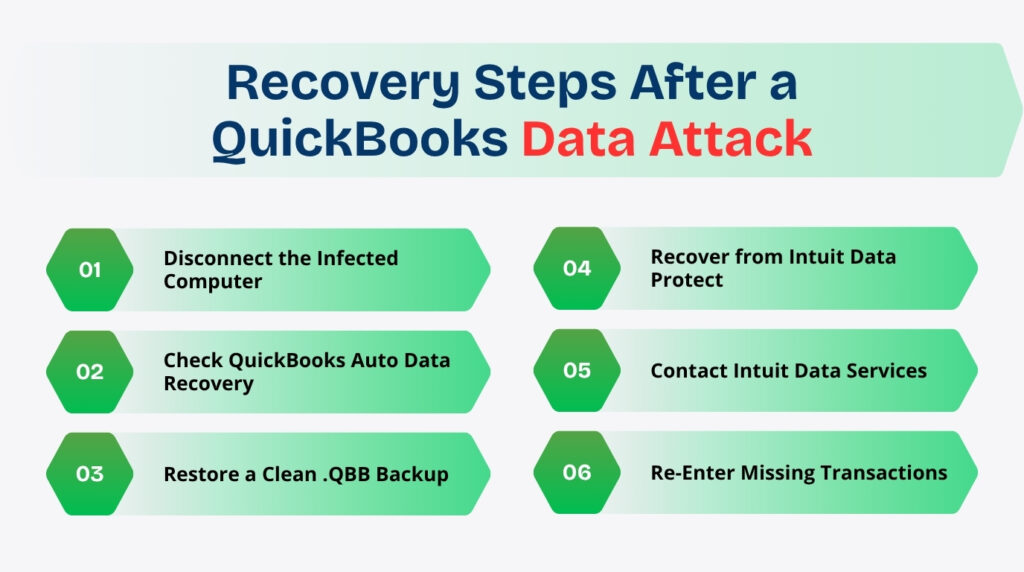
The recovery steps in this article follow the correct order: isolate the infected computer first to stop the spread, then check the QuickBooksAutoDataRecovery folder for an unaffected copy, then restore from an off-site or cloud backup, then contact Intuit Data Services if no backup survived. The gap between the backup date and the attack date — any transactions not captured in the backup — can be re-entered from bank statements, invoices, and external records. The company file itself, once restored from a clean backup and verified with Verify Data, is fully intact and contains no trace of the attack.
Prevention is the only reliable protection against ransomware. Backups stored offline and in the cloud, with version history covering at least 30 days, mean that a ransomware attack is a disruption rather than a catastrophe. Deleting phishing emails without interacting with them, keeping all software updated, and limiting network access to the company file folder eliminate the three main paths ransomware uses to reach a QuickBooks company file. A business that practices all four of these measures consistently has a documented, tested recovery path ready for every attack scenario — without needing to pay the attacker a single cent.
Frequently Asked Questions
1. The company file has a .locked extension added to it by the ransomware. Can renaming it back to .QBW allow QuickBooks to open it?
Renaming the file back to .QBW does not restore access to the data. The ransomware changed the file’s extension as a label — the actual contents of the file have been scrambled using an encryption algorithm. The extension is only a name; the data inside the file is still unreadable regardless of what the file is named.
Renaming an encrypted .QBW.locked file to .QBW and trying to open it in QuickBooks produces an error because the file’s internal structure no longer matches what QuickBooks expects to read. The only ways to access the data again are: restoring from a clean backup that predates the attack, using a decryption key provided by the attacker (which requires paying the ransom — not recommended), or using a free decryption tool released by security researchers for the specific ransomware strain that performed the attack.
2. A pop-up appeared inside QuickBooks saying the files were locked and providing a phone number described as Intuit Technical Support. Is this a real Intuit message?
This is a documented scam, not a real Intuit message. Security researchers at eSentire identified and published details of exactly this attack: threat actors place fake software that locks QuickBooks files and displays a phone number claiming to be Intuit Technical Support. Calling the number connects the victim to the attacker, who then offers to “repair” the files for payment.
Intuit’s own guidance confirms how its real support messages work: Intuit does not display phone numbers inside pop-up messages inside QuickBooks asking users to call for file repair. Do not call the number shown. Do not provide remote access to anyone who calls back. Disconnect the computer from the internet, run a full anti-malware scan using a reputable anti-virus program, and contact Intuit support directly by opening a browser and navigating to quickbooks.intuit.com to find the real support contact information.
3. The Intuit Data Protect backup shows versions for the past 45 days but the attack happened 50 days ago and the infection was only just discovered. What options remain?
An attack discovered after the IDP version window has passed means no IDP version from before the attack is available. The remaining recovery paths are: check any external hard drive or USB drive that was used for manual backups and was disconnected before the attack — a .QBB file from before the attack date on a disconnected drive is unaffected.
Check whether any workstation on the network has a locally cached copy of the company file or a partial backup that predates the attack. Contact Intuit Data Services with the encrypted .QBW and .TLG files — the team can sometimes extract data from encrypted files. Also check the FBI’s No More Ransom project at nomoreransom.org for a free decryption tool for the specific ransomware strain — the website is updated as new decryption tools are released and covers many common ransomware families.
4. The attack encrypted both the company file and all local backup files. The ADR folder is also encrypted. Is there any data left to recover?
The encrypted files themselves still contain the original data in scrambled form — they are not destroyed, only locked. Three remaining options exist. First: the QuickBooksAutoDataRecovery folder may have files that were created before the ransomware reached that specific subfolder — check whether the .QBW.adr and .TLG.adr files inside have ransomware extensions added to them.
If they do not, the ADR copies are clean and recoverable using Step 2’s instructions. Second: Intuit Data Services can work with the encrypted .QBW file directly. Third: preserve copies of all encrypted files on a separate drive and check nomoreransom.org periodically — decryption tools for specific ransomware strains are released as security researchers break the encryption algorithms, sometimes months after the attack.
5. The computer was wiped and Windows reinstalled after the attack. The recovered .QBW file is on a USB drive. What is the correct process to restore QuickBooks and the company file on the clean computer?
Steps to restore on a freshly wiped computer: Install QuickBooks Desktop using the original installer or by downloading from Intuit’s official download page with the original license key. Do not install from any disc or file that was on the infected computer before the wipe. After QuickBooks installs, confirm it opens correctly by loading the sample company file through File > Open or Restore Company. Copy the recovered .QBW file from the USB drive to the default company file location: C:\Users\Public\Documents\Intuit\QuickBooks\Company Files.
Open QuickBooks. Go to File > Open or Restore Company > Open a company file. Browse to the recovered .QBW file and open it. Run File > Utilities > Verify Data to confirm the file is clean. If Verify reports errors, run File > Utilities > Rebuild Data followed by Verify Data again. After the file is confirmed clean, set up daily auto-backups through File > Back Up Company > Set Up Automatic Backup — both to an external drive and to Intuit Data Protect — before resuming normal work.

Anusmita is a seasoned content writer who brings perspective to words. As a writer, she enriches her work with a journalistic aptitude, utilising her training in Mass Communication and Journalism. She loves to travel and explore, which imparts a greater sense of understanding, maturity, and experience that are reflected in her content.
Beyond her professional work, Anusmita enjoys painting, singing, dancing, and spending time planting. She is also a self-proclaimed foodie who loves exploring different cuisines, an interest that further adds to her curiosity and perspective as a writer.
Leave a Reply