
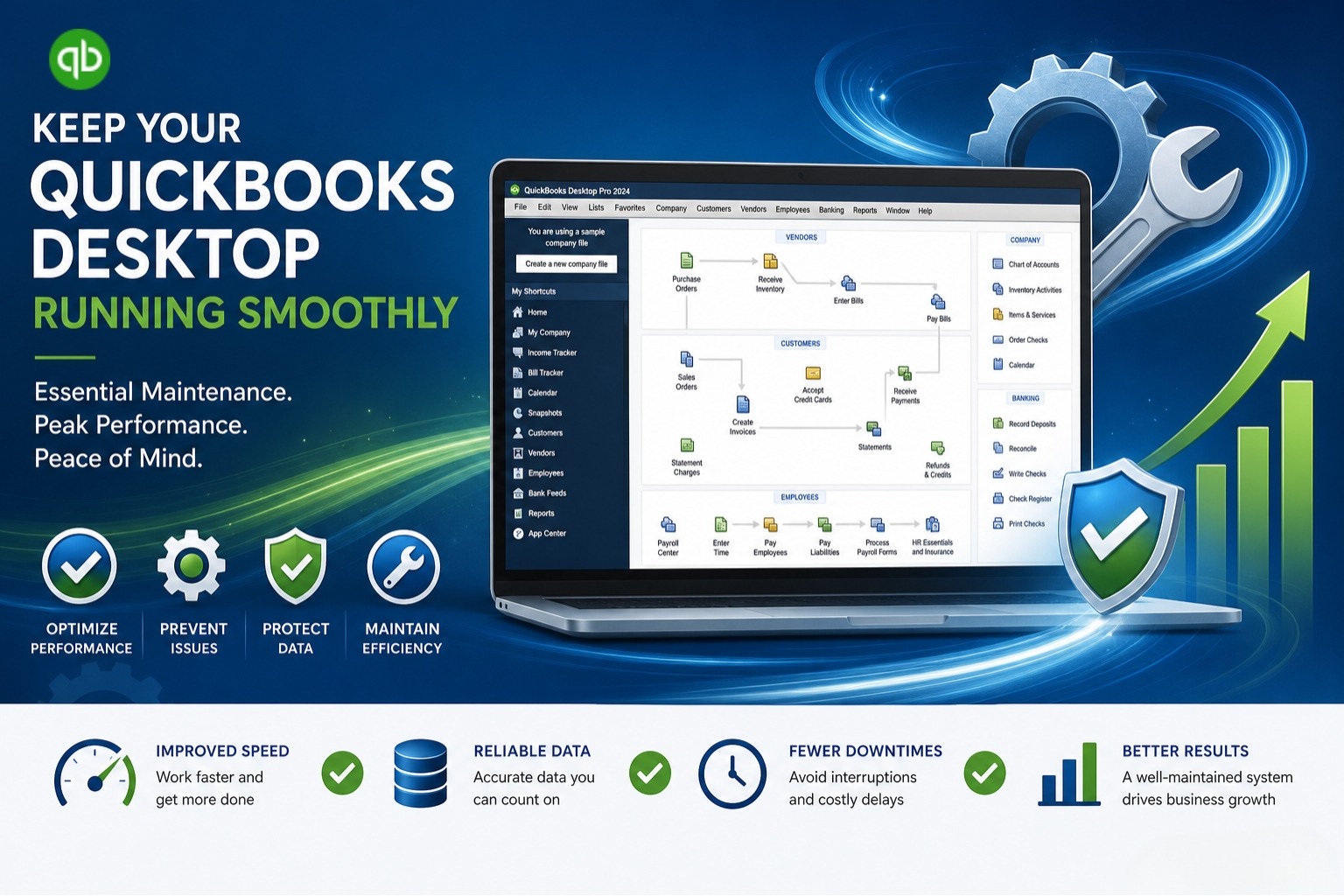
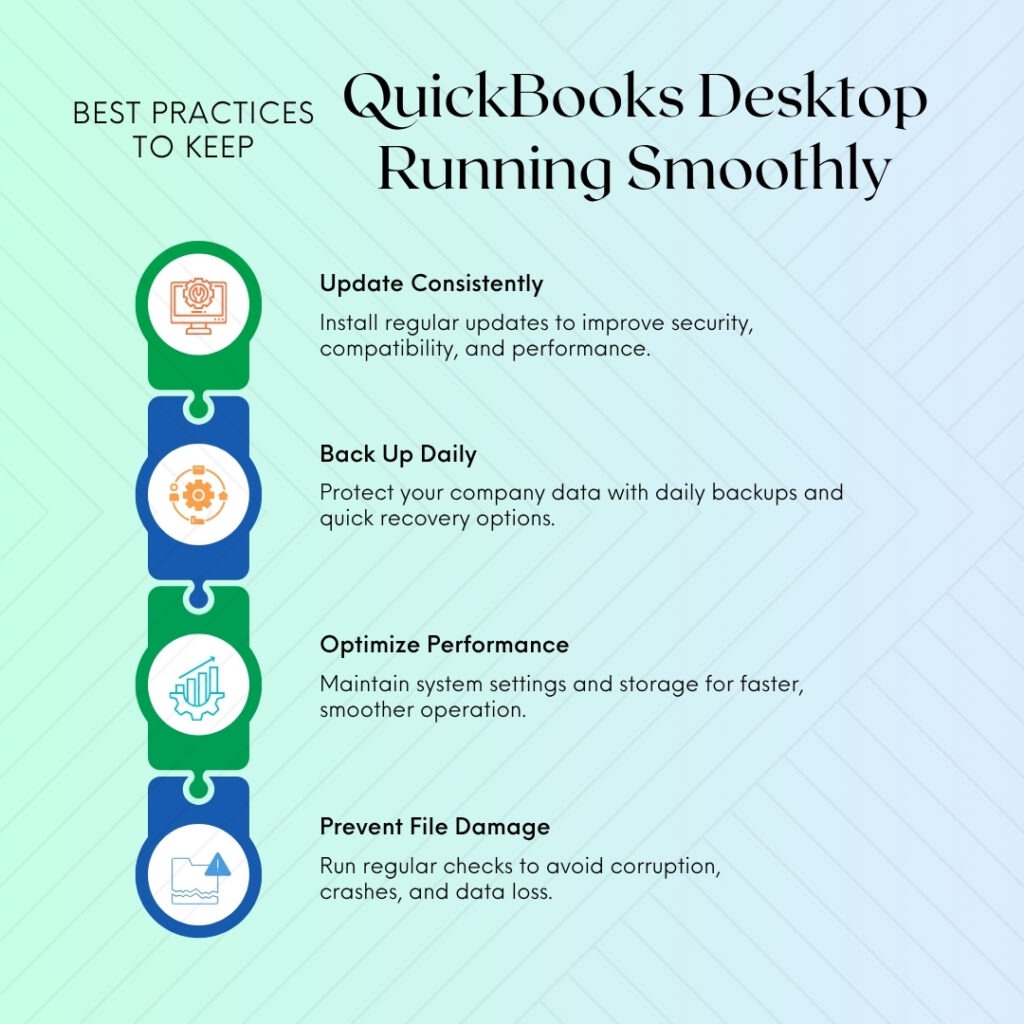
QuickBooks Desktop runs smoothly when users maintain its software, company file, computer environment, and payroll configuration. Nine core practices support reliable QuickBooks Desktop operation. Best Practices to Keep QuickBooks Desktop Running Smoothly are:
- Update QuickBooks Desktop after Windows updates.
- Back up the company file daily.
- Verify company-file integrity monthly.
- Manage company-file size.
- Configure and verify antivirus exclusions.
- Exit QuickBooks Desktop through File > Exit.
- Run Quick Fix My Program weekly.
- Meet Intuit’s hardware requirements.
- Apply payroll updates in single-user mode.
These QuickBooks Desktop maintenance practices address software compatibility, data protection, company-file integrity, storage performance, antivirus configuration, program shutdown, system resources, and payroll updates. Each practice has a defined frequency and procedure. This guide explains why each practice matters, how to perform it, and which conditions require additional maintenance.
The guide further explains how database-file fragments affect QuickBooks Desktop performance and how release versions, network connections, and company-file storage affect QuickBooks Desktop in multi-user environments.
Table of Contents
Why Does QuickBooks Desktop Require Regular Maintenance?
QuickBooks Desktop stores accounting data in the company file and uses transaction logs, background processes, configuration files, and payroll data during normal operation. These components require periodic maintenance as transaction volume, sessions, and company-file size increase.
An Intuit community case involvingQuickBooks Desktop Pro Plus 2024 described a startup time of approximately six minutes. The support response identified database-file fragments and company-file size as performance factors and recommended Condense Data, database-fragment management, and a QuickBooks update.
A separate Enterprise case involved a company file approaching 900 MB. Intuit’s community support team recommended optimizing files larger than 500 MB every six to 12 months.
Practice 1: Update QuickBooks Desktop Within 48 Hours of a Windows Update
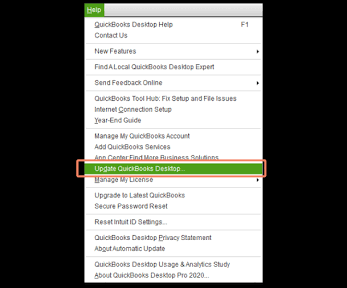
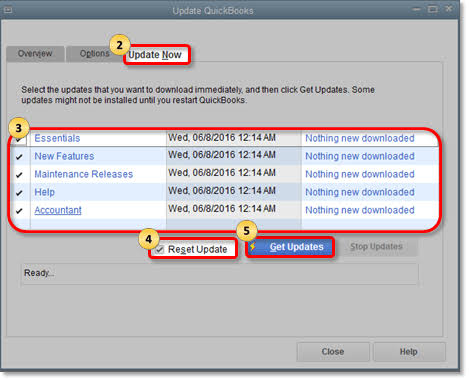
QuickBooks Desktop maintenance includes installing the latest available QuickBooks release within 48 hours of a Windows update. The procedure uses Help > Update QuickBooks Desktop > Update Now > Reset Update > Get Updates.
Why Does This Practice Matter?
QuickBooks Desktop depends on Microsoft .NET Framework, Microsoft XML Core Services (MSXML), and Microsoft Visual C++ Redistributable components. Windows updates modify these components, so QuickBooks Desktop requires compatible releases after Windows updates.
Intuit documentation advises users to operate QuickBooks Desktop on supported systems and to back up the company file before software or system updates. The recommended sequence is backup, Windows update, and QuickBooks update.
How Do You Update QuickBooks Desktop?
Step 1. Open QuickBooks Desktop. From the top menu, select Help, then choose Update QuickBooks Desktop.
Step 2. Select the Update Now tab.
Step 3. Select Reset Update to clear any incomplete update files from a previous download.
Step 4. Select Get Updates. Wait for the download to finish, then close and reopen QuickBooks Desktop.
Step 5. When prompted to install the update, select Yes. Restart your computer if prompted.
Step 6. Open QuickBooks Desktop and press Ctrl + 1 or F2. Check the Product Information window to confirm the installed version and release number.
Practice 2: Back Up the QuickBooks Desktop Company File Daily
A QuickBooks Backup (QBB) file is a compressed copy of the company file. The backup is stored separately from the active company file.
Why Does This Practice Matter?
A daily backup limits the accounting data represented by a single backup interval. Intuit guidance recommends creating a backup before software or system updates. Monthly restore testing confirms that a QBB file opens correctly.
How Do You Configure Daily Backups?
Step 1. Open QuickBooks Desktop. Select File, then Back Up Company, and choose Create Local Backup. Select Options.
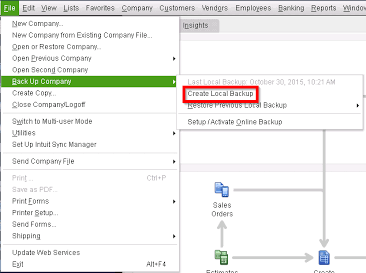
Step 2. Choose a backup location on a different drive from the active company file. Set the number of backup copies to at least three and select Complete Verification.
Step 3. Select Save it now and schedule future backups. Set the backup schedule to Daily, then select OK.
Store backup copies in separate locations. An external office drive and cloud storage as examples. QBB backup files from the active company file and backup files can be stored in cloud services.
How Do You Test a QuickBooks Desktop Backup?
Step 1. Open QuickBooks Desktop. Select File, then Open or Restore Company, and choose Restore a Backup Copy.
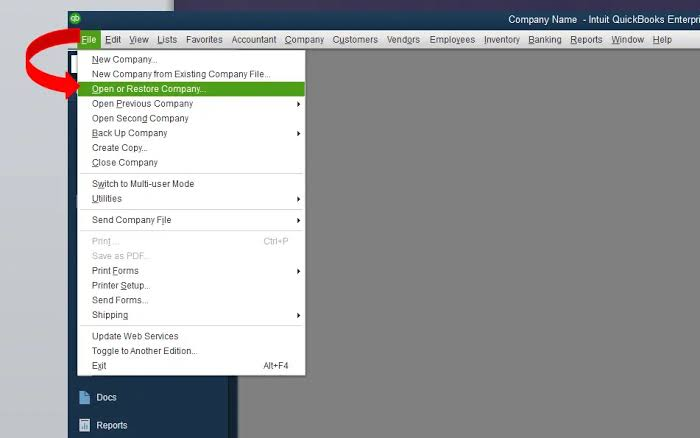
Step 2. Select the QBB backup file you want to test and restore it.
Step 3. Confirm that QuickBooks Desktop opens the restored company file correctly.
Step 4. Test your backups at least once a month to make sure they can be restored successfully when needed.
Practice 3: Run Verify Data Monthly
Verify Data is a QuickBooks Desktop utility that checks the company file for data-integrity problems. Rebuild Data is the companion utility that repairs problems identified by Verify Data.
How Do You Run Verify Data and Rebuild Data?
Step 1. Create a backup of your company file. Select File, then Back Up Company, and choose Create Local Backup.
Step 2. Select File, then Utilities, and choose Verify Data. Allow the verification to finish.
Step 3. If QuickBooks Desktop reports that the data has lost integrity, select File, then Utilities, and choose Rebuild Data.
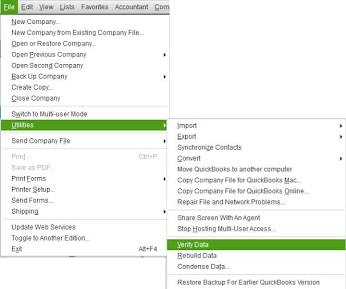
Step 4. Run Verify Data again after the rebuild to confirm the repair result.
Step 5. If you are processing payroll, switch QuickBooks Desktop to Single-user mode before running Verify Data or Rebuild Data.
Practice 4: Manage QuickBooks Desktop Company-File Size
Company-file size management consists of monitoring the QuickBooks Desktop company-file size and using Condense Data. Press F2 or Ctrl + 1 to open the Product Information window and view File Information.
Which File-Size Values Matter?
QuickBooks Desktop has no hard company-file size limit. It identifies 150–200 MB as a practical performance threshold for Pro Plus and Premier files and identifies 250 MB as a point where noticeable slowdown is reported. Files larger than 500 MB require optimization every six to 12 months according to Intuit community support guidance.
QuickBooks Enterprise supports up to one million names and one million items, while Pro Plus and Premier have a combined limit of 14,500 entries across the Items, Customer, and Vendor lists. Businesses approaching list limits can mark unused entries inactive or evaluate Enterprise.
How Do You Use Condensed Data?
Step 1. Create a full backup of your company file before using Condense Data.
Step 2. Select File, then Utilities, and choose Condense Data.
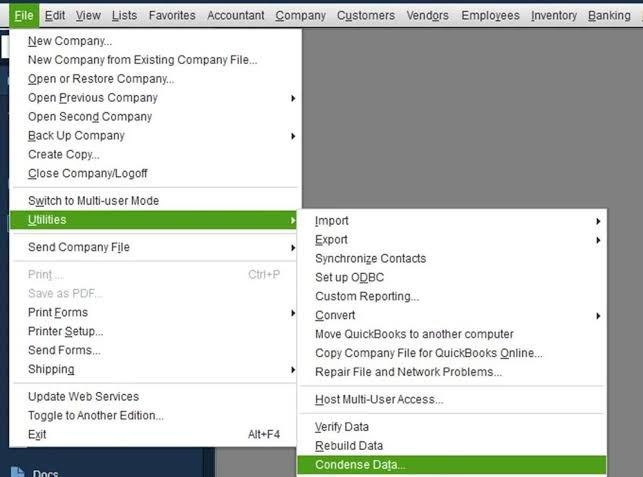
Step 3. Follow the wizard to select the transactions and date range you want to condense.
Step 4. Save the Trial Balance, Profit and Loss, and Balance Sheet reports before starting the condensation. Keep these reports for comparison after the process.
Step 5. Select Begin Condense and allow QuickBooks Desktop to complete the process.
Step 6. Run Condense Data in Single-user mode on the computer where the company file is stored.
Condense Data as irreversible. Use Condense Data after other performance measures have been evaluated and identify a large company file, approaching list limits, upgraded hardware, and discussion with accounting and technical support as relevant conditions.
Practice 5: Configure and Verify Antivirus Exclusions
Antivirus exclusions identify QuickBooks Desktop programs and data locations that real-time antivirus scanning does not inspect continuously. QuickBooks installation folder, company-file folder, QuickBooks data folder, and specified QuickBooks program files are exclusion targets.
Which QuickBooks Desktop Locations Require Verification?
The QuickBooks Desktop locations and files that require verification are given below:
QuickBooks installation folder: C:\Program Files\Intuit\QuickBooks [Year]
Company-file folder: the folder containing the (.QBW) company file
QuickBooks data folder: C:\ProgramData\Intuit\QuickBooks
QuickBooks program files: QBW32.exe, QBDBMgrN.exe, and QBCFMonitorService.exe
Windows Security exclusions require verification after significant Windows updates because major updates can reset exclusion settings.
How Do You Verify the Exclusions?
Step 1. Open Windows Security and select Virus & threat protection.
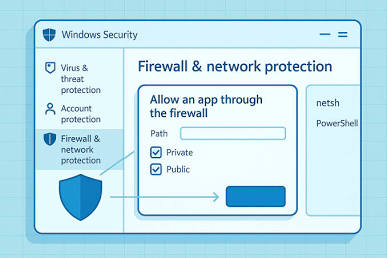
Step 2. Select Manage settings, then scroll to Exclusions.
Step 3. Check that the QuickBooks Desktop exclusions are still listed.
Step 4. If a Windows update removed an exclusion, add it again.
Practice 6: Exit QuickBooks Desktop Through File > Exit
The QuickBooks Desktop shutdown procedure uses File > Exit. This procedure is the preferred method for completing a QuickBooks Desktop session.
Why Does File > Exit Matter?
QuickBooks Desktop writes to the Transaction Log File (TLG) and uses lock files during an active session. The File > Exit allows QuickBooks Desktop to complete final writes, release lock files, close the company-file connection, and shut down background processes in sequence.
How Do You Exit QuickBooks Desktop?
Step 1. Finish your work in QuickBooks Desktop and select File, then Exit.
Step 2. Wait for QuickBooks Desktop to close completely before shutting down or restarting your computer.
Step 3. Do not shut down the computer while QuickBooks Desktop is still open.
Practice 7: Run Quick Fix My Program Weekly
Quick Fix My Program is a utility within QuickBooks Tool Hub. The utility stops QuickBooks background processes, performs basic program repair, and clears process conflicts.
Which QuickBooks Desktop Processes Does It Address?
The QBW32.exe, QBDBMgrN.exe, and QBCFMonitorService.exe are QuickBooks Desktop processes. Residual processes from previous sessions consume computer resources during subsequent sessions.
How Do You Run Quick Fix My Program?
Step 1. Open QuickBooks Tool Hub.
Step 2. Select Program Problems.
Step 3. Select Quick Fix My Program.
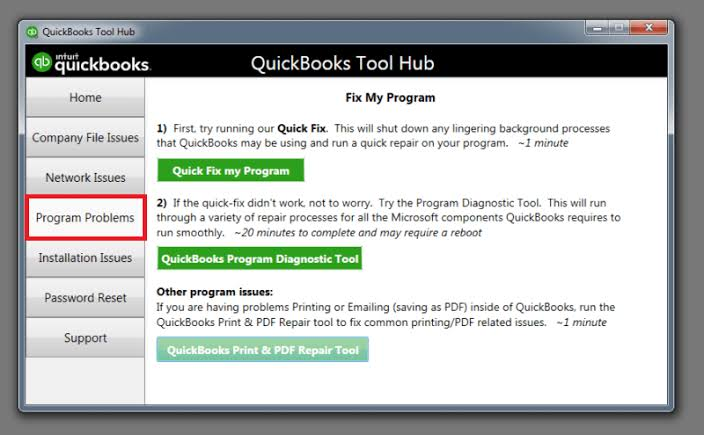
Step 4. Allow the tool to complete the repair process. It may take about two minutes.
Step 5. Once the process finishes, open QuickBooks Desktop and check whether the problem is resolved.
Practice 8: Meet QuickBooks Desktop Hardware Requirements
A 2.4 GHz minimum processor speed, 8 GB minimum RAM, 16 GB recommended RAM, 2.5 GB available disk space for program files, and a 64-bit Windows operating system for QuickBooks Desktop 2024.
How Does RAM Affect QuickBooks Desktop?
Random access memory (RAM) stores active programs and data. QuickBooks Desktop uses RAM for company-file records, payroll processing, and report generation. The Intuit Enterprise documentation identifies additional RAM as a performance factor for multi-user mode and large datasets.
How Does Storage Type Affect QuickBooks Desktop?
A solid-state drive (SSD) stores data electronically without the moving parts used by a traditional hard disk drive (HDD). The Intuit recommends storing QuickBooks data files on an SSD for best performance.
The Task Manager is a method for checking RAM usage. Press Ctrl + Shift + Esc during a QuickBooks Desktop session and review memory usage when evaluating system resources.
Practice 9: Apply Payroll Updates in Single-User Mode
QuickBooks Desktop payroll updates use single-user mode before the payroll tax-table update is downloaded. Select File > Switch to Single-User Mode after other users close QuickBooks Desktop.
Why Does Single-User Mode Matter for Payroll Updates?
The Intuit community describes a December 2025 incident involving payroll tax table update 22601. It states that Intuit identified multi-user mode as the condition associated with the incident and confirmed a corrective procedure using single-user mode and a Complete Payroll Update.
How Do You Apply a Payroll Update?
Step 1. Sign in to QuickBooks Desktop as the Admin user.
Step 2. Select File, then Switch to Single-User Mode.
Step 3. Make sure all other users have closed QuickBooks Desktop.
Step 4. Select Employees, then Get Payroll Updates.
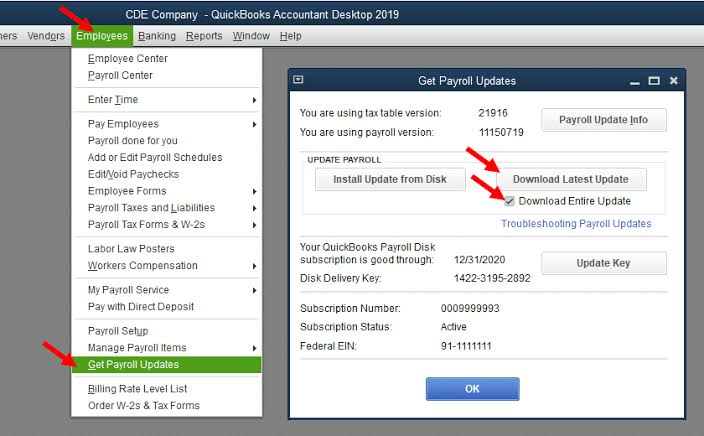
Step 5. Select Download Entire Payroll Update and allow the update to finish.
Step 6. Close and reopen QuickBooks Desktop.
Step 7. Test payroll to make sure the update works correctly before switching back to Multi-user Mode.
Monthly Maintenance Schedule: Complete Reference
Use this table as a monthly reference. The tasks are arranged by frequency from daily to as-needed.
| Task | Frequency | Time Required | Where to Do It | What It Prevents |
|---|---|---|---|---|
| Back up the Company file | Daily | 5–15 min | File > Back Up Company | Data loss from any incident |
| Close QuickBooks through File > Exit | Every session | 3 seconds | File menu | TLG file damage, startup crashes |
| Run Quick Fix My Program | Weekly | 2 min | QuickBooks Tool Hub > Program Problems | Background process accumulation |
| Check for QuickBooks updates after any Windows update | Within 48 hours of Windows update | 10 min | Help > Update QuickBooks Desktop | Windows compatibility crashes |
| Apply payroll updates in single-user mode | Every payroll update | 5–10 min | File > Switch to Single-User Mode first | CPS folder corruption (December 2025 incident) |
| Run Verify Data on the company file | Monthly | 5–10 min | File > Utilities > Verify Data | Silent company file damage |
| Verify antivirus exclusions are still in place | After every Windows update | 5 min | Antivirus > Exclusions | Real-time scan interference |
| Test a backup restore | Monthly | 10–15 min | File > Open or Restore Company | Undiscovered invalid backups |
| Check company file size | Monthly | 2 min | Press F2 inside QuickBooks > File Information | Performance degradation from file growth |
| Run Condense Data (Pro/Premier above 150–200 MB) | As needed | 30–60 min | File > Utilities > Condense Data | Slowness from oversized file |
| Check database file fragments | Monthly if performance is slow | 5 min | Press F2 > note fragment count, then defragment | Startup delay from fragmented data |
How Database-File Fragments Affect QuickBooks Desktop Performance?
What Are Database-File Fragments?
Database-file fragments are pieces of QuickBooks Desktop company-file data that become separated as the file changes. The Intuit source connects database-file fragments with a documented six-minute startup case involving QuickBooks Desktop Pro Plus 2024.
How Do You Check Database-File Fragments?
Press F2 inside QuickBooks Desktop to open the Product Information window. Review the database-file fragment count under File Information. Several thousand or more fragments are an indicator for evaluating the storage drive.
How Do You Defragment an HDD?
Select Start > Defragment and Optimize Drives in Windows 11. Select the drive containing the QuickBooks Desktop company file. Select Optimize. An estimated processing time of 30–60 minutes is needed for a large drive.
The traditional HDD storage is different from SSD storage. Defragmentation applies to HDDs and Intuit recommends SSD storage for QuickBooks data files.
Maintain QuickBooks Desktop in Multi-User Environments
How Should QuickBooks Desktop Releases Be Managed in Multi-User Mode?
All computers accessing the same QuickBooks Desktop company file in multi-user mode should use the same QuickBooks version and release number. QuickBooks Desktop 2024 R15 and 2024 R12 are an example of a release mismatch.
How Should the QuickBooks Desktop Host Computer Connect to the Network?
The host computer should use a stable network connection. Intuit recommends a wired Ethernet connection for the host computer because it provides a consistent connection for company-file access.
Where Should the Active QuickBooks Desktop Company File Be Stored?
The active QuickBooks Desktop company file should remain on a local drive connected to the computer. The cloud synchronization services such as Dropbox, OneDrive, and Google Drive are not appropriate locations for the active company file. Intuit distinguishes active company files from QBB backup copies and identifies cloud storage as an option for backup copies.
Conclusion
Regular QuickBooks Desktop maintenance helps keep the software, company file, and system configuration in good working condition. Following the recommended maintenance steps at the right intervals helps users address common performance and data-integrity issues.
When the recommended solutions do not resolve a QuickBooks Desktop problem, contact Intuit Support for further assistance. Intuit Support can help identify issues that require additional troubleshooting or specialized data-repair services.
Frequently Asked Questions
Why Did QuickBooks Desktop Pro Plus 2024 Take Six Minutes to Start?
Intuit documents a Pro Plus 2024 case in which startup time increased to approximately six minutes. Intuit’s support response identified database file fragments and company file size as relevant factors and recommended Condense Data, fragment management, and a QuickBooks update.
How Often Should QuickBooks Desktop Condense Data Be Run?
Intuit states that files larger than 500 MB require optimization every six to 12 months according to Intuit community support guidance. For Pro Plus and Premier files below 500 MB, performance changes and the 150–200 MB range as relevant indicators. Condense Data requires a full backup because the operation is irreversible.
What Should You Check After an Antivirus Update?
Verify that QuickBooks Desktop program and data exclusions remain active. The .QBW company file, .TLG transaction log, and CPS payroll-folder files are QuickBooks data components that require appropriate exclusion settings.
4. What Is the Windows 10 Support Status?
Microsoft ended Windows 10 support on Oct. 14, 2025, and Intuit stopped supporting Windows 10 for QuickBooks Desktop after that date. Intuit recommends Windows 11 for computers running QuickBooks Desktop that remain on Windows 10.
How Does an SSD Affect QuickBooks Desktop Performance?
An SSD provides electronic data access without the mechanical movement required by an HDD. Intuit recommends SSD storage for QuickBooks data files for best performance.

Anusmita is a seasoned content writer who brings perspective to words. As a writer, she enriches her work with a journalistic aptitude, utilising her training in Mass Communication and Journalism. She loves to travel and explore, which imparts a greater sense of understanding, maturity, and experience that are reflected in her content.
Beyond her professional work, Anusmita enjoys painting, singing, dancing, and spending time planting. She is also a self-proclaimed foodie who loves exploring different cuisines, an interest that further adds to her curiosity and perspective as a writer.
Leave a Reply