
QuickBooks H101, H202, H303, and H505 all belong to the same family of errors — the H series — and every one of them has the same underlying theme: a workstation computer cannot connect to the company file stored on another computer. All four errors shut down multi-user access and stop the entire accounting team from working in QuickBooks at the same time.
These four errors are not identical. Each code points to a specific reason the connection failed. H101 and H303 appear primarily when a workstation is incorrectly set up to act as the server. H202 appears when the connection is blocked by a stopped service, a firewall rule, or a damaged network file. H505 appears when multiple computers are fighting for control of the file or when the server cannot be reached at all.
Intuit’s own support documentation groups H101, H202, H303, and H505 together and confirms that all four occur when something blocks the multi-user connection to the server computer. Fixing them requires identifying which specific blockage is in play — and that is exactly what this guide does.
Table of Contents
Identify Your Error in 60 Seconds
Match your error code to the table below before doing anything else. Each row shows the exact error message, the primary cause, and the first fix to apply so you go directly to the right solution.
| Error Code | What the Screen Says | Primary Cause | Where to Start |
| H101 | Company file is on another computer, QuickBooks needs help connecting | Workstation set to host the file by mistake | Fix 1 – Correct hosting on all workstations |
| H202 | This company file is on another computer, QuickBooks needs some help connecting | QuickBooks services stopped OR firewall blocking ports OR damaged .ND file | Fix 2 – Restart services; Fix 3 – Firewall ports |
| H303 | Company file needs additional configuration to be used in multi-user mode | Workstation set to host; server needs additional QuickBooks setup | Fix 1 – Correct hosting; Fix 4 – Install Database Server Manager |
| H505 | QuickBooks cannot access the company file on the server | Multiple computers set to host; server unreachable or misconfigured | Fix 1 – Correct hosting on all machines; Fix 2 – Restart services |
How QuickBooks Multi-User Mode Works?
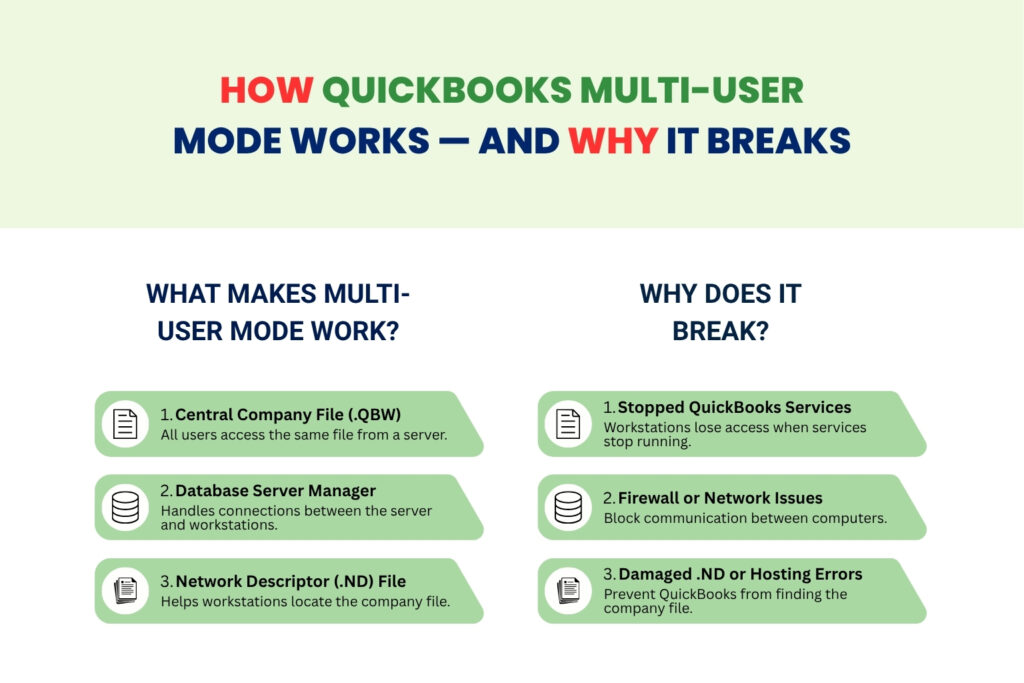
QuickBooks stores all of a business’s accounting data in a single company file with the extension .QBW. In a multi-user office, this file sits on one central computer called the server or host computer. Every other computer in the office — called a workstation — connects to the server over the local network to access the file. This is multi-user mode: multiple people working on the same company file at the same time from different computers.
QuickBooks uses a program called the QuickBooks Database Server Manager to serve the company file to all workstations. This program runs two background services on the server at all times: QuickBooksDBXX (the database engine that handles all read and write requests from workstations) and QBCFMonitorService (the connection monitor that keeps each workstation’s session stable). Both services must run continuously. If either stops, every workstation loses access to the company file instantly.
The Database Server Manager also creates and maintains a small helper file called the .ND file (Network Descriptor file) in the same folder as the company file. The .ND file stores the server’s name and network address. Every workstation reads this file to find where the company file lives on the network. A corrupted or outdated .ND file sends workstations to the wrong address and blocks the connection before it ever opens.
H series errors appear when any part of this chain breaks: the services stop, the firewall blocks the network ports QuickBooks uses, the hosting setting is wrong on one or more computers, the .ND file is damaged, or the network itself cannot route traffic between the workstation and the server. Each H series code identifies which part of the chain failed.
What Does Each H Series Error Code Mean?
QuickBooks Error H101
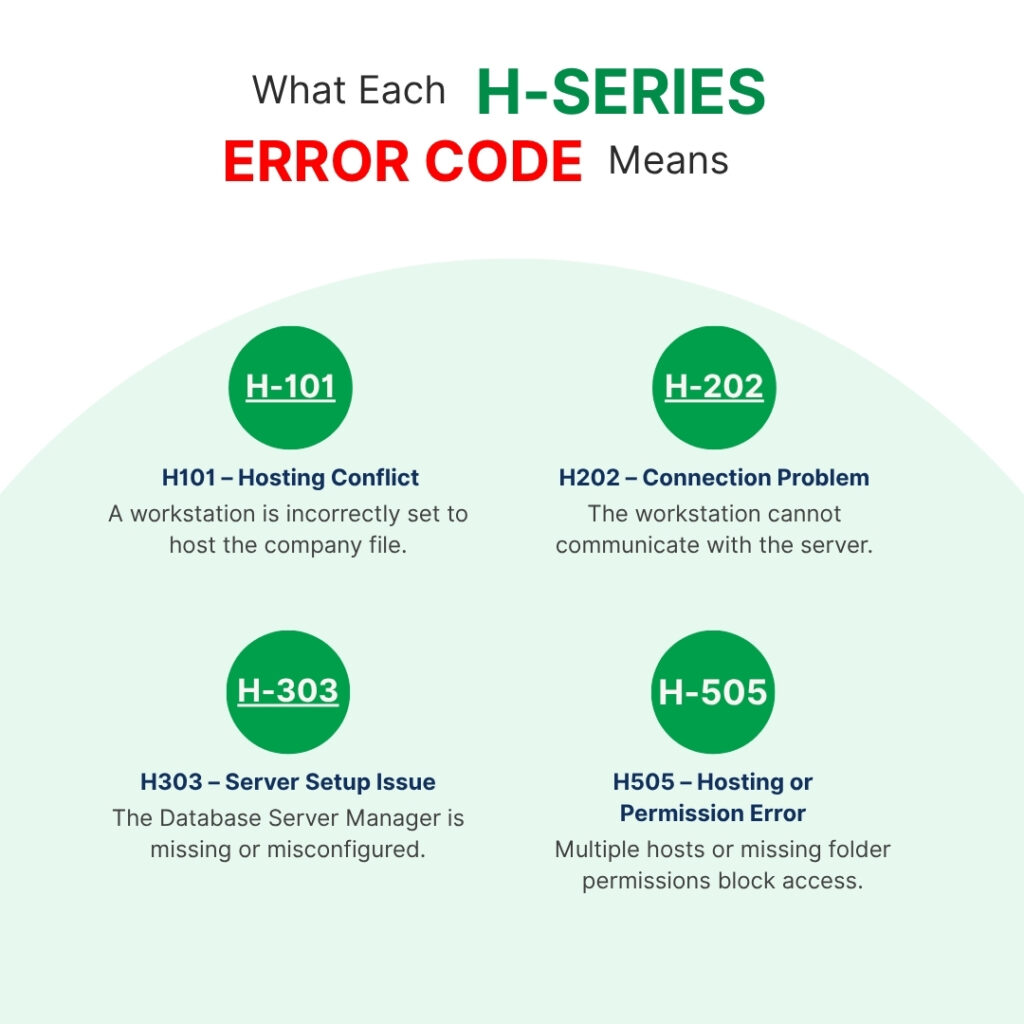
H101 appears on a workstation that tries to open a company file stored on another computer but cannot connect to it. The error message reads: “You are trying to work with a company file that is located on another computer, and this copy of QuickBooks cannot reach the server on that computer.” Intuit’s documentation specifically states that H101 occurs when one or more workstations are incorrectly set to host the company file — a setting that belongs only on the server.
The hosting setting in QuickBooks tells the software whether that computer is the one responsible for serving the file to everyone else. On a workstation, the correct setting is Host Multi-User Access turned OFF. When a workstation has hosting turned ON, QuickBooks on that machine tries to take control of the file from the server, the server resists, and the result is H101 on the workstation that made the incorrect claim.
QuickBooks Error H202
H202 is the most detailed of the four H series errors. It appears when a workstation cannot reach the server due to a stopped QuickBooks service, a firewall blocking network ports, a damaged .ND file, a DNS name resolution failure, or missing folder permissions. The error message reads: “This company file is on another computer, and QuickBooks needs some help connecting.” Unlike H101 and H303, H202 is not primarily a hosting configuration problem — it is a connection infrastructure problem.
H202 differs from H101 and H303 in an important way: it can appear even when the hosting settings are perfectly correct on every computer. The connection itself is being blocked at a lower level — by the firewall, by a stopped service, or by a corrupted network file. This is why Intuit’s fix sequence for H202 starts with checking QuickBooks services and firewall settings rather than hosting configuration.
QuickBooks Error H303
H303 appears when a workstation cannot communicate with the server hosting the company file, and the server requires additional setup before multi-user connections can work. The error message reads: “This company file is on another computer, and QuickBooks needs some help connecting.” H303 specifically points to two situations: a workstation that has hosting turned on incorrectly, or a server computer that does not have the QuickBooks Database Server Manager installed and configured.
H303 is the signal that the server itself is missing a required component. The Database Server Manager must be installed on the server for multi-user mode to function. Without it, the server has no program listening for incoming connections from workstations, so every workstation’s connection attempt times out and produces H303. Installing the Database Server Manager on the server and turning off hosting on all workstations resolves H303 in most cases.
QuickBooks Error H505
H505 appears when QuickBooks detects that the company file is on a different computer but cannot establish a stable connection to that server. The error message reads: “QuickBooks cannot access the company file on the server.” Intuit groups H505 with H101 and H303 as errors caused primarily by incorrect hosting configuration — specifically, when multiple computers on the network are set to host the company file at the same time.
H505 also appears when the folder containing the company file does not have the correct Windows permissions for the QuickBooks Database Server service account (called QBDataServiceUserXX). Without these permissions, the Database Server Manager cannot open, read, or write to the company file, and workstations receive H505 when they try to connect. The hosting conflict and the permissions gap often occur together after a QuickBooks upgrade or a Windows security update.
How Do QuickBooks Network Errors H101, H202, H303, and H505 Differ from Each Other?
All four errors block multi-user access, but each one identifies a different point of failure. The table below shows exactly what Intuit’s documentation says causes each error and what action addresses it first.
| Error | Who Intuit Says Has the Problem | First Action Intuit Recommends |
| H101 | One or more workstations are set to host the company file | Go to File > Utilities on each workstation; click Stop Hosting Multi-User Access |
| H202 | Workstation cannot reach the server due to services, firewall, or .ND file damage | Check QuickBooksDBXX and QBCFMonitorService are running on the server |
| H303 | Workstation cannot communicate with hosting server; server needs additional setup | Turn off hosting on all workstations; install Database Server Manager on server |
| H505 | Multiple computers set to host OR server hosting is unreachable or misconfigured | Turn off hosting on all workstations; confirm hosting is ON only at server |
The practical takeaway from this table: if the error is H101, H303, or H505, start with hosting settings on all workstations — Intuit’s documentation points directly to that cause for all three. If the error is H202, start with the QuickBooks services on the server, because a stopped service is the most common H202 trigger.
How to Fix QuickBooks H Series Errors – Step-by-Step Solutions
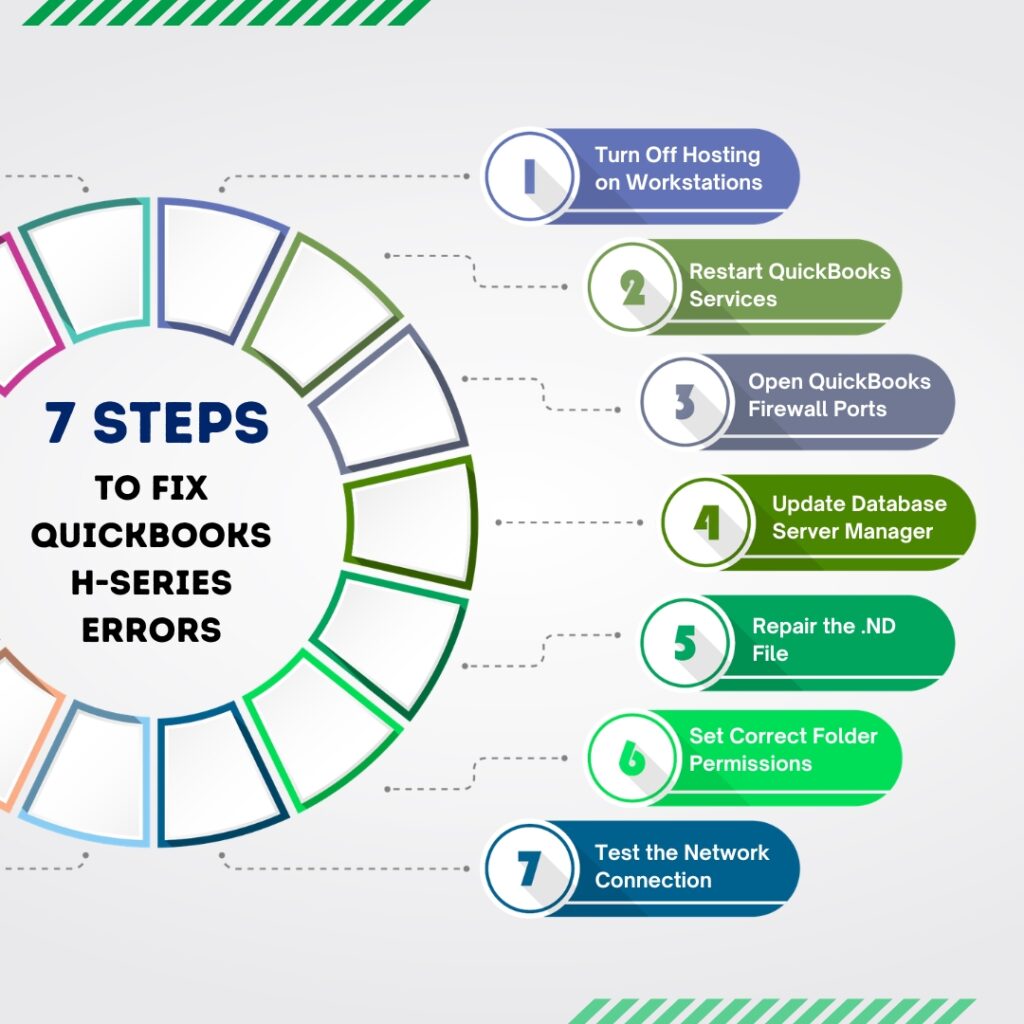
Fix 1: Turn Off Hosting on All Workstations (Fixes H101, H303, H505)
In a correct QuickBooks multi-user setup, exactly one computer hosts the company file — the server. Every workstation must have hosting turned off. Hosting is a QuickBooks setting that declares: “I am the computer in charge of this file.” When a workstation has hosting turned on, it competes with the server for control of the file, and H101, H303, or H505 appears on that workstation. Intuit’s support documentation identifies this misconfiguration as the primary cause of all three errors.
Check every workstation individually. On each workstation, open QuickBooks without opening the company file. Go to File in the top menu and hover over Utilities. Look at the options that appear. If the list shows Stop Hosting Multi-User Access, hosting is currently on for that workstation — click it to turn hosting off. If the list shows Host Multi-User Access, hosting is already off on that computer — leave it and move to the next workstation.
On the server computer, go to File > Utilities and confirm the list shows Stop Hosting Multi-User Access, which means hosting is active on the server. The server is the only computer that should show this option in its active state. If the server shows Host Multi-User Access, hosting is off on the server — click it to turn hosting on. After correcting all computers, test multi-user mode on each workstation by going to File > Switch to Multi-User Mode.
Fix 2: Restart the QuickBooks Background Services on the Server (Fixes H202, H505)
QuickBooks uses two Windows background services on the server to manage all multi-user connections. QuickBooksDBXX is the database engine — XX is a number that matches the QuickBooks version plus 10, so QuickBooks 2024 uses QuickBooksDB34, QuickBooks 2025 uses QuickBooksDB35, and QuickBooks 2026 uses QuickBooksDB36. QBCFMonitorService is the connection monitor that keeps each workstation’s session alive. Windows sometimes stops these services automatically after a server reboot or a Windows update, and H202 or H505 appears on every workstation the moment either service stops.
Do this on the server computer only. Open the Windows Start menu, type Run, and open the Run window. Type services.msc and press Enter. The Windows Services list opens. Scroll to QuickBooksDBXX and double-click it. Set the Startup Type to Automatic so Windows restarts this service automatically after every server reboot. Check the Service Status — it must show Running or Started. If it shows Stopped, click Start. Click the Recovery tab, set all three dropdowns (First failure, Second failure, Subsequent failures) to Restart the Service, then click Apply and OK.
Repeat every step above for QBCFMonitorService. The Recovery tab setting is especially important — it tells Windows to restart the service automatically if it ever stops unexpectedly, which prevents H202 and H505 from returning after future server restarts. Once both services show Running and are set to Automatic, go to each workstation, open QuickBooks, and test multi-user mode.
Fix 3: Open the Required Firewall Ports for QuickBooks (Fixes H202, H505)
QuickBooks workstations send data to the server through numbered network ports — ports are designated channels, like lanes on a highway, each assigned to a specific type of network traffic. The Windows Firewall and third-party antivirus programs block traffic on ports they do not recognize. QuickBooks requires specific ports to be open on the server for multi-user connections to pass through. When those ports are blocked, workstations cannot reach the company file and H202 or H505 appears, even when the hosting settings and services are correct.
On the server computer, open Windows Defender Firewall with Advanced Security from the Start menu. Click Inbound Rules, then New Rule on the right side. Select Port, click Next, choose TCP, and enter the port numbers. Intuit’s published port list shows that QuickBooks 2019 and newer use port 8019 plus a dynamic port assigned by the Database Server Manager — open the Database Server Manager on the server, click the Port Monitor tab, and note the exact port number shown for your version. For QuickBooks 2024 and 2025, the firewall ports are 8019, 56728, and 55378–55382.
Select Allow the Connection, click Next twice, name the rule “QBPorts”, and click Finish. Repeat these exact steps under Outbound Rules so QuickBooks can both send and receive data through the firewall. Also add program exceptions: create Program rules to allow QBW32.exe, QBDBMgrN.exe, and QBCFMonitorService.exe through the firewall. These files are in the QuickBooks installation folder. After adding all rules, test multi-user mode from each workstation.
Fix 4: Install or Update QuickBooks Database Server Manager on the Server (Fixes H303)
The QuickBooks Database Server Manager is the program on the server that listens for connection requests from workstations and serves the company file to them. Without it installed and running on the server, no workstation can connect in multi-user mode — the server has nothing listening for incoming QuickBooks connections, and H303 appears on every workstation that tries. Intuit requires the Database Server Manager to be installed on every computer that hosts company files.
Download the QuickBooks Tool Hub from Intuit’s official website (intuit.com) and install it on the server. The Database Server Manager can also be installed by running the QuickBooks Desktop installer on the server and selecting the Server Only installation option, which installs only the Database Server Manager without a full QuickBooks license. After installation, open the Database Server Manager, go to the Scan Folders tab, and add the folder where the company file is stored. Click Scan Now to let it create a fresh .ND file for the company file.
The Database Server Manager version must match the QuickBooks Desktop version in use on the workstations. If workstations run QuickBooks 2025, the server must run the 2025 version of the Database Server Manager. A version mismatch — such as a 2024 Database Server Manager trying to serve files to 2025 workstations — produces H303. After updating, confirm the QuickBooksDBXX service for the new version is set to Automatic in Windows Services.
Fix 5: Run QuickBooks File Doctor to Repair the .ND File (Fixes H202, H303, H505)
The .ND file (Network Descriptor file) is a small configuration file that QuickBooks creates alongside every company file. Its only job is to store the server’s name and network address so that workstations know exactly where to find the file. A corrupted .ND file sends workstations to the wrong address or gives them no address at all — the connection attempt fails and H202, H303, or H505 appears. The .ND file gets corrupted by abrupt server shutdowns, failed QuickBooks updates, and power outages that interrupt the server while QuickBooks is writing data.
The fastest way to fix a damaged .ND file is QuickBooks File Doctor, which is Intuit’s official repair tool inside the QuickBooks Tool Hub. Open the Tool Hub on the server, click Company File Issues, then click Run QuickBooks File Doctor. Select the company file from the dropdown, choose Check your file and network, enter the QuickBooks admin password, and click Continue. File Doctor scans the .ND file, detects any corruption, and writes a new, accurate .ND file automatically. The scan takes 5–15 minutes.
You can also fix the .ND file manually in under one minute: go to the folder where the company file is stored, find the file with the same name as the company file but with the extension .ND — for example, CompanyName.ND — and delete it. The next time the QuickBooks Database Server Manager scans that folder, it automatically creates a fresh, correct .ND file. Deleting the .ND file is safe because it contains only network path data, not accounting data.
Fix 6: Set Correct Windows Permissions on the Company File Folder (Fixes H505)
The QuickBooks Database Server Manager runs on the server under a Windows service account called QBDataServiceUserXX (where XX matches the QuickBooks version number). For it to open, read, and write to the company file, this service account needs Full Control permission over the folder where the company file is stored. H505 appears when this permission is missing — the Database Server Manager cannot access the file, and every workstation that tries to connect receives the error. Permissions are frequently reset by Windows security updates and by QuickBooks version upgrades.
On the server, open File Explorer and go to the folder containing the company file. The default location is C:\Users\Public\Documents\Intuit\QuickBooks\Company Files. Right-click the folder, select Properties, and click the Security tab. Click Edit, then look for QBDataServiceUserXX in the list of users. If it is not there, click Add, type QBDataServiceUserXX, and click OK. Select that account from the list and check Full Control under Allow. Click Apply and OK.
Also check the sharing settings on the same folder. Right-click the folder, go to Properties > Sharing > Advanced Sharing, check Share this folder, click Permissions, and give QBDataServiceUserXX Full Control in the share permissions as well. Both the security permission and the share permission must allow Full Control for the Database Server Manager to function. After setting both, test multi-user mode from each workstation.
Fix 7: Test and Repair the Network Connection Between Workstations and Server
All four H series errors require a functioning network connection between each workstation and the server. A workstation that cannot physically reach the server — because of a bad network cable, a disconnected Wi-Fi session, or a routing problem on the office network — will show H202, H303, or H505 even when every QuickBooks setting is perfectly configured. Testing the network connection before changing any QuickBooks settings confirms whether the network itself is the problem.
On any workstation showing an H series error, open the Windows Start menu, search for Command Prompt, and open it. Type ping [ServerName] — replace [ServerName] with the actual name of the server computer — and press Enter. Four lines of “Reply from” responses confirm the workstation can reach the server. “Request timed out” or “Destination host unreachable” means the network connection is broken and must be fixed at the network level before any QuickBooks fix will work.
On the server, confirm that Network Discovery is turned on so that workstations can find it by name. Go to Settings > Network and Internet > Sharing Options and confirm Turn on Network Discovery and Turn on File and Printer Sharing are both selected. Also confirm that both the server and all workstations are on the same network subnet — computers on different subnets cannot communicate directly unless the network is specifically configured to allow it.
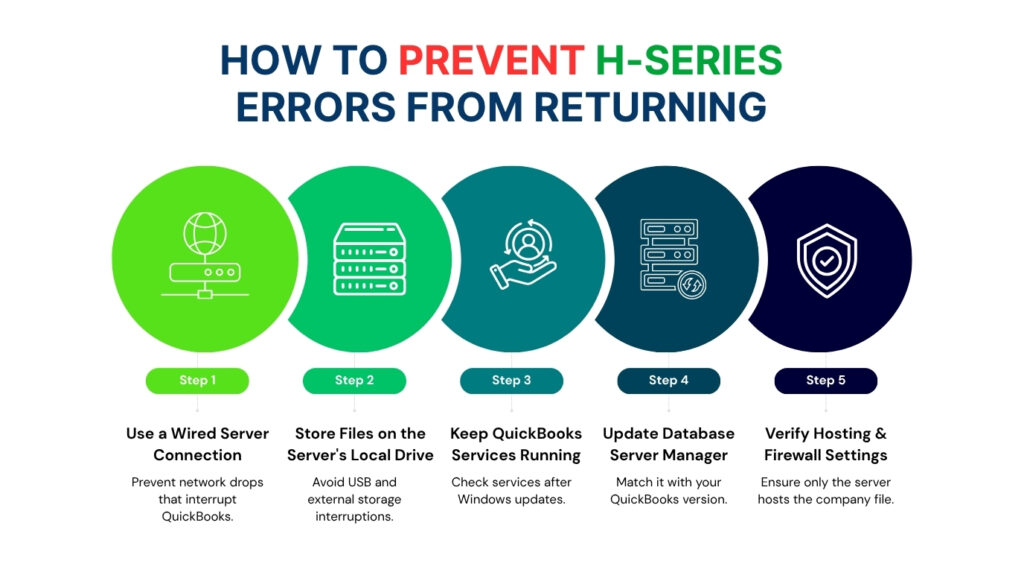
QuickBooks Prevention: Stop H Series Errors from Returning
H series errors return in predictable situations: Windows updates reset service startup types, new workstations join the network with hosting turned on by default, QuickBooks version upgrades leave the Database Server Manager on an older version, and antivirus updates add QuickBooks back to the block list. Addressing each trigger as soon as it happens prevents the error from reappearing.
| Trigger Situation | What to Do |
| After every Windows update on server | Open services.msc and confirm QuickBooksDBXX and QBCFMonitorService are both set to Automatic startup |
| After adding a new workstation | Immediately go to File > Utilities on the new machine and click Stop Hosting Multi-User Access |
| After updating QuickBooks version | Update QuickBooks Database Server Manager on the server to match the new version number |
| After changing antivirus software | Re-add QuickBooks port exceptions and executable file exceptions to the new antivirus program |
| Monthly | Run QuickBooks File Doctor from the Tool Hub to scan .ND file health on the server |
Use a wired network connection on the server at all times. Wireless connections drop briefly and often without any visible sign to the user, but those drops interrupt the QuickBooks Database Server Manager while it is writing data to the company file. Repeated wireless interruptions damage the .ND file over time and produce H202, H303, and H505 repeatedly. A single wired cable eliminates this recurring source of H series errors entirely.
Store the company file only on the server’s local hard drive. USB drives, external hard drives, and network-attached storage devices disconnect briefly and interrupt QuickBooks file operations the same way an unstable wireless connection does. The Database Server Manager requires a direct, uninterrupted connection to the file it is serving. Moving the company file to the server’s local drive removes the most common source of repeated .ND file corruption.
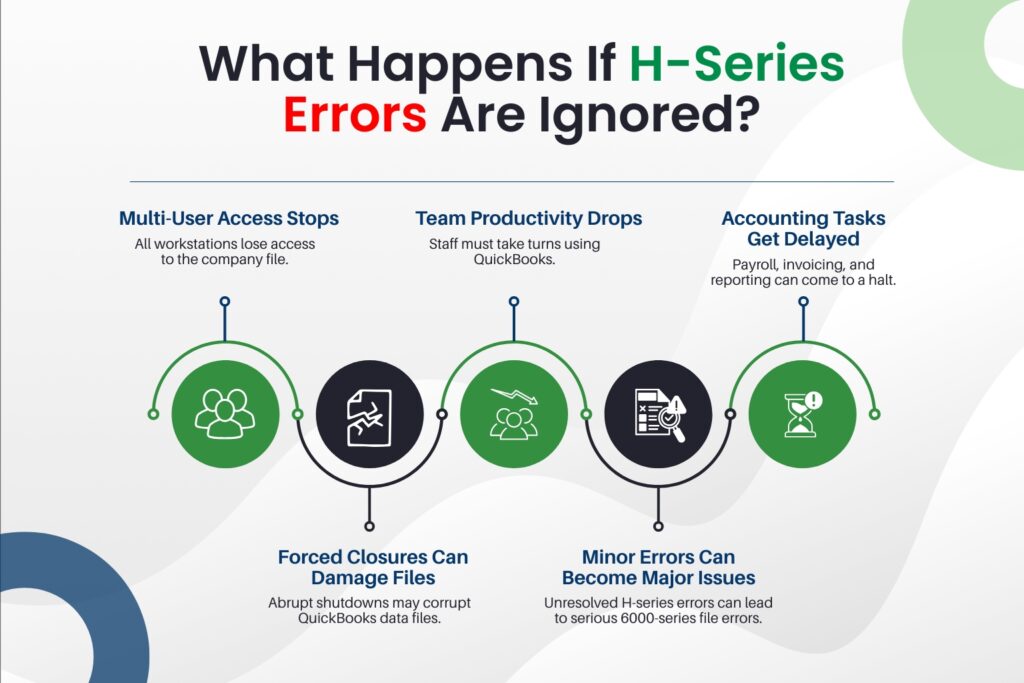
What Happens If QuickBooks H Series Errors Are Left Unresolved?
Every H series error locks all workstations out of the company file while the server computer can still access it locally in single-user mode. The accounting team — accounts payable, accounts receivable, payroll, and management reporting — loses multi-user access simultaneously. Payroll runs, vendor payments, customer invoicing, and month-end close all stop until the connection is restored.
Offices that work around H series errors by switching to single-user mode create a new problem: only one person can use QuickBooks at a time. The team takes turns, data entry slows down, and errors caused by rushing increase. Single-user mode is not a fix for H series errors — it is a workaround that reduces team productivity while the actual problem continues to worsen.
Forcing QuickBooks closed while an H series error is active — by using Task Manager’s End Task or shutting off the workstation — interrupts the Database Server Manager while it is managing the file. Repeated forced closures damage the .TLG file (the Transaction Log file that records every accounting entry in real time). A damaged .TLG file leads to 6000 series company file errors — specifically errors like -6000 83 and -6177 — which are more serious than any H series error because they stop the file from opening at all.
Conclusion
QuickBooks H101, H202, H303, and H505 are four error codes that all point to one disrupted system: the multi-user connection between workstations and the server hosting the company file. Each code identifies a specific point of failure. H101 and H303 point to hosting configuration problems. H202 points to stopped services, blocked firewall ports, or a damaged .ND file. H505 points to a hosting conflict between multiple computers or a permission gap on the server.
Intuit’s QuickBooks Tool Hub handles the most common causes of all four errors through two built-in tools: QuickBooks File Doctor repairs .ND file corruption and tests network connectivity, and the Network Issues tab restarts the Database Server Manager. Running the Tool Hub first before manual steps resolves the majority of H series errors in under 15 minutes without requiring changes to Windows settings.
Offices that correct hosting settings on every workstation, keep QuickBooks services set to Automatic restart in Windows Services, and update the Database Server Manager every time QuickBooks is upgraded eliminate the three most common triggers for recurring H series errors. These three practices keep every workstation connected, every team member productive, and every payroll deadline met without repeated network disruptions.
Frequently Asked Questions
1. Is there one fix that resolves all four H series errors at once?
Correcting the hosting settings on all workstations (Fix 1) and restarting the QuickBooks background services on the server (Fix 2) together address the most common causes of H101, H202, H303, and H505. Running QuickBooks File Doctor from the Tool Hub after those two steps covers .ND file corruption as well. These three actions in sequence resolve the majority of all H series errors without needing to touch firewall settings or permissions.
2. The error appears only when the team tries to switch to multi-user mode. Is that normal?
H series errors appear specifically during multi-user mode because single-user mode does not use the network connection, the Database Server Manager, or the .ND file. The moment QuickBooks tries to open a network connection to serve the file to additional users, all four of those components come into play. An error that appears only on the switch to multi-user mode is a normal presentation of any H series error — it does not mean the problem is less serious or less urgent to fix.
3. Two workstations get H505 but one workstation connects fine. What does that mean?
When H505 appears on some workstations but not others, the problem is specific to those machines. The working workstation has correct settings. The affected workstations most commonly have hosting turned on by mistake, cannot reach the server by name on the network (test with a ping command from Command Prompt), or have a local firewall or antivirus blocking QuickBooks. Check File > Utilities on each affected workstation first — Stop Hosting Multi-User Access should appear there if hosting is incorrectly turned on.
4. H303 appeared after upgrading QuickBooks to a new version. Why?
QuickBooks version upgrades require the Database Server Manager on the server to be updated to match the new version. A 2024 Database Server Manager cannot correctly serve company files to 2025 workstations. The service name also changes with each version: QuickBooks 2024 uses QuickBooksDB34 and QuickBooks 2025 uses QuickBooksDB35. After every QuickBooks version upgrade, update the Database Server Manager on the server first, then confirm the new version’s service is set to Automatic in Windows Services.
5. Can H series errors damage the company file or cause data loss?
H series errors are connection errors, not data errors. The accounting data inside the .QBW company file is not affected when H101, H202, H303, or H505 appears. The risk to data comes from the workaround — forcing QuickBooks closed while the error is active damages the .TLG file, which is the real-time transaction log. A damaged .TLG file can grow into a 6000 series error that stops the company file from opening. Fix the H series error through the proper steps rather than closing QuickBooks forcefully to avoid that escalation.