
A firewall is a security program — built into Windows or installed separately — that controls which programs and network traffic are allowed to pass through the computer. An antivirus program monitors every file and process running on the computer and blocks anything it identifies as a threat. Both programs protect the computer from real threats, and both can block QuickBooks Desktop from communicating across the network by treating QuickBooks services as suspicious — because QuickBooks actively sends and receives data between multiple computers on the network, which is exactly the kind of activity security software is designed to watch closely.
QuickBooks Desktop multi-user mode depends on a set of specific programs and ports being open and unrestricted. A port is a numbered communication channel — like a specific lane on a highway — through which a program sends and receives network data. QuickBooks uses its own set of ports that are different from those used by a web browser or email. A firewall that does not have a rule allowing traffic on those ports, and an antivirus that has not been told to trust the QuickBooks program files, blocks the connection between workstations and the host computer and produces H-series errors, 6000-series errors, and file access failures.
This article explains exactly what the Windows Firewall and antivirus software block in QuickBooks, what errors those blocks cause, and the step-by-step process Intuit documents for configuring both to allow QuickBooks to run without interruption. All port numbers, file names, and configuration steps in this article come directly from Intuit’s official firewall and security settings guide for QuickBooks Desktop.
Table of Contents
Which QuickBooks Errors a Firewall or Antivirus Block Causes?
A firewall or antivirus block produces a specific set of QuickBooks errors. Match your error below to confirm the cause before reading the full fix:
| Error or Problem | What the Block Is Affecting | Go to Section |
| H202, H101, H303, H505 in multi-user mode | Firewall blocking QuickBooks ports between host and workstations | Section 3: Port Exceptions |
| Company file opens on host but not on workstations | Firewall blocking QuickBooks executable files on the host computer | Section 4: Program File Exceptions |
| Payroll update fails or tax table download errors | Firewall blocking ports 80 and 443 used for Intuit’s online services | Section 3: Port Exceptions |
| QuickBooks freezes when switching to multi-user mode | Antivirus scanning QuickBooks files in real time during the switch | Section 5: Antivirus Configuration |
| H202 persists after Database Server Manager scan | Antivirus blocking QBDBMgrN.exe or QBCFMonitorService.exe | Section 5: Antivirus Configuration |
| QuickBooks opens but cannot connect to Intuit services | Firewall blocking outbound connections on ports 80 and 443 | Section 6: Intuit Online Services |
Tip: Run QuickBooks File Doctor from Intuit’s Tool Hub before any manual configuration. The tool automatically repairs the most common firewall blocks and takes less than five minutes to complete.
1. How Firewalls and Antivirus Programs Block QuickBooks
What the Windows Firewall Does and Why It Blocks QuickBooks
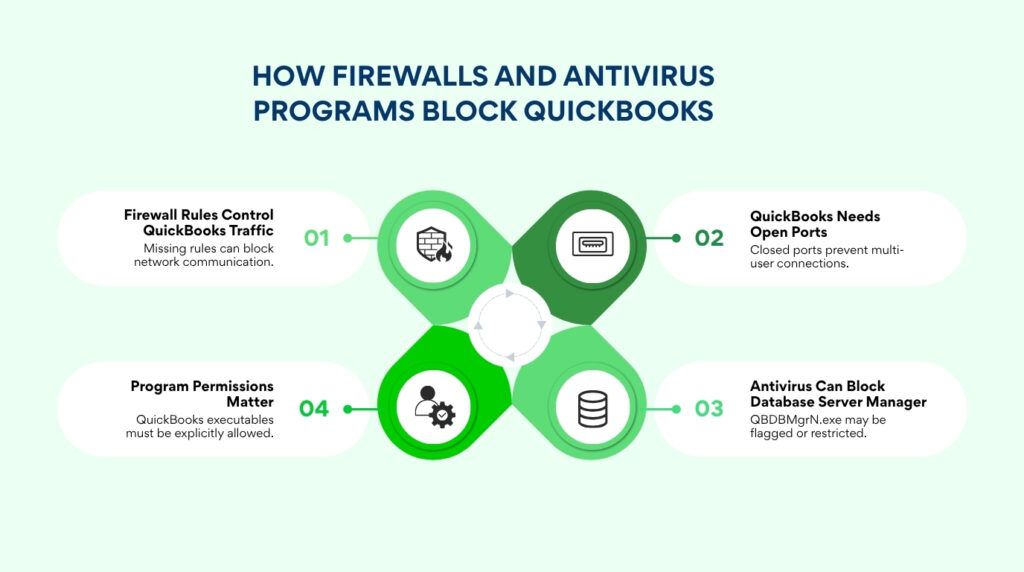
The Windows Firewall is a program built into every version of Windows that monitors every network connection the computer makes or receives. It uses a set of rules — called firewall rules — to decide which connections to allow and which to block. QuickBooks Desktop requires a set of firewall rules to be present that specifically allow QuickBooks programs to send and receive network data. Intuit’s firewall guide confirms: if the Windows Firewall blocks internet access for specific QuickBooks programs or files, you will see an error message.
The Windows Firewall operates on two categories of rules: port rules and program rules. A port rule controls which numbered communication channels are open. A program rule controls which specific software files are allowed to communicate, regardless of which port they use. QuickBooks needs both types of rules configured correctly — port rules for its communication channels and program rules for each of its executable files. A firewall that has one type configured but not the other still produces connection errors, because QuickBooks traffic needs both the channel and the program to be explicitly allowed.
Antivirus software adds a second layer of inspection on top of the firewall. Where the firewall controls network traffic by port and program, antivirus software monitors the behavior of each program while it runs. An antivirus that flags QBDBMgrN.exe — the QuickBooks Database Manager program — as suspicious can stop it from running entirely, even if the firewall has a rule allowing it. When QBDBMgrN.exe stops running, the Database Server Manager cannot share the company file with the network, and every workstation that tries to connect receives a failed connection error.
Why QuickBooks Triggers Security Software
QuickBooks Desktop executable files — the individual program files that make QuickBooks work — send and receive data across the local network constantly during multi-user mode. They open listening channels on the computer’s network ports, receive connection requests from workstations, and write data to the company file disk location. Security software monitors this exact behavior as a sign of potentially harmful programs, because harmful programs also open ports, receive remote connections, and write files. QuickBooks triggers security software alerts not because it is harmful but because its normal operation looks similar to activity that harmful programs perform.
Intuit acknowledges this directly: the firewall may block QuickBooks because it mistakes the software’s network activity as a threat due to misconfigured ports. The solution is not to disable the firewall or antivirus — doing so removes protection from real threats. The solution is to configure both programs to recognize QuickBooks as trusted by adding specific exceptions for its ports and program files.
2. Use QuickBooks Tool Hub First — It Fixes Most Firewall Blocks Automatically
What the Tool Hub Does and How to Use It
Intuit’s official firewall fix guide begins with downloading and running the QuickBooks Tool Hub and using it to run QuickBooks File Doctor. The QuickBooks Tool Hub is a free diagnostic application from Intuit that consolidates the most common QuickBooks repair tools into one place. Download the latest version from Intuit’s official website. Close QuickBooks on all computers before opening the Tool Hub. Intuit recommends using the Tool Hub on Windows 11, 64-bit for the best experience.
After installing Tool Hub, open it and go to the Company File Issues tab. Select Run QuickBooks File Doctor and wait up to one minute for it to open — it can be slow to start. In the File Doctor window, select the company file from the dropdown menu, or click Browse and search if the file does not appear. Select Check your file and network, click Continue, enter the QuickBooks Admin password, and click Next. Intuit states the scan can take up to five minutes depending on file size.
QuickBooks File Doctor checks the firewall configuration, repairs port exceptions automatically, verifies the QuickBooks services are running on the host computer, and confirms the .ND file is current. Intuit’s guide notes: the scan may say it was unsuccessful even if it fixes the issue. After the scan finishes, open QuickBooks and switch to multi-user mode to test whether the firewall block is resolved. Most firewall-related H202, H101, H303, and H505 errors clear after this scan without any manual configuration.
3. Adding Firewall Port Exceptions for QuickBooks
What Ports QuickBooks Uses and Why They Must Be Open
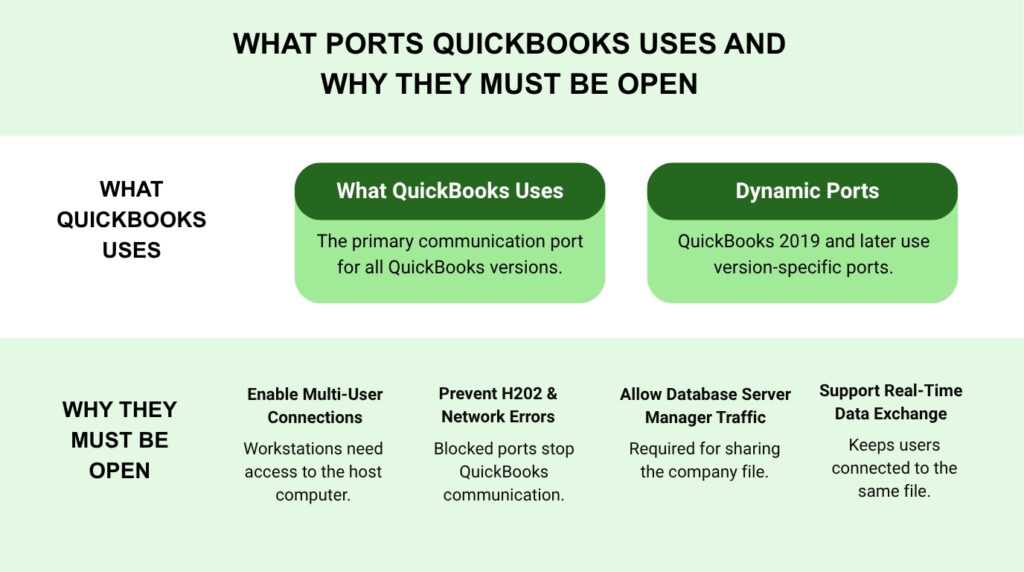
A port is a numbered channel through which a specific type of network data travels. QuickBooks Desktop uses port 8019 as its base communication port across all versions. Each version also uses a dynamically assigned port — a specific port number selected during installation and recorded in the QuickBooks Database Server Manager’s Port Monitor tab. Intuit documents that QuickBooks Desktop 2019 and all later versions use dynamic ports rather than fixed port ranges, because dynamic ports give each version exclusive use of a specific channel without conflicting with other QuickBooks versions installed on the same computer.
QuickBooks Desktop 2018 used fixed port ranges: 8019, 56728, and 55378 through 55382. QuickBooks Desktop 2017 used 8019, 56727, and 55373 through 55377. For QuickBooks Desktop 2019 and all later versions — including 2020, 2021, 2022, 2023, and 2024 — the dynamic port number is found in the QuickBooks Database Server Manager. Open the Windows Start menu, search for QuickBooks Database Server Manager, open it, go to the Port Monitor tab, and find the port number listed next to your QuickBooks version. That number is the dynamic port to add to the firewall exception.
How to Add Port Exceptions in Windows Firewall
Open the Windows Start menu, type Windows Firewall, and open Windows Defender Firewall. Select Advanced Settings. Right-click Inbound Rules and select New Rule. Select Port and click Next. Confirm TCP is selected. In the Specific local ports field, enter 8019 followed by a comma and the dynamic port number from the Database Server Manager Port Monitor tab — for example: 8019, 56729. Click Next, select Allow the Connection, click Next, confirm all three profile checkboxes are marked — Domain, Private, and Public — click Next, name the rule QBPorts2024 or the relevant year, and click Finish.
Repeat the same steps to create an Outbound Rule. Go back to Advanced Settings, right-click Outbound Rules, select New Rule, and follow the same process with the same port numbers. Intuit’s guide requires both inbound and outbound rules for QuickBooks ports — an inbound rule without a matching outbound rule still blocks QuickBooks from sending data back to workstations after receiving their requests. After adding both rules, open QuickBooks Desktop and switch to multi-user mode to test the connection.
Businesses running multiple versions of QuickBooks Desktop on the same server must repeat the port rule process for each version. Each version uses a different dynamic port, and the firewall requires a separate rule for each port. Open the Port Monitor tab in Database Server Manager and check each QuickBooks version listed — add the port from each version as a separate inbound and outbound rule named with the version year to keep the rules organized.
QuickBooks Port Reference by Version
| QuickBooks Version | Port Configuration | Where to Find the Port Number |
| QuickBooks 2024, 2023, 2022, 2021, 2020, 2019 | 8019 + dynamic port assigned during installation | QuickBooks Database Server Manager > Port Monitor tab |
| QuickBooks Desktop 2018 | 8019, 56728, 55378, 55379, 55380, 55381, 55382 | Fixed ports — no Port Monitor needed |
| QuickBooks Desktop 2017 | 8019, 56727, 55373, 55374, 55375, 55376, 55377 | Fixed ports — no Port Monitor needed |
| All versions — Intuit online services | 80 (standard web), 443 (secure web) | Required for payroll updates, tax tables, bank feeds |
4. Adding Firewall Exceptions for QuickBooks Program Files
Why QuickBooks Executable Files Need Their Own Firewall Rules
An executable file is a program file that runs on the computer — it ends in .exe and is what Windows launches when you open a program. QuickBooks Desktop uses fourteen executable files that communicate over the network during normal operation. Each file performs a specific job: QBW32.exe is the main QuickBooks program, QBDBMgrN.exe is the Database Manager that manages company file access, and QBCFMonitorService.exe monitors the live connections between the host and workstations. A firewall rule that allows a port but does not specifically allow these executable files can still block them from communicating if the firewall has program-level rules overriding the port rules.
Intuit’s official guide lists fourteen executable files that need firewall exceptions. Creating exceptions for these files means the firewall allows them to communicate on any port they use, not just the specific ports in the port rules. This provides a complete permission layer: the port rules allow traffic on the QuickBooks channels, and the program rules allow the QuickBooks files to use those channels without restriction.
How to Create Program Exceptions in Windows Firewall
Open the Windows Start menu, type Windows Firewall, and open Windows Defender Firewall. Select Advanced Settings. Right-click Inbound Rules and select New Rule. Select Program and click Next. Select This Program Path and click Browse. Navigate to the location of the first executable file — most files are in C:\Program Files\Intuit\QuickBooks [Year] — select the file and click Next. Select Allow the Connection, click Next, mark all three profiles, click Next, name the rule QBFirewallException followed by the file name — for example QBFirewallException_QBW32.exe — and click Finish. Repeat the outbound rule process for the same file.
Repeat this process for all fourteen executable files that Intuit documents as requiring firewall exceptions. The files and their locations are listed in the table below. Files stored in C:\Program Files\Intuit\QuickBooks Year belong to the main QuickBooks installation. Files stored in C:\Program Files\Common Files\Intuit\QuickBooks are shared components used across all QuickBooks versions on the computer. Creating rules for both sets is required — missing any file from this list can leave a partial block that produces intermittent errors.
QuickBooks Executable Files Requiring Firewall Exceptions
| Executable File Name | File Location |
| AutoBackupExe.exe | C:\Program Files\Intuit\QuickBooks [Year] |
| Dbmlsync.exe | C:\Program Files\Intuit\QuickBooks [Year] |
| DBManagerExe.exe | C:\Program Files\Intuit\QuickBooks [Year] |
| FileManagement.exe | C:\Program Files\Intuit\QuickBooks [Year] |
| FileMovementExe.exe | C:\Program Files\Intuit\QuickBooks [Year] |
| QuickBooksMessaging.exe | C:\Program Files\Intuit\QuickBooks [Year] |
| QBW32.exe | C:\Program Files\Intuit\QuickBooks [Year] |
| QBDBMgrN.exe | C:\Program Files\Intuit\QuickBooks [Year] |
| QBServerUtilityMgr.exe | C:\Program Files\Common Files\Intuit\QuickBooks |
| QBCFMonitorService.exe | C:\Program Files\Common Files\Intuit\QuickBooks |
| QBLaunch.exe | C:\Program Files\Common Files\Intuit\QuickBooks |
| QBUpdate.exe | C:\Program Files\Common Files\Intuit\QuickBooks\QBUpdate |
| IntuitSyncManager.exe | C:\Program Files\Common Files\Intuit\Sync |
| OnlineBackup.exe | C:\Program Files\QuickBooks Online Backup |
Note: On a 64-bit Windows operating system, the folder may appear as Program Files (x86) instead of Program Files. Intuit confirms this is expected — use whichever folder name appears on the computer.
5. Antivirus Configuration: Giving QuickBooks a Trusted Status
Why Antivirus Configuration Is Separate From the Firewall?
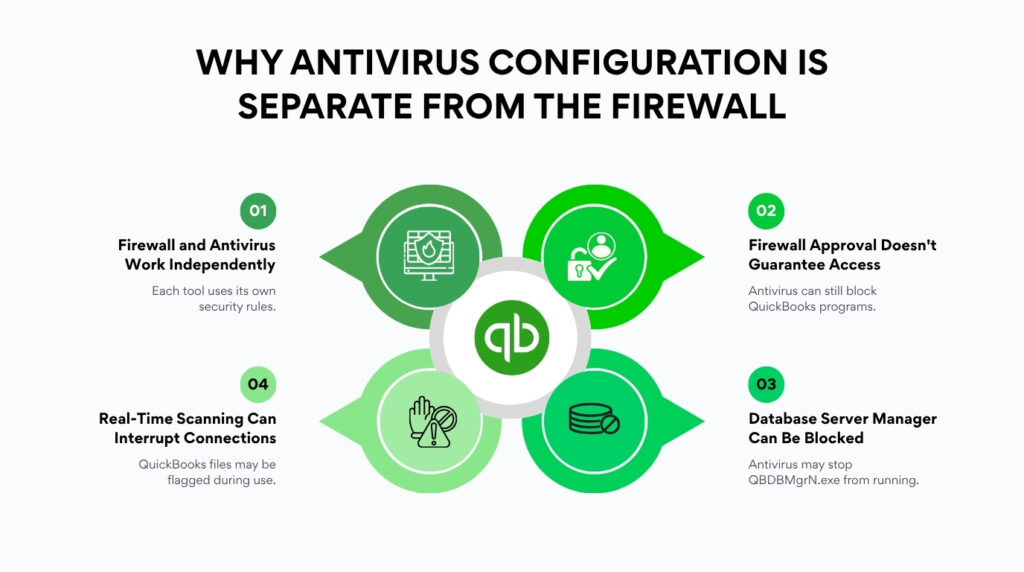
Configuring the Windows Firewall does not automatically configure the antivirus software installed on the computer. Windows Firewall and antivirus programs are two separate tools that make independent decisions about what to block. A business can have perfectly configured Windows Firewall port and program rules and still experience QuickBooks connection failures because the antivirus software is independently blocking the same executable files or scanning them in real time during multi-user operations.
Intuit’s firewall guide addresses antivirus separately from the Windows Firewall configuration. The guide states: if you configured your firewall but still have issues, check your antivirus settings. Make sure QuickBooks has general permissions so it’s not blocked. Intuit notes that steps vary from program to program and recommends looking up the specific instructions on the antivirus software’s own website, because each antivirus product has a different interface for setting permissions and exclusions.
What to Add to the Antivirus Exclusion List
Add the QuickBooks program folder to the antivirus exclusion list — the setting that tells the antivirus to skip a folder during real-time scanning. The main QuickBooks program folder is C:\Program Files\Intuit\QuickBooks [Year] — replace [Year] with the installed version year. Add C:\Program Files\Common Files\Intuit\QuickBooks as a second exclusion, because this folder contains the shared components that the Database Server Manager and connection monitor use. Also add the folder where the company file is stored — typically C:\Users\Public\Public Documents\Intuit\QuickBooks\Company Files — so the antivirus does not scan the company file during every write operation.
In addition to folder exclusions, add port exceptions for QuickBooks within the antivirus settings. Intuit’s guide specifies: add port exceptions for the executable files listed in the table — making sure TCP is selected and the port numbers are entered for the installed QuickBooks version. The port numbers to enter in the antivirus are the same port numbers used in the Windows Firewall rules: 8019, the dynamic port from the Database Server Manager Port Monitor tab, and ports 80 and 443 for Intuit online services.
After adding all exclusions and port exceptions in the antivirus settings, restart the computer. Intuit’s guide states that some programs require a restart for changes to save. Restarting ensures the antivirus reloads its configuration with the new exclusions active. After the restart, open QuickBooks on the host computer, switch to multi-user mode, then open QuickBooks on each workstation and test the connection to the company file.
6. Intuit Online Services Blocked: Payroll Updates and Bank Feeds
What Ports Intuit’s Online Services Use
QuickBooks Desktop connects to Intuit’s servers for several functions: downloading payroll tax table updates, verifying the software subscription, connecting to bank feeds, sending payroll data for direct deposit, and accessing Intuit’s update servers. All of these connections travel over port 80 — the standard port for web traffic — and port 443 — the port for secure, encrypted web traffic. A firewall that blocks outbound connections on ports 80 and 443 stops all of these functions simultaneously, producing errors that appear to be separate problems but share the same single cause.
These errors look different from H-series multi-user errors. A payroll tax table update that fails produces a payroll update error message. A bank feed that cannot connect produces a bank feed connection error. A subscription verification failure produces a subscription or license error. All three can appear at the same time if the firewall is blocking outbound traffic on ports 80 and 443. Adding those two ports to the outbound firewall rules — using the same steps described in Section 3 for adding port rules — restores all Intuit online service connections simultaneously.
Adding Intuit as a Trusted Site
Some firewall and security configurations block connections to websites that have not been explicitly marked as trusted. Intuit’s firewall configuration guide includes the step of adding Intuit as a trusted site to ensure QuickBooks can reach Intuit’s servers for updates and online services. Open the Windows Firewall or the installed security software, find the trusted sites or safe zone settings, and add intuit.com and quickbooks.intuit.com as trusted addresses. This step is separate from port rules and program rules — it addresses web-level filtering that some security products apply on top of the firewall.
7. After Configuration: Testing and Confirming the Fix
How to Confirm the Firewall Configuration Is Working
After configuring the Windows Firewall port rules, the program file exceptions, the antivirus exclusions, and restarting the computer, test the multi-user connection in a specific order. Open QuickBooks on the host computer first and switch to multi-user mode by going to File and selecting Switch to Multi-User Mode. Confirm the host switches successfully without any firewall error message. A successful switch on the host confirms the firewall rules are allowing QuickBooks services to operate on the host computer.
Open QuickBooks on each workstation and switch to multi-user mode. A workstation that connects successfully and opens the company file confirms that the port rules and program rules on the host computer are working correctly for that workstation’s connection. If a specific workstation still receives H202 or a connection error after all others connect successfully, the issue is specific to that workstation — check the antivirus settings on that workstation individually, because the antivirus may be blocking the outbound connection from the workstation’s side.
Run the QuickBooks Database Server Manager scan on the host computer after completing the firewall configuration. Open Database Server Manager, go to the Scan Folders tab, confirm the company file folder is listed, and click Start Scan. Intuit’s documentation confirms that the Database Server Manager scan repairs firewall permissions automatically. Running the scan after the manual firewall configuration confirms the scan acknowledges the new rules and applies any additional permissions the manual steps did not cover.
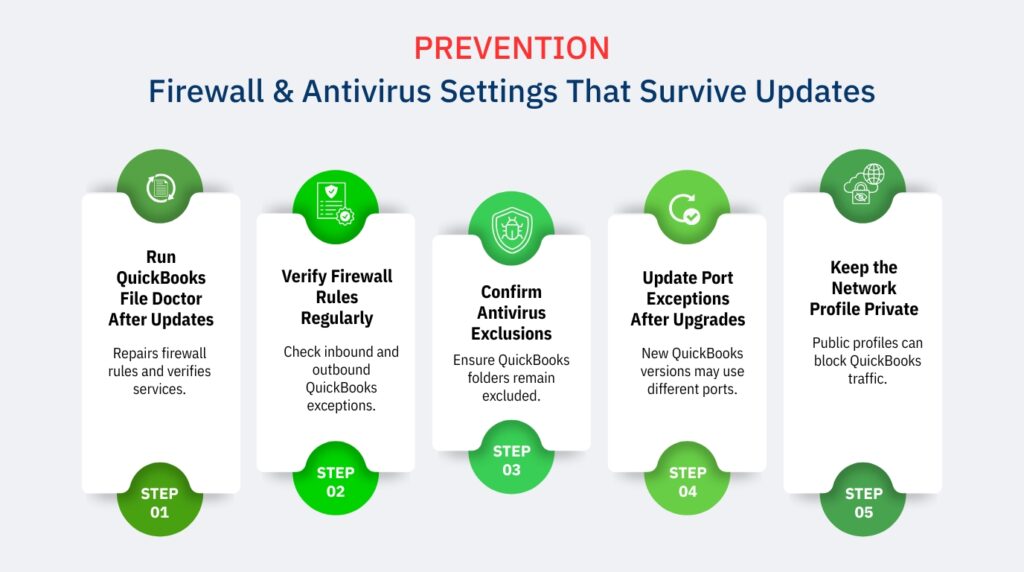
8. Prevention: Firewall and Antivirus Settings That Survive Updates
Windows updates and antivirus updates can reset firewall rules and remove exclusion settings. Firewall rules added manually can disappear after a major Windows update that reinstalls the firewall engine. Antivirus exclusions can be cleared when the antivirus software upgrades to a new version. The maintenance steps below protect the QuickBooks firewall configuration through those update events.
- Run QuickBooks File Doctor after every Windows update: Download Tool Hub from Intuit’s official website, open the Company File Issues tab, and run QuickBooks File Doctor after every major Windows update. The scan repairs firewall port rules that the update cleared and confirms the QuickBooks services are still running on the host computer.
- Check the Windows Firewall inbound and outbound rules after every Windows update: Open Windows Defender Firewall, go to Advanced Settings, and confirm the QuickBooks port rules and program exception rules are still present in both the Inbound Rules and Outbound Rules lists. A Windows update that resets the firewall removes these rules, and they must be re-added manually or by running the Database Server Manager scan.
- Verify antivirus exclusions remain in place after every antivirus update: Open the antivirus software after every automatic update and confirm the QuickBooks program folder, the Common Files Intuit folder, and the company file folder are still listed in the exclusion list. Some antivirus products clear exclusions during major version upgrades as a security measure, requiring them to be re-added.
- Record all firewall rule settings and antivirus exclusions in a reference document: Write down every port number added, every program file excepted, and every folder excluded from antivirus scanning. Store this document somewhere accessible to the person who manages the office computers. A written record makes it possible to re-apply all settings in minutes after an update wipes them, instead of rebuilding from memory.
- Add port exceptions in the antivirus for new QuickBooks versions when upgrading: Each QuickBooks version upgrade assigns a new dynamic port number through the Database Server Manager. After upgrading, open the Port Monitor tab in Database Server Manager to find the new port number, add it to the Windows Firewall inbound and outbound rules, and add it to the antivirus port exceptions. The old port number from the previous version’s rules does not apply to the new version.
- Confirm the network profile on the host computer is set to Private after any network change: Windows Firewall applies different rule sets for Private and Public network profiles. A host computer on a Public network profile applies stricter blocking rules that override the custom QuickBooks exceptions. Open Settings, go to Network and Internet, click the active connection, and confirm the Network Profile reads Private.
Conclusion
A firewall or antivirus block on QuickBooks is not a sign that QuickBooks is broken — it is a sign that the security software has not been told to trust QuickBooks. Intuit’s official fix process addresses this in a specific order: run QuickBooks File Doctor first to resolve the most common blocks automatically, then add port exceptions for the QuickBooks communication channels, then add program exceptions for each QuickBooks executable file, then configure the antivirus to exclude QuickBooks folders from real-time scanning. Each step addresses a separate layer of the security configuration, and all layers must be completed for multi-user access to work without interruption.
The fourteen QuickBooks executable files and the port numbers in this article come directly from Intuit’s official firewall configuration guide. Every rule added to the Windows Firewall and every exclusion added to the antivirus is based on what Intuit’s own documentation requires, not on general IT recommendations. Businesses that follow these specific steps eliminate the firewall and antivirus causes of H202, H505, and multi-user connection failures completely.
The most reliable long-term protection against firewall-related QuickBooks failures is a written record of every rule and exclusion, combined with a post-update check after every Windows update. Updates clear firewall rules. Antivirus upgrades clear exclusions. A 10-minute check after each event — opening the firewall to confirm the rules are present and opening the antivirus to confirm the exclusions are listed — prevents the same block from reappearing after every update cycle and keeps every workstation connected to the company file through normal business operations.
Frequently Asked Questions
Q1. QuickBooks File Doctor says the scan was unsuccessful but the multi-user errors are gone — is that normal?
Yes. Intuit’s official guide states explicitly: the scan may say it was unsuccessful even if it fixes the issue. QuickBooks File Doctor reports the scan status based on whether it found and attempted to repair problems, not on whether the repair was needed. A scan that found firewall issues, fixed them, and then re-checked them may still display unsuccessful if the re-check encountered a minor discrepancy. Test multi-user access from each workstation after the scan — a successful connection is the actual confirmation that the firewall issue is resolved.
Q2. Do I need to add firewall rules on the workstations as well, or only on the host computer?
Intuit’s firewall configuration guide focuses on the host computer because the host runs the QuickBooks Database Server Manager and the services that workstations connect to. However, each workstation also runs the QuickBooks program and makes outbound connection requests that the workstation’s own firewall can block. If a specific workstation continues to get H202 after the host is fully configured, add the same port exceptions and program file exceptions to the Windows Firewall on that workstation. Also check the antivirus on the workstation — it may be blocking QuickBooks from making outbound connections on the required ports.
Q3. How do I find the dynamic port number for my QuickBooks version?
Open the Windows Start menu on the host computer, search for QuickBooks Database Server Manager, and open it. Go to the Port Monitor tab. Find the QuickBooks version installed on that computer in the list. The Port Number column next to the version name shows the dynamic port assigned to that version during installation. Use that number — along with port 8019 — when creating the firewall inbound and outbound rules. Intuit notes that the port number can be renewed by clicking Renew in the Port Monitor tab, after which a new scan is required to reset the firewall permissions.
Q4. The antivirus software on the office computer does not have a folder exclusion setting — what can be done?
If the antivirus does not have a folder exclusion option, use the program-level exclusion or whitelist feature instead. Most antivirus programs have a trusted programs list, a safe list, or a whitelist where specific program files can be added to prevent them from being scanned. Add QBW32.exe, QBDBMgrN.exe, and QBCFMonitorService.exe from the QuickBooks program folder to that list. Intuit’s guide confirms that steps vary from program to program and recommends checking the antivirus software’s own official website for the specific steps that apply to that product.
Q5. Payroll updates fail with a connection error even though QuickBooks multi-user mode works fine — what is blocking it?
Payroll updates and all Intuit online services use ports 80 and 443 — the standard ports for web traffic. A firewall that has QuickBooks multi-user ports open but blocks outbound web traffic on ports 80 and 443 allows workstation connections while blocking payroll downloads. Open Windows Defender Firewall, go to Advanced Settings, and add an outbound rule for port 443 with TCP selected, allowing the connection on all profiles. Also confirm that intuit.com is not blocked in any web filtering or proxy settings on the network. Intuit’s firewall guide identifies ports 80 and 443 as required for all web-based QuickBooks services including payroll tax table updates.

Anusmita is a seasoned content writer who brings perspective to words. As a writer, she enriches her work with a journalistic aptitude, utilising her training in Mass Communication and Journalism. She loves to travel and explore, which imparts a greater sense of understanding, maturity, and experience that are reflected in her content.
Beyond her professional work, Anusmita enjoys painting, singing, dancing, and spending time planting. She is also a self-proclaimed foodie who loves exploring different cuisines, an interest that further adds to her curiosity and perspective as a writer.
Leave a Reply