
Hosting a QuickBooks Desktop company file on a server means storing the company file — the .QBW file containing all accounting data — on one central computer and letting every other computer in the office open and work in that file at the same time. A correctly hosted company file gives multiple team members simultaneous access to the same data. An incorrectly hosted company file produces errors, data corruption, and complete loss of multi-user access.
The errors that result from a poorly configured server host are among the most disruptive in QuickBooks Desktop. H-series errors block every workstation from opening the file. The 6189 and 6190 errors appear every morning and require a restart to clear. The 6000-series errors lock users out mid-session. These are not random software failures — they trace back to a small set of setup mistakes that Intuit documents clearly and that every business can avoid by understanding what goes wrong and why.
This article covers every major pitfall that businesses fall into when hosting a QuickBooks company file on a server — what each mistake is, what error it causes, why it breaks the hosting setup, and the exact corrective action that restores reliable access. All information in this article is based on Intuit’s official guidance on setting up and maintaining a multi-user QuickBooks Desktop network.
Table of Contents
Common Pitfalls at a Glance
Match your current error or situation to the pitfall that is causing it:
| What You Are Doing or Seeing | The Pitfall It Points To | Go to Section |
| Company file stored on a NAS device, USB drive, or Dropbox | Wrong storage location for a hosted file | Section 2: Wrong File Location |
| Express install used on the server computer | Wrong installation type selected during setup | Section 3: Wrong Install Type |
| H505, H101, or H303 errors on workstations | Multiple computers set to host simultaneously | Section 4: Multiple Hosts Conflict |
| H202 errors despite correct hosting and firewall settings | Database Server Manager not installed or not scanned | Section 5: Database Server Manager Not Configured |
| Multi-user stops working after QuickBooks upgrade | Version mismatch between server and workstations | Section 6: Version Mismatch After Upgrade |
| Login errors despite correct password; folder not accessible | Folder permissions missing the service account | Section 7: Folder Permissions Not Updated |
| Company file encrypted or stored in cloud sync folder | Encryption or cloud sync actively blocking QuickBooks | Section 8: Encryption and Cloud Storage Conflicts |
Tip: Each pitfall produces a specific and predictable error. Identify the error code or symptom first, then go directly to the section that covers it.
1. How Server Hosting Works and Why the Setup Must Be Exact
What the Server Does in a QuickBooks Multi-User Network
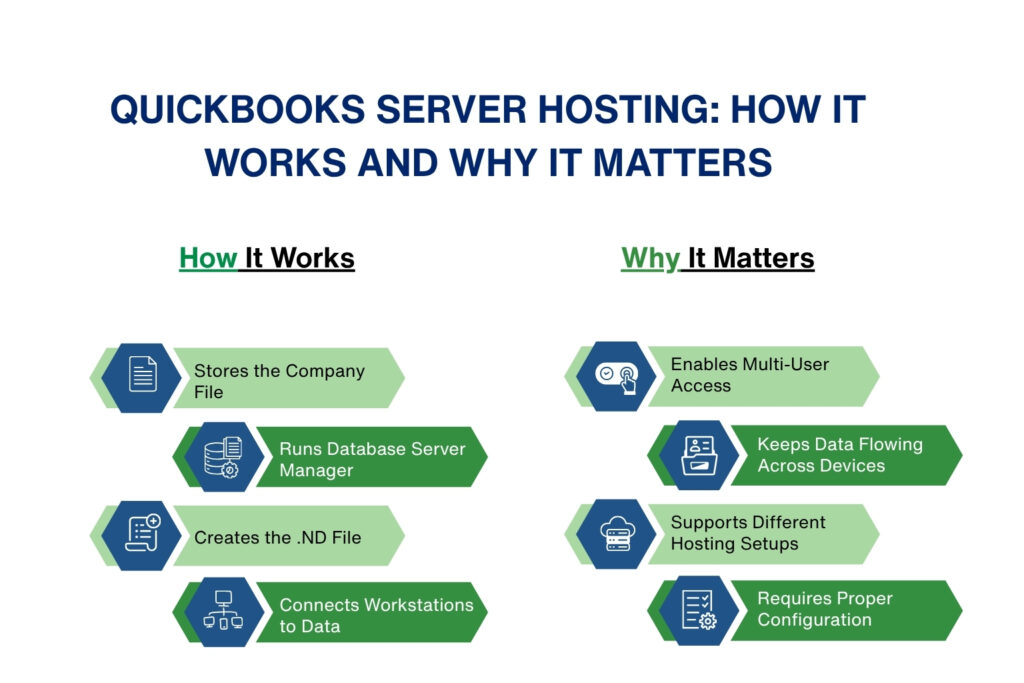
The server computer in a QuickBooks multi-user network is the computer that physically stores the company file on its local hard drive and runs the QuickBooks Database Server Manager — a background application that manages who can access the file, handles all the data moving between the file and each workstation, and creates the .ND file that records the company file’s network location. Every workstation on the network connects to the server to open the company file. The server does not need to be an expensive rack-mounted machine — any compatible Windows computer that meets Intuit’s hardware requirements can serve as the host.
Intuit documents three valid ways to set up QuickBooks Desktop for multi-user access: a client-server network where a central server hosts the company files and QuickBooks is installed on each workstation separately; a peer-to-peer network where one workstation hosts the company file while also being used for accounting work; and remote hosting through a terminal server or Intuit’s hosted service powered by Rightworks. All three setups require the Database Server Manager to be installed and running on the computer storing the company file, and all three require the company file to be on that computer’s local hard drive.
The pitfalls covered in this article all occur because one or more elements of the required setup were skipped, incorrectly configured, or changed after the initial setup. A server that was working correctly last month can start producing errors today if a Windows update changed folder permissions, if someone installed a new version of QuickBooks on the server without updating the workstations, or if someone moved the company file to a more convenient location without running a Database Server Manager scan.
2. Wrong File Location: NAS Devices, External Drives, and Cloud Storage
What Intuit Documents About Company File Storage
Intuit’s official documentation on fixing errors 6189 and 6190 is direct: store QuickBooks files, including the company file, on the server computer’s hard drive. The same document explicitly states: do not store files on removable or external drives. External hard drives, USB flash drives, and Network Attached Storage (NAS) devices are not designed to run QuickBooks or multi-user networks. This is not a performance suggestion — it is a requirement. A company file stored on any of these devices produces unreliable multi-user access and ongoing errors.
A Network Attached Storage device — called a NAS — is a storage box that connects to the office network through a router and makes its storage visible to all computers on the network. A NAS appears to be a convenient place to store the company file because everyone on the network can see it. The problem is that the QuickBooks Database Server Manager must run on the same computer that hosts the company file, and the Database Server Manager cannot run on a NAS device — it can only run on a Windows computer. A company file on a NAS has no Database Server Manager managing its network access, which means multi-user access cannot work reliably.
Intuit’s community documentation confirms that NAS is no longer supported for hosting multi-user company files in QuickBooks Desktop Enterprise 2019 and later versions. A file hosted on a NAS produces H505 errors and other connection failures because the software required to manage multi-user access simply cannot be installed on the storage device. The fix is to move the company file to the local hard drive of a Windows computer that has the Database Server Manager installed and running.
Cloud Sync Services Create the Same Problem
Cloud sync services — including Dropbox, Google Drive, and Box.net — copy files between a local folder on the computer and a cloud storage server over the internet. Intuit’s documentation specifically names these services and warns that storing QuickBooks files in a cloud sync folder can cause issues. The problem is that cloud sync software monitors files for changes and copies them to the cloud in the background. A cloud sync copying the company file while QuickBooks is writing a transaction to it interrupts the write operation and leaves the transaction in an incomplete state — producing data corruption that requires the Verify and Rebuild Data utility to repair.
Moving the company file out of a Dropbox, Google Drive, or similar sync folder and into a standard local folder on the server computer’s hard drive resolves this class of problems immediately. After moving the file, open QuickBooks Database Server Manager on the server, add the new folder to the Scan Folders list, and run a scan. The scan rebuilds the .ND file pointing to the new location and confirms the file is accessible over the network before any workstation opens it.
Company File Storage: Allowed vs. Not Allowed
| Storage Location | Supported by Intuit | What Happens If Used |
| Local hard drive (SSD or HDD) on server computer | Yes — required | Reliable multi-user access; Database Server Manager works correctly |
| External USB hard drive connected to server | No | Unreliable access; file corruption risk from USB disconnection |
| USB flash drive | No | Connection drops corrupt .TLG file; 6000-series errors appear |
| NAS (Network Attached Storage) device | No — not supported in Enterprise 2019+ | Database Server Manager cannot run on NAS; H505 errors follow |
| Dropbox, Google Drive, Box.net sync folder | No | Cloud sync interrupts file writes; data corruption results |
| Mapped network drive on another computer’s local folder | Supported with correct setup | Requires specific mapping steps; Database Server Manager must run on the source computer |
3. Wrong Installation Type: Express Install on the Server
Why the Installation Type Determines Whether Hosting Works
QuickBooks Desktop presents two installation options during setup: Express install and Custom and Network install. Express install is designed for a single user on a standalone computer — it installs the QuickBooks program and sets it up for one-person use with no network sharing configured. Custom and Network install is designed for multi-user networks — it installs QuickBooks with the option to also install the Database Server Manager, configure hosting, and share the company file over the network. Choosing Express install on the server computer means the server never gets the Database Server Manager it needs to share the company file.
Intuit’s installation documentation provides two specific options during the Custom and Network install. The first option — I’ll be using QuickBooks Desktop on this computer, AND I’ll be storing the company file here so other computers on my network can access it — installs the full QuickBooks program and the Database Server Manager on the server, allowing the server to be used for accounting work while also hosting the file. The second option — I will NOT be using QuickBooks Desktop on this computer, I’ll be using it to store company files that will be accessed from other computers — installs only the Database Server Manager on a dedicated server where no one does accounting work directly.
A server set up with the Express install must be reinstalled with the Custom and Network install to fix the missing Database Server Manager. Intuit recommends uninstalling the Express install version using Windows Control Panel, then downloading and installing QuickBooks Desktop again using the Custom and Network option. The company file itself does not need to be replaced during this process — it remains on the server’s local drive and becomes accessible after the reinstallation and a Database Server Manager scan.
4. Multiple Computers Set to Host: The Conflict That Blocks All Workstations
What Happens When More Than One Computer Is Set to Host
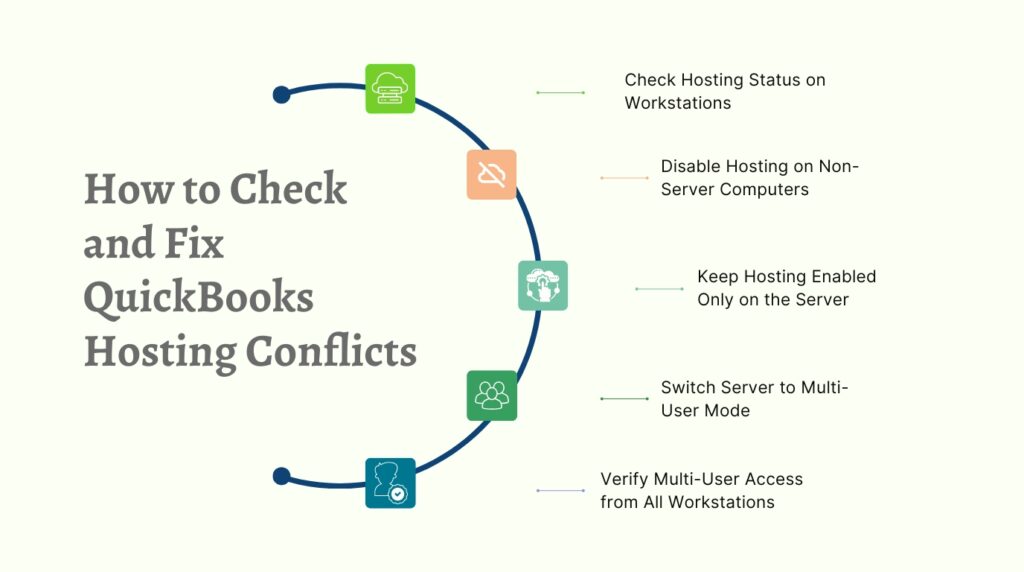
Every computer that runs QuickBooks Desktop has a hosting setting that controls whether it acts as the host for company files. The hosting setting has two states: Host Multi-User Access means hosting is currently off on that computer — it is a workstation. Stop Hosting Multi-User Access means hosting is currently on — it is a host. Only the server computer that physically stores the company file should have hosting on. Intuit’s documentation is clear: the server computer should be the only computer set to host multi-user mode, and the Host Multi-User Access option should be turned off on all workstations.
A workstation that has hosting incorrectly turned on creates a conflict — it tries to act as a second host for the company file at the same time as the actual server. QuickBooks detects this conflict and reports it as error H505, H101, or H303 on the affected workstations. These errors appear specifically and exclusively when one or more workstations are incorrectly set as hosts. A business that sets up hosting on workstations during initial configuration — often because someone clicked Host Multi-User Access without understanding what it does — produces H-series errors for every user until the extra hosting is turned off.
How to Check and Fix the Hosting Conflict
Open QuickBooks on each workstation — do not open the company file, just open the QuickBooks program. Go to the File menu and hover over Utilities. Read the option that appears in the submenu. The option should read Host Multi-User Access, which means hosting is currently off on that workstation. If the option reads Stop Hosting Multi-User Access, click it to turn hosting off. Intuit’s fix for H505, H101, and H303 errors begins with this exact step on every workstation showing the error.
After turning off hosting on all workstations, open QuickBooks on the server computer and confirm its Utilities submenu reads Stop Hosting Multi-User Access — confirming hosting is correctly on only for the server. Go to File, select Switch to Multi-User Mode, and confirm QuickBooks switches successfully. Then open QuickBooks on each workstation, go to File, and select Switch to Multi-User Mode. A successful switch from every workstation confirms the hosting conflict is resolved and the server is the sole host.
5. Database Server Manager Not Installed, Not Scanned, or Not Running
What Database Server Manager Does and What Breaks Without It
The QuickBooks Database Server Manager is a background application that runs on the server computer and manages everything about how the company file is shared across the network. It creates the .ND file — the Network Descriptor file — that workstations read to find out where the company file is located. It also configures the Windows Firewall to allow QuickBooks traffic through the correct ports. Without the Database Server Manager installed and running on the server, no workstation can open the company file in multi-user mode, regardless of how correctly everything else is configured.
Intuit’s documentation on fixing error H202 includes the instruction: if you have not already, install QuickBooks Database Server Manager on your server for each version of QuickBooks you use. A server that has QuickBooks installed but not the Database Server Manager — which happens when the Express install was used — has no tool managing multi-user access. The .ND file is not created, the firewall ports are not configured, and workstations that try to open the company file receive H202 errors because the server has no mechanism to respond to their connection requests.
How to Install and Configure Database Server Manager Correctly
Download QuickBooks Desktop using the Custom and Network install and select the Database Server Manager installation option during setup. After installation, open the Windows Start menu, search for QuickBooks Database Server Manager, and open it on the server computer. In the Scan Folders tab, confirm the folder containing the company file is listed. Click Start Scan. Intuit’s documentation confirms that the scan repairs firewall permissions automatically and creates the .ND file for each company file in the scanned folder. The scan takes less than two minutes and is the step that activates multi-user access.
Confirm that the two background services the Database Server Manager depends on are running after the scan. Open services.msc from the Windows Start menu on the server computer. Find QuickBooksDBXX in the list — where XX is a version number matching the QuickBooks year, for example QuickBooks 2024 uses QuickBooksDB34. Confirm the service shows a Running status. Find QBCFMonitorService and confirm it is also Running. Set both services to Automatic startup and configure the Recovery tab to restart the service automatically on any failure. Both services must be running at all times for workstations to access the company file.
Database Server Manager Setup Checklist
| Setup Step | What It Achieves | What Breaks If Skipped |
| Install with Custom and Network option | Installs Database Server Manager on the server | No tool to manage multi-user access; H202 on all workstations |
| Add company file folder to Scan Folders tab | Tells Database Server Manager where the file lives | No .ND file created; workstations cannot find the company file |
| Run Start Scan | Creates .ND file and opens firewall ports automatically | Workstations get connection errors despite correct network setup |
| Set QuickBooksDBXX to Automatic in services.msc | Service restarts automatically after reboots and updates | Service stays stopped after server restart; all users locked out |
| Set QBCFMonitorService to Automatic | Connection monitor restarts automatically after failures | Workstations lose connections mid-session without warning |
6. Version Mismatch After a QuickBooks Upgrade
Why All Computers Must Run the Same QuickBooks Version
Every version of QuickBooks Desktop uses a specific version of the company file format and a specific version of the Database Server Manager. QuickBooks 2024 uses a different file format than QuickBooks 2023. A workstation running QuickBooks 2023 cannot open a company file that was upgraded to the QuickBooks 2024 format, and a workstation running QuickBooks 2024 cannot connect to a server running the QuickBooks 2023 Database Server Manager. The version must match across every computer on the network — the server and every workstation must run the exact same year of QuickBooks Desktop.
The most common version mismatch happens immediately after an upgrade. A business upgrades QuickBooks on the server computer first — which converts the company file to the new version’s format — but forgets to upgrade one or more workstations before those workstations try to connect. The workstations running the old version cannot read the upgraded file format and cannot communicate with the new Database Server Manager. They receive connection errors that look like network problems but are actually version incompatibility problems.
The Correct Upgrade Sequence
Upgrade the server computer first. Install the new QuickBooks version on the server using the Custom and Network install. Open the company file on the server and allow QuickBooks to update the file to the new format — this is a one-time conversion that cannot be undone, so create a backup of the company file before starting. After the server opens the file successfully in the new version, immediately upgrade QuickBooks on every workstation before any workstation tries to open the file.
After upgrading all computers, run a Database Server Manager scan on the server. Each new QuickBooks version installs a new version of the Database Server Manager — QuickBooks 2024 installs QuickBooksDB34 while QuickBooks 2023 installed QuickBooksDB33. The new Database Server Manager must scan the company file folder to create a fresh .ND file with the updated service information. Without this scan, workstations may connect to the old Database Server Manager version and receive errors even after being upgraded to the matching QuickBooks version.
7. Folder Permissions Not Updated After Upgrade or Setup
Why Folder Permissions Break After a Version Upgrade
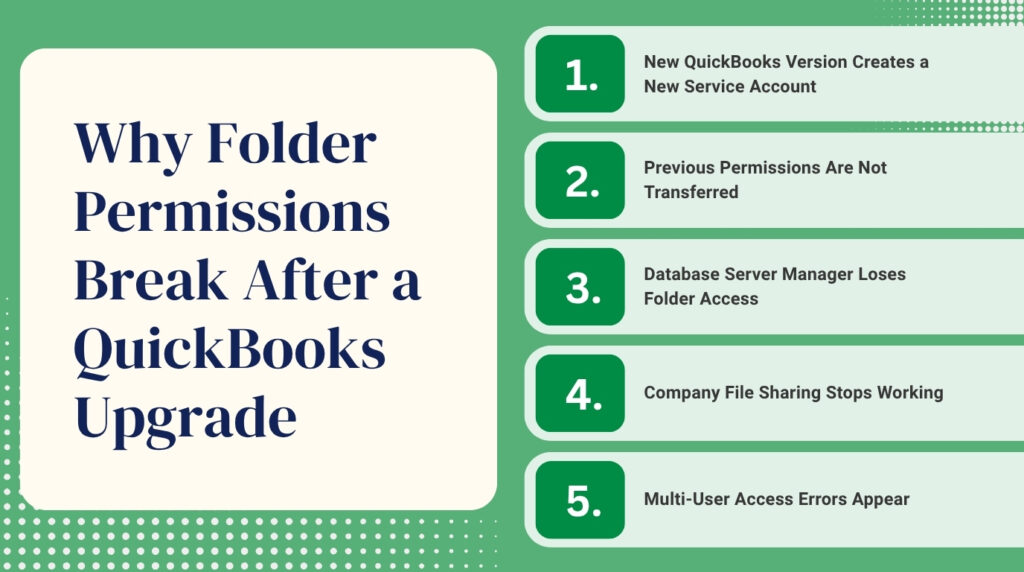
The Database Server Manager runs under a Windows service account named QBDataServiceUserXX — where XX is a number linked to the QuickBooks version year. QuickBooks 2024 uses QBDataServiceUser34, QuickBooks 2023 uses QBDataServiceUser33, and QuickBooks 2022 uses QBDataServiceUser32. This service account needs Full Control permission over the folder containing the company file so it can read the file, write updates to it, create the .ND file, and share the folder over the network. Without Full Control, the Database Server Manager cannot perform any of these tasks and multi-user access fails.
A version upgrade creates a brand-new QBDataServiceUserXX account for the new version. The new account does not automatically inherit the folder permissions that the previous version’s account had. This is the most frequently overlooked step after a QuickBooks upgrade — the new service account exists on the server but has no permission to access the company file folder, so the Database Server Manager for the new version cannot share the file, and every workstation login attempt fails with a folder access error.
How to Set Folder Permissions After an Upgrade
Open Windows File Explorer on the server computer and navigate to the folder containing the company file. Right-click the folder and select Properties. Go to the Security tab and click Edit. Click Add, type the name of the new service account — for example QBDataServiceUser34 for QuickBooks 2024 — and click OK. Select the account in the list, check Full Control under Allow, and click Apply, then OK. Go to the Sharing tab and click Share. Add the same QBDataServiceUser34 account and set the permission level to Read/Write. Click Share to save.
Also check the permissions for the QuickBooks program data folder. Intuit’s setup documentation requires Full Control permissions for the QBDataServiceUserXX account on the C:\ProgramData\Intuit folder — the folder where QuickBooks stores shared configuration files. Open Windows File Explorer, navigate to C:\ProgramData\Intuit, right-click it, go to Properties, Security tab, and confirm the new service account has Full Control there as well. After setting all permissions, run a Database Server Manager scan to confirm the folder is now accessible and the .ND file is created correctly.
8. Encryption and Company File Naming Problems
How Drive Encryption Breaks QuickBooks Hosting
Intuit’s documentation on fixing errors 6189 and 6190 includes a direct warning: do not encrypt the QuickBooks files or the hard drive storing them. Drive encryption software — such as BitLocker, which is a Windows feature that scrambles the contents of a hard drive so only authorized users can read it — can block the QuickBooks Database Server Manager service account from reading the company file. The service account QBDataServiceUserXX runs as a system process, and some encryption implementations do not grant system processes access to encrypted drives by default. The Database Server Manager then fails to scan the folder, cannot create the .ND file, and multi-user access stops completely.
If the server computer uses BitLocker or any other drive encryption, confirm that the QBDataServiceUserXX service account is explicitly granted access to the encrypted drive before running the Database Server Manager scan. Open the BitLocker management tool, find the encrypted drive containing the company file, and add the service account as an authorized user. Alternatively, move the company file to an unencrypted drive partition on the same server — a partition that does not use BitLocker — and run the Database Server Manager scan against the unencrypted location.
Company File Naming Pitfalls
The name of the company file and every folder in the path to it must not contain special characters that the QuickBooks database engine cannot process. Characters such as apostrophes, ampersands, percent signs, pound signs, and other non-standard symbols in the file name or folder name cause the database engine to fail when trying to open or share the file. QuickBooks automatically creates the company file name from the company name entered during setup, which can produce file names with special characters if the company name includes them.
The full path to the company file — the complete address from the drive letter through every folder name to the file name itself — must also be 210 characters or fewer. Intuit’s documentation on 6000-series errors identifies a path longer than 210 characters as a direct cause of company file open failures. Store the company file in a short folder path on the server’s C: drive — a path like C:\QBData\CompanyName.QBW keeps the path short, avoids special character risks, and reduces the chance of hitting the 210-character limit as folder names accumulate.
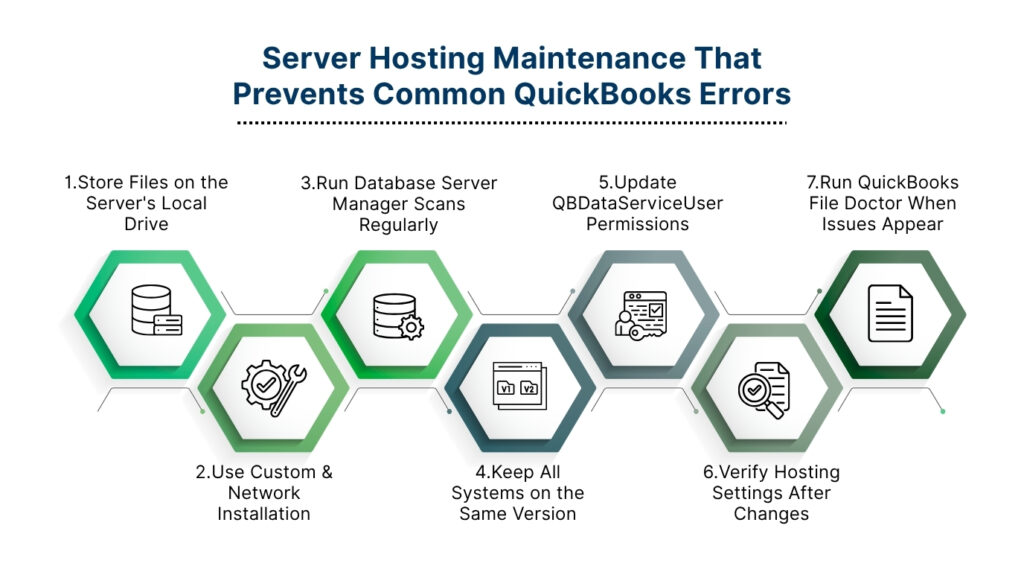
9. Prevention: Server Hosting Maintenance That Prevents Every Pitfall
Every pitfall in this article is preventable. The conditions that cause them follow predictable events: a version upgrade, a Windows update, a staff change, a hardware addition, or a convenience decision about where to store a file. The maintenance steps below address each of those triggers before they produce a server hosting failure.
- Always store the company file on the server computer’s local hard drive — never on a NAS, USB drive, or cloud sync folder: Intuit specifically excludes NAS devices, external drives, USB flash drives, and cloud sync services like Dropbox and Google Drive from supported company file storage locations. Moving the file to a local drive removes the most common source of persistent multi-user errors.
- Use the Custom and Network install on the server computer, not Express install: Express install does not install the Database Server Manager. The Custom and Network install is the only option that provides the full tool set needed for multi-user hosting. Reinstall using Custom and Network if Express was used previously.
- Run a Database Server Manager scan after every QuickBooks version upgrade and every Windows update: A scan after each of these events rebuilds the .ND file with current information, restores firewall port rules that the update may have cleared, and confirms the new service account can access the company file folder.
- Upgrade the server and all workstations to the same QuickBooks version at the same time: Upgrade the server first, convert the company file, then immediately upgrade every workstation before any workstation opens QuickBooks. A version mismatch between the server and any workstation produces connection errors that cannot be resolved until all computers run the same version.
- Update folder permissions for the new QBDataServiceUserXX account after every version upgrade: Each new QuickBooks version creates a new service account that does not inherit permissions from the previous version. Grant the new account Full Control on the Security tab and Read/Write on the Sharing tab of the company file folder immediately after the upgrade.
- Confirm only the server computer has hosting turned on after any change to the network: Open QuickBooks on every workstation after adding a new computer, reinstalling QuickBooks, or upgrading any computer on the network. Confirm each workstation’s Utilities menu shows Host Multi-User Access — not Stop Hosting Multi-User Access. Fix any workstation that shows hosting as active.
- Run QuickBooks File Doctor from Tool Hub immediately when any hosting error appears: Download QuickBooks Tool Hub from Intuit’s official website, open the Network Issues tab, and run QuickBooks File Doctor. The tool diagnoses hosting conflicts, .ND file problems, firewall port issues, and service account permission gaps — and repairs each one it finds automatically without manual steps.
Conclusion
Hosting a QuickBooks Desktop company file on a server is a reliable setup when the rules Intuit has documented are followed precisely. The company file belongs on the server computer’s local hard drive — not on a NAS, a USB drive, or a cloud sync folder. The server computer needs the Custom and Network install, not the Express install. Only one computer should have hosting turned on. The Database Server Manager must be installed, scanned, and set to run automatically. All computers on the network must run the same QuickBooks version, and folder permissions must be updated for the new service account after every upgrade.
Every error this article covers — H202, H505, H101, H303, 6189, 6190, and the folder access errors — can be traced back to one of these rules being missed. None of the fixes require advanced technical skills. Intuit’s QuickBooks Tool Hub, available free from Intuit’s official website, resolves the most common hosting problems automatically through its QuickBooks File Doctor tool. For problems the tool does not fix automatically, the step-by-step instructions in each section of this article identify the specific cause and walk through the corrective action directly.
The fastest path to a stable server hosting setup is to work through the prevention checklist after every change to the network — an upgrade, a new workstation, a Windows update, or a move of the company file. Each event on that list has the potential to break one specific element of the hosting setup. Checking that element immediately after the event, before the workday starts and before users try to connect, prevents the error from surfacing during payroll runs, month-end closes, and other high-pressure accounting periods.
Frequently Asked Questions
Q1. Can a Mac computer act as the QuickBooks Desktop server for a network of Windows workstations?
No. The QuickBooks Database Server Manager — the application that manages multi-user access to the company file — is a Windows-only application. The server computer hosting a QuickBooks Desktop company file must run a compatible version of Windows. Intuit’s installation documentation confirms that QuickBooks Desktop requires a 64-bit Windows operating system on the host computer. A Mac cannot run the Database Server Manager and therefore cannot host a QuickBooks Desktop company file for a multi-user Windows network.
Q2. The server computer was upgraded to Windows 11 and now workstations cannot connect — what changed?
A Windows 11 upgrade resets several settings that QuickBooks hosting depends on. The network profile may have been reset from Private to Public, which disables file sharing. The QuickBooksDBXX and QBCFMonitorService services may have had their startup type changed from Automatic to Manual. The Windows Firewall may have had its QuickBooks port rules cleared during the upgrade. Check all three: go to Network Settings and confirm the profile is Private, open services.msc and confirm both services are set to Automatic and Running, and run QuickBooks File Doctor from Tool Hub to restore the firewall port rules.
Q3. How many company files can one server host simultaneously?
A single server can host multiple company files at the same time. Intuit’s documentation includes examples of businesses hosting 12 or more company files on a single server with multiple users switching between files throughout the day. Each company file needs its folder added to the Database Server Manager’s Scan Folders list, and the scan must be run each time a new file is added. The server’s RAM and processing capacity determine the practical limit — Intuit’s RAM formula (file size in GB multiplied by number of simultaneous users) applies to the combined load of all open company files.
Q4. A company file was working fine on a NAS for years — why does Intuit say it is unsupported?
A company file on a NAS can appear to work in single-user mode or with very light multi-user use because the data volume is low enough that the limitations do not surface. As file size grows, as more users connect simultaneously, or after a QuickBooks version upgrade, the NAS setup begins producing errors because the Database Server Manager — which cannot run on the NAS — is not present to manage the increased load. Intuit documents that NAS is not supported for QuickBooks Desktop Enterprise 2019 and later. Moving to a Windows computer with the Database Server Manager installed resolves all NAS-related hosting errors.
Q5. After running the Database Server Manager scan, workstations still get H202 — what is the next step?
A Database Server Manager scan that completes without clearing H202 points to one of three remaining causes: a firewall blocking QuickBooks traffic on the ports it needs, a workstation with hosting incorrectly turned on, or a version mismatch between the server and the affected workstations. Check the workstation first by going to File, Utilities, and confirming the option reads Host Multi-User Access. Then ping the server by name from the workstation using the Command Prompt to confirm the workstation can find the server. If the ping by name fails, a DNS resolution issue is preventing the connection — add the server’s IP address and name to the workstation’s hosts file as documented in the network setup guide.

Anusmita is a seasoned content writer who brings perspective to words. As a writer, she enriches her work with a journalistic aptitude, utilising her training in Mass Communication and Journalism. She loves to travel and explore, which imparts a greater sense of understanding, maturity, and experience that are reflected in her content.
Beyond her professional work, Anusmita enjoys painting, singing, dancing, and spending time planting. She is also a self-proclaimed foodie who loves exploring different cuisines, an interest that further adds to her curiosity and perspective as a writer.
Leave a Reply