
Fix an unexpected error in QuickBooks Desktop by testing the company file with Ctrl-open, running the QuickBooks Tool Hub’s Quick Fix my File and Quick Fix my Program tools, then using Verify Data and Rebuild Data to repair the company file safely.
An unexpected error in QuickBooks Desktop can prevent you from opening your company file, interrupt accounting tasks, or cause the program to close unexpectedly.
An unexpected error may result from a damaged company file, corrupted QuickBooks program files, Windows component issues, network configuration problems, or incorrect folder permissions. Since the same error can have different causes, identifying the source is the first step toward resolving it.
This guide provides a structured troubleshooting process recommended for QuickBooks Desktop users. Each solution builds on the previous one, starting with simple checks before moving to advanced repair tools such as QuickBooks Tool Hub, QuickBooks File Doctor, Verify and Rebuild Data, and Windows Repair.
Table of Contents
How to Fix an Unexpected Error in QuickBooks Desktop?
An unexpected error in QuickBooks Desktop can occur for several reasons, including a damaged company file, corrupted program files, Windows permission issues, or problems with Microsoft components that QuickBooks relies on.
Since the exact cause of an unexpected error is not always obvious, follow the troubleshooting steps below in the order provided. After completing each step, open QuickBooks Desktop and check whether the error has been resolved. If QuickBooks works normally, you can stop troubleshooting and continue using the program.
Step 1: Restart Your Computer and QuickBooks Desktop
Temporary Windows processes or QuickBooks background services can sometimes interfere with the program and trigger unexpected errors. Restarting your computer clears these temporary issues and should always be your first troubleshooting step.
Follow these steps
- Save any work that is open in other applications. Close QuickBooks Desktop completely.
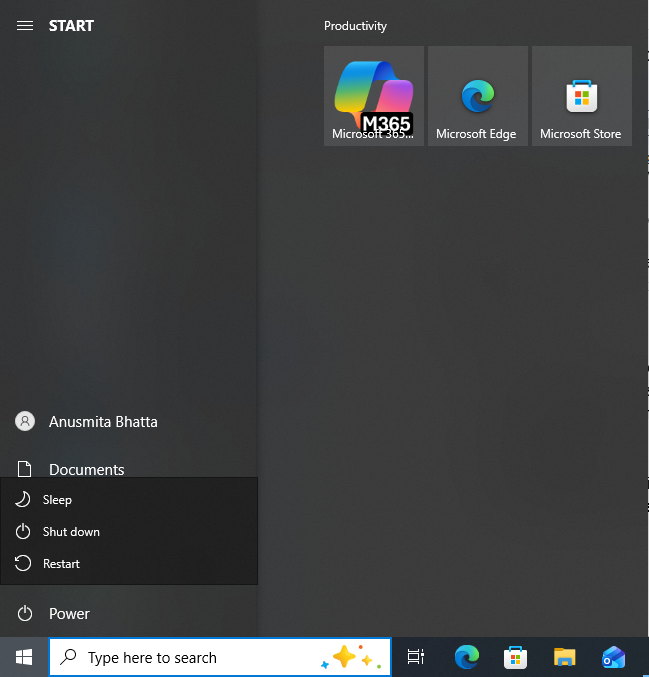
- Select the Start button on the Windows taskbar.
- Select the Power icon. Select Restart. Wait for Windows to restart completely.
- Open QuickBooks Desktop from your Desktop shortcut or by searching for it in the Windows Start menu.
- Try opening your company file or performing the task that previously displayed the unexpected error.
Check the result
- The unexpected error no longer appears → The problem was caused by a temporary Windows or QuickBooks process. No further troubleshooting is required.
- The error still appears → Continue to Step 2.
Step 2: Open QuickBooks Without Opening the Company File
Use this step when QuickBooks displays an unexpected error immediately after opening or when your company file fails to load. Opening QuickBooks without loading the company file helps determine whether the problem is with the QuickBooks program or with the company file itself.
Follow these steps
- Close QuickBooks Desktop if it is already open. Locate the QuickBooks Desktop shortcut on your Desktop.
- If you do not have a Desktop shortcut, select the Start button and type QuickBooks Desktop into the Windows search box.
- Press and hold the Ctrl key on your keyboard. While holding the Ctrl key, double-click the QuickBooks Desktop icon.
- Continue holding the Ctrl key until the No Company Open window appears.
- Release the Ctrl key only after the window opens.
Tip: If QuickBooks automatically opens your company file before the No Company Open window appears, close the program and repeat these steps. Make sure you start holding the Ctrl key before QuickBooks begins loading.
You should now see
A window named No Company Open with options such as:
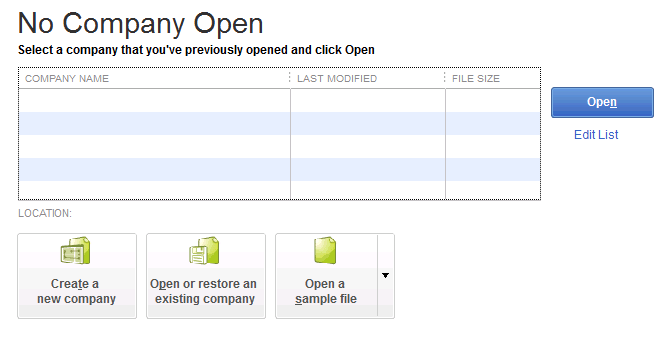
- Open or Restore an Existing Company
- Open a Sample File
- Create a New Company
Check the result
- The No Company Open window appears successfully → The QuickBooks program is working correctly. Continue to Step 3.
- QuickBooks closes, freezes, or displays the unexpected error before this window appears → The problem is likely with the QuickBooks installation. Skip ahead to Step 6: Use QuickBooks Tool Hub.
Step 3: Open a Sample Company File
Use this step to determine whether the unexpected error is caused by your company file or by QuickBooks Desktop itself.
Follow these steps
- Keep the No Company Open window open.
- Select Open a Sample File.
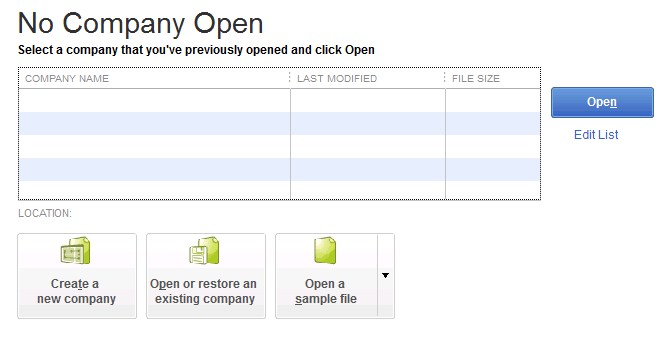
- Choose any sample company from the list.
- Wait for QuickBooks to finish loading the sample file.
Check the result
- The sample company opens successfully → Your QuickBooks installation is working correctly, but your company file may be damaged. Continue to Step 4.
- The sample company does not open, or QuickBooks displays the same unexpected error → The QuickBooks program or Windows components may be damaged. Skip to Step 6.
Step 4: Open Your Company File from a Different Location
Use this step if your company file does not open or if the unexpected error appears only when opening a specific company file. This test checks whether the issue is caused by the folder where the file is stored, network permissions, or the company file itself.
Follow these steps
- Close QuickBooks Desktop.
- Press Windows + E to open File Explorer.
- Locate your QuickBooks company file.
- The company file usually ends with the .QBW extension.
- The file is often named after your business, for example ABC Company.QBW.
- Common locations include:
- Documents\QuickBooks
- Public Documents\Intuit\QuickBooks\Company Files
- A shared network folder
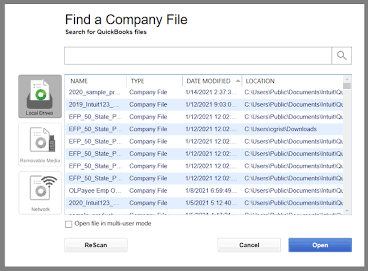
- Right-click the .QBW file and select Copy. Open your Windows Desktop.
- Right-click an empty area and select Paste. Open QuickBooks Desktop.
- In the No Company Open window, select Open or Restore an Existing Company.
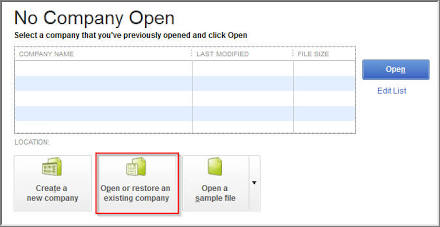
- Select Open a Company File, then select Next.
- Browse to the copy of the company file on your Desktop. Select the file and click Open.
Check the result
- The company file opens successfully from the Desktop → The original folder, shared network location, or Windows permissions are likely causing the unexpected error. Continue by checking folder permissions below.
- The unexpected error still appears → Continue by renaming the .ND and .TLG files.
1. Rename the .ND and .TLG Files
QuickBooks automatically creates .ND and .TLG files for each company file. If either file becomes damaged, QuickBooks may fail to open the company file correctly.
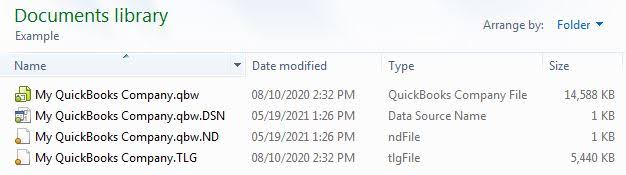
Follow these steps
- Close QuickBooks Desktop. Open the folder that contains your company file.
- Locate the files that have the same name as your company file, for example:
- CompanyName.QBW.ND
- CompanyName.QBW.TLG
- Right-click the .ND file and select Rename.
- Add .old to the end of the file name and press Enter.
- Repeat the same steps for the .TLG file.
- Open QuickBooks Desktop and try opening the company file again.
Check the result
- The company file opens successfully → The damaged configuration files have been recreated automatically.
- The unexpected error still appears → Continue by checking the folder permissions.
2. Verify Folder Permissions
If the company file opens from the Desktop but not from its original location, the folder where the file is stored may not allow QuickBooks to read or modify the file correctly.
Verify that the Windows user account running QuickBooks has Full Control permissions for the folder that stores the company file. If the file is stored on a network, confirm that the shared folder is accessible and that all required read and write permissions have been granted.
Check the result
- After correcting the permissions, the company file opens normally → The issue was caused by restricted folder or network permissions.
- The unexpected error still appears → Continue to Step 5: Update QuickBooks Desktop.
Step 5: Update QuickBooks Desktop
Use this step if the unexpected error continues after checking your company file and its location. Installing the latest QuickBooks updates fixes known bugs and program issues that Intuit has already resolved.
Follow these steps
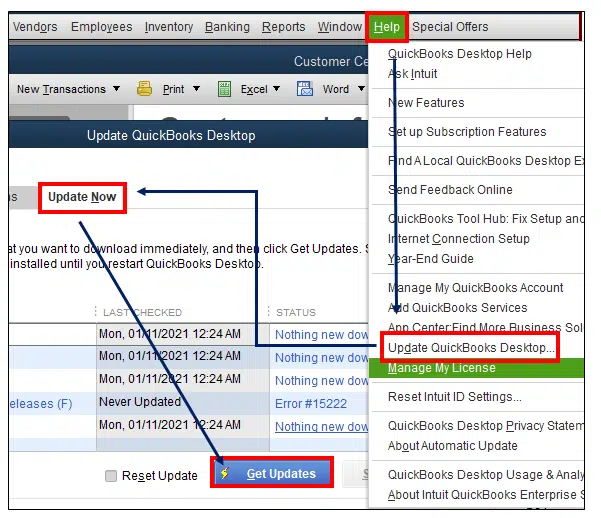
- Open QuickBooks Desktop. Select Help from the menu bar at the top of the QuickBooks window.
- Select Update QuickBooks Desktop. In the Update Now tab, select Get Updates.
- Wait for the updates to download completely. Close QuickBooks Desktop.
- Open QuickBooks again. If prompted to install the downloaded updates, select Yes.
- Wait for the installation to finish. Restart your computer if QuickBooks requests it.
- Open your company file and check whether the unexpected error still appears.
Check the result
- The error no longer appears → The issue was caused by an outdated QuickBooks installation. No further troubleshooting is required.
- The unexpected error continues → Continue to Step 6.
Step 6: Use QuickBooks Tool Hub
If updating QuickBooks does not resolve the unexpected error, use QuickBooks Tool Hub. This free utility provided by Intuit includes several repair tools that fix common program, installation, company file, and multi-user issues.
Before you begin: Close QuickBooks Desktop before opening Tool Hub.
Part A: Download and Install QuickBooks Tool Hub
Skip this part if QuickBooks Tool Hub is already installed on your computer.
Follow these steps
- Open your web browser. Visit Intuit’s official QuickBooks Tool Hub download page.
- Download the latest version of QuickBooksToolHub.exe. Open the downloaded file.
- Select Next. Accept the license agreement.
- Select Install. Wait for the installation to complete.
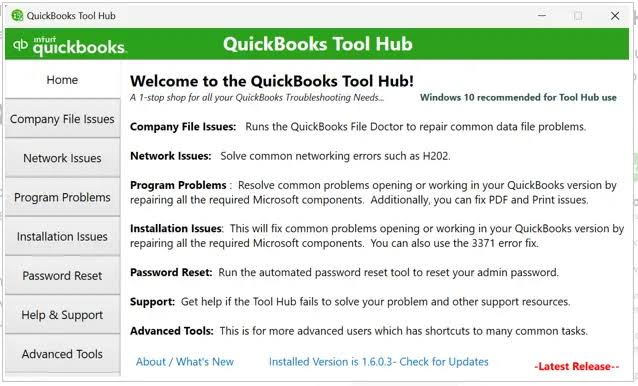
- Select Finish. Open QuickBooks Tool Hub from your Desktop or Windows Start menu.
Part B: Run Quick Fix my Program
Use Quick Fix my Program when QuickBooks freezes, crashes, or displays unexpected errors before or while opening.
Follow these steps
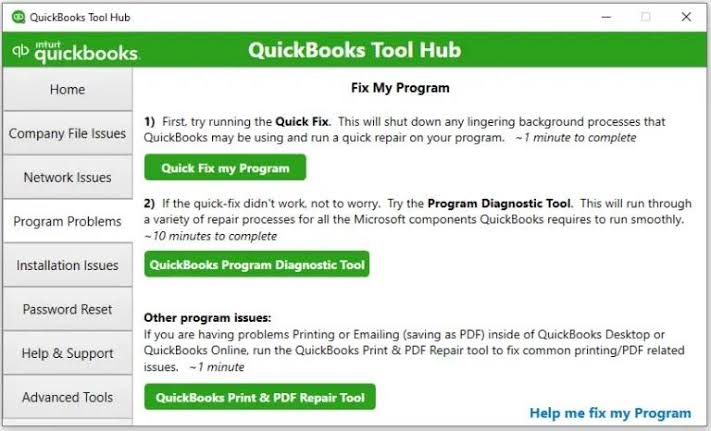
- Open QuickBooks Tool Hub. Select Program Problems from the left panel.
- Select Quick Fix my Program. Wait for the repair process to finish.
- Close Tool Hub. Open QuickBooks Desktop again.
Check the result
- QuickBooks opens normally → The damaged program processes have been repaired.
- The unexpected error still appears → Continue to Part C.
Part C: Run QuickBooks File Doctor
Use QuickBooks File Doctor when the unexpected error appears while opening a company file or when you suspect the company file is damaged.
Follow these steps
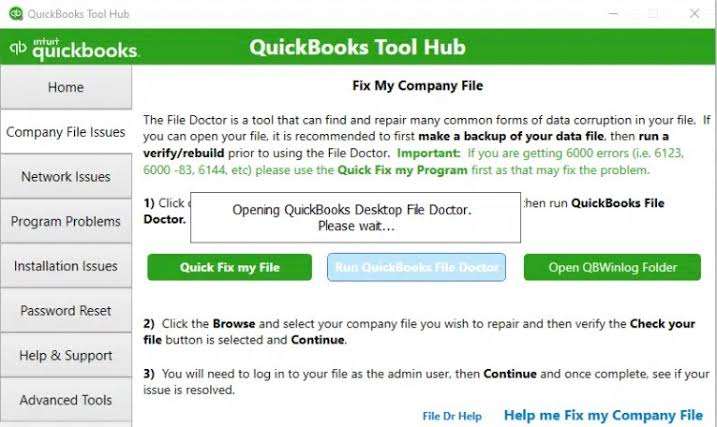
- Open QuickBooks Tool Hub. Select Company File Issues.
- Select Run QuickBooks File Doctor. Wait for File Doctor to open. This may take several minutes.
- Select your company file from the list. If your file is not listed, select Browse and locate the .QBW company file.
- Select Check your file. Enter the QuickBooks Admin password when prompted.
- Select Continue. Wait for the scan and repair process to complete.
- Open QuickBooks Desktop and try opening the company file again.
Check the result
- The company file opens successfully → The company file damage has been repaired.
- The unexpected error still appears → Continue to Part D
Part D: Run QuickBooks Install Diagnostic Tool
Use the QuickBooks Install Diagnostic Tool if QuickBooks continues to crash, fails to open, or displays the unexpected error after running Quick Fix my Program and QuickBooks File Doctor. This tool repairs Microsoft components that QuickBooks requires to run properly.
Follow these steps
- Open QuickBooks Tool Hub.
- Select Installation Issues.
- Select QuickBooks Install Diagnostic Tool.
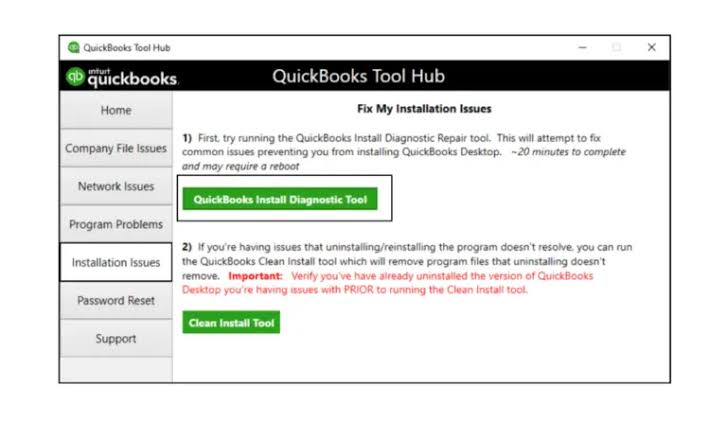
- Wait while the tool repairs Microsoft components such as .NET Framework, MSXML, and Microsoft Visual C++.
- The repair may take up to 20 minutes depending on your computer.
- Restart your computer after the repair completes.
- Open QuickBooks Desktop again.
Check the result
- QuickBooks opens normally → The required Windows components have been repaired.
- The unexpected error still appears → Continue to Part E.
Part E: Run QuickBooks Database Server Manager (Multi-user Only)
Complete this step only if your company file is stored on a server or shared across multiple computers in a multi-user environment.
Database Server Manager scans shared folders and rebuilds the network configuration required for QuickBooks to access company files over a network.
Follow these steps
- Open QuickBooks Tool Hub.
- Select Network Issues.
- Select QuickBooks Database Server Manager.
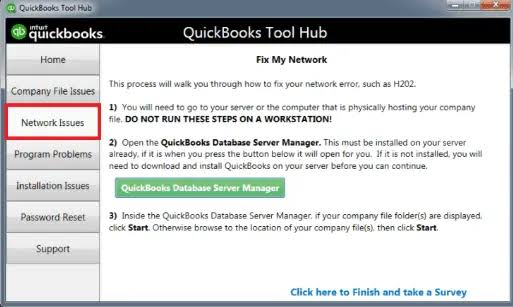
- Select Browse.
- Locate the folder that stores your company file.
- Select Start Scan.
- Wait for the scan to complete.
- Restart the server computer if prompted.
- Open QuickBooks on a workstation and try opening the company file again.
Check the result
- The company file opens successfully → The network configuration has been repaired.
- The unexpected error still appears → Continue with the firewall check below.
Check Your Firewall and Antivirus Settings
Use this step if the unexpected error occurs only while accessing a company file stored on a network or if the error continues after using QuickBooks Tool Hub.
Some antivirus programs and Windows Firewall settings can prevent QuickBooks from accessing company files or communicating with the Database Server Manager.
What to check
- Verify that QuickBooks Desktop is allowed through Windows Firewall.
- Confirm that your antivirus software is not blocking QuickBooks processes.
- If your antivirus recently quarantined QuickBooks files, restore them and add QuickBooks to the software’s exclusion list.
- Restart your computer after making any changes.
Check the result
- QuickBooks works normally → Your security software was blocking QuickBooks.
- The unexpected error still appears → Continue to Step 7: Verify and Rebuild Data.
Step 7: Verify and Rebuild Your Company File
Use this step when QuickBooks opens but continues to display unexpected errors while working in your company file. Verify Data checks the file for damage, while Rebuild Data attempts to repair any problems that are found.
Part A: Run Verify Data
Follow these steps
- Open QuickBooks Desktop. Open your company file.
- Select File from the top menu. Select Utilities. Select Verify Data.
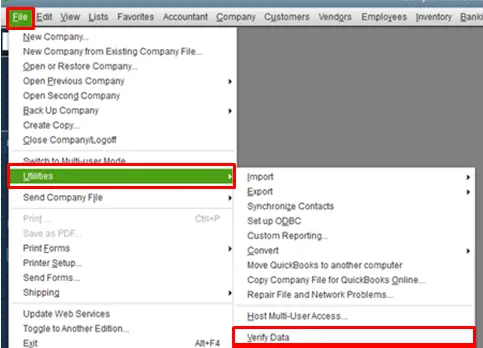
- Wait for QuickBooks to complete the scan.
Check the result
- QuickBooks reports that no problems were found → Continue to Step 8.
- QuickBooks reports data damage or integrity errors → Continue to Rebuild Data below.
Part B: Run Rebuild Data
Follow these steps
- Select File. Select Utilities. Select Rebuild Data.
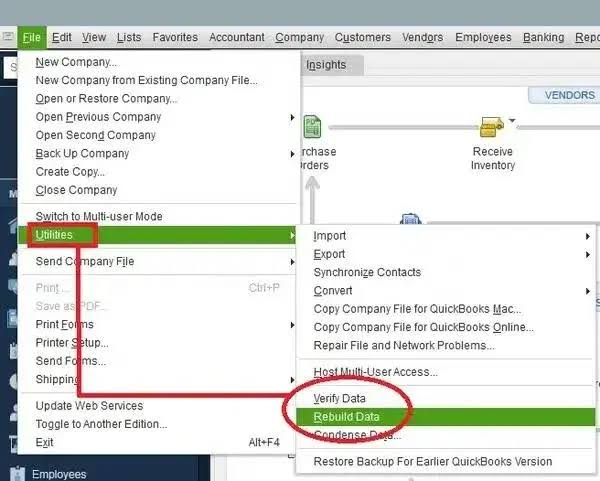
- Select OK when QuickBooks asks to create a backup.
- Choose a location to save the backup.
- Select Save.
- Wait until the rebuild process finishes.
- Select OK when QuickBooks confirms that the rebuild has completed.
- Run Verify Data again to confirm that the errors have been repaired.
Check the result
- Verify Data reports no errors → The company file has been successfully repaired.
- Verify Data continues to report errors → Review the QBWIN.LOG file to identify the damaged records before continuing to Step 8.
Conclusion
Most unexpected errors in QuickBooks Desktop can be resolved by identifying whether the problem is related to the company file, the QuickBooks installation, Windows components, or the network environment. Following a structured troubleshooting approach helps isolate the root cause instead of relying on trial and error.
If the error continues after completing all the solutions in this guide, the issue may require advanced troubleshooting or professional assistance. In that case, contact Intuit Support with the details of the error and the troubleshooting steps you’ve already completed to help speed up the resolution process.
Keeping QuickBooks Desktop updated, creating regular backups of your company file, and maintaining a healthy Windows environment can help reduce the likelihood of similar issues in the future.
Frequently Asked Questions (FAQs)
1. What causes an unexpected error in QuickBooks Desktop?
An unexpected error in QuickBooks Desktop can occur for several reasons, including a damaged company file, corrupted QuickBooks program files, outdated software, Windows permission issues, network problems, or damaged Microsoft components such as the .NET Framework. Since the same error can have multiple causes, it’s important to follow a structured troubleshooting process instead of assuming the source of the problem.
2. Can I repair the unexpected error without losing my company data?
Yes. Most troubleshooting methods, including QuickBooks Tool Hub, QuickBooks File Doctor, Verify and Rebuild Data, and the Windows Repair option, are designed to fix problems without deleting your company file. However, it’s always recommended to create a backup of your company file before performing any repair that modifies your data.
3. Does QuickBooks Tool Hub repair company files?
QuickBooks Tool Hub itself does not directly repair company files. Instead, it provides access to several repair utilities, including Quick Fix my Program, QuickBooks File Doctor, Install Diagnostic Tool, and Database Server Manager. Each tool addresses a different type of QuickBooks issue, such as program errors, company file damage, installation problems, or network-related issues.
4. What does QuickBooks File Doctor do?
QuickBooks File Doctor is a repair utility included in QuickBooks Tool Hub. It scans your company file for data corruption and checks for common network problems that prevent QuickBooks from opening the file. If supported issues are found, the tool attempts to repair them automatically.
5. What is the QuickBooks Install Diagnostic Tool?
The QuickBooks Install Diagnostic Tool repairs Microsoft components that QuickBooks Desktop depends on, including .NET Framework, Microsoft Visual C++, and MSXML. Use this tool if QuickBooks won’t open, crashes during startup, or continues to display unexpected errors after running Quick Fix my Program and QuickBooks File Doctor.
6. Should I rename the .ND and .TLG configuration files?
Yes, but only when troubleshooting company files or multi-user access problems. The .ND (Network Data) and .TLG (Transaction Log) configuration files can become damaged over time. Renaming them allows QuickBooks to create new copies automatically the next time you open your company file. Do not delete your .QBW company file, as it contains your accounting data.
7. What is QuickBooks Database Server Manager?
QuickBooks Database Server Manager is a utility used in multi-user environments where multiple computers access the same company file over a network. It scans shared folders, updates network configuration, and helps workstations connect to the company file correctly. If you use QuickBooks on only one computer, you usually don’t need this tool.
8. Can antivirus software or Windows Firewall cause unexpected errors?
Yes. Antivirus software and Windows Firewall can sometimes block QuickBooks processes or prevent the program from accessing company files stored on a network. If the unexpected error occurs only when opening a shared company file or after installing new security software, review your firewall rules and antivirus exclusions for QuickBooks Desktop.
9. When should I contact Intuit Support?
Contact Intuit Support if you have completed all the troubleshooting steps in this guide and the unexpected error still appears. You should also seek professional assistance if your company file cannot be repaired, QuickBooks crashes every time it opens, multiple users experience the same error in a multi-user environment, or Windows Event Viewer reports errors that you cannot resolve yourself.

Anusmita is a seasoned content writer who brings perspective to words. As a writer, she enriches her work with a journalistic aptitude, utilising her training in Mass Communication and Journalism. She loves to travel and explore, which imparts a greater sense of understanding, maturity, and experience that are reflected in her content.
Beyond her professional work, Anusmita enjoys painting, singing, dancing, and spending time planting. She is also a self-proclaimed foodie who loves exploring different cuisines, an interest that further adds to her curiosity and perspective as a writer.
Leave a Reply