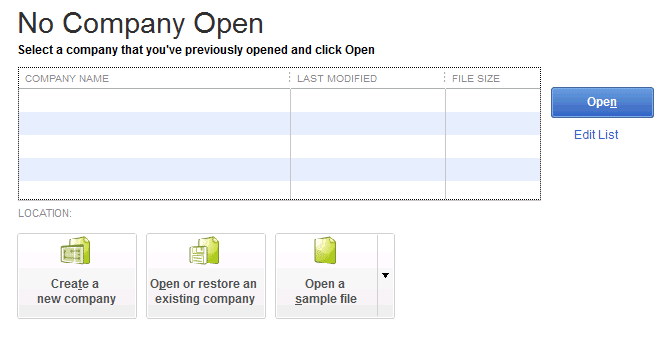
The QuickBooks splash screen is the logo screen that appears for 2 to 3 seconds while QuickBooks loads. Under normal conditions, it displays briefly and then QuickBooks opens fully to either the No Company Open window or the company file directly. A stuck or disappearing splash screen means QuickBooks showed that loading screen but never progressed past it – the screen either froze in place, vanished without QuickBooks opening, or QuickBooks appeared in the taskbar at the bottom of the screen but nothing opened on the desktop.
This problem has two distinct forms, and knowing which one is happening determines the correct fix to start with. The first form is a splash screen that freezes – the logo stays on the screen indefinitely and QuickBooks never advances past it. The second form is a splash screen that disappears – the logo shows for a moment and then vanishes, leaving no QuickBooks window open, even though Task Manager may show QuickBooks is still running in the background.
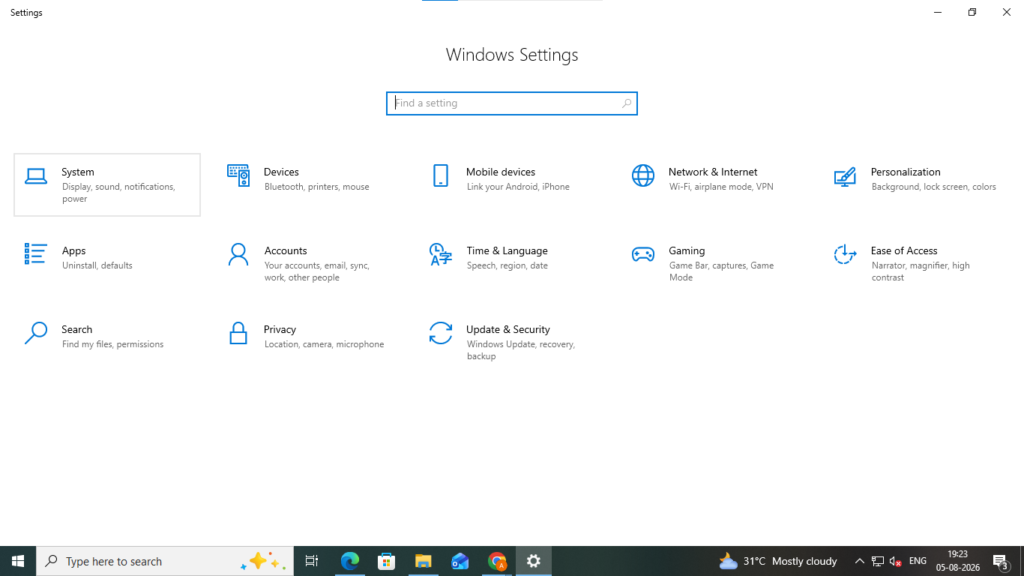
A real documented case on Intuit’s community forum described exactly the second scenario: a user running QuickBooks Pro Plus 2022 reported the splash screen displaying for about 30 seconds and then disappearing without QuickBooks starting, while Task Manager showed the QuickBooks service still running.
Both forms have documented causes and specific fixes. This guide covers every cause and every fix in order from the fastest to the most thorough. Working through them in sequence produces the fastest resolution without applying unnecessary steps.
Table of Contents
Quick Diagnosis: Which Splash Screen Problem Are You Seeing?
Match your exact situation to the table below before applying any fix. This routes you to the correct starting point immediately.
| What You Are Seeing | What It Indicates | Start With This Fix |
|---|---|---|
| Splash screen stays frozen on screen for more than 3 minutes | Stale background processes or damaged QBWUSER.INI file | Fix 1 and Fix 3 |
| Splash screen appears then disappears, QuickBooks does not open | Damaged QBWUSER.INI or EntitlementDataStore.ecml file | Fix 3 and Fix 4 |
| QuickBooks appears in taskbar but no window opens on the desktop | QuickBooks window opened on a second monitor that is no longer connected | Fix 2 |
| Splash screen disappears, no error message at all | Damaged program files or conflicting background processes | Fix 1 and Fix 5 |
| Problem started after installing a new QuickBooks version | Old QuickBooks files conflicting with the new installation | Fix 3, Fix 4, Fix 6 |
| Problem started after a Windows update | Windows components that QuickBooks depends on were changed by the update | Fix 5 |
| Only one Windows user account sees the problem | Corrupted Windows user profile | Fix 8 |
| Splash screen freezes specifically during payroll loading | Antivirus blocking QuickBooks’ payroll data folder access at startup | Fix 7 |

Understanding the Two Forms of the Splash Screen Problem
Form 1: Splash Screen Freezes and Stays on Screen
A splash screen that stays frozen on the display means QuickBooks opened its loading sequence but stopped at a point where it is waiting for something it cannot get. The most common cause is a leftover QuickBooks process from a previous session that is still running in the background. When QuickBooks tries to start a new session, the existing old process blocks the new one from advancing past the splash screen – the two processes compete for the same resources and neither can proceed.
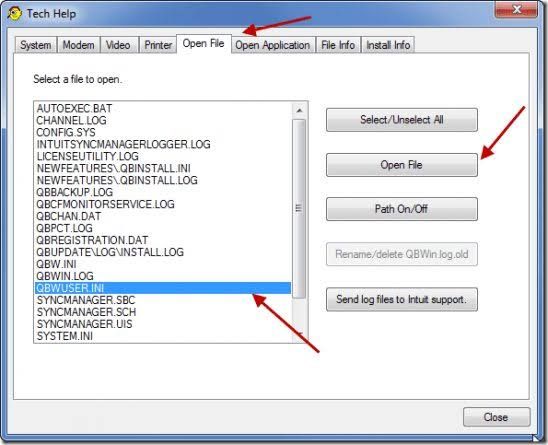
A frozen splash screen can also be caused by the QBWUSER.INI settings file being damaged. The QBWUSER.INI file is a small settings file QuickBooks creates and reads at every startup to find the last-opened company file. QuickBooks reads this file as one of the first things it does after the splash screen appears. A damaged QBWUSER.INI causes QuickBooks to stall at exactly the point where it would normally use that file to advance to the company file selection – which is right after the splash screen displays.
Form 2: Splash Screen Appears and Disappears Without Opening
A splash screen that appears briefly and then vanishes without QuickBooks opening fully is the more commonly reported version of this problem. Intuit’s community forum has multiple documented cases of this behavior – including a detailed thread where a QuickBooks Pro Plus 2022 user on Windows 11 described the splash screen appearing for about 30 seconds and then disappearing, with the QuickBooks service still showing as running in Task Manager but no window visible anywhere on the screen. The user had tried reinstalling QuickBooks, installing Internet Explorer 11, disabling the firewall, and testing under a different Windows user account, all without success.
This disappearing splash screen form indicates that QuickBooks actually started, reached a point in its loading process where it tried to access something it could not reach – a corrupted settings file, a blocked entitlement check, or a display configuration that it could not use – and then closed itself silently without displaying an error. The silence is the key characteristic: no error message appears because QuickBooks closed before it could generate one. Intuit’s own support team documented that the QBWUSER.INI file and the EntitlementDataStore.ecml file are the two most common causes of this specific behavior.
Root Causes: Why the QuickBooks Splash Screen Gets Stuck
The root causes of why the QuickBooks splash screen gets stuck are given below in seven causes. They are:
- Root Cause 1: Leftover QuickBooks Processes From a Previous Session
- Root Cause 2: QuickBooks Window Is Open on a Disconnected Second Monitor
- Root Cause 3: Damaged QBWUSER.INI Settings File
- Root Cause 4: Damaged EntitlementDataStore.ecml File
- Root Cause 5: Damaged Windows Components That QuickBooks Needs at Startup
- Root Cause 6: Conflicting Background Applications
- Root Cause 7: FIPS Security Policy Enabled on the Computer
Root Cause 1: Leftover QuickBooks Processes From a Previous Session
QBW32.exe is the main QuickBooks program process – the task that runs in the background the entire time QuickBooks is open. Every time QuickBooks closes correctly through File > Exit, QBW32.exe shuts down properly. Every time QuickBooks closes incorrectly – because the computer was shut down while QuickBooks was open, because of a power outage, or because QuickBooks was force-closed through Task Manager – QBW32.exe does not shut down properly. It stays running in the background as a leftover process.
The next time QuickBooks is opened, the new session tries to start QBW32.exe fresh, but the old leftover copy is already occupying the same memory space. The two copies conflict, and neither can complete the startup sequence. QuickBooks gets stuck at the splash screen because it cannot advance past the startup conflict. This is why clearing all QuickBooks background processes before reopening is always the first step in splash screen troubleshooting.
Root Cause 2: QuickBooks Window Is Open on a Disconnected Second Monitor
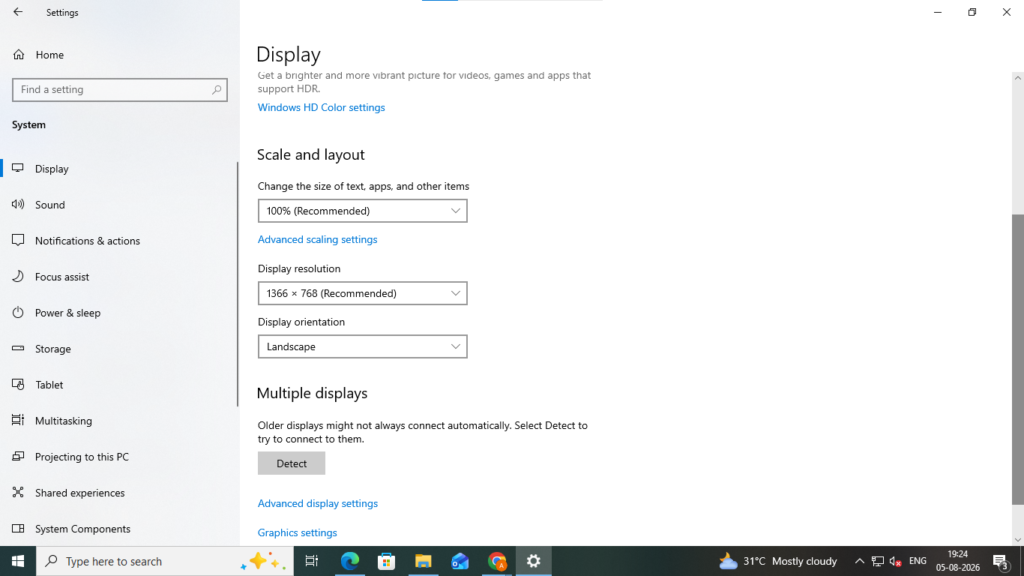
QuickBooks Desktop remembers the position of its main window the last time it was closed – including which monitor it was on. A computer that previously had a second monitor connected, with QuickBooks open on that second monitor, will attempt to open QuickBooks in the same position on the second monitor the next time it starts. The splash screen appears on the main monitor during loading, but the QuickBooks window opens on the coordinates where the second monitor used to be – which is now off-screen. The splash screen disappears as usual when loading finishes, but the QuickBooks window is invisible because it opened in a location that no connected monitor covers.
This exact scenario produces the confusing situation where QuickBooks appears in the Windows taskbar at the bottom of the screen (because it is running), the splash screen appeared and disappeared normally, but no QuickBooks window is visible anywhere on the desktop. Task Manager confirms QuickBooks is running. The fix requires pressing Windows + P to switch the display mode to “PC screen only,” which snaps all open windows back to the main monitor, or using Windows’ Move window function.
Root Cause 3: Damaged QBWUSER.INI Settings File
The QBWUSER.INI file is a small configuration file stored in a hidden folder on the computer. QuickBooks creates this file automatically and uses it to remember which company file was last opened, so it can go directly to that file the next time QuickBooks starts. This file is read immediately after the splash screen during every QuickBooks startup. A damaged QBWUSER.INI – produced by an incorrect shutdown, a failed update, or a Windows permission change – prevents QuickBooks from reading its own startup instructions.
The result of a damaged QBWUSER.INI is either a splash screen that freezes at exactly the point where QuickBooks would normally use the file (right after loading), or a splash screen that disappears as QuickBooks tries to read the file, fails, and closes silently without opening. According to Intuit’s community support team, a damaged or missing QBWUSER.INI file is one of the primary documented causes of QuickBooks failing to start. The file is found at C:\Users\[Your Username]\AppData\Local\Intuit\QuickBooks\[Year].
Root Cause 4: Damaged EntitlementDataStore.ecml File
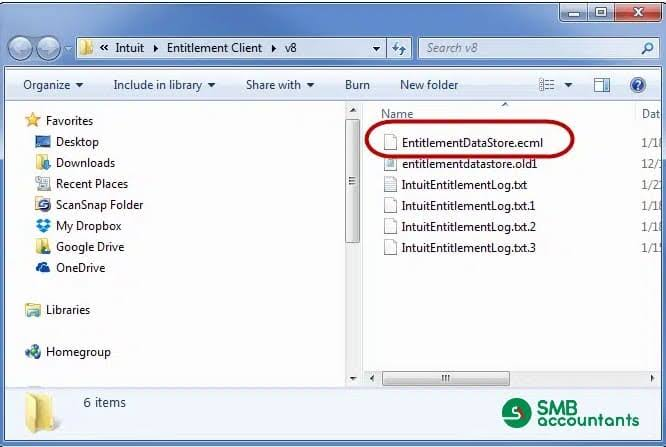
The EntitlementDataStore.ecml file is a license verification file that QuickBooks checks during startup to confirm the software is properly licensed. The .ecml file extension stands for Entitlement Client Markup Language – it is a file QuickBooks reads to verify its registration with Intuit. This file is stored at C:\ProgramData\Intuit\Entitlement Client\v8. A damaged EntitlementDataStore.ecml file causes QuickBooks to fail its license check during startup and close immediately, which produces the disappearing splash screen symptom.
EntitlementDataStore.ecml damage occurs when QuickBooks is interrupted during its license validation process – for example, if the computer lost internet connection at the exact moment QuickBooks was verifying its license, or if a previous QuickBooks version left behind an incompatible version of the file. Renaming the file forces QuickBooks to create a new, clean version the next time it starts and re-verify its license fresh. The company file and all accounting data are completely unaffected by renaming this file.
Root Cause 5: Damaged Windows Components That QuickBooks Needs at Startup
QuickBooks Desktop uses three Windows software components at startup: Microsoft .NET Framework (a software layer that QuickBooks uses to run its loading screens and initial setup), MSXML (Microsoft XML Core Services, which QuickBooks uses to read its configuration files), and Microsoft Visual C++ Redistributable files (shared program libraries that QuickBooks and Windows both use). Windows updates sometimes change these components in ways the current QuickBooks version cannot handle. A Windows update that modifies any of these three components without a matching QuickBooks update produces a splash screen that either freezes or disappears, because QuickBooks cannot complete its startup sequence with the changed components.
Root Cause 6: Conflicting Background Applications
Antivirus programs, firewalls, and other third-party software that runs in the background can intercept QuickBooks’ startup operations and block the processes it needs to load. A firewall that blocks a port QuickBooks uses for its license check will cause QuickBooks to wait indefinitely for the license confirmation to complete – which shows up as a frozen splash screen. Intuit’s community support team documented this in a thread about QuickBooks Desktop login windows not loading: the support team confirmed that firewalls can block internet access for specific QuickBooks processes, causing the program to hang during the loading phase.
Root Cause 7: FIPS Security Policy Enabled on the Computer
FIPS stands for Federal Information Processing Standards – a set of security encryption rules that the US government specifies for computing systems that handle federal data. Windows includes a FIPS compliance mode that, when turned on, forces all encryption operations on the computer to follow these specific government standards. QuickBooks Desktop uses its own encryption methods for certain internal processes during startup, and these methods do not comply with FIPS standards. A Windows computer with FIPS mode turned on blocks QuickBooks’ startup encryption operations, which causes the splash screen to disappear without QuickBooks opening.
FIPS mode is rarely turned on by accident on business computers – it is usually enabled intentionally by IT departments in organizations that work with government contracts. However, it can also be enabled by certain security software configurations or group policy settings applied automatically. Checking whether FIPS mode is on takes two minutes and rules out this specific cause without requiring any other changes.

Complete Resolution Guide: Every Fix for the Stuck Splash Screen
The complete resolution guide for fixing the QuickBooks stuck splash screen are given below in ten solutions:
- Fix 1: Clear All QuickBooks Background Processes
- Fix 2: Recover a QuickBooks Window That Opened Off-Screen
- Fix 3: Rename the QBWUSER.INI File
- Fix 4: Rename the EntitlementDataStore.ecml License File
- Fix 5: Run the QuickBooks Install Diagnostic Tool
- Fix 6: Run QuickBooks as Administrator
- Fix 7: Add QuickBooks Exceptions to the Firewall and Antivirus
- Fix 8: Check and Disable FIPS Mode
- Fix 9: Test With a New Windows User Account
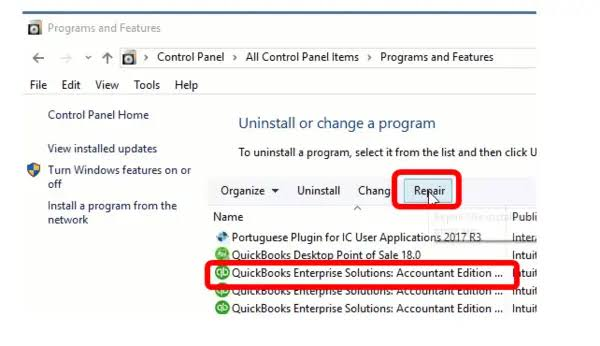
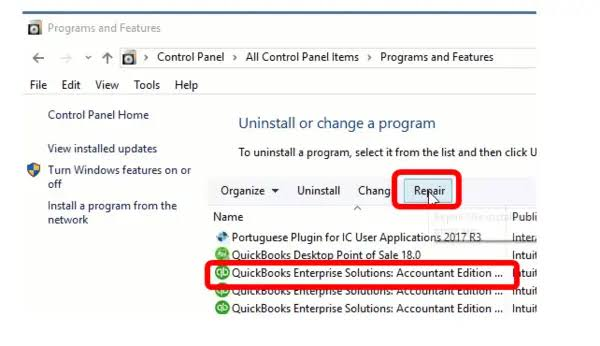
- Fix 10: Perform a Clean Install of QuickBooks Desktop
Fix 1: Clear All QuickBooks Background Processes
Clearing all QuickBooks background processes that are still running from a previous session removes the conflict that stops the new session from advancing past the splash screen. This takes two minutes and resolves the large majority of splash screen freezing cases. Task Manager – the Windows program that shows all currently running processes – is the tool used to find and stop these processes.
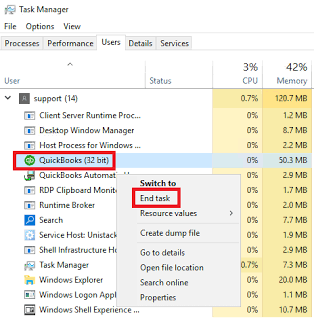
Press Ctrl + Shift + Esc to open Task Manager. Click the Processes tab. Look for any process whose name starts with QBW32.exe, QuickBooks, or Intuit. Right-click each one and select End Task. Also end QBDBMgrN.exe (the QuickBooks Database Server Manager – the process that manages multi-user file connections) and QBCFMonitorService.exe (the QuickBooks Connection Monitor). Wait 30 seconds after ending all processes, then reopen QuickBooks.
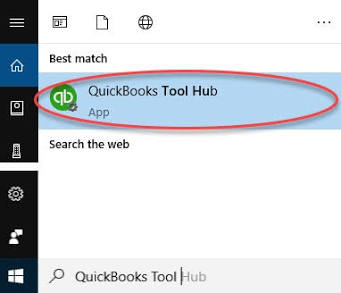
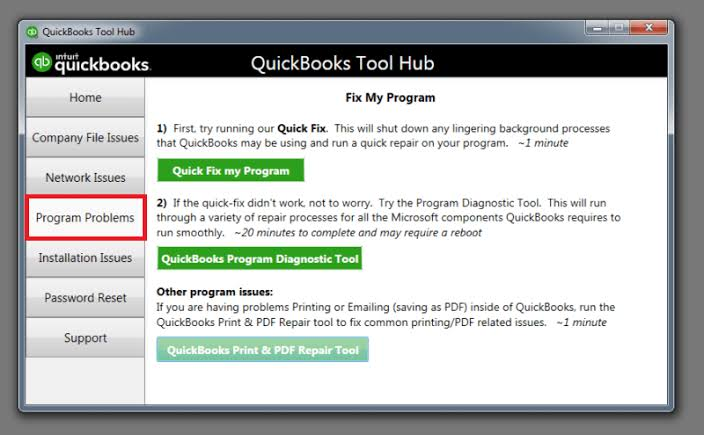
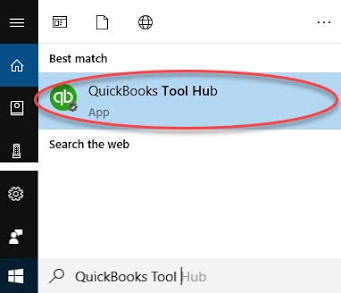
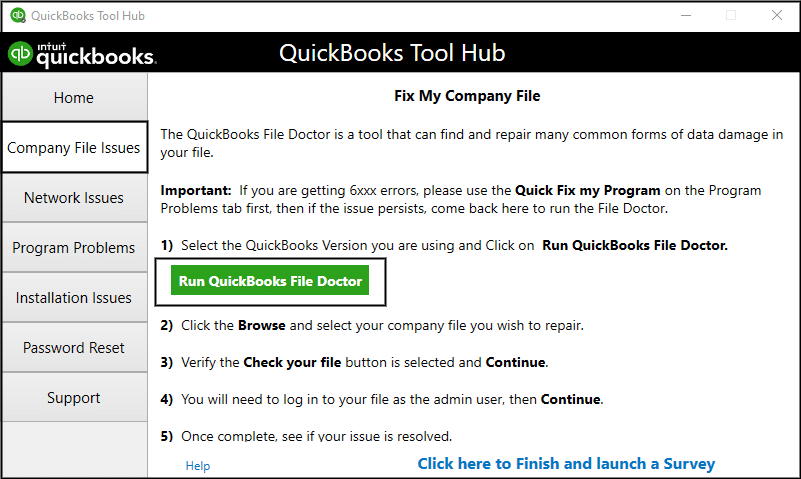
Alternatively, use the QuickBooks Tool Hub to do this automatically. Open the QuickBooks Tool Hub, click Program Problems in the left menu, then click Quick Fix My Program. This automatically finds and ends all QuickBooks background processes and runs a basic program repair. It takes about two minutes and is the most thorough way to clear stale processes because it also repairs minor program file issues at the same time.
Fix 2: Recover a QuickBooks Window That Opened Off-Screen
A QuickBooks window that opened on the coordinates of a disconnected monitor is invisible but fully running. Two methods bring it back to the visible screen. The first method is faster and works in most cases: press Windows + P on the keyboard. A panel appears on the right side of the screen with display options. Select PC screen only. Windows immediately forces all open program windows – including the invisible QuickBooks window – back to the main monitor. The QuickBooks window will appear on the main screen.
The second method uses the Windows Move function: click the QuickBooks icon in the taskbar at the bottom of the screen to make it the active window (even though it is invisible). Then hold the Windows key and press the right or left arrow key repeatedly. Windows will snap the window to different positions on the available monitor until it becomes visible. Once the window is visible, go to the Window menu inside QuickBooks and select Close All to reset the window layout, which prevents the off-screen position from being remembered for next time.
Fix 3: Rename the QBWUSER.INI File
Renaming the QBWUSER.INI file forces QuickBooks to create a new, clean version of it automatically the next time it starts. The renamed old file stays on the computer with a .old extension and is not deleted, so it can be referenced if needed. QuickBooks will not use the .old version. One important note before starting: renaming the QBWUSER.INI file clears the list of previously opened company files that QuickBooks remembers. After the rename, QuickBooks will ask to locate the company file manually when it opens. This does not affect any accounting data – only the stored list of file locations is reset.
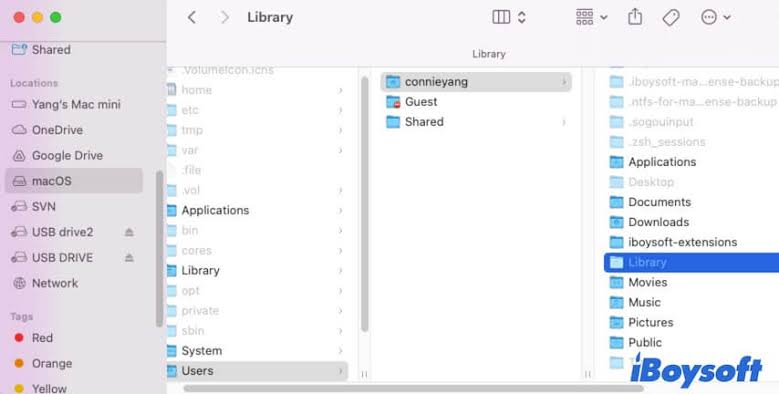
Open File Explorer. Click View > Show > Hidden Items to make hidden folders visible. Navigate to C:\Users\[Your Username]\AppData\Local\Intuit\QuickBooks\[Year] – replace [Your Username] with your Windows account name and [Year] with the QuickBooks version year. Right-click the file named QBWUSER.INI and select Rename. Add .old to the end so it reads QBWUSER.INI.old. Press Enter. Open QuickBooks – it will create a fresh QBWUSER.INI and open to the No Company Open window. Navigate to the company file manually.
Fix 4: Rename the EntitlementDataStore.ecml License File
Renaming the EntitlementDataStore.ecml file forces QuickBooks to create a fresh license verification file on the next startup. The renamed file gets a .old extension and stays on the computer but QuickBooks will not use it. QuickBooks will re-verify its license with Intuit during the next startup using the fresh file. An internet connection is required for the re-verification to complete. This process does not affect the company file, accounting data, or the QuickBooks license itself.
Press Windows + R on the keyboard to open the Run dialog. Type C:\ProgramData\Intuit\Entitlement Client\v8 and press Enter. This opens the folder directly. Note: ProgramData is a hidden folder, so it will not appear in normal File Explorer browsing. The Run dialog bypasses this. Right-click the file named EntitlementDataStore.ecml and select Rename. Add .old to the end so it reads EntitlementDataStore.ecml.old. Press Enter. Open QuickBooks – it will re-verify its license and create a fresh EntitlementDataStore.ecml file.
Run both Fix 3 and Fix 4 together when the splash screen disappears without error, because both files are read during the same startup sequence. Running them together takes about ten minutes total and eliminates both file-related causes in one pass.
Fix 5: Run the QuickBooks Install Diagnostic Tool
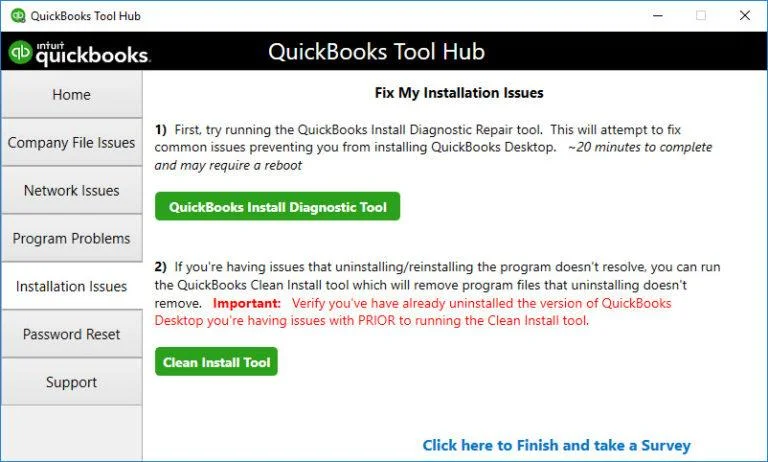
The QuickBooks Install Diagnostic Tool repairs the three Windows components that QuickBooks depends on at startup: Microsoft .NET Framework, MSXML (Microsoft XML Core Services), and Microsoft Visual C++ Redistributable files. A Windows update that changed any of these components without a matching QuickBooks update installed afterward can cause the splash screen to freeze or disappear, because QuickBooks calls these components during its startup sequence. The tool detects which component is incompatible or damaged and reinstalls it to the correct version automatically.
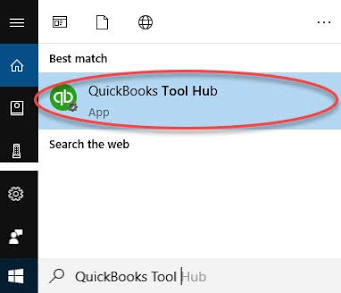
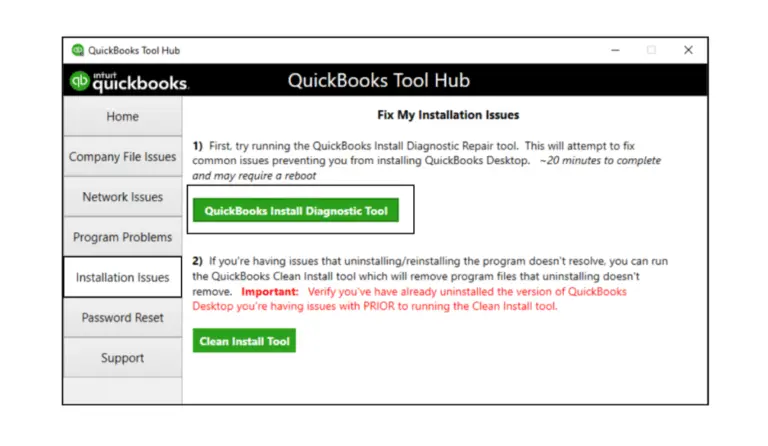
Download the QuickBooks Tool Hub from Intuit’s official support page. Open it and click Installation Issues in the left menu. Click QuickBooks Install Diagnostic Tool. Allow it to run – it can take up to 20 minutes because it downloads and verifies each component individually. Do not close the tool while it runs. Restart the computer when it finishes. Open QuickBooks and test.
Fix 6: Run QuickBooks as Administrator
Windows permission restrictions can prevent QuickBooks from reading the files it needs during startup. QuickBooks needs access to the QBWUSER.INI settings file, the EntitlementDataStore.ecml license file, and the program installation directory during every startup. A Windows update that tightened folder permissions or a user account without administrator rights blocks some of these reads silently – QuickBooks hits the blocked read during loading and stops, which shows up as a frozen or disappearing splash screen.
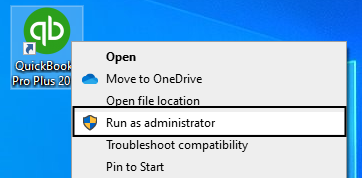
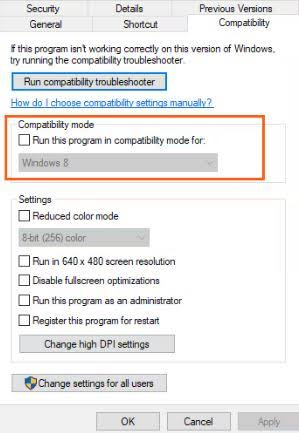
Right-click the QuickBooks Desktop icon on the desktop or in the Start menu. Select Run as Administrator. Click Yes when Windows asks for permission. Test whether QuickBooks opens past the splash screen. To make this permanent so QuickBooks always opens with administrator access: right-click the icon > Properties > Compatibility tab > check Run this program as an administrator > Apply > OK.
Fix 7: Add QuickBooks Exceptions to the Firewall and Antivirus
A firewall that blocks the port QuickBooks uses for its startup license check will cause QuickBooks to hang at the splash screen while it waits for a license confirmation that never arrives. QuickBooks requires specific ports to be open in Windows Firewall for its processes to communicate correctly. Intuit’s support team documented this as a confirmed cause of startup loading issues, recommending manual firewall configuration as the resolution.
The ports QuickBooks Desktop needs open in Windows Firewall vary by version: QuickBooks Desktop 2022 uses ports 8019 and 56728; QuickBooks Desktop 2023 uses ports 8019 and 56729; QuickBooks Desktop 2024 uses ports 8019 and 56730; QuickBooks Desktop 2025 uses ports 8019 and 56731. These are the Inbound and Outbound port rules that allow QuickBooks to communicate with Intuit’s servers for license verification and update checks.
Open Windows Firewall: go to Start > search for Windows Firewall > open it > select Advanced Settings. Right-click Inbound Rules and select New Rule. Select Port > Next. Select TCP and enter the ports for your QuickBooks version in the Specific Local Ports field. Select Allow the Connection > Next. Check all three profile boxes (Domain, Private, Public) > Next. Name the rule QBPorts[Year] and click Finish. Repeat for Outbound Rules.
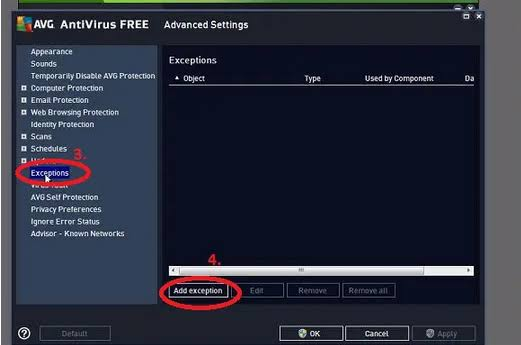
For antivirus programs, add QuickBooks to the exclusion list (Settings > Exclusions in the antivirus program). Add the QuickBooks installation folder (C:\Program Files\Intuit\QuickBooks [Year]), the company file folder, the QuickBooks data folder (C:\ProgramData\Intuit\QuickBooks), and the program files QBW32.exe, QBDBMgrN.exe, and QBCFMonitorService.exe. These exclusions prevent real-time scanning from interrupting the QuickBooks startup sequence.
Fix 8: Check and Disable FIPS Mode
FIPS mode – Federal Information Processing Standards compliance mode – is a Windows security setting that forces all encryption operations to use government-standard methods. QuickBooks Desktop’s internal startup processes use encryption methods that do not comply with FIPS standards. A computer with FIPS mode turned on blocks these QuickBooks startup processes, which causes the splash screen to disappear without QuickBooks opening. Checking whether FIPS mode is active and turning it off resolves this specific cause.
Press Windows + R to open the Run dialog. Type gpedit.msc and press Enter to open the Local Group Policy Editor (this tool is available on Windows 10 Pro, Windows 11 Pro, and higher editions only). Navigate to: Computer Configuration > Windows Settings > Security Settings > Local Policies > Security Options. Scroll down to find System cryptography: Use FIPS-compliant algorithms for encryption, hashing, and signing. Double-click it. If it shows Enabled, change it to Disabled and click Apply > OK. Restart the computer and test QuickBooks.
Note: FIPS mode is turned on intentionally in some business and government environments for security compliance reasons. Turning it off may conflict with organizational security policies. Consult with an IT administrator before disabling FIPS mode in a managed business environment. For individual users and small businesses where FIPS was not intentionally configured, it is safe to disable.
Fix 9: Test With a New Windows User Account
A QuickBooks splash screen problem that occurs for only one Windows user account on the computer but not for other users indicates a corrupted Windows user profile. The Windows user profile stores the settings, preferences, and permissions that Windows applies to each user account. A corrupted profile can block QuickBooks from reading the files it needs at startup, producing a splash screen freeze or disappearance for that user while other users on the same computer open QuickBooks without any problem.
A documented real-world case on Intuit’s community forum showed this exact pattern: a user reported QuickBooks crashing immediately after the splash screen on their primary Windows account. When they created a new administrator account on the same laptop, QuickBooks opened the company file without any issue. Intuit’s support team confirmed this pointed to the original Windows user account as the source of the problem. The user’s options were to migrate QuickBooks use to the new Windows account or to repair the original profile.
Go to Windows Settings > Accounts > Family & Other Users > Add Someone Else to This PC. Set up a new local account with administrator rights. Log in with the new account. Open QuickBooks and test. If QuickBooks opens normally, the original Windows user profile is the cause.
Fix 10: Perform a Clean Install of QuickBooks Desktop
A clean install removes all existing QuickBooks program files and installs a completely fresh copy. This resolves splash screen problems that persist after all previous fixes because it replaces every program file on the computer with a clean version. A clean install eliminates damaged installer files, residual files from older QuickBooks versions that conflict with the new installation, and broken configuration links between QuickBooks and Windows. The company file (.QBW) is stored in a separate data folder and is not touched by the process.
Before starting, record the QuickBooks license number and product key from Help > About QuickBooks, and create a full company file backup through File > Back Up Company > Create Local Backup. Download Intuit’s Clean Install Tool from Intuit’s official support page – this tool removes QuickBooks more completely than the standard Windows uninstall by clearing residual files a normal uninstall leaves behind. Run the Clean Install Tool, then download and install a fresh copy of QuickBooks from Intuit’s website using the same license number. The company file will need to be re-opened manually from the No Company Open window after the new installation.
Resolution Guide at a Glance
| Fix | What It Resolves | Time to Apply | Key Tool or Location |
|---|---|---|---|
| Fix 1: Clear Background Processes | Splash screen frozen due to leftover QBW32.exe from prior session | 2–5 min | Task Manager or QuickBooks Tool Hub > Quick Fix My Program |
| Fix 2: Recover Off-Screen Window | QuickBooks opened on a disconnected second monitor | 2 min | Windows + P, then select PC Screen Only |
| Fix 3: Rename QBWUSER.INI | Splash screen freezes or disappears due to damaged startup settings | 5 min | C:\Users\[Name]\AppData\Local\Intuit\QuickBooks\[Year] |
| Fix 4: Rename EntitlementDataStore.ecml | Splash screen disappears during license check failure | 5 min | C:\ProgramData\Intuit\Entitlement Client\v8 |
| Fix 5: Install Diagnostic Tool | Windows components damaged by a Windows update | 15–20 min | QuickBooks Tool Hub > Installation Issues |
| Fix 6: Run as Administrator | Windows blocking QuickBooks file access at startup | 2 min | Right-click icon > Run as Administrator |
| Fix 7: Firewall and Antivirus Exceptions | Firewall blocking license check port or antivirus blocking startup files | 10–15 min | Windows Firewall > Advanced Settings |
| Fix 8: Disable FIPS Mode | Government encryption policy blocking QuickBooks startup encryption | 5 min | gpedit.msc > Security Options |
| Fix 9: New Windows User Account | Corrupted Windows user profile blocking QuickBooks for one user | 10–15 min | Settings > Accounts > Add User |
| Fix 10: Clean Install | Severely damaged installation files that survive other repairs | 45–90 min | Intuit Clean Install Tool from Intuit’s support page |
Splash Screen Problems Specific to Multi-User Mode
QuickBooks Desktop in multi-user mode – where multiple computers access the same company file stored on a central server – has an additional splash screen cause that does not affect single-user setups. In multi-user mode, each workstation’s QuickBooks startup includes a step where it connects to the QuickBooks Database Server Manager on the host computer to open the shared company file. A firewall rule that blocks this connection, or a Database Server Manager that needs rescanning after a Windows update, causes QuickBooks to hang at the splash screen on workstations while the host computer opens normally.
- Check the Database Server Manager First on Workstations
The QuickBooks Database Server Manager is the background service on the host computer that manages all connections from workstations to the company file. After any Windows update on the host computer, the Database Server Manager sometimes loses its registered configuration and needs to be rescanned before it can accept connections from workstations. A workstation whose QuickBooks hangs at the splash screen while the host computer opens fine is almost always a Database Server Manager configuration issue.
Open the QuickBooks Tool Hub on the host computer (the computer where the company file is stored). Click Network Issues in the left menu. Click QuickBooks Database Server Manager. Click Scan Folders. Add the folder containing the company file if it is not already listed. Click Scan. When the scan finishes, test QuickBooks on the affected workstations.
- Ensure All Workstations Run the Same QuickBooks Release
A host computer running QuickBooks Desktop 2024 at release R15 and a workstation running the same version at release R12 creates a version mismatch. The two releases write data to the company file slightly differently, and when the workstation tries to connect to a file managed by a newer release on the host, it can hang at the splash screen during the connection attempt. Updating all computers in the office to the same release number – confirmed by pressing Ctrl + 1 inside QuickBooks on each computer – eliminates version mismatch as a splash screen cause.

Prevention: Stop the Splash Screen Problem From Coming Back
- Always Exit QuickBooks Through File > Exit
The most consistent cause of recurring splash screen freezes is improper QuickBooks shutdown. Closing QuickBooks by clicking the X button on the window, or shutting down the computer while QuickBooks is open, prevents QBW32.exe from shutting down properly and leaves it running as a background process. The next QuickBooks session then conflicts with this leftover process and freezes at the splash screen. Closing through File > Exit takes three to five seconds and allows QuickBooks to shut down every background process in the correct order, eliminating the leftover process problem permanently.
- Run Quick Fix My Program Once a Week
Quick Fix My Program, available in the QuickBooks Tool Hub under Program Problems, takes two minutes to run and clears all accumulated QuickBooks background processes before they build up enough to cause a splash screen freeze. Running it weekly – on a set day like every Monday morning before starting work – prevents the stale process accumulation that is the leading cause of splash screen freezing. This is a preventive habit that costs two minutes per week and eliminates one of the most common QuickBooks startup problems.
- Update QuickBooks Within 48 Hours of Every Windows Update
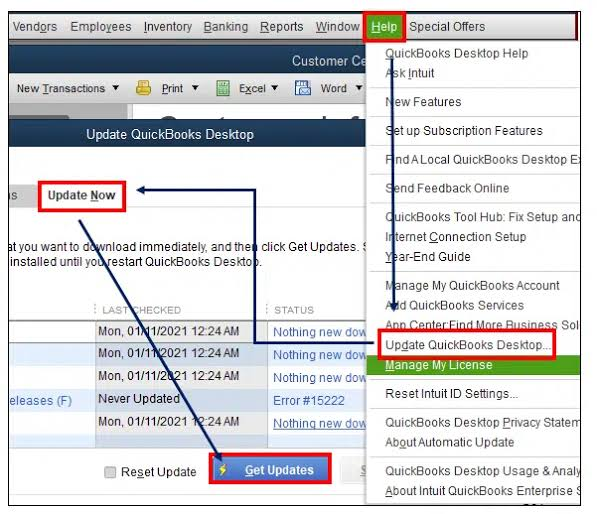
Windows updates change the .NET Framework, MSXML, and C++ Redistributable files that QuickBooks uses at startup. Intuit releases matching QuickBooks updates to restore compatibility with the changed components. The 48-hour window is the practical period during which the compatibility gap between the Windows update and the corresponding QuickBooks patch is most likely to cause a startup problem. Checking Help > Update QuickBooks Desktop within 48 hours of any Windows update and installing the available update closes this gap before it produces a stuck splash screen.
- Keep the QBWUSER.INI File Healthy by Backing Up Weekly
Running a full company file backup through File > Back Up Company > Create Local Backup every week does two things: it protects accounting data and it resets the transaction log (.TLG) file that QuickBooks reads at startup. A backup that completes successfully also confirms that QuickBooks finished its session correctly, which means the QBWUSER.INI file was written properly at the end of that session. Businesses that back up weekly consistently have fewer QBWUSER.INI corruption events because clean session closures – which backups both require and confirm – are the primary factor that keeps the file intact.
Conclusion
The QuickBooks splash screen gets stuck for seven specific, documented reasons: leftover background processes from a previous session, a QuickBooks window that opened on a disconnected second monitor, a damaged QBWUSER.INI settings file, a damaged EntitlementDataStore.ecml license file, Windows components that a recent update changed, firewall or antivirus interference blocking startup operations, or FIPS security mode being enabled on the computer. Every one of these causes has a direct fix that does not require reinstalling QuickBooks from scratch.
The fastest path to resolution in most cases is Fix 1 (clearing background processes through Task Manager or Quick Fix My Program) combined with Fix 3 (renaming the QBWUSER.INI file). These two steps together resolve the majority of both frozen and disappearing splash screen cases within ten minutes. Fix 4 (renaming the EntitlementDataStore.ecml file) should be added to the sequence when the splash screen disappears without error, because that symptom specifically indicates a license verification failure at startup.
The QuickBooks Tool Hub from Intuit – available free from Intuit’s official support page – provides Quick Fix My Program, the Install Diagnostic Tool, QuickBooks File Doctor, and the Database Server Manager in one application. Keeping it installed on every computer running QuickBooks Desktop means the right tool is immediately available when the splash screen next gets stuck, without requiring a download during the outage itself. Three prevention habits – always closing through File > Exit, running Quick Fix My Program weekly, and updating QuickBooks within 48 hours of Windows updates – eliminate the three most common causes of recurring splash screen problems.
Frequently Asked Questions
1. QuickBooks Pro Plus 2022 shows the splash screen for about 30 seconds and then disappears on Windows 11. None of the standard fixes worked. What else can cause this?
This exact scenario was documented on Intuit’s community forum by a user who had tried reinstalling QuickBooks, installing Internet Explorer 11, disabling the firewall, testing under a different Windows user, and working through the entire QuickBooks Tool Hub without success. The user had previously run QuickBooks Enterprise 2021 on the same machine without issues, then switched to QuickBooks Pro Plus 2022.
Intuit’s support team directed the user to suppress the QuickBooks Desktop application using the Ctrl key method as a diagnostic test. If suppressing QuickBooks – holding Ctrl while double-clicking the icon until the No Company Open window appears – allows QuickBooks to open, the problem is tied to the automatic company file loading sequence rather than the program itself. The next step from that point is moving the company file to a new folder to eliminate folder permission damage as the cause.
2. The splash screen disappeared and now Task Manager shows QuickBooks is running but there is no window. How do I close it completely?
Task Manager is the correct tool to close QuickBooks when it is running with no visible window. Press Ctrl + Shift + Esc to open Task Manager. Click the Processes tab. Look for QBW32.exe, QuickBooks, or any process starting with Intuit in the list.
Right-click each one and select End Task. Also end QBDBMgrN.exe and QBCFMonitorService.exe if they appear. After ending all QuickBooks processes, wait 30 seconds before attempting to reopen QuickBooks. Reopening immediately before all processes have fully terminated can produce the same stuck splash screen again.
3. Renaming QBWUSER.INI and EntitlementDataStore.ecml fixed the splash screen, but the same problem came back within a week. Why does it keep recurring?
A recurring QBWUSER.INI or EntitlementDataStore.ecml damage pattern indicates that something is repeatedly interrupting the clean shutdown process that would normally keep these files intact. The most common cause of recurring file damage is QuickBooks being closed incorrectly – by shutting down the computer while QuickBooks is open or using Task Manager to force-close it rather than File > Exit.
The second most common cause is an antivirus program that scans and modifies these files in real time while QuickBooks is writing to them during shutdown. Adding the QuickBooks installation folder and data folder to the antivirus exclusion list, combined with always closing QuickBooks through File > Exit, stops both causes and prevents the recurring damage.
4. QuickBooks opens fine on the host computer but hangs at the splash screen on workstations in multi-user mode. Is this a workstation problem or a server problem?
A splash screen freeze that affects workstations but not the host computer is almost always a server-side configuration issue – specifically the QuickBooks Database Server Manager on the host computer losing its configuration after a Windows update or network change. The workstation’s QuickBooks reaches the point in its startup sequence where it tries to connect to the Database Server Manager on the host, cannot complete the connection, and hangs.
The fix is on the host computer: open the QuickBooks Tool Hub, go to Network Issues, run QuickBooks Database Server Manager, and scan the folder containing the company file. This re-establishes the connection configuration and resolves the splash screen freeze on workstations without requiring any changes to the workstations themselves.
5. The splash screen problem only appeared after upgrading from QuickBooks 2021 to QuickBooks 2022. Nothing else changed on the computer. What causes this?
Upgrading from one major QuickBooks version to another on the same computer leaves residual files from the previous version in the installation directory and in Windows’ shared component folders. QuickBooks 2022 and QuickBooks 2021 use different versions of some internal components, and the older files from QuickBooks 2021 can conflict with QuickBooks 2022’s startup process – producing a splash screen that freezes or disappears.
The correct fix for a version-upgrade splash screen problem is a clean install using Intuit’s Clean Install Tool rather than a standard uninstall and reinstall. The Clean Install Tool removes the residual files from the previous version that a normal uninstall leaves behind, giving QuickBooks 2022 a clean environment without the old version’s files interfering. After the clean install, the company file opens from the No Company Open window exactly as it did before.


Leave a Reply