
QuickBooks is available as QuickBooks Desktop for Windows, QuickBooks Online, and QuickBooks Desktop for Mac, each built for a different platform and using a different startup process. If QuickBooks gets stuck while opening, freezes during startup, or doesn’t load properly, the cause and troubleshooting steps depend on the product you’re using.
- QuickBooks Desktop (Windows), may become stuck on the splash screen during startup because of damaged program files, corrupted startup configuration files, licensing issues, Windows permission problems, or hanging background processes.
- QuickBooks Online may fail to load because of browser, internet, or temporary service-related issues.
- QuickBooks Desktop for Mac can freeze during startup because of macOS compatibility, damaged preference files, or application-related problems.
This guide provides beginner-friendly, step-by-step solutions for all three QuickBooks products. Simply identify the QuickBooks product you’re using and follow the corresponding troubleshooting section to resolve the startup issue.
Table of Contents
Choose the Correct Troubleshooting Section
QuickBooks uses different troubleshooting methods depending on the product you have installed. Select the section below that matches your QuickBooks product:
- QuickBooks Desktop for Windows (Pro, Premier, Enterprise, and Accountant)
- QuickBooks Online
- QuickBooks Desktop for Mac
Before You Begin
Restart your computer once before trying the solutions below. Restarting Windows clears temporary QuickBooks processes and follows Intuit’s recommended troubleshooting order.
How to Fix QuickBooks Splash Screen Stuck in QuickBooks Desktop?
The solutions for “QuickBooks Splash Screen Stuck” below apply to all supported QuickBooks Desktop (Windows) editions, including Pro, Premier, Enterprise, and Accountant, and all supported versions, including 2022, 2023, and 2024.
Solution 1: Close Stuck QuickBooks Processes
Problem: QuickBooks Splash Screen Is Stuck or Keeps Loading
Sometimes QuickBooks does not close completely after you exit the program. A background process remains active, preventing QuickBooks from starting normally.
Step 1: Close QuickBooks if it is partially open. Press Ctrl + Shift + Esc on your keyboard to open Task Manager.
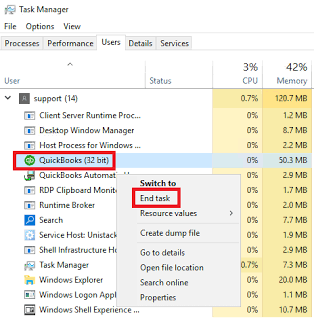
Step 2: Click the Processes tab. Look for any of these QuickBooks processes:
- QBW32.exe
- QBDBMgrN.exe
- Any process that starts with QuickBooks
Step 3: Click one QuickBooks process. Click End Task.
Step 4: Repeat the process until all QuickBooks-related processes are closed. Close Task Manager. Open QuickBooks again.
Solution 2: Open QuickBooks Without Loading the Last Company File
Problem: QuickBooks Gets Stuck on the Splash Screen Before Opening a Company File
Holding the Ctrl key prevents QuickBooks from automatically opening the last company file. This helps determine whether the problem is caused by the company file or the QuickBooks program.
Step 1: Make sure QuickBooks is completely closed. Then, find the QuickBooks Desktop icon.
Step 2: Press and hold the Ctrl key. While holding Ctrl, double-click the QuickBooks icon.
Step 3: Continue holding the Ctrl key until the No Company Open window appears.
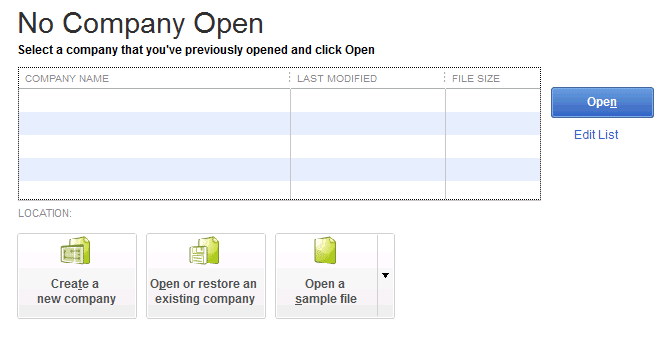
Step 4: Open your company file manually.
Solution 3: Run QuickBooks as an Administrator
Problem: QuickBooks Splash Screen Is Stuck Because of Windows Permission Issues
Running QuickBooks as an administrator gives the program permission to access Windows files, registry entries, and licensing information.
Step 1: Close QuickBooks completely. Then, locate the QuickBooks Desktop icon on your desktop or in the Start menu.
Step 2: Right-click the QuickBooks icon.
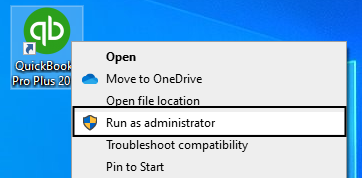
Step 3: Click Run as administrator. Wait for QuickBooks to open.
Solution 4: Run Quick Fix My Program
Problem: QuickBooks Splash Screen Freezes Because of Program Issues
Quick Fix My Program closes stuck QuickBooks background processes and repairs basic program-related issues. It does not repair company files.
Step 1: Download and install QuickBooks Tool Hub if it is not already installed.

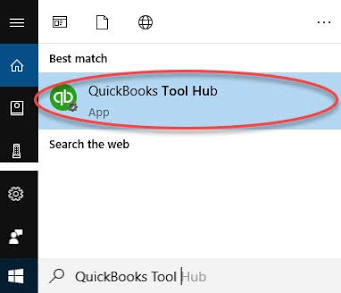
Step 2: Open QuickBooks Tool Hub.
.
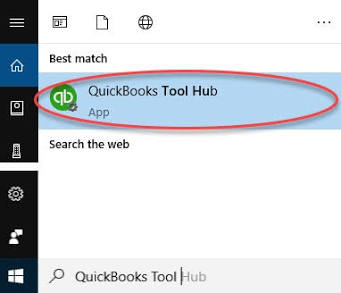
Step 3: Click Program Problems. Click Quick Fix My Program.
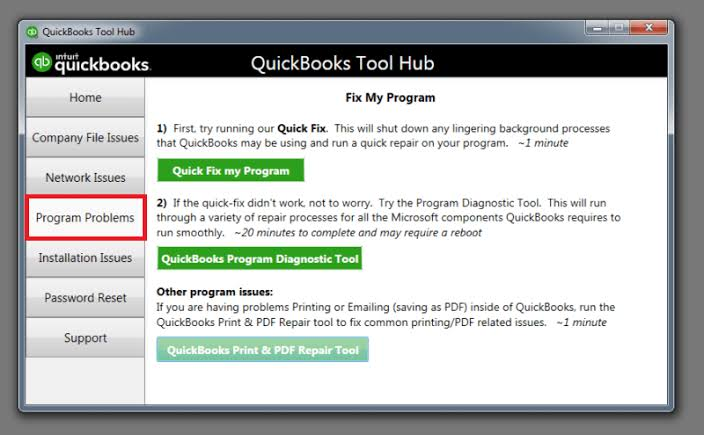
Step 4: Wait until the repair process finishes. Open QuickBooks again.
Solution 5: Run QuickBooks Install Diagnostic Tool
Problem: QuickBooks Splash Screen Stops Because Microsoft Components Are Damaged
The QuickBooks Install Diagnostic Tool repairs Microsoft components required by QuickBooks, including .NET Framework, MSXML, and Microsoft Visual C++.
Step 1: Open QuickBooks Tool Hub from your desktop or the Windows Start menu.
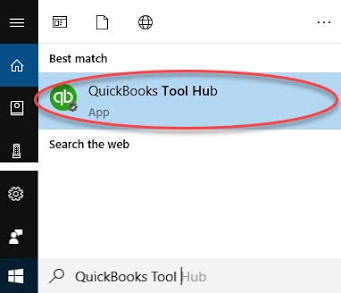
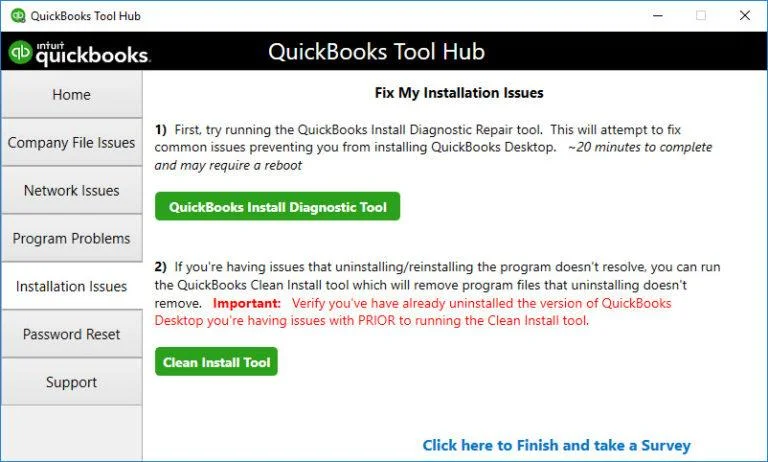
Step 2: Click Installation Issues. Click QuickBooks Install Diagnostic Tool.
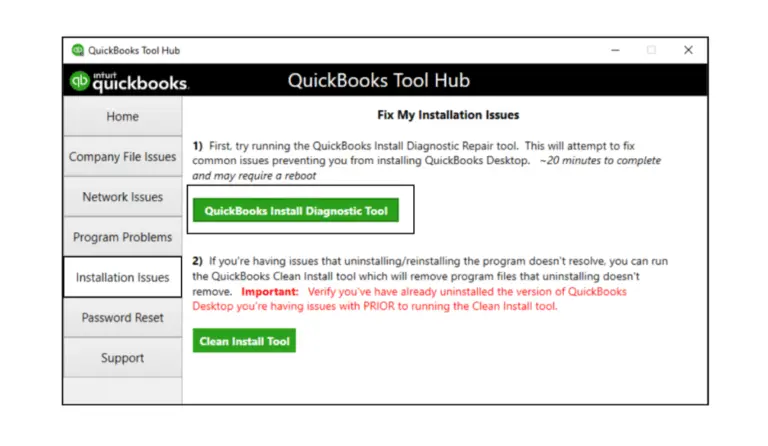
Step 4: Allow the tool to complete the repair. Wait approximately 10 to 20 minutes.
Step 5: Restart your computer. Open QuickBooks again.
Solution 6: Rename the QBWUSER.ini File
Problem: QuickBooks Splash Screen Is Stuck Because the QBWUSER.ini File Is Damaged
The QBWUSER.ini file stores QuickBooks startup preferences, recent company file, and user settings. Renaming the file allows QuickBooks to create a new one automatically.
Step 1: Close QuickBooks. Open the folder that contains the QBWUSER.ini file.
Step 2: Locate the file named QBWUSER.ini. Right-click the file.
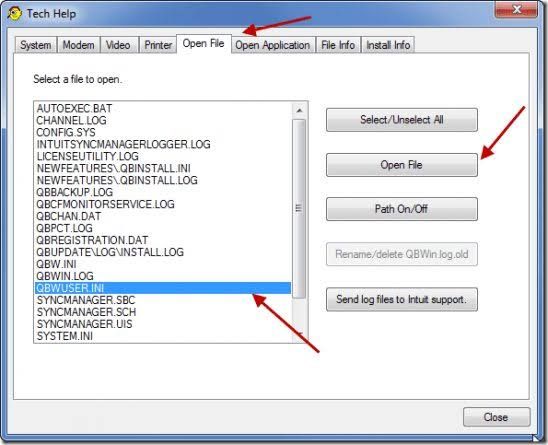
Step 3: Click Rename. Change the file name to: QBWUSER.ini.old
Step 4: Press Enter. Open QuickBooks.
Step 5: QuickBooks automatically creates a new QBWUSER.ini file during startup.
Solution 7: Rename the EntitlementDataStore.ecml File
Problem: QuickBooks Splash Screen Freezes Because of Licensing Information
The EntitlementDataStore.ecml file stores QuickBooks licensing and activation information. Renaming the file forces QuickBooks to rebuild the licensing data.
Step 1: Close QuickBooks. Open the folder that contains the EntitlementDataStore.ecml file.
Step 2: Locate the file named EntitlementDataStore.ecml. Right-click the file.
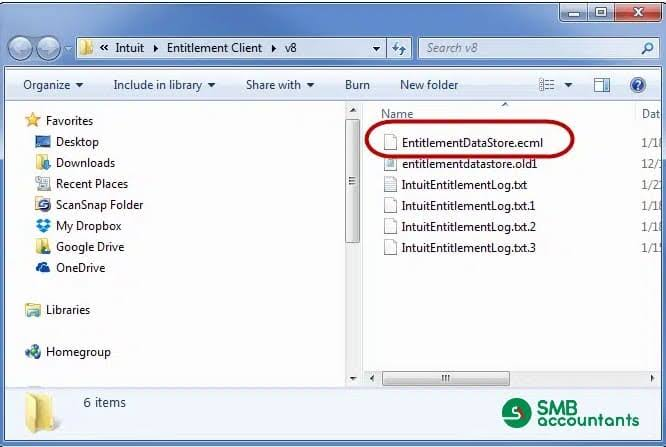
Step 3: Click Rename. Rename the file. Press Enter.
Step 4: Open QuickBooks. Complete the license verification process if QuickBooks asks you to reactivate the product.
Solution 8A: Adjust Windows Display Scaling
Problem: QuickBooks Splash Screen Appears but the Program Window Is Blank or Invisible
QuickBooks may open the splash screen but fail to display the main program window correctly when Windows display scaling is set higher than the default setting. This issue is more common on computers that use:
- 4K monitors
- 125% display scaling
- 150% display scaling
- 175% display scaling
- Multiple monitors
Adjusting the Windows display scaling or QuickBooks compatibility settings can help QuickBooks display the program window correctly.
Step 1: Close QuickBooks completely. Right-click the QuickBooks Desktop shortcut on your desktop.
Step 2: Click Properties. Click the Compatibility tab. Review the compatibility settings for QuickBooks.
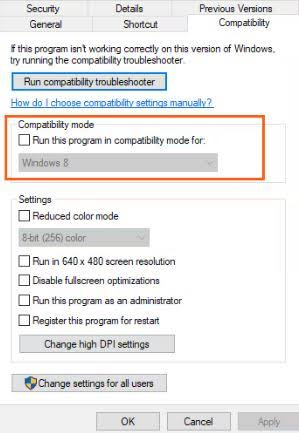
Step 3: Close the Properties window after making any required compatibility changes.
Step 4: Open Windows Settings. Click System. Click Display.
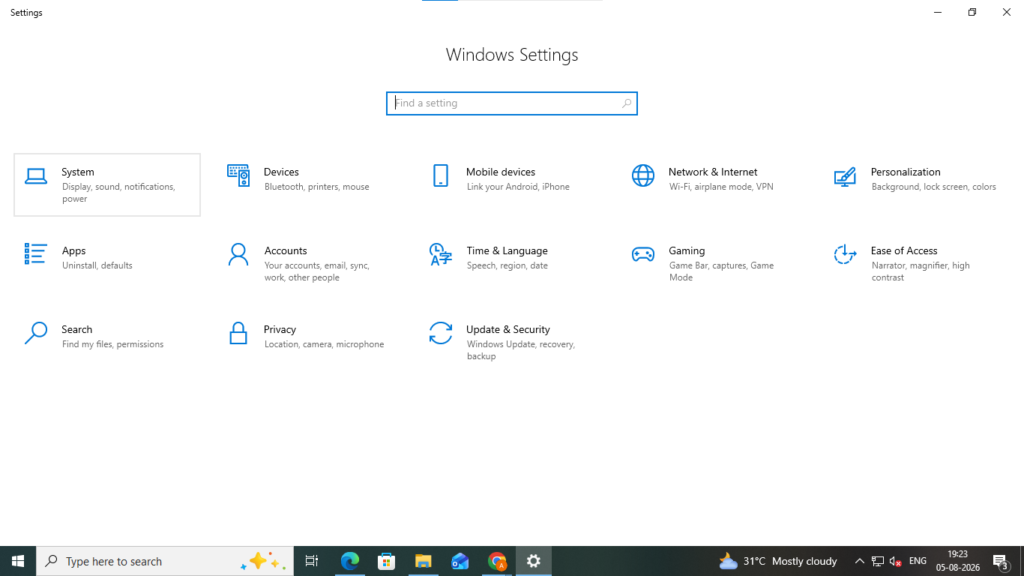
Step 5: Check the Scale setting under Scale and Layout. Change the display scaling to a standard Windows setting if it is set to a higher custom value. Close the Settings window.
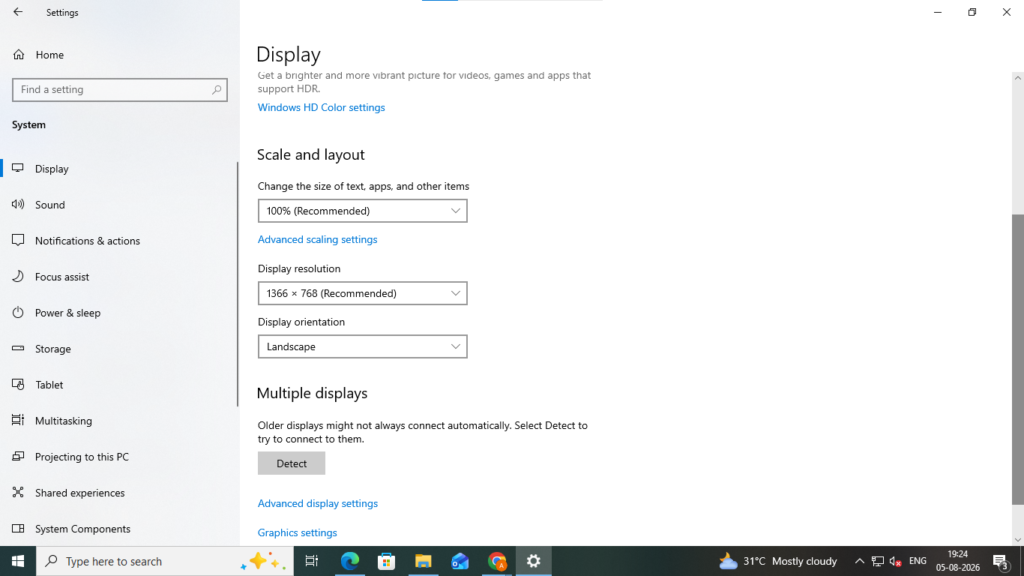
Step 6: Open QuickBooks again and check whether the program window appears normally.
Note: This solution is intended for situations where the QuickBooks splash screen appears, but the QuickBooks program window remains blank, invisible, or does not display correctly. It is not intended for company file problems.
Solution 8B: Repair the QuickBooks Installation
Problem: QuickBooks Splash Screen Remains Stuck Because the Program Installation Is Damaged
Repairing the installation replaces damaged QuickBooks program files while keeping your company data unchanged.
Step 1: Close QuickBooks if it is open. Click the Start button, type Control Panel, and open it from the search results.
Step 2: Click Programs and Features.
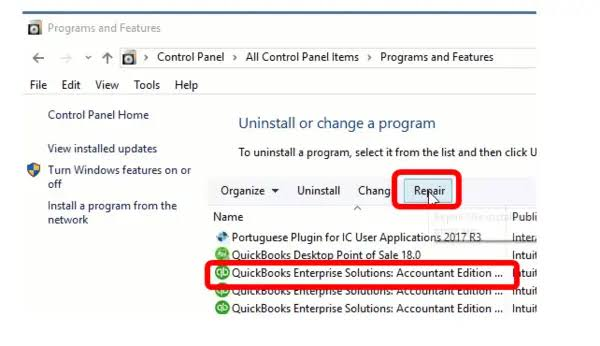
Step 3: Select QuickBooks Desktop. Click Uninstall/Change.
Step 4: Select Repair. Follow the on-screen instructions.
Step 5: Restart your computer. Open QuickBooks.
Solution 9: Perform a Clean Install of QuickBooks
Problem: QuickBooks Splash Screen Still Freezes After Trying All Previous Solutions
A clean install removes damaged QuickBooks program files and installs a fresh copy of the application.
Step 1: Close QuickBooks if it’s open. Click the Start button, type Control Panel, and open it from the search results.
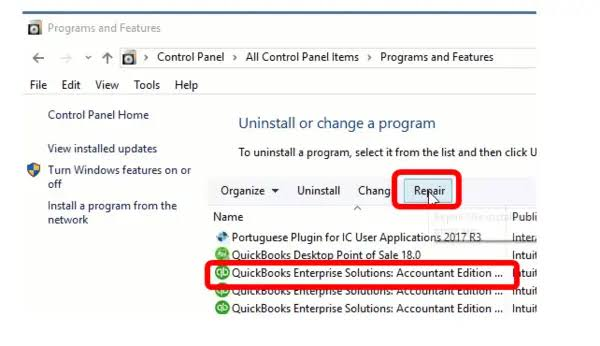
Step 2: Select Programs and Features. Find QuickBooks Desktop, click Uninstall/Change, and follow the on-screen instructions to uninstall the program.
Step 3: Download and install the latest version of QuickBooks Tool Hub if it is not already installed. Open QuickBooks Tool Hub from your desktop or the Start menu.
Step 4: In QuickBooks Tool Hub, select Installation Issues, then click Clean Install Tool. Follow the on-screen instructions to rename the old QuickBooks installation folders.
Step 5: Reinstall QuickBooks Desktop using your installation file or installation CD. Enter your license and product numbers if prompted, then complete the installation.
Step 6: Restart your computer. Open QuickBooks and check whether the splash screen opens normally.
Solution 10: Check Your Antivirus Software
Problem: QuickBooks Splash Screen Is Still Stuck After Trying All Previous Solutions
Some antivirus programs can interfere with QuickBooks during startup. They can prevent QuickBooks from running normally by blocking the software, stopping license verification, or removing important files from normal access. Checking your antivirus settings can help determine whether the antivirus software is preventing QuickBooks from opening correctly.
Step 1: Close QuickBooks completely. Open the antivirus program installed on your computer.
Step 2: Check whether your antivirus has blocked any QuickBooks files. Restore any QuickBooks files that were blocked, if you find them.
Step 3: Add QuickBooks program files to the antivirus exclusion or exception list by following the instructions provided by your antivirus software.
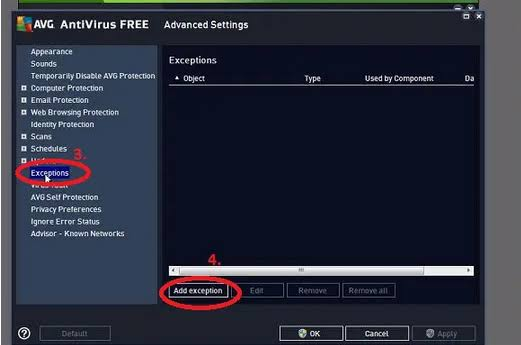
Step 4: Save the changes. Restart your computer.
Step 5: Open QuickBooks again and check whether it starts normally.
Note: Antivirus interference is a contributing factor reported in QuickBooks startup issues. It is not one of the primary causes documented by Intuit, so this solution is recommended only after completing the earlier troubleshooting steps.
When to Use a QuickBooks File Doctor (Diagnostic and Repair Tool)?
Use QuickBooks File Doctor diagnostic and repair tool only when:
- QuickBooks opens successfully.
- Only one company file fails to open.
- The issue is isolated to a company file or a network location.
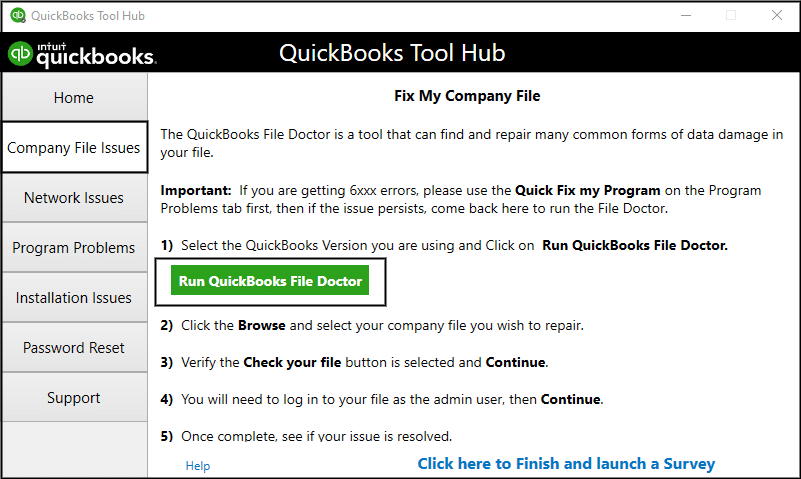
QuickBooks File Doctor is not the first troubleshooting step for a QuickBooks splash screen issue because it is designed to repair damaged company files (.QBW) and network-related problems rather than application startup issues.
How to Fix QuickBooks Online Loading Screen Issues?
QuickBooks Online is a cloud-based application and does not have separate yearly versions like QuickBooks Desktop. It updates automatically, so all users always access the latest version.
Unlike QuickBooks Desktop, QuickBooks Online does not display a splash screen because it runs in a web browser rather than as a Windows application.
If QuickBooks Online gets stuck on the loading screen or fails to open, the issue is caused by browser-related problems, internet connectivity, cached data, or a temporary service interruption. Try the solutions below to resolve QuickBooks Online loading issues.
Solution 1: Refresh the Browser
- Press Ctrl + F5 (Windows) or Command + Shift + R (Mac) to refresh the page and reload the latest version of QuickBooks Online.
Solution 2: Open QuickBooks in a Private or Incognito Window
- Open a private browsing window in your browser and sign in to QuickBooks Online.
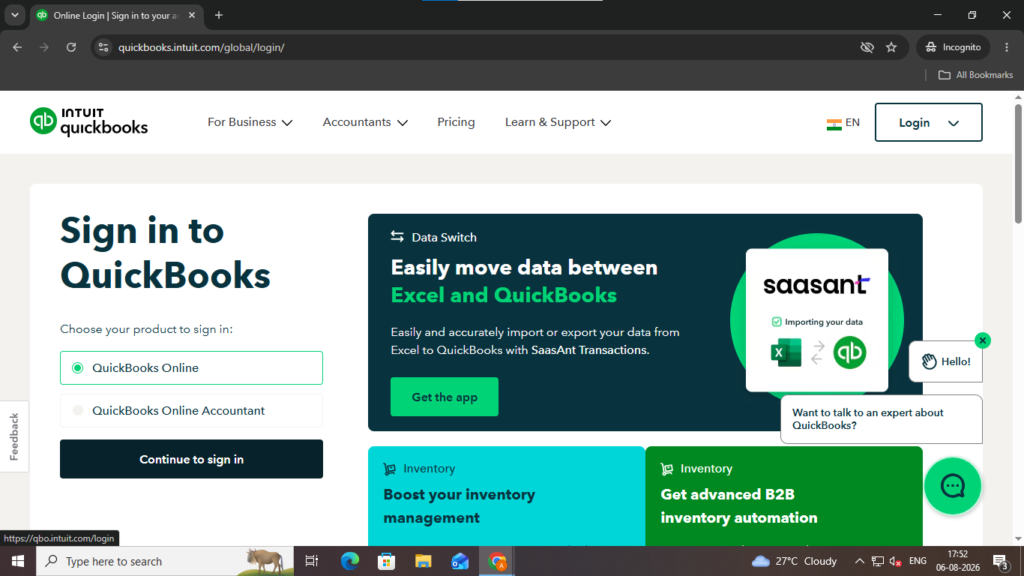
- If it works normally, your browser’s cached data or extensions may be causing the problem.
Solution 3: Clear Your Browser’s Cache and Cookies
Corrupted browser cache or cookies can prevent QuickBooks Online from loading properly.
- Open your web browser. Press Ctrl + Shift + Delete (Windows) or Command + Shift + Delete (Mac) to open the Clear browsing data window.
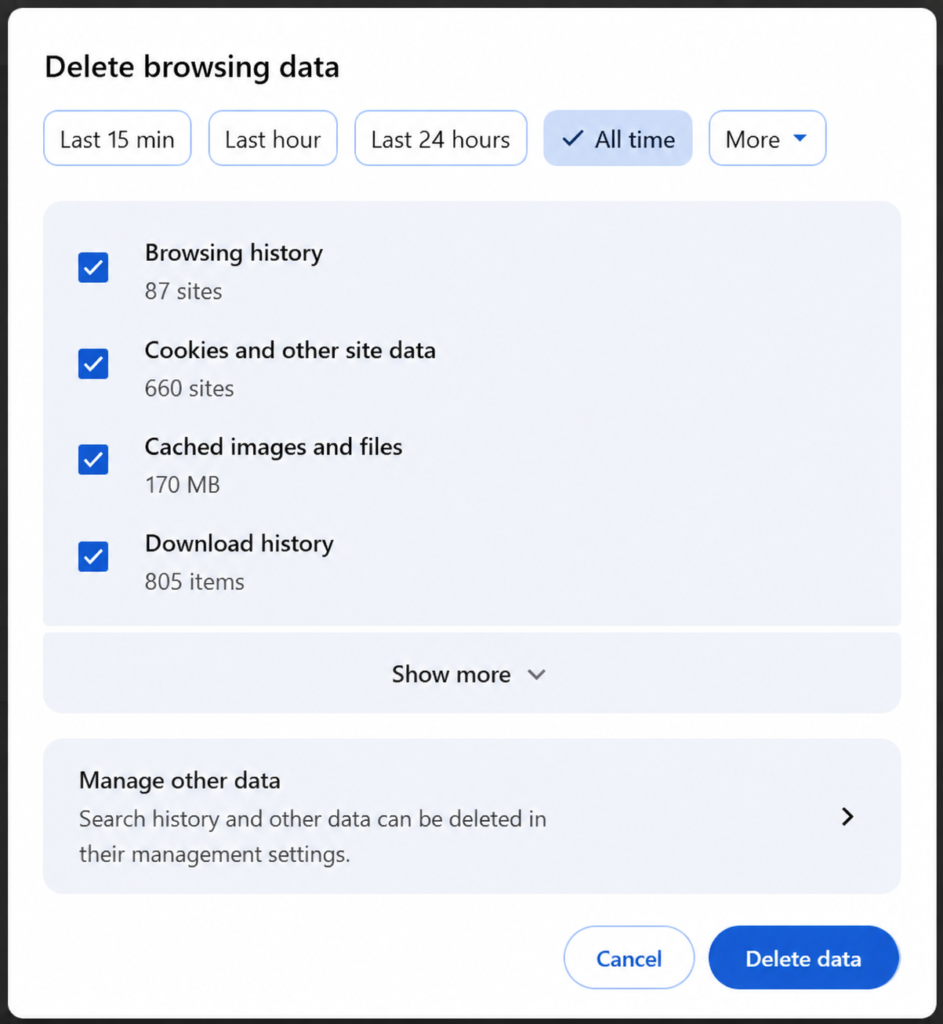
- Select Cookies and other site data and Cached images and files.
- Choose All time (or the longest available time range). Click Delete data.
- Close and reopen your browser. Sign in to QuickBooks Online and check if the issue is resolved.
This version works for Chrome, Edge, Firefox, and most Chromium-based browsers.
Solution 4: Try a Different Supported Browser
- Open QuickBooks Online in another supported browser, such as Google Chrome, Microsoft Edge, Mozilla Firefox, or Safari.
- If QuickBooks loads correctly, the issue may be related to your previous browser.
Solution 5: Disable Browser Extensions
Browser extensions, such as ad blockers, VPNs, or security add-ons, can sometimes interfere with QuickBooks Online. This works for Chrome, Edge, and other Chromium-based browsers.
- Open your browser and click the Extensions (puzzle piece) icon next to the address bar.
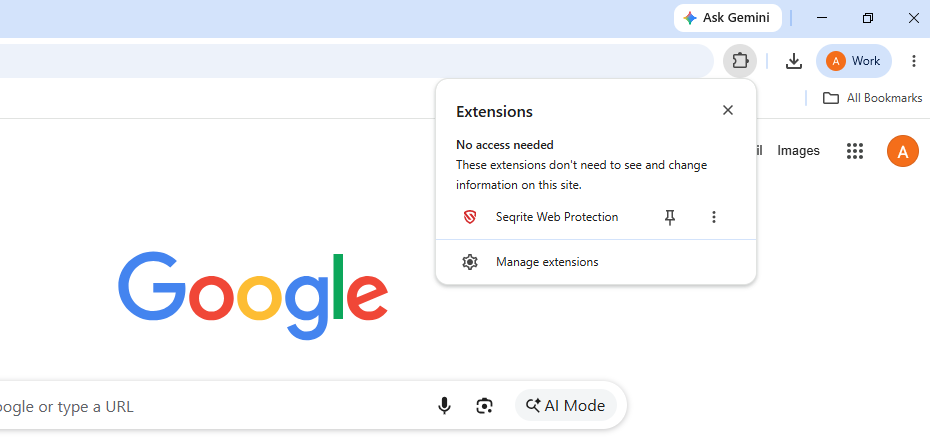
- Turn off extensions one at a time, especially ad blockers, VPNs, and security extensions.
- Refresh the QuickBooks Online page or sign in again.
- If QuickBooks works, re-enable the extensions one by one to identify the one causing the issue.
Solution 6: Check Your Internet Connection
- Make sure your internet connection is stable.
- Restart your modem or router if other websites are also loading slowly.
How to Fix QuickBooks Desktop for Mac Startup Freeze Issues?
QuickBooks Desktop for Mac differs from QuickBooks Desktop for Windows and does not include the same editions or Windows-specific troubleshooting tools.,QuickBooks Desktop for Mac doesn’t have the same Windows editions or troubleshooting tools as QuickBooks Desktop for Windows.
If QuickBooks Desktop for Mac freezes during startup, the issue is caused by damaged preferences, macOS permission settings, or application-related problems. Try these solutions given below for QuickBooks Desktop for Mac for resolving freezing:
Solution 1: Restart Your Mac
- Close QuickBooks completely if it’s already open.
- Restart your Mac and try opening QuickBooks again and check if it starts normally.
Solution 2: Update QuickBooks Desktop for Mac
Outdated QuickBooks releases may contain startup bugs or compatibility issues with macOS.
- Open QuickBooks.
- Select QuickBooks > Check for QuickBooks Updates.
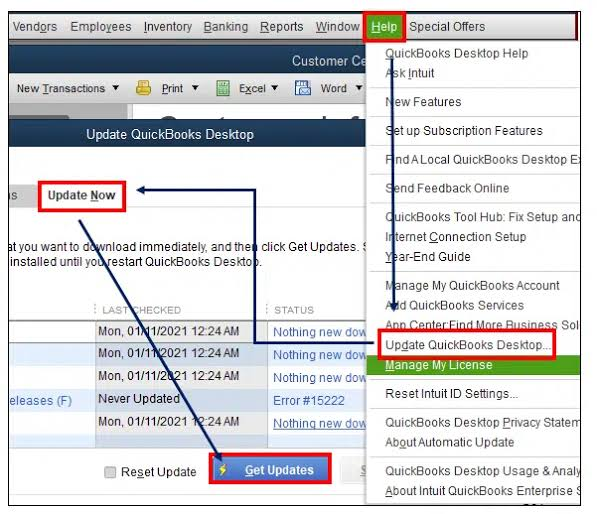
- Install any available updates. Restart your Mac and open QuickBooks again.
Note: If QuickBooks won’t open, download the latest installer for your version from your Intuit account and install the update.
Solution 3: Verify That Your macOS Version Is Compatible
- Check that your macOS version is supported by your installed QuickBooks Desktop for Mac release. Each QuickBooks version supports only specific macOS releases. For example:
- QuickBooks Desktop Mac Plus 2024 supports recent macOS versions approved by Intuit.
- QuickBooks Desktop Mac Plus 2023 supports the macOS versions specified for the 2023 release.
- QuickBooks Desktop Mac Plus 2022 requires Release 2 (R2) or later to run on macOS 12 Monterey.
- If you’re using an unsupported or beta version of macOS, update QuickBooks (if an update is available) or install a supported macOS version before opening QuickBooks.
Solution 4: Reset QuickBooks Preferences
If QuickBooks preferences become damaged, the application may fail to start correctly.
- Close QuickBooks.
- Locate and remove the QuickBooks preference files in your Mac Library > Preferences folder.
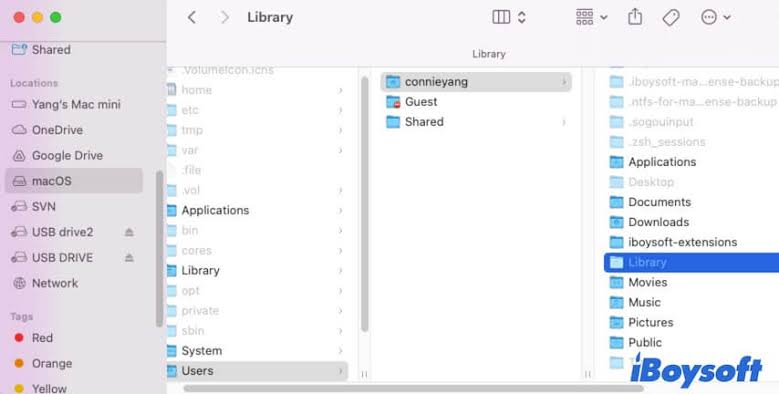
- Reopen QuickBooks. The application automatically creates new preference files.
Solution 5: Check Your Mac’s Storage
Low disk space or disk errors can affect application startup.
- Ensure your Mac has sufficient free storage. Open Disk Utility.
- Select your startup disk and click First Aid.
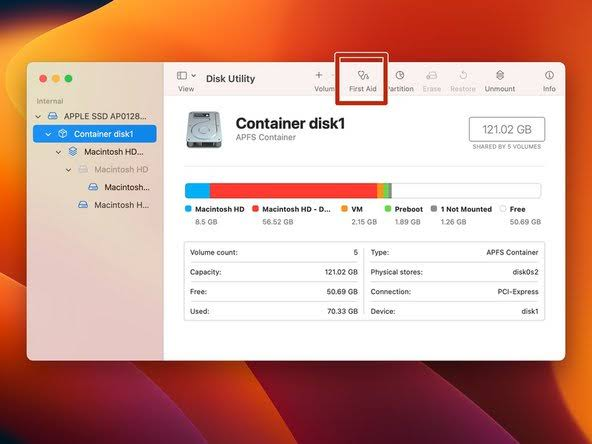
- Restart your Mac after First Aid finishes.
Solution 6: Start Your Mac in Safe Mode
Safe Mode loads only essential macOS components and can help identify software conflicts.
- Start your Mac in Safe Mode and try opening QuickBooks.
- If QuickBooks opens successfully, restart your Mac normally and disable recently installed login items or third-party applications that may be causing the conflict.
Solution 7: Reinstall QuickBooks Desktop for Mac
If QuickBooks still freezes during startup, reinstall the application.
- Remove QuickBooks from the Applications folder. Restart your Mac.
- Install a fresh copy of QuickBooks using your original installer or the latest installer from your Intuit account.
- Open QuickBooks and verify that the issue is resolved.
Important: The troubleshooting steps in this guide are designed for QuickBooks Desktop for Windows. Windows-specific tools and files, including QuickBooks Tool Hub, Quick Fix my Program, QuickBooks Install Diagnostic Tool, QBWUSER.ini, and EntitlementDataStore.ecml, are not available in QuickBooks Online or QuickBooks Desktop for Mac.
Conclusion
Whether you’re using QuickBooks Desktop for Windows, QuickBooks Online, or QuickBooks Desktop for Mac, following the correct troubleshooting steps for your product can resolve most startup and loading issues without affecting your company data.
Work through the solutions in the order provided in this guide, as they progress from simple checks to more advanced repairs.
If QuickBooks still doesn’t open after trying all the recommended solutions, contact Intuit QuickBooks Support for further assistance.

Anusmita is a seasoned content writer who brings perspective to words. As a writer, she enriches her work with a journalistic aptitude, utilising her training in Mass Communication and Journalism. She loves to travel and explore, which imparts a greater sense of understanding, maturity, and experience that are reflected in her content.
Beyond her professional work, Anusmita enjoys painting, singing, dancing, and spending time planting. She is also a self-proclaimed foodie who loves exploring different cuisines, an interest that further adds to her curiosity and perspective as a writer.
Leave a Reply