
QuickBooks Desktop should open the same way every day: click the icon, watch the loading screen for a few seconds, and land on your company file. After a Windows 11 update, that routine can break without warning. You click the icon, the hourglass spins, and nothing happens. Or QuickBooks opens for half a second and closes itself before the company file ever loads.
This is a documented, recurring problem. Windows 11 updates change files and settings deep inside the operating system that QuickBooks depends on every time it starts. QuickBooks itself is not damaged in most cases — the update has changed something underneath it that QuickBooks now cannot work with the way it did before.
The good news is that this exact problem has a known set of causes and a known order of fixes. This article walks through what a Windows 11 update actually changes, why each change stops QuickBooks from opening, and the precise steps to get back into your company file without losing any data.
Table of Contents
Identify Your Startup Problem in 60 Seconds
Match what QuickBooks does — or does not do — when you try to open it to the most likely cause:
| If QuickBooks… | The most likely cause is… |
|---|---|
| Shows an endless spinning hourglass and never loads | A stuck QuickBooks background process left over from the update |
| Opens for a moment, then closes itself with no error | Damaged QBWUSER.ini settings file |
| Asks you to reboot even after several restarts | Windows update did not fully complete or left a pending update flag |
| Will not open at all and shows no window or message | Damaged QuickBooks program files from an interrupted installation |
| Opens but displays incorrectly or looks visually broken | Windows 11 compatibility setting needs to be applied manually |
| Opens the program but the company file will not load | .NET Framework or other Windows component damaged by the update |
What a Windows 11 Update Actually Changes
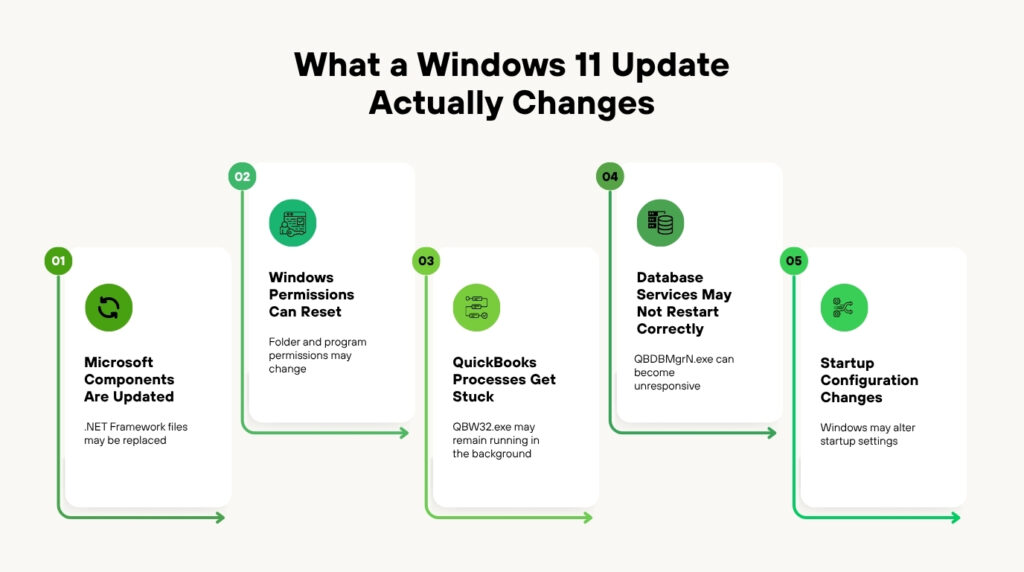
A Windows update is not one single change — it is a batch of file replacements, permission resets, and background service restarts that happen automatically. Several of these changes touch the exact components QuickBooks relies on to start up correctly.
QuickBooks Desktop depends on Microsoft components built into Windows, including .NET Framework, to run many of its internal startup processes. A Windows 11 update can repair, replace, or change the active version of these components. If the version QuickBooks expects no longer matches what is installed after the update, the program fails before it can even display its loading screen.
Windows updates can also leave background QuickBooks processes — such as QBW32.exe, the main QuickBooks program file, or QBDBMgrN.exe, the QuickBooks Database Server Manager — stuck in a partially closed state if QuickBooks was running during the restart. A stuck process holds onto system resources QuickBooks needs to start a new session, which is why the program appears to load forever without ever opening.
Root Causes of QuickBooks Not Opening After a Windows 11 Update
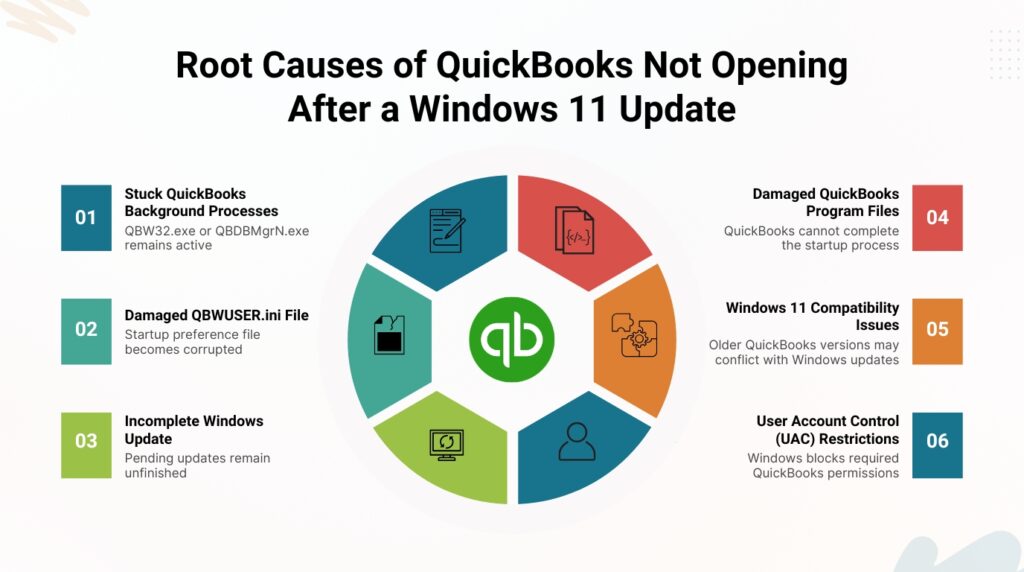
1. A Stuck Background Process from Before the Update
If QuickBooks was open when the Windows 11 update restarted your computer, the program may not have closed its background processes cleanly. These processes — QBW32.exe for the main program and QBDBMgrN.exe for the database manager — sometimes remain active in Windows even though the QuickBooks window itself has disappeared from your screen.
A stuck process blocks a new QuickBooks session from starting because Windows believes the program is already running. This is why double-clicking the QuickBooks icon after a restart can produce a spinning hourglass that never resolves: QuickBooks is technically already “open” according to Windows, even though no window is visible to you.
The fix is to manually close these leftover processes. Press Ctrl + Shift + Esc to open Task Manager. Click the Details tab. Look for QBW32.exe and QBDBMgrN.exe in the list. Right-click each one and select End Task. Once both are closed, try opening QuickBooks again — this clears the conflict and allows a fresh session to start.
2. A Damaged QBWUSER.ini File
QuickBooks stores your personal settings — including which company file to open automatically, window size, and recently used files — inside a small file called QBWUSER.ini. This file is read every single time QuickBooks starts, before the program window even appears.
A Windows 11 update can damage or partially overwrite this file during the update process. When QuickBooks reads a damaged QBWUSER.ini file, it can either fail to open entirely or open briefly and then close itself, since the program cannot make sense of the corrupted settings it just tried to load.
Renaming this file forces QuickBooks to build a brand new one with default settings. Go to C:\Users\[Your Username]\AppData\Local\Intuit\QuickBooks [Year]. If you cannot see the AppData folder, you need to turn on hidden files first through File Explorer’s View options. Right-click QBWUSER.ini and rename it to QBWUSER.ini.old. Restart QuickBooks. Note that this resets minor preferences like window size and the last-opened file, but it does not touch your actual company data.
3. The Windows Update Did Not Fully Complete
Windows 11 updates sometimes report as finished while a pending update flag remains active in the background. This means part of the update process is technically still waiting to complete, even though your computer has already restarted and appears to be running normally.
QuickBooks checks for a stable, fully updated Windows environment as part of its own startup process. A pending update flag confuses this check, which is why QuickBooks may repeatedly ask you to reboot your computer even after you have already restarted multiple times.
Go to Settings, then Windows Update, and check whether any updates are still listed as pending or waiting to install. Install anything shown there and restart your computer one more time. If QuickBooks continues asking for a reboot afterward, a repair install often clears the stuck flag: go to Control Panel, select Programs and Features, find QuickBooks in the list, and choose Repair rather than Uninstall.
4. Damaged QuickBooks Program Files
QuickBooks Desktop is made up of many individual program files working together. A Windows 11 update that restarts your computer mid-write, or that changes file permissions on the QuickBooks installation folder, can leave one or more of these program files incomplete or unreadable.
Damaged program files prevent QuickBooks from opening because the program cannot load the specific file it needs at that moment in the startup sequence. This is different from a damaged company file — your accounting data is untouched, but the software itself cannot launch correctly.
The QuickBooks Install Diagnostic Tool, available for free inside the QuickBooks Tool Hub, scans for exactly this kind of damage. Download the QuickBooks Tool Hub from Intuit’s official website, open it, select Installation Issues, and run the QuickBooks Install Diagnostic Tool. The scan can take up to twenty minutes. Restart your computer once it finishes and try opening QuickBooks again.
5. Windows 11 Compatibility Mode Not Applied
Older QuickBooks Desktop versions were built and tested before Windows 11 existed. While Intuit continues to update QuickBooks for compatibility with current Windows versions, a Windows 11 feature update can occasionally introduce a display or startup conflict that compatibility mode resolves.
Compatibility mode tells Windows to run QuickBooks using settings closer to an earlier Windows version that the program was originally built for. This does not downgrade QuickBooks itself — it only changes how Windows 11 interacts with it during startup, which can be enough to resolve a conflict introduced by a recent update.
Right-click the QuickBooks desktop icon and select Properties. Click the Compatibility tab. Check the box for Run this program in compatibility mode for, and select an earlier Windows version such as Windows 8 or Windows 10 from the dropdown menu. Click Apply, then OK, and try opening QuickBooks again.
6. User Account Control (UAC) Blocking QuickBooks
Windows User Account Control, known as UAC, is the security feature that asks for permission before a program makes system-level changes. A Windows 11 update can change your UAC settings to a stricter level than before, which can prevent QuickBooks from completing parts of its startup process that require elevated permissions.
Running QuickBooks as an administrator gives the program the elevated permissions it needs, bypassing a UAC conflict without permanently changing your security settings. Right-click the QuickBooks desktop icon and select Run as Administrator. If a User Account Control prompt appears asking for permission, select Yes. If QuickBooks opens successfully this way, a UAC restriction was very likely part of the problem.
How to Fix QuickBooks Not Opening: Step-by-Step
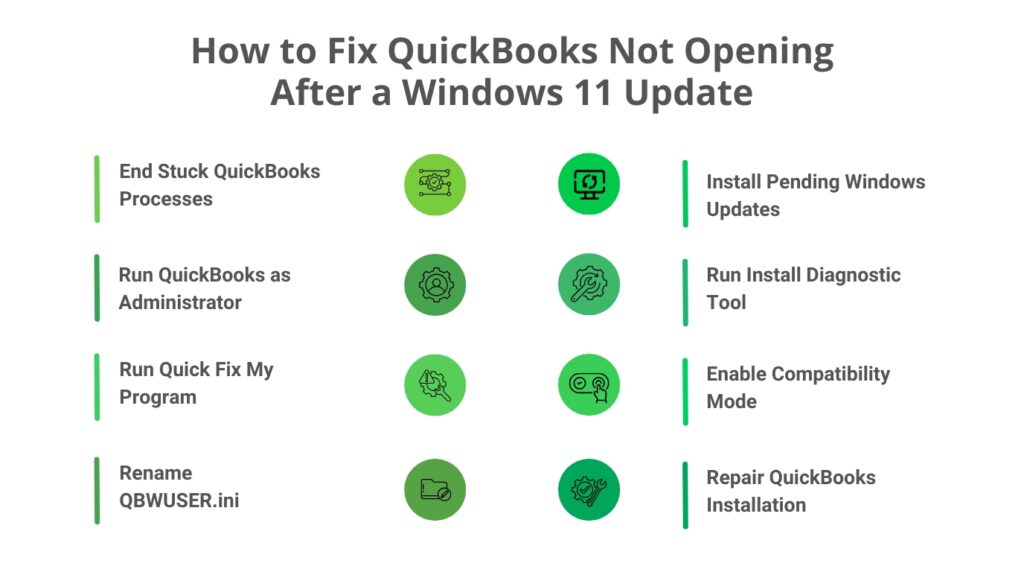
Step 1: Close Any Stuck QuickBooks Processes
Press Ctrl + Shift + Esc to open Task Manager. Click the Details tab and look for QBW32.exe and QBDBMgrN.exe. If either appears in the list, right-click it and select End Task. This clears any leftover process from before the Windows 11 update restarted your computer.
Step 2: Run QuickBooks as Administrator
Right-click the QuickBooks desktop icon and select Run as Administrator. Select Yes if a User Account Control prompt appears. If QuickBooks opens this way, the issue is resolved for this session, though you should continue with the remaining steps to fix it permanently rather than running as administrator every time.
Step 3: Run Quick Fix My Program from the QuickBooks Tool Hub
Close QuickBooks completely. Download the QuickBooks Tool Hub from Intuit’s official website if you do not already have it. Open the Tool Hub, select Program Problems, and choose Quick Fix My Program. This closes any remaining background QuickBooks processes and performs a basic repair before you try opening the program again.
Step 4: Rename the QBWUSER.ini File
Close QuickBooks. Open File Explorer and turn on hidden files if you have not already, through the View menu under Show, then Hidden items. Go to C:\Users\[Your Username]\AppData\Local\Intuit\QuickBooks [Year]. Right-click QBWUSER.ini and select Rename. Change the name to QBWUSER.ini.old. Open QuickBooks again — it will create a fresh settings file automatically.
Step 5: Check for and Install Any Pending Windows Updates
Go to Settings, then Windows Update. Check whether any updates are listed as pending, waiting to install, or requiring a restart. Install anything shown and restart your computer fully. A pending update flag left over from the original Windows 11 update can be the reason QuickBooks keeps asking to reboot even after multiple restarts.
Step 6: Run the QuickBooks Install Diagnostic Tool
Open the QuickBooks Tool Hub again. Select Installation Issues, then choose QuickBooks Install Diagnostic Tool. Let the scan run fully; it can take up to twenty minutes. This tool repairs .NET Framework and other Microsoft components that QuickBooks needs to start correctly. Restart your computer when the scan finishes.
Step 7: Apply Windows 11 Compatibility Mode
Right-click the QuickBooks desktop icon and select Properties. Click the Compatibility tab. Check Run this program in compatibility mode for, and choose an earlier Windows version from the dropdown, such as Windows 10. Click Apply, then OK. Try opening QuickBooks normally to see if this resolves a startup conflict introduced by the Windows 11 update.
Step 8: Repair the QuickBooks Installation
If QuickBooks still will not open after the steps above, go to Control Panel, select Programs and Features, find QuickBooks Desktop in the list, and select it. Click Uninstall/Change, then choose Repair from the options presented, and follow the on-screen instructions. This replaces any damaged program files without removing your company data, which is stored separately from the QuickBooks installation files.
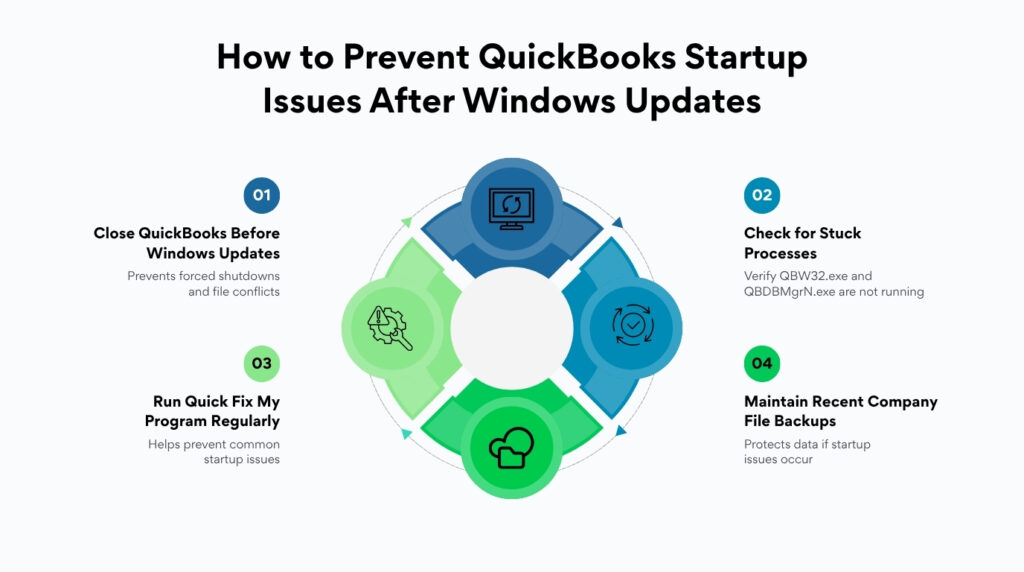
Prevention Checklist
These habits reduce the chance of QuickBooks failing to open after future Windows 11 updates:
| QuickBooks Startup Protection Checklist — Before and After Every Windows 11 Update |
|---|
| Always close QuickBooks completely before allowing a Windows update to restart your computer, rather than letting Windows force-close it. |
| After any Windows 11 update, check Task Manager for stuck QBW32.exe or QBDBMgrN.exe processes before attempting to open QuickBooks. |
| Keep QuickBooks Desktop updated to the latest release at all times, since Intuit issues compatibility fixes for new Windows versions through these updates. |
| After every Windows update, confirm no further updates are pending under Settings > Windows Update before troubleshooting QuickBooks further. |
| Keep a backup copy of your QBWUSER.ini settings file location noted, so you can quickly rename it if QuickBooks fails to open after an update. |
| Run the QuickBooks Tool Hub’s Quick Fix My Program monthly as routine maintenance, not only when a problem appears. |
| Avoid clicking the QuickBooks icon multiple times if it does not open immediately; allow the program time to load before troubleshooting. |
| Keep a recent backup of your company file at all times so you have a safe restore point regardless of any startup issue. |
Summary: What Stops QuickBooks From Opening and What Fixes It
| Cause | Why QuickBooks Will Not Open | Fix |
|---|---|---|
| Stuck background process | Windows believes QuickBooks is already running from before the restart | End QBW32.exe and QBDBMgrN.exe in Task Manager |
| Damaged QBWUSER.ini file | QuickBooks cannot read corrupted startup settings, so it fails or self-closes | Rename QBWUSER.ini to QBWUSER.ini.old to force a fresh file |
| Pending Windows update flag | Windows reports the update as incomplete, which QuickBooks detects on startup | Install remaining updates under Settings > Windows Update, then restart |
| Damaged QuickBooks program files | A required file is missing or unreadable during the startup sequence | Run QuickBooks Install Diagnostic Tool or repair the installation |
| Windows 11 display or startup conflict | Program was built before Windows 11 and a recent update changed behavior | Enable compatibility mode for an earlier Windows version |
| UAC permission restriction | Windows update tightened permission requirements QuickBooks needs at startup | Run QuickBooks as Administrator |
Conclusion
QuickBooks not opening after a Windows 11 update is a documented, well-understood problem with a clear set of causes: a stuck background process, a damaged settings file, an incomplete Windows update, damaged program files, a compatibility conflict, or a UAC restriction. None of these affect the accounting data inside your company file, which remains safe throughout every fix described here.
The fastest path back into QuickBooks usually starts with the simplest checks: closing stuck processes in Task Manager and renaming the QBWUSER.ini file. These two steps resolve the majority of post-update startup failures because they address the two most common conflicts directly. The QuickBooks Install Diagnostic Tool and a repair install cover the deeper, file-level causes for the cases that need them.
Windows updates will keep arriving, and each one carries a small chance of disrupting QuickBooks startup again. Working through this same sequence — process check, settings file, pending updates, diagnostic tool, compatibility mode, repair install — gets you back into your company file quickly and keeps the same conflict from catching you off guard the next time.
Frequently Asked Questions
1. Will renaming the QBWUSER.ini file delete any of my QuickBooks data?
No. QBWUSER.ini only stores your personal preferences — the last company file you opened, your window size and position, and a few display settings. It does not contain any accounting data, transactions, or company file information. Renaming it to QBWUSER.ini.old simply forces QuickBooks to create a clean new settings file the next time it opens, and you may need to reset a few minor preferences afterward, such as window size.
2. QuickBooks asks me to restart even though I already restarted three times. What is happening?
This points to a pending Windows update flag that remains active even after your computer has restarted. Windows occasionally marks an update as still requiring a restart in its internal tracking even though the visible restart already happened. Go to Settings, then Windows Update, and confirm no updates are listed as pending. If the message continues after confirming this, a repair install of QuickBooks through Control Panel, Programs and Features often clears the stuck flag.
3. Is it safe to run QuickBooks in compatibility mode permanently?
Yes, compatibility mode is a supported Windows feature designed for exactly this kind of situation, where a program was built for an earlier Windows version and needs help running smoothly on a newer one. It does not limit QuickBooks’s features or affect your company data. If compatibility mode resolves your startup issue, you can leave it enabled indefinitely, though it is also worth checking periodically whether a QuickBooks update has resolved the underlying conflict, since Intuit continues to release Windows 11 compatibility improvements.
4. My QuickBooks opens fine on its own but the company file will not load. Is this the same problem?
It can be related but is also worth checking separately. If QuickBooks itself opens normally and only the company file fails to load, the Windows update may have affected a Microsoft component such as .NET Framework that the file-loading process specifically depends on. Run the QuickBooks Install Diagnostic Tool from the Tool Hub to repair these components. If the company file still will not open afterward, run Verify Data and Rebuild Data, since this symptom can also indicate the update brought an existing data issue in the file to the surface.
5. Should I uninstall the Windows 11 update to fix QuickBooks?
Uninstalling a Windows update is possible but should be treated as a last option, since Windows updates often contain important security fixes you do not want to remove permanently. Documented cases of QuickBooks startup failures tied to a specific Windows update have been resolved by removing that one update as a temporary workaround while waiting for an official compatibility fix. If you choose this route, go to Settings, then Windows Update, then Update History, and select Uninstall Updates to remove the specific update, but plan to reinstall it once QuickBooks or Windows issues a compatibility fix.

Anusmita is a seasoned content writer who brings perspective to words. As a writer, she enriches her work with a journalistic aptitude, utilising her training in Mass Communication and Journalism. She loves to travel and explore, which imparts a greater sense of understanding, maturity, and experience that are reflected in her content.
Beyond her professional work, Anusmita enjoys painting, singing, dancing, and spending time planting. She is also a self-proclaimed foodie who loves exploring different cuisines, an interest that further adds to her curiosity and perspective as a writer.
Leave a Reply