
A payroll or tax table update is supposed to keep QuickBooks Desktop accurate, not break it. The update brings in the latest federal and state withholding rates so that every paycheck you process uses current, correct numbers. When QuickBooks closes unexpectedly right after this update, freezes mid-payroll, or shows an Unrecoverable Error with a long numeric code, the timing tells you exactly where to look first.
This crash pattern is common enough that Intuit has documented specific causes and specific fixes for it. The crash is not random, and it is not a sign that your company file is permanently damaged. In nearly every documented case, the cause is a conflict between the newly downloaded update files and one part of your local setup — the payroll component folder, your network mode, a Windows file, or a setting that blocks the update from finishing cleanly.
This article explains exactly what a payroll or tax table update changes inside QuickBooks, why that change can cause a crash, and the specific steps that restore stable payroll processing without losing any data already entered.
Table of Contents
Identify Your Crash Pattern in 60 Seconds
Match what you are seeing on screen to the most likely cause before working through the fixes:
| If QuickBooks… | The most likely cause is… |
|---|---|
| Crashes the moment you open the Payroll Center | Damaged payroll component (CPS) folder from an interrupted update |
| Shows an Unrecoverable Error with a 10-digit code | Damaged QuickBooks program files or a Windows component conflict |
| Freezes while answering overtime rule or setup questions during payroll | Data integrity issue inside the company file, separate from the tax tables |
| Crashes only when other users are also logged in | Update was applied while QuickBooks was in multi-user mode |
| Will not let the tax table download complete at all | Outdated QuickBooks release or blocked connection to Intuit servers |
| Crashes every time you try to process Direct Deposit after the update | Damaged update files combined with an unverified company file |
What a Payroll or Tax Table Update Actually Does?
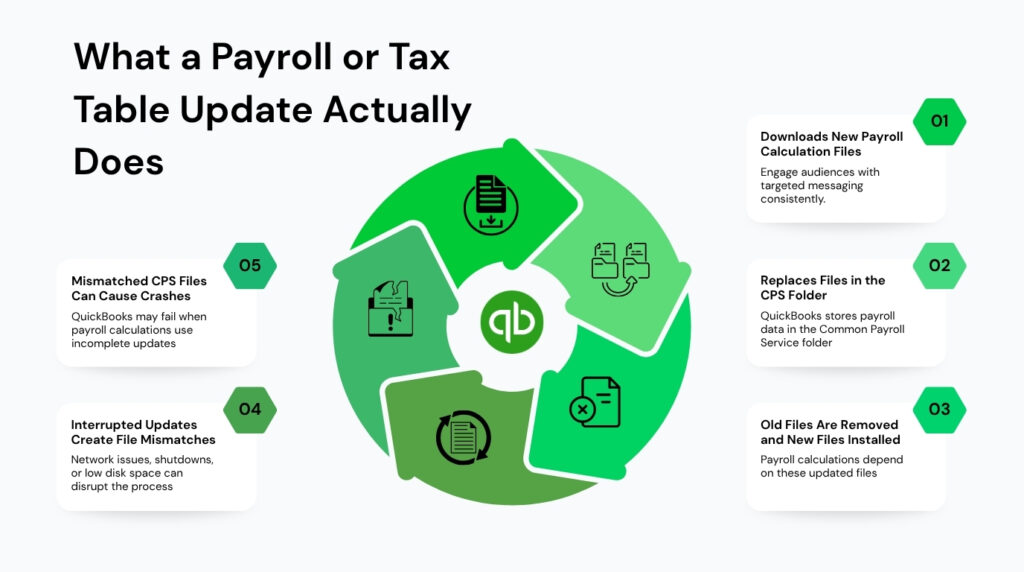
Knowing what happens behind the scenes during an update makes the crash far less confusing. QuickBooks does not simply add new numbers to a list — it replaces entire sets of calculation files that your payroll module depends on every time you run a paycheck.
When you select Get Payroll Updates from the Employees menu and choose Download Entire Update, QuickBooks downloads new files into a specific folder on your computer called the CPS folder — short for Common Payroll Service. This folder stores every tax rate, wage limit, and calculation rule QuickBooks uses to figure out withholding on each paycheck. The update replaces the old files in this folder with new ones.
If this replacement process is interrupted — by a network drop, a forced shutdown, low disk space, or another user accessing the same files in multi-user mode — the CPS folder ends up holding a mix of old and new files that do not match each other. QuickBooks then reads these mismatched files the next time you try to run payroll, and the mismatch is what triggers a crash rather than a normal payroll calculation.
Root Causes of Crashes After a Payroll or Tax Update
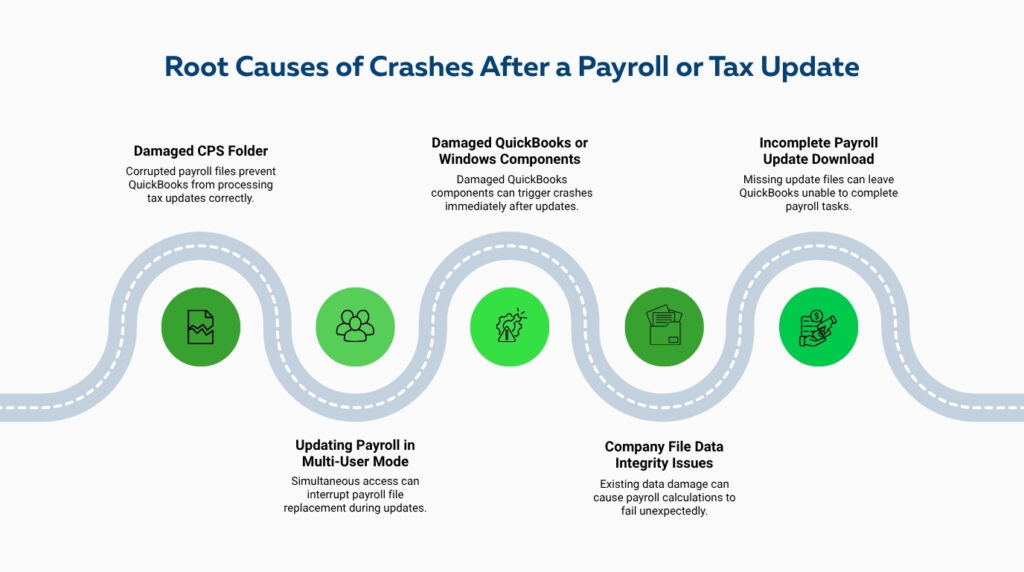
1. A Damaged CPS (Payroll Component) Folder
The CPS folder is the single most common point of failure after a payroll update. According to documented troubleshooting from QuickBooks support sources, when the files in this folder get tangled or only partially replaced during the download, QuickBooks can crash, freeze, or throw an Unrecoverable Error the next time it tries to access payroll data.
This happens specifically because every payroll calculation — even something as simple as opening the Payroll Center — requires QuickBooks to read files from the CPS folder first. A folder containing incomplete or mismatched files cannot be read correctly, so QuickBooks closes rather than risk calculating a paycheck with wrong information.
The fix Intuit and QuickBooks support documentation both point to is renaming this folder so QuickBooks is forced to rebuild it cleanly. The exact location is C:\Program Files\Intuit\QuickBooks20XX\Components\Payroll\CPS, where 20XX is your installed QuickBooks year. Renaming the folder to CPSOLD does not delete your payroll data — it only removes the damaged calculation files, which QuickBooks recreates the next time you run a payroll update.
2. Updating Payroll While in Multi-User Mode
Multi-user mode lets several people work in the same company file at the same time, with QuickBooks managing all the simultaneous reads and writes through a background service. A payroll update is a large file-replacement operation, and running it while other users are actively in the file creates a conflict: QuickBooks is trying to overwrite payroll calculation files while another session may be reading from those same files at the same moment.
Documented troubleshooting from a payroll update incident affecting thousands of QuickBooks Desktop users traced the root cause directly to a tax table update being installed while QuickBooks was in multi-user mode. The fix that restored stable payroll processing for affected users was switching to single-user mode, performing a complete payroll update, and only running payroll after the update fully finished in that single-user state.
To switch modes, every other user must close QuickBooks first. Then go to File and select Switch to Single-User Mode. Only after this switch should you run Get Payroll Updates and choose Download Entire Update. Completing the payroll update in single-user mode removes the conflict entirely, because no other session can interfere with the files being replaced.
3. Damaged QuickBooks Program Files or Windows Components
An Unrecoverable Error that shows a long numeric code rather than a plain-language message usually points to a problem outside the payroll data itself. According to QuickBooks support discussions on this exact error type, the most common underlying causes are damaged QuickBooks program files — pieces of the software itself that became corrupted during an earlier installation or update — and Windows components such as .NET Framework or MSXML not working correctly with QuickBooks.
.NET Framework is a software layer built into Windows that QuickBooks relies on to run many of its internal processes, including parts of the payroll module. MSXML is a similar Microsoft component that QuickBooks uses to read and process certain data files. When either of these becomes outdated, damaged, or incompatible with your QuickBooks version, payroll processing — which depends heavily on both — becomes one of the first features to crash.
The QuickBooks Install Diagnostic Tool, found inside the free QuickBooks Tool Hub, scans for and repairs both .NET Framework and MSXML issues automatically. Running this tool after a payroll-related Unrecoverable Error addresses the Windows-side half of this problem without requiring you to manually reinstall Windows components yourself.
4. Company File Data Integrity Issues Surfacing During Payroll
Sometimes a crash that appears connected to a payroll update is actually an existing data problem inside the company file that the update simply brought to the surface. QuickBooks support guidance on payroll crashes occurring after rule or setup changes — such as new overtime calculation rules — specifically points to data integrity problems within the company file as a contributing cause, separate from the tax tables themselves.
This happens because payroll calculations touch many parts of your company file at once: employee records, wage items, tax items, and historical paycheck data. If any of these records contain an internal inconsistency that was already present before the update — even one that never caused a visible problem before — the additional calculation work required by a payroll update can be what finally triggers a crash.
Running the Verify Data utility checks your company file for exactly this kind of inconsistency. Go to File, then Utilities, then Verify Data. If Verify Data reports problems, follow it immediately with Rebuild Data from the same menu, after creating a backup copy of your company file first. This sequence — verify, back up, rebuild — is the standard process QuickBooks support recommends specifically for payroll crashes connected to data integrity.
5. Interrupted or Incomplete Download of the Update
A payroll or tax table update can fail to download completely if your internet connection drops mid-download, if QuickBooks loses connection to Intuit’s servers, or if a firewall blocks part of the download. An incomplete download leaves QuickBooks with a partial set of update files — enough to start the installation process but not enough to finish it correctly.
Documented error codes such as PS038, which appears specifically during payroll tax table installation, are described in QuickBooks support sources as connection or file corruption issues tied to an incomplete or failed update. The same sources note that confirming your QuickBooks Desktop is updated and your payroll subscription is active are the first two checks before attempting the update again.
Before retrying a failed update, confirm your internet connection is stable and close any background programs that might interrupt the download. Then go to Employees, select Get Payroll Updates, and choose Download Entire Update again rather than a partial update. A complete download replaces every file in the CPS folder at once, which prevents the mismatch problem described earlier in this article.
How to Fix Payroll Update Crashes: Step-by-Step
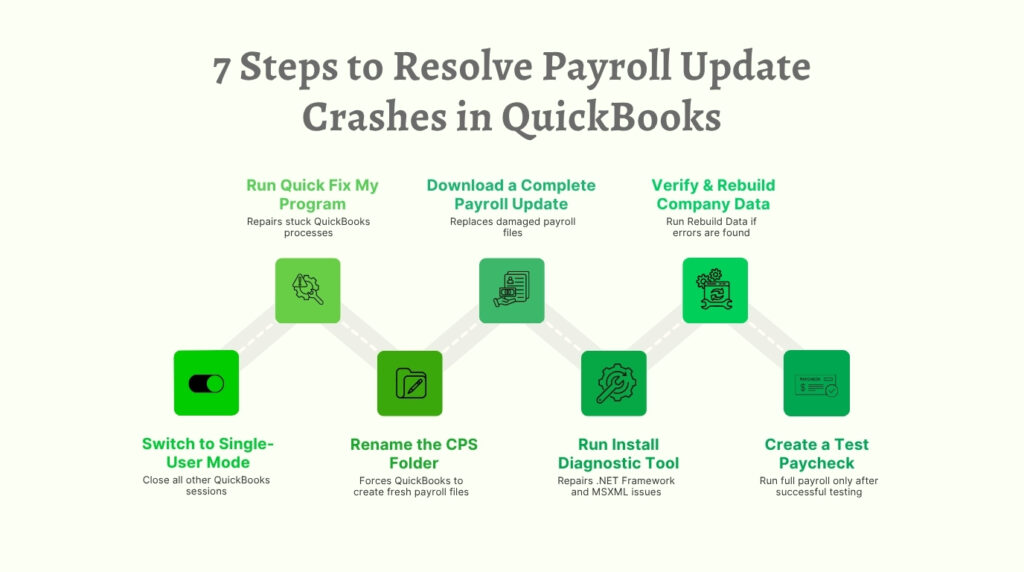
Step 1: Switch to Single-User Mode Before Doing Anything Else
Ask every other user to close QuickBooks. Open QuickBooks as the admin user and go to File, then Switch to Single-User Mode. Running every step below in single-user mode removes the possibility of another session interfering with the files being repaired or replaced.
Step 2: Run Quick Fix My Program from the QuickBooks Tool Hub
Close QuickBooks completely. Download the QuickBooks Tool Hub from Intuit’s official website if you do not already have it installed. Open the Tool Hub, select Program Problems, and choose Quick Fix My Program. This step closes any background QuickBooks processes that may still be running from the crash and performs a basic repair before you continue. Reopen QuickBooks once this finishes.
Step 3: Rename the CPS Folder to Force a Clean Rebuild
Close QuickBooks. Open File Explorer and go to C:\Program Files\Intuit\QuickBooks20XX\Components\Payroll\CPS, replacing 20XX with your QuickBooks version year. Right-click the CPS folder and select Rename. Change the name to CPSOLD. This does not delete any payroll data — it only removes the damaged calculation files so QuickBooks can recreate them fresh on the next update.
Step 4: Run a Complete Payroll Update
Open QuickBooks and your company file. Go to Employees, then select Get Payroll Updates. Check the box for Download Entire Update rather than leaving it on a partial update. Click Update and let the download finish completely without interrupting it. This replaces every file in the newly recreated CPS folder at once, avoiding the mismatched-file problem that caused the original crash.
Step 5: Run the QuickBooks Install Diagnostic Tool
If QuickBooks is still showing an Unrecoverable Error after Steps 1 through 4, open the QuickBooks Tool Hub again. Select Installation Issues, then choose QuickBooks Install Diagnostic Tool. Let the tool run; it can take up to twenty minutes. This tool repairs .NET Framework, MSXML, and other Microsoft components that QuickBooks depends on for payroll processing. Restart your computer when it finishes.
Step 6: Verify and Rebuild Your Company File Data
Back up your company file first by going to File, then Back Up Company, then Create Local Backup. Once the backup is saved, go to File, then Utilities, then Verify Data. If QuickBooks reports any data integrity issues, go to File, then Utilities, then Rebuild Data immediately afterward. Run Verify Data one more time after the rebuild finishes to confirm the issues are resolved.
Step 7: Process a Test Paycheck Before Running Full Payroll
Once every step above is complete, open the Payroll Center and create a single test paycheck for one employee rather than running your full payroll batch immediately. If the test paycheck calculates and saves without QuickBooks crashing, the underlying problem is resolved and you can proceed with the rest of your payroll run with confidence.
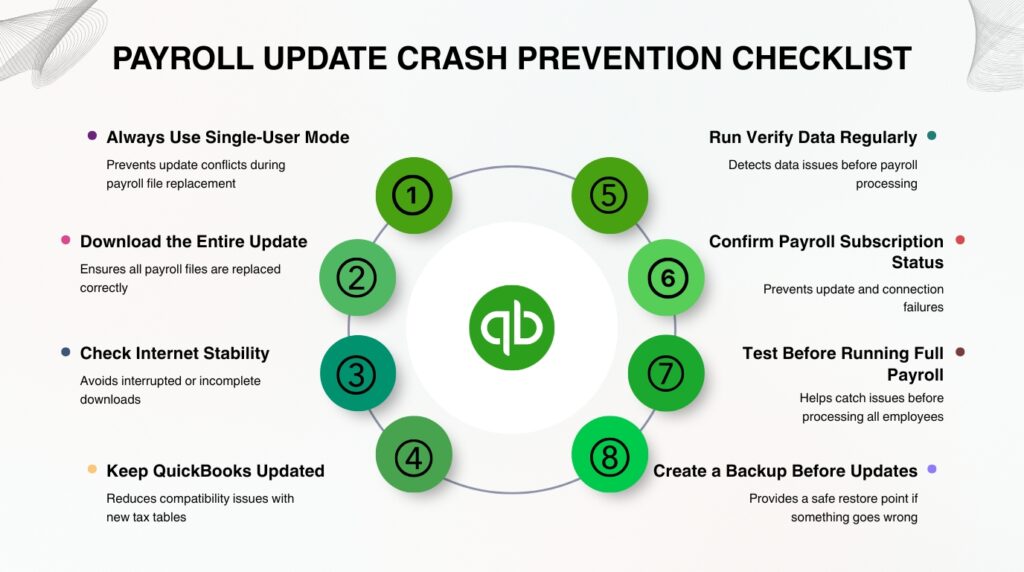
Prevention Checklist
These habits prevent the same conflict from happening with future payroll and tax table updates:
| QuickBooks Payroll Update — Crash Prevention Checklist |
|---|
| Always switch to single-user mode before running Get Payroll Updates, even in a multi-user office. |
| Always select Download Entire Update rather than a partial update, so the CPS folder is replaced completely and consistently. |
| Confirm a stable internet connection before starting a payroll update so the download is not interrupted partway through. |
| Update QuickBooks Desktop to the latest release before each payroll update, since older releases are more likely to conflict with new tax table files. |
| Run Verify Data monthly so existing data integrity issues are caught before a payroll update brings them to the surface. |
| Keep your QuickBooks payroll subscription active and confirmed before each tax table update to avoid connection-related failures. |
| Process one test paycheck after any payroll update before running a full payroll batch. |
| Keep a recent company file backup at all times, taken before each payroll update, so you always have a clean restore point. |
Summary: What Causes the Crash and What Fixes It
| Cause of Crash | Why It Happens | Fix |
|---|---|---|
| Damaged CPS folder | Payroll calculation files were only partially replaced during the update | Rename the CPS folder to force QuickBooks to rebuild it cleanly |
| Update run in multi-user mode | Another session reads payroll files while they are being overwritten | Switch to single-user mode before starting any payroll update |
| Damaged program files or Windows components | .NET Framework or MSXML are outdated or incompatible with QuickBooks | Run the QuickBooks Install Diagnostic Tool from the Tool Hub |
| Existing data integrity issue in the company file | Payroll calculations touch many records; one bad record can trigger a crash | Run Verify Data, back up, then Rebuild Data |
| Interrupted or incomplete update download | Network drop or blocked connection leaves a partial set of update files | Confirm a stable connection and choose Download Entire Update again |
| Outdated QuickBooks release | Older releases are more likely to conflict with newly issued tax tables | Update QuickBooks Desktop to the latest version before updating payroll |
Conclusion
A crash right after a payroll or tax table update is almost always traceable to one of a small number of documented causes: a damaged CPS folder, an update applied in multi-user mode, a Windows component conflict, an existing data integrity issue, or an interrupted download. None of these require restoring from an old backup or losing entered payroll data.
The most effective first move is switching to single-user mode and renaming the CPS folder before running the update again. This single combination resolves the majority of documented payroll crash cases, because it removes both the multi-user file conflict and the damaged calculation files in one pass. Running the Install Diagnostic Tool and a Verify and Rebuild cycle covers the remaining causes for the cases that need a deeper fix.
Payroll cannot wait, which makes this kind of crash especially stressful when employees are expecting their paychecks. Working through these steps in order — rather than guessing at a single fix — gets QuickBooks back to processing payroll reliably and keeps the same conflict from interrupting your next tax table update.
Frequently Asked Questions
1. Will renaming the CPS folder delete my past payroll records or paychecks?
No. The CPS folder only stores the calculation files QuickBooks uses to figure out tax withholding for new paychecks — it does not store your employee records, past paychecks, or payroll history. Those are kept inside your company file (.QBW), not the CPS folder. Renaming CPS to CPSOLD simply removes the damaged calculation files so QuickBooks rebuilds a fresh set on the next update, with no effect on payroll data already entered.
2. I run payroll alone with no other users. Why would switching to single-user mode matter for me?
Even a single-user QuickBooks installation can be set to multi-user hosting mode if it was ever shared on a network or set up by an IT provider with hosting enabled. Check by going to File: if the menu shows Switch to Single-User Mode, you are currently in multi-user mode regardless of how many people are actually logged in. Making this switch before a payroll update removes any background hosting process that could interfere with the file replacement, even with only one person using QuickBooks at the time.
3. The Unrecoverable Error shows a long number code. Does that number tell me anything specific?
The number itself is mainly useful if you need to contact QuickBooks support, since it helps identify the exact internal failure point. For troubleshooting on your own, the broader cause categories matter more than the specific digits: damaged program files, a Windows component conflict, or a data integrity issue inside the company file. Running the Install Diagnostic Tool and a Verify and Rebuild cycle addresses the most common underlying causes regardless of which specific error number is displayed.
4. Should I uninstall and reinstall QuickBooks Desktop if the crash continues after these steps?
Reinstalling is a valid step if damaged program files are confirmed as the cause after the Install Diagnostic Tool does not fully resolve the crash, since a reinstall replaces every QuickBooks program file with a clean copy. Reinstalling does not affect your company file, which is stored separately from the program files. Back up your company file first as a precaution, then uninstall QuickBooks through Windows Control Panel, restart your computer, and install the latest version directly from Intuit before opening your company file again.
5. How do I know if my payroll tax table is actually up to date after fixing the crash?
Go to Employees, then select Get Payroll Updates. The window that opens shows a line reading “You are using tax table version” followed by a version number. Compare this number against the latest version listed on Intuit’s payroll update news page to confirm you have the current release installed. If your version is behind, run Download Entire Update again now that the crash is resolved, since an out-of-date tax table can cause paychecks to calculate incorrect withholding even after the crash itself stops happening.

Anusmita is a seasoned content writer who brings perspective to words. As a writer, she enriches her work with a journalistic aptitude, utilising her training in Mass Communication and Journalism. She loves to travel and explore, which imparts a greater sense of understanding, maturity, and experience that are reflected in her content.
Beyond her professional work, Anusmita enjoys painting, singing, dancing, and spending time planting. She is also a self-proclaimed foodie who loves exploring different cuisines, an interest that further adds to her curiosity and perspective as a writer.
Leave a Reply