
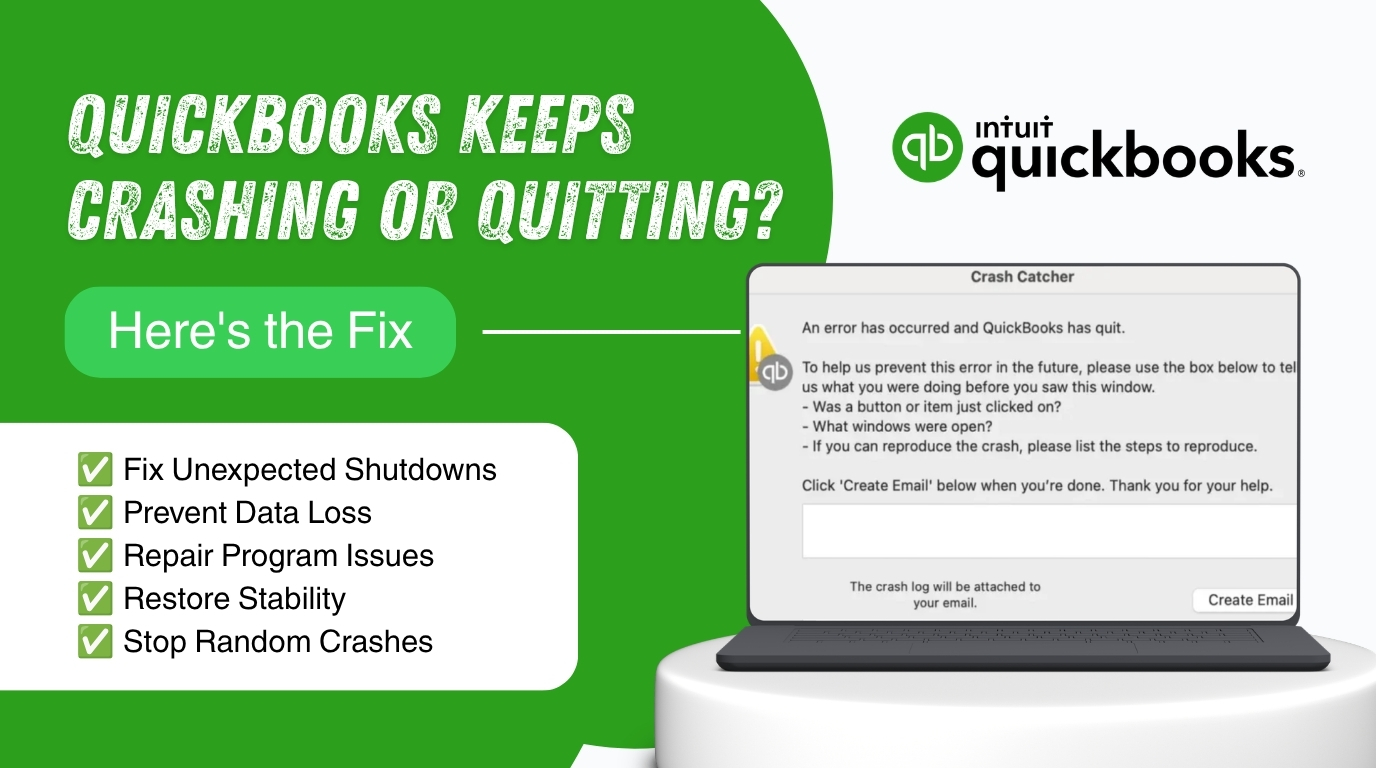
QuickBooks Desktop sometimes shuts itself down while you are entering an invoice, running a report, or emailing a document to a client. The screen disappears without warning, or a message tells you that QuickBooks has stopped working. This guide explains why these sudden closures happen and gives you the exact steps Intuit recommends to stop them. Every fix below comes from Intuit’s own support documentation, so you can apply each step with confidence.
An unexpected shutdown does more damage than the interruption itself. The transaction you were entering can be lost if QuickBooks closes before it saves your work. Repeated forced closures also strain the background files QuickBooks uses to track your data, which can lead to bigger problems such as a company file that refuses to open the next day. Fixing the root cause now protects both your time and your accounting records.
This article first explains what causes QuickBooks to quit or close on its own. It then walks through the fixes in the order Intuit recommends, starting with the fastest one. A prevention checklist and five common questions follow at the end, so this error stops returning once you finish reading.
Table of Contents
Identify Your Crash Pattern in 60 Seconds
Match what you see on your screen to the row below, then jump straight to the matching solution. Working through every solution in order is the safer approach if more than one row applies to you, because each step rules out a different cause.
| If you are facing this issue | Go to this solution |
| QuickBooks just disappears, no error message at all | Solution 1, Solution 2, Solution 3 |
| “QuickBooks has stopped working” Windows message appears | Solution 2 |
| Crash happens while emailing a large report | Solution 6 |
| Random “Unrecoverable Error” code appears | Solution 4, Solution 5 |
| QuickBooks works fine on one computer but crashes on another | Solution 1, Solution 3 |
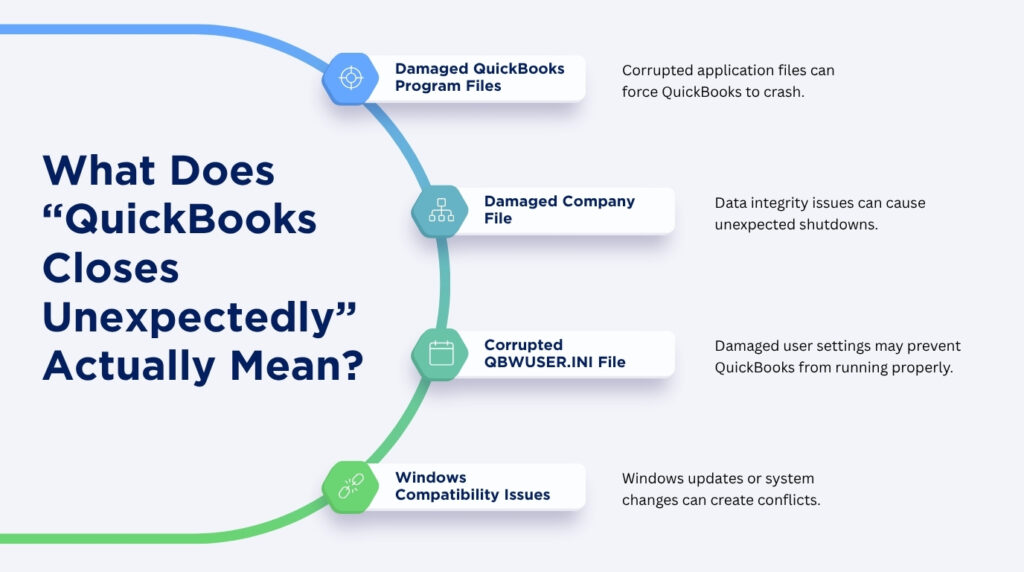
What Does “QuickBooks Closes Unexpectedly” Actually Mean?
QuickBooks closing unexpectedly means the program shuts itself down without you choosing File and then Exit. Intuit groups this behavior under one support article because the visible result is the same even when the cause is different. You may see the message “QuickBooks has stopped working,” you may see an “Unrecoverable Error” with a random code, or you may see nothing at all because the window simply vanishes from your screen. Intuit’s own documentation confirms that QuickBooks can crash with or without an error message while you work in the program.
Intuit has documented this issue across specific activities that put extra strain on the program. These include emailing a large report, working on transactions such as invoices and sales orders, running several reports side by side, switching between different centers inside QuickBooks, and working inside the Report Center. None of these tasks are unusual for daily bookkeeping work, which is why this error affects so many QuickBooks Desktop users at some point.
Why QuickBooks Desktop Quits Without Warning?
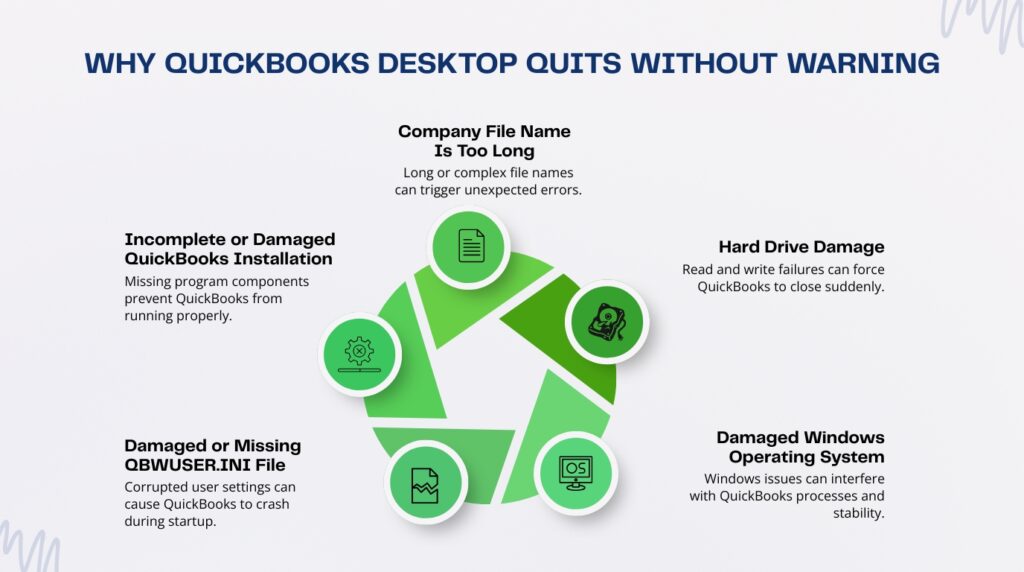
Intuit lists five specific conditions on a computer that lead to this crash. These include a company name that has grown too long, a damaged or missing QBWUSER.INI file, corruption on the hard drive, damaged program files from the QuickBooks installation, and a damaged Windows operating system. Each cause points to a different fix, so identifying which one applies to your computer saves time before you start troubleshooting.
- A Damaged or Missing QBWUSER.ini File
The QBWUSER.ini file stores your QuickBooks user settings and the list of company files you opened most recently. This file sits inside a folder on your computer that QuickBooks reads every single time the program starts. Damage to this file confuses QuickBooks during startup, which can cause the program to crash before it even finishes loading. Renaming this file forces QuickBooks to build a fresh copy automatically, which resolves the crash for many users right away.
- An Incomplete or Damaged Installation
QuickBooks depends on Microsoft components installed alongside the program, including the .NET Framework that handles core program functions behind the scenes. A damaged installation means one or more of these supporting files did not copy correctly onto your computer. This mismatch between what QuickBooks expects to find and what is actually installed causes the program to fail in the middle of a task. Intuit built a diagnostic tool specifically to find and repair these damaged components, covered in Solution 2 further below.
- A Company File Name That Has Grown Too Long
QuickBooks reads your company file name every time it opens, saves, or backs up your data. An excessively long file name, especially one packed with special characters, can exceed what the program is built to process smoothly. Shortening the company file name to a simple, descriptive label removes this strain immediately. This particular fix takes less than a minute and costs nothing to try first.
- Hard Drive or Windows System Damage
QuickBooks writes and reads data from your hard drive constantly while it runs in the background. Physical or logical damage to the hard drive interrupts these read and write actions, and QuickBooks crashes rather than continuing to work with incomplete data. A damaged Windows operating system creates a similar problem, because QuickBooks relies on Windows to manage memory and files correctly behind the scenes. Running the Windows Check Disk tool and keeping Windows updated both reduce the chance that either issue triggers a crash.
What Does This Error Cost You If You Ignore It?
An unexpected closure interrupts the task you were performing the moment it happens. Any invoice, payment, or report you had not yet saved is lost, and you must redo that work from the beginning. This wastes time on every single occurrence, and the cost compounds quickly when the crash repeats several times in one day.
QuickBooks finishes writing your transaction log file completely every time you close the program through the proper File and then Exit command. A forced or unexpected closure can leave this file in an incomplete state instead. Repeated incomplete closures raise the risk of company file errors that later prevent QuickBooks from opening the file at all. Treating frequent crashes as a minor annoyance allows this risk to build quietly in the background until it surfaces as a much larger problem.
A single workstation crashing repeatedly can also slow down an entire team in an office where several people share the same company file. Other users may notice the file behaving sluggishly or running into connection problems while the affected computer struggles in the background. Resolving the crash on the source computer protects the stability of the shared file for everyone connected to it.
Step-by-Step Fix: How to Resolve QuickBooks Unexpected Quit or Close Errors?
Intuit recommends working through these solutions in the order presented below, because each one is built to catch a different cause. Most users resolve the crash within the first two solutions. The remaining solutions exist for cases where the first two do not fully clear the problem.
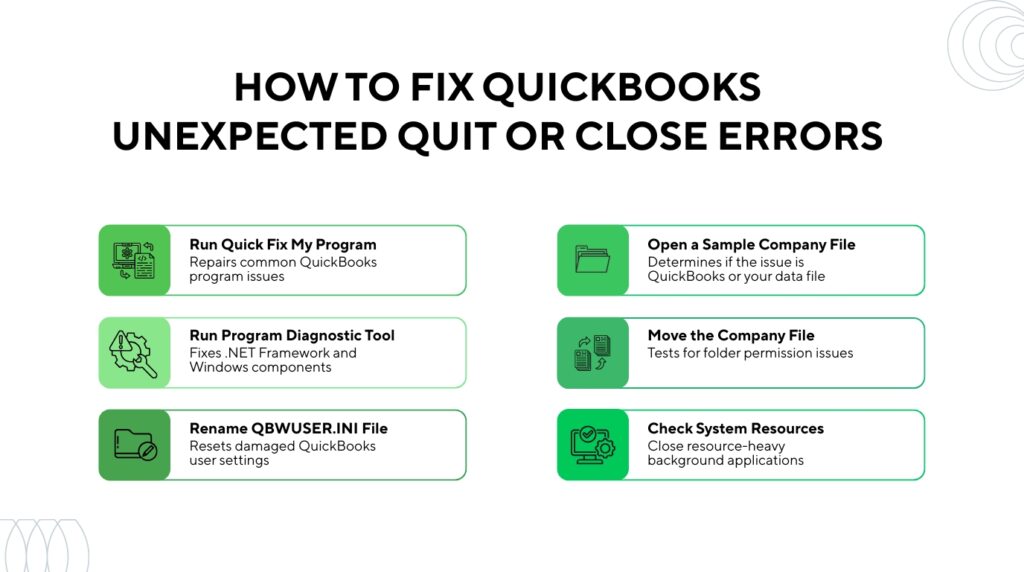
Solution 1: Run Quick Fix My Program From the QuickBooks Tool Hub
The QuickBooks Tool Hub is a free repair utility published directly by Intuit, and it is the first tool to use for almost any QuickBooks Desktop error. Close QuickBooks completely before you begin, then download the Tool Hub from Intuit’s official website if it is not already installed on your computer. Open the file you downloaded and follow the on-screen prompts to finish the installation. Quick Fix My Program shuts down any background processes QuickBooks is using and then runs a fast repair on the program.
Open the Tool Hub once it is installed, and select Program Problems from the menu on the left side. Select Quick Fix My Program and let the tool finish its repair, which usually takes less than two minutes to complete. Start QuickBooks Desktop again and open your data file to confirm the crash no longer happens. This solution alone resolves the issue for many users because it clears out the exact background conflicts that lead to a crash.
Solution 2: Run the QuickBooks Program Diagnostic Tool
This solution addresses the Microsoft components that QuickBooks depends on to run correctly. Open the Tool Hub and select Program Problems again, then choose QuickBooks Program Diagnostic Tool from the list of options. This tool automatically diagnoses and fixes issues with the Microsoft components the QuickBooks program uses, and Intuit notes that it can take up to twenty minutes to finish running.
Let the tool run completely without interrupting it, since stopping it partway through can leave the repair incomplete. Restart your computer once the tool finishes its scan, then open QuickBooks Desktop again to test it. This longer scan catches deeper installation damage that the faster Quick Fix tool in Solution 1 is not built to repair on its own.
Solution 3: Rename the QBWUSER.ini and EntitlementDataStore.ecml Files
This solution targets the user settings file mentioned earlier as a common cause of startup crashes. Close QuickBooks first, then open the folder where QuickBooks stores this file on your computer. Intuit places this folder inside Users, then your user name, then AppData, then Local, then Intuit, then QuickBooks, followed by the version year, and you may need to enable hidden files and folders in Windows to see it.
Right-click the QBWUSER.ini file, select Rename, and add .old to the end of the file name so it reads QBWUSER.ini.old. Repeat this exact renaming step for the EntitlementDataStore.ecml file sitting in the same folder. Renaming these files erases your list of recently opened company files, so plan to reopen your company file manually afterward. Reopen QuickBooks Desktop, and the program automatically builds fresh versions of both files on startup.
Solution 4: Test With a Sample Company File to Isolate the Cause
This step tells you whether the crash comes from QuickBooks itself or from your specific company file. Try opening a sample company file that comes built into the program if QuickBooks opens successfully after you complete Solution 3. A sample file that opens without crashing confirms that your installation is healthy and that the actual problem lies somewhere inside your own company file.
The QuickBooks installation itself still carries damage if the sample file also fails to open, and repeating Solution 2 or performing a clean reinstall becomes the next step. Move on to Solution 5 below to test where your file is stored if only your own file fails while the sample file opens fine.
Solution 5: Move the Company File to a Local Folder
Storing a company file in the wrong location is a common and easily overlooked cause of instability. Copy your company file to a different folder, ideally a local folder on your hard drive rather than a network location, and try opening it from the new spot. Opening successfully from the new location points to a damaged original folder or incorrect folder permissions as the real cause behind the crash.
Restoring an earlier backup becomes the safest next step if you are still unable to open your file even after moving it, since the company file itself is most likely damaged at that point. Keep a recent backup on hand at all times specifically for this kind of situation, since a damaged company file cannot always be repaired through renaming or reinstalling alone.
Solution 6: Check and Free Up System Resources
QuickBooks Desktop needs enough memory and processing power to handle every task without interruption. Intuit specifies a minimum of 8 GB of RAM for a single workstation, with 16 GB recommended for smoother performance, along with 2.5 GB of free disk space for the program itself. A computer running below these specifications struggles to keep QuickBooks stable, especially while running large reports or emailing them as attachments.
Close other heavy programs, such as video calls or large spreadsheets, while you work in QuickBooks to free up memory for the program to use. Intuit also recommends storing your QuickBooks data file on a solid-state drive for the best performance, since slower hard drives struggle to keep pace with the program’s constant read and write activity. A hardware upgrade addresses the root cause rather than just the symptom if your computer consistently falls short of these specifications.
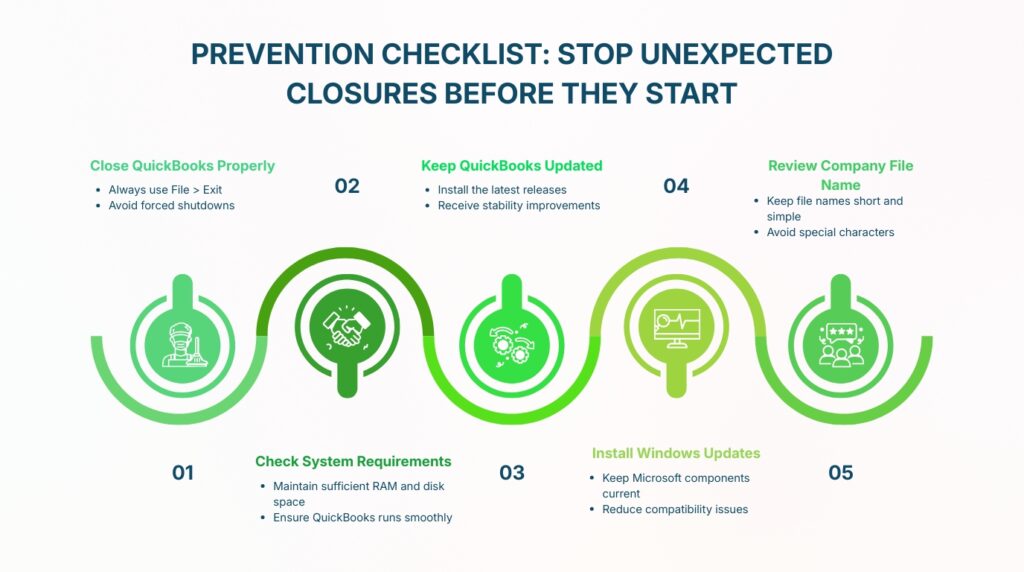
Prevention Checklist: Stop Unexpected Closures Before They Start
Fixing today’s crash matters, but preventing tomorrow’s crash matters more for daily bookkeeping work. The checklist below turns Intuit’s recommendations into a simple routine that takes only minutes to follow.
| Frequency | Action |
| Every Day | Close QuickBooks using File and then Exit, never the red X button or a forced shutdown |
| Every Week | Run Quick Fix My Program from the Tool Hub as routine maintenance, not just when a crash occurs |
| Every Month | Update QuickBooks Desktop to the latest release through Help and then Update QuickBooks Desktop |
| Every Month | Confirm Windows updates are installed, since QuickBooks depends on current Microsoft components |
| Every Quarter | Review the company file name and shorten it if it has grown long with extra characters |
| Every Quarter | Confirm your computer still meets Intuit’s 8 GB RAM and 2.5 GB disk space requirements |
Following this routine costs a few minutes each week. Skipping it costs hours of lost work and, in the worst cases, a damaged company file that needs restoring from backup.
Conclusion
QuickBooks closing unexpectedly almost always traces back to one of five conditions Intuit has identified: a damaged QBWUSER.ini file, an incomplete installation, an overly long company file name, hard drive damage, or a damaged Windows system. Working through the Tool Hub solutions in order resolves the overwhelming majority of these crashes without needing to call support.
A QuickBooks Desktop setup that rarely crashes is not the result of luck. It comes from closing the program correctly every day, running the Tool Hub‘s repair tools on a regular schedule, and keeping both QuickBooks and Windows updated. Treat this checklist as part of your routine rather than an emergency response, and unexpected closures become rare instead of routine.
Frequently Asked Questions
1. Why does QuickBooks close without showing any error message at all?
Some crashes happen before QuickBooks has a chance to generate an error window, which is why the program can vanish from your screen with no message. This silent pattern often points to a damaged QBWUSER.ini file or an incomplete installation, both of which interrupt QuickBooks before it can display anything on screen. Renaming the QBWUSER.ini file in Solution 3 resolves this specific pattern for most users. Running the Program Diagnostic Tool in Solution 2 checks for deeper installation damage if the silent crash continues after that step.
2. Will I lose my data if QuickBooks crashes while I am entering a transaction?
Any transaction you have not yet saved is lost the moment QuickBooks closes unexpectedly, since that data exists only in the program’s temporary memory until you save it. Saved transactions from before the crash remain intact inside your company file in almost every case. Save your work frequently using Ctrl and S together, so an unexpected closure costs you a few minutes rather than an entire session of entries.
3. Does running QuickBooks as administrator help prevent crashes?
Running QuickBooks with administrator rights gives the program full access to the system files and folders it sometimes needs to function correctly. Restricted permissions can block QuickBooks from completing certain background tasks, which contributes to crashes on some Windows accounts. Right-click the QuickBooks icon, select Run as Administrator, and test whether the crash still occurs under these expanded permissions.
4. Can a large company file cause QuickBooks to close unexpectedly?
A larger company file demands more memory and processing power every time you open a report, search for a transaction, or save new data. A computer that meets only the minimum 8 GB RAM requirement Intuit lists may struggle to stay stable, especially during resource-heavy tasks like emailing large reports as attachments. Condensing old transaction data or upgrading your computer’s memory both reduce the strain that triggers this kind of crash.
5. Should I contact Intuit support if none of these solutions work?
Intuit’s own support article on this issue notes that the company continues working on fixes as new causes are identified, since the number of possible root causes is large. Click Send whenever QuickBooks prompts you after a crash, since this sends diagnostic logs directly to Intuit’s engineers for review. Contacting Intuit support directly becomes the right next step once you have completed every solution above and the crash still continues.

Anusmita is a seasoned content writer who brings perspective to words. As a writer, she enriches her work with a journalistic aptitude, utilising her training in Mass Communication and Journalism. She loves to travel and explore, which imparts a greater sense of understanding, maturity, and experience that are reflected in her content.
Beyond her professional work, Anusmita enjoys painting, singing, dancing, and spending time planting. She is also a self-proclaimed foodie who loves exploring different cuisines, an interest that further adds to her curiosity and perspective as a writer.
Leave a Reply