
QuickBooks Error 6123, 0 stops the company file from opening and appears with this specific message: “Error 6123, 0: Cannot communicate with the company file due to firewall or anti-virus software.” The message names two possible causes in the error text itself – firewall software and antivirus software – but the actual range of causes extends beyond those two.
QuickBooks Error 6123, 0 appears in five distinct situations:
- during a fresh installation of QuickBooks,
- when restoring a company file from a backup,
- when opening an existing company file directly,
- when switching from single-user to multi-user mode, and
- when trying to access a company file stored on a network in a multi-user setup.
Intuit’s Tool Hub documentation specifically identifies Error 6123 as one of the common errors that the QuickBooks Tool Hub is designed to address. The error appears across QuickBooks Desktop Pro, Premier, and Enterprise editions.
The company file itself is not damaged in most Error 6123 cases – the error means QuickBooks cannot reach the file or establish the connection it needs to open it. The accounting data inside the company file is safe in the majority of situations where this error appears, and resolving the error restores access to all of it.
This guide covers every documented cause of Error 6123, 0 with a specific fix for each one. The causes and fixes are presented in order from the quickest to apply to the most thorough, so working through them in sequence produces the fastest result. The key piece of information to identify before starting is where the company file is stored and how it is being accessed – on a local drive, on a network server, or from a backup file being restored – because the applicable causes differ depending on the storage and access method.
Table of Contents
What QuickBooks Error 6123, 0 Means: Breaking Down the Error Code
The Main Number: 6123 Is a Company File Communication Error
Error 6123 belongs to the QuickBooks 6000 error series, which is the family of errors related to company file access. Every error in the 6000 series means QuickBooks tried to access the company file and was blocked before it could complete the operation. Error 6123 specifically means QuickBooks could not establish the communication channel it needs with the company file.
The communication channel QuickBooks uses to access its company file is not a network connection in the traditional sense – it is an internal connection between the QuickBooks program and its own database management system, which is a background service that QuickBooks uses to read and write data to the company file.
The Second Number: 0 Identifies the Sub-Type
The 0 after the comma in Error 6123, 0 identifies the specific sub-type of the communication failure. In the QuickBooks error numbering system, a sub-code of 0 means the communication attempt was refused at the point of contact – the connection attempt reached its destination but was actively denied or blocked, rather than failing to reach the destination at all. This distinction is important because it confirms the company file exists and QuickBooks can find it, but something is actively preventing the communication from completing. Active blocks come from firewall rules, antivirus software, permission settings, or multi-user configuration conflicts.
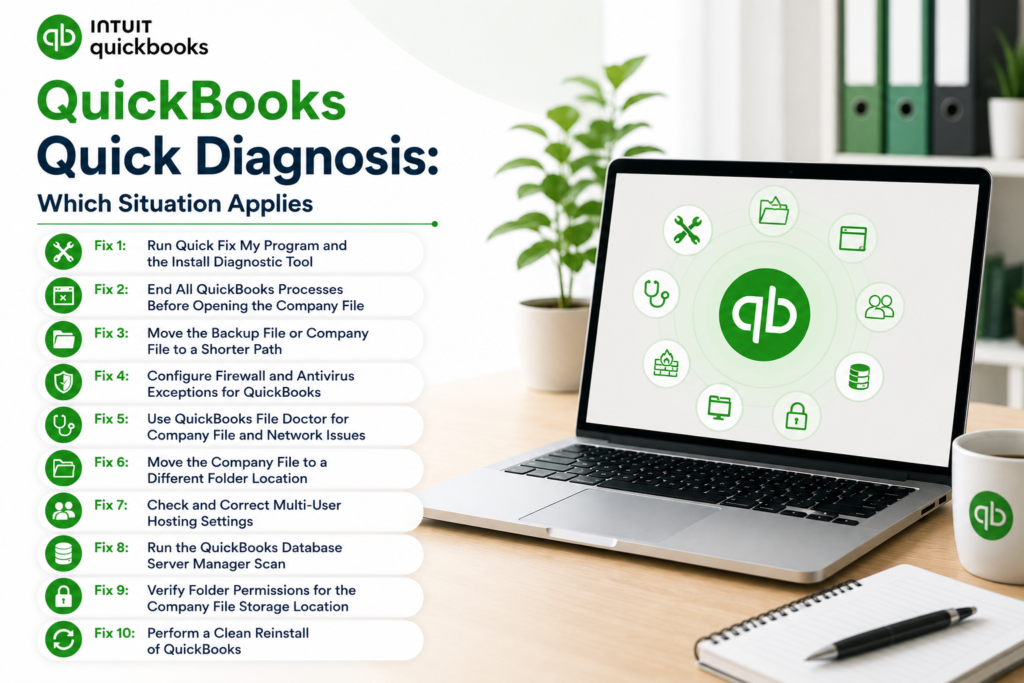
QuickBooks Quick Diagnosis: Which Situation Applies
Identify which situation is happening before applying any fix. Error 6123 has different primary causes depending on the context in which it appears.
| When Error 6123 Appeared | Most Likely Cause | Start With This Fix |
| During a fresh QuickBooks installation (not opening a file) | Incomplete installation produced a corrupted program-to-database connection | Fix 1: Run QuickBooks Install Diagnostic Tool; Fix 6: Clean Reinstall |
| When restoring a company file from a .QBB backup | Backup file path is too long, backup location is inaccessible, or firewall blocking the restore process | Fix 3: Move backup to a short path on C: drive; Fix 4: Firewall exceptions |
| When opening an existing company file on this computer | Another QuickBooks session is still running from a previous incomplete shutdown | Fix 2: End all QuickBooks processes in Task Manager; retry |
| When switching from single-user to multi-user mode | Another user’s QuickBooks session is still open, or hosting is incorrectly configured | Fix 5: Confirm all users are disconnected; Fix 7: Check hosting settings |
| When accessing the company file from a workstation in multi-user mode | Firewall on the server or workstation blocking the QuickBooks database connection port | Fix 4: Add firewall exceptions for QuickBooks ports 8019 and the version-specific port |
| Error appeared after a Windows update was installed | Windows update changed firewall rules or reset QuickBooks network permissions | Fix 4: Re-add firewall exceptions; Fix 1: Run Install Diagnostic Tool |
| Error appears only for one specific user account on the computer | That Windows user account lacks permission to access the company file folder | Fix 8: Check folder permissions for the company file storage location |
Fix 1: Run Quick Fix My Program and the Install Diagnostic Tool
When QuickBooks Error 6123 Appears During or After Installation?
Error 6123, 0 appearing during a QuickBooks installation means the installation did not complete the connection between the QuickBooks program and its internal database management system – the background service that handles all reads and writes to the company file. This background service is called the QuickBooks Database Server Manager, and it must be registered correctly during installation for QuickBooks to communicate with any company file. An incomplete registration of this service produces Error 6123 the first time QuickBooks tries to open a company file.
The QuickBooks Install Diagnostic Tool, available in the QuickBooks Tool Hub under Installation Issues, detects and repairs incomplete registrations of the database service and also repairs the three Windows components that the service depends on: Microsoft .NET Framework (a software layer Windows provides that QuickBooks uses to run internal processes), MSXML (Microsoft XML Core Services, which QuickBooks uses to read configuration data), and Microsoft Visual C++ Redistributable files (shared program libraries that the database service uses). Running this tool takes 15 to 20 minutes and addresses the installation-related cause of Error 6123.
Download and open the QuickBooks Tool Hub version 1.6.0.8 from Intuit’s official support page. Click Program Problems in the left menu. Click Quick Fix My Program. Wait for it to complete (approximately five minutes). Then click Installation Issues in the left menu. Click QuickBooks Install Diagnostic Tool. Allow it to run up to 20 minutes. Restart the computer when it finishes. Open QuickBooks and try opening the company file.
Fix 2: End All QuickBooks Processes Before Opening the Company File
Why Leftover Processes Cause QuickBooks Error 6123?
A previous QuickBooks session that did not close properly leaves QuickBooks background processes running in the computer’s memory. The company file is locked by these leftover processes – a file lock means the file is marked as in use by a running program, and no other program or instance can open it until the lock is released. QuickBooks’ own database service, when it tries to open the company file for a new session, finds the file locked by the old session’s processes and reports Error 6123, 0 because the communication channel is refused at the locked file.
Leftover processes are most common after QuickBooks was closed incorrectly: by clicking the X button on the window instead of File > Exit, by shutting down the computer while QuickBooks was still running, or by force-closing QuickBooks through Task Manager. Each of these closure methods skips the proper shutdown sequence where QuickBooks releases all file locks and stops background processes. Ending these processes manually before opening QuickBooks gives the new session a clean starting point.
Press Ctrl + Shift + Esc to open the Task Manager. Click the Processes tab. Find and end each of the following processes by right-clicking and selecting End Task:
- QBW32.exe – the main QuickBooks program process
- QBDBMgrN.exe – the QuickBooks Database Server Manager (the service that manages company file connections)
- QBCFMonitorService.exe – the QuickBooks Connection Monitor (the service that watches for network activity)
- QBUpdate.exe – the QuickBooks update service, if present
After ending all QuickBooks processes, wait 30 seconds and then open QuickBooks and try opening the company file again.
Fix 3: Move the Backup File or Company File to a Shorter Path
Why File Path Length Causes QuickBooks Error 6123 During Backup Restore?
Error 6123, 0 appears during a backup restore when the file path – the complete address of the backup file on the computer, including the drive letter, folder names, and filename – exceeds Windows’ file path length limit. Windows has a file path limit of 260 characters. A backup file named with the company name, a date, and a version suffix, stored inside multiple nested folders, can easily exceed this limit. When the path exceeds 260 characters, the QuickBooks restore process cannot correctly reference the file, and Error 6123, 0 appears.
A documented case confirmed this as a real cause of Error 6123 during restores: moving the backup file to a folder directly on the Desktop or at the root of the C: drive (a location with the shortest possible path) resolved the error and allowed the restore to complete. A file saved to C:\QBBackup\Company.qbb has a path of approximately 30 characters – well within the 260-character limit. A file saved to C:\Users\Username\OneDrive\Documents\QuickBooks\Backups\Archive\2024\Company_backup_2024_12_31.qbb can easily exceed 260 characters.
Open File Explorer. Navigate to the location of the .QBB backup file. Right-click it and select Copy. Navigate to the Desktop or create a new folder directly on the C: drive named QBRestore. Paste the backup file there. Open QuickBooks. Go to File > Open or Restore Company > Restore a Backup Copy > Local Backup. Browse to the Desktop or the QBRestore folder. Select the .QBB file and proceed with the restore. Confirm the restore save location also uses a short path on the C: drive.
Fix 4: Configure Firewall and Antivirus Exceptions for QuickBooks
Why Firewall Rules Block the QuickBooks Database Service?
The QuickBooks Database Server Manager – the background service that manages communication between QuickBooks and the company file – uses specific network ports to communicate, even on a single computer (not just in multi-user network setups). A port is a numbered channel through which programs communicate on a computer or network. Windows Firewall and third-party firewall programs monitor these ports and can block communication on any port not explicitly allowed. QuickBooks requires specific ports to be open for its database service to function, and a firewall that blocks these ports causes Error 6123, 0 because the communication channel is refused.
The specific ports QuickBooks uses depend on the version: QuickBooks Desktop 2022 uses ports 8019 and 56728; QuickBooks Desktop 2023 uses ports 8019 and 56729; QuickBooks Desktop 2024 uses ports 8019 and 56730; QuickBooks Desktop 2025 uses ports 8019 and 56731. Port 8019 is used by all recent versions. The version-specific port (56728 through 56731) is different for each year. Both ports must be open as Inbound and Outbound rules in Windows Firewall for QuickBooks to communicate with its company file.
Open Windows Firewall: go to Start > search for Windows Defender Firewall > open it > click Advanced Settings on the left. Right-click Inbound Rules > New Rule > select Port > Next > select TCP > Specific Local Ports > enter the ports for the QuickBooks version (for example, 8019, 56730 for 2024). Select Allow the Connection > check all three boxes (Domain, Private, Public) > Next > name the rule QBPorts[Year] > Finish. Repeat the same steps for Outbound Rules. Restart QuickBooks and test.
For antivirus exclusions: the three QuickBooks executable files that communicate with the database service must be added to the antivirus exclusion list. Go to the antivirus program’s settings, find Exclusions or Exceptions, and add QBW32.exe, QBDBMgrN.exe, and QBCFMonitorService.exe from the QuickBooks installation folder (C:\Program Files\Intuit\QuickBooks [Year]). Also add the company file folder (wherever the .QBW file is stored) and the QuickBooks data folder (C:\ProgramData\Intuit\QuickBooks).
Fix 5: Use QuickBooks File Doctor for Company File and Network Issues
What File Doctor Does for QuickBooks Error 6123?
QuickBooks File Doctor is Intuit’s own diagnostic and repair tool specifically designed for company file access errors and network configuration problems. The QuickBooks Tool Hub documentation lists Error 6123 as one of the specific errors that QuickBooks File Doctor addresses. File Doctor performs two checks simultaneously: it scans the company file for internal damage and repairs what it can find, and it checks the network configuration that allows multiple computers to access the company file. A company file access error like 6123, 0 benefits from both checks because the error can originate from either the file or the network setup.
Open the QuickBooks Tool Hub. Click Company File Issues in the left menu. Click Run QuickBooks File Doctor. In the File Doctor window, select the company file from the dropdown list. If the company file is not listed, click Browse and navigate to the folder where the .QBW company file is stored. Choose Check your file and network. Enter the QuickBooks administrator password (the password for the Admin user account inside QuickBooks) when prompted. Allow File Doctor to run – 5 to 15 minutes depending on file size. Open QuickBooks after File Doctor completes and tests.
Fix 6: Move the Company File to a Different Folder Location
Why Folder-Level Issues Cause QuickBooks Error 6123?
A corrupted folder – a storage folder whose Windows permission settings or file system entries have been damaged by a disk error or an interrupted file operation – prevents QuickBooks from communicating with any company file stored inside it. The company file itself is intact, but the folder’s damage blocks the connection QuickBooks needs to open the file. Moving the company file to a new, clean folder on the same computer eliminates the folder-level problem and gives QuickBooks an unobstructed path to the file.
This fix is specifically documented for Error 6123 cases where the company file was found by QuickBooks but the connection was refused. Creating a new folder with standard Windows permissions – as a freshly created folder always has – gives QuickBooks a clean environment to connect to the company file. The company file does not need to be repaired or restored to use this fix: only the folder is the problem.
Open File Explorer. Navigate to the C: drive. Right-click in an empty area and select New > Folder. Name the new folder QB_Company. Navigate to the current location of the company file. Copy the .QBW file (right-click > Copy) and also copy the .TLG file (Transaction Log file – same name as the company file but with .TLG extension) and the .ND file (Network Data file). Paste all three files into the new QB_Company folder. Open QuickBooks. Go to File > Open or Restore Company > Open a Company File. Navigate to the QB_Company folder and open the .QBW file. Test whether the error is resolved.
Fix 7: Check and Correct Multi-User Hosting Settings
Why Incorrect Hosting Configuration Causes QuickBooks Error 6123 in Multi-User Mode?
In QuickBooks multi-user mode – where multiple computers access the same company file at the same time – only one computer should be set as the host. The host is the computer that serves the company file to all other computers on the network. The setting that designates a computer as the host is called “Host Multi-User Access.” Error 6123, 0 in multi-user mode is frequently caused by hosting being enabled on more than one computer simultaneously. Two computers both trying to host the same file creates a conflict where QuickBooks on each computer tries to establish communication with the same company file through two separate database service instances, causing both to fail with Error 6123.
The correct configuration: the server computer (the one where the company file is stored) should have hosting enabled. Every other computer (the workstations) should have hosting disabled. On each workstation, go to the File menu inside QuickBooks and check the Utilities submenu. If the option reads “Stop Hosting Multi-User Access,” hosting is enabled on that workstation and must be turned off by clicking it. If the option reads “Host Multi-User Access,” hosting is correctly disabled on that workstation.
On each workstation (not the server): open QuickBooks. Click File in the top menu. Click Utilities. If the option reads Stop Hosting Multi-User Access, click it to disable hosting. A message will appear asking to confirm – click Yes. Repeat on all workstations. On the server computer, confirm that Host Multi-User Access is enabled (Utilities menu should show “Stop Hosting Multi-User Access,” confirming it is currently on). After correcting all computers, open the company file from the server and test multi-user access from workstations.
Fix 8: Run the QuickBooks Database Server Manager Scan
What the Database Server Manager Does and Why It Fixes QuickBooks Error 6123?
The QuickBooks Database Server Manager is a Windows service that runs on the server computer and manages all connections from workstations to the company file. It creates and manages the .ND file – the Network Data file stored alongside the company file that records the network configuration settings QuickBooks uses to connect to the file. Error 6123, 0 in multi-user environments is frequently caused by the Database Server Manager having an outdated or corrupted configuration, or by the .ND file containing incorrect connection settings. Running the Database Server Manager scan refreshes both the service’s configuration and the .ND file.
Open the QuickBooks Tool Hub on the server computer (the computer where the company file is stored). Click Network Issues in the left menu. Click QuickBooks Database Server Manager. Click Scan Folders. If the folder containing the company file is not listed, click Add Folder and navigate to the folder containing the .QBW file. Click Scan. After the scan completes, a new .ND file is generated in the company file folder. Test opening the company file from workstations after the scan finishes.
Fix 9: Verify Folder Permissions for the Company File Storage Location
Why Missing Folder Permissions Cause QuickBooks Error 6123 for Specific Users?
Error 6123, 0 that appears for one specific Windows user account but not others on the same computer points to the company file folder having permission settings that exclude that specific user. Windows folder permissions control which user accounts can read, write, or access files stored in a folder. The company file folder requires Full Control permission – meaning the ability to read, write, modify, and delete files – for the current user account, for the SYSTEM account (which is the internal Windows account that runs the QuickBooks database service), and for the QBDataServiceUserXX account (the Windows account that QuickBooks creates during installation to run its background services, where XX is the version number).
For QuickBooks Desktop 2024, the background service account is named QBDataServiceUser34. For QuickBooks 2025, it is named QBDataServiceUser35. If either the SYSTEM account or the QBDataServiceUser account is missing from the company file folder’s permission list, QuickBooks’ database service cannot access the file and Error 6123, 0 is reported. Checking and restoring these permissions takes about 10 minutes.
Open File Explorer. Right-click the folder containing the company file and select Properties. Click the Security tab. Click Edit to modify permissions. Confirm these accounts are in the list with Full Control checked under the Allow column: SYSTEM, the current Windows user account, and QBDataServiceUser34 (or QBDataServiceUser35 for 2025). If any are missing, click Add, type the account name, click OK, select it, and check Full Control under Allow. Click Apply > OK. Restart QuickBooks and test.
Fix 10: Perform a Clean Reinstall of QuickBooks
When QuickBooks Error 6123 Persists After All Other Fixes?
Error 6123, 0 that persists after Quick Fix My Program, the Install Diagnostic Tool, File Doctor, firewall exceptions, hosting corrections, and folder permission fixes all indicate the problem is in the QuickBooks program installation itself – specifically in the registration of the database service that QuickBooks uses to communicate with company files. A corrupted program installation produces Error 6123 consistently because the database service’s registration in the Windows registry is incomplete or damaged, and the service cannot establish any company file connection regardless of where the file is stored or how the network is configured.
Record the QuickBooks license number and product key (Help > About QuickBooks). Create a company file backup (File > Back Up Company > Create Local Backup) if the file can be accessed. Download the QuickBooks Clean Install Tool from Intuit’s official support page. Open Control Panel > Programs > Programs and Features. Right-click QuickBooks and select Uninstall. After the uninstall completes, run the Clean Install Tool. Restart the computer. Download a fresh QuickBooks installer from Intuit’s official Downloads & Updates page. Right-click the installer and select Run as administrator. Follow the installation prompts. Open the company file after the reinstall completes.
| All QuickBooks Fixes at a Glance | |||
| Fix | What It Resolves | Time Required | When to Use It |
| Fix 1: Quick Fix My Program + Install Diagnostic Tool | Incomplete installation; damaged Windows components (.NET, MSXML, C++) | 20–25 min | First fix when error appeared during or right after QuickBooks installation |
| Fix 2: End all QuickBooks processes in Task Manager | Leftover processes from previous session holding file locks | 5 min | First fix when error appears on opening after an incorrect shutdown |
| Fix 3: Move backup to shorter path on C: drive | File path exceeding 260-character Windows limit during restore | 5 min | When error appears specifically during a backup restore operation |
| Fix 4: Add firewall and antivirus exceptions for QuickBooks | Firewall blocking QuickBooks database service communication ports | 10–15 min | When error appeared after a Windows update or on a specific computer only |
| Fix 5: QuickBooks File Doctor | Company file damage or network configuration errors | 5–15 min | Second fix to try for most Error 6123 scenarios after basic process clearing |
| Fix 6: Move company file to a new clean folder | Corrupted folder permissions blocking company file access | 5–10 min | When error appears consistently for the company file at its current location |
| Fix 7: Correct multi-user hosting settings | Hosting enabled on multiple computers simultaneously | 5 min | When error appears in multi-user mode on workstations |
| Fix 8: Database Server Manager scan | Outdated .ND file or corrupted server configuration | 5–10 min | When multi-user access fails on all workstations after any network or system change |
| Fix 9: Verify folder permissions | Missing SYSTEM or QBDataServiceUser account permissions | 10 min | When error appears only for one specific Windows user account |
| Fix 10: Clean reinstall of QuickBooks | Corrupted program installation and database service registration | 45–90 min | When all other fixes have been applied without resolution |
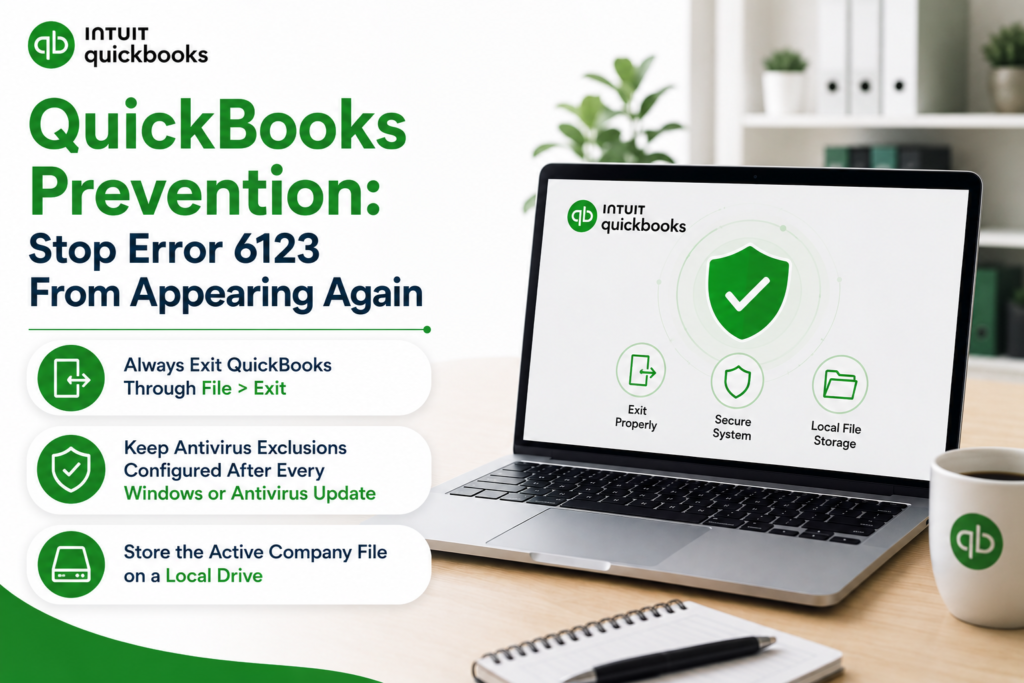
QuickBooks Prevention: Stop Error 6123 From Appearing Again
- Always Exit QuickBooks Through File > Exit
A leftover QuickBooks process that holds a file lock and produces Error 6123 on the next session is always the result of QuickBooks not being closed correctly. File > Exit allows QuickBooks to release all file locks, stop all background processes, and write the final entries to the transaction log file before the program closes. Closing QuickBooks by clicking the X button on the window title bar, shutting down the computer while QuickBooks is running, or force-closing through Task Manager all skip this process. The file lock is not released and the next QuickBooks session encounters it immediately, producing Error 6123, 0 at startup.
- Keep Antivirus Exclusions Configured After Every Windows or Antivirus Update
Windows updates and antivirus program updates can reset custom exclusion lists, removing the QuickBooks exclusions that were previously configured. Each time Windows Defender or the installed third-party antivirus updates itself, check whether the QuickBooks exclusions are still present. Go to the antivirus settings > Exclusions > confirm QBW32.exe, QBDBMgrN.exe, QBCFMonitorService.exe, and the company file folder are all still listed. Re-adding any exclusions that were removed by the update prevents the next QuickBooks session from encountering Error 6123 caused by antivirus blocking the database service communication.
- Store the Active Company File on a Local Drive
Storing the active company file on a local hard drive – the computer’s own internal drive rather than an external drive, a network location, or a cloud sync service – eliminates the most common causes of Error 6123. Cloud sync services like Dropbox, OneDrive, and Google Drive lock the company file during sync operations. An external drive that is disconnected produces Error 6123 the next time QuickBooks starts. A network location that is unavailable at startup produces the same error. A local drive provides direct, uninterrupted access to the company file at all times.
Conclusion
Error 6123, 0 appears when QuickBooks cannot establish the communication channel it needs with the company file. The most common causes are leftover QuickBooks processes holding file locks from a previous session, a file path that is too long for the restore process to handle, firewall or antivirus software blocking the database service communication ports, incorrect multi-user hosting configuration, missing Windows folder permissions for the database service accounts, and a corrupted QuickBooks program installation.
The fastest fix sequence for most Error 6123 cases is: end all QuickBooks background processes through Task Manager (Fix 2), then run QuickBooks File Doctor from the Tool Hub (Fix 5). These two steps together resolve the most common causes of Error 6123 in under 20 minutes. For backup restore errors, moving the backup file to a shorter path on the C: drive (Fix 3) resolves the issue in five minutes. For multi-user environments, confirming only the server has hosting enabled (Fix 7) and running the Database Server Manager scan (Fix 8) address the network-specific causes.
Intuit’s QuickBooks Tool Hub – free from Intuit’s official support page – provides Quick Fix My Program, the Install Diagnostic Tool, QuickBooks File Doctor, and the Database Server Manager in one application. All four of these tools are directly relevant to Error 6123 and cover every documented cause from installation-level damage through multi-user network configuration errors. Keeping the Tool Hub installed on every computer running QuickBooks Desktop means the right repair tool is available the moment Error 6123 appears.
Frequently Asked Questions
1. Error 6123, 0 appeared when restoring a backup. The backup file was just created yesterday and should be valid. What is causing this?
A backup file created yesterday is valid – the error is not caused by the file being damaged. Error 6123, 0 during a restore of a valid backup is almost always caused by the file path being too long. A backup file saved inside nested folders, or saved to a cloud sync location with a long folder path, can exceed Windows’ 260-character file path limit.
The restore process cannot correctly reference the file at a path longer than this limit and reports Error 6123, 0. Copy the .QBB backup file to a folder at the root of the C: drive – for example, C:\QBRestore – before attempting the restore. A path of C:\QBRestore\Company.qbb is under 30 characters and will not trigger the file path limit.
2. Error 6123 appeared in multi-user mode on all workstations but the host computer opens the company file normally. Is the problem on the workstations or the server?
Error 6123 appearing on all workstations while the host computer works normally is a server-side configuration problem, not a workstation problem. All workstations failing simultaneously means the common element – the server configuration – is the cause, not anything unique to individual workstations.
Run the Database Server Manager scan on the server computer (Tool Hub > Network Issues > QuickBooks Database Server Manager > Scan Folders) to refresh the .ND network configuration file and the database service registration on the server. After the scan, test one workstation. If that workstation succeeds, the scan resolves the issue and the remaining workstations should also connect normally.
3. Error 6123, 0 appeared after adding a new Windows user account to the computer. The other accounts still open the company file without error. What is different about the new account?
A new Windows user account does not automatically receive permission to access the company file folder, even if the account has administrator rights in Windows. The company file folder’s permission settings were configured when the folder was created and do not automatically extend to new user accounts.
Adding the new user account to the folder’s permission list with Full Control resolves Error 6123 for that account. Right-click the company file folder > Properties > Security tab > Edit > Add. Type the new user account’s name and click OK. Select the account and check Full Control under the Allow column. Click Apply > OK. The new account can then open the company file without Error 6123.
4. File Doctor ran and found no errors, the hosting settings are correct, and the firewall exceptions are in place. Error 6123, 0 still appears. What is the next step?
A clean File Doctor result combined with correct hosting and firewall settings means the problem is in the QuickBooks program installation itself – specifically in how the QuickBooks database service is registered with Windows. A damaged database service registration causes Error 6123 consistently because the service cannot establish any company file connection regardless of the network and file configuration.
The next step is to run the QuickBooks Clean Install Tool (available from Intuit’s support page) to completely remove QuickBooks and all its registry entries, then install a fresh copy from a new download from Intuit’s Downloads & Updates page. A clean reinstall re-registers the database service correctly and resolves Error 6123 that survives all other fixes.
5. Error 6123, 0 appears when opening QuickBooks first thing in the morning but goes away after ending the QuickBooks processes in Task Manager and reopening. Why does it happen every morning?
Error 6123 appearing every morning and resolving after ending QuickBooks processes confirms that the computer is being shut down each evening with QuickBooks still running. The QuickBooks processes – QBW32.exe, QBDBMgrN.exe, and QBCFMonitorService.exe – survive the shutdown and restart with Windows the next morning in a state that holds the file lock from the previous session.
The permanent fix is to close QuickBooks through File > Exit every evening before shutting down the computer. File > Exit releases all file locks and stops all background processes in the correct order, so no processes carry over to the next morning’s startup. Setting a reminder at the end of each workday to close QuickBooks through File > Exit before shutting down eliminates the daily Error 6123 occurrence permanently.

Anusmita is a seasoned content writer who brings perspective to words. As a writer, she enriches her work with a journalistic aptitude, utilising her training in Mass Communication and Journalism. She loves to travel and explore, which imparts a greater sense of understanding, maturity, and experience that are reflected in her content.
Beyond her professional work, Anusmita enjoys painting, singing, dancing, and spending time planting. She is also a self-proclaimed foodie who loves exploring different cuisines, an interest that further adds to her curiosity and perspective as a writer.
Leave a Reply