
QuickBooks Error -6147, 0 stops the company file or backup file from opening and shows this specific message on screen: “We’re sorry. QuickBooks can’t open your company file. Please try again. Error Code: (-6147, 0).” The error belongs to the QuickBooks 6000 error series — the family of errors that all relate to company file access problems. Error -6147, 0 is a run-time error, which means it appears while QuickBooks is actively trying to perform a task (opening a file or restoring a backup), not during startup or installation. The -6147 code specifically identifies that the company file or backup file itself is involved in the failure, as opposed to a network or connection error.
Error -6147, 0 appears in two primary situations: when trying to open a company file directly, and when trying to restore a company file from a backup file. Both situations share the same root causes. The most common causes documented across multiple support resources are: the company file or backup file has internal data damage; the backup file is stored on an external drive, network location, or cloud sync service that QuickBooks cannot reliably access during restore; the file path to the backup file exceeds 210 characters (the file path is the full address of the file including drive letter, folder names, and filename); the .ND and .TLG files stored alongside the company file are corrupted; or the QuickBooks installation itself has damage that prevents it from reading the company file correctly.
The accounting data inside the company file is not necessarily lost when Error -6147, 0 appears. The error means QuickBooks cannot access the file in its current state or location — not that the file is destroyed. Multiple repair paths exist that restore access without any data loss. This guide covers every documented cause and every fix in the correct order, from the quickest to the most thorough, so the first working fix is reached as fast as possible.
Table of Contents
What QuickBooks Error -6147, 0 Means?
The -6147 Code: A Company File Access Failure
The -6147 code places this error in the QuickBooks 6000 error family, which is the group of errors that all relate to QuickBooks being unable to access a company file. The negative sign (-) before 6147 indicates this is a runtime error code — a code that QuickBooks generates when an operation it was performing failed mid-process rather than during startup. The number 6147 specifically identifies the company file or backup file as the point of failure, distinguishing this error from network errors (which use codes like 6177 or 6123) and program errors (which use codes in the 1600s and 1700s).
The 0 Code: The Specific Sub-Type of the Failure
The 0 after the comma identifies the sub-type of the access failure. In the QuickBooks error numbering system, a sub-code of 0 means the operation reached the company file successfully and began the access process, but could not complete it. This is an important distinction: the file exists and QuickBooks found it, but something about the file itself or the conditions around it prevented the operation from finishing. Sub-code 0 points toward file content problems (internal data damage), file location problems (backup stored in an inaccessible location), or file name/path problems (the file path is too long or the file name contains incompatible characters).
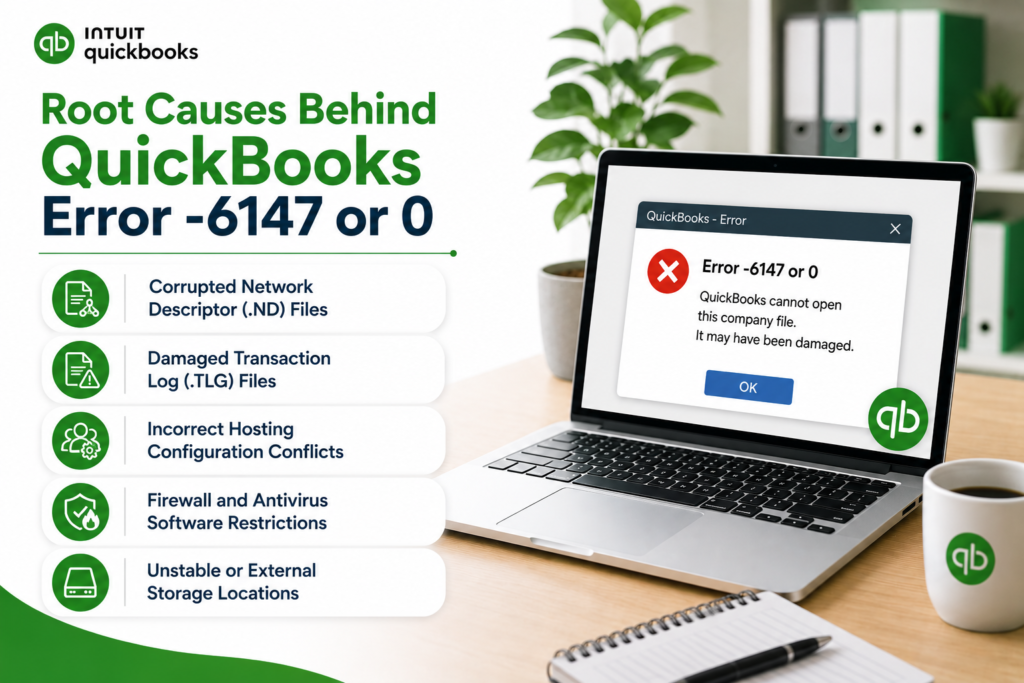
Quick Diagnosis: Match the Situation to the Correct QuickBooks Error -6147, 0 Fix
Identify which specific situation is happening before applying any fix. Error -6147, 0 has different primary causes depending on when and how it appears.
| When Error -6147, 0 Appeared | Most Likely Cause | Start With This Fix |
|---|---|---|
| When opening the company file that has been working normally for years | Internal company file data damage from an interrupted save or disk error | Fix 1: Run QuickBooks File Doctor; Fix 5: Verify and Rebuild Data |
| When restoring a backup from an external hard drive or USB drive | Backup location is an external drive — QuickBooks cannot reliably restore from external storage | Fix 2: Copy the backup to the local C: drive first, then restore |
| When restoring a backup from a network drive or cloud storage | Network location or cloud sync service is blocking the restore process | Fix 2: Copy the backup to the local C: drive first, then restore |
| When restoring a backup and the file path is very long | File path to the backup exceeds 210 characters | Fix 3: Rename the file or shorten the folder path; move to C: root |
| After the company file was on a computer that had a crash or power outage | Incomplete write operation left the .TLG transaction log file and company file out of sync | Fix 4: Rename the .ND and .TLG files; let QuickBooks regenerate them |
| In multi-user mode on a workstation (works on the server but not workstations) | Multi-user hosting configuration is incorrect or the server’s database service is not running | Fix 6: Confirm hosting settings; run Database Server Manager scan |
| After QuickBooks was updated or a Windows update was applied | QuickBooks installation damage from an interrupted update | Fix 7: Run QuickBooks Install Diagnostic Tool; if unresolved, Fix 9: Clean Reinstall |
| Error appears with a prompt that says ‘Click Start to fix’ and Start does not work | QuickBooks detected damage but its automatic fix failed | Fix 1: File Doctor manually; Fix 5: Verify and Rebuild; Fix 8: Restore from backup |
Fix 1: Run QuickBooks File Doctor
Why File Doctor Is the First Step for Error -6147, 0?
QuickBooks File Doctor is Intuit’s own diagnostic and repair tool for company file access errors. It is the first action recommended for Error -6147, 0 because it simultaneously checks two things: internal company file damage (corrupted records, broken data links, and database structure problems) and network configuration problems (incorrect settings that prevent QuickBooks from establishing the connection to the company file). Running File Doctor takes 5 to 15 minutes and resolves most Error -6147, 0 cases caused by file damage without requiring any manual editing of files or settings.
Intuit’s support documentation specifically recommends running QuickBooks File Doctor as the primary response to company file errors including the -6147 series. The tool runs from the QuickBooks Tool Hub and asks for the company file location and the QuickBooks administrator password — which is the password for the Admin user account inside QuickBooks (not the Windows administrator password). After File Doctor runs, try opening the company file even if the tool reports an unsuccessful scan, because it sometimes repairs enough damage to allow access even when reporting a partial result.
Download and open the QuickBooks Tool Hub from Intuit’s official support page. Click Company File Issues in the left menu. Click Run QuickBooks File Doctor. In the File Doctor window, find the company file in the dropdown list. If it is not listed, click Browse and navigate to the folder containing the .QBW company file. Select Check your file and network. Enter the QuickBooks administrator password when prompted. Allow the scan to run completely. Open QuickBooks and try opening the company file after the scan finishes, even if the scan reports it was unsuccessful.
Fix 2: Move the Backup File to a Local Drive Before Restoring
Why External and Network Locations Cause Error -6147, 0 During Restore?
Restoring a QuickBooks backup file from an external hard drive, a USB drive, a network folder, or a cloud sync location like Dropbox or OneDrive produces Error -6147, 0 because QuickBooks cannot maintain a stable, uninterrupted read of the backup file from these storage locations during the restore process. External drives may disconnect momentarily during the restore. Network connections drop briefly or have packet loss (data packets being lost in transit between computers). Cloud sync services lock the file during upload operations. Any interruption during the restore read produces Error -6147, 0.
Copying the backup file to a local folder on the computer’s own C: drive before starting the restore eliminates all of these interruption risks. A local drive gives QuickBooks direct, uninterrupted access to the backup file throughout the entire restore process. This fix is specifically documented as a required step: “If the backup file is stored on a network, copy it to the local drive before restoring.” The company file produced by the restore should also be saved to a local folder, not back to the original external or network location, until the restore is confirmed complete and the file opens correctly.
Open File Explorer. Navigate to the location of the .QBB backup file (external drive, network folder, or cloud sync folder). Right-click the .QBB file and select Copy. Navigate to the C: drive. Create a new folder there by right-clicking inside the C: drive and selecting New > Folder. Name the folder QBRestore. Paste the backup file into the QBRestore folder. Open QuickBooks. Go to File > Open or Restore Company > Restore a Backup Copy > Local Backup. Browse to C:\QBRestore and select the .QBB file. When asked where to save the restored company file, save it to another folder on the C: drive (such as C:\QB_Company). Confirm the restored file opens correctly before returning it to any network or external location.
Fix 3: Shorten the Backup File Path to Under 210 Characters
How a Long File Path Causes QuickBooks Error -6147, 0?
Error -6147, 0 during a backup restore is caused by the file path — the complete address of the backup file including the drive letter, all folder names, and the filename — being too long. The documented limit for QuickBooks backup restore operations is 210 characters. A backup file with a long company name, a detailed date suffix, and stored inside multiple nested folders can easily exceed this limit. A path like C:\Users\Username\Documents\QuickBooks Backups\2024\Q4\December\CompanyName_Full_Backup_December_31_2024.qbb is 108 characters without even counting the full username, which could push the total over 210 characters.
The fix is simple: rename the backup file to a shorter name and move it to a folder closer to the root of the C: drive. A path like C:\QBRestore\Company.qbb is 23 characters — well within the 210-character limit. Renaming does not affect the backup file’s contents. The backup file contains all of the company’s accounting data regardless of what the file is named. QuickBooks reads the backup file’s internal data, not its filename, to restore the company information.
Open File Explorer. Navigate to the .QBB backup file. Right-click it and select Rename. Give it a short name without spaces or special characters, such as QBBackup.qbb. Press Enter. Create a folder at the root of the C: drive (C:\QBRestore). Move the renamed backup file to C:\QBRestore. Open QuickBooks. Go to File > Open or Restore Company > Restore a Backup Copy > Local Backup. Browse to C:\QBRestore and select the file. Proceed with the restore.
Fix 4: Rename the .ND and .TLG Files
What the .ND and .TLG Files Are and Why Renaming Them Fixes QuickBooks Error -6147, 0?
Two supporting files are stored in the same folder as every QuickBooks company file. The .ND file (Network Data file) is a configuration file that stores the settings QuickBooks uses to connect to the company file over a network in multi-user mode. It has the same name as the company file but with .ND added to the extension (for example, CompanyName.qbw.nd). The .TLG file (Transaction Log file) records every change made to the company file in real time during each QuickBooks session, serving as a real-time safety record. These two files can become corrupted when QuickBooks is closed incorrectly, during a power outage, or when the computer shuts down while QuickBooks is running.
Renaming the .ND file (adding .old to the end so it reads CompanyName.qbw.nd.old) and renaming the .TLG file (adding .old to the end so it reads CompanyName.qbw.tlg.old) forces QuickBooks to create new, clean versions of both files the next time it opens the company file. This resolves Error -6147, 0 caused by corrupted .ND or .TLG files without touching the company file’s data at all. The renamed .old files stay in the same folder and can be referenced if needed, but QuickBooks will not use them because they no longer have the expected file extension.
Open File Explorer. Navigate to the folder where the company file (.QBW file) is stored. Find the file named [CompanyFileName].qbw.nd and right-click it. Select Rename. Add .old to the end: [CompanyFileName].qbw.nd.old. Press Enter. Find the file named [CompanyFileName].qbw.tlg and rename it to [CompanyFileName].qbw.tlg.old. Open QuickBooks and open the company file. QuickBooks generates new, clean .ND and .TLG files automatically when it opens the company file. Test whether Error -6147, 0 is resolved.
Fix 5: Run Verify Data and Rebuild Data
When Internal Company File Damage Causes QuickBooks Error -6147, 0?
Verify Data and Rebuild Data are QuickBooks’ own built-in tools for finding and repairing internal damage to the company file. Verify Data scans every record in the company file and reports which ones contain corrupted data. Rebuild Data then repairs the damage Verify Data identified. These tools are the correct fix when Error -6147, 0 appears during normal file opening (not a backup restore) and when QuickBooks File Doctor either did not resolve the error or reported that the file has damage it could not fully repair.
The sequence for these tools is always: Verify first, then Rebuild, then Verify again. Intuit’s documentation confirms this exact sequence is mandatory. Creating a backup before running Rebuild Data is required because Rebuild modifies the company file directly, and a backup provides a restore point if the rebuild produces an unexpected result. Running the final Verify after Rebuild confirms whether the repair succeeded or whether additional steps are needed.
Create a backup first: File > Back Up Company > Create Local Backup. Save the backup to the Desktop or the C: drive. Then go to File > Utilities > Verify Data. Allow the scan to complete. If it reports “Your data has lost integrity,” go to File > Utilities > Rebuild Data and follow the prompts. After Rebuild finishes, run Verify Data again. A clean result on the second Verify confirms the repair succeeded. If the second Verify still reports errors, the remaining damaged records are identified in the QBwin.log file (opened through Tech Help at Ctrl + 1, then Ctrl + 2).
Fix 6: Use Auto Data Recovery When Backup Is Not Available
What Auto Data Recovery Is and When to Use It for QuickBooks Error -6147, 0?
Auto Data Recovery — abbreviated as ADR — is a QuickBooks feature that automatically keeps a backup copy of the company file and the transaction log file, updated every 12 hours while QuickBooks runs. The ADR copies are stored in a hidden folder named QuickBooksAutoDataRecovery, located in the same folder as the company file. QuickBooks Desktop Enterprise, Premier, and Pro all include ADR. When Error -6147, 0 makes the company file impossible to open and no current backup exists, ADR provides an alternative recovery path using these automatically maintained copies.
The ADR folder contains two files: the .QBW.ADR file (a copy of the company file as it was up to 12 hours ago) and the .QBW.TLG.ADR file (a copy of the transaction log). Combining these two files using Intuit’s official ADR recovery process can recover all or nearly all of the data from the last session. According to Intuit, ADR should only be used after all other troubleshooting options — File Doctor, Verify/Rebuild, and backup restoration — have been tried. Using ADR as the first step is not recommended because it overwrites information that the other repair tools might have used.
Open File Explorer. Navigate to the folder where the company file is stored. Look for a hidden folder named QuickBooksAutoDataRecovery. To make it visible: click View > Show > Hidden Items. Open the QuickBooksAutoDataRecovery folder. Note the .QBW.ADR and .TLG.ADR files inside it. Follow Intuit’s official ADR recovery procedure, available on Intuit’s support page by searching for “QuickBooks Auto Data Recovery,” to combine these files and recover the company data.
Fix 7: Restore From the Most Recent Backup
Why Restoring From Backup Is Sometimes Faster Than Repairing?
A company file with damage that QuickBooks File Doctor and Verify/Rebuild Data cannot fully repair needs to be restored from a clean backup. The backup file — the .QBB file created through File > Back Up Company > Create Local Backup — is a complete, compressed copy of the company file saved at the moment the backup was made. Restoring from a backup replaces the damaged company file with the last known good version. All transactions entered between the backup date and the damage event must be re-entered manually after the restore.
The amount of re-entry required depends directly on how recently the last backup was created. A business with a daily backup routine restores to yesterday’s state and re-enters only one day’s transactions. A business that backed up monthly restores to last month’s state and re-enters a full month of transactions. This is the strongest practical argument for daily backups: they limit re-entry after any company file damage to one day’s work, regardless of the cause of the damage.
Before restoring: copy the backup file to a local folder on the C: drive (Fix 2 steps). Open QuickBooks. Go to File > Open or Restore Company > Restore a Backup Copy > Local Backup. Browse to the local folder where the backup was copied. Select the .QBB file and click Open. On the Save Company File As screen, choose a new filename for the restored company file — do not overwrite the damaged .QBW file. Save the restored file to the C: drive. Open the restored file and run Verify Data to confirm it is clean before replacing the damaged version.
Fix 8: Correct Multi-User Settings for QuickBooks Error -6147, 0 in Multi-User Mode
Why Multi-User Configuration Causes QuickBooks Error -6147, 0 on Workstations?
Error -6147, 0 appearing on workstations in multi-user mode while the host computer opens the company file normally points to an incorrect hosting configuration or a stopped QuickBooks database service on the server. In QuickBooks multi-user mode, only the server computer should have hosting enabled. Hosting is the setting that designates one computer as the source of the company file for all other computers. If hosting is enabled on both the server and a workstation, Error -6147, 0 appears on the workstation because two computers are competing to serve the same file.
On each workstation: open QuickBooks. Click File in the top menu. Click Utilities. If the option reads Stop Hosting Multi-User Access, click it to disable hosting on that workstation. Confirm by clicking Yes. On the server computer: open the QuickBooks Tool Hub > Network Issues > QuickBooks Database Server Manager > Scan Folders. Add the company file folder if it is not listed. Click Scan. After the scan finishes, test opening the company file from workstations.
Fix 9: Perform a Clean Reinstall of QuickBooks
When Damaged QuickBooks Installation Causes QuickBooks Error -6147, 0?
A damaged QuickBooks program installation causes Error -6147, 0 because the database management service that QuickBooks uses to read and write company file data is incorrectly installed or registered. An incorrect QuickBooks installation is confirmed as one of the causes of Error -6147, 0. A clean reinstall removes all QuickBooks files and registry entries using Intuit’s Clean Install Tool and then installs a fresh, complete copy from a newly downloaded installer. After the reinstall, the database service is registered correctly and can access the company file without the error.
Record the QuickBooks license number and product key (Help > About QuickBooks). Create a company file backup if the file can be accessed. Download the QuickBooks Clean Install Tool from Intuit’s official support page. Open Control Panel > Programs > Programs and Features. Right-click QuickBooks and select Uninstall. After the uninstall completes, run the Clean Install Tool. Restart the computer. Download a fresh QuickBooks installer from Intuit’s official Downloads & Updates page. Right-click the installer and select Run as administrator. Follow the installation prompts. Open the company file after the reinstall completes.
All QuickBooks Fixes at a Glance
| Fix | What It Resolves | Time Required | When to Use It |
|---|---|---|---|
| Fix 1: QuickBooks File Doctor | Internal company file damage and network configuration errors | 5–15 min | First fix for any Error -6147, 0; works for both file opening and restore situations |
| Fix 2: Copy backup to local C: drive before restoring | External drive, network, or cloud sync blocking the restore process | 5 min | When error appears specifically during a backup restore operation |
| Fix 3: Shorten the backup file path to under 210 characters | File path too long for QuickBooks restore to process | 5 min | When error appears during restore and the backup is inside nested folders |
| Fix 4: Rename .ND and .TLG files | Corrupted network data or transaction log files stored alongside the company file | 5 min | When error appears opening an existing file that was recently working |
| Fix 5: Verify Data and Rebuild Data | Internal company file record damage and broken data links | 10–30 min | When File Doctor ran but the error or underlying damage persists |
| Fix 6: Auto Data Recovery (ADR) | Recovery when no recent backup exists and Rebuild cannot repair the file | 30–60 min | Last resort before contacting Intuit Data Services; only after all other fixes fail |
| Fix 7: Restore from most recent backup | Severe file damage that repair tools cannot fix | 10–20 min (restore time) | When damage is too severe for repair tools and a recent backup exists |
| Fix 8: Correct multi-user hosting settings and Database Server Manager scan | Hosting on multiple computers; outdated .ND file; stopped database service | 5–10 min | When error appears on workstations but not the server computer |
| Fix 9: Clean Reinstall of QuickBooks | Damaged QuickBooks program installation preventing file access | 45–90 min | When all file-level and network fixes have been tried without resolution |
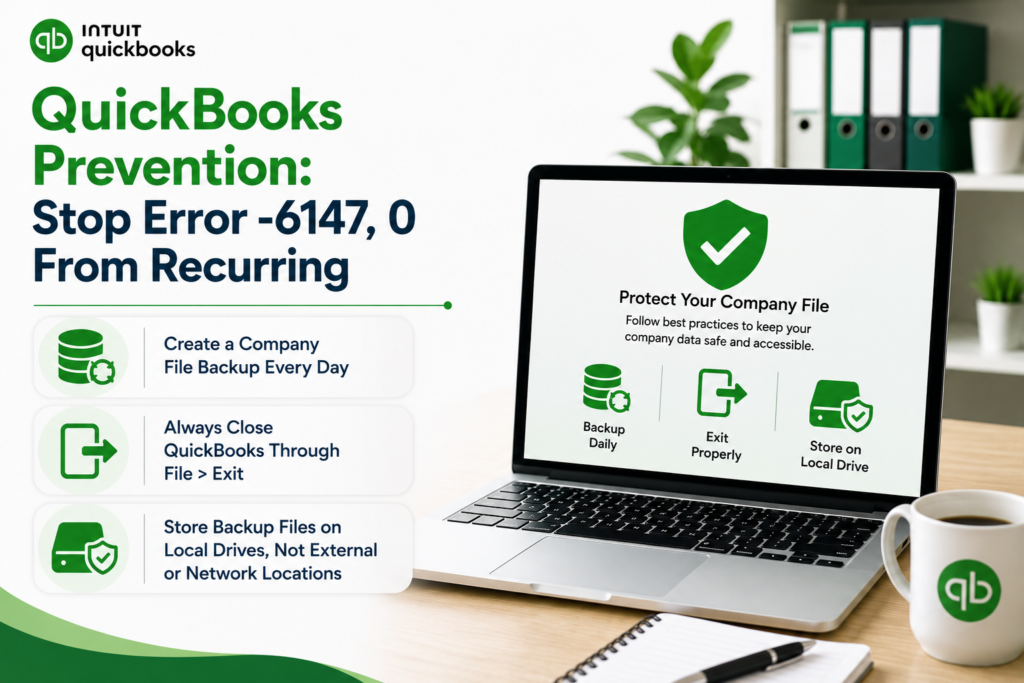
QuickBooks Prevention: Stop Error -6147, 0 From Recurring
- Create a Company File Backup Every Day
The single most effective prevention against the data loss risk from Error -6147, 0 is a daily backup. A backup created through File > Back Up Company > Create Local Backup at the end of each working day saves a complete, compressed copy of the company file that can be restored if the file is damaged. Daily backups limit the maximum data loss from any company file damage event to one day’s worth of transactions — the work done since the last backup. Without a recent backup, the only recovery options for severe damage are Auto Data Recovery (which covers the last 12 hours at most) or Intuit’s Data Services team (which is time-consuming and may not recover all data).
- Always Close QuickBooks Through File > Exit
The .TLG transaction log file — which becomes corrupted and causes Error -6147, 0 — is damaged when QuickBooks is closed incorrectly. Closing QuickBooks through File > Exit allows the program to write the final entries to the .TLG file, release all file locks, and complete the session in an orderly way. Shutting down the computer while QuickBooks is running, closing QuickBooks by clicking the X button on the window title bar, or force-closing through Task Manager all interrupt the .TLG write process and leave the file in an incomplete state. A .TLG file that is consistently closed incorrectly accumulates damage with each session and eventually produces Error -6147, 0.
- Store Backup Files on Local Drives, Not External or Network Locations
Backup files stored on external hard drives, USB drives, network folders, or cloud sync services consistently produce Error -6147, 0 during restore operations. The fix is always to copy the backup to a local folder on the C: drive before restoring, which means backups stored in these locations add an extra step every time they are needed. Storing backup files in a local folder on the C: drive for immediate access, while also copying them to an external drive or cloud storage for protection against hardware failure, provides both restore reliability and data redundancy.
Conclusion
Error -6147, 0 blocks access to a QuickBooks company file or backup file and appears when the file is damaged, when the backup file is stored in an inaccessible location, when the file path is too long, when the .ND or .TLG supporting files are corrupted, or when the QuickBooks installation itself has damage. The fastest resolution for most Error -6147, 0 cases is running QuickBooks File Doctor from the Tool Hub (Fix 1) combined with moving any backup file to a short local path on the C: drive (Fix 2). These two steps together address the two most common causes of the error and resolve it in under 20 minutes in the majority of cases.
For errors caused by internal company file damage that File Doctor cannot fully repair, Verify Data and Rebuild Data (Fix 5) address record-level damage and resolve most remaining cases. For errors caused by .ND and .TLG file corruption, renaming those files (Fix 4) takes five minutes and often resolves the error immediately. For the most severe damage that repair tools cannot address, restoring from a recent backup (Fix 7) bypasses the damaged file entirely and restores access to all accounting data from the backup date forward.
Intuit’s QuickBooks Tool Hub — free from Intuit’s official support page — contains QuickBooks File Doctor, which is the primary repair tool for Error -6147, 0 and addresses both company file damage and network configuration problems in one automated process. Keeping the Tool Hub installed on every computer running QuickBooks Desktop means the first and most effective fix for this error is always immediately available.
Frequently Asked Questions
1. Error -6147, 0 appeared when clicking the ‘Start’ button that QuickBooks showed in its own error message. Clicking Start did nothing. What does that mean?
QuickBooks sometimes includes a “Start” button in its Error -6147, 0 message, which is designed to trigger an automatic attempt to fix the problem. This button activates QuickBooks’ built-in file check routine, which is less comprehensive than the full QuickBooks File Doctor scan available through the Tool Hub.
The Start button not producing a visible result or not resolving the error confirms the built-in quick fix was not sufficient for the type of damage present. The next step is to run QuickBooks File Doctor manually through the Tool Hub (Company File Issues > Run QuickBooks File Doctor), which performs a more thorough scan and repair than the Start button’s built-in routine.
2. The backup file is from a month ago — is restoring it the only option, or can data from the last month be recovered?
When the most recent backup is a month old, two recovery options exist before accepting a month of data loss. The first option is to use Auto Data Recovery (ADR): check the QuickBooksAutoDataRecovery folder in the company file’s location for .QBW.ADR and .TLG.ADR files. If these files are present and were updated in the last 12 hours before the damage occurred, they can recover all or nearly all data from that period.
The second option is to send the damaged company file to Intuit’s Data Services team, which can perform deeper repairs using specialized tools. Contacting Intuit support to discuss Data Services is the correct step when ADR files are not available and restoring from the month-old backup would cause unacceptable data loss.
3. The .ND and .TLG files were renamed to .old but Error -6147, 0 still appears when opening the company file. What is the next step?
A persistent Error -6147, 0 after renaming the .ND and .TLG files means the damage is inside the company file itself, not in the supporting files. The company file’s internal database has records that are corrupted or unreadable. Run Verify Data (File > Utilities > Verify Data) with the company file open. Verify Data will specifically identify which records are damaged and report the type of damage.
If Verify reports integrity loss, run Rebuild Data immediately after and then run Verify again. A clean second Verify confirms the repair succeeded. If Verify still reports damage after Rebuild, the remaining damaged records are documented in the QBwin.log file (accessed through the Tech Help window at Ctrl + 1, then Ctrl + 2) and require either manual correction or Intuit Data Services intervention.
4. Error -6147, 0 appeared after moving the company file to a new folder. QuickBooks was working fine before the move. What caused it?
Moving the company file to a new folder without also moving the .ND and .TLG files that belong with it causes Error -6147, 0. QuickBooks looks for the .ND and .TLG files in the same folder as the .QBW company file. Moving only the .QBW file leaves its supporting files at the old location, and QuickBooks cannot function correctly without them.
The fix is to also move the .ND file and the .TLG file to the same new folder as the company file. If the .ND file is not moved, the multi-user configuration data is missing. If the .TLG file is not moved, QuickBooks loses the transaction log continuity it uses for data recovery. After moving all three files together, open QuickBooks and navigate to the new folder location to open the company file.
5. Intuit Data Services was suggested as the next step. How long does it take and will all data be recovered?
Intuit Data Services is Intuit’s own professional data recovery team that uses specialized tools not available to end users to repair company file damage that self-service tools cannot address. Intuit’s own documentation states that the Data Services process “can take some time” and “may mean that you cannot use QuickBooks for several days.”
The typical processing time is two to five business days after the file is submitted. Data recovery through Data Services is not guaranteed to recover 100% of data in all cases — the amount recovered depends on the type and extent of the damage. Intuit charges a fee for Data Services. Before submitting to Data Services, confirm the ADR files are not available as an alternative, since ADR recovery is free and usually faster when the files are present and current.

Anusmita is a seasoned content writer who brings perspective to words. As a writer, she enriches her work with a journalistic aptitude, utilising her training in Mass Communication and Journalism. She loves to travel and explore, which imparts a greater sense of understanding, maturity, and experience that are reflected in her content.
Beyond her professional work, Anusmita enjoys painting, singing, dancing, and spending time planting. She is also a self-proclaimed foodie who loves exploring different cuisines, an interest that further adds to her curiosity and perspective as a writer.
Leave a Reply