
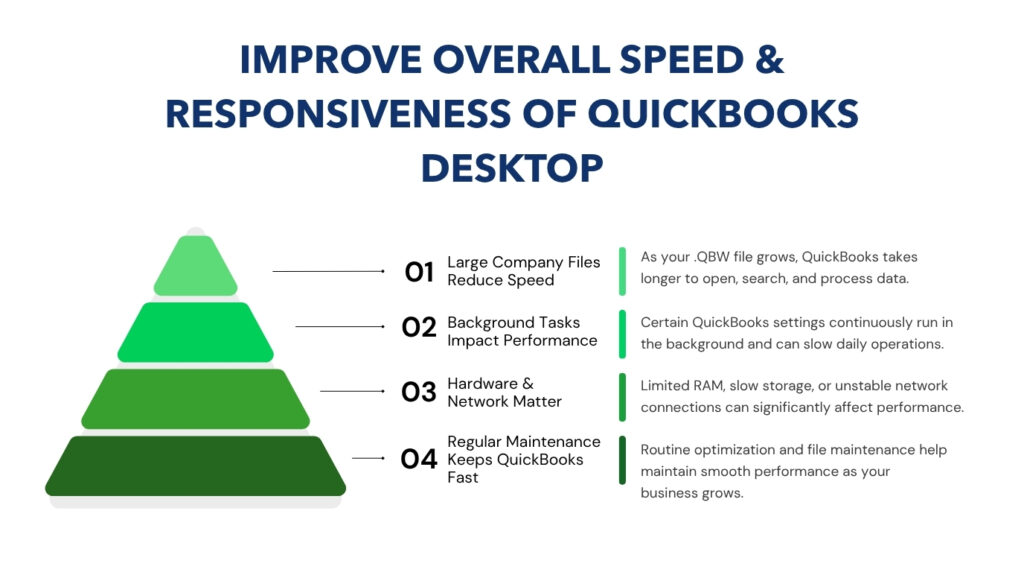
QuickBooks Desktop slows down for predictable, fixable reasons — and Intuit’s official performance guidance identifies three root areas: the size and condition of the company file, the settings inside QuickBooks that run background tasks on every action, and the hardware and network environment the software runs in. Fixing speed problems in QuickBooks Desktop does not require buying new software or rebuilding your company file from scratch. The majority of slowdowns come from a small group of settings and file conditions that can be corrected in under an hour.
The company file — the .QBW file that stores every transaction, customer record, and account balance in your business — grows every time you add data. Intuit’s documentation confirms that QuickBooks performance decreases as the size of the company file increases. A file that was fast three years ago may be noticeably slower today simply because it now contains three more years of transactions. That growth is normal, but it requires regular maintenance to keep QuickBooks running at full speed.
This article covers every category of QuickBooks Desktop slowdown: what is causing it, why it affects performance, and the exact steps to fix it — based entirely on Intuit’s official guidance.
Table of Contents
Diagnose Your Slowdown in 60 Seconds
Match what you are experiencing to its most likely cause before spending time on steps that do not apply to your situation. The table below covers the most common slowdown patterns.
| What You Are Experiencing | What Is Causing It |
| QuickBooks takes 2–5 minutes to open | The company file is too large or the QBWUSER.ini configuration file is damaged |
| Every transaction takes 30–60 seconds to save | Duplicate-check pop-ups fire on every save, or the company file has data damage |
| QuickBooks is slow only in multi-user mode | Network connection is unstable or the NIC (network card) settings need to be reset |
| Reports take several minutes to generate | Reports are set to auto-refresh, or you are running cash-basis reports on a large file |
| QuickBooks slows down gradually during the day | Windows RAM is being consumed by background programs running alongside QuickBooks |
| Payroll processing is slow or freezes | Other users are in the file during payroll — payroll requires single-user mode to run at full speed |
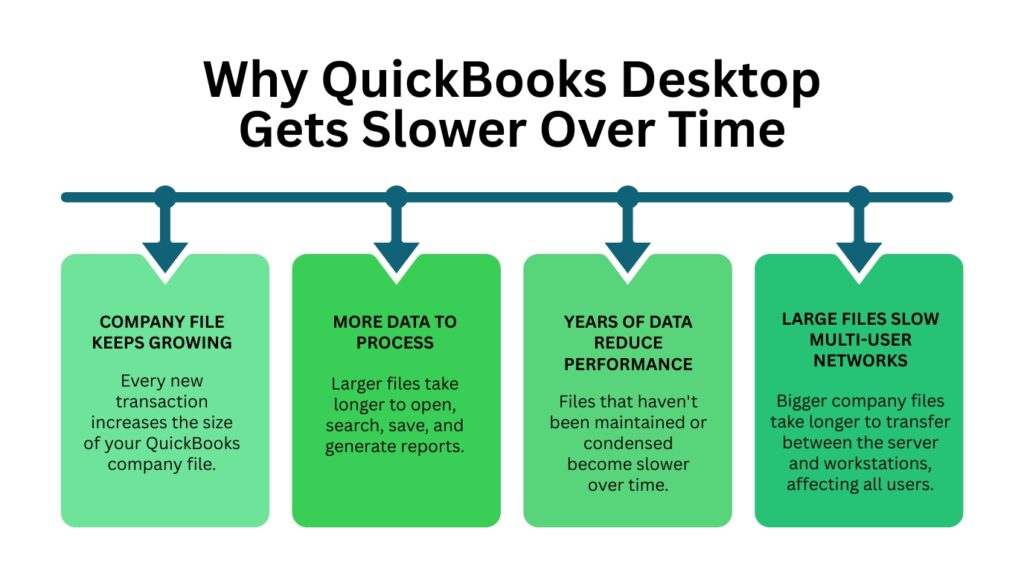
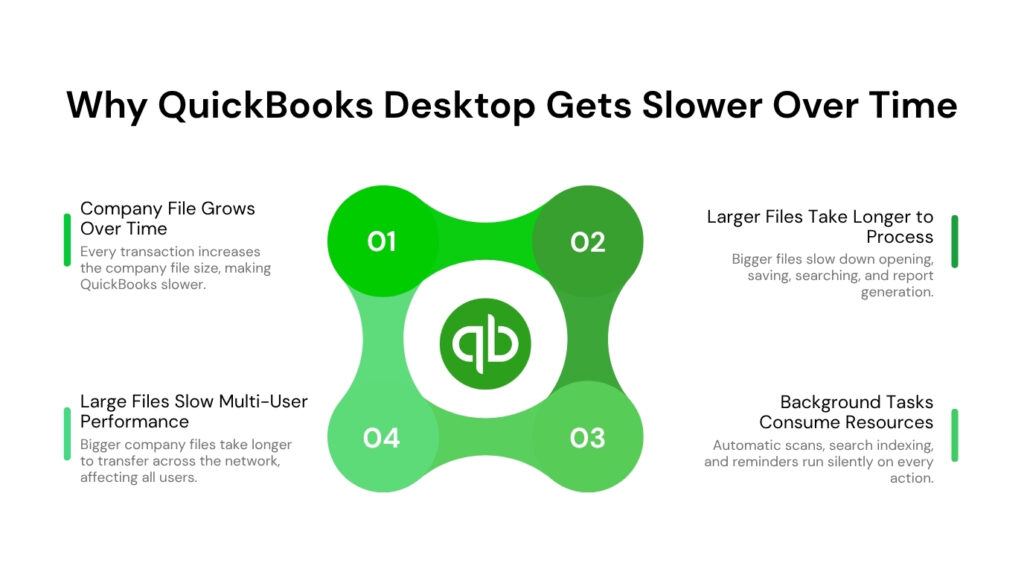
Why QuickBooks Desktop Gets Slower Over Time?
The Company File Grows With Every Transaction
Every invoice, bill, payment, payroll run, and journal entry you record in QuickBooks adds data to the company file. Intuit confirms there is no hard size limit on the company file — it can grow indefinitely. The trade-off is that every operation QuickBooks performs, from opening the file to generating a report, requires reading more data as the file grows. A company file that has been in use for five years without any maintenance contains significantly more data than one maintained annually, and QuickBooks must process all of it on every action.
Intuit’s guidance notes that performance issues are especially common when the network cannot handle large data files being transferred between the server and multiple workstations. A 600 MB file transferred over a slow or unstable network on every transaction takes far longer than the same operation on a local hard drive — and the slowdown affects every person on the network simultaneously.
Background Tasks Run Silently on Every Action
QuickBooks Desktop runs several background tasks by default that most users do not know about. Duplicate-check warnings scan the entire transaction history every time a bill, invoice, or purchase order is saved. The search index re-builds itself in the background whenever new data is entered. The homepage and reminders panel load full data queries every time the company file opens. Each of these tasks is individually small, but running all of them simultaneously on every action creates the sluggish, unresponsive feeling that most users attribute to hardware or file size.
Intuit’s data file performance documentation specifically identifies these automatic pop-ups as a cause of slow response, and provides the menu path to turn each one off. Turning off these background tasks does not remove any accounting features — it only stops the software from running extra scans that most businesses do not need in real time.
Background Programs Compete With QuickBooks for RAM
RAM (Random Access Memory) is the fast, temporary memory a computer uses to run programs. Every program open on the computer takes a portion of that RAM away from QuickBooks. Intuit’s computer performance guidance identifies competing programs as a direct cause of QuickBooks slowdowns — specifically noting that each background program consumes RAM and processor capacity that QuickBooks needs for its own operations.
Antivirus scans, Windows Update downloads, browser tabs, and other accounting tools running alongside QuickBooks all consume RAM. The more RAM these programs take, the less QuickBooks has available to process transactions, which is why many users find QuickBooks gets slower as the workday progresses and more programs are opened.
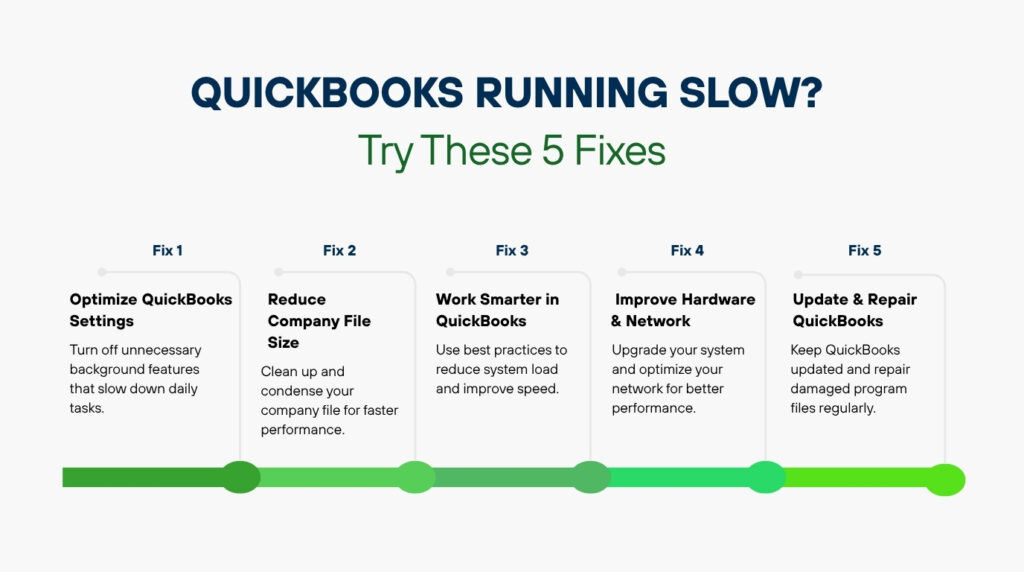
Fix 1: Turn Off the Settings That Slow QuickBooks Down on Every Action
These settings are turned on by default in QuickBooks Desktop, and each one triggers a background database scan every time you save a transaction or open the company file. Turning them off produces an immediate speed improvement because QuickBooks stops running these scans on every save. None of these changes remove accounting data or disable core features — they only stop the automatic background checks that run in real time.
| Preference to Turn Off | Where to Find It in QuickBooks | Why It Slows QuickBooks Down |
| Warn about duplicate bill numbers | Edit > Preferences > Bills > Company Preferences | QuickBooks checks every bill against the entire history on save, adding a delay each time |
| Warn about duplicate PO numbers | Edit > Preferences > Items and Inventory > Company Preferences | Same database scan runs on every purchase order save |
| Warn about duplicate invoice and sales order numbers | Edit > Preferences > Sales & Customers > Company Preferences | QuickBooks scans all invoices and sales orders before allowing the save to complete |
| Auto-refresh search index | Edit > Preferences > Search > Company Preferences | QuickBooks re-indexes the entire company file in the background whenever new data is entered |
| Show homepage when opening company file | Edit > Preferences > Desktop View > My Preferences | The homepage loads multiple data panels simultaneously, adding several seconds to startup |
| Show Reminders List on open | Edit > Preferences > Reminders > My Preferences | The reminders panel scans all open transactions and due dates every time QuickBooks opens |
| Auto-refresh reports | Edit > Preferences > Reports & Graphs > My Preferences | Reports re-run the full database query every time any transaction is changed while a report window is open |
Sign in to your company file as the admin before making these changes. Switch to Single-User Mode first if you are in Multi-User Mode — go to File > Switch to Single-User Mode. Make each change, click OK, then move to the next setting. The speed improvement takes effect immediately after each change is saved.
Fix 2: Reduce the Size of the Company File
Run the Verify Data and Rebuild Data Tools First
Intuit’s performance documentation directs users to verify the company file weekly as a performance maintenance step. Go to File > Utilities > Verify Data. Verify Data scans every record in the company file for internal errors — damaged transaction records, broken links between accounts, and corrupted data that forces QuickBooks to work harder to read the file. Run Rebuild Data immediately after Verify Data reports any issues. Rebuild Data repairs the errors Verify Data finds and compresses the file as part of the repair process.
Running Verify Data before any other size-reduction step is essential because Condense Data — the utility that removes old transactions — requires a clean, error-free file to work correctly. Running Condense Data on a file that has not passed Verify Data risks crashing mid-process and leaving the file in a damaged state.
Reduce Database File Fragments
Database file fragments are scattered pieces of your company file data that become separated from each other as the file grows over time. When QuickBooks reads a fragmented file, it must locate and assemble these scattered pieces on every transaction, which slows down every operation. Intuit’s performance documentation identifies too many database file fragments as a direct cause of slow QuickBooks performance.
Reduce fragments by going to File > Utilities > Clean Up Company Data and following the prompts, or by creating a new portable company file. A portable company file is a compressed, reorganised copy of your data — creating one and then restoring it as a new file removes fragmentation. Go to File > Create Copy > Portable Company File to create the portable copy.
Clear the TLG File by Running a Full Backup with Verification
The .TLG file — Transaction Log file — records every change made to your company file since the last backup. A large .TLG file forces QuickBooks to process more history on every operation, which adds to slowdown. Intuit’s documentation confirms that large TLG files cause performance issues, and that running a manual backup with full verification resets the TLG file by clearing its accumulated history.
Go to File > Back Up Company > Create Local Backup. Select Options and check the box to verify the backup before it saves. This verification step confirms the backup is intact and simultaneously clears the .TLG file when the backup completes. Running a verified backup monthly keeps the .TLG file at a manageable size.
Remove Zero-Quantity and Zero-Price Lines From Transactions
Transaction lines with a zero price or zero quantity stay in the company file and are included in every database scan, but they contribute no accounting value. Intuit’s performance guidance specifically identifies zero lines as a source of slowdown, noting that they also produce incorrect Cost of Goods Sold figures on cash-basis reports when inventory is involved. Search for transactions with zero-price or zero-quantity lines and delete those lines. The accounting totals on the transactions are not affected because these lines have no monetary value.
Run the Condense Data Utility to Remove Old Closed Transactions
Condense Data is the utility inside QuickBooks Desktop that reduces file size by replacing closed historical transactions with summarised journal entries. A journal entry is a simplified record that captures the total financial effect of a group of transactions without storing every individual line item. Condense Data is the most powerful size-reduction tool available and produces the largest speed improvement for files that have grown over many years without archiving.
Go to File > Utilities > Condense Data. Select Transactions before a specific date and choose an appropriate cut-off, such as the end of the most recent completed financial year. Always create a full verified backup before starting Condense Data — the process removes transactions permanently and cannot be undone. Intuit also recommends printing all reconciliation reports before condensing, because report totals may differ after old transactions are replaced with journal entries.
Clean Up and Re-Sort Your Lists Weekly
QuickBooks uses lists — the Customer List, Vendor List, Item List, and Chart of Accounts — every time a transaction is entered. Intuit’s documentation confirms that lists approaching their maximum entry limits, lists with many unused entries, and lists with deeply nested sub-entries (such as many jobs under one customer, or many sub-items under one inventory item) all slow down data entry.
Re-sort your lists weekly by going to Lists > Chart of Accounts (or the specific list), clicking Account (or the list name at the bottom), and selecting Re-sort List. Make inactive any customers, vendors, or items that are no longer used — go to the entry, click Edit, and check Account is Inactive. Inactive entries are hidden from data entry screens, which makes lists shorter and faster to search.
Fix 3: Change How You Work Inside QuickBooks to Reduce the Load
Close QuickBooks Windows That Are Not in Use
Every open window inside QuickBooks — an invoice, a report, a customer record — stays loaded in memory for as long as it remains open. Multiple open windows accumulate and consume RAM, leaving less available for the task you are actively working on. Intuit’s data file guidance specifically lists closing unused QuickBooks windows as a performance improvement step. Close any window you are not actively using by pressing Ctrl + W or clicking the X on that window. Keep only the window you need open at any given time.
Switch to Single-User Mode When Only One Person Is Working
Multi-user mode keeps the network connection active and allows multiple computers to access the company file simultaneously — but it uses more system resources than single-user mode even when only one person is actually working. Intuit’s guidance states to switch to Single-User Mode when you are the only user in the file. Go to File > Switch to Single-User Mode. This releases the network resources multi-user mode holds in reserve, making QuickBooks faster for the single active user.
Run Long Reports and Print Jobs Outside Business Hours
QuickBooks pulls in a large volume of data from the company file every time it runs a detailed report — profit and loss, balance sheet, or aged receivables reports on large files can take several minutes. Intuit’s performance guidance recommends running long reports during off-hours — before business hours, during lunch, or overnight — so that the report processing does not consume resources other users need during the workday.
Memorise your most frequently used reports by going to Reports > Memorise Report after customising them. A memorised report opens with your saved settings already applied, so you do not need to re-filter and re-customise every time. This saves several seconds per report run, which adds up to meaningful time savings over the course of a workday.
Switch Reports to Accrual Basis for Faster Generation
QuickBooks generates reports in two formats: accrual basis and cash basis. Accrual basis records income when it is earned and expenses when they are incurred, regardless of when payment is received or made. Cash basis records income and expenses only when money actually changes hands. Intuit’s documentation confirms that cash-basis reports take more time because QuickBooks must check the payment status of every transaction in the report range before it can calculate totals — a process that requires scanning far more records than accrual reporting.
Switch to accrual basis by going to Edit > Preferences > Reports & Graphs > Company Preferences and selecting Accrual. This change speeds up every report that does not specifically require cash-basis calculations. Consult your accountant before changing the reporting basis if your business has specific cash-basis reporting requirements.
Reboot Workstations Daily
Windows accumulates temporary files, allocates RAM to processes that do not release it properly, and builds up background tasks over the course of a workday. Intuit’s performance guidance includes a daily workstation reboot as a standard maintenance step — not because QuickBooks itself requires it, but because the Windows environment QuickBooks runs in needs to be reset regularly to maintain consistent performance. A reboot clears RAM, closes background processes, and gives QuickBooks a clean memory environment to start the next workday.
Sign Out of the Company File Overnight
Leaving QuickBooks open and signed in to the company file overnight keeps the file locked and the network connection active for hours with no productive work happening. This prevents Windows from completing scheduled maintenance tasks — including disk defragmentation and Windows Update installations — that need the file to be closed. Intuit’s guidance specifically advises against leaving the company file signed in overnight. Go to File > Close Company at the end of each workday.
Fix 4: Address Hardware and Network Causes
How Much RAM Your Server Actually Needs
RAM is the most direct hardware factor in QuickBooks Desktop performance. Intuit provides a specific formula for calculating the RAM your server needs: multiply the company file size in gigabytes by the number of users on the network. A 500 MB file with six users requires 3 GB of RAM on the server. The table below shows common configurations and their RAM requirements based on Intuit’s published figures.
| Company File Size | Number of Users on the Network | Minimum RAM Needed on the Server |
| 500 MB | 1 user | 0.5 GB |
| 500 MB | 6 users | 3 GB |
| 1 GB | 5 users | 5 GB |
| 1 GB | 10 users | 10 GB |
RAM requirements increase as both the file size and the number of users increase. Running QuickBooks with less RAM than this formula requires is a primary cause of slowdown in multi-user offices. Contact your IT provider or computer manufacturer to add RAM chips to empty memory slots — Intuit’s guidance specifies adding memory to empty sockets or upgrading existing memory chips to higher-capacity ones. Also ensure your server runs a 64-bit operating system, which supports significantly more RAM than older 32-bit systems.
Use a Wired Network Connection Instead of Wi-Fi
A Wi-Fi (wireless) connection transfers data between a workstation and the QuickBooks server over radio signals, which are subject to interference from walls, distance, and other wireless devices. A wired Ethernet connection transfers data through a physical cable, which is faster and more stable. Intuit’s guidance recommends using a one-gigabit-per-second (Gbps) network card on the server to increase the speed at which multiple users can access the company file simultaneously. Gigabit is a measure of data transfer speed — 1 Gbps means one billion bits of data per second, which is more than sufficient for QuickBooks multi-user access.
Reset the Network Card Settings to Automatic
The NIC — Network Interface Card — is the hardware component inside a computer that connects it to the network. Intuit’s computer performance guidance identifies mismatched NIC link speed and duplex settings as a cause of network slowdowns. Duplex refers to whether data can travel in both directions simultaneously (full duplex) or only one direction at a time (half duplex). A mismatch between the server’s NIC setting and the network switch’s setting forces the connection to operate at the slower half-duplex speed, reducing the data throughput QuickBooks depends on.
Reset the NIC to automatic so Windows negotiates the correct settings: go to Start > Settings > Network & Internet > Advanced Network Settings. Select the network adapter, click Edit, and set both Speed and Duplex to Auto Negotiation. This single step resolves many multi-user slowdowns that appear to be QuickBooks problems but are actually network configuration issues.
Store the Company File on the Local Hard Drive of the Host Computer
The company file must be stored on the internal hard drive of a computer on the network — not on a NAS (Network Attached Storage) device, a USB drive, or a cloud sync folder such as Dropbox. Intuit explicitly advises against storing the company file on a NAS drive and notes that cloud sync folders cause performance problems because the sync software and QuickBooks both try to access the file at the same time. Every read and write QuickBooks performs must go over the network when the file is stored on remote hardware, which adds latency to every single transaction.
The ideal setup, as described in Intuit’s guidance, is to identify the workstation with the most RAM, the fastest processor, and the fewest non-QuickBooks programs running, and store the company file on that computer’s local C: drive. This computer becomes the host. All other computers on the network access the file through QuickBooks’ built-in multi-user connection — but the file itself stays on local hardware, where QuickBooks can read and write it at full disk speed.
Upgrade to a Solid-State Drive (SSD) on the Host Computer
A hard disk drive (HDD) stores data on spinning magnetic platters and uses a mechanical arm to read it. A solid-state drive (SSD) stores data on chips with no moving parts and accesses it electronically. Intuit’s hardware upgrade guidance recommends using an SSD for the company file’s host computer because it offers dramatically faster read and write speeds than a traditional spinning hard drive. Intuit also notes that HDDs with faster rotational speeds — 7,500 or 10,000 RPM — perform better than the standard 5,400 RPM drives found in older computers. RPM stands for revolutions per minute and describes how fast the disk spins to deliver data.
Replacing the hard drive in the host computer with an SSD is one of the highest-impact hardware changes available for QuickBooks performance. It improves open times, transaction save times, report generation, and backup speed simultaneously because all of these operations depend on how fast QuickBooks can read and write data to the storage device.
Fix 5: Update QuickBooks Desktop and Clean Up Program Files
Install All Available QuickBooks Updates
Go to Help > Update QuickBooks Desktop > Update Now and install all available updates. Intuit releases updates that fix known performance bugs, improve compatibility with current Windows versions, and optimise how the software processes large company files. Running an outdated version of QuickBooks means the software does not have these performance fixes applied. After the update downloads, restart QuickBooks and open the company file — the update installs on restart.
Turn off automatic updates after installing the current update to prevent QuickBooks from downloading updates in the background during business hours. Go to Help > Update QuickBooks Desktop > Options and select No under Automatic Updates. Download and install updates manually at the end of the workday when the performance impact does not affect active users.
Run Quick Fix My Program from the QuickBooks Tool Hub
QuickBooks Tool Hub is a free repair utility available from Intuit’s official website. Open the Tool Hub, go to Program Problems, and select Quick Fix My Program. This tool closes all background processes QuickBooks is running and performs an automatic repair on the QuickBooks program files. Damaged or incomplete program files — caused by interrupted updates or antivirus interference — force QuickBooks to work around missing components, which slows it down. Quick Fix My Program restores those files without requiring a full reinstall.
After Quick Fix My Program finishes, restart your computer before opening QuickBooks. A restart ensures that the repaired files are loaded cleanly by Windows rather than picking up any cached versions of the damaged files that may still be in memory.
Add QuickBooks to the Antivirus Exclusion List
Antivirus software scans files for threats as they are read and written. QuickBooks reads and writes the company file hundreds of times per hour during normal use — and every one of those read-write operations is individually scanned by the antivirus if QuickBooks is not excluded. This scanning adds a delay to every transaction. Intuit’s guidance on backup and performance issues identifies antivirus interference as a consistent cause of QuickBooks slowdown.
Add the following locations to your antivirus exclusion or whitelist list: the QuickBooks installation folder (C:\Program Files\Intuit\QuickBooks [Year]), the company files folder (C:\Users\Public\Documents\Intuit\QuickBooks\Company Files), and the QuickBooks data folder. The process for adding exclusions differs by antivirus product — refer to your antivirus software’s documentation for the specific steps.
Maintaining QuickBooks Speed: Weekly and Monthly Habits
The businesses that keep QuickBooks running fast over years of use are the ones that build a small set of maintenance habits into their regular work routine. These habits take minutes to perform and prevent the gradual slowdown that affects every QuickBooks company file that goes without maintenance.
- Weekly: Run Verify Data (File > Utilities > Verify Data) and fix any errors using Rebuild Data. Re-sort all lists from the Lists menu. Close all QuickBooks windows at the end of the workday and sign out of the company file.
- Monthly: Run a full verified backup to reset the .TLG file. Review the company file size — press F2 inside QuickBooks to open Product Information and check the file size. Remove zero-quantity and zero-price transaction lines. Clear the print and email queues of any forms you no longer need to send.
- Annually: Run Condense Data on the previous financial year’s closed transactions. Make inactive any customers, vendors, or items that are no longer in use. Install the latest QuickBooks Desktop version to get all performance improvements released over the past year. Review hardware — confirm the host computer still meets Intuit’s RAM formula for the current file size and number of users.
When to Contact Intuit Support?
Contact Intuit Support directly if QuickBooks remains slow after completing all steps in this article. The situations that require Intuit’s advanced tools are: the company file fails Verify Data but Rebuild Data cannot fix the reported errors; performance does not improve after the company file is reduced using Condense Data; or the slowdown is specific to one user’s computer and does not improve after Quick Fix My Program and a full reinstall.
Reach Intuit support through Help > QuickBooks Desktop Help / Contact Us inside the QuickBooks application. Intuit’s Data Services team handles cases where the company file itself is the source of performance problems that standard tools cannot resolve. Contacting support with the Product Information screen (press F2 inside QuickBooks) open gives the support agent the file size, version, and release number they need to begin diagnosing your specific situation immediately.
Frequently Asked Questions
1. Why does QuickBooks Desktop become slower even if my computer is relatively new?
A newer computer can still experience QuickBooks slowdowns if the company file has grown significantly over time or if the software is performing multiple background tasks during everyday use. Factors such as duplicate-check warnings, large transaction logs, fragmented company files, and unnecessary startup features can affect responsiveness regardless of your computer’s age. Regular maintenance of both the company file and QuickBooks settings is just as important as having modern hardware.
2. Is it safe to turn off QuickBooks performance-related preferences like duplicate warnings or auto-refresh?
Yes, provided your business does not rely on those specific reminders. Disabling duplicate document warnings or automatic report refresh only stops QuickBooks from performing additional background checks during routine work. It does not delete accounting data or disable core bookkeeping functions. Businesses that require these checks for internal controls should evaluate the trade-off between speed and workflow before making changes.
3. Will adding more RAM always make QuickBooks Desktop faster?
Not necessarily. Additional RAM improves performance only if your computer is running short on available memory. If the slowdown is caused by a large company file, fragmented data, network configuration issues, or outdated QuickBooks program files, increasing RAM alone may provide little improvement. Identifying the actual bottleneck before upgrading hardware usually produces better results and avoids unnecessary expense.
4. How can I tell whether the slowdown is caused by QuickBooks or my network?
A simple way to identify the source is to compare how QuickBooks performs in single-user mode versus multi-user mode. If the software runs smoothly when only one user is connected but slows down when multiple users access the company file, the issue is more likely related to the network, server configuration, or file hosting environment. If performance remains poor even in single-user mode, the company file or QuickBooks installation itself is more likely to be responsible.
5. How often should I perform QuickBooks maintenance to keep it running smoothly?
Routine maintenance is more effective than waiting until performance becomes noticeably poor. Tasks such as verifying the company file, re-sorting lists, and closing unused windows can be done weekly. Running verified backups, reviewing the transaction log, and cleaning unnecessary data are good monthly practices, while larger maintenance tasks like condensing historical data or reviewing hardware requirements are typically performed annually. Following a regular schedule helps prevent gradual performance degradation before it affects daily work.

Anusmita is a seasoned content writer who brings perspective to words. As a writer, she enriches her work with a journalistic aptitude, utilising her training in Mass Communication and Journalism. She loves to travel and explore, which imparts a greater sense of understanding, maturity, and experience that are reflected in her content.
Beyond her professional work, Anusmita enjoys painting, singing, dancing, and spending time planting. She is also a self-proclaimed foodie who loves exploring different cuisines, an interest that further adds to her curiosity and perspective as a writer.
Leave a Reply