
QuickBooks Desktop crashes during backup or Condense Data because the software is reading and writing every transaction in your company file in one continuous operation — and anything that interrupts that operation causes the program to shut down. A corrupted company file, a damaged program file, insufficient disk space, or a company file stored on an unstable network location can all break this process at any point, with or without an error message on screen.
The backup process in QuickBooks Desktop creates a compressed copy of your entire company file — the .QBW file that holds every invoice, payment, payroll record, and account balance your business has ever recorded. The Condense Data process goes further: it scans the file, removes closed historical transactions, and rewrites the file in a smaller form to improve speed. Both operations place heavy demands on the company file and the computer’s resources, which is why they are the two most common triggers for QuickBooks crashes.
This article explains what causes QuickBooks to crash during backup and Condense Data, what the crash means for your financial data, and the exact steps that stop the crash from happening — based on Intuit’s official guidance.
Table of Contents
Identify Your Situation in 60 Seconds
Before going into the causes and fixes, match what you are seeing right now to its meaning. This gets you directly to the right solution without reading through steps that do not apply to you.
| What You Are Seeing Right Now | What It Means |
| QuickBooks closes / disappears mid-backup | Damaged company file or insufficient disk space is stopping the backup from completing |
| Backup reaches 99% and then fails | The .TLG (Transaction Log) file is corrupted and is blocking the final write step |
| Condense Data crashes with no error message | The company file is too large or contains data errors that the Condense tool cannot process |
| Unrecoverable Error code appears during backup or condense | A damaged program file or the QBWUSER.ini configuration file is forcing QuickBooks to shut down |
| Backup saved to a network or USB drive keeps failing | QuickBooks cannot reliably write backup files to network or external storage locations |
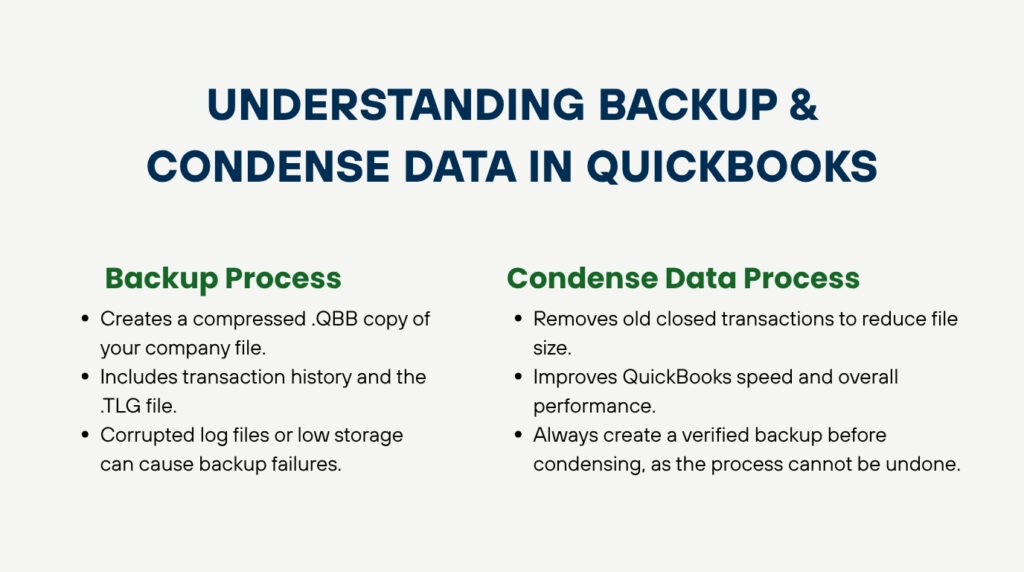
Understanding What QuickBooks Is Doing During Backup and Condense Data?
The Backup Process
A QuickBooks Desktop backup creates a compressed copy of your company file (.QBW) and saves it as a .QBB file — the format QuickBooks uses for restoration. During backup, QuickBooks reads every record in the company file, compresses it, and writes the output to the destination folder. Intuit’s documentation confirms this process also includes the .TLG (Transaction Log) file, which records every change made to the company file since the last backup. A corrupted .TLG file or a full destination drive stops this process before it can complete.
QuickBooks also supports automated backups that run on a schedule and online backups through Intuit Data Protect, which is Intuit’s cloud backup service for QuickBooks Desktop. Both of these use the same underlying process as a manual backup — so the same causes and fixes apply to all three methods.
The Condense Data Process
Condense Data is a utility built into QuickBooks Desktop that reduces the size of your company file by removing closed historical transactions and replacing them with summarised journal entries. A journal entry is a simplified accounting record that captures the total financial effect of multiple transactions without storing each one individually. This process frees up storage space and makes QuickBooks faster for day-to-day work.
Intuit’s documentation confirms that QuickBooks Desktop’s performance decreases as the size of the company file increases. Files that have never been condensed since 2014 can reach 1 GB or more, which makes the Condense process itself highly vulnerable to crashing — because the software must process an enormous volume of data in a single uninterrupted session.
Condense Data is a one-way operation: once it runs and removes transactions, those records cannot be recovered from the condensed file. Intuit’s guidance is clear that a verified backup must exist before Condense Data begins. Running Condense Data without a backup, or running it on a damaged file, is the most common reason businesses lose accounting data permanently.
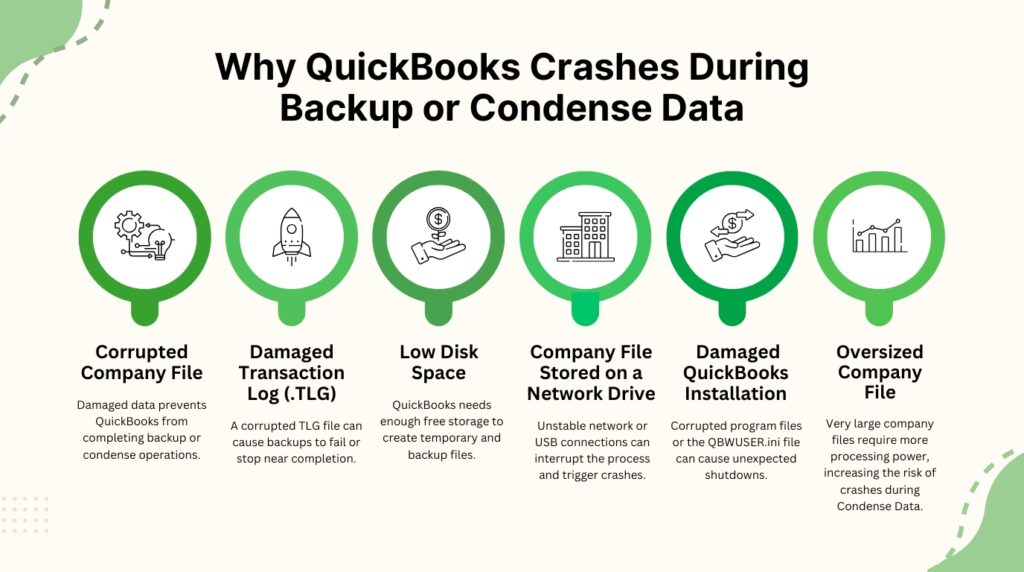
Why QuickBooks Crashes During Backup or Condense Data?
1. Corrupted or Damaged Company File
The company file (.QBW) stores every financial record in your QuickBooks account. Data damage inside the file — caused by an abrupt shutdown, a power failure, or a network interruption while QuickBooks was writing a transaction — makes the backup or Condense process fail when it reaches the damaged section. QuickBooks cannot skip over damaged data during these operations; it must read the entire file, so a single damaged record stops the entire process.
The Verify Data utility (available under File > Utilities > Verify Data) is the tool QuickBooks uses to detect this damage. Intuit’s guidance directs users to run Verify Data and fix all reported errors before running Condense Data. Starting Condense Data on a file that has not passed Verify Data is the leading cause of condense crashes.
2. Corrupted .TLG (Transaction Log) File
The .TLG file — Transaction Log file — sits in the same folder as your company file and records every change made to your company file since the last backup. QuickBooks includes the .TLG file in the backup process to ensure the backup is complete. A corrupted .TLG file stops the backup at the final write step, which is why many users report the backup reaching 99% and then failing or causing QuickBooks to close.
The .TLG file becomes corrupted when QuickBooks is closed without exiting properly — for example, by shutting down the computer while QuickBooks is still open, or by the computer losing power. Renaming the .TLG file forces QuickBooks to create a fresh one, which removes the corruption. The renamed file is not deleted and remains available if needed.
3. Insufficient Disk Space
QuickBooks requires free disk space equal to at least double the size of your company file to complete a backup or Condense Data operation. This is because both processes create a temporary working copy of the file during processing before writing the final output. Intuit’s error message confirms this requirement, stating that QuickBooks cannot condense the file if the drive does not have enough free space — and specifying the exact number of bytes needed.
A company file that is 500 MB requires at least 1 GB of free space on the drive where the backup or condense operation runs. Running either process on a nearly full drive causes QuickBooks to crash without warning because the operating system runs out of space mid-write.
4. Company File Stored on a Network or USB Location
QuickBooks backup and Condense Data operations require a stable, uninterrupted connection to the company file for the entire duration of the process. A company file stored on a USB drive, an external hard drive, or a network location introduces connection instability — any brief interruption in that connection during backup or condense causes QuickBooks to crash. Intuit’s documentation recommends storing the company file on the local hard drive of the host computer, not on removable or network storage.
UNC paths — the addressing format that looks like \\servername\folder — are specifically flagged by Intuit as a cause of backup failures. A mapped drive letter (for example, Z:\QuickBooks) is more stable and less likely to interrupt the connection during a long backup or condense session.
5. Damaged Program Files or QBWUSER.ini File
QBWUSER.ini is a configuration file that QuickBooks Desktop uses to store settings, including the list of company files you have recently opened. Intuit’s documentation confirms that a damaged or missing QBWUSER.ini file can cause QuickBooks to stop working entirely. When QuickBooks crashes with an Unrecoverable Error code during backup — a set of random-looking numbers that appears on screen before the program closes — a damaged QBWUSER.ini file or corrupted program installation files are the primary suspects.
Program file damage happens when a QuickBooks update is interrupted, when antivirus software quarantines a QuickBooks component, or when the Windows operating system develops errors in its own files. QuickBooks cannot complete a backup or condense process if the program files it needs are missing or damaged.
6. Company File Too Large for Condense Data to Process
Intuit’s documentation states that QuickBooks Desktop Pro and Premier perform best with company files under 200–250 MB. Files significantly larger than this limit — particularly files that have grown for many years without being condensed — place an extreme processing load on Condense Data. A 1 GB company file that has not been condensed since 2014 must have every transaction from that entire period read, evaluated, and rewritten in a single session. The sheer volume of data makes the operation more likely to crash, especially if any data errors exist anywhere in the file.
What Happens to Your Data When QuickBooks Crashes Mid-Process
During a Backup Crash
A backup crash does not damage your existing company file. The live .QBW file remains intact because the backup process reads from the company file without modifying it. The only consequence of a backup crash is that no valid backup is produced — which means you have no recovery point if the company file is damaged later. The incomplete .QBB file that a failed backup produces is not usable and cannot be restored.
The risk is not in the crash itself — it is in the period after the crash when the business continues working without a valid backup in place. Running QuickBooks for days or weeks after a failed backup, with no recovery point, means that any subsequent damage to the company file may be unrecoverable.
During a Condense Data Crash
A Condense Data crash is more consequential than a backup crash because Condense Data modifies the company file directly. QuickBooks creates an archived copy of the company file in the same folder before Condense Data begins — the archived copy has the name format [Company File Name] Copy MM/DD/YY. A mid-process crash leaves the company file in an uncertain state where some transactions have been removed and others have not, which can produce incorrect balances on financial reports.
Intuit’s guidance is explicit: restore from the pre-condense backup immediately if Condense Data crashes. Attempting to continue working in a partially condensed file, or running Condense Data a second time without restoring first, risks compounding the damage and making the file unrecoverable.
How to Fix QuickBooks Crashes During Backup
Step 1: Check and Free Up Disk Space
Open Windows Explorer (press Windows key + E), right-click the drive where your company file is stored, and select Properties. Look at the Free Space figure. Compare it to your company file size — your company file size appears when you right-click the .QBW file and select Properties. The free space on the drive must be at least double the company file size before the backup will succeed.
Move large unneeded files to another drive or delete them if they are no longer needed. Do not move the company file itself — move other files to free up space on the drive that holds the company file.
Step 2: Rename the .TLG File to Force QuickBooks to Create a Fresh One
Open Windows Explorer and go to the folder where your company file is stored. The default location is C:\Users\Public\Documents\Intuit\QuickBooks\Company Files. Look for a file with the same name as your company file but with a .TLG extension — for example, if your company file is MyBusiness.QBW, the log file is MyBusiness.TLG. Right-click it, select Rename, and add .old to the end of the name so it becomes MyBusiness.TLG.old.
QuickBooks creates a new, empty .TLG file the next time you open the company file. The renamed file remains in the folder and can be restored by removing .old from the name if needed. Try running the backup again after completing this step.
Step 3: Run Quick Fix My Program from the QuickBooks Tool Hub
QuickBooks Tool Hub is a free utility from Intuit that repairs common program errors. Download the latest version from Intuit’s official website and install it. Open the Tool Hub, go to Program Problems, and select Quick Fix My Program. This tool closes all QuickBooks background processes and runs an automatic program repair. Intuit’s documentation confirms this step fixes damaged program files that cause QuickBooks to crash during backup and other operations.
After Quick Fix My Program finishes, restart your computer and open QuickBooks. Try the backup again before running any other fix — this single step resolves the majority of backup crashes caused by program file damage.
Step 4: Run Verify Data and Rebuild Data on the Company File
Go to File > Utilities > Verify Data. QuickBooks scans the company file for internal errors and lists any problems it finds. Select Rebuild Now when Verify Data reports errors — the Rebuild Data tool repairs data damage inside the company file. Intuit’s guidance is to run Verify Data first, then Rebuild Data, and then run Verify Data again to confirm all errors are resolved.
Rebuild Data creates a backup of the company file before it begins repairs. Accept this backup prompt — do not skip it. After Rebuild Data completes, the backup you attempted before this fix should now succeed because the damaged records that were stopping the backup are repaired.
Step 5: Run QuickBooks File Doctor from the Tool Hub
Open the QuickBooks Tool Hub, go to Company File Issues, and select Run QuickBooks File Doctor. Select your company file from the list and choose Check Your File. File Doctor repairs both the company file and the .ND file (Network Descriptor file) — the configuration file that tells QuickBooks how to find and connect to the company file on the network. A damaged .ND file is a common cause of backup failures in multi-user setups.
File Doctor takes 5 to 15 minutes to run depending on the size of the company file. After it completes, attempt the backup again. File Doctor resolves the majority of backup failures that Quick Fix My Program does not.
Step 6: Change the Backup Destination to a Local Folder
If your backup destination is a USB drive, an external hard drive, or a network location, change it to a local folder on the host computer’s hard drive. Go to File > Back Up Company > Create Local Backup, select Options, and change the backup location to a folder on the C: drive — for example, C:\QuickBooksBackups. Complete the backup to the local folder first. Once the backup succeeds locally, copy it manually to your external or network location.
Intuit’s documentation specifically advises against using UNC paths (\\servername\folder) as the backup destination. Use a mapped drive letter if you must save backups to a network location, but always confirm the backup works to a local drive first.
Step 7: Rename the QBWUSER.ini File
If QuickBooks crashes with an Unrecoverable Error code, the QBWUSER.ini configuration file may be damaged. Open Windows Explorer and go to: C:\Users\[Your Windows Username]\AppData\Local\Intuit\QuickBooks [Year]. Right-click the file named QBWUSER.ini and rename it to QBWUSER.ini.old. Renaming this file erases the list of recently opened company files — you will need to browse to your company file manually the next time you open QuickBooks, but no accounting data is lost.
After renaming QBWUSER.ini, reopen QuickBooks, browse to your company file and open it, then attempt the backup. This step resolves crashes caused by a corrupted QuickBooks configuration file without touching any accounting data.
How to Fix QuickBooks Crashes During Condense Data
Complete the Pre-Condense Checklist Before Every Run
Condense Data crashes are almost always caused by skipping preparation steps. The table below shows what to do before starting Condense Data. Completing every step in order reduces crash risk to a minimum.
| Step | What to Do Before Starting Condense Data |
| 1. Create a full backup | Go to File > Back Up Company > Create Local Backup. Save to your local hard drive, not a USB or network path. Condense Data cannot be undone once it runs. |
| 2. Switch to Single-User Mode | Go to File > Switch to Single-User Mode. All other users must close QuickBooks before you proceed. |
| 3. Run Verify Data first | Go to File > Utilities > Verify Data. Fix every error it reports before starting Condense Data. Running Condense on a damaged file is the leading cause of crashes. |
| 4. Check free disk space | Open This PC in Windows and confirm the drive holding your company file has at least double the file size in free space. For a 1 GB file, you need at least 2 GB free. |
| 5. Copy the file to your local drive | If the company file is stored on a server or network share, copy it to a local folder on the host computer before running Condense Data. |
Run Condense Data on Smaller Date Ranges Instead of the Full File
A company file that is very large — 500 MB or more — is more likely to crash during a full condense than a smaller file. Breaking the condense operation into yearly segments reduces the load on each run and gives you a working checkpoint after each year is processed. Go to File > Utilities > Condense Data, select Transactions before a specific date, and choose the end of a single year — for example, 12/31/2018 — as the cutoff. Run condense for one year at a time rather than for the entire history.
Intuit’s documentation notes that reports may not match after condensing a file because historical transactions are replaced with summarised journal entries. Print all reconciliation reports and key financial reports before starting Condense Data so you have a reference point for what the file contained before the condense.
Run Quick Fix My Program Before Starting Condense Data
Open the QuickBooks Tool Hub, go to Program Problems, and run Quick Fix My Program before every Condense Data attempt on a large or problem file. This step closes background processes that can interfere with the condense operation and repairs any program file damage that might cause a crash partway through. Intuit’s documentation lists program file damage as one of the reasons Condense Data and Verify/Rebuild crash to the desktop without an error message.
Restore from Backup If Condense Data Crashes Mid-Process
Stop working in the company file immediately if Condense Data crashes. Open the backup you created in Step 1 of the pre-condense checklist by going to File > Open or Restore Company > Restore a Backup Copy. Restore the backup to a different file name — for example, MyBusiness_Restored.QBW — to keep the partially condensed file as a separate copy in case it is needed for reference.
After restoring the backup, run Verify Data on the restored file to confirm it is clean, then run Quick Fix My Program from the Tool Hub, and then attempt Condense Data again on a smaller date range. Never continue working in a file where Condense Data crashed mid-process — the balance of transactions removed versus transactions remaining is unknown and will produce incorrect financial reports.
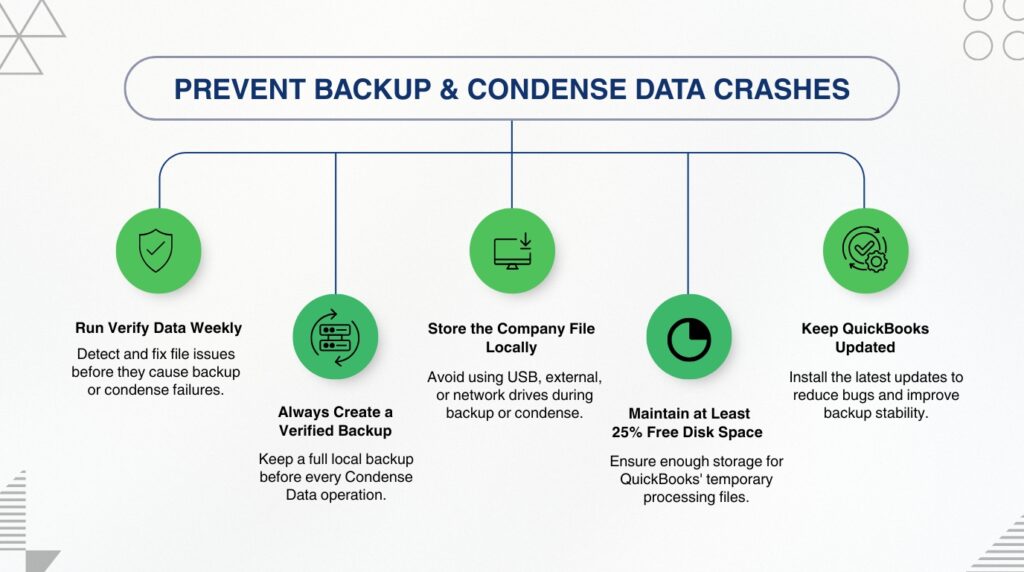
Preventing QuickBooks Backup and Condense Data Crashes
Run Verify Data Weekly
Intuit’s performance documentation recommends running Verify Data weekly on your company file. Verify Data catches data damage early — before it grows into a problem that stops backup or crashes Condense Data. Go to File > Utilities > Verify Data each week and resolve any errors immediately using Rebuild Data. Catching damage on a weekly basis means repairs are small and fast; catching it only when a crash occurs means the damage is typically large and recovery takes hours.
Always Exit QuickBooks Using File > Exit
Closing QuickBooks by clicking the X button while the company file is open, or shutting down the computer while QuickBooks is running, corrupts the .TLG (Transaction Log) file. The .TLG file records every transaction in real time and must be properly closed before the computer shuts down. Using File > Exit signals QuickBooks to close the .TLG file cleanly before shutting down. This single habit prevents the most common cause of .TLG corruption and the backup failures that follow from it.
Store the Company File on the Local Hard Drive of the Host Computer
The company file must be stored on the internal hard drive of the computer that runs QuickBooks — the host computer in a multi-user setup, or the single user’s computer in a single-user setup. Storing the file on a USB drive, an external drive, or a NAS (Network Attached Storage) device introduces the connection instability that causes backup and condense crashes. Backups from the local company file can then be copied to external storage as a secondary step after the backup completes successfully.
Keep Free Disk Space at 25% or More on the Company File Drive
A drive that is nearly full cannot support the temporary files QuickBooks creates during backup and Condense Data. Keeping at least 25% of the company file drive’s total capacity free at all times ensures these operations always have the working space they need. Check free space monthly using Windows Explorer — right-click the drive and select Properties to see the Used Space and Free Space figures.
Update QuickBooks Desktop Before Running Condense Data
Go to Help > Update QuickBooks Desktop and install all available updates before running Condense Data on a large file. Intuit releases updates that fix known bugs in the Condense Data utility, and running an outdated version of QuickBooks is a documented cause of condense crashes. The update also refreshes the program files that Quick Fix My Program repairs, reducing the risk of mid-condense crashes caused by outdated components.
Make a Full Local Backup with Verification Before Every Condense Run
Go to File > Back Up Company > Create Local Backup, select Options, and set the backup to save to your local hard drive. Check the option to verify data integrity during the backup — this confirms the backup file is readable before you rely on it. A verified backup takes slightly longer to create but provides a guaranteed restoration point if Condense Data crashes. An unverified backup is not guaranteed to restore correctly.
Quick Reference: Fixes by Crash Type
| Crash Type | First Fix to Try |
| Backup crashes at any point | Run Quick Fix My Program from the Tool Hub (Program Problems tab) |
| Backup fails at 99% | Rename the .TLG file in the company file folder to .TLG.old |
| Backup fails to USB or network | Change backup destination to a local folder on the C: drive |
| Unrecoverable Error during backup | Rename QBWUSER.ini to QBWUSER.ini.old and reopen QuickBooks |
| Condense Data crashes immediately | Run Verify Data, fix all errors, then run Quick Fix My Program |
| Condense crashes on a very large file | Condense one year at a time using a specific date cutoff in the utility |
| Condense crashes mid-process | Restore the pre-condense backup immediately — do not continue in the partially condensed file |
QuickBooks Desktop backup and Condense Data crashes are predictable and fixable. Every crash in this category has a documented cause and a documented fix in Intuit’s official guidance — none of them require reinstalling Windows, purchasing new hardware, or migrating to a different accounting system. The three habits that prevent the overwhelming majority of crashes are: running Verify Data weekly, always exiting QuickBooks through File > Exit, and keeping the company file on the local hard drive of the host computer. Getting those three things right eliminates most backup and condense problems before they start.
When to Contact Intuit Support Directly
Contact Intuit Support directly if QuickBooks continues to crash during backup or Condense Data after completing all the steps in this article. The specific situations that require Intuit’s advanced tools are: the company file fails Verify Data but Rebuild Data cannot fix the errors; Condense Data crashes even on small date ranges after all pre-condense steps are completed; the company file shows missing transactions or an out-of-balance balance sheet after a crash; or File Doctor reports errors that it cannot repair.
Intuit’s support team has access to Data Services — a specialist team that can repair severe company file damage using tools not available in the standard Tool Hub. Intuit’s documentation recommends contacting Data Services specifically for cases where the company file is unrecoverable through standard troubleshooting. Reach Intuit support through Help > QuickBooks Desktop Help / Contact Us inside the QuickBooks application.

Anusmita is a seasoned content writer who brings perspective to words. As a writer, she enriches her work with a journalistic aptitude, utilising her training in Mass Communication and Journalism. She loves to travel and explore, which imparts a greater sense of understanding, maturity, and experience that are reflected in her content.
Beyond her professional work, Anusmita enjoys painting, singing, dancing, and spending time planting. She is also a self-proclaimed foodie who loves exploring different cuisines, an interest that further adds to her curiosity and perspective as a writer.
Leave a Reply