
QuickBooks Desktop freezing or showing Not Responding is one of the most disruptive problems a business can face during accounting work. The program stops accepting input, the screen goes gray or white, the window title bar shows Not Responding, and nothing responds to mouse clicks or keyboard entries. The freeze can last seconds, minutes, or persist until the program is forced closed through the Windows Task Manager. In every case, the freeze has a specific cause — and each cause has a documented fix.
Intuit’s official documentation on QuickBooks Desktop freezing identifies five root causes: a company name that is too long, a damaged or missing QBWUSER.INI file, corruption on the hard drive, damaged program files or a damaged QuickBooks installation, and a damaged Windows operating system. Each of these causes produces a freeze at a specific point — during startup, when opening the company file, during a specific task like running a report, or at shutdown. Identifying when the freeze happens narrows the cause immediately.
This article covers every freeze cause that Intuit documents, what each one does to QuickBooks, and the exact steps to resolve it — from the fastest one-click fixes to the more thorough repair processes for damaged installations and company files. All solutions follow Intuit’s official troubleshooting sequence for QuickBooks Desktop not responding.
Table of Contents
Identify Your Freeze Pattern in 60 Seconds
The timing of the freeze identifies its cause. Match your freeze pattern below before reading the full sections:
| When the Freeze Happens | What Is Most Likely Causing It | Go to Section |
| QuickBooks freezes immediately on startup before showing anything | Damaged QBWUSER.INI file or damaged QuickBooks installation | Section 3: QBWUSER.INI File |
| QuickBooks opens but freezes when opening the company file | Company name too long, or company file damaged or in a bad folder | Section 4: Company Name and File Location |
| QuickBooks freezes when running a specific report | Company file data is damaged or file is too large for current RAM | Section 5: Company File Damage |
| QuickBooks freezes mid-transaction during normal work | Hard drive corruption, RAM shortage, or competing background programs | Section 6: Hardware and System Resources |
| QuickBooks freezes only in multi-user mode — not single-user | Network connection drops, or Database Server Manager service stops | Section 7: Multi-User Freezing |
| QuickBooks freezes at shutdown or when closing the file | Damaged program files in the QuickBooks installation | Section 2: Quick Fix and Program Repair |
Tip: Start with Section 2 regardless of when the freeze happens — Quick Fix My Program from Tool Hub resolves the majority of QuickBooks freeze issues in under five minutes and requires no technical knowledge.
1. What Causes QuickBooks Desktop to Freeze
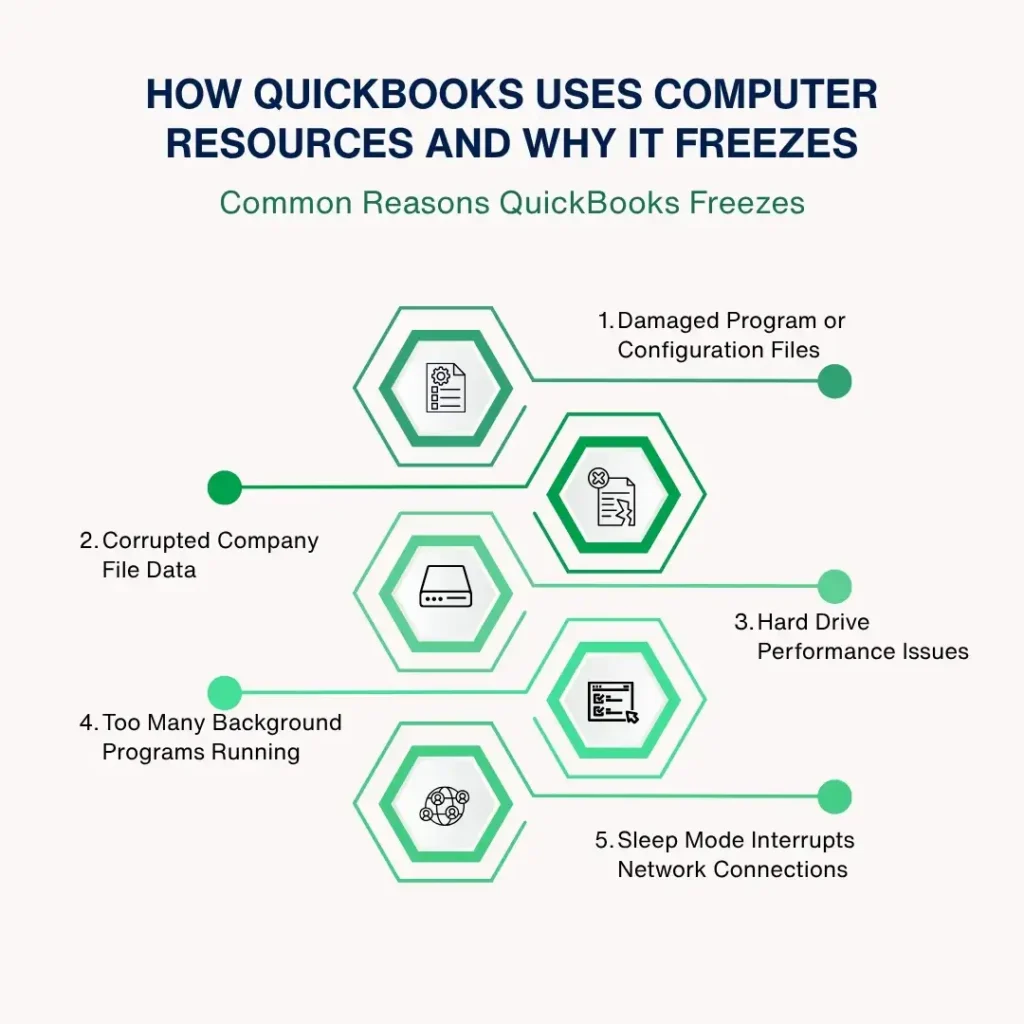
How QuickBooks Uses Computer Resources and Why It Freezes
QuickBooks Desktop is a database program — it stores all accounting data in a single company file and reads from and writes to that file constantly during every session. A freeze occurs when QuickBooks sends a request — to open a screen, save a transaction, run a report, or read from the company file — and does not receive a response within the time it expects. Instead of showing an error, QuickBooks stops accepting any new input and displays Not Responding in the window title bar while it waits for the unresolved request to either complete or time out.
The unresolved request can be blocked by any layer of the system: the program files themselves may be damaged, preventing the request from being formed correctly; the QBWUSER.INI configuration file that QuickBooks reads at startup may be damaged, preventing the program from loading its settings; the company file may contain damaged data that causes a read or write operation to fail; or the hard drive may be physically damaged, making specific sectors — small storage areas — unreadable or extremely slow to read. Each of these causes a freeze at a different point in the QuickBooks session.
Intuit’s community support confirms several additional causes that users report consistently: a company name that exceeds the character limit QuickBooks supports causes a freeze at login; a Sleep Timer on the server computer — the setting that puts the computer to sleep after inactivity — interrupts active network connections and freezes every workstation connected to the company file; and too many background programs running simultaneously on the same computer compete with QuickBooks for RAM and processor time, causing QuickBooks to freeze when it cannot get the resources it needs to complete an operation.
2. Quick Fix My Program: The Fastest Fix for Most Freezes
What Quick Fix My Program Does and When to Use It
Quick Fix My Program is a repair tool inside the QuickBooks Tool Hub — a free diagnostic application from Intuit. Intuit’s official fix guide for QuickBooks freezing and stopping work begins with this tool as Solution 1. Quick Fix My Program closes all open QuickBooks background processes — the hidden programs running behind the main QuickBooks window — and runs a fast repair on the QuickBooks program files. Intuit states: the Quick Fix will shut down any open background processes QuickBooks uses and run a quick repair on your program.
Background processes are small programs QuickBooks runs automatically in the background to handle tasks like database connections, update checks, and file monitoring. A background process that gets stuck — waiting for a response that never comes — blocks QuickBooks from completing its own tasks, producing a freeze that has nothing to do with the company file or the hard drive. Quick Fix My Program identifies and ends these stuck processes in seconds, which is why Intuit puts it first in the troubleshooting sequence — it resolves the majority of QuickBooks freeze issues without any further steps.
How to Run Quick Fix My Program
Close QuickBooks completely on the affected computer. Download the QuickBooks Tool Hub from Intuit’s official website and save it to a location that is easy to find — the desktop or the Downloads folder. Open the downloaded file named QuickBooksToolHub.exe and follow the on-screen steps to install it. Agree to the terms and conditions when prompted. After the installation finishes, double-click the Tool Hub icon on the Windows desktop to open it. If the icon is not visible, search for QuickBooks Tool Hub in the Windows Start menu.
In the Tool Hub, select the Program Problems tab. Click Quick Fix my Program. The tool runs automatically and takes less than two minutes. After it finishes, open QuickBooks Desktop and open the company file. Test whether the freeze recurs by performing the action that previously triggered it — running the same report, entering the same type of transaction, or opening the same screen. A freeze that was caused by stuck background processes does not return after Quick Fix My Program clears them.
3. The QBWUSER.INI File: A Damaged Configuration File Causes Startup Freezes
What the QBWUSER.INI File Does and Why It Causes Freezes
The QBWUSER.INI file is a configuration file that QuickBooks Desktop reads every time it opens. This file stores the product registration information for QuickBooks — the data that proves the software is licensed and linked to the correct account. The file also stores the list of company files that were recently opened, so QuickBooks can display them on the No Company Open screen for quick access. Intuit’s official freeze fix documentation lists a damaged or missing QBWUSER.INI file as one of the five root causes of QuickBooks freezing or not responding.
A damaged QBWUSER.INI file causes QuickBooks to freeze during startup — specifically at the point where the program tries to read the file to load its settings and registration data. QuickBooks sends a request to read the file, the file returns incorrect or unreadable data, and QuickBooks freezes waiting for valid data that the damaged file cannot provide. The freeze happens before the company file opens, which means it is not a company file problem — it is a program configuration problem. Renaming the QBWUSER.INI file forces QuickBooks to create a new, clean one.
How to Rename the QBWUSER.INI File
The QBWUSER.INI file is stored in a hidden folder on the computer. Open Windows File Explorer and navigate to the path: C:\Users\[YourUserName]\AppData\Local\Intuit\QuickBooks [Year] — replacing [YourUserName] with the Windows account name and [Year] with the installed QuickBooks version year. The AppData folder is hidden by default. To make it visible, open File Explorer, go to the View menu, and select Show, then Hidden items. This reveals the AppData folder and all its contents.
Right-click the file named QBWUSER.ini and select Rename. Add .old to the end of the file name so it reads QBWUSER.ini.old. Intuit’s guide includes an important note: renaming the QBWUSER.INI file erases the list of previously opened company files. After renaming it, the company file must be opened manually the first time by going to File, then Open or Restore Company. Also rename the file named EntitlementDataStore.ecml in the same folder by adding .old to its name. Reopen QuickBooks Desktop after both files are renamed.
QuickBooks creates new, clean versions of both files automatically the next time it opens. If QuickBooks opens without freezing after the rename, the QBWUSER.ini file was the cause. Intuit’s next diagnostic step after the rename is to open a sample company file — QuickBooks Desktop includes a sample company that can be opened without any license or registration. If QuickBooks opens the sample company but not the actual company file, the problem is in the company file itself or the folder it is stored in, not in the program configuration.
QBWUSER.INI Diagnostic Results and What Each Means
| Result After Renaming QBWUSER.INI | What It Confirms | Next Step |
| QuickBooks opens without freezing | QBWUSER.INI was damaged — new file resolves the freeze | Re-open the company file manually; no further action needed |
| QuickBooks opens the sample company but not the actual file | Company file is damaged or stored in a bad folder location | Copy the file to a local folder and try opening from there |
| QuickBooks still freezes after renaming both files | QuickBooks installation itself is damaged | Run QuickBooks Install Diagnostic Tool from Tool Hub |
| QuickBooks does not start at all after renaming | Windows operating system has damage affecting QuickBooks | Run Windows repair tools; consider QuickBooks reinstallation |
4. Company Name Too Long or File in the Wrong Location
Why the Company Name Length Causes a Freeze
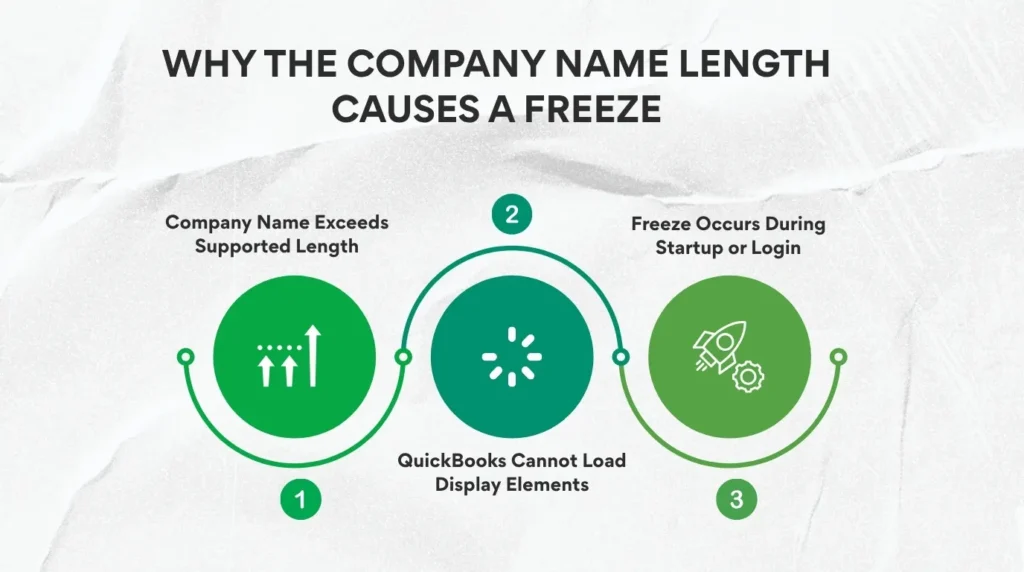
Intuit’s community support documentation confirms that a company name exceeding the character limit is a direct cause of QuickBooks freezing. The company name is the name displayed in the window title bar and at the top of reports — it is set during company setup and stored in the company file. A company name that is too long causes QuickBooks to freeze at the login screen or immediately after the company file opens, because QuickBooks tries to load the name into its display elements and the name exceeds the space those elements support.
The fix for a company name that is too long is to shorten it. Open the company file by pressing the Escape key rapidly during startup to skip the freeze point, or open a sample company file first and then use File, Open or Restore Company to navigate to the actual file. Once inside QuickBooks, go to the Company menu, select My Company, and edit the company name to a shorter version. Save the change, close QuickBooks, and reopen the company file normally. The freeze at startup does not recur once the company name is within the supported length.
Why the Company File Location Causes a Freeze
Intuit’s official documentation recommends opening the company file from a local folder rather than a network location when diagnosing freezes. A company file accessed directly from a network drive — where the file lives on another computer and is opened across the network connection — is subject to the speed and stability of the network connection. A momentary network interruption during a file read operation causes QuickBooks to freeze while it waits for the data to arrive. Moving the file to the local hard drive eliminates this network-dependent freeze.
A company file stored in a folder with damaged permissions also causes a freeze — QuickBooks tries to open the file, cannot get the folder to respond to its access request correctly, and freezes waiting for the folder to grant access. Intuit’s diagnostic confirms this: if the company file opens when copied to a different local folder but not from its original location, the problem is a damaged folder or folder permissions. Create a new folder on the C: drive, copy the company file into it, and open it from there. If it opens without freezing, the original folder had a permissions or damage issue.
5. Company File Damage: Freezes During Reports or Specific Transactions
How Damaged Company File Data Causes Freezes
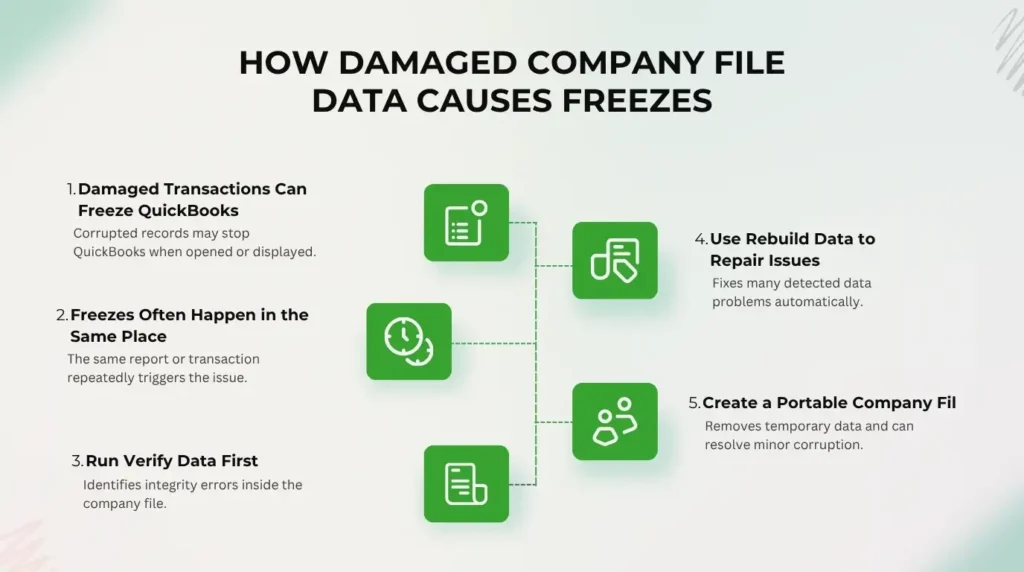
A company file accumulates data over years of use — transactions, customer records, vendor records, payroll entries, and report settings. A specific transaction or record within the company file can become damaged due to a power outage during a save, a hard drive sector error during a write operation, or a network interruption mid-transaction. A damaged record causes QuickBooks to freeze specifically when it tries to read or display that record — the freeze happens consistently on the same report or the same type of transaction, which is the clearest sign that the company file contains damaged data.
Intuit’s Verify Data and Rebuild Data tools are the documented solution for damaged company file data. Verify Data checks the company file for integrity errors and produces a list of any problems found. Rebuild Data attempts to repair those problems automatically. Access both tools by going to the File menu, selecting Utilities, and choosing Verify Data or Rebuild Data. Intuit recommends running Verify Data first, then Rebuild Data if Verify Data reports errors. Always create a full backup of the company file before running Rebuild Data, because the rebuild process modifies the company file.
Intuit’s community support also recommends creating a portable copy of the company file as a diagnostic step when freezing occurs during specific transactions. A portable copy is a compressed version of the company file that excludes temporary data. Creating it — by going to File, Create Copy, and selecting Portable company file — and then restoring it produces a cleaner version of the file. Intuit’s community notes that creating a portable copy helps fix latency issues within the file. If the restored portable copy no longer freezes on the same transaction, the original file had accumulated temporary data or minor corruption that the portable copy process cleared.
6. Hardware and System Resources: RAM, Hard Drive, and Competing Programs
RAM Shortage as a Cause of Mid-Session Freezes
QuickBooks Desktop loads portions of the company file into RAM — the computer’s temporary working memory — to process reports, display transactions, and run calculations. RAM shortage occurs when the computer does not have enough RAM to hold all the data QuickBooks needs for the current operation. Instead of stopping with an error, QuickBooks freezes while Windows moves data between RAM and the hard drive’s virtual memory space — a process called paging. Paging is extremely slow compared to RAM access, and during paging QuickBooks appears frozen because it is waiting for the data transfer between RAM and the drive to complete.
Intuit’s system requirements set a minimum of 8 GB of RAM for 1 to 5 users in multi-user mode, and a minimum of 4 GB for a standalone single-user workstation. A computer with less RAM than these minimums freezes during RAM-intensive operations — large report generation, payroll processing, and opening multiple QuickBooks windows simultaneously. Checking the RAM installed on the computer — by opening Settings, System, About in Windows — and comparing it to the minimum confirms whether RAM shortage is contributing to the freeze.
Hard Drive Corruption and How to Test for It
Intuit lists hard drive corruption as one of the five root causes of QuickBooks Desktop freezing. A hard drive develops damaged sectors — small storage areas that can no longer hold data reliably — through normal use, power failures, and physical vibration. QuickBooks freezes when it tries to read data stored in a damaged sector because the drive keeps retrying the read operation until it either succeeds or gives up. The freeze lasts as long as the retry cycle, which can range from seconds to minutes depending on how severely damaged the sector is.
Windows includes a built-in tool called Check Disk — chkdsk — that scans the hard drive for damaged sectors and attempts to repair them. Open the Windows Start menu, type cmd, right-click Command Prompt, and select Run as administrator. Type chkdsk C: /f /r and press Enter. Windows will ask to schedule the scan on the next restart — type Y and press Enter. Restart the computer. The scan runs before Windows loads and takes 30 to 90 minutes depending on drive size. After the scan, open QuickBooks and test whether the freezing recurs. Repairing damaged hard drive sectors eliminates the retry cycles that cause QuickBooks to freeze during file reads.
Competing Programs Consuming Resources During QuickBooks Sessions
Competing programs are applications running on the same computer simultaneously with QuickBooks — each consuming RAM and processor time that QuickBooks needs for its operations. Common competing programs that cause QuickBooks freezes include antivirus software performing a scheduled full scan, Windows Update downloading and installing in the background, cloud backup services syncing files, and web browsers with multiple open tabs. The freeze happens because the competing program takes the RAM or processor capacity QuickBooks was actively using, and QuickBooks cannot complete its current operation without those resources.
Open the Windows Task Manager — right-click the taskbar and select Task Manager — and go to the Processes tab. Sort the list by CPU or Memory to identify which programs are consuming the most resources. Any program using more than 20% of CPU or more than 1 GB of RAM while QuickBooks is active is a competing program that could be causing freezes. Close those programs, schedule antivirus scans and backup services for after business hours, and disable automatic Windows Update downloads during working hours to keep maximum resources available for QuickBooks.
7. Multi-User Freezing: When QuickBooks Freezes Only With Multiple Users
What Causes Freezes Specifically in Multi-User Mode
A freeze that occurs only in multi-user mode — and not when the same user opens the company file alone on the same computer — points to the network connection or the QuickBooks services running on the host computer. In multi-user mode, every workstation sends all its data requests across the network to the host computer’s QuickBooks Database Server Manager, which processes them and returns results. A workstation freeze in multi-user mode means the workstation sent a request and stopped receiving responses — it is waiting for a reply from the host that is not arriving.
The Sleep Timer is a documented and frequently overlooked cause of multi-user freezes. The Sleep Timer is the Windows setting that puts the computer to sleep — a low-power mode where the computer stops all activity — after a period of inactivity. A host computer that goes to sleep during business hours drops all active QuickBooks connections simultaneously. Every workstation that was connected to the company file at that moment freezes, because the host stopped responding mid-session. Intuit’s community support identifies the Sleep Timer as a cause of freezing and recommends disabling sleep on all computers that host or connect to the QuickBooks company file.
How to Disable Sleep on the Host Computer
Open the Windows Start menu on the host computer. Go to Settings, then System, then Power and Sleep. Set the Sleep setting for both On battery power and When plugged in to Never. Also set the Screen option to Never to prevent the screen from turning off and initiating the sleep process. These settings keep the host computer fully active at all times during business hours, preventing network connections from dropping mid-session and eliminating the freeze that a sleep interruption causes for every connected workstation.
Also restart the QuickBooks services on the host computer if multi-user freezes persist after disabling sleep. Open services.msc from the Windows Start menu on the host, find QuickBooksDBXX and QBCFMonitorService, right-click each one, and select Restart. A service that has been running for days or weeks without a restart can accumulate resource-related slowness that produces multi-user freezes during high-demand periods. Restarting both services clears that accumulated load without requiring a full computer restart.
8. QuickBooks Install Diagnostic Tool: For Damaged Program Installations
When to Use the Install Diagnostic Tool
The QuickBooks Install Diagnostic Tool is Intuit’s Solution 2 for QuickBooks freezing, used when Quick Fix My Program did not resolve the freeze. This tool automatically diagnoses and fixes issues with the Microsoft components that QuickBooks uses — specifically the Microsoft .NET Framework and Microsoft Visual C++ Redistributable packages. Both of these are separate Microsoft programs that QuickBooks depends on to run its program functions. A Microsoft .NET installation that is damaged or an incompatible version causes QuickBooks to freeze during operations that rely on it, and the Install Diagnostic Tool finds and repairs those issues automatically.
Intuit’s fix guide for QuickBooks stopped working states: the QuickBooks Install Diagnostic Tool automatically diagnoses and fixes issues with Microsoft components the QuickBooks program uses. It can take up to 20 minutes to run. Open the Tool Hub, go to Program Problems, and select QuickBooks Program Diagnostic Tool. Let the tool run completely without interrupting it. After it finishes, restart the computer to ensure the repaired components load correctly. Reopen QuickBooks after the restart and test whether the freeze recurs.
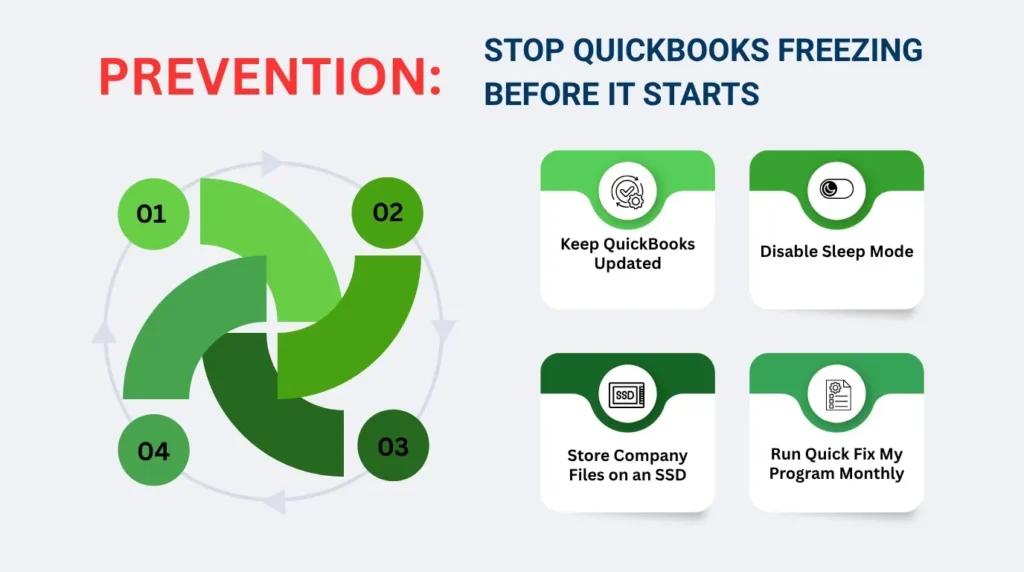
9. Prevention: Stop QuickBooks Freezing Before It Starts
Most QuickBooks Desktop freezes are preventable. They follow predictable events — a growing company file that exceeds RAM capacity, a QBWUSER.INI file that accumulates corruption, a hard drive with developing sector errors, or competing programs that take over resources during work hours. The steps below address each of these conditions before they produce a freeze.
- Run Quick Fix My Program from Tool Hub once a month as routine maintenance: Download Tool Hub from Intuit’s official website. Open Program Problems and run Quick Fix My Program. This takes two minutes and clears any stuck background processes before they accumulate into a freeze that disrupts a working session.
- Update QuickBooks Desktop to the latest release every month: Go to Help, Update QuickBooks Desktop, and install all available updates. Intuit releases updates that fix specific freeze-causing bugs. Businesses running an outdated version miss those fixes and experience freezes that the current version no longer produces.
- Run Verify Data from the File menu every quarter: Go to File, Utilities, Verify Data. A quarterly check catches company file data errors before they grow into freeze-causing damage. If Verify Data reports any errors, run Rebuild Data immediately from the same menu — always create a backup first.
- Disable Sleep on all computers that host or connect to the company file: Open Settings, System, Power and Sleep on every computer in the network. Set Sleep to Never for both battery and plugged-in states. A host that goes to sleep drops all active connections and freezes every workstation mid-session.
- Schedule antivirus scans and cloud backups for outside business hours: A full antivirus scan running during the work day competes with QuickBooks for processor time and can cause freezes during report generation and payroll processing. Set scheduled scans to run at midnight or another time when QuickBooks is not active.
- Store the company file on the computer’s internal SSD rather than a network drive: An SSD — a solid-state drive — reads and writes data 5 to 10 times faster than a traditional spinning hard drive. Intuit recommends an SSD for QuickBooks performance. A company file on an SSD experiences fewer read delays that cause mid-session freezes during large report runs.
- Rename the QBWUSER.INI file whenever QuickBooks freezes on startup with no other explanation: If QuickBooks freezes before the company file opens and Quick Fix did not help, rename QBWUSER.ini to QBWUSER.ini.old and rename EntitlementDataStore.ecml to EntitlementDataStore.ecml.old. QuickBooks rebuilds both files automatically and the freeze clears if those files were the cause.
Conclusion
QuickBooks Desktop freezing or showing Not Responding always has a specific cause — a damaged QBWUSER.INI file, a company name that is too long, damaged company file data, hard drive sector errors, a RAM shortage, competing background programs, or a network interruption in multi-user mode. Intuit documents each cause and each fix in its official troubleshooting guides, and the fixes follow a clear sequence that resolves the most common causes first and the less common causes progressively.
Quick Fix My Program from the QuickBooks Tool Hub resolves the majority of freeze issues in under two minutes by clearing stuck background processes and repairing the program files. Renaming the QBWUSER.INI file resolves startup freezes caused by configuration file damage. Running Verify and Rebuild Data resolves freezes on specific reports or transactions caused by damaged company file records. Running chkdsk resolves freezes caused by hard drive sector errors. The correct tool for each freeze pattern is in the relevant section of this article.
The most reliable protection against recurring freezes is a monthly maintenance routine: run Quick Fix My Program, update QuickBooks to the latest release, and run Verify Data on the company file. These three steps take less than 15 minutes combined and catch the most common freeze-causing conditions — stuck processes, outdated program files, and growing company file data errors — before they interrupt accounting work during payroll runs, month-end closings, and tax preparation.
Frequently Asked Questions
Q1. QuickBooks freezes for exactly 2 to 5 minutes and then resumes — what is causing it?
A freeze that resolves on its own after a consistent time period points to a hard drive read retry cycle or a RAM paging event. Hard drive retry cycles have fixed timeout periods — the drive tries to read a damaged sector repeatedly for a set duration before either succeeding or skipping the sector. A RAM paging event also has a predictable duration based on how long it takes to move data between RAM and the hard drive’s virtual memory space. Run chkdsk C: /f /r from an administrator Command Prompt to check and repair hard drive sectors. Also check the installed RAM against Intuit’s minimum requirements and consider adding RAM if the computer falls below 8 GB for multi-user use.
Q2. QuickBooks opens fine but freezes every time a specific report is run — what is damaged?
A freeze that occurs on the same specific report every time points to damaged data in the company file that the report reads. QuickBooks tries to load the damaged record into the report, the read operation fails, and the program freezes waiting for data that cannot be retrieved correctly. Run Verify Data from File, Utilities, Verify Data to check the company file for errors. If errors are found, create a full backup, then run Rebuild Data from the same Utilities menu. After the rebuild, run the same report again. A rebuild that repairs the damaged record eliminates the freeze on that report permanently.
Q3. The QBWUSER.INI file was renamed but QuickBooks still freezes on startup — what is next?
A freeze that persists after renaming QBWUSER.ini and EntitlementDataStore.ecml points to a damaged QuickBooks installation rather than a configuration file problem. Open the QuickBooks Tool Hub, go to Program Problems, and run QuickBooks Program Diagnostic Tool — Intuit’s Solution 2 for this scenario. The tool repairs the Microsoft .NET and Microsoft Visual C++ components that QuickBooks depends on. Allow up to 20 minutes for the tool to finish, restart the computer after it completes, and reopen QuickBooks. If QuickBooks still freezes after the diagnostic tool, a full reinstallation of QuickBooks is the next step.
Q4. QuickBooks freezes only when two or more users are in the file — what should be checked first?
A freeze specific to multi-user mode points to the network connection or the QuickBooks services on the host computer. Check the Sleep Timer first — open Settings, System, Power and Sleep on the host computer and confirm Sleep is set to Never. A host computer that goes to sleep drops all connections and freezes every workstation simultaneously. Also open services.msc on the host and restart QuickBooksDBXX and QBCFMonitorService. If the freeze persists after those two steps, run QuickBooks File Doctor from the Tool Hub’s Network Issues tab to check for firewall and .ND file issues contributing to the multi-user instability.
Q5. After a power outage, QuickBooks freezes on a specific customer invoice — what happened?
A power outage during an active QuickBooks session interrupts a write operation partway through, leaving the affected transaction in an incomplete state. QuickBooks freezes when it tries to display or process an incomplete transaction because the data structure does not match what it expects. Create a full backup of the company file immediately. Then run Verify Data from File, Utilities, Verify Data. The verification identifies the damaged transaction by number or type. Run Rebuild Data to attempt automatic repair. If the specific transaction is identified and cannot be repaired by the rebuild, delete it and re-enter it from the paper copy or the previous backup — re-entering an incomplete transaction from a clean record eliminates the freeze permanently.

Anusmita is a seasoned content writer who brings perspective to words. As a writer, she enriches her work with a journalistic aptitude, utilising her training in Mass Communication and Journalism. She loves to travel and explore, which imparts a greater sense of understanding, maturity, and experience that are reflected in her content.
Beyond her professional work, Anusmita enjoys painting, singing, dancing, and spending time planting. She is also a self-proclaimed foodie who loves exploring different cuisines, an interest that further adds to her curiosity and perspective as a writer.
Leave a Reply