
QuickBooks Desktop slows down in a predictable way as your company file grows larger over time, and Intuit confirms there is no built-in limit on how large that file can become. A slow-loading file shows up as long waits when you open the program, delays while entering a transaction, or a frozen screen while a report runs. This guide walks through every optimization step Intuit recommends, split between fixes for your data file and fixes for your computer. Every fact below comes directly from Intuit’s own performance guidance, so you are working from steps Intuit itself has tested.
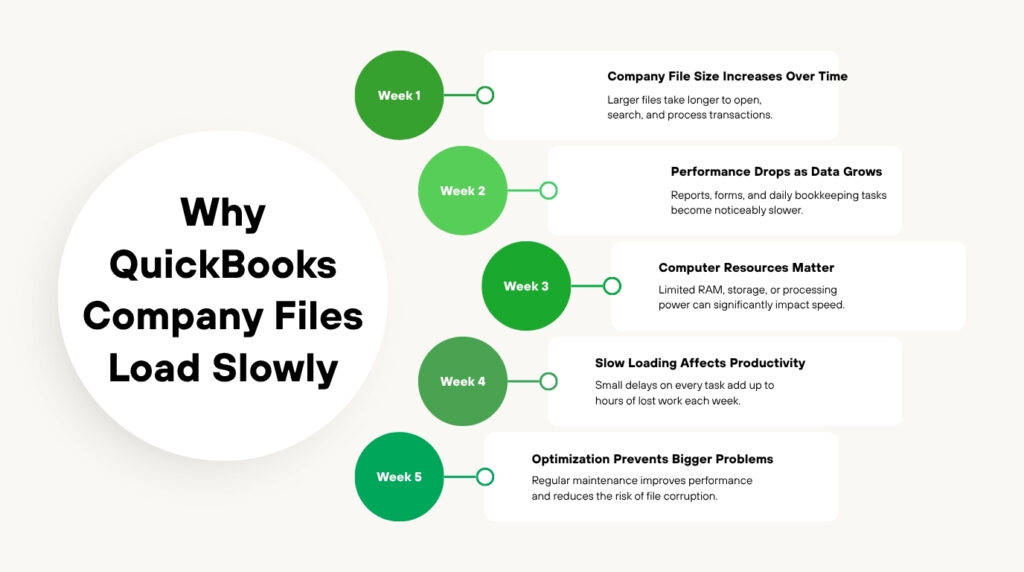
Slow performance costs real working hours, not just patience. A bookkeeper who waits sixty extra seconds on every transaction loses hours across a single week of data entry. The same conditions that slow QuickBooks down can eventually contribute to data damage and file corruption if left unaddressed. Fixing the underlying cause protects both your productivity and the accuracy of your books.
This article first explains what causes a company file to load slowly as it grows. It then walks through Intuit’s recommended fixes in order, covering both the data file itself and the computer running it. A prevention checklist and five common questions close out the guide, so slow loading stops being a recurring problem.
Table of Contents
Identify Your Slowdown Pattern in 60 Seconds
Match what you are experiencing to the row below, then jump straight to the matching solution. Working through every solution in order is the safer approach if more than one row applies to you, because each step targets a different cause.
| If you are facing this issue | Go to this solution |
| QuickBooks opens slowly but runs fine once it loads | Solution 1, Solution 3 |
| Every screen change or saved transaction feels delayed | Solution 2, Solution 4 |
| Reports take a long time to generate | Solution 2, Solution 4 |
| Multiple users on the network all experience the lag together | Solution 5, Solution 6 |
| Performance was fine until the file grew large | Solution 3, Solution 4 |
What Makes a QuickBooks Company File Load Slowly?
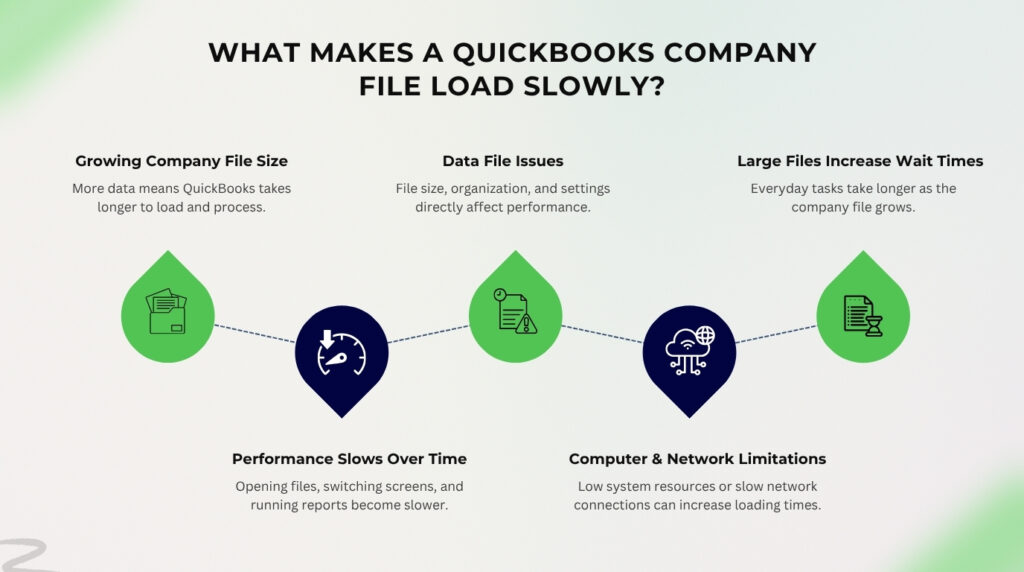
A QuickBooks company file is the .QBW file that stores every transaction, list, and setting for your business in one place. QuickBooks reads through a larger portion of this file every time you open it, switch screens, or run a report as the file grows. Intuit confirms that the program’s performance decreases as the company file increases in size, and this slowdown affects every user connected to that file. Performance problems can also occur when your network struggles to move a large data file between computers.
Intuit splits this issue into two separate causes, covered across two separate guides. The first cause sits inside the data file itself, including its size, its internal organization, and which preferences are turned on. The second cause sits in the computer and network running QuickBooks, including available memory and where the file is physically stored. Working through both causes together produces the most lasting improvement.
Why Performance Drops As Your Company File Grows?
File Size and Database Fragments
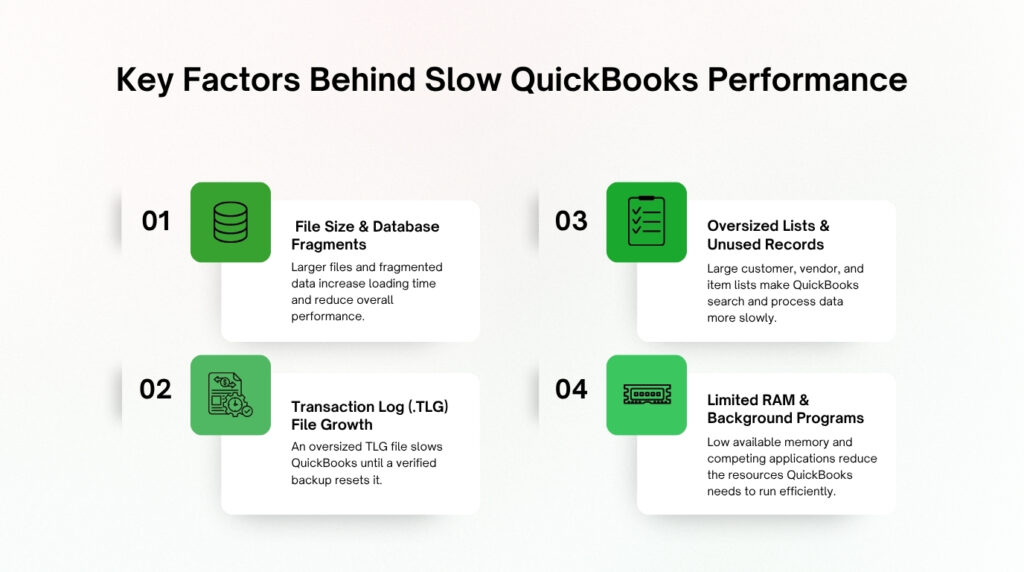
A QuickBooks company file does not have a hard size limit, but every added transaction adds to the work QuickBooks must do each time it opens the file. Database file fragments are small broken-up pieces of stored data scattered across the file, and Intuit states that too many of these fragments will slow down your computer. These fragments build up naturally over years of daily use without you noticing them. Reducing the number of fragments restores some of the speed your file had when it was newer.
Damaged Network and Transaction Log Files
The transaction log file, known as the TLG file, keeps a running record of every change to your company file since the last backup. Intuit confirms that a large TLG file can cause performance issues, since QuickBooks references this file constantly while you work. Making a manual backup with full verification resets this file back to a smaller size. Skipping backups for long stretches allows this file to grow without control in the background.
List Limits and Unused Entries
Every customer, vendor, item, and account in QuickBooks lives inside a list that the program checks each time you enter data. Lists slow down performance when they approach their built-in limits, when they carry many entries nobody uses anymore, or when they contain deep layers of sub-entries such as jobs under customers or sub-items under items. QuickBooks checks these lists on practically every action you take inside the program. Cleaning out unused entries and merging duplicates keeps these checks fast.
Insufficient RAM and Competing Programs
Random-access memory, known as RAM, is the short-term memory your computer uses to run programs, and QuickBooks needs enough of it to hold your company file’s data while you work. Intuit recommends calculating RAM needs by multiplying your file size in gigabytes by the number of users connected to the network. Other programs running at the same time compete with QuickBooks for this same memory and processing power. A computer running antivirus scans, video calls, or large spreadsheets alongside QuickBooks has less memory available for QuickBooks itself.
What Slow Performance Costs Your Business?
Every delay while opening a screen or generating a report adds up across a full workday for one user, and it multiplies further when several employees share the same slow file. A task that should take fifteen seconds stretching into a full minute steals hours of productive time across a single week of bookkeeping. This lost time carries a real cost even though no error message ever appears on screen.
Slow performance often signals deeper conditions building inside the file rather than standing as a problem on its own. A bloated TLG file, excessive database fragments, and oversized lists are the same conditions linked to data damage in QuickBooks. Letting these conditions continue for months gives them more time to interfere with the accuracy of your reports and balances. Treating slow loading as only an inconvenience misses the early warning it is giving you.
Frustration with a sluggish program also pushes some users toward risky shortcuts during their workday. Skipping backups to save time, forcing the program closed instead of waiting, or avoiding the Verify Data tool because it takes too long all increase the risk of larger problems later. Fixing the slowdown removes the temptation to take these shortcuts in the first place.
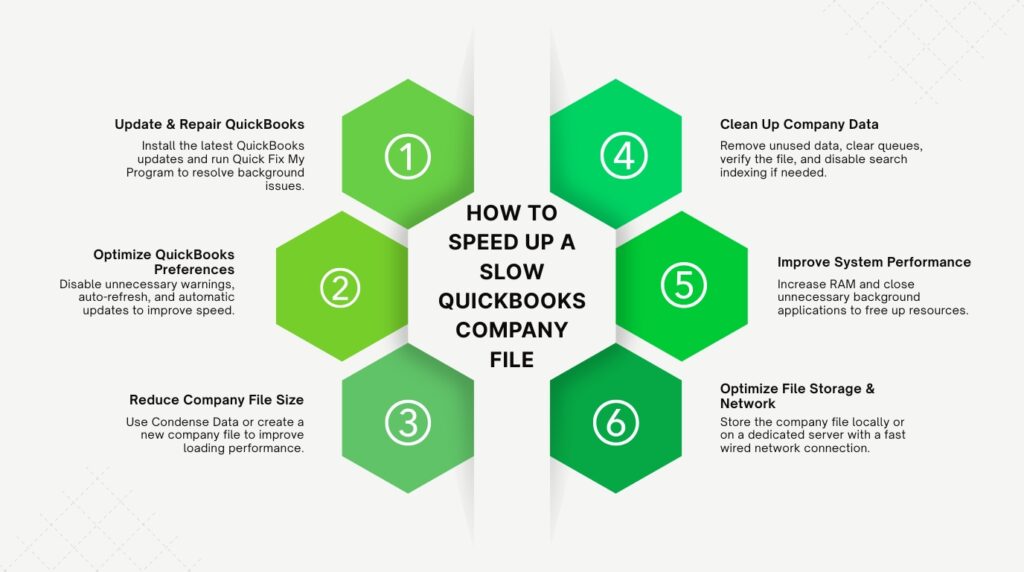
Step-by-Step Fix: How to Speed Up a Slow QuickBooks Company File?
Intuit splits its recommended fixes across two areas, the data file and the computer running it. Work through the data file solutions first, since they require no hardware spending and often produce the biggest improvement. Move to the computer-focused solutions only if the file-based fixes do not fully resolve the slowdown.
Solution 1: Update QuickBooks and Run Quick Fix My Program
Update QuickBooks Desktop and Database Server Manager on your host or server before making any other change, since outdated software carries its own performance limits. Download the QuickBooks Tool Hub from Intuit’s official website if you have not already, and open it once installed. Select Program Problems from the menu, then choose Quick Fix My Program to shut down background processes and run a fast repair. This step alone clears conflicts that build up during normal daily use of the program.
Solution 2: Turn Off Preferences That Slow Down Every Screen
Several QuickBooks preferences run automatic checks in the background every time you save a transaction or open a report, and turning off the ones you do not need speeds up daily work. Go to Edit, then Preferences, then Bills, and uncheck the warning about duplicate bill numbers from the same vendor. Repeat this same pattern for Items and Inventory to remove the duplicate purchase order warning, and for Sales and Customers to remove the duplicate invoice and sales order warnings.
Switch to single-user mode first if you share the file with other people, since these preference changes require it. Open Reports and Graphs preferences and select Don’t Refresh, then check the box to prompt before opening a report, since automatic refreshing is one of the most common causes of report delays. Go to Help, then Update QuickBooks, then Options, and set Automatic Updates to No so QuickBooks stops checking for updates during your working hours.
Solution 3: Reduce the Size of Your Company File
A company file that has grown very large benefits directly from a smaller, more manageable size. Run the Condense Data utility to compress old, closed transactions while keeping your full transaction history intact for reference. Contact Payroll Support first if you use Assisted Payroll, since condensing interacts with payroll data in ways that need a specialist’s review.
Starting an entirely new company file is the more involved alternative, and it works best when your file has years of closed-out history you no longer need active. Export your lists from the original file, clean up any entries you no longer use, and import the cleaned files into a fresh company file. This route takes more time to set up than condensing, but it gives you the leanest possible starting point going forward.
Solution 4: Clean Up Data Inside the File
A handful of small cleanup tasks inside the file remove a surprising amount of drag on performance. Remove transaction detail lines that show a zero price or zero quantity, since these slow down performance and can throw off your Cost of Goods Sold figure on cash basis inventory reports. Clear out the print and email queues for any forms waiting to go out, and verify your company file weekly to catch small data issues before they grow.
Turn off automatic search indexing if performance still lags after the steps above, by unchecking Update Automatically under Search preferences and renaming the .qbw.SearchIndex file found in the same folder as your company file. Searching still works after this change, but it takes a little longer to complete. Turn the automatic index back on if this step does not produce a noticeable improvement.
Solution 5: Increase RAM and Manage Competing Programs
Calculate the RAM your server needs by multiplying your company file’s size in gigabytes by the number of users connected to it, which is the exact method Intuit recommends. A 500 MB file shared by six users, for example, calls for 3 GB of RAM on the server based on this formula. Add memory chips to any empty sockets on your server first, and upgrade existing chips to higher capacities if every socket is already full.
Open Task Manager and select the Processes tab to see every program competing with QuickBooks for memory and processing power. Close any programs you are not actively using while QuickBooks is open, and move QuickBooks to a different computer if a program you cannot close keeps competing for resources. Increasing your virtual memory, the space your hard drive uses as backup memory, to 2 GB plus an additional 2 GB for each major application also gives QuickBooks more room to work.
Solution 6: Store the File in the Right Location
Where your company file physically lives affects how fast QuickBooks can read and write to it. Store the file on a hard drive inside a computer connected directly to your network rather than on a cloud storage service such as Dropbox. Intuit specifically advises against storing the file on a network-attached storage device, since this setup is a documented source of performance problems.
Choose the computer with the most RAM, the fastest clock speed, and the fewest other running programs as your file’s host if you do not have a dedicated server. Use a wired network connection with a fast network card, since Intuit notes that a one gigabit per second network card increases the bandwidth available to QuickBooks. Reset your network adapter settings to automatic if your connection speed and duplex settings do not match across computers, since mismatched settings slow down the entire network.
Prevention Checklist: Keep QuickBooks Running at Full Speed
Fixing today’s slowdown matters, but preventing tomorrow’s slowdown matters more for daily bookkeeping work. The checklist below turns Intuit’s recommendations into a simple routine that takes only minutes to follow.
| Frequency | Action |
| Every Day | Reboot workstations and sign out of the company file when you finish working for the day |
| Every Week | Run Verify Data on the company file and re-sort your customer, vendor, and item lists |
| Every Week | Run Quick Fix My Program from the Tool Hub as routine maintenance |
| Every Month | Run a manual backup with full verification to reset the transaction log file |
| Every Month | Review and merge unused or duplicate list entries |
| Every Quarter | Confirm RAM and hardware still match Intuit’s recommended levels for your file size and user count |
This routine takes a small amount of time each week compared with the hours lost to a consistently slow file. Businesses that follow it rarely need the more involved fixes covered in Solution 3 above.
Conclusion
A slow-loading QuickBooks company file almost always traces back to one of two areas Intuit has documented: the data file itself or the computer and network running it. File size, database fragments, an oversized transaction log, and cluttered lists slow down the file from the inside. Insufficient RAM, competing programs, and the wrong storage location slow it down from the outside.
Working through Intuit’s data file fixes first, then moving to the computer-focused fixes if needed, resolves the slowdown for most QuickBooks users without any specialist support. Keeping this routine going on a weekly and monthly basis prevents the same conditions from building back up. A fast, responsive QuickBooks file is the direct result of this ongoing maintenance, not a one-time fix.
Frequently Asked Questions
1. Is there a maximum size a QuickBooks company file can reach before it stops working?
Intuit confirms that there is no fixed limit on how large a company file can grow. Performance still declines steadily as the file gets bigger, even without a hard cap stopping you from continuing to use it. Most slowdowns become noticeable well before any technical limit comes into play, which is why size reduction through Solution 3 above is worth doing long before the file becomes unusable.
2. Will switching to a solid-state drive actually make QuickBooks load faster?
Intuit lists a solid-state drive, often shortened to SSD, as one of the recommended hardware upgrades for QuickBooks performance, alongside a hard drive with a fast rotational speed such as 7,500 or 10,000 rpm. An SSD reads and writes data much faster than a traditional spinning hard drive, which directly speeds up how quickly QuickBooks can open and save your company file. This upgrade helps the most when your current drive is the clear bottleneck rather than RAM or network speed. Pair an SSD upgrade with the RAM calculation in Solution 5 for the most noticeable improvement.
3. Does running reports on a cash basis instead of accrual basis really slow things down?
Cash basis reports take more time to generate because QuickBooks needs to check the payment status of every single transaction before including it in the report. Accrual basis reports skip this extra payment check, which makes them faster to generate on the exact same company file. Switching to accrual basis where your accounting method allows it removes this extra step entirely. Running unavoidable cash basis reports during off hours, as Intuit recommends, limits how much this slowdown affects other users.
4. How often should I run the Condense Data utility on my company file?
Intuit does not set a fixed schedule for running Condense Data, since the right timing depends on how quickly your file grows and how much performance has declined. Watching for the slowdown patterns described earlier in this guide, rather than following a strict calendar, is the more reliable signal. Running it once your file noticeably exceeds the size it was when performance felt normal is a reasonable trigger point. Contact Payroll Support first if you use Assisted Payroll, since this step interacts with payroll data.
5. Can a slow internet connection cause a QuickBooks company file to load slowly?
A slow or unstable internet connection mainly affects QuickBooks features that connect to the internet, such as bank feeds, payroll updates, and online backups, rather than the speed of opening a local company file. The bigger network factor for loading speed is your local network connection between computers sharing the file, not your connection to the broader internet. Intuit recommends a fast network interface card and consistent adapter settings across computers specifically to address this local network speed. A wired Ethernet connection between the computers sharing the file delivers a more stable result than relying on Wi-Fi for this purpose.

Anusmita is a seasoned content writer who brings perspective to words. As a writer, she enriches her work with a journalistic aptitude, utilising her training in Mass Communication and Journalism. She loves to travel and explore, which imparts a greater sense of understanding, maturity, and experience that are reflected in her content.
Beyond her professional work, Anusmita enjoys painting, singing, dancing, and spending time planting. She is also a self-proclaimed foodie who loves exploring different cuisines, an interest that further adds to her curiosity and perspective as a writer.
Leave a Reply