
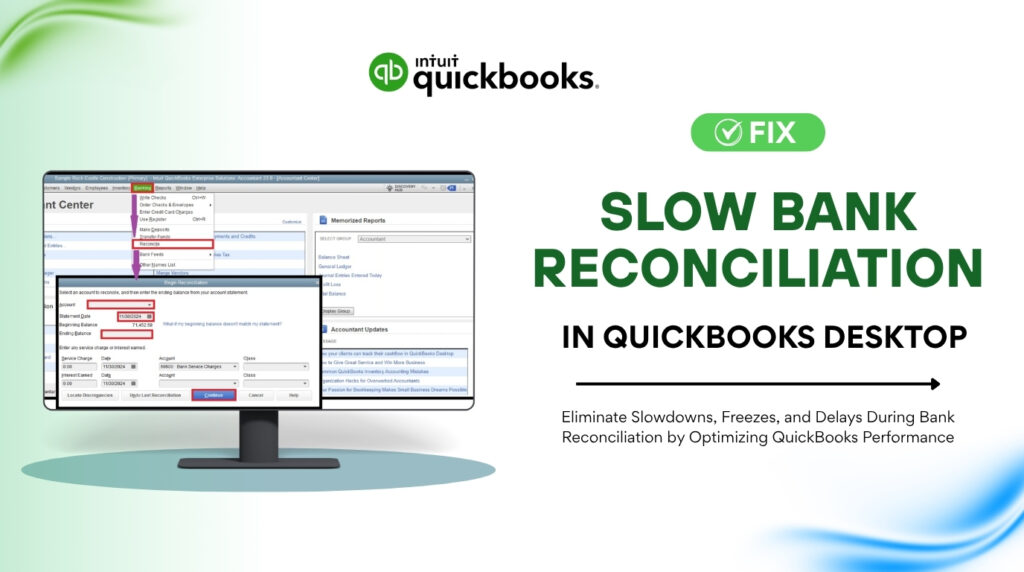
Bank reconciliation in QuickBooks Desktop is the process of comparing every transaction in your QuickBooks account register against your official bank statement to confirm the two records match exactly. This process should be fast and straightforward. For most small business accounts, it takes between five and twenty minutes to complete a single month.
Many QuickBooks Desktop users report that reconciliation slows to a crawl — taking thirty minutes to an hour — or that the software freezes entirely while the reconciliation window is open. This is not normal behavior, and it does not go away on its own.
Slow reconciliation is a symptom, not a standalone problem. It signals that one or more underlying conditions — an oversized company file, background program conflicts, damaged internal files, or misconfigured settings — are forcing QuickBooks to work far harder than it should for every transaction it checks. Intuit’s own support documentation confirms that file size, system resources, and list size are the primary drivers of performance slowdowns in QuickBooks Desktop.
This article explains what causes reconciliation lag, what each cause actually does to slow QuickBooks down, and the exact steps you can take to fix the problem and stop it from returning.
Table of Contents
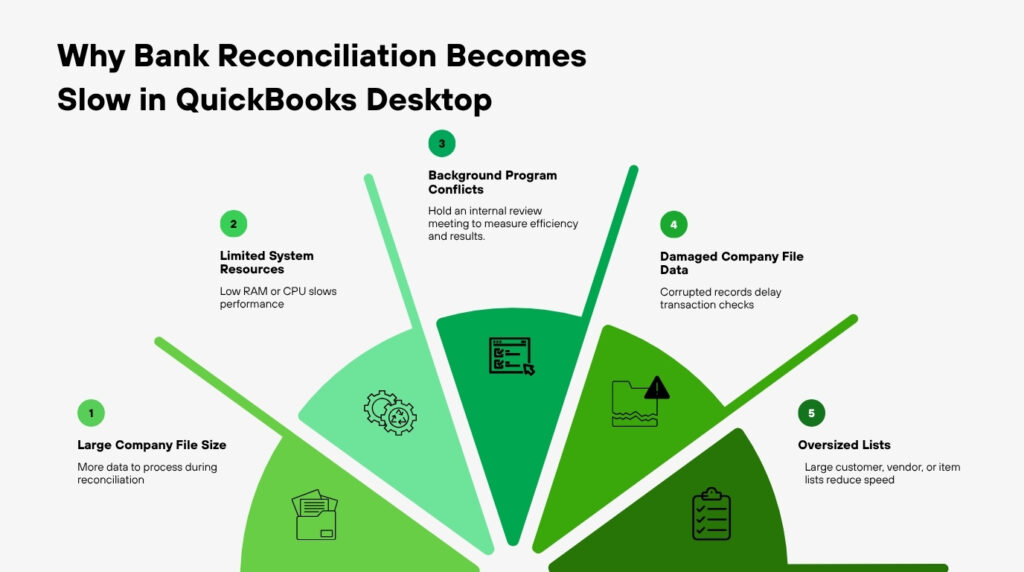
Identify Your Reconciliation Lag in 60 Seconds
Match your situation to the most common lag patterns before going into the detailed fixes:
| If reconciliation is… | The most likely cause is… |
|---|---|
| Slow from the moment you open the Reconcile window | Company file too large for available RAM |
| Fast at first, then freezes mid-way through | Background programs consuming memory during the session |
| Only slow in multi-user mode, fast in single-user | Network or multi-user hosting configuration problem |
| Slow after a recent Windows update | Damaged .NET Framework or QBWUSER.ini conflict |
| Slow when checking off specific transactions | Oversized account lists or duplicate/uncleared entries |
| Slow every time, regardless of file or user | Computer does not meet Intuit minimum system requirements |
What QuickBooks Does During Bank Reconciliation?
Understanding what QuickBooks actually does during reconciliation makes it much easier to understand why it slows down. This is not about memorizing technical details — it is about knowing which part of the process is causing the delay.
QuickBooks opens your full account register and loads every uncleared transaction into the reconciliation window. For an account with years of uncleared or partially cleared transactions, this can mean loading hundreds or thousands of entries into memory all at once. Every transaction you check off as cleared sends a write command back to the company file.
QuickBooks also checks the transaction log file (.TLG file) — a background record that tracks every change to the company file in real time — with each entry you mark as cleared. A large or partially damaged TLG file forces QuickBooks to spend extra time reading through this log before it can confirm each cleared transaction. This is why reconciliation can feel significantly slower than other tasks in QuickBooks.
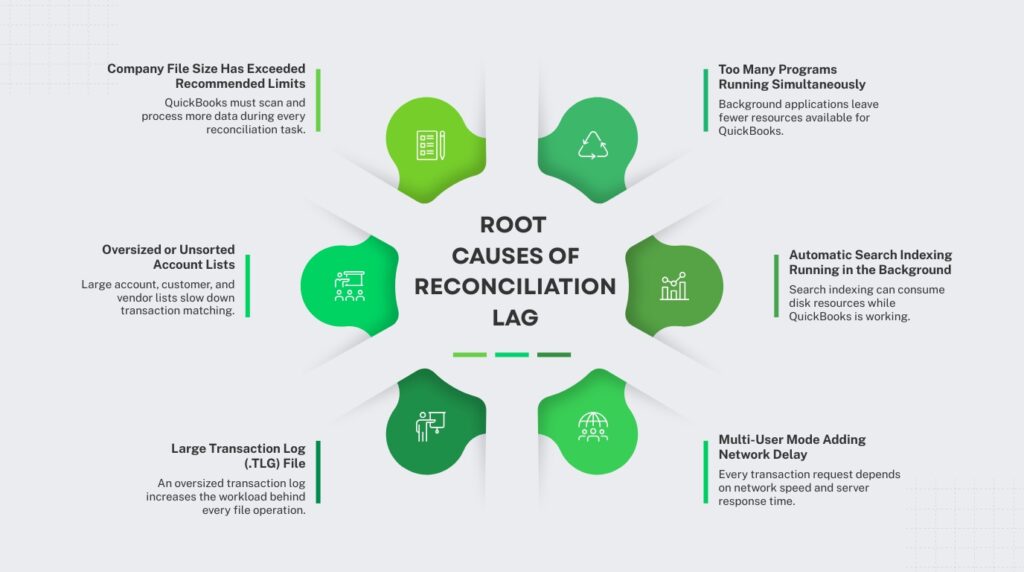
Root Causes of Reconciliation Lag in QuickBooks
1. Company File Size Has Exceeded Recommended Limits
QuickBooks Desktop’s performance decreases as the size of the company file increases, according to Intuit’s official performance documentation. For QuickBooks Pro and Premier, a file above 150–200 MB begins to show measurable slowdowns. For Enterprise, the threshold is approximately 1 GB. Files above these sizes require more memory and processing power for every operation QuickBooks performs, including reconciliation.
A large company file slows reconciliation specifically because QuickBooks must load all account transaction data into memory before you can begin checking transactions off. The larger the file, the more memory this initial load consumes, and the less memory remains available for the checking and writing operations that follow. This is why reconciliation gets progressively slower over time in businesses that have not archived old data.
Intuit recommends using the Condense Data utility to reduce company file size by archiving transactions older than a date you specify. According to Intuit’s guidance, you should run this when your file exceeds the recommended thresholds and always create a full backup before doing so, since condensed transactions cannot be recovered to their original detailed form.
2. Oversized or Unsorted Account Lists
QuickBooks stores your customers, vendors, accounts, and items in lists. Every time you open the reconciliation window, QuickBooks reads through the relevant account list to populate the transaction view. Intuit’s performance documentation specifically identifies list size as a cause of performance slowdowns, noting that lists approaching their maximum entry limits or containing many unused entries slow down performance throughout the software.
An account register that contains years of uncleared transactions — checks that were never voided, deposits that were never matched, or entries that were entered twice — forces QuickBooks to load all of those entries into the reconciliation window every single time. The reconciliation window does not filter out old uncleared transactions automatically. Every uncleared entry from every prior month remains visible and loaded until you either clear it or delete it.
Re-sorting your lists weekly is one of Intuit’s documented recommendations for maintaining QuickBooks performance. To re-sort a list, go to the list in question, click the List menu at the top of the window, and choose Re-sort List. This reorganizes list entries in their natural order, which QuickBooks can read faster than an unsorted list that has had entries added and removed over time.
3. Large Transaction Log (.TLG) File
The TLG file — which stands for Transaction Log — is a file QuickBooks creates automatically next to your company file. It records every change made to the company file since the last full backup. The TLG file is used as a safety net: if QuickBooks closes unexpectedly, it uses the TLG file to recover any transactions that were in progress at the time of the shutdown.
According to Intuit’s own data file management documentation, large TLG files cause performance issues in QuickBooks Desktop. Over time, if you only run automatic backups without performing a full manual backup with verification, the TLG file keeps growing. A TLG file that has grown to be larger than the company file itself is a documented cause of slowdowns during operations that write data — including reconciliation, where every cleared transaction is a write operation.
The fix is straightforward: perform a full manual backup by going to File > Back Up Company > Create Local Backup, then select Options and choose Full Verification. Completing a full backup with verification resets the TLG file to zero, because QuickBooks considers all changes up to the backup date to be safely stored. This single action can significantly reduce reconciliation lag caused by a bloated TLG file.
4. Too Many Programs Running Simultaneously
QuickBooks Desktop is a resource-intensive application. Intuit’s system performance documentation states directly that competing programs running at the same time as QuickBooks each need their own share of RAM and processor capacity. When other programs consume memory that QuickBooks needs, operations slow down — and reconciliation, which requires QuickBooks to hold the entire account register in memory, is one of the first operations to show the impact.
Common programs that consume significant memory alongside QuickBooks include antivirus software running scheduled scans, web browsers with multiple open tabs, email clients downloading new messages, and other business software. None of these are unnecessary programs in general — but running them simultaneously during a reconciliation session forces QuickBooks to compete for memory it needs to process each cleared transaction quickly.
Intuit recommends closing unused programs before performing long tasks in QuickBooks, including reconciliation. This does not mean closing everything permanently — it means pausing other work during the reconciliation session so QuickBooks has the memory it needs to run smoothly.
5. Automatic Search Indexing Running in the Background
QuickBooks Desktop includes a built-in search feature that allows you to find transactions, customers, and vendors by keyword. To make this search work quickly, QuickBooks automatically indexes all data in the company file in the background — a process called search indexing. Intuit’s performance documentation confirms that this automatic indexing, when running simultaneously with other QuickBooks operations, can slow the software down.
Search indexing is particularly disruptive during reconciliation because both processes need to access the company file at the same time. The indexing process reads through transaction data to build its search index; reconciliation reads and writes transaction data to update cleared statuses. These two simultaneous processes compete for the same file access, which is what causes the lag.
You can turn off automatic search indexing by going to Edit > Preferences > Search > Company Preferences and unchecking Update Automatically. Intuit notes that you can still search your company file with this setting off — the search just takes a little longer to run. Disabling automatic indexing removes the background competition for file access during reconciliation and other data-intensive operations.
6. Multi-User Mode Adding Network Delay
In multi-user mode, QuickBooks does not perform reconciliation entirely on your local computer. Each action you take in the reconciliation window — including checking off a transaction — must travel from your workstation to the computer hosting the company file, be written to the file, and return a confirmation before QuickBooks proceeds. This round trip happens for every single transaction you mark as cleared.
According to Intuit’s support community, users accessing QuickBooks company files over mapped network drives or with certain multi-user hosting configurations have reported bank reconciliation taking hours instead of minutes. The issue is specifically that multi-user hosting is enabled, which requires every write operation to be routed through the database server process (QuickBooksDBXX) rather than being written directly. Network latency — even a few milliseconds per operation — adds up significantly across hundreds of reconciliation entries.
Intuit’s documented solution for slow operations in multi-user environments is to have all other users log out of the company file and switch to single-user mode before performing reconciliation. Go to File > Switch to Single-User Mode. In single-user mode, QuickBooks writes directly to the file without the round-trip delay of the network, and reconciliation runs at its full speed.
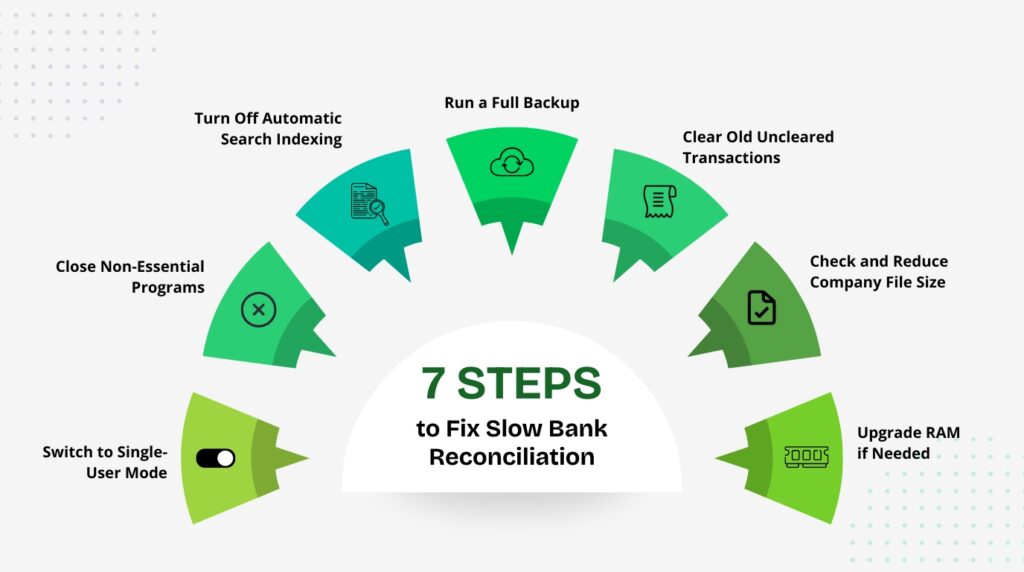
How to Fix Reconciliation Lag: Step-by-Step
Step 1: Switch to Single-User Mode Before Starting
Before opening the reconciliation window, ask all other users to save their work and log out of the company file. Then go to File > Switch to Single-User Mode. Single-user mode eliminates the network round-trip delay for every cleared transaction and gives QuickBooks exclusive access to the file. Intuit recommends running long tasks — including reconciliation — in single-user mode specifically to prevent slowdowns.
Step 2: Close All Non-Essential Programs
Before opening QuickBooks, press Ctrl + Shift + Esc to open Task Manager. Click the Processes tab. Close any browser windows, email clients, or other applications that are consuming significant memory. Leave only QuickBooks and any directly necessary programs open. This frees up the memory QuickBooks needs to load the account register and process cleared transactions at full speed.
Step 3: Turn Off Automatic Search Indexing
Sign in to the company file as the QuickBooks administrator. Go to Edit > Preferences > Search > Company Preferences. Uncheck Update Automatically. Select Yes to save the change and then restart QuickBooks. This stops the background indexing process from competing with reconciliation for file access. You can re-enable it after your reconciliation session is complete if you rely on the search feature frequently.
Step 4: Run a Full Backup to Reset the TLG File
Go to File > Back Up Company > Create Local Backup. In the backup window, click Options and choose Full Verification before saving. Complete the backup. This process writes all recent transactions into the backup archive and resets the TLG file, which is the transaction log file QuickBooks maintains alongside your company data file. A bloated TLG file adds time to every write operation in QuickBooks, including reconciliation checkmarks. Resetting it removes that overhead immediately.
Step 5: Clear Old Uncleared Transactions from the Register
Open the account you are reconciling and review the register for transactions that are months or years old and still show as uncleared. Uncleared transactions include anything without a checkmark in the Clr (cleared) column. Old uncleared entries are not automatically removed from the reconciliation window — they load every time you open it. For checks that you know cleared but were never matched, contact your bank, confirm the clearance, and manually clear them. For entries that were entered in error, void or delete them after verifying with your accountant.
Step 6: Check and Reduce Company File Size
Go to File > Utilities > Verify Data. If QuickBooks reports data integrity issues, run the Rebuild Data tool before proceeding. Once verified, check your file size by going to Help > Product Information. If your file exceeds 150 MB (for Pro or Premier), consider running the Condense Data utility: go to File > Utilities > Condense Data. Select the option to remove transactions older than a specified date. Always create a full backup before running Condense Data, as the process cannot be reversed.
Step 7: Upgrade RAM If Lag Persists After All Other Fixes
Intuit’s performance documentation states that you can estimate the RAM your QuickBooks environment needs by multiplying your company file size in gigabytes by the number of concurrent users. For example, a 500 MB file with 6 users requires approximately 3 GB of RAM dedicated to QuickBooks on the server. If your computer is running QuickBooks on 4 GB of total RAM and you are near or above this threshold, adding more RAM to the host computer is the only hardware fix that directly addresses QuickBooks reconciliation lag from memory limits.
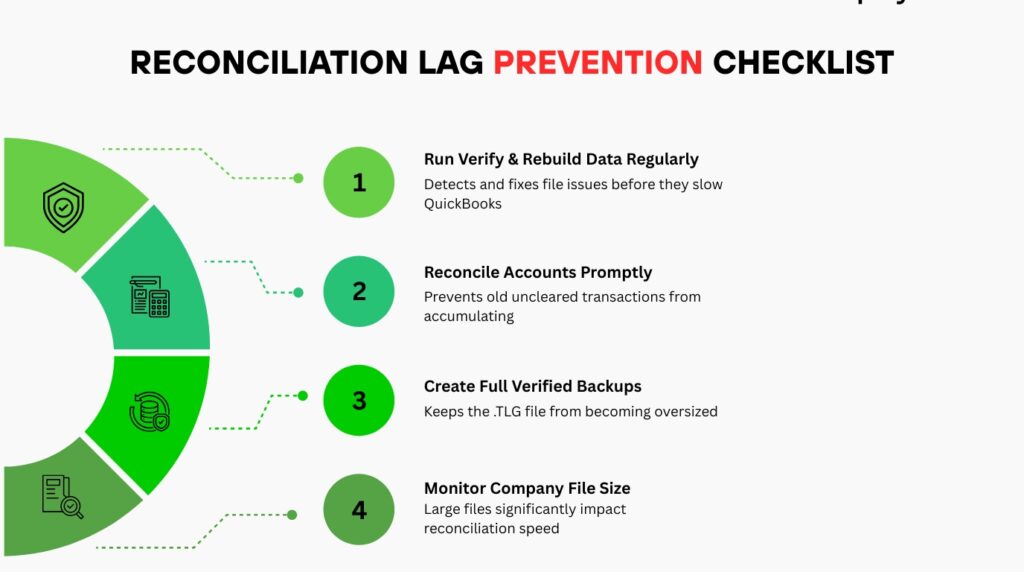
Prevention Checklist
These maintenance steps address the root causes of reconciliation lag before they slow your monthly process down:
| QuickBooks Bank Reconciliation — Performance Prevention Checklist |
|---|
| Monthly: Run File > Utilities > Verify Data and Rebuild Data to catch file integrity issues early. |
| Monthly: Reconcile accounts promptly after receiving bank statements so uncleared entries do not accumulate. |
| Monthly: Perform a full manual backup (Full Verification) to reset the TLG file and prevent it from growing too large. |
| Quarterly: Check company file size via Help > Product Information and condense data if it exceeds 150–200 MB (Pro/Premier). |
| Weekly: Re-sort account lists by going to the list, selecting List menu, and choosing Re-sort List. |
| Before each reconciliation: Switch to single-user mode and close non-essential programs. |
| Before each reconciliation: Turn off automatic search indexing under Edit > Preferences > Search. |
| Ongoing: Mark old uncleared transactions as cleared or void them after confirmation with your bank. |
Summary: What Slows Reconciliation and What Fixes It
| Cause of Lag | Why It Slows Reconciliation | Fix |
|---|---|---|
| Oversized company file | QuickBooks loads entire file into memory before reconciliation starts | Run Condense Data utility; stay below 150–200 MB (Pro/Premier) |
| Large TLG file | Every cleared transaction requires extra reads of the transaction log | Perform full backup with Full Verification to reset TLG |
| Multi-user mode active | Each cleared transaction makes a network round trip to the host | Switch to single-user mode before reconciling |
| Background programs | Other apps consume the RAM QuickBooks needs to process transactions | Close non-essential programs before opening reconciliation |
| Auto search indexing on | Background indexing competes with reconciliation for file access | Disable under Edit > Preferences > Search > Company Preferences |
| Unsorted lists with old entries | Reconciliation window loads all uncleared entries, slowing display | Re-sort lists weekly; clear or void old uncleared transactions |
| Insufficient RAM | QuickBooks runs out of memory mid-session, freezing the window | Upgrade server RAM; minimum 8 GB, prefer 16 GB for larger files |
Conclusion
Slow bank reconciliation in QuickBooks Desktop is a solvable problem. The causes are specific and documented: an oversized company file, a bloated TLG transaction log, unnecessary background programs, automatic search indexing, multi-user mode overhead, or accumulated uncleared transactions. Every one of these conditions has a direct fix that Intuit’s own documentation supports.
The most impactful immediate fix is switching to single-user mode and closing background programs before you begin. The most impactful long-term fix is running a full backup with verification every month — this resets the TLG file and keeps it from growing large enough to slow every write operation QuickBooks performs. Together, these two habits eliminate the two most common causes of reconciliation lag for the vast majority of QuickBooks Desktop users.
Reconciliation should be a routine monthly task, not an hours-long ordeal. With consistent file maintenance, properly sized system resources, and the right QuickBooks settings, your account register will load quickly, each cleared transaction will register without delay, and your ending balance will reach zero without requiring repeated restarts.
Frequently Asked Questions
1. Why does my reconciliation window take several minutes just to open?
The reconciliation window has to load every uncleared transaction in the account register before it displays. If you have years of uncleared entries — old checks, unmatched deposits, or duplicate entries — QuickBooks loads all of them every time you open the window. Clear old entries, reduce your company file size using the Condense Data utility, and switch to single-user mode before opening reconciliation. These three steps address the loading delay directly.
2. My reconciliation is only slow when other users are also in QuickBooks. Why?
In multi-user mode, every transaction you mark as cleared is sent from your workstation to the host computer’s database server process, written to the file, and confirmed back to you before you can check the next transaction. This round trip adds time to every single entry. Intuit’s solution is to have all other users log out and switch QuickBooks to single-user mode before starting reconciliation. The difference in speed is significant: what takes forty minutes in multi-user mode often takes under ten minutes in single-user mode.
3. Should I use the Auto-Reconcile or Matched feature to speed things up?
QuickBooks Desktop offers a Matched option for online banking accounts where QuickBooks has already downloaded and matched transactions from your bank. Selecting Matched in the reconciliation window automatically selects all transactions QuickBooks has already confirmed against bank data. This is the fastest way to reconcile an account where online banking is connected and transactions are regularly downloaded. However, it still requires you to verify the ending balance matches your bank statement before completing reconciliation.
4. Does running Verify Data fix reconciliation lag?
Verify Data scans the company file for internal data inconsistencies — records that contradict each other or file structures QuickBooks cannot read cleanly. If Verify Data finds problems and you run Rebuild Data to fix them, the repaired file is more efficient for QuickBooks to read, which can improve reconciliation speed. However, Verify and Rebuild do not reduce file size, reset the TLG file, or close background programs. They fix data integrity issues specifically. Use them monthly as part of routine maintenance, not as a standalone fix for lag.
5. How do I know if my company file is too large for my computer’s RAM?
Go to Help > Product Information in QuickBooks to see your exact company file size. Then use Intuit’s published formula: multiply the file size in gigabytes by the number of concurrent users. The result is the amount of RAM your QuickBooks environment needs on the server. For example, a 400 MB file with three users requires approximately 1.2 GB of RAM dedicated to QuickBooks. If your total available RAM leaves little room after the operating system and other programs take their share, QuickBooks will slow down during memory-intensive operations like reconciliation.

Anusmita is a seasoned content writer who brings perspective to words. As a writer, she enriches her work with a journalistic aptitude, utilising her training in Mass Communication and Journalism. She loves to travel and explore, which imparts a greater sense of understanding, maturity, and experience that are reflected in her content.
Beyond her professional work, Anusmita enjoys painting, singing, dancing, and spending time planting. She is also a self-proclaimed foodie who loves exploring different cuisines, an interest that further adds to her curiosity and perspective as a writer.
Leave a Reply