
The “QuickBooks has stopped working” error on startup is one of the most disruptive problems a business encounters, because it blocks access to all accounting data from the moment the work day begins. The error appears as a Windows dialog box with the message QuickBooks has stopped working — a problem caused the program to stop working correctly and the program will close. In some cases, no error message appears at all: QuickBooks opens a splash screen, displays it for a few seconds, and then disappears entirely without explanation.
Intuit’s official documentation on this error identifies five root causes: a company name that is too long, a damaged or missing QBWUSER.INI file, corruption on the hard drive, damaged program files or a damaged QuickBooks installation, and a damaged Windows operating system. Each cause produces the same stopped working error, but each one damages a different part of the startup process — which means correctly identifying the specific cause before attempting a fix prevents wasted time on solutions that do not apply.
This article covers every cause of the QuickBooks has stopped working startup error, what each cause breaks during the startup sequence, and the complete step-by-step solutions Intuit documents for each one. The solutions are arranged from the fastest one-click fixes to the more thorough repair processes for damaged installations and company files — follow them in order to resolve the error with the least effort.
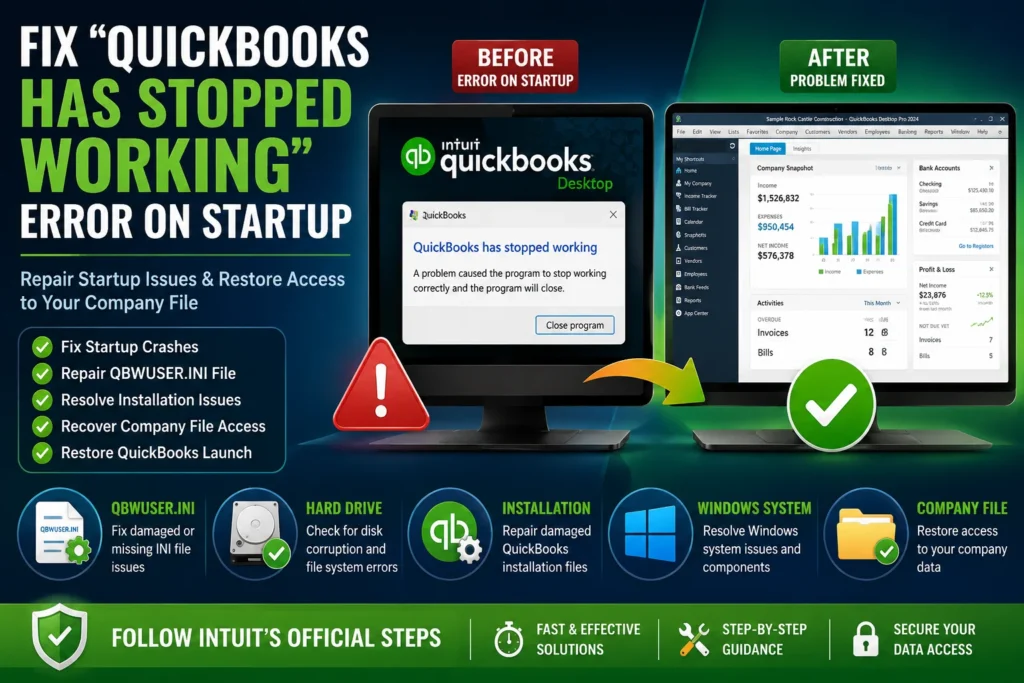
Table of Contents
Understand Your Error Before You Start
The QuickBooks has stopped working error appears in different forms at different points in the startup process. Match your specific situation below to identify which cause is most likely:
| What You See on Screen | What It Most Likely Means | Go to Section |
| Error message appears immediately on double-click | Damaged QuickBooks installation or Windows component | Section 2: Quick Fix and Diagnostic Tools |
| Splash screen shows then disappears — no error message | QBWUSER.INI file damaged or company name issue | Section 3: QBWUSER.INI File |
| QuickBooks opens to No Company Open window then crashes | Company file issue — not a program installation problem | Section 4: Company File and Suppressed Startup |
| Sample company file opens but own company file does not | Company file damaged or stored in a bad folder location | Section 5: Company File Damage and Location |
| Error started after a QuickBooks update was installed | Update introduced a known bug now fixed in a newer release | Section 6: QuickBooks Update |
| Error on one computer only — works on other computers | User-specific Windows profile damage on the affected computer | Section 7: Windows User Profile |
Tip: Run Quick Fix My Program from the QuickBooks Tool Hub as the very first step regardless of which situation matches. Intuit’s official documentation puts this tool first because it resolves the majority of stopped working errors in under five minutes.
1. What Causes the “QuickBooks Has Stopped Working” Error?
What Happens During QuickBooks Startup and Where It Fails
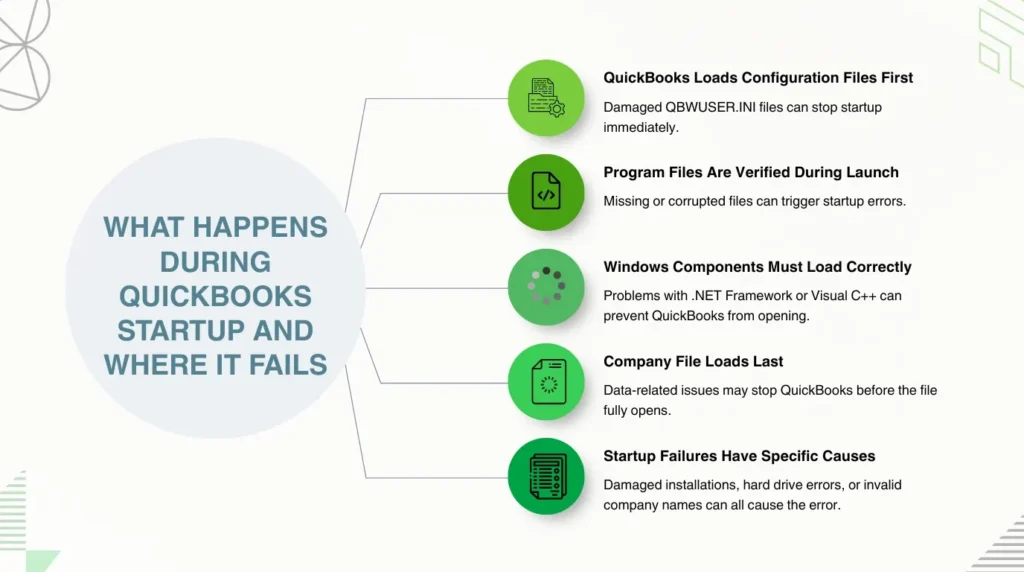
QuickBooks Desktop startup is a sequence of steps that happen in a specific order every time the program opens. QuickBooks first reads the QBWUSER.INI configuration file to load its settings and registration information. It then checks its own program files to confirm they are intact. It loads the Microsoft .NET Framework and Microsoft Visual C++ components it uses for its display functions. Finally, it reads the company file to open the user’s accounting data. A failure at any of these steps produces the stopped working error — the point of failure determines which fix is needed.
The stopped working error at startup is different from a freeze or a crash during work. A freeze during work means QuickBooks opened successfully and failed during an operation. A stopped working error at startup means QuickBooks failed before it finished loading — before the user can do any accounting work at all. Intuit treats startup failures as a distinct category of problem with its own specific diagnostic sequence, which is why the Tool Hub‘s Program Problems tab targets startup failures specifically alongside other types of crashes.
Intuit’s official list of causes for the stopped working error is specific and documented: a company name that is too long or contains special characters causes a failure when QuickBooks tries to display the name; a damaged or missing QBWUSER.INI file causes a failure when QuickBooks reads its configuration; corruption on the hard drive causes a failure when QuickBooks reads its own program files from a damaged sector; damaged program files or a damaged installation causes a failure when QuickBooks tries to run code from a file that is incomplete or incorrect; and a damaged Windows operating system causes a failure when QuickBooks calls a Windows component that is not functioning.
2. Quick Fix My Program and the Program Diagnostic Tool
Start Here — These Two Tools Resolve the Majority of Startup Failures
Quick Fix My Program is a repair tool inside the QuickBooks Tool Hub — a free diagnostic application from Intuit. Intuit’s documentation for the stopped working error lists this as Solution 1. Quick Fix My Program closes all open QuickBooks background processes and runs a fast repair on the QuickBooks program files. It targets the most common startup failure cause: a QuickBooks background process or program file that is in a damaged or incomplete state. The tool closes the damaged state and restores the program files without requiring any user decisions about what to repair or how.
The QuickBooks Program Diagnostic Tool is Solution 2 in Intuit’s official sequence. This tool repairs the Microsoft components that QuickBooks uses: Microsoft .NET Framework, MSXML, and Microsoft Visual C++ Redistributable packages. These three components are separate Microsoft programs that QuickBooks depends on for its startup sequence. A .NET Framework installation that is damaged or an incorrect version causes QuickBooks to fail during startup when it tries to use that component. The Program Diagnostic Tool identifies and repairs these issues automatically and can take up to 20 minutes to complete — Intuit’s documentation explicitly states this time range so users do not interrupt the tool before it finishes.
How to Run Both Tools
Close QuickBooks completely on the affected computer. Download the QuickBooks Tool Hub from Intuit’s official website. The current version is 1.6.0.8 — Intuit recommends downloading the most recent version for the best results. Save the downloaded file named QuickBooksToolHub.exe to a location that is easy to find — the desktop or Downloads folder. Open the file, follow the on-screen steps to install it, and agree to the terms and conditions. After installation, double-click the Tool Hub icon on the Windows desktop to open it. Go to the Program Problems tab and select Quick Fix my Program. After it finishes, open QuickBooks and confirm whether the stopped working error recurs.
If the error recurs after Quick Fix My Program, return to the Tool Hub, go to Program Problems, and select QuickBooks Program Diagnostic Tool. Allow the tool to run without interruption — it takes up to 20 minutes. After it finishes, restart the computer immediately. The restart is required because the tool repairs Microsoft components that Windows loads during boot — a restart forces Windows to load the repaired components instead of the damaged ones that were active before. After the restart, open QuickBooks and test whether the startup error is gone.
3. The QBWUSER.INI File: Damaged Configuration Causes Startup Failure
What the QBWUSER.INI File Is and Why Its Damage Crashes Startup
The QBWUSER.INI file is a configuration file that QuickBooks reads during every startup. This file stores the QuickBooks product registration information — the data that confirms the software license — and the list of recently opened company files. QuickBooks reads this file at the very beginning of its startup sequence, before any window appears on screen. A damaged QBWUSER.INI file contains incorrect or unreadable data. QuickBooks reads the file, encounters the invalid data, and produces the stopped working error before the main window opens.
The QBWUSER.INI file can become damaged from a power outage while QuickBooks was open, a hard drive sector error during a write operation, or a QuickBooks update that interrupted the file write partway through. Intuit’s documentation identifies this as Solution 3 for the stopped working error and provides the specific folder path and rename steps. Renaming the file — rather than deleting it — keeps a copy of the damaged file available for reference, while QuickBooks automatically creates a new, clean QBWUSER.INI file the next time it opens.
How to Rename the QBWUSER.INI File
Open Windows File Explorer. Navigate to the folder where the QBWUSER.INI file is stored. The path is: C:\Users\[YourUserName]\AppData\Local\Intuit\QuickBooks [Year] — replacing [YourUserName] with the Windows account name used to run QuickBooks, and [Year] with the installed QuickBooks version year, for example QuickBooks 2024. The AppData folder is hidden by default. To make it visible, open File Explorer, go to the View menu, select Show, and then click Hidden items. The AppData folder appears in the user folder after this change.
Right-click the file named QBWUSER.ini and select Rename. Add .old to the end of the file name so it reads QBWUSER.ini.old. Intuit’s documentation includes an important note: renaming the QBWUSER.INI file erases the list of previously opened company files — the company file must be opened manually the first time after the rename by going to File, then Open or Restore Company. Also rename the file named EntitlementDataStore.ecml in the same folder by adding .old to its name. The EntitlementDataStore.ecml file stores the product license activation data, and a damaged copy of this file also causes the stopped working error during startup.
QBWUSER.INI Diagnostic Test Results
| Result After Renaming | What It Confirms | Next Step |
| QuickBooks opens without the error | QBWUSER.INI or EntitlementDataStore.ecml was the damaged file | Open company file manually; no further action needed |
| QuickBooks opens but the company file shows an error | Program is working; company file has a separate issue | Follow Section 5: Company File Damage and Location |
| QuickBooks still crashes — sample file opens but not actual file | Company file damaged or in a bad folder | Copy company file to a local folder and try opening from there |
| QuickBooks still crashes — sample file also fails | QuickBooks installation is damaged; rename did not fix it | Proceed to Section 8: Clean Install |
4. Suppressing QuickBooks Startup to Isolate the Cause
Why Suppressing Startup Helps Identify the Problem
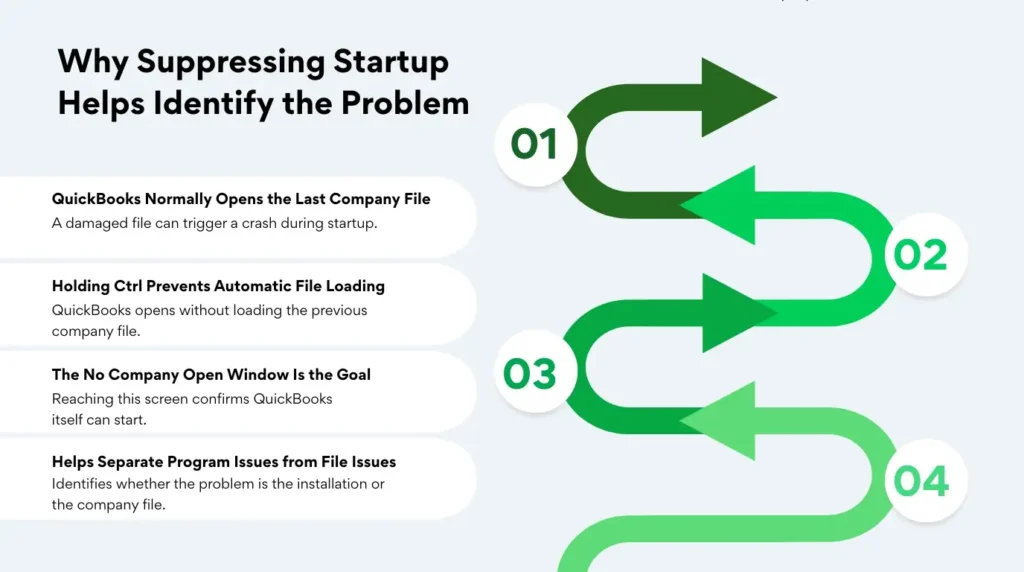
Suppressing the QuickBooks startup is a diagnostic technique documented by Intuit that prevents QuickBooks from automatically loading the last opened company file when it starts. QuickBooks normally remembers which company file was open when it last closed and tries to reopen it automatically on the next startup. A company file that has become damaged or that is stored in an inaccessible location causes QuickBooks to crash at the point where it tries to load that file — producing the stopped working error even though the QuickBooks installation itself is completely intact.
Holding the Ctrl key during QuickBooks startup prevents the automatic company file load. Press and hold the Ctrl key on the keyboard, then double-click the QuickBooks Desktop icon. Keep the Ctrl key held down until the No Company Open window appears on screen. Intuit’s community documentation confirms this step: do not release the Ctrl key until you see the No Company Open window. If QuickBooks opens to the No Company Open window without crashing, the installation is working correctly and the crash was caused by the company file that QuickBooks tried to load automatically — not by the program itself.
Using the Sample Company File as a Diagnostic Tool
From the No Company Open window, select Open a sample file and choose any sample company. QuickBooks Desktop includes several sample company files — a product-based business, a service-based business — that are separate from the actual company file and have no connection to the business’s accounting data. Intuit’s documentation states: if the sample file opens successfully, the problem is likely with your company file rather than the program installation. A sample file that opens confirms the QuickBooks program is fully functional and the stopped working error was caused specifically by the user’s company file or the folder it is stored in.
A sample company file that also fails to open confirms the opposite: the QuickBooks installation itself is damaged. The sample files are stored inside the QuickBooks program folder and are separate from any user-created company file. A startup crash on the sample file that has no connection to the actual company file means the program installation has damage that affects every file QuickBooks tries to open — not just the user’s company file. This result means the installation must be repaired using the Install Diagnostic Tool or a clean reinstallation.
5. Company File Damage and Storage Location Causing the Startup Error
How a Damaged or Mislocated Company File Causes a Startup Crash
QuickBooks tries to open the last used company file automatically every time it starts. A company file that contains damaged data — from a power outage, a hard drive error, or a network interruption during a save operation — causes QuickBooks to crash at the exact point where it reads the damaged section of the file during startup. Intuit’s guidance covers this directly: if you can open a sample company but not your own company file, the company file is most likely damaged. Restoring a backup of the company file from before the damage occurred is the resolution.
A company file stored on a network location — a shared folder on another computer or a network-attached storage device — can also cause the stopped working error on startup because QuickBooks tries to reach the file across the network at startup. If the network connection is slow, unavailable, or returns an access error, QuickBooks receives an error response from the network during startup and crashes. Intuit recommends moving the company file to a local folder on the same computer to diagnose this cause. Copy the company file from the network location to a folder on the C: drive of the local computer, open QuickBooks, navigate to File, Open or Restore Company, and open the file from the local folder.
How to Repair a Damaged Company File
Open QuickBooks by holding the Ctrl key to reach the No Company Open window. Navigate to File, Open or Restore Company, and open the company file from its current location. If QuickBooks crashes when opening the file from its original location but not from a local copy, the problem is the folder location. Create a new folder on the C: drive — for example C:\QBData — and copy the company file into it. Intuit’s guide states: if you can open your file from a new location, the problem might be a damaged folder or folder permissions.
If the company file opens but is confirmed to have data damage, run the Verify Data and Rebuild Data utilities. Go to the File menu, select Utilities, then Verify Data. Verify Data scans the company file for integrity errors. If errors are found, go back to File, Utilities, and select Rebuild Data. Create a full backup when Rebuild Data prompts for one before proceeding. Rebuild Data attempts to repair each error automatically. After the rebuild, run Verify Data a second time to confirm all errors were repaired. If Rebuild Data cannot repair the damage, restore the most recent backup of the company file from before the damage occurred.
6. QuickBooks Update Introducing the Stopped Working Error
Why a QuickBooks Update Can Cause Startup Failures
Intuit releases QuickBooks Desktop updates throughout the year — called product releases or R-releases — that fix bugs, add features, and address Windows compatibility changes. A specific update can introduce a new bug that causes a startup crash on certain computer configurations. Intuit community documentation includes a documented case where a specific update release (R15 for QuickBooks Desktop Pro 2020) caused the stopped working error on computers running Windows 10 Pro 64-bit, even after all hardware and Windows system checks came back clean. The only resolution for those users was to rename the QBWUSER.INI file — a step that forced QuickBooks to rebuild its configuration file and bypass the update-related trigger.
A stopped working error that appeared immediately after a QuickBooks update — and did not exist before the update — points to a known update-related issue. Check Intuit’s community support page for the specific R-release that was recently installed. Intuit’s community advisors track update-related bugs and provide reference numbers for known issues — in the documented case above, Intuit provided an investigation reference number (INV-74349) so affected users could be tracked and notified when the fix was released in a subsequent update.
How to Address an Update-Related Startup Crash
Rename the QBWUSER.INI file as described in Section 3 — this is the documented resolution for update-related startup crashes that do not respond to the Tool Hub diagnostic tools. After renaming the file, open QuickBooks and test whether the stopped working error clears. If the rename resolves it, update QuickBooks to the latest release immediately after the startup is restored. Go to the Help menu, select Update QuickBooks Desktop, click Update Now, check Reset Updates, and click Get Updates. Installing the latest release replaces the update version that caused the crash with a newer release that contains the fix for the known bug.
7. Windows User Profile Damage Causing Startup Failure on One Computer
Why a Windows User Profile Can Cause QuickBooks to Stop Working
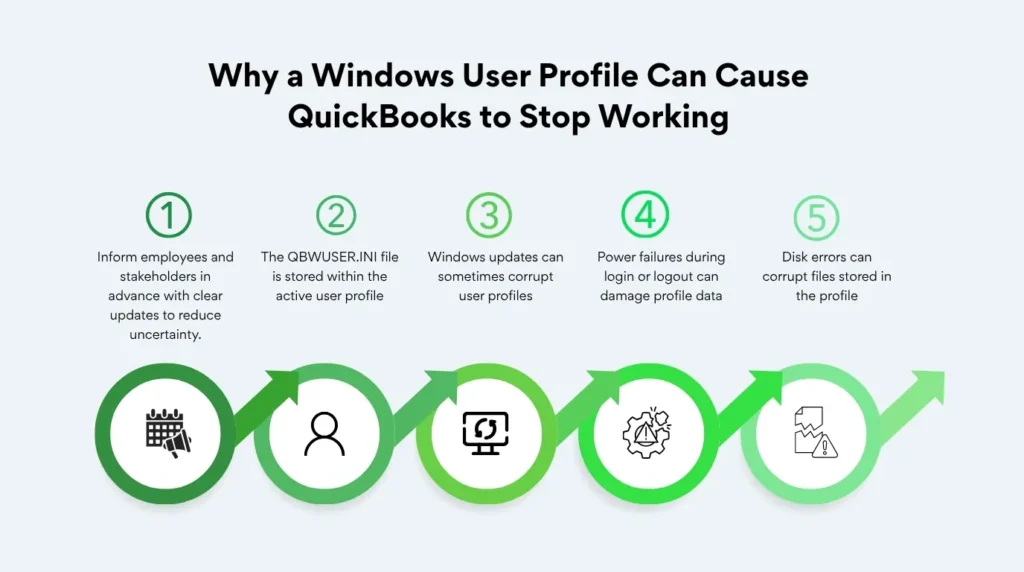
A Windows user profile is the collection of settings, preferences, and files associated with a specific Windows account on a computer. QuickBooks stores user-specific files — including the QBWUSER.INI file — inside the active Windows user profile. A Windows user profile can become damaged from a corrupted Windows update, a power failure during a Windows login or logout, or a disk error in the profile’s storage area. A damaged Windows user profile produces stopped working errors in QuickBooks and other programs that store data inside the profile, while other Windows user accounts on the same computer run QuickBooks without any errors.
A stopped working error that affects one specific Windows user account on one computer — while other user accounts on the same computer and other computers on the network run QuickBooks without problems — is a clear sign of a damaged Windows user profile. Intuit’s fix for this situation is to create a new Windows user account with administrator rights and test QuickBooks from the new account. If QuickBooks opens successfully from the new account, the original Windows user profile was the source of the damage.
How to Create a New Windows User Profile for Testing
Open the Windows Start menu and go to Settings, then Accounts. Select Family and other users. Click Add someone else to this PC. On the account creation screen, select I don’t have this person’s sign-in information, then select Add a user without a Microsoft account. Enter a name for the new account — for example TestUser — and set a password. After creating the account, click the account name in the Family and other users list, select Change account type, and change it to Administrator. Log out of the current Windows account and log in with the new TestUser account.
Open QuickBooks from the new Windows account and attempt to open the company file. A successful startup from the new account confirms the original Windows user profile was the cause. Transfer the accounting data access to the new profile by adding the new user as an authorized QuickBooks user in the company file through Company, Set Up Users and Passwords. The original damaged Windows profile can be deleted after the transfer is confirmed, or kept as a reference. Intuit’s documentation states: creating a new Windows user profile and logging into it with administrator rights resolves startup issues caused by profile damage.
8. Clean Reinstallation: When All Other Steps Do Not Resolve the Error
When a Clean Install Is Necessary
A clean install means completely removing QuickBooks from the computer and reinstalling it fresh. Intuit’s documentation states: if you can’t open the sample company file or QuickBooks won’t start after all other steps, the QuickBooks installation is damaged. A damaged installation means one or more of the QuickBooks program files — the hundreds of files that make up the QuickBooks software — are incomplete, modified, or missing. No repair tool can fix a file that is absent, and no configuration change can work around a program file that is too damaged to run.
Before starting a clean install, create a backup of the company file from another computer that can open it, or from the most recent scheduled backup. The uninstallation process removes QuickBooks program files but does not delete the company file — the company file is stored in a separate location and remains on the hard drive after QuickBooks is removed. The reinstallation also does not delete the company file. Backing up before the reinstallation is still required as a general precaution in case anything unexpected occurs during the removal process.
How to Perform a Clean Reinstallation
Open the Windows Start menu and go to Control Panel. Select Programs and Features, or Uninstall a Program. Find QuickBooks Desktop in the list of installed programs, click it, and select Uninstall. Follow the on-screen prompts to remove QuickBooks completely. After the uninstallation finishes, delete any remaining QuickBooks folders from the Program Files directory to ensure no damaged files remain that could be picked up by the new installation. Download the latest QuickBooks Desktop installer from Intuit’s official website or insert the original installation media. Run the installer, choose the Custom and Network install option for multi-user setups or Express for a standalone computer, and complete the installation.
After reinstallation, open QuickBooks and open the company file. If the company file was not accessible from the damaged installation, navigate to its location manually by going to File, Open or Restore Company. After confirming the company file opens correctly, go to Help, Update QuickBooks Desktop, and install all available updates to bring the fresh installation to the current release. Run a Database Server Manager scan on the server computer if this was a multi-user installation, to rebuild the .ND file and restore the firewall permissions for the reinstalled version.
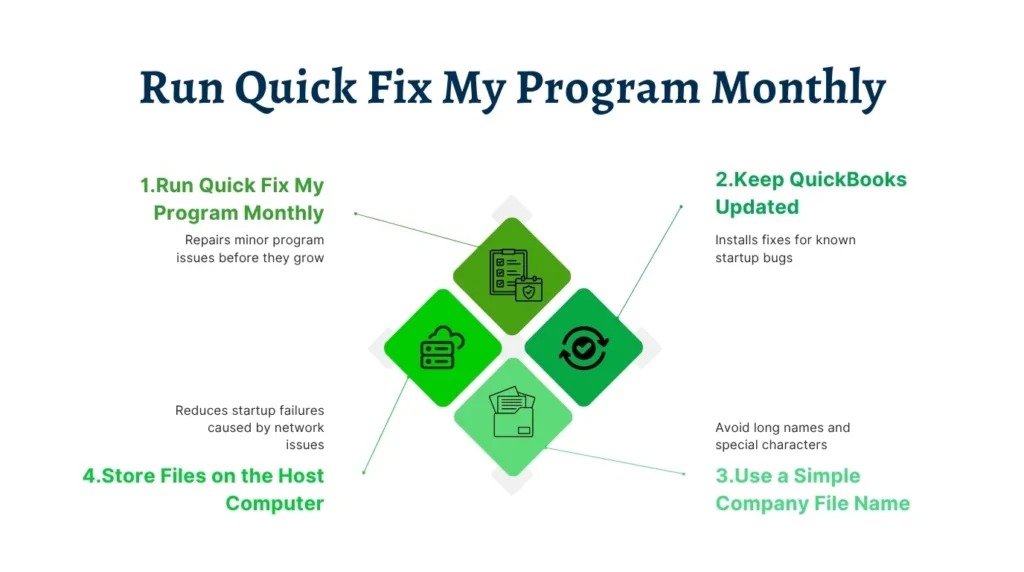
9. Prevention: Stop the Stopped Working Error Before It Starts
The QuickBooks has stopped working error follows predictable events: a QuickBooks update, a Windows update, a hard drive developing sector errors, or a QBWUSER.INI file accumulating damage over time. The steps below address each of those triggers before they reach the point of preventing startup.
- Run Quick Fix My Program from Tool Hub once a month: Open Tool Hub, go to Program Problems, and run Quick Fix My Program. This two-minute step clears stuck background processes and repairs program file damage before it accumulates into a full startup failure.
- Update QuickBooks to the latest release every month: Go to Help, Update QuickBooks Desktop, and install all available updates. Intuit releases updates that fix known startup bugs. Running the latest release ensures any known startup failure caused by a specific update is already resolved in the current version.
- Keep the company file name under 35 characters and free of special characters: A company name that is too long or contains characters like apostrophes, percent signs, or ampersands causes QuickBooks to crash when it tries to display the name at startup. Open Company, My Company to check and shorten the name if needed.
- Store the company file on the host computer’s local hard drive, not on a network location: Intuit’s startup documentation recommends a local folder and not a network location when diagnosing startup failures. A company file on the local drive does not require a network connection to open and eliminates the startup failures caused by slow or unavailable network paths.
- Run chkdsk on the hard drive quarterly to catch sector errors before they damage program files: Open Command Prompt as administrator, type chkdsk C: /f /r and press Enter. Schedule it on the next restart. Hard drive sector errors that go unchecked damage QuickBooks program files over time, eventually causing startup failures that require a full reinstallation to resolve.
- Rename the QBWUSER.INI file immediately after any QuickBooks update that causes a startup error: A stopped working error that appears right after a QuickBooks update is almost always resolved by renaming the QBWUSER.INI file. This is Intuit’s documented fix for update-related startup crashes and takes less than two minutes to perform.
- Update Windows and keep Microsoft .NET Framework current: Go to Windows Update in Settings and install all available updates. The .NET Framework and Visual C++ components that QuickBooks uses are distributed and updated through Windows Update. Keeping Windows current ensures QuickBooks has access to the correct versions of every Microsoft component it depends on at startup.
Conclusion
The QuickBooks has stopped working error at startup always has a specific cause: a damaged QBWUSER.INI configuration file, a damaged QuickBooks installation, a damaged Microsoft component that QuickBooks needs at startup, a company file with data damage, a company file stored in an inaccessible location, or a damaged Windows user profile. Intuit documents each of these causes and provides a clear repair sequence — Tool Hub first, QBWUSER.INI rename second, sample company file diagnostic third, company file repair fourth, and clean reinstallation as the final step for installations too damaged to repair.
Running Quick Fix My Program and the Program Diagnostic Tool from the QuickBooks Tool Hub resolves the majority of stopped working startup errors without any manual file editing or reinstallation. The QBWUSER.INI rename resolves update-related startup crashes and configuration file damage. The suppressed startup technique — holding Ctrl while opening QuickBooks — separates company file causes from installation causes, which prevents applying a reinstallation fix to what is actually a company file problem.
The fastest protection against recurring stopped working errors is a monthly maintenance routine: run Quick Fix My Program, update QuickBooks to the latest release, and confirm the company file is stored on the local hard drive. These three steps address the three most common startup failure triggers — background process accumulation, known update bugs, and network path failures — and keep QuickBooks opening reliably at the start of every business day.
Frequently Asked Questions
Q1. QuickBooks stopped working right after an update was installed — is the update the cause?
A stopped working error that appears immediately after a QuickBooks update is very likely caused by the update. Rename the QBWUSER.INI file at C:\Users\[YourUserName]\AppData\Local\Intuit\QuickBooks [Year]\QBWUSER.ini by adding .old to the end of the name. Also rename EntitlementDataStore.ecml at C:\ProgramData\Intuit\Entitlement Client\v8 the same way. QuickBooks rebuilds both files on the next startup. If the error clears after the rename, update QuickBooks immediately to the latest release using Help, Update QuickBooks Desktop. The latest release contains fixes for bugs introduced by the previous update.
Q2. QuickBooks opens a splash screen for about 30 seconds and then disappears with no error message — what is happening?
A splash screen that appears and disappears without showing an error message points to a QBWUSER.INI file problem or a company file that QuickBooks cannot access. QuickBooks crashes silently when it reads an invalid value from the QBWUSER.INI file or when it tries to auto-load the last opened company file and cannot reach it. Start by renaming QBWUSER.ini to QBWUSER.ini.old and EntitlementDataStore.ecml to EntitlementDataStore.ecml.old. If that does not resolve it, hold the Ctrl key while double-clicking the QuickBooks icon to reach the No Company Open window without the auto-load, and test whether the program opens to that window without crashing.
Q3. QuickBooks opens a sample company file fine but crashes on the actual company file — what does that mean?
A sample company file that opens while the actual company file crashes confirms the QuickBooks installation is working correctly and the company file is the source of the problem. Intuit’s documentation states this result directly: if you can open a sample company but not your own, the company file is most likely damaged. Try copying the company file to a different local folder — create a folder on the C: drive and copy the file there. If it opens from the new location, the original folder had a permissions or damage issue. If it still does not open, restore the most recent backup of the company file.
Q4. The Program Diagnostic Tool ran for 20 minutes and QuickBooks still shows the stopped working error — what comes next?
A Program Diagnostic Tool run that does not resolve the stopped working error means the damage is beyond what the tool can repair in the program files or Microsoft components. The next steps are: rename the QBWUSER.INI file, then test with a suppressed startup by holding Ctrl during launch, then test the sample company file. If the sample file opens but the actual company file does not, the problem is the company file. If the sample file also fails, the QuickBooks installation is damaged beyond repair by the diagnostic tool and a clean reinstallation is required — remove QuickBooks through Control Panel Programs, then download and reinstall from Intuit’s official website.
Q5. One specific Windows user on the computer gets the stopped working error but other Windows users on the same computer do not. What is the cause?
A stopped working error limited to one Windows user account while others on the same computer work fine confirms the affected user’s Windows profile is damaged. Create a new Windows user account with administrator rights through Settings, Accounts, Family and other users. Log in with the new account, open QuickBooks, and confirm the stopped working error does not occur. If QuickBooks works from the new account, the original Windows profile was the source of the damage. Add the new account as an authorized QuickBooks user inside the company file through Company, Set Up Users and Passwords, and use the new profile as the primary account for QuickBooks work.

Anusmita is a seasoned content writer who brings perspective to words. As a writer, she enriches her work with a journalistic aptitude, utilising her training in Mass Communication and Journalism. She loves to travel and explore, which imparts a greater sense of understanding, maturity, and experience that are reflected in her content.
Beyond her professional work, Anusmita enjoys painting, singing, dancing, and spending time planting. She is also a self-proclaimed foodie who loves exploring different cuisines, an interest that further adds to her curiosity and perspective as a writer.
Leave a Reply