
A QuickBooks crash that happens only on specific reports or forms — not randomly across the whole program — is one of the clearest problems to diagnose in QuickBooks Desktop. The crash is consistent, repeatable, and tied to a specific action. That pattern tells you exactly where to look: the data being read by that report, the form template being loaded, the Microsoft components QuickBooks uses when printing or emailing that form, or a conflict between QuickBooks and a third-party program running in the background at the exact moment the report or form opens.
The Crash Com Error is the most common crash tied specifically to reports and forms. It appears when QuickBooks crashes while opening a report, attaching a file, saving a form, emailing an invoice, or opening the check register. Intuit and its certified community advisors identify several causes for this crash: damaged or outdated Microsoft Outlook integration, missing or damaged Windows and Microsoft Office components, QuickBooks components that are damaged or have missing files, and conflicts with third-party programs such as password managers that interact with QuickBooks windows.
This article covers every cause of QuickBooks crashes on specific reports and forms, what each cause damages and why, and the complete step-by-step fix for each one. All solutions are based on Intuit’s official documentation, Intuit community support responses, and documented user resolutions confirmed by Intuit-certified advisors.
Table of Contents
Identify Your Crash Pattern Before You Start
The exact moment the crash happens tells you which cause to address first. Match your crash pattern below:
| When the Crash Happens | What Is Most Likely Causing It | Go to Section |
| Crash when opening or running any report | Damaged program files or conflicting background program | Section 2: Quick Fix and Program Repair |
| Crash only when emailing a report, invoice, or paystub | Crash Com Error — Outlook integration or Microsoft component damage | Section 3: Crash Com Error and Outlook |
| Crash on a specific report but not others | Damaged data in the company file that the report reads | Section 4: Company File Data Damage |
| Crash when opening a specific form template (invoice, PO, estimate) | Damaged custom form template in QuickBooks | Section 5: Damaged Form Templates |
| Crash when running reports in multiple windows at the same time | RAM shortage; multiple large reports exceed available memory | Section 6: RAM and Multiple Reports |
| Crash started after a third-party program was installed or updated | Third-party program conflicting with QuickBooks report rendering | Section 7: Third-Party Program Conflicts |
Tip: Run Quick Fix My Program from the QuickBooks Tool Hub first regardless of the crash pattern. Intuit’s official fix for QuickBooks crashing starts with this tool and resolves the majority of crash issues in under five minutes.
1. Why QuickBooks Crashes on Specific Reports and Forms
What Happens Inside QuickBooks When a Report Opens
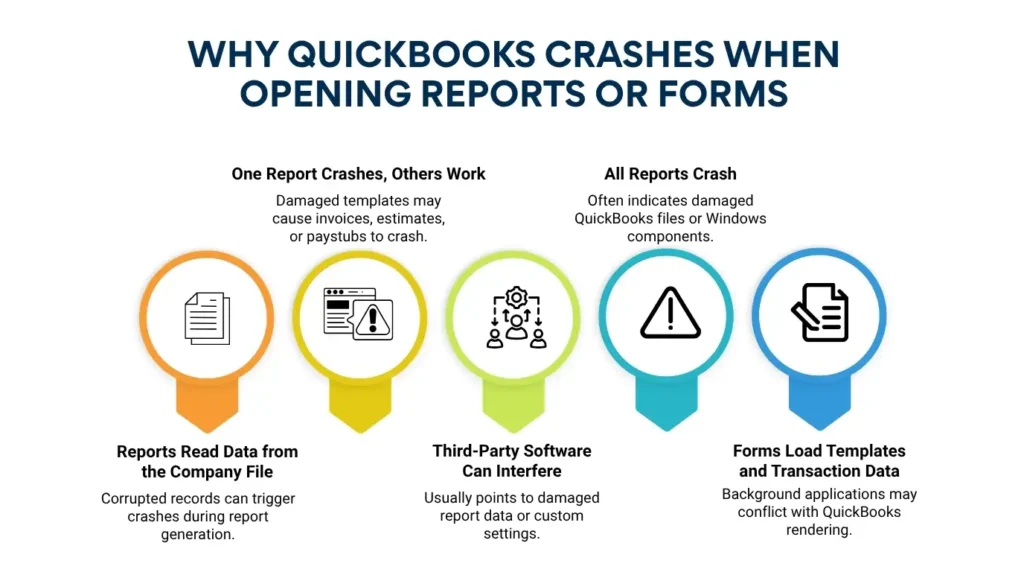
Every report in QuickBooks Desktop is generated by reading data from the company file, organizing it according to the report’s settings, and passing the result to the Windows display system for rendering on screen. Forms — invoices, purchase orders, estimates, paystubs — follow a similar process: QuickBooks reads the form template stored in the company file, loads the data for the specific transaction, and renders the result either on screen or through the email or print system. Any damage in the data being read, any damage in the form template being loaded, or any broken link between QuickBooks and the Windows components it uses for rendering causes a crash at the exact point where the damage is encountered.
A crash on one specific report and not others means the crash is caused by something unique to that report — most likely damaged data in the records that report reads, or a customized report setting that references a template or list item that no longer exists in the company file. A crash on every report means the crash is caused by something in QuickBooks itself or in its connection to Windows — the program files are damaged, a required Microsoft component is missing or broken, or a background program is interfering with QuickBooks at the moment it renders any report.
Intuit’s community support confirms the following as the primary causes of crashes specifically tied to reports and forms: damaged Windows or Microsoft Office components; QuickBooks program files or components that are missing or damaged; conflicts with third-party applications that interact with QuickBooks windows; and damaged company file data. Each of these causes produces a crash at a predictable point, and each has a fix that targets the specific damaged layer.
2. Quick Fix My Program and Program Repair: The Required First Step
What These Tools Fix and Why They Come First
Intuit’s official fix for QuickBooks crashing on reports and forms begins with Quick Fix My Program inside the QuickBooks Tool Hub. Quick Fix My Program closes all open QuickBooks background processes — the hidden programs running behind QuickBooks — and runs a fast repair on the QuickBooks program files. A background process that gets stuck when a report opens prevents QuickBooks from completing the report generation, causing a crash. Quick Fix My Program ends those stuck processes and restores the program files to a clean state, resolving crashes that come from the QuickBooks program layer rather than from the data or the operating system.
The QuickBooks Program Diagnostic Tool — also called the Install Diagnostic Tool — is Intuit’s second repair tool for crashes. It automatically diagnoses and repairs issues with the Microsoft components that QuickBooks uses: Microsoft .NET Framework and Microsoft Visual C++ Redistributable packages. Both are separate Microsoft programs that QuickBooks installs and depends on for its screen rendering, printing, and email functions. A damaged .NET Framework installation causes QuickBooks to crash when it tries to render a report through the framework. The Program Diagnostic Tool finds and repairs .NET and Visual C++ damage without requiring any manual steps from the user.
How to Run Both Tools
Close QuickBooks on the computer experiencing the crash. Download QuickBooks Tool Hub from Intuit’s official website. Open the downloaded QuickBooksToolHub.exe file and follow the on-screen steps to install it. Open the Tool Hub after installation. Go to the Program Problems tab. Select Quick Fix my Program. Allow the tool to finish — it takes less than two minutes. Open QuickBooks after the tool finishes and test whether the crash on the specific report or form recurs.
If the crash recurs after Quick Fix My Program, return to the Tool Hub, go to Program Problems, and select QuickBooks Program Diagnostic Tool. Allow this tool to run without interruption — Intuit states it can take up to 20 minutes. After the tool finishes, restart the computer. Restarting is required because the tool repairs Microsoft components that Windows loads at startup — a restart forces Windows to load the repaired versions instead of the damaged ones that were running before. After the restart, open QuickBooks and test the specific report or form that was crashing.
3. Crash Com Error When Emailing Reports, Invoices, or Paystubs
What the Crash Com Error Is and What Causes It
The Crash Com Error appears when QuickBooks crashes while trying to email a report, invoice, paystub, or other form using Microsoft Outlook. COM stands for Component Object Model — a Microsoft technology that allows separate programs to communicate with each other. QuickBooks uses COM to connect to Microsoft Outlook and instruct it to send an email with the report or form as an attachment. A COM communication failure causes QuickBooks to crash immediately, without saving the email or the unsaved data in the open transaction.
Intuit identifies two primary causes for the Crash Com Error: damaged Microsoft Windows or Microsoft Office components that the COM connection depends on, and QuickBooks components that are missing or damaged. The error appears in all the following situations: while emailing invoices; while opening invoices; while attaching any file to a QuickBooks transaction; while saving a form; while opening the check register; and while viewing a report. Any of these actions triggers the COM connection between QuickBooks and Outlook, and a damaged COM component fails the connection and crashes QuickBooks.
A third-party password manager that auto-fills QuickBooks windows is also a documented cause of report and form crashes. Intuit community investigations confirmed that a widely used password manager was causing QuickBooks to crash every time any report was opened, because the password manager’s auto-fill feature tried to interact with the report window at the moment QuickBooks was rendering it. Ending the password manager’s background process in the Windows Task Manager immediately resolved the crashes for all affected users, and the password manager’s developer confirmed the incompatibility and released an update to fix it.
How to Fix the Crash Com Error
Step 1 — Check whether Outlook is set as the default mail program. Open Control Panel on the Windows computer. Go to Programs, then Default Programs. Select Set your default programs. Find Microsoft Outlook in the list and select it. Choose Set this program as default and click OK. QuickBooks connects to Outlook as the default mail application when emailing reports and forms. An Outlook installation that is not set as the default may not respond correctly to QuickBooks’ COM connection request, causing the crash.
Step 2 — Confirm Outlook appears as an email option inside QuickBooks. Open QuickBooks and go to the Edit menu. Select Preferences. Click Send Forms on the left side of the Preferences window. Go to the My Preferences tab. Check whether Microsoft Outlook appears as an option in the email application list. Intuit’s guidance states: if QuickBooks cannot detect Outlook in the Send Forms preferences, restart the computer and repair QuickBooks using the Program Diagnostic Tool. If Outlook still does not appear after the repair, create a new Windows user profile and test again from the new account.
Step 3 — Reset the Outlook mail profile. Open Control Panel. Go to User Accounts and select Mail. Click Microsoft Outlook, then click Show Profiles. In the Mail window, if the Always use this profile option is already selected, switch it to Prompt for a profile to be used and click Apply. Then switch it back to Always use this profile and click Apply again. This toggle action resets the Outlook mail profile configuration. Intuit’s fix documentation for the Crash Com Error includes this Outlook profile reset as a step that resolves the crash when the Outlook profile has accumulated configuration errors.
Step 4 — Update Microsoft Outlook to its latest version. Open Outlook, go to the File menu, select Office Account, and click Update Options, then Update Now. An outdated Outlook installation that is incompatible with the installed version of QuickBooks produces the Crash Com Error consistently. Updating Outlook to its latest release resolves COM communication failures caused by version incompatibility between QuickBooks and an older Outlook build.
Crash Com Error: Situations and Fixes at a Glance
| Crash Com Error Situation | Root Cause | Direct Fix |
| Crash when emailing any invoice or report | Outlook not set as default mail app | Set Outlook as default in Control Panel > Default Programs |
| Crash when emailing — Outlook not found in QB preferences | Outlook not detected by QuickBooks | Restart computer; run Program Diagnostic Tool; create new Windows user |
| Crash when emailing after Outlook profile errors | Corrupted Outlook mail profile configuration | Reset profile using Control Panel > Mail > Show Profiles toggle |
| Crash on all reports after a third-party program update | Password manager or browser extension conflicting with QB | End the third-party program in Task Manager; update or uninstall it |
| Crash when attaching a file or opening check register | Damaged COM components between QuickBooks and Windows | Run QuickBooks Program Diagnostic Tool from Tool Hub |
4. Damaged Company File Data Causing Report Crashes
How Damaged Data in the Company File Causes a Specific Report to Crash
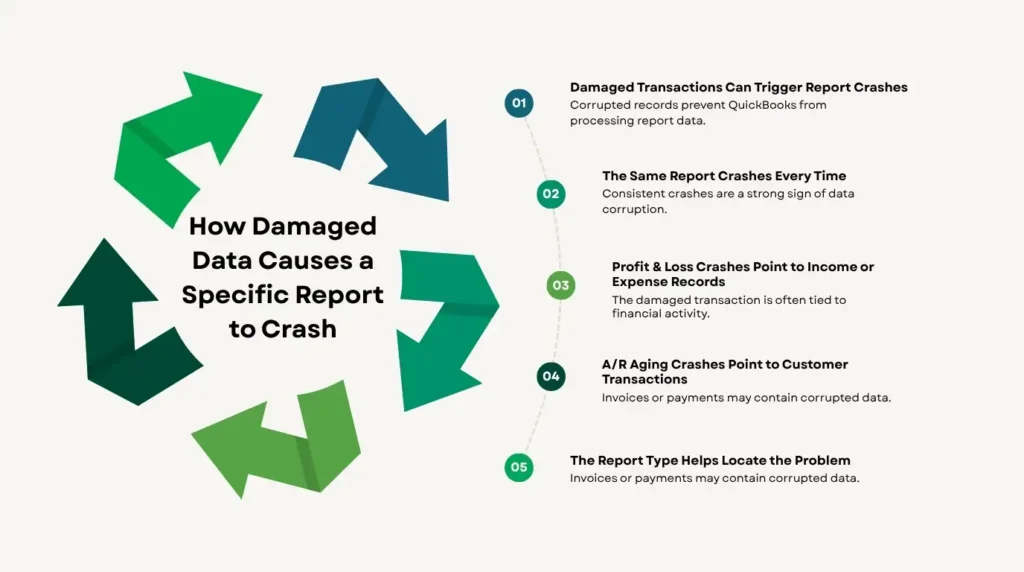
A report that crashes every time it is opened — while other reports run without problems — points to damaged data in the specific records that report reads. QuickBooks Desktop reads transaction records from the company file to populate each report. A damaged transaction record — one where a power outage, a network drop, or a hard drive error interrupted the save operation — contains incomplete or incorrect data. QuickBooks tries to read that record into the report, cannot process the incomplete data correctly, and crashes.
The consistency of the crash confirms the data damage cause. A crash on every Profit and Loss report means the damaged record is one that Profit and Loss reads — an income or expense transaction. A crash on the Accounts Receivable Aging report means the damaged record is a customer invoice or payment. A crash on the Customer Detail report for one specific customer means the damaged record belongs to that customer’s account. The report type that crashes identifies which category of records contains the damage, which narrows the repair process.
How to Repair Damaged Company File Data
Run Verify Data first to identify the damaged records. Open QuickBooks and go to the File menu. Select Utilities, then Verify Data. QuickBooks scans the company file for integrity errors and produces a results message. A message that says QuickBooks detected no problems with your data confirms the data is clean — the crash has a different cause. A message that says Your data has lost integrity confirms damaged records are present and shows a summary of the errors found.
Create a full backup of the company file before running Rebuild Data. Go to File, Back Up Company, Create Local Backup, and save the backup to a location on a separate drive. After the backup is confirmed, go to File, Utilities, Rebuild Data. Click OK on the backup prompt — QuickBooks requires another backup at the start of Rebuild Data before proceeding. QuickBooks runs the rebuild, which attempts to repair each damaged record automatically. After the rebuild finishes, run Verify Data again to confirm the errors are gone. Open the specific report that was crashing and confirm it now runs without a crash.
If Rebuild Data cannot repair a specific damaged transaction — it identifies the transaction in the rebuild log — the fix is to delete that transaction and re-enter it. Go to the transaction type the rebuild log identified, find the specific entry by date and amount, delete it, and re-enter it from the paper record or the previous backup. A re-entered transaction is clean — it has no data integrity errors — and the report that was crashing on it opens without a crash after the transaction is replaced with the clean re-entered version.
5. Damaged Form Templates: Invoice, Purchase Order, and Estimate Crashes
What Form Templates Are and Why They Crash QuickBooks
A form template in QuickBooks Desktop is a saved layout for a specific type of document — an invoice, a purchase order, an estimate, a sales receipt, or a bill. Each template stores the column arrangement, logo placement, font settings, and custom fields for that document type. The template is stored inside the company file and is read by QuickBooks every time a new document of that type is created or an existing one is opened. A damaged form template causes QuickBooks to crash at the exact moment it tries to load the template — producing a crash specifically on that document type and no others.
Form template damage occurs from several causes: a QuickBooks version upgrade that did not correctly convert the previous version’s template format; a company file restore from a backup that was made while a template was partially open; or a power outage during a template save operation. All of these leave the template file inside the company file in an incomplete state. QuickBooks detects the incomplete data when it loads the template and crashes rather than displaying a partially damaged form.
How to Fix Damaged Form Templates
Open QuickBooks and go to the Lists menu. Select Templates. The template list shows every saved form template in the company file. Find the template associated with the document type that is crashing — for example, if QuickBooks crashes when opening a new invoice, look for the invoice template marked as Default. Right-click the template and select Duplicate. The duplicate creates an exact copy of the template with a new name. Open a new invoice and change the template to the duplicate. If the duplicate opens without crashing, the original template was damaged and the duplicate is the working replacement.
If the duplicate also crashes, the damage is in the underlying template data rather than in a surface-level layout setting. Delete the damaged original template, rename the duplicate to the original name, and mark it as the default. If the crash persists on the duplicate, create a new template from scratch. Go to the Templates list, click Templates at the bottom, and select New to build a new template. Apply the same column layout, logo, and font settings as the original. A new template has no inherited damage from the previous version and opens without a crash.
6. RAM Shortage When Running Multiple Reports Simultaneously
Why Running Multiple Reports at Once Causes Crashes
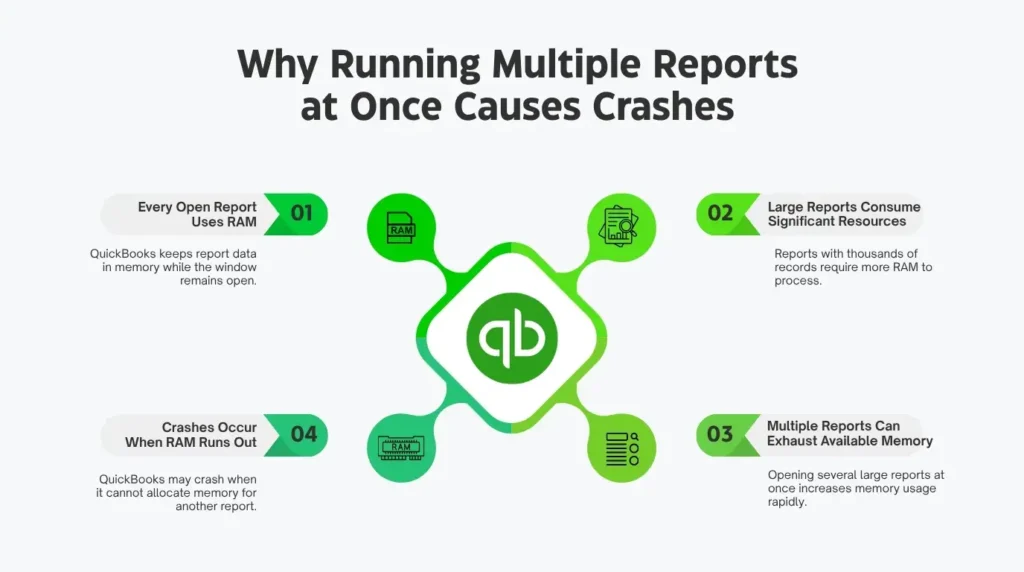
QuickBooks Desktop allows multiple report windows to be open at the same time. Each open report window holds its data in RAM — the computer’s temporary working memory — for as long as the window stays open. A large Profit and Loss report can hold hundreds of thousands of records in RAM. Opening three or four large reports simultaneously fills RAM to capacity. QuickBooks then tries to open a fifth report, cannot find enough RAM to hold the new report’s data, and crashes because it has no memory space to complete the report generation.
Intuit’s community support acknowledges that running multiple reports in different windows can cause QuickBooks to crash. The crash from RAM exhaustion is specific to multi-report sessions — opening any one of those reports alone does not crash, because there is enough RAM for one report. The crash only happens when the combined RAM usage of all open reports exceeds the computer’s available memory. Reducing the number of simultaneously open report windows prevents this crash immediately.
How to Manage Report Windows to Prevent RAM Crashes
Close all report windows before opening a new report that previously caused a crash. Go to the Window menu in QuickBooks and select Close All to close every open window in one step. Then open only the specific report needed. Running one large report at a time instead of several simultaneously gives that report full access to the computer’s RAM and prevents the RAM exhaustion crash that occurs when multiple large reports are open at the same time.
Also check that the computer meets Intuit’s RAM minimums. QuickBooks Desktop requires a minimum of 4 GB of RAM for a single user on a standalone computer. A computer with exactly 4 GB of RAM uses a portion of that for Windows itself, leaving approximately 2 to 3 GB for QuickBooks. A large Profit and Loss report that includes multiple years of transactions can exceed 2 GB of RAM on its own, leaving no memory available for QuickBooks to function once the report data is fully loaded. Upgrading the computer’s RAM to 8 GB provides the headroom needed to run large reports without crashes.
7. Third-Party Program Conflicts: The Hidden Cause of Report Crashes
How Third-Party Programs Cause QuickBooks Report Crashes
Third-party programs are applications installed on the same computer that run in the background while QuickBooks is open. Password managers, browser extensions, screen recording tools, PDF converters, and remote access applications all run background processes that monitor active windows and interact with them. QuickBooks report and form windows are active Windows application windows, and any background program that monitors or modifies active windows can trigger a crash by interacting with a QuickBooks report window at the exact moment QuickBooks is populating it with data.
A documented example from the Intuit community involves a widely used password manager causing QuickBooks to crash every time any report was run. The password manager’s background process checked every new window for login fields and attempted to auto-fill them. When QuickBooks opened a report window, the password manager tried to interact with it simultaneously, conflicting with QuickBooks’ own rendering process and causing an immediate crash. Ending the password manager’s background process through the Windows Task Manager stopped the crashes immediately. The password manager’s developer confirmed the conflict and released a fix in a subsequent update.
How to Identify and Resolve a Third-Party Conflict
Open the Windows Task Manager by right-clicking the taskbar and selecting Task Manager. Go to the Processes tab. Identify which background programs are running alongside QuickBooks — look for the names of password managers, browser helpers, screen tools, PDF software, or remote desktop applications. End each background process one at a time by right-clicking it and selecting End Task. After ending each process, attempt to open the specific report or form that was crashing. A crash that stops after ending a specific background process identifies that program as the conflict.
After identifying the conflicting program, check whether an update is available for it. A conflict that began after a program update — as was the case with the documented password manager conflict — is typically resolved in the next update from that program’s developer. Update the conflicting program from within the program itself or through its official website. If no update is available, disable the conflicting program from running at startup by going to the Task Manager’s Startup tab, finding the program, right-clicking it, and selecting Disable. This prevents the program from launching with Windows and stops the crash without requiring a full uninstall.
8. Updating QuickBooks Desktop to Resolve Report and Form Crashes
Why QuickBooks Updates Fix Specific Report Crashes
Intuit releases QuickBooks Desktop product updates throughout the year that fix bugs identified in specific report types, form rendering, and email functions. A crash on a specific report that started after a Windows update or after installing a new version of Microsoft Office may already have a fix in the latest QuickBooks release. Intuit’s guidance on the Crash Com Error specifically states: if the Crash Com Error persists even after performing all troubleshooting steps, update QuickBooks to the latest release — this issue is not present in the latest release of the software.
Go to the Help menu in QuickBooks and select Update QuickBooks Desktop. Click the Update Now tab. Check the Reset Updates checkbox to clear any incomplete previous downloads. Click Get Updates to download the latest release. After the download finishes, close and reopen QuickBooks and follow the prompt to install the update. After the installation, open the specific report or form that was crashing and confirm the crash no longer occurs. A crash that was caused by a known bug Intuit has already fixed does not return after the update is installed.
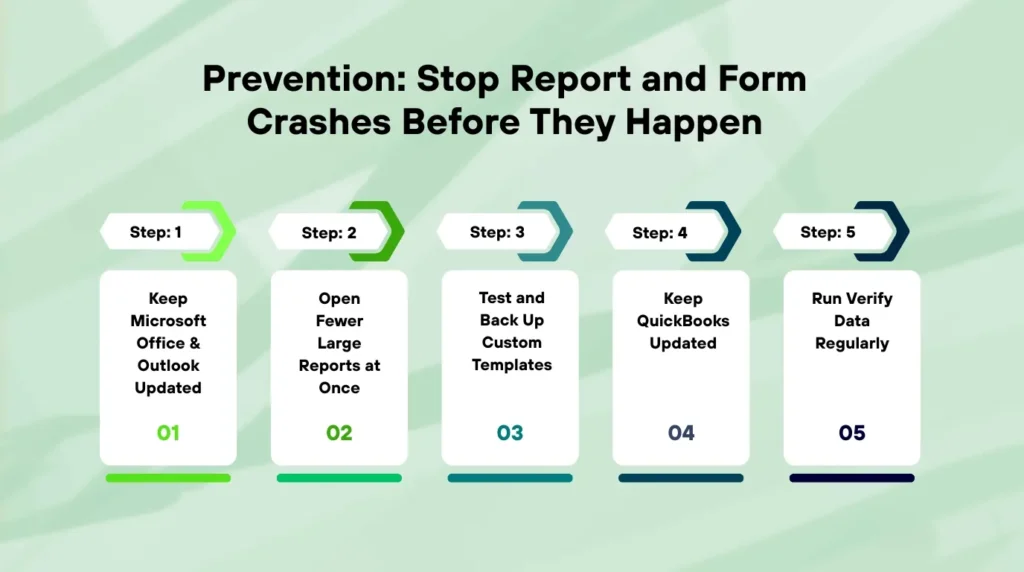
9. Prevention: Stop Report and Form Crashes Before They Happen
Report and form crashes are preventable when the underlying conditions that cause them are managed routinely. The steps below address each root cause before it reaches the point of producing a crash during active accounting work.
- Run Quick Fix My Program from Tool Hub once a month: Download Tool Hub from Intuit’s official website. Open Program Problems and run Quick Fix My Program. This takes less than two minutes and clears any stuck background processes that build up over time and produce report crashes during peak accounting sessions.
- Update QuickBooks Desktop to the latest release every month: Go to Help, Update QuickBooks Desktop, and install all available updates. Intuit releases bug fixes that resolve specific report and form crashes as they are confirmed and repaired. Running an outdated version means using software with known crash-causing bugs that Intuit has already fixed.
- Run Verify Data every quarter on the company file: Go to File, Utilities, Verify Data. A quarterly check catches data integrity errors before they grow severe enough to crash specific reports. Running Rebuild Data immediately after any Verify Data result that reports errors prevents those errors from accumulating into crash-causing damage.
- Keep Microsoft Outlook and Microsoft Office updated: Open Outlook, go to File, Office Account, Update Options, Update Now. An outdated Outlook installation that is incompatible with the current QuickBooks version causes the Crash Com Error on every emailed report or invoice. Monthly Outlook updates prevent this incompatibility from developing.
- Check for third-party program updates after any new report crash: A new crash that started on the same day a background program updated is almost certainly caused by that program’s update introducing a new conflict. Open Task Manager, identify programs that updated recently, and test QuickBooks reports with those programs ended. Update or roll back the conflicting program.
- Open one large report at a time instead of multiple reports simultaneously: Close all open report windows using Window, Close All before opening a new large report. Running Profit and Loss, Balance Sheet, and Accounts Receivable Aging simultaneously on a computer with 4 GB of RAM exhausts available memory and crashes the next report opened.
- Duplicate custom form templates and test the duplicates periodically: Go to Lists, Templates, right-click each custom invoice or form template, and select Duplicate. Open a test transaction using the duplicate to confirm the template loads without crashing. A damaged original template crashes only the documents that use it — a working duplicate is the immediate replacement if the original is damaged.
Conclusion
QuickBooks Desktop crashes on specific reports or forms are not random. A crash on every report points to the QuickBooks program files, the Microsoft components QuickBooks depends on, or a conflicting background program. A crash only when emailing forms points to the Crash Com Error — a failure in the COM connection between QuickBooks and Microsoft Outlook caused by damaged Microsoft components, an outdated Outlook installation, or a misconfigured Outlook profile. A crash on one specific report points to damaged data in the company file that the report reads. A crash only with certain form types points to a damaged form template.
Intuit’s documented fix process addresses each cause in order: Quick Fix My Program first, Program Diagnostic Tool second, followed by the cause-specific fixes for Outlook, company file data, form templates, and third-party conflicts. Each tool in the sequence is free, available from Intuit’s official website through the QuickBooks Tool Hub, and resolves the most common crash causes without requiring technical expertise or professional assistance.
The most reliable protection against report and form crashes is a monthly maintenance routine: run Quick Fix My Program, update QuickBooks to the latest release, run Verify Data on the company file, and update Microsoft Outlook. These four steps address the four most common crash causes — stuck background processes, known software bugs, company file data errors, and Outlook version incompatibility — before any of them produce a crash that interrupts accounting work during month-end reporting, payroll processing, or customer invoicing.
Frequently Asked Questions
Q1. QuickBooks crashes every time a Profit and Loss report is opened — what is the most likely cause?
A crash on the Profit and Loss report every time it opens points to a damaged income or expense transaction that the report reads when it populates its data. Run Verify Data from File, Utilities, Verify Data to check the company file for integrity errors. If errors are found, create a full backup and run Rebuild Data from the same Utilities menu. After the rebuild, open the Profit and Loss report and confirm the crash is gone. If the rebuild log identifies a specific damaged transaction, delete it and re-enter it from the paper record or from the previous backup to replace the damaged record with a clean one.
Q2. QuickBooks crashes only when emailing invoices — all other actions work fine. What is the fix?
A crash specifically when emailing invoices is the Crash Com Error — a failure in the connection between QuickBooks and Microsoft Outlook. Start by setting Outlook as the default mail program in Control Panel, Programs, Default Programs. Then confirm Outlook appears as an option in QuickBooks at Edit, Preferences, Send Forms, My Preferences. Reset the Outlook mail profile using Control Panel, Mail, Show Profiles, and toggle the profile setting off and back on. Update Outlook to its latest version using File, Office Account, Update Options, Update Now in Outlook. If the crash persists after all four steps, run the QuickBooks Program Diagnostic Tool from Tool Hub to repair the Microsoft components that the COM email connection uses.
Q3. A report that was working fine started crashing the day after a third-party program updated. How is that fixed?
A crash that started on the same day a third-party program updated is almost certainly caused by that program’s new version conflicting with QuickBooks. Open Task Manager, go to the Processes tab, end the background process of the updated program, and immediately try the report again. A crash that stops when the program’s process is ended confirms the conflict. Check the program’s official website for a newer update that fixes the conflict — the Intuit community documented that a major password manager released a fix within days of user reports. If no fix is available, disable the program from startup in Task Manager’s Startup tab to prevent it from loading during QuickBooks sessions.
Q4. QuickBooks crashes when opening a custom invoice template but opens the standard template without problems. What is damaged?
A crash on a custom template but not on the standard template confirms the custom template file is damaged. Go to Lists, Templates in QuickBooks. Find the custom invoice template in the list, right-click it, and select Duplicate. Open a new invoice and switch the template to the duplicate to test whether it opens without crashing. If the duplicate works, the original template was the damaged file — delete the original and rename the duplicate to take its place. If the duplicate also crashes, create a new template from scratch by going to Lists, Templates, Templates at the bottom, and selecting New.
Q5. QuickBooks crashes when three or more report windows are open simultaneously. Is that a hardware problem?
A crash specifically when multiple report windows are open simultaneously is a RAM shortage problem, not a hardware defect. Each open report window holds its full dataset in RAM. Three large reports open at the same time on a computer with 4 GB of RAM fill the available memory, and opening a fourth report crashes because there is no memory left for the new report’s data. The immediate fix is to close all open report windows using Window, Close All before opening any new report. The long-term fix is to upgrade the computer’s RAM to 8 GB, which provides enough memory for multiple concurrent large reports without reaching the crash threshold.

Anusmita is a seasoned content writer who brings perspective to words. As a writer, she enriches her work with a journalistic aptitude, utilising her training in Mass Communication and Journalism. She loves to travel and explore, which imparts a greater sense of understanding, maturity, and experience that are reflected in her content.
Beyond her professional work, Anusmita enjoys painting, singing, dancing, and spending time planting. She is also a self-proclaimed foodie who loves exploring different cuisines, an interest that further adds to her curiosity and perspective as a writer.
Leave a Reply