
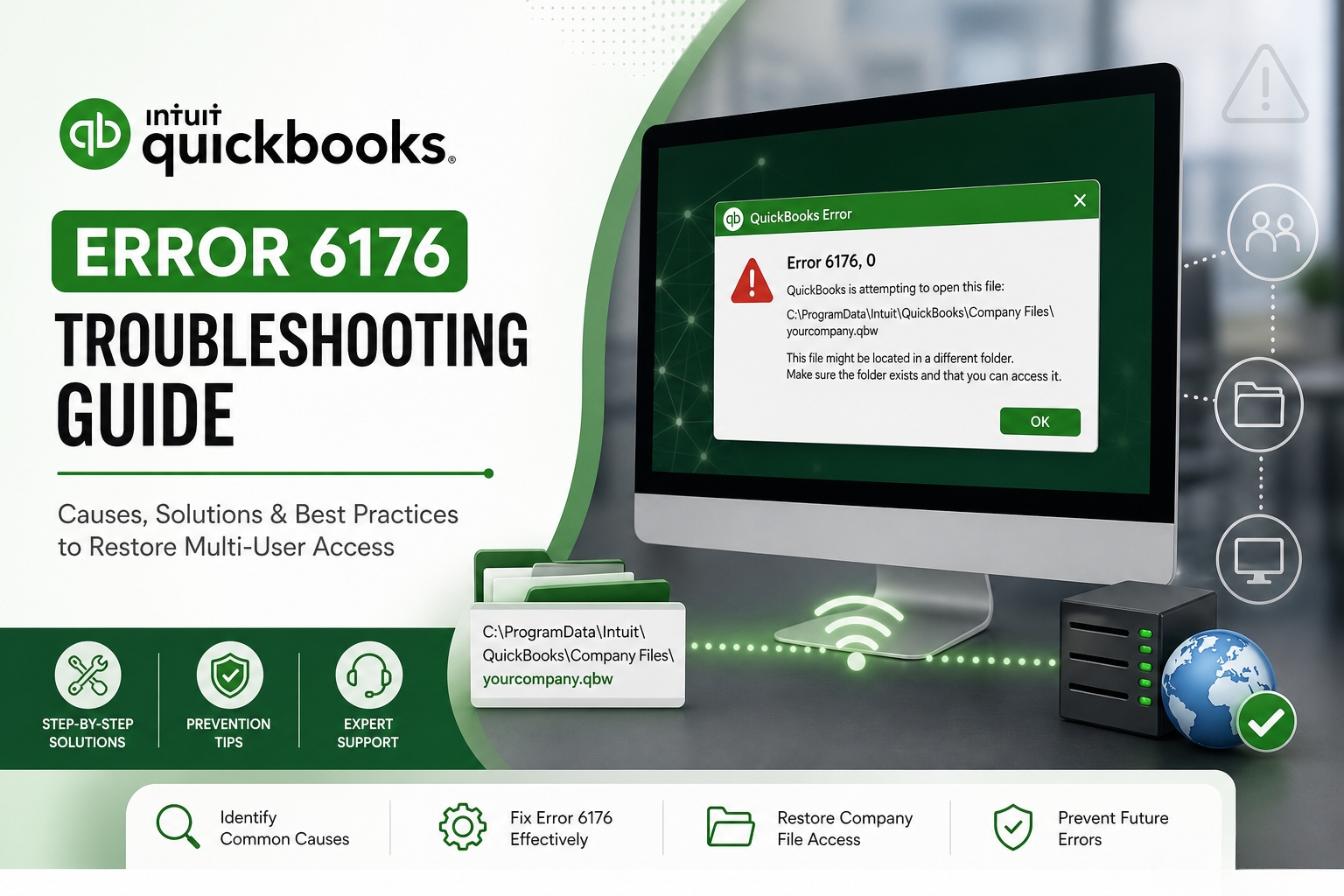
QuickBooks Error 6176 stops the software from opening the company file – the file that holds every transaction, invoice, payroll record, and account balance for the business. The full error message reads: “QuickBooks is attempting to open the company file. Before you can open the file on this computer, use the steps below to open the file on the computer where the file is located. If the problem continues, contact Intuit Technical Support and provide them with the following error codes (-6176, 0).” The error appears when QuickBooks cannot reach the server system address or find the correct file path to connect to the company file.
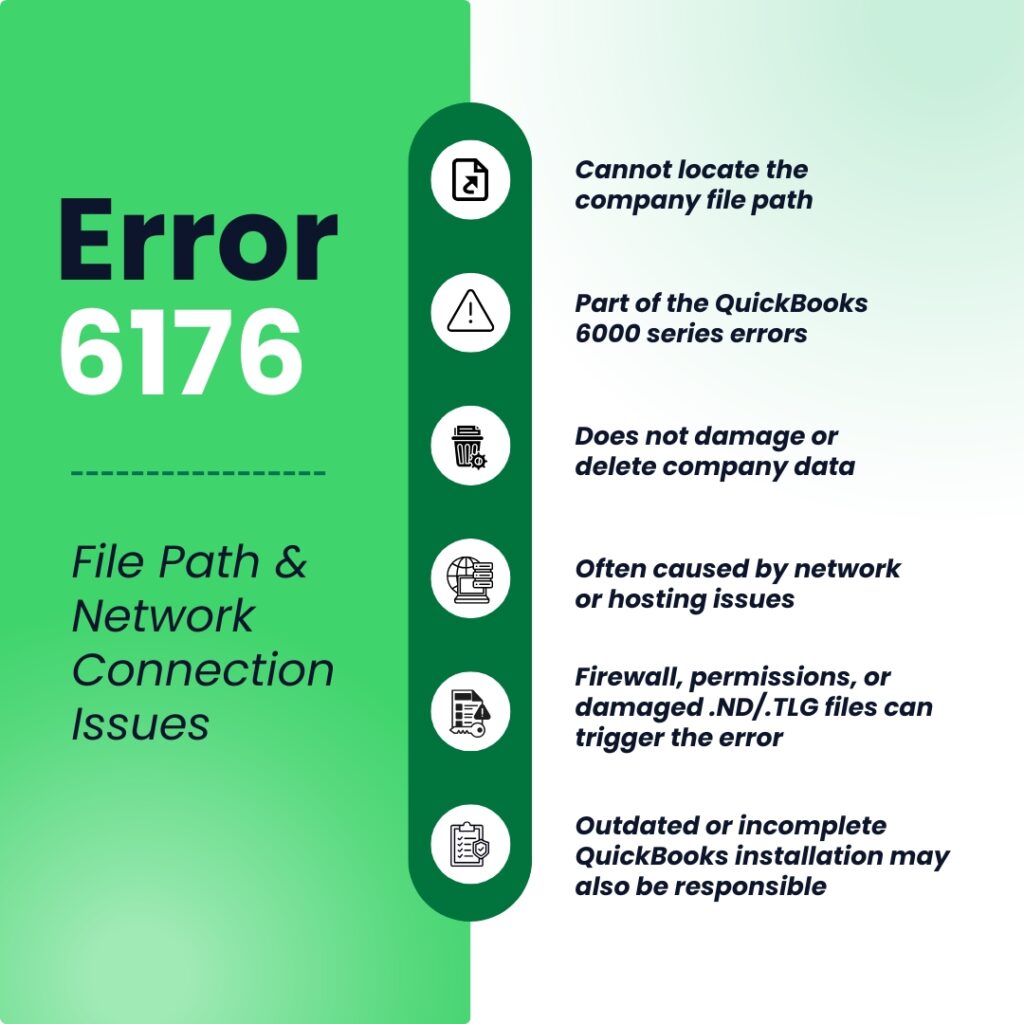
QuickBooks Error 6176 belongs to QuickBooks’ 6000 series of errors, which cover company file access and network connection problems – not damage to the data inside the file itself. This is an important distinction: Error 6176 does not corrupt or delete any accounting data. The company file and every record inside it stay intact. The error only means QuickBooks lost the path – the address it uses to locate and open that file.
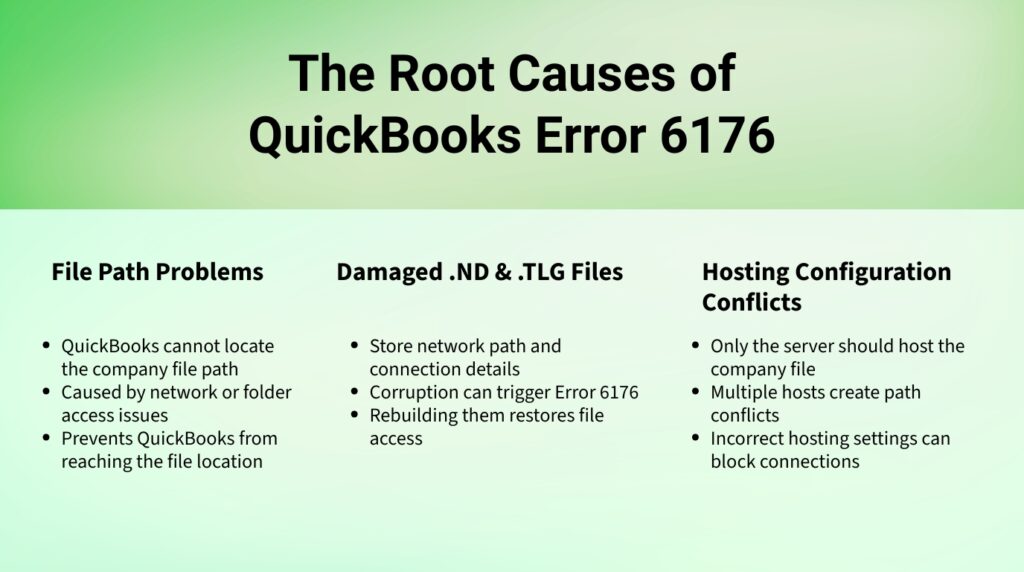
The causes behind Error 6176 are well-documented: incorrect hosting settings on the network, Windows Firewall blocking QuickBooks from reaching the server, missing folder permissions, damaged network configuration files (.ND and .TLG), an incomplete QuickBooks installation, or an outdated QuickBooks version that lacks the network features the current Windows version requires. This article covers every documented cause and every fix in the correct order, from the fastest to the most thorough.
Table of Contents
What QuickBooks Error 6176 Actually Means?
The File Path Problem in QuickBooks
A file path is the address QuickBooks follows to reach the company file. On a single computer, a typical path looks like this: C:\Users\Public\Documents\Intuit\QuickBooks\Company Files\YourCompany.qbw. On a network with multiple users, that path points to a folder on the server – a dedicated computer that stores and shares the company file with every other computer (called workstations) on the network. Error 6176 means QuickBooks tried to follow that path and could not reach the destination.
The reason QuickBooks cannot reach the file location falls into two broad categories. The first category is a network communication problem: something on the network – a firewall rule, a hosting conflict, or a damaged configuration file – is blocking the connection between the workstation and the server. The second category is a file access problem: the folder that holds the company file has permissions set incorrectly, so QuickBooks is actively denied the ability to read or write to that location.
Error 6176 is part of the 6000 series, which covers file access failures rather than data corruption. Related errors in this series include Error 6150 (structural damage to the file itself), Error 6000-83 (permission problems), and Error 6144-82 (network configuration issues). These errors share the same underlying triggers – firewall settings, damaged network files, or server communication problems – which is why fixing Error 6176 completely often prevents these related errors from appearing as well.
What the .ND and .TLG Files Are and Why They Matter?
Two small configuration files sit in the same folder as the company file: the .ND file (Network Descriptor) and the .TLG file (Transaction Log). The .ND file stores the network path and server address information that QuickBooks reads each time a workstation tries to connect to the company file in multi-user mode – the mode that lets several people work in QuickBooks at the same time. The .TLG file logs recent changes so QuickBooks can recover data if a connection drops mid-session. Intuit’s own support documentation confirms that when these files become damaged, QuickBooks cannot read the stored network path, which directly causes Error 6176.
Renaming these files does not delete any accounting data. QuickBooks automatically recreates both the .ND and .TLG files the next time it scans the company file folder through the QuickBooks Database Server Manager – a program that runs on the server computer and manages multi-user file access. This rebuild clears any damage and restores a clean, accurate network path. The company file and all financial records inside it are completely unaffected by renaming or rebuilding these configuration files.
Why Hosting Settings Cause Error 6176?
Multi-user mode in QuickBooks works through a hosting arrangement: one computer – the server – stores the company file and makes it available to every other computer on the network. QuickBooks has a setting called “hosting” that controls which computer takes on this role. Only the server should have hosting turned on. Every other computer (each workstation where employees log in and work) must have hosting turned off.
Error 6176 appears when more than one computer has hosting turned on. QuickBooks gets conflicting signals about where the company file is actually located and cannot resolve the correct path. Intuit’s support documentation confirms this directly: the firewall setting -6176, 0 specifically indicates the firewall is not allowing the connection between computers – and a hosting conflict amplifies this by sending QuickBooks to the wrong computer in the first place. Turning off hosting on every workstation and leaving it on only the server resolves this conflict immediately.
Quick Diagnosis: Match the Situation to the Correct QuickBooks Fix
Find the description that matches the situation before applying any fix. Starting at the correct fix saves time and avoids unnecessary changes to the system.
| What Happened Before the Error Appeared | Most Likely Root Cause | Start With This Fix |
| QuickBooks cannot open the company file on a workstation; server holds the file | Incorrect hosting – a workstation is also acting as host | Fix 1: Check and correct hosting settings in QuickBooks |
| Error appeared right after a Windows update or OS upgrade | Windows Firewall reset its rules and now blocks QuickBooks network traffic | Fix 2: Add QuickBooks firewall exceptions |
| Company file opens for some users but not others on the same network | Folder permissions on the server deny certain user accounts | Fix 3: Set full-control folder permissions |
| File was accessible yesterday; nothing changed except anti-virus update | Anti-virus classified QuickBooks as suspicious and blocked its path | Fix 2: Add QuickBooks exceptions to security software |
| QuickBooks worked fine until a second computer was added to the network | New computer also has hosting turned on, conflicting with the main server | Fix 1: Turn off hosting on all workstations except the server |
| Error appears with a specific company file only, not the sample file | The .ND or .TLG configuration file linked to that company file is damaged | Fix 4: Rename .ND and .TLG files, then rescan |
| QuickBooks installation was interrupted or done without admin rights | Incomplete installation left missing components behind | Fix 5: Run QuickBooks File Doctor |
| QuickBooks has not been updated in months; error started recently | Outdated version lacks network features the current Windows build requires | Fix 6: Update QuickBooks Desktop to the latest release |
Fixes for QuickBooks Error 6176: Complete Solutions
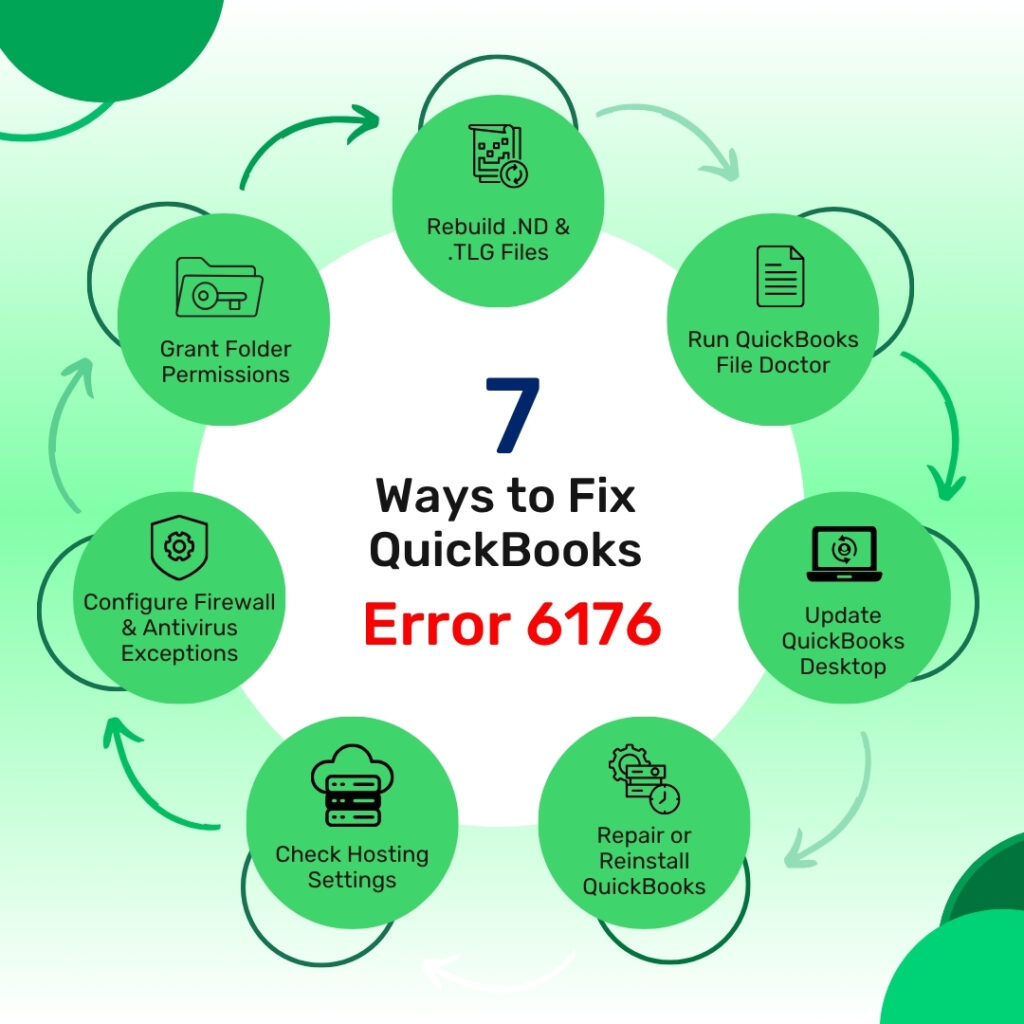
The QuickBooks Error 6176 solutions are given below in seven fixes. They are:
- Fix 1: Check and Correct the Hosting Settings on Every Computer
- Fix 2: Add QuickBooks Exceptions to Windows Firewall and Anti-Virus Software
- Fix 3: Set Full-Control Folder Permissions on the Company File Folder
- Fix 4: Rename the .ND and .TLG Files and Run the Database Server Manager
- Fix 5: Run QuickBooks File Doctor from the QuickBooks Tool Hub
- Fix 6: Update QuickBooks Desktop to the Latest Release
- Fix 7: Repair or Clean Install QuickBooks
Fix 1: Check and Correct the Hosting Settings on Every Computer
Hosting must be turned on only on the server – the computer that physically stores and shares the company file. Every workstation on the network must have hosting turned off. When any workstation has hosting turned on, QuickBooks receives two conflicting addresses for the company file, cannot determine the correct one, and reports Error 6176. This fix takes about five minutes and resolves the most common cause of this error in multi-user environments.
The check must be done on every computer on the network – both the server and each workstation – because one incorrectly configured workstation is enough to produce the error for every other user. After correcting the hosting settings on each machine, open the company file from the server first to confirm it opens in single-user mode, and then switch to multi-user mode from the File menu to make it available to workstations.
On each workstation: Open QuickBooks. Go to File > Utilities. If the menu shows “Stop Hosting Multi-User Access”, click it – this workstation has hosting turned on and needs it turned off. If the menu shows “Host Multi-User Access”, hosting is already off; no change needed.
On the server: Open QuickBooks. Go to File > Utilities. The server should show “Stop Hosting Multi-User Access” – confirming hosting is on. If it shows “Host Multi-User Access”, click it to turn hosting on. Then open the company file and go to File > Switch to Multi-User Mode to allow workstations to connect.
Fix 2: Add QuickBooks Exceptions to Windows Firewall and Anti-Virus Software
Windows Firewall is a security program built into every Windows computer that controls which programs can send and receive data over the network. Anti-virus software adds a second layer of the same type of control. Both programs work by blocking connections they do not recognize or trust – and both can classify QuickBooks’ network traffic as suspicious and block it, which cuts off the path between the workstation and the server. Error 6176 results directly from this block, because QuickBooks cannot reach the server to find the company file.
QuickBooks uses specific network ports to communicate. A port is a numbered channel through which programs send and receive data. Intuit documents the ports QuickBooks needs: TCP ports 8019, 56728, 55378-55382 for QuickBooks Desktop. Adding an exception – a rule that tells the firewall or anti-virus to allow QuickBooks through – restores the path. This exception must be added on the server and on every workstation that experiences the error.
For Windows Firewall: Press Windows + S and type Windows Defender Firewall. Click Advanced Settings. Click Inbound Rules > New Rule. Select Program > Next. Browse to the QuickBooks program file (C:\Program Files\Intuit\QuickBooks [Year]\QBW32.exe). Select Allow the connection > Next. Apply to all three profiles (Domain, Private, Public). Name the rule “QuickBooks” and click Finish. Repeat for Outbound Rules. Restart QuickBooks and retry opening the company file.
For anti-virus software: open the anti-virus program, navigate to its exceptions or exclusions list, and add the QuickBooks program folder (C:\Program Files\Intuit\QuickBooks [Year]) and the company file folder as excluded locations. The exact menu path differs by anti-virus product, but every major anti-virus includes an exclusion or trusted programs list for exactly this purpose. After adding exceptions, restart both the server and the workstation before retrying.
Fix 3: Set Full-Control Folder Permissions on the Company File Folder
Folder permissions are Windows security settings that control which user accounts can read files, write changes, or run programs inside a given folder. The folder that holds the company file must give QuickBooks full read and write access. Without full-control permissions, QuickBooks reaches the correct folder on the server but Windows blocks the actual file access – and QuickBooks reports Error 6176 because it cannot complete the connection to the file path it found.
The user accounts that need full-control permissions on the company file folder are: the Windows user account currently logged in to the server, the QBDataServiceUserXX account (where XX is the version number – for example, QBDataServiceUser34 for QuickBooks Desktop 2024), and the NETWORK SERVICE account. These accounts are what QuickBooks and its background services use to read and write company file data. All three must have full-control permissions set on the company file folder.
Steps: On the server, open File Explorer and navigate to the folder that holds the company file – typically C:\Users\Public\Documents\Intuit\QuickBooks\Company Files. Right-click the folder and select Properties > Security tab. Click Edit. For each of the accounts listed above, click the account name, check Full Control in the Allow column, and click Apply. Click OK to close. Restart QuickBooks on the server and retry opening the company file.
Fix 4: Rename the .ND and .TLG Files and Run the Database Server Manager
Renaming the .ND and .TLG files forces QuickBooks to build fresh, uncorrupted versions of both files. The old damaged files are not deleted – they are simply renamed so QuickBooks ignores them and creates new ones. The company file is completely unaffected by this process. All accounting data, transactions, and records stay exactly as they were. Only the two small configuration files that store the network path information are replaced.
After renaming these files, the QuickBooks Database Server Manager must be run on the server to rebuild them. The Database Server Manager is a program – installed automatically when QuickBooks is set up on the server – that scans the company file folder, reads the company file, and generates correct new .ND and .TLG files with an accurate network path. Intuit’s support documentation confirms this is the correct process: rename the files first, then run the Database Server Manager to rescan and regenerate.
Steps: On the server, open File Explorer and go to the company file folder (C:\Users\Public\Documents\Intuit\QuickBooks\Company Files by default). Find the files that share the company file’s name but end in .ND and .TLG – for example, YourCompany.qbw.nd and YourCompany.qbw.tlg. Right-click each file and select Rename. Add .OLD to the end of each name – for example, YourCompany.qbw.nd.OLD. Open QuickBooks Tool Hub > Network Issues > QuickBooks Database Server Manager. In the Database Server Manager, click Start Scan (or Browse to locate the company file folder if it does not appear automatically). Wait for the scan to complete. Open QuickBooks and retry the company file.
Fix 5: Run QuickBooks File Doctor from the QuickBooks Tool Hub
QuickBooks File Doctor is a free repair tool from Intuit, available inside the QuickBooks Tool Hub, that automatically diagnoses and repairs two categories of problems: damage to the company file itself, and network configuration problems that prevent QuickBooks from connecting to the company file. For Error 6176, File Doctor addresses both the file path issue and any damage to the network setup without requiring any manual registry editing or network configuration changes from the user.
File Doctor is the correct tool when the hosting settings and firewall exceptions are already correct but the error persists – because it goes a step further and repairs internal company file damage and network descriptor problems that the hosting and firewall fixes cannot address. Intuit’s own support page confirms File Doctor as a primary tool for the 6000 series of errors, including -6176, 0. The tool takes 10 to 20 minutes to run and the computer must stay on and connected to the network throughout the scan.
Steps: Download and install QuickBooks Tool Hub from Intuit’s official support page if it is not already installed. Open the Tool Hub. Click Company File Issues in the left menu. Click Run QuickBooks File Doctor. File Doctor opens – this may take up to one minute. In the File Doctor window, select the company file from the drop-down list, or click Browse to locate it manually. Select Check your file and network and click Continue. Enter the QuickBooks admin password and click Next. Wait for the scan and repair to complete. Open QuickBooks and retry the company file.
Fix 6: Update QuickBooks Desktop to the Latest Release
QuickBooks updates deliver fixes for known bugs in the software’s network communication, file path handling, and multi-user connection features. Running an older version of QuickBooks on a network where Windows has been updated to a newer build creates a compatibility gap: the older QuickBooks version uses network features that the current Windows version has changed or replaced. This gap prevents QuickBooks from locating the correct file path, which produces Error 6176. Updating QuickBooks closes this gap immediately.
The update must be installed on every computer on the network – both the server and all workstations. Running different QuickBooks versions on different computers in the same network creates version mismatches that generate their own connection errors. Updating all machines to the same latest release ensures every computer uses the same network communication features and eliminates version-based path failures.
Steps: Open QuickBooks on the server. Go to Help > Update QuickBooks Desktop. Click the Update Now tab. Check the Reset Update box – this clears any partially downloaded update files and downloads a complete fresh copy. Click Get Updates. When the download finishes, close QuickBooks and reopen it. Click Yes when prompted to install the update. Repeat this process on each workstation. Restart each computer after the update installs, then retry opening the company file.
Fix 7: Repair or Clean Install QuickBooks
An incomplete QuickBooks installation – one that was interrupted mid-way, or that skipped steps due to insufficient permissions – leaves behind broken file path references inside QuickBooks itself. These broken references cause QuickBooks to follow an incorrect path to the company file, which produces Error 6176 even when the company file folder and the network are both working correctly. Repairing the installation rebuilds these internal path references without removing any company data.
If the repair does not resolve the error, a clean install removes QuickBooks completely and reinstalls it from scratch. The QuickBooks Clean Install Tool, available free from Intuit, removes all files and registry entries a standard uninstall leaves behind. These leftover entries are the source of broken path references that a standard repair cannot reach. A clean install eliminates all of them and gives QuickBooks a complete, correctly built file path structure from the first launch.
Steps – Repair: Close QuickBooks. Press Windows + R, type appwiz.cpl, and press Enter. Find QuickBooks in the program list. Click Uninstall/Change. Select Repair and follow the prompts. Restart the computer and retry opening the company file.
Steps – Clean Install: Record the QuickBooks license number and product key from Help > About QuickBooks. Uninstall QuickBooks through Control Panel > Programs and Features. Download and run the QuickBooks Clean Install Tool from Intuit’s official support page to remove residual files and registry entries. Restart the computer. Download a fresh installer from Intuit’s website. Right-click the installer and select Run as administrator. Complete the installation. Open QuickBooks and locate the company file through File > Open or Restore Company.
All QuickBooks Fixes at a Glance
| Fix | What It Resolves | Time |
| Fix 1: Correct hosting settings | Workstation acting as host conflicts with server | 5 min |
| Fix 2: Add firewall and anti-virus exceptions | Windows Firewall or security software blocking QuickBooks network access | 10–15 min |
| Fix 3: Set full-control folder permissions | User accounts denied read/write access to the company file folder | 10 min |
| Fix 4: Rename .ND and .TLG files and rescan | Damaged network configuration files breaking the connection path | 10 min |
| Fix 5: Run QuickBooks File Doctor | Damaged company file or incomplete installation causing path failure | 15–20 min |
| Fix 6: Update QuickBooks Desktop | Outdated version incompatible with current Windows network features | 10 min |
| Fix 7: Repair or clean install QuickBooks | Corrupted QuickBooks installation leaving broken file path references | 30–60 min |
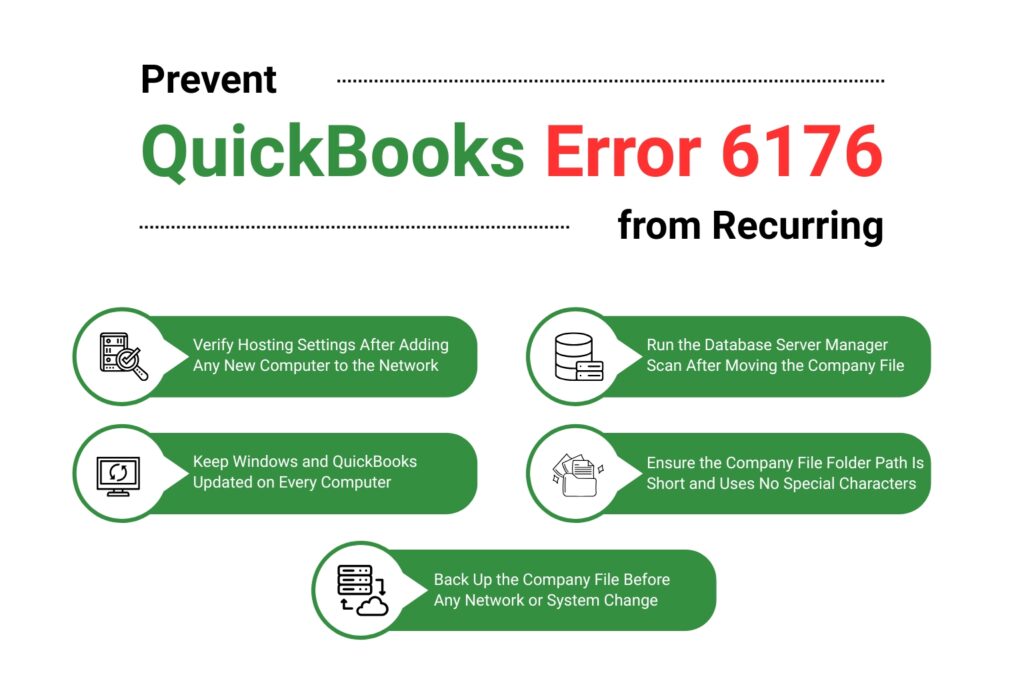
QuickBooks Prevention: Stop Error 6176
- Verify Hosting Settings After Adding Any New Computer to the Network
Every time a new computer is added to the network, QuickBooks must be installed on it with hosting turned off. The default QuickBooks installation does not automatically configure hosting correctly for a workstation – it requires a manual check through File > Utilities to confirm that “Host Multi-User Access” is the option shown (meaning hosting is off). A new workstation installed with hosting accidentally left on produces Error 6176 for every other user on the network immediately after joining. Verifying this setting takes two minutes and prevents the most common recurring cause of Error 6176.
- Run the Database Server Manager Scan After Moving the Company File
Moving the company file to a new folder or a new drive invalidates the path stored inside the .ND file. The .ND file still points to the old location, QuickBooks follows that stored path, finds nothing there, and reports Error 6176. Running the QuickBooks Database Server Manager scan immediately after moving the company file rebuilds the .ND file with the correct new path. Open QuickBooks Tool Hub > Network Issues > QuickBooks Database Server Manager > Browse to the new folder location > Start Scan. This two-minute step eliminates path mismatch errors every time the company file is relocated.
- Keep Windows and QuickBooks Updated on Every Computer
Windows updates change how the operating system manages network connections and file access. An outdated QuickBooks version on any one computer in the network may not work correctly with the updated Windows version on other computers, creating path errors during multi-user access. Installing all available Windows updates and keeping QuickBooks at its latest release on every computer – server and all workstations – ensures every machine uses the same current file path and network features. Check for QuickBooks updates monthly through Help > Update QuickBooks Desktop.
- Ensure the Company File Folder Path Is Short and Uses No Special Characters
Windows has a file system path limit. A path that is too long – built up through many nested subfolders – can prevent QuickBooks from reading the full address of the company file. Documented fixes confirm: keep the company file path short. The recommended default location – C:\Users\Public\Documents\Intuit\QuickBooks\Company Files – is intentionally short for this reason. Avoid storing the company file inside deeply nested folders, network drives with long UNC paths, or folder names containing special characters such as # & @ or %. These characters can break how Windows resolves the path, causing QuickBooks to fail at the last step of connecting to the file.
- Back Up the Company File Before Any Network or System Change
QuickBooks Error 6176 does not damage the company file, but the steps taken to resolve it – moving the file, renaming configuration files, repairing the installation – all involve accessing the file and the folder it lives in. Creating a backup before beginning any fix means the company file can be fully restored to a known-good state if anything goes wrong during the repair process. Back up through File > Back Up Company > Create Local Backup, and store the backup on a separate drive or network location from the company file itself.
Conclusion
QuickBooks Error 6176 stops the software from opening the company file by breaking the path or connection between QuickBooks and the location where the file is stored. The error message directs the user to first open the file on the server – the computer where the company file lives – because that confirms whether the path issue is isolated to a workstation or exists on the server itself. Error 6176 does not damage the company file; every transaction, invoice, and account balance stays completely intact throughout the entire error and repair process.
The most common cause in multi-user offices is a hosting conflict: one or more workstations have hosting turned on in addition to the server, sending QuickBooks in two conflicting directions at once. The fix is checking File > Utilities on every computer and leaving hosting turned on only on the server. The second most common cause is Windows Firewall blocking QuickBooks’ network traffic after a Windows update reset the firewall rules – adding QuickBooks exceptions through Windows Defender Firewall’s Advanced Settings resolves this in minutes.
For errors that survive both the hosting check and the firewall fix, the QuickBooks File Doctor tool inside Intuit’s free QuickBooks Tool Hub addresses damaged .ND and .TLG configuration files, network setup problems, and company file issues automatically. The Tool Hub download is available at Intuit’s official support page. File Doctor is the correct next tool when the basic fixes do not resolve Error 6176, because it targets the internal file path and network descriptor problems that manual fixes cannot reach. After File Doctor completes, re-checking the company file path length and folder permissions eliminates the remaining documented causes of this error.
Frequently Asked Questions
1. Error 6176 appeared on only one workstation while other computers can open the company file without any problem. Does the server need to be changed?
The server does not need to be changed. Error 6176 appearing on a single workstation while other computers work normally points to a problem with that specific computer – not the server. The server is successfully sharing the company file with the other workstations, which confirms the file path and hosting setup are correct on the server side.
Start by checking that workstation’s hosting setting through File > Utilities to confirm hosting is off. Then check that workstation’s Windows Firewall exceptions to confirm QuickBooks is listed as an allowed program. If both are correct, run QuickBooks File Doctor from that workstation’s QuickBooks Tool Hub to repair any local path or configuration damage on that specific machine.
2. The error message says to open the file on the server first. The file opens on the server without any problem. Why does the workstation still show Error 6176?
The file opening successfully on the server confirms the company file and its path are intact on the server. The problem is specifically in the connection between the workstation and the server.
The three most likely causes at this point are: (1) the workstation’s Windows Firewall is blocking QuickBooks from reaching the server, (2) the .ND file has a stored path that points to the server’s old IP address or computer name before it was renamed or the network was changed, or (3) the workstation has hosting turned on.
Fix 1 (hosting settings), Fix 2 (firewall exceptions), and Fix 4 (rename .ND and .TLG files, then rescan with Database Server Manager) address all three of these workstation-side causes directly.
3. The company file was moved to a new folder on the server and now every workstation gets Error 6176. The server itself can still open the file. What went wrong?
Moving the company file to a new folder changes its path. The .ND file stored in the original folder still points to the old location. Every workstation reads the old .ND file, follows its stored path to the old folder, finds the file is no longer there, and reports Error 6176.
The server opens the file because it is directly accessing the new folder location – but the workstations are following the outdated .ND path.
Run the QuickBooks Database Server Manager on the server, browse to the new folder location, and click Start Scan. This rebuilds the .ND file with the correct new path. All workstations will connect successfully once the new .ND file is generated.
4. Error 6176 appeared right after a Windows update installed overnight on the server. Nothing else changed on the network. What does the Windows update have to do with a QuickBooks path error?
Windows updates regularly modify Windows Firewall rules. When a Windows update resets or tightens firewall settings, it can remove exceptions that were previously added for QuickBooks – including the exception that allowed QuickBooks’ network traffic between the server and workstations.
With the exception gone, the firewall blocks QuickBooks from reaching the server, which breaks the file path connection and produces Error 6176. The fix is to re-add QuickBooks as an allowed program through Windows Defender Firewall’s Advanced Settings on the server.
After a Windows update, re-checking the firewall exceptions for QuickBooks is the first step because this is the most common change a Windows update makes that affects QuickBooks network access.
5. The error appeared when trying to open a specific company file. A sample company file opens without any problem. What does this mean for the actual company file?
A sample company file opening without Error 6176 confirms that QuickBooks is installed correctly and the network connection between the workstation and the server is working. The problem is isolated to the specific company file – most precisely, to the .ND and .TLG configuration files associated with that specific company file.
Because each company file has its own dedicated .ND and .TLG files stored in the same folder, damage to those specific files produces Error 6176 only when that file is opened, while the sample file (which has its own undamaged configuration files) opens normally. Rename the .ND and .TLG files for the affected company file, run the Database Server Manager scan, and QuickBooks will rebuild correct configuration files for that specific company file.

Anusmita is a seasoned content writer who brings perspective to words. As a writer, she enriches her work with a journalistic aptitude, utilising her training in Mass Communication and Journalism. She loves to travel and explore, which imparts a greater sense of understanding, maturity, and experience that are reflected in her content.
Beyond her professional work, Anusmita enjoys painting, singing, dancing, and spending time planting. She is also a self-proclaimed foodie who loves exploring different cuisines, an interest that further adds to her curiosity and perspective as a writer.

Leave a Reply