
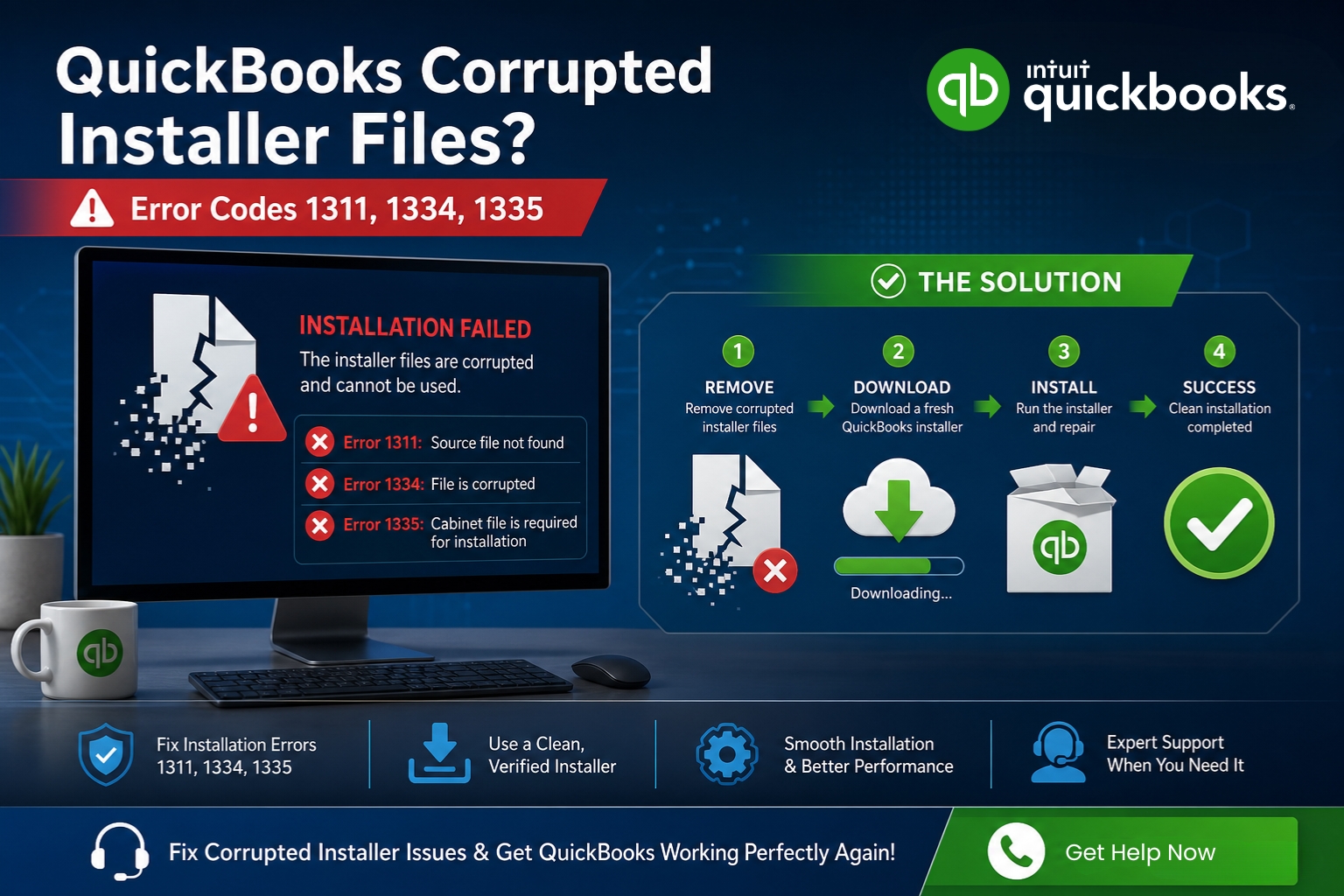
A corrupted QuickBooks installer file stops the installation or update process before it can complete. The corruption means one or more files that the installer needs are missing, damaged, or unreadable – and the installer reports this with specific error codes that identify exactly which file it could not find.
QuickBooks Errors 1311, 1334, and 1335 are all corrupted installer file errors. Each one names a specific file the installer was looking for when it failed, and each one resolves through the same set of fixes: clear the corrupted partial download, get a clean copy of the installer from Intuit’s official website, and address any Windows environment issues that caused the corruption in the first place.
A real documented case on Intuit’s community forum showed QuickBooks Desktop 2024 R13P failing with three simultaneous errors – 1712, 1603, and 1311 – all during the same update patch attempt. The specific detail recorded by the user was: “The issue seems to be the update installer, it cannot find the file: C:\Users\username\AppData\Local\Temp\QbS0BC533F1\qbooks\Data1.cab – because the file Data1.cab does not exist in the users AppData folder – the path and folder are there, but not the Data1.cab.”
Intuit’s community support team confirmed in response: “Error 1311 indicates a problem with your QBDT files, either due to corruption or a compatibility issue.”
Corrupted installer files do not affect the company file – the .QBW file that holds all of the business’s accounting records stays completely intact through any installation failure. The installer writes only program files, not accounting data. This article covers every documented cause of installer file corruption, the specific error codes each cause produces, and every fix applied in the correct sequence to resolve the corruption and complete the installation successfully.
Table of Contents
What Each Installer QuickBooks Error Code Means?
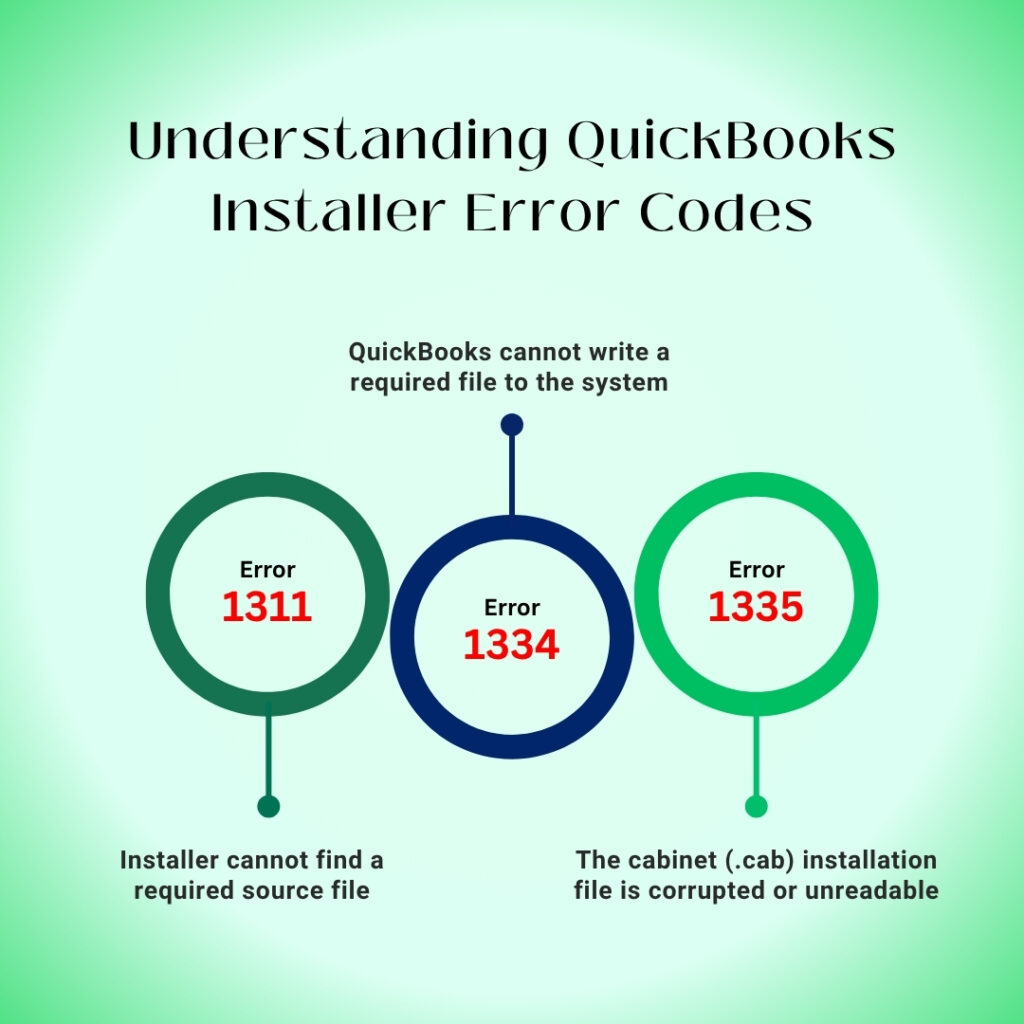
Error 1311: Source File Not Found
Error 1311 produces the message: “Error 1311: Source file not found: C:\Program Files(x86)\Intuit\QuickBooks [year]\…\Data1.cab. Verify that the file exists and that you can access it. Click Retry to retry the failed action, or Cancel to cancel this action and continue setup.” The Data1.cab file mentioned in the error message is a cabinet file – a cabinet file is a compressed archive that contains all of the QuickBooks installation program files packed together. The installer extracts this cabinet file first, then unpacks and installs the program files from inside it. Error 1311 appears when the cabinet file cannot be found at the path the installer is looking for it.
The error message also includes a More Info button. Clicking More Info shows the exact file path where the installer was searching for the cabinet file. This path tells the user whether the installer was looking on a CD drive (showing a path that starts with D:\ or E:\), on a local folder on the computer’s main drive, or in the Windows Temp folder. The path in the error message identifies where the corrupted or missing file was expected to be, which is the starting point for the fix.
Error 1334: The File Cannot Be Written
Error 1334 produces one of two messages: “Error 1334: Error writing to file [filename]. Verify that you have access to that directory,” or “Error 1334: The file cannot be installed. Insert the QuickBooks CD and retry.” Intuit’s own support documentation confirms that Error 1334 is triggered by an improper or incomplete installation, a missing or damaged QuickBooks Desktop installation file, or a corrupted .NET Framework component. The first message appears during digital download installations. The second message appears during CD-based installations when the CD cannot be read.
Error 1334 differs from Error 1311 in one important way: Error 1311 means the installer cannot find a source file to extract from, while Error 1334 means the installer found the source file but cannot write the extracted file to the destination folder on the computer. This distinction matters because Error 1334 requires checking not only the installer source but also the destination folder permissions – the folder where the installer is trying to write program files may be restricting access.
Error 1335: The Cabinet File Is Corrupt
Error 1335 produces a specific message: “Error 1335: The cabinet file [data1.cab] required for this installation is corrupt and cannot be used.” This error confirms that the Data1.cab cabinet file was found by the installer but is damaged and cannot be read. Unlike Error 1311 where the file is simply missing, Error 1335 means the file exists but contains corruption that prevents the installer from extracting program files from it. Error 1335 is a Windows error that appears when updating or repairing QuickBooks Desktop as well as during fresh installations.
Quick Diagnosis: Match the Error to Its Specific Cause
Match the exact situation to this table before applying any fix. The most common cause of wasted time in installer error troubleshooting is applying the wrong fix for the specific situation.
| Error and Situation | Most Likely Cause | Start With This Fix |
|---|---|---|
| Error 1311 during a fresh installation from a downloaded installer | Incomplete download – the Data1.cab file was not fully downloaded | Fix 1: Clear Temp folder; re-download fresh installer from Intuit |
| Error 1311 during a QuickBooks update patch (not fresh install) | Partial update download where Data1.cab did not fully extract to the Temp folder | Fix 1: Reset Update in Help > Update QuickBooks Desktop; re-download |
| Error 1311 during installation from a CD or DVD disc | CD is scratched, dirty, or the drive is reading at a speed causing read errors | Fix 2: Copy all CD contents to Desktop folder; install from local copy |
| Error 1334 during digital download installation | Installer cannot write to the destination folder due to permission restrictions | Fix 3: Check folder permissions; run installer as administrator |
| Error 1334 or 1335 during CD installation | Cabinet file on CD is scratched or damaged | Fix 2: Copy CD to Desktop; if still fails, download fresh from Intuit |
| Error 1335 – cabinet file found but corrupt | Data1.cab was partially downloaded or damaged during extraction to Temp folder | Fix 1: Clear Temp folder; Fix 4: Selective Startup installation |
| All three errors appeared in the same failed installation | Multiple simultaneous failures from Windows component damage and corrupted download | Fix 5: Install Diagnostic Tool; then Fix 1: Fresh installer download |
| Error appeared on a computer with antivirus running | Antivirus blocked the installer from writing extracted files or deleted cabinet file | Fix 4: Selective Startup to disable antivirus during installation |
Why Installer Files Become Corrupted?: The Five Root Causes
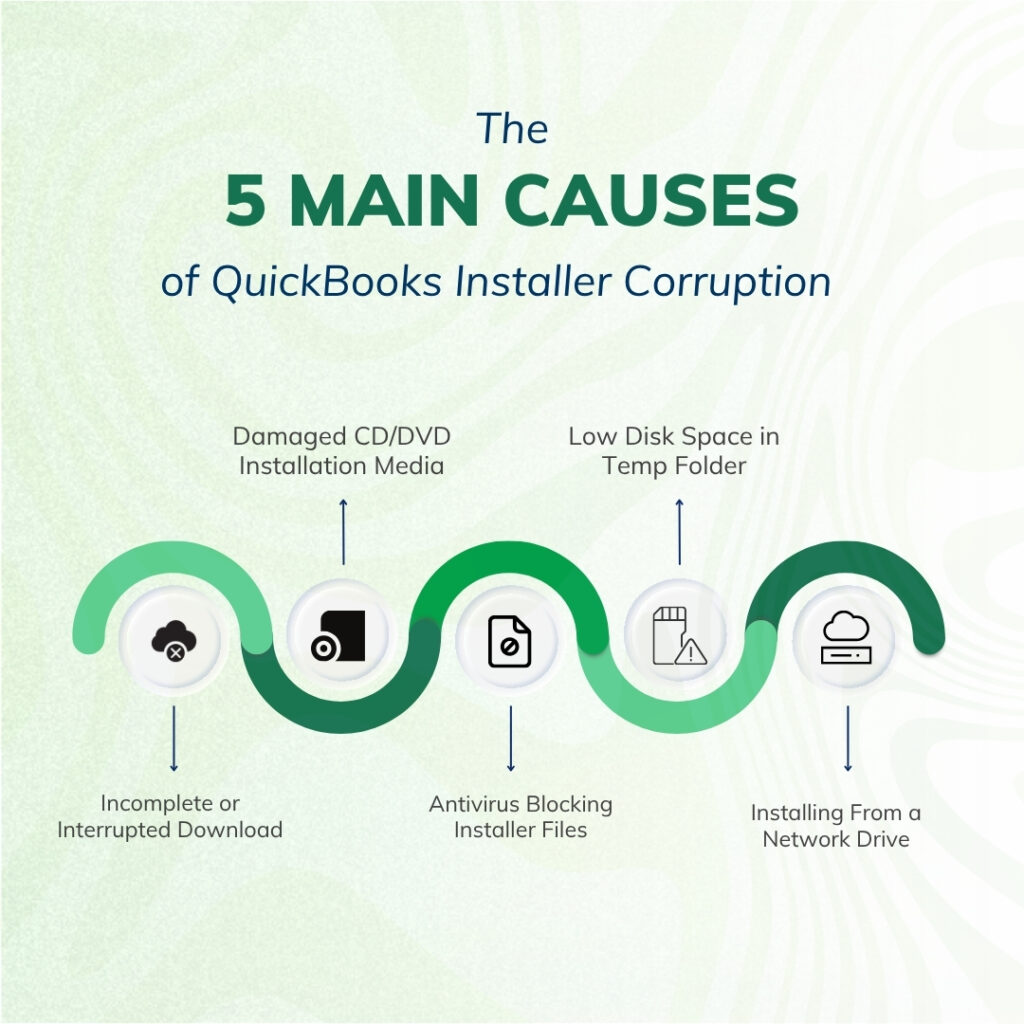
The five root causes why installer files become corrupted are:
- Root Cause 1: Interrupted or Incomplete Download
- Root Cause 2: CD or DVD Drive Read Errors
- Root Cause 3: Antivirus Deleting or Blocking Installer Files
- Root Cause 4: Insufficient Space in the Windows Temp Folder
- Root Cause 5: Network Latency When Installing From a Network Share
Root Cause 1: Interrupted or Incomplete Download
The QuickBooks Desktop installer file is 400 to 600 MB in size. A download that is interrupted by a lost internet connection, a browser that closed before the download finished, or a network timeout produces a partially downloaded installer file. This partial file contains the full outer shell of the installer but is missing sections from the middle, including the Data1.cab cabinet file. The installer opens normally, begins setup, reaches the extraction step, tries to read Data1.cab, finds it incomplete or absent, and reports Error 1311 or 1335.
The most reliable way to identify an incomplete download is to check the file size of the downloaded installer. A complete QuickBooks Desktop 2024 installer is approximately 400 to 600 MB. A file significantly smaller than this – for example, 80 MB or 200 MB – was not fully downloaded. Right-clicking the downloaded file and selecting Properties shows its exact size. A file that appears to have been downloaded but is smaller than expected needs to be deleted and re-downloaded with a stable internet connection.
Root Cause 2: CD or DVD Drive Read Errors
A QuickBooks installation CD that is scratched, dirty, or stored incorrectly produces Error 1311 when the CD drive cannot read the Data1.cab cabinet file from the disc surface. CD drives read data by reflecting a laser off the disc surface, and a scratch or smudge at the location where Data1.cab is stored on the disc prevents the laser from reading the file correctly. The installer receives an incomplete or unreadable file and reports it as a source file not found error. This cause is specific to CD-based installations and does not affect digital download installations.
A CD drive that spins too fast can also produce read errors on a disc that would read correctly at a slower speed. Copying all the files from the CD to a folder on the computer’s main drive and running the installer from that local folder – rather than directly from the CD – eliminates both the scratched disc and the drive speed issues as causes. A local drive reads files significantly faster and more reliably than a CD drive, which also makes the installation itself faster.
Root Cause 3: Antivirus Deleting or Blocking Installer Files
Antivirus programs scan every file being written to the computer in real time. The QuickBooks installer extracts its files – including Data1.cab – to the Windows Temp folder as the first step of installation. An antivirus program that classifies the extracted cabinet file or the temporary installer executable as suspicious can quarantine or delete the file during the extraction process. Quarantining means the antivirus moves the file to a restricted area where no other program can access it. From the installer’s perspective, the file was extracted and then disappeared – which produces Error 1311, 1334, or 1335 at the extraction step.
Antivirus interference with installer files is particularly common after an antivirus program has been updated with new detection rules that flag QuickBooks installer components as matching known threat signatures. A documented fix guide confirmed this directly: “Disable antivirus and firewall software temporarily during installation” is one of the core preventive steps for all three installer file errors. Disabling only for the duration of the installation and re-enabling immediately after prevents interference without leaving the computer unprotected.
Root Cause 4: Insufficient Space in the Windows Temp Folder
The Windows Temp folder is a storage location Windows uses for files that programs need temporarily while performing tasks like installations and updates. The QuickBooks installer extracts the entire Data1.cab cabinet file – which unpacks to several gigabytes – into the Temp folder before installing any program files. A Temp folder on a drive with insufficient free space cannot hold the extracted files, causing the extraction to fail partway through and producing Error 1311 or 1335. Intuit’s system requirements specify a minimum of 2.5 GB of available disk space for QuickBooks Desktop program files, but the Temp folder extraction requires additional space beyond this.
A Temp folder that has accumulated files from months or years of software installations and Windows operations can consume gigabytes of space with old, unused temporary files. Clearing these old files creates the space the QuickBooks extraction needs. The Windows Disk Cleanup utility (accessed by searching for Disk Cleanup in the Windows Start menu) safely removes temporary files without affecting any user data or installed programs. Manually clearing the Temp folder by typing %temp% in the Windows Run dialog provides even more complete removal.
Root Cause 5: Network Latency When Installing From a Network Share
Installing QuickBooks from a network share – a folder stored on another computer or server on the office network, accessed over the office network connection – introduces network latency as a cause of installer file corruption. Network latency is the brief delay that occurs when data travels between two computers over a network. A network dropout or latency spike that occurs at the exact moment the installer is reading Data1.cab from the network share can corrupt the read, producing a partially extracted cabinet file that triggers Error 1311 or 1335. Copying the installation files to a local drive on the computer being installed eliminates network latency as a cause entirely.
Fix 1: Clear the Temp Folder and Re-Download the Installer
What This Fix Does and Why It Resolves the Error?
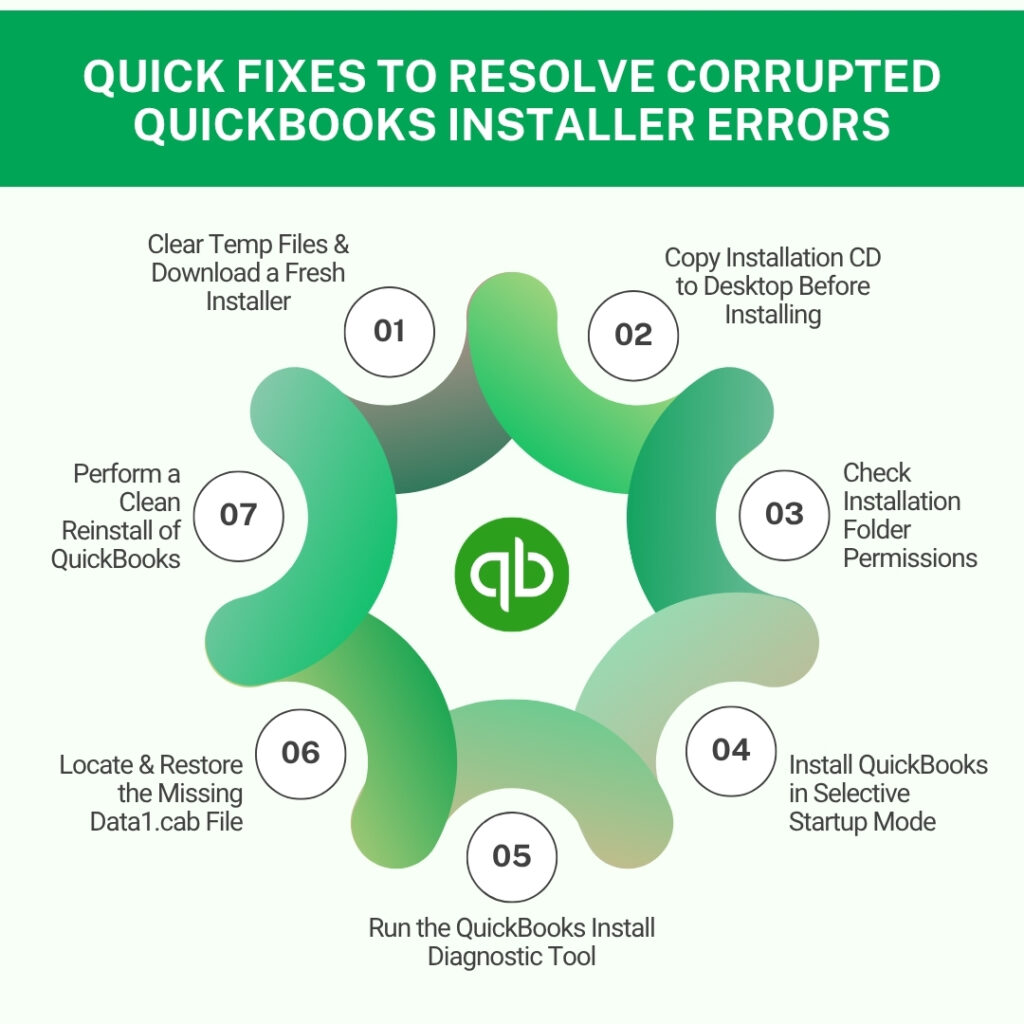
Clearing the Windows Temp folder removes all partial, incomplete, or corrupted installer files from previous failed installation attempts. Re-downloading the installer from Intuit’s official website after clearing the Temp folder ensures the new installer file is complete and uncorrupted. These two steps together eliminate the most common single cause of all three installer file errors: a partial or corrupted installer download. This fix takes about 10 to 15 minutes including the download time and resolves the majority of Error 1311, 1334, and 1335 cases.
Press Windows + R to open the Run dialog. Type %temp% and press Enter. The Windows Temp folder opens. Press Ctrl + A to select all files. Press Delete. Click Skip for any files that cannot be deleted because they are currently in use. Press Windows + R again, type temp (without the percent signs), and press Enter. Delete all files in this second Temp folder as well. Go to Intuit’s official Downloads & Updates page and download a fresh installer for the QuickBooks version and year. Save the downloaded file directly to the Desktop – not inside nested folders. Right-click the installer and select Run as administrator. Follow the installation prompts.
For QuickBooks update failures (not fresh installations), the reset must be applied inside QuickBooks rather than through a manual file deletion. Go to Help > Update QuickBooks Desktop > Update Now tab. Check the box labeled Reset Update and click Get Updates. The Reset Update checkbox deletes all partially downloaded update files and downloads a complete fresh copy of the update package before any installation is attempted. Intuit’s community support team confirmed this specific step in the documented R13P update failure case.
Fix 2: Copy the Installation CD to the Desktop and Install From There
Why Installing From a Local Copy Resolves CD-Based Errors?
Copying all files from the QuickBooks installation CD to a folder on the computer’s main drive (the C: drive) and running the installer from that local folder eliminates CD read errors, drive speed issues, and disc surface damage as causes of Error 1311 and 1335. A local drive reads files at consistent high speed and without the physical read limitations of an optical disc drive. This fix is documented as the correct approach for CD-based installer errors: open File Explorer, navigate to the CD drive, select all files using Ctrl + A, copy them, and paste into a new folder on the Desktop named QB_Install.
Insert the QuickBooks installation CD into the CD drive. Open File Explorer. Click on the CD drive letter in the left panel (usually D: or E:). Press Ctrl + A to select all files on the disc. Press Ctrl + C to copy. Navigate to the Desktop. Right-click an empty area of the Desktop and select New > Folder. Name the folder QB_Install. Open the QB_Install folder. Press Ctrl + V to paste all files from the CD. After the copy finishes, right-click the Setup.exe or installer file inside the QB_Install folder and select Run as administrator. Follow the installation prompts.
If the CD copy itself fails because the disc is too damaged to read, the solution is to download a fresh digital copy of the same QuickBooks version from Intuit’s official Downloads & Updates page using the license number and product number from the original purchase. A download from Intuit’s website always provides the most current release of that version – which is more up to date than a physical disc that was manufactured at a fixed point in time.
Fix 3: Check Folder Permissions for the Installation Destination
Why Folder Permissions Cause Error 1334?
Error 1334 – which means the installer found its source files but could not write the extracted files to the destination folder on the computer – is caused by the destination folder blocking the installer’s write operations. The destination folder for QuickBooks program files is C:\Program Files\Intuit\QuickBooks [Year]. The folder containing shared QuickBooks data files is C:\ProgramData\Intuit. Both folders must grant the SYSTEM account – which is the internal Windows account that runs background installation processes – and the current user account Full Control permission. A folder that allows only Read permission blocks the installer from writing extracted files and produces Error 1334.
Intuit’s own installation error documentation confirms the permission requirement: “Error 1303: Installer has insufficient privileges to access this directory C:\…\Intuit. This can occur if either the SYSTEM group or the Everyone group does not have Full Control privileges for the directory mentioned in the error.” The fix for Error 1303 (a related installer permission error) applies equally to permission-caused Error 1334: manually modify the folder permissions to Full Control for the SYSTEM and Everyone groups on the Intuit folder.
Open File Explorer. Navigate to C:\Program Files\Intuit. Right-click the Intuit folder and select Properties. Click the Security tab. Click Edit to change permissions. If SYSTEM is not in the list, click Add, type SYSTEM, and click OK. Select SYSTEM in the list and check Full Control under the Allow column. Click Apply > OK. Repeat this process for C:\ProgramData\Intuit. Retry the QuickBooks installation.
Fix 4: Install QuickBooks in Selective Startup Mode
Why Selective Startup Eliminates Antivirus Interference?
Selective Startup mode starts Windows with only essential Microsoft services running and disables all third-party programs – including antivirus software – from running in the background. Antivirus programs that intercept the QuickBooks installer’s extraction of the Data1.cab cabinet file produce Errors 1311, 1334, and 1335 because the cabinet file is quarantined or deleted before the installer can use it. Disabling antivirus through Selective Startup is more complete than using the antivirus program’s own disable button, because Selective Startup prevents the antivirus service from loading at all – even services that remain partially active after the program’s disable toggle is used.
Press Windows + R, type msconfig, press Enter. Click the General tab. Select Selective Startup. Uncheck Load Startup Items. Click the Services tab. Check Hide All Microsoft Services. Click Disable All. Click Apply > OK. Restart the computer. After restarting, right-click the QuickBooks installer file and select Run as administrator. After the installation completes, open msconfig again, select Normal Startup, click Apply > OK, and restart the computer to restore normal Windows operation.
Fix 5: Run the QuickBooks Install Diagnostic Tool
What the Tool Does for Corrupted Installer Errors?
The QuickBooks Install Diagnostic Tool repairs the Windows components that the QuickBooks installer depends on: Microsoft .NET Framework (a software layer Windows provides that QuickBooks uses to run its setup screens and register program files), MSXML (Microsoft XML Core Services, which the installer uses to read its configuration files), and Microsoft Visual C++ Redistributable files (shared program libraries that both the installer and the installed program need). A damaged .NET Framework component can prevent the installer from correctly extracting and writing the cabinet file contents, which produces installer file errors even when the installer file itself is complete and uncorrupted.
Intuit’s community support team recommended the Install Diagnostic Tool specifically in the documented R13P update failure case that produced Errors 1712, 1603, and 1311 simultaneously. The team confirmed: “You can utilize the QuickBooks Tool Hub to address errors 1712, 1603, and 1311.” The Tool Hub’s Install Diagnostic Tool addresses all three error codes in one automated process, which is why it is the correct fix when multiple installer errors appear at the same time.
Download the QuickBooks Tool Hub version 1.6.0.8 from Intuit’s official support page. Open it. Click Installation Issues in the left menu. Click QuickBooks Install Diagnostic Tool. Allow it to run without interruption – up to 20 minutes. Do not close the tool while it runs, because it downloads and verifies each component individually. Restart the computer when it finishes. Run Fix 1 (clearing the Temp folder and downloading a fresh installer) after the Diagnostic Tool completes, then retry the installation.
Fix 6: Locate and Move the Existing Data1.cab File
When the Cabinet File Exists But Is in the Wrong Location?
Error 1311 sometimes appears not because the Data1.cab file is missing from the computer but because the installer is looking for it at a different path than where it was extracted. A QuickBooks installer that extracted files to one Temp folder path during a previous failed attempt and then cannot find them at a slightly different Temp folder path during the next attempt produces this specific scenario. The fix in this case is to find where Data1.cab currently exists on the computer, note the path where the error says the installer is looking for it, and copy the file to that expected location.
Note the file path shown in the Error 1311 message by clicking the More Info button on the error pop-up – this shows the exact path where the installer is looking for Data1.cab. Open File Explorer. Click in the search bar. Type Data1.cab and search the entire C: drive. Find any Data1.cab files in the search results. Copy the found file (Ctrl + C). Navigate to the path shown in the error message. Paste the file (Ctrl + V). Retry the QuickBooks installation. If no Data1.cab file is found on the computer, clear the Temp folder and re-download the installer as described in Fix 1.
Fix 7: Perform a Clean Install of QuickBooks Using the Clean Install Tool
When All Other Fixes Have Not Resolved the Error?
A clean install removes all QuickBooks program files and registry entries more completely than the standard Windows uninstall, then installs a fresh copy from a clean installer downloaded directly from Intuit’s website. The QuickBooks Clean Install Tool is Intuit’s free utility that performs this complete removal. A clean install is the correct approach when the installer file errors persist after Fix 1 (clearing Temp and fresh download), Fix 4 (Selective Startup), and Fix 5 (Install Diagnostic Tool) have all been applied, because this combination of failures indicates that both the installer and the existing QuickBooks installation are in conflicting damaged states that only a complete fresh start can resolve.
Record the QuickBooks license number and product key from Help > About QuickBooks before starting. Open Control Panel > Programs > Programs and Features. Right-click QuickBooks and select Uninstall. Download the QuickBooks Clean Install Tool from Intuit’s official support page. Run the Clean Install Tool to remove residual files and registry entries the standard uninstall left behind. Restart the computer. Download a fresh QuickBooks installer from Intuit’s official Downloads & Updates page. Save it directly to the Desktop. In Selective Startup mode (Fix 4 steps), right-click the installer and select Run as administrator. Follow the installation prompts.
All QuickBooks Fixes at a Glance
| Fix | Error It Resolves | What It Addresses | Time Required |
|---|---|---|---|
| Fix 1: Clear Temp folder + re-download fresh installer | 1311, 1334, 1335 | Incomplete or corrupted download; partial extraction files from failed attempts | 10–15 min |
| Fix 2: Copy CD to Desktop; install from local copy | 1311, 1335 (CD-based) | CD read errors, disc scratches, drive speed causing read failures | 10–20 min |
| Fix 3: Repair destination folder permissions | 1334 | SYSTEM account lacking Full Control on Intuit installation folders | 10 min |
| Fix 4: Selective Startup installation | 1311, 1334, 1335 | Antivirus blocking or deleting installer files during extraction | 15 min |
| Fix 5: QuickBooks Install Diagnostic Tool | 1311, 1334, 1335 + 1712, 1603 | Damaged .NET Framework, MSXML, or Visual C++ components | 15–20 min |
| Fix 6: Locate and move Data1.cab to expected path | 1311 | Cabinet file exists but is at a different path than the installer expects | 5 min |
| Fix 7: Clean Install Tool + fresh download | All three | Persistent errors after all other fixes; damaged existing installation state | 45–90 min |
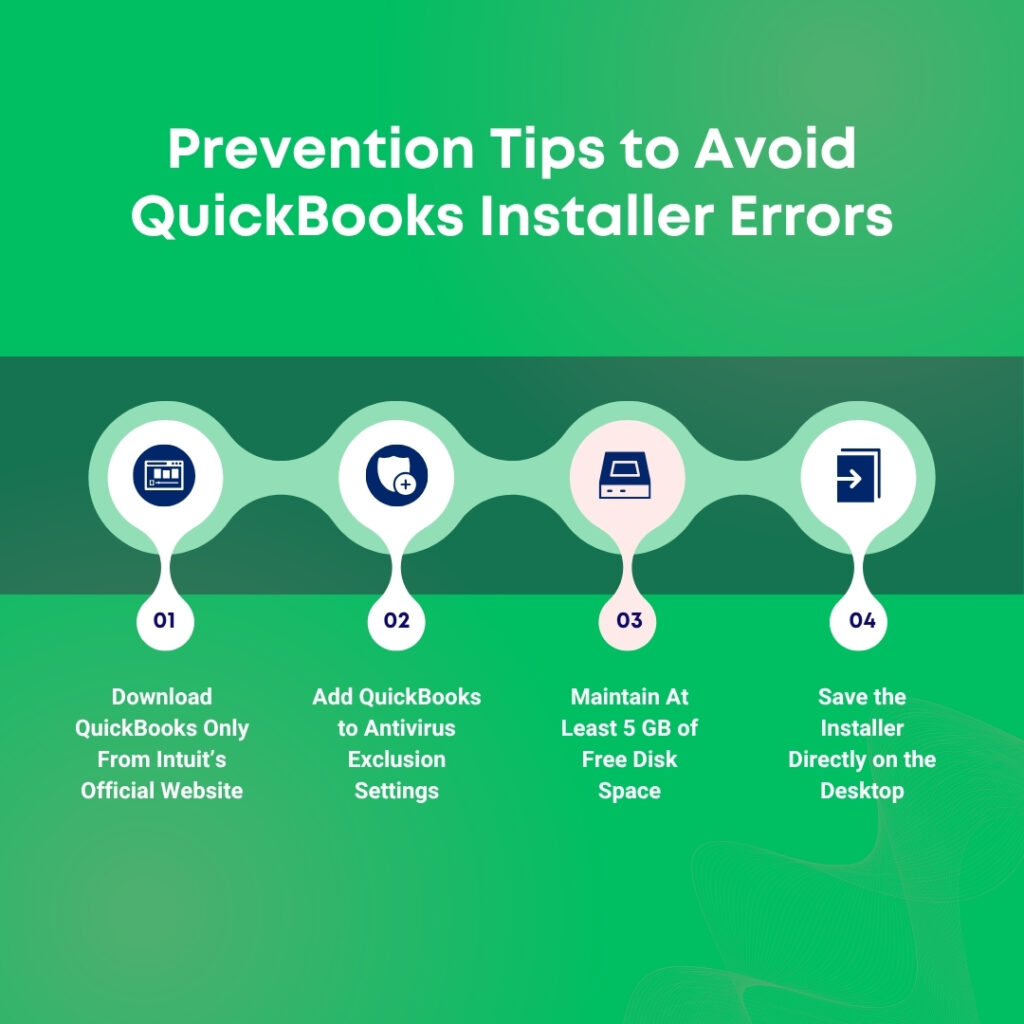
QuickBooks Prevention: Stop Installer File Errors From Recurring
- Always Download the Installer From Intuit’s Official Website
Intuit’s official Downloads & Updates page at intuit.com is the only reliable source for complete, uncorrupted QuickBooks installer files. Downloading from unofficial websites, torrent sites, or third-party distribution services risks receiving a modified, incomplete, or infected installer that will produce installer errors. An installer downloaded from an unofficial source may appear to be a valid QuickBooks file but contain sections that were never fully downloaded or that were deliberately altered. The Download & Updates page requires the QuickBooks license number and country, which ensures the downloaded installer matches the licensed version.
- Add QuickBooks to the Antivirus Exclusion List After Installation
After QuickBooks installs successfully, adding the QuickBooks installation folder (C:\Program Files\Intuit\QuickBooks [Year]) and the Windows Temp folder to the antivirus exclusion list prevents future antivirus interference with QuickBooks updates. Each QuickBooks update follows the same installer process as the original installation: it extracts a cabinet file to the Temp folder, unpacks program files, and writes them to the installation directory. An antivirus that intercepts this process during future updates produces the same 1311, 1334, and 1335 errors. The exclusion list tells the antivirus to skip these specific locations during real-time scanning without reducing protection for the rest of the computer.
- Keep at Least 5 GB of Free Space Available on the System Drive
The Windows system drive – usually the C: drive – must have at least 5 GB of free space before any QuickBooks installation or update attempt. Intuit’s minimum system requirement specifies 2.5 GB for the program files alone, but the extraction process for the installer cabinet file requires additional space in the Windows Temp folder on top of the program installation space. A system drive with less than 5 GB of free space is at risk of running out of room during the cabinet file extraction, which produces Error 1311 or 1335 mid-installation. Checking the available space through File Explorer (right-click the C: drive and select Properties) before any QuickBooks installation confirms sufficient space is available.
- Save the Installer Directly to the Desktop, Not Inside Nested Folders
Windows has a file path length limit of 260 characters – a file path is the full address of a file including the drive letter, folder names, and filename. A QuickBooks installer saved inside multiple nested folders can exceed this limit when Windows tries to extract its files to a sub-path within the Temp folder, causing extraction to fail with Error 1311 or 1334. Saving the installer directly to the Desktop keeps the file path as short as possible. The Desktop path is typically C:\Users\[Username]\Desktop\QuickBooksInstaller.exe – approximately 60 characters – well within the 260-character limit for all extraction operations.
Conclusion
Errors 1311, 1334, and 1335 all indicate corrupted or missing QuickBooks installer files, and all three share the same primary cause: an incomplete or interrupted installer download left the Data1.cab cabinet file either absent, partially written, or damaged. The fastest resolution for all three errors is clearing the Windows Temp folder and re-downloading a fresh, complete installer from Intuit’s official Downloads & Updates page. This fix resolves the majority of installer file errors in under 15 minutes and requires no technical expertise beyond navigating to a folder and downloading a file.
Antivirus interference is the second most common cause of all three errors and produces a specific pattern: the installation begins normally, reaches the file extraction step, and then fails because the cabinet file was quarantined or deleted by the antivirus real-time scanner before the installer could use it. Running the installation in Selective Startup mode, which disables the antivirus service entirely for the duration of the installation, eliminates this cause. After the installation completes, adding QuickBooks to the antivirus exclusion list prevents the same interference from occurring during future updates.
Intuit’s QuickBooks Tool Hub – free from Intuit’s official support page – contains the Install Diagnostic Tool, which addresses the Windows component layer (.NET Framework, MSXML, and Visual C++) that can also produce installer file errors when damaged. Running the Install Diagnostic Tool alongside a fresh installer download and Selective Startup installation covers all three layers of installer file error causes in one pass and resolves even the most persistent installer failures.
Frequently Asked Questions
1. Error 1311 appeared during a QuickBooks update, not a fresh installation. The computer has a stable internet connection. What else could have caused the error?
A stable internet connection that is not fast enough to maintain the download without any packet loss during the update download can produce an incomplete Data1.cab file that looks complete but contains gaps. Intuit’s installer extracts the cabinet file progressively, and a data gap in the middle of the file produces Error 1311 when the installer reaches the gap during extraction.
The fix is to use the Reset Update feature inside QuickBooks (Help > Update QuickBooks Desktop > Update Now tab > check Reset Update > Get Updates) to discard the partial download and download the update package fresh. The Reset Update checkbox was specifically documented in the R13P update failure case on Intuit’s community forum as the correct way to clear a corrupted update download.
2. The error message for Error 1311 names a specific file path on the D: drive. The computer does not have a physical CD. What is the D: drive reference?
A D: drive path in Error 1311 on a computer without a physical CD drive typically means the installer was originally run from a CD, USB drive, or external drive that was connected to the D: drive letter at the time of installation, and QuickBooks stored that path as the source location.
A subsequent QuickBooks update or repair attempt reads the stored source path and tries to access the D: drive for the update files, but the original disc or drive is no longer connected. The fix is to download the installer directly from Intuit’s Downloads & Updates page and run it from the desktop, which gives QuickBooks a new, valid source path for future update references.
3. Error 1334 is showing the name of a specific QuickBooks file in the error message. Does replacing just that one file resolve the error?
Replacing only the specific file named in Error 1334 rarely resolves the error permanently. Error 1334 occurs because the installer’s write operation to the destination folder is being blocked – the specific file named in the message is simply the first file the installer tried to write when it encountered the block.
After replacing that one file, the installer will proceed to the next file and produce the same Error 1334 for that file, and then the next, until the permission or write block that caused the error is resolved. The correct fix addresses the root cause – either the permission restriction on the destination folder (Fix 3), the antivirus interference (Fix 4), or the partial installer download (Fix 1) – rather than replacing individual files.
4. All fixes were applied and the fresh installer ran without error, but the same computer showed installer errors again two months later during a QuickBooks update. Why is the error recurring?
A recurring installer error two months after a successful installation is almost always caused by antivirus interference re-establishing itself during a QuickBooks update. The antivirus program was disabled during the original installation (through Selective Startup), but it ran normally during the update two months later and quarantined the update’s cabinet file extraction.
The permanent fix is adding QuickBooks to the antivirus exclusion list after the original installation, before the first update is applied. The QuickBooks installation folder (C:\Program Files\Intuit\QuickBooks [Year]) and the Windows Temp folder need to be added as excluded locations in the antivirus settings. This prevents the antivirus from scanning these locations during future updates without disabling it for the rest of the computer.
5. The CD that came with QuickBooks is scratched and produces Error 1311. Intuit no longer sells this QuickBooks version. How can a working installer be obtained?
Intuit’s Downloads & Updates page provides digital downloads for all QuickBooks Desktop versions that are still within their support period. A scratched CD can be replaced with a fresh digital download by visiting the Downloads & Updates page, selecting the country, product, and version year, and downloading the installer using the original license number.
For QuickBooks versions that have passed their end-of-support date – such as QuickBooks Desktop 2021, which reached end-of-support on May 31, 2024 – the download may still be available on the Downloads & Updates page even though updates and security patches are no longer released.
Logging in to the Intuit Customer Account Management Portal at camps.intuit.com provides access to all previously purchased QuickBooks licenses and their corresponding downloads.

Anusmita is a seasoned content writer who brings perspective to words. As a writer, she enriches her work with a journalistic aptitude, utilising her training in Mass Communication and Journalism. She loves to travel and explore, which imparts a greater sense of understanding, maturity, and experience that are reflected in her content.
Beyond her professional work, Anusmita enjoys painting, singing, dancing, and spending time planting. She is also a self-proclaimed foodie who loves exploring different cuisines, an interest that further adds to her curiosity and perspective as a writer.
Leave a Reply