
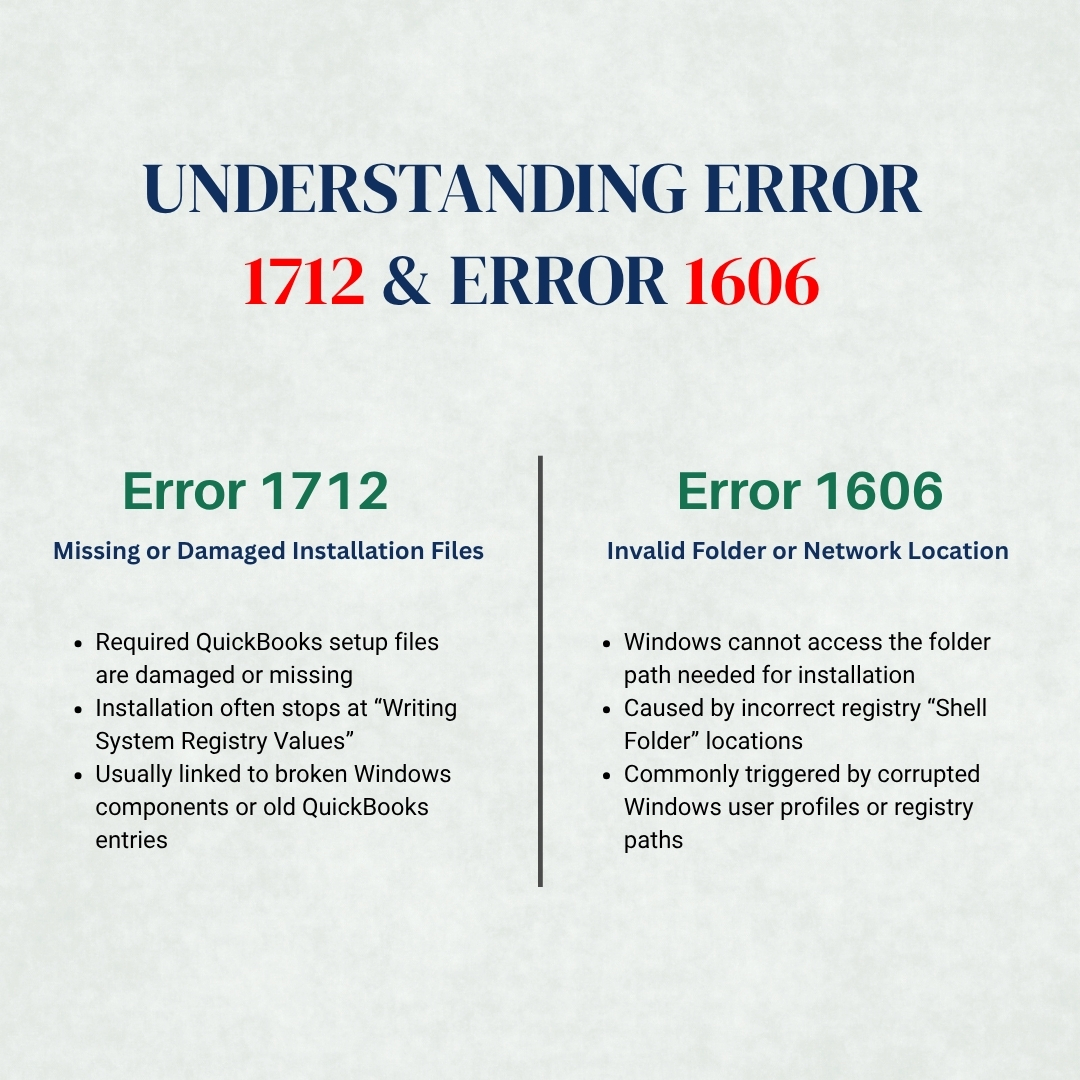
QuickBooks installation errors 1712 and 1606 both stop the setup process before QuickBooks can finish installing, but they do so for completely different reasons. Error 1712 means the installation stopped because one or more files required for setup are damaged or missing on the computer.
Error 1606 means the installation stopped because Windows could not reach a folder location that the installer tried to access – either because the folder path stored in the Windows registry points to a location that does not exist, or because a corrupted Windows user account is directing the installer to a non-existent destination.
Intuit’s own community support confirmed Error 1712 directly on its forum: “This error occurs when one or more Windows components are missing. QuickBooks Desktop uses Microsoft programs to run web-based apps.” The fix sequence Intuit’s team recommended starts with the QuickBooks Tool Hub and Quick Fix My Program, followed by the Install Diagnostic Tool, and if neither resolves it, creating a new Windows user account with administrator rights. Error 1606 has its own documented explanation: it occurs when a registry location begins pointing to a location that does not exist in Windows, causing the installer to report it cannot access the named network location.
Both 1712 and 1606 errors have been reported across QuickBooks Desktop versions 2020 through 2024 on Windows 10 and Windows 11. Neither error touches the company file – the .QBW file that holds all of the business’s accounting data stays completely intact through any installation failure. This article covers every documented cause and every fix for both errors in the correct sequence, from the fastest resolution to the most thorough.
Table of Contents
QuickBooks Error 1712 and Error 1606: What Each Error Means?
QuickBooks Error 1712: One or More Required Files Are Damaged or Missing
Error 1712 produces a specific message: “Error 1712: One or more files required for installation are damaged or missing.” This message appears when the Windows Installer service – the Windows background program that manages all software installations on the computer – tries to access a file it needs for the next installation step and cannot find it or cannot read it. The error is most frequently reported when the installation stops at around 30% progress, specifically at the step labeled “Writing System Registry Values” – the point where the installer registers new QuickBooks program files in the Windows registry.
The Windows registry is a database that Windows uses to store configuration information for all installed programs. Every program that installs on Windows writes entries to this registry so Windows knows where the program’s files are and how to run them. Error 1712 stopping at the registry-writing step confirms that the installer reached the point of adding QuickBooks entries to the registry but failed – either because a required file was absent, or because leftover registry entries from a previous QuickBooks installation conflicted with the new ones being written.
Error 1712 has been reported across QuickBooks Desktop versions 2020 through 2024, particularly after major Windows updates or system migrations. A documented real case on Intuit’s community forum showed the exact scenario: an update attempting to install stopped at 30% at the registry-writing step and showed Error 1712, with Intuit’s support team confirming the cause was missing Windows components and recommending the QuickBooks Tool Hub as the primary repair tool.
QuickBooks Error 1606: Could Not Access Network Location
Error 1606 produces this message: “Error 1606: Could not access network location.” The phrase “network location” in this error message does not refer to an internet connection or a shared office network drive. The “network location” is a folder path stored in the Windows registry that the installer reads to find where to write certain program files. In the Windows registry, paths to standard Windows folders – like the Documents folder, AppData folder, or Desktop – are stored under a registry key called Shell Folders. Error 1606 appears when one of these registry entries points to a folder path that does not exist on the computer.
Error 1606 is caused by the Windows environment, not by QuickBooks specifically. The error affects QuickBooks installation as well as installations of other Windows programs on the same computer. A corrupted Windows user profile – the set of Windows settings and folder configurations saved for a specific user account – can contain incorrect Shell Folders registry values. A damaged Windows registry can also contain entries where the expected folder path has been replaced with an empty value or an invalid path, both of which cause Error 1606 during any installation that reads those entries.
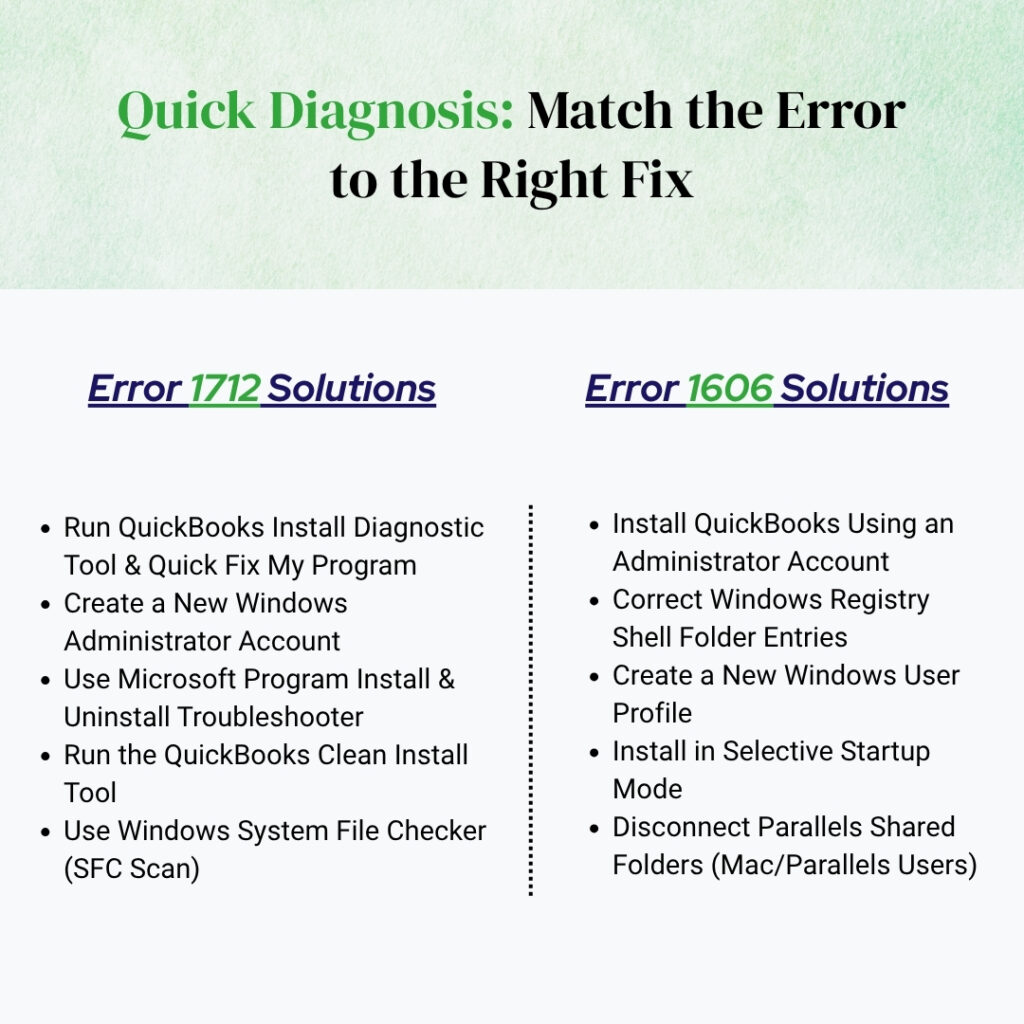
Quick Diagnosis: Match the Situation to the Correct QuickBooks Fix
Find the description that matches the situation before applying any fix. Starting at the right fix saves time.
| What Was Happening When the Error Appeared | Error | Root Cause | Start With This Fix |
|---|---|---|---|
| Update stopped at 30% at ‘Writing System Registry Values’ | 1712 | Missing Windows components or damaged registry from a prior install | Fix 1: QuickBooks Install Diagnostic Tool |
| Fresh installation on a new computer failed mid-way | 1712 | Leftover registry keys from a prior QuickBooks installation on this machine | Fix 1, then Fix 3 if it persists |
| Computer previously had a different QuickBooks version | 1712 | Orphaned installer files and registry keys from the old version | Fix 3: Microsoft Troubleshooter + Fix 4: Clean Install Tool |
| Installation freezes; computer slows or shows blue screen error | 1712 | Damaged Windows Installer service or corrupted system files | Fix 1, then Fix 5: Windows System File Checker |
| Error message reads ‘Could not access network location’ | 1606 | Windows registry Shell Folders entry pointing to a non-existent folder | Fix 6: Administrator account; Fix 7: Shell Folders registry check |
| Error 1606 appears only for one specific Windows user account | 1606 | That specific Windows user profile is corrupted | Fix 8: Create new Windows administrator account |
| Error appeared using QuickBooks Desktop on Windows 7 inside Parallels on Mac | 1606 | Parallels shared folder configuration replacing standard Windows shell paths | Fix 10: Disconnect Parallels shared folders |
| Both error 1712 and 1606 appeared during the same failed installation | Both | Windows update changed components and reset registry values simultaneously | Fix 1, Fix 4, then Fix 7 in sequence |
Fixes for QuickBooks Error 1712: Complete Solutions
Fix 1: Run the QuickBooks Install Diagnostic Tool and Quick Fix My Program
Intuit’s own community forum response to a documented Error 1712 case confirmed the first fix directly: “To rectify this error, let’s download the QuickBooks Tools Hub into your account. Beforehand, it’s best to secure a backup copy of your company file and ensure your QuickBooks Desktop is on its latest release.” The QuickBooks Tool Hub is Intuit’s free all-in-one repair application containing two tools relevant to Error 1712: Quick Fix My Program (which clears leftover QuickBooks background processes and runs a basic program repair) and the QuickBooks Install Diagnostic Tool (which detects and repairs damaged .NET Framework, MSXML, and Visual C++ components that the installer depends on).
Run both tools in sequence. Quick Fix My Program takes about five minutes and clears stale background processes that might be holding files the installer needs. The Install Diagnostic Tool then repairs the Windows components. Both tools require the computer to be restarted after they complete before the QuickBooks installation is retried. If the installation fails after one run of the Install Diagnostic Tool, Intuit’s documentation and community responses support running the tool a second time before moving to manual fixes, because some component repairs require two passes.
Download the QuickBooks Tool Hub version 1.6.0.8 from Intuit’s official support page. Open it. Click Program Problems in the left menu. Click Quick Fix My Program. Wait approximately five minutes for it to complete. Then click Installation Issues in the left menu. Click QuickBooks Install Diagnostic Tool. Allow it to run without interruption – up to 20 minutes. Restart the computer when it finishes. Retry the QuickBooks installation or update.
Fix 2: Create a New Windows Administrator Account
Intuit’s community support team confirmed the second fix for Error 1712 directly: “If the issue persists, add or create a Windows user with Administrator rights, then attempt QuickBooks installation.” A Windows user account that does not have full administrator rights – or an account whose administrator permissions have been corrupted – blocks the installer from writing to protected Windows folders and registry locations. Creating a fresh Windows administrator account gives the installer a clean permission environment without the restrictions present in the existing account.
For QuickBooks update failures specifically, Intuit documents a related issue: QuickBooks creates a background service account named QBDataServiceUserXX during installation (where XX corresponds to the version number – for QuickBooks Desktop 2024, the account is QBDataServiceUser34). This service account must have administrator rights to write update files. Go to Control Panel > User Accounts, find QBDataServiceUser34 in the list, and confirm its account type is set to Administrator.
Press Windows + I to open Settings. Go to Accounts > Family & other users > Add someone else to this PC. Create a new local account. Click on the account name and select Change account type. Set it to Administrator. Sign out of the current account. Log in with the new account. Right-click the QuickBooks installer and select Run as administrator. Follow the installation prompts.
Fix 3: Use the Microsoft Program Install and Uninstall Troubleshooter
Orphaned installer files and registry keys from a previous QuickBooks installation directly cause Error 1712 on computers where QuickBooks was previously installed. These leftover entries conflict with the new installation when the installer tries to write to registry keys that already contain data from the old version. The Microsoft Program Install and Uninstall Troubleshooter is a free tool from Microsoft that safely detects and removes these orphaned registry entries without requiring manual registry editing. Multiple documented troubleshooting guides confirm this tool is the recommended approach for this specific cause of Error 1712.
Download the Microsoft Program Install and Uninstall Troubleshooter from Microsoft’s official support page by searching for “Microsoft Program Install and Uninstall Troubleshooter.” Run the downloaded file. Click Next. When asked about the problem type, select Installing. From the list of programs shown, select QuickBooks Desktop or the specific version listed. Allow the tool to scan and apply its fixes automatically. Reboot the computer after the tool finishes. Download a fresh QuickBooks installer from Intuit’s official website. Right-click it and select Run as administrator. Retry the installation.
Fix 4: Use the QuickBooks Clean Install Tool
The QuickBooks Clean Install Tool removes a QuickBooks installation more completely than the standard Windows uninstall by targeting the registry entries and shared component registrations that a normal uninstall leaves behind. These leftover items are the exact files and registry keys that produce Error 1712 when a previous installation was incomplete or when a QuickBooks update failed partway through. Using the Clean Install Tool followed by a fresh installation gives QuickBooks a completely clean starting environment with no inherited conflicts.
Download the QuickBooks Clean Install Tool from Intuit’s official support page. Record the QuickBooks license number and product key from Help > About QuickBooks before starting. Open Control Panel > Programs > Programs and Features. Right-click QuickBooks and select Uninstall. After the uninstall completes, run the Clean Install Tool to remove residual files and registry entries. Restart the computer. Download a fresh installer from Intuit’s official website. Right-click it and select Run as administrator. Follow the installation prompts.
Fix 5: Run the Windows System File Checker
The Windows System File Checker scans all protected Windows system files and replaces any that are damaged with correct versions from Windows’ own component store. The command to run it is sfc /scannow, typed in an administrator Command Prompt. A system file damaged by a disk error, a virus, or an interrupted Windows update causes Error 1712 because the Windows Installer service depends on specific Windows core files to complete the registry-writing process. This fix is the correct next step when Error 1712 persists after all QuickBooks-specific repair tools have been applied.
Press Windows, type cmd, right-click Command Prompt, select Run as administrator. Type: sfc /scannow and press Enter. Allow the scan to complete fully – it takes 15 to 30 minutes. If the scan reports repaired files, restart the computer and retry the QuickBooks installation. If it reports corruption it could not repair, run Windows Update (Settings > Windows Update > Check for Updates), install all available updates, restart, and run sfc /scannow again before retrying QuickBooks.
Fixes for QuickBooks Error 1606: Complete Solutions
Fix 6: Install QuickBooks Using a Windows Administrator Account
Error 1606 most commonly appears when the Windows account currently logged in does not have administrator rights, or when the account’s permissions are corrupted. An administrator account is a type of Windows account that has full access to make changes to the computer – including installing software and modifying system folders. A standard Windows account without these privileges cannot write to the system folders that the QuickBooks installer needs, causing Error 1606 when the installer reaches those locations.
Multiple documented fix guides confirm this as the primary solution: the first step to resolve Error 1606 is to reboot the computer and sign in using the Windows administrator username and password, then download and install QuickBooks, and then run QuickBooks to see if the error is resolved. If a dedicated administrator account does not exist, create one through Settings > Accounts > Family & other users > Add someone else to this PC, set its type to Administrator, then log in with that account and retry.
Restart the computer. Log in with a Windows account that has administrator rights. Right-click the QuickBooks installer and select Run as administrator. Follow the installation prompts. If no administrator account exists: go to Settings > Accounts > Family & other users > Add someone else to this PC. Create a new local account. Set its type to Administrator. Log in with that account and retry the QuickBooks installation.
Fix 7: Check and Correct the Windows Registry Shell Folders Entry
The Windows registry Shell Folders entry is a specific location that stores the folder paths Windows uses for standard locations like the Documents folder, Desktop, and AppData folder. The QuickBooks installer reads these paths to know where to write certain program files. Error 1606 occurs when one of these Shell Folders entries contains a path to a folder that does not exist on the computer. A missing folder path, an empty registry value, or a path with incorrect characters all cause Error 1606 because the installer follows the stored path and finds nothing there.
The Windows registry is a sensitive database – incorrect changes to it can damage Windows. Before editing any registry entry, always export the affected key as a backup file. The registry editor is accessed by pressing Windows + R, typing regedit, and pressing Enter. The Shell Folders key is located at HKEY_LOCAL_MACHINE\SOFTWARE\Microsoft\Windows\CurrentVersion\Explorer\Shell Folders and also under HKEY_CURRENT_USER\Software\Microsoft\Windows\CurrentVersion\Explorer\Shell Folders. Each value in these keys stores a folder path that the installer reads during setup.
Press Windows + R, type regedit, and press Enter. Before making any change, click File > Export. Enter a filename, choose the Desktop as the save location, and click Save – this creates a registry backup that can be restored by double-clicking the saved file. Navigate to: HKEY_LOCAL_MACHINE\SOFTWARE\Microsoft\Windows\CurrentVersion\Explorer\Shell Folders. Also check the same key under HKEY_CURRENT_USER. Right-click each entry and select Modify to view its path. Correct any entry that shows an empty value or a path pointing to a folder that does not exist on the computer. Close Registry Editor and retry the QuickBooks installation.
Fix 8: Create a New Windows User Profile
A corrupted Windows user profile stores incorrect Shell Folders registry values for that specific user account. Creating a new Windows user profile starts with clean, correct Shell Folders values and does not carry the corruption from the old profile. Installing QuickBooks from the new profile resolves Error 1606 caused by profile corruption without requiring any registry editing. The company file and all QuickBooks accounting data are stored separately from the Windows user profile and are not affected by creating or switching to a new profile.
Go to Settings > Accounts > Family & other users > Add someone else to this PC. Create a new local user account and set its type to Administrator. Restart the computer and log in with the new account. Right-click the QuickBooks installer and select Run as administrator. Follow the installation prompts. If QuickBooks installs without Error 1606, the original Windows user profile was the cause. The company file is accessible from the new profile through File > Open or Restore Company.
Fix 9: Run the Installation in Selective Startup Mode
Third-party applications – antivirus programs, system utilities, and background services – can interfere with the QuickBooks installer when it tries to access registry locations and write to system folders. This interference produces Error 1606 because the installer reaches a system location, a background program blocks the access, and the installer reports the location as inaccessible. Selective Startup mode starts Windows with only essential Microsoft services running, removing all third-party programs from memory for the entire duration of the installation.
Press Windows + R, type msconfig, and press Enter. Click the General tab. Select Selective Startup. Uncheck Load Startup Items. Click the Services tab. Check Hide All Microsoft Services. Click Disable All. Click Apply > OK. Restart the computer. Right-click the QuickBooks installer and select Run as administrator. After installation completes, open msconfig again, select Normal Startup, click Apply > OK, and restart the computer.
Fix 10: Disconnect Parallels Shared Folders (For Error 1606 in Parallels)
A specific documented case confirms Error 1606 appearing on computers running QuickBooks Desktop on Windows 7 installed inside Parallels – a program that allows a Windows operating system to run inside a Mac computer. Parallels creates shared folder connections between the Mac and the Windows environment it hosts. These shared folder connections produce registry Shell Folders entries that point to Parallels-specific shared folder paths rather than standard Windows folder paths. The QuickBooks installer reads these Parallels-generated paths, cannot access them as normal Windows folders, and reports Error 1606.
Sign out of Parallels and log back in. In the Parallels Desktop window, click Devices in the menu. Select Shared Folders. Click Disconnect All to remove all shared folder connections between the Mac and the Windows environment. Sign back in to the Windows environment inside Parallels. Retry the QuickBooks installation. The installer will now read standard Windows folder paths in the Shell Folders registry entries instead of Parallels-specific paths.
All QuickBooks Fixes at a Glance
| Fix | Error | What It Resolves | Time Required |
|---|---|---|---|
| Fix 1: Install Diagnostic Tool + Quick Fix My Program | 1712 | Missing Windows components (.NET, MSXML, C++) and stale processes | 10–25 min |
| Fix 2: New Windows administrator account | 1712 and 1606 | Corrupted account permissions blocking the installer from writing files | 10 min |
| Fix 3: Microsoft Program Install and Uninstall Troubleshooter | 1712 | Orphaned registry keys from a previous QuickBooks installation | 15 min |
| Fix 4: QuickBooks Clean Install Tool | 1712 | Residual files and registry entries a standard uninstall leaves behind | 30–60 min |
| Fix 5: Windows System File Checker (sfc /scannow) | 1712 | Damaged Windows core system files the installer depends on | 20–30 min |
| Fix 6: Install using a Windows administrator account | 1606 | Insufficient account permissions to access system installation locations | 5 min |
| Fix 7: Check and correct Shell Folders registry entry | 1606 | Registry entries pointing to non-existent folder paths | 15 min |
| Fix 8: Create a new Windows user profile | 1606 | Corrupted Windows user profile with incorrect Shell Folders registry values | 10 min |
| Fix 9: Selective Startup mode installation | Both | Third-party apps blocking installer access to system locations during setup | 15 min |
| Fix 10: Disconnect Parallels shared folders | 1606 | Parallels paths replacing standard Windows Shell Folders entries in the registry | 5 min |
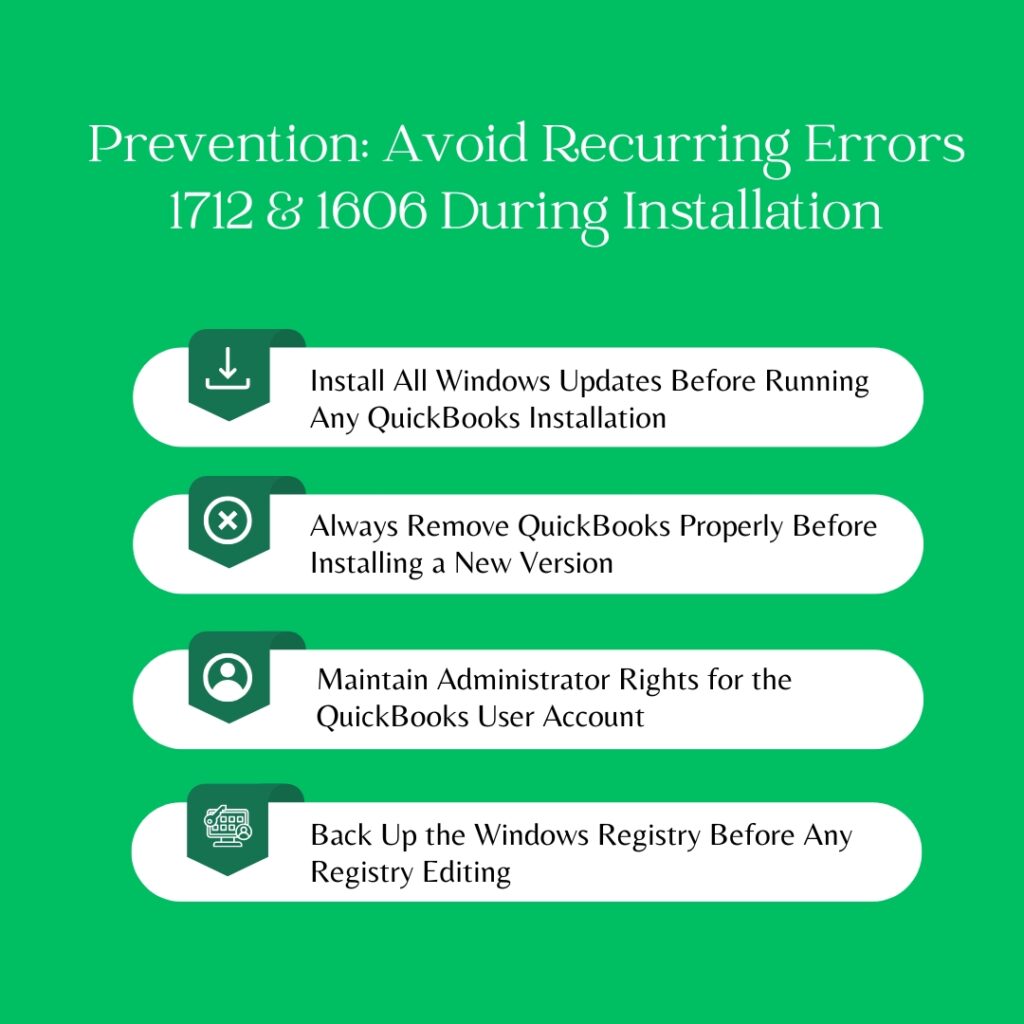
QuickBooks Prevention: Stop Errors 1712 and 1606 From Recurring
- Install All Windows Updates Before Running Any QuickBooks Installation
Windows updates repair known bugs in the Windows Installer service, .NET Framework, MSXML, and Visual C++ files that Error 1712 exploits. A computer with pending Windows updates runs the QuickBooks installer against older, potentially buggy component versions. Installing all available Windows updates through Settings > Windows Update > Check for Updates and restarting the computer before any QuickBooks installation or update eliminates the component compatibility issues that produce Error 1712. This applies to both fresh installations and QuickBooks update patches.
- Always Remove QuickBooks Properly Before Installing a New Version
Orphaned registry entries from an improperly removed QuickBooks installation directly cause Error 1712 on the next installation attempt. The correct removal process is: open Control Panel > Programs and Features, right-click QuickBooks, select Uninstall, and complete the full uninstall wizard. After the standard uninstall, use the QuickBooks Clean Install Tool to remove residual files and registry entries. This two-step removal eliminates every file and entry from the old installation and prevents them from conflicting with the new one.
- Maintain Administrator Rights for the QuickBooks User Account
Error 1606 returns on computers where the Windows account used to run QuickBooks loses administrator rights. Windows updates and Group Policy changes applied by IT departments can reduce an account from administrator to standard user status without notification. Checking the account type after every major Windows update through Settings > Accounts > Your Info and confirming it still shows as an administrator account prevents both Error 1606 and a range of other permission-related errors from appearing unexpectedly.
- Back Up the Windows Registry Before Any Registry Editing
The registry fix for Error 1606 involves editing the Shell Folders key in the Windows registry. The Windows registry stores configuration data for every program and Windows component on the computer. A single incorrect change can prevent Windows from starting correctly or cause programs to stop working. Before editing any registry entry, export the affected key through Registry Editor’s File > Export function and save the .reg file to the Desktop. This backup can be restored immediately by double-clicking the saved file if an edit produces an unexpected result.
Conclusion
Error 1712 and Error 1606 both stop QuickBooks installation before it finishes, but each has a distinct cause and a distinct fix sequence. Error 1712 stops at the registry-writing step because Windows components are missing or damaged, because orphaned registry entries from a previous installation are conflicting with the new one, or because the Windows Installer service has a problem. Intuit’s confirmed first response for Error 1712 is the QuickBooks Tool Hub – Quick Fix My Program followed by the Install Diagnostic Tool – and if that does not resolve it, creating a new Windows administrator account for the installation.
Error 1606 stops because the Windows registry Shell Folders entries contain paths to folders that do not exist on the computer. This is caused by a corrupted Windows user profile, a registry entry that a Windows update changed incorrectly, or a Parallels shared folder configuration replacing standard Windows paths. The fastest resolution for Error 1606 is logging in with a Windows administrator account and retrying the installation. If that does not resolve it, checking the Shell Folders registry entries and correcting any that point to non-existent paths resolves the issue permanently.
Neither error affects the company file. The .QBW file that holds all accounting data stays completely intact through any installation failure. After the error is resolved and QuickBooks installs successfully, the company file opens from File > Open or Restore Company exactly as it was before the installation issue began. Intuit’s QuickBooks Tool Hub – free from Intuit’s official support page – contains both Quick Fix My Program and the Install Diagnostic Tool, which together address the most common causes of Error 1712 automatically and should be the first download after any QuickBooks installation failure.
Frequently Asked Questions
1. Error 1712 appeared during a QuickBooks Desktop update, not a fresh installation. Does the update file need to be downloaded again?
An Error 1712 during a QuickBooks update means the update’s installer could not write its files to the Windows registry at the registry-writing step. The update does not need to be re-downloaded manually as a first step.
After fixing the root cause using Quick Fix My Program and the Install Diagnostic Tool, go to Help > Update QuickBooks Desktop > Update Now tab > check Reset Update > Get Updates.
The Reset Update checkbox clears any partially downloaded update files and downloads a complete fresh copy before the installation is retried. Skipping the Reset Update checkbox risks using the same partial download that produced Error 1712 in the first attempt.
2. Error 1606 appeared when installing QuickBooks, but the computer is not connected to any office network. Why does the error say ‘network location’?
The “network location” referenced in Error 1606 is not an internet connection or a shared office network drive. The phrase refers to a folder path stored in the Windows registry under the Shell Folders key – a location the Windows Installer reads to find standard Windows folders.
These internal Windows folder paths are called shell locations because they are part of Windows Shell, the technical name for the Windows interface layer that manages files and folders. Error 1606 appears when one of these shell location entries points to a path that does not exist, causing the installer to report it cannot reach the listed location. An internet or network connection has no bearing on this specific error.
3. The Install Diagnostic Tool ran twice, the System File Checker ran, and a new administrator account was created, but Error 1712 still appears. What has not been tried?
An Error 1712 that survives the Install Diagnostic Tool, the System File Checker, and a new administrator account points to orphaned registry entries from a previous QuickBooks installation that the automated tools cannot address. The Microsoft Program Install and Uninstall Troubleshooter (Fix 3) combined with the QuickBooks Clean Install Tool (Fix 4) targets these orphaned entries directly.
The Microsoft troubleshooter finds and removes registry keys that block the new installation but that the System File Checker does not address because they are application-specific entries rather than Windows system file entries. Running the Microsoft troubleshooter, then the Clean Install Tool, then downloading a fresh installer and running it as administrator from the new account is the complete remaining fix sequence.
4. Error 1606 was fixed by creating a new Windows user account, but the company file cannot be found. Where did it go?
The company file – the .QBW file – is stored in a folder accessible to all Windows user accounts on the computer. The file is typically in the Documents folder of the original user (for example, C:\Users\[Original Username]\Documents\QuickBooks 2024) or in a shared folder on the computer or network.
From the new Windows account, open QuickBooks and go to File > Open or Restore Company > Open a Company File. Click Browse and navigate to the Documents folder of the original user account, or to wherever the company file was saved.
The company file opens normally from the new account and all data remains completely intact. Noting the exact company file path before switching accounts makes it straightforward to navigate to it afterward.
5. Error 1712 and Error 1606 both appeared during the same installation attempt. Is this one problem or two separate problems?
Both errors appearing during the same installation indicate the Windows environment has two separate problems that each stopped the installation at different steps. Error 1712 appeared first and stopped the installation at the registry-writing step due to missing components or orphaned entries. Error 1606 appeared because the Shell Folders registry path was also incorrect. Fixing only one error allows the installation to proceed to the next failing point, where the second error appears.
The correct approach is to apply all relevant fixes for both errors before retrying the installation: run the Install Diagnostic Tool for Error 1712, check and correct the Shell Folders registry entry for Error 1606, and retry the installation from a Windows administrator account in Selective Startup mode. Applying all fixes in one pass before retrying avoids the cycle of resolving one error and immediately encountering the next.

Anusmita is a seasoned content writer who brings perspective to words. As a writer, she enriches her work with a journalistic aptitude, utilising her training in Mass Communication and Journalism. She loves to travel and explore, which imparts a greater sense of understanding, maturity, and experience that are reflected in her content.
Beyond her professional work, Anusmita enjoys painting, singing, dancing, and spending time planting. She is also a self-proclaimed foodie who loves exploring different cuisines, an interest that further adds to her curiosity and perspective as a writer.
Leave a Reply