
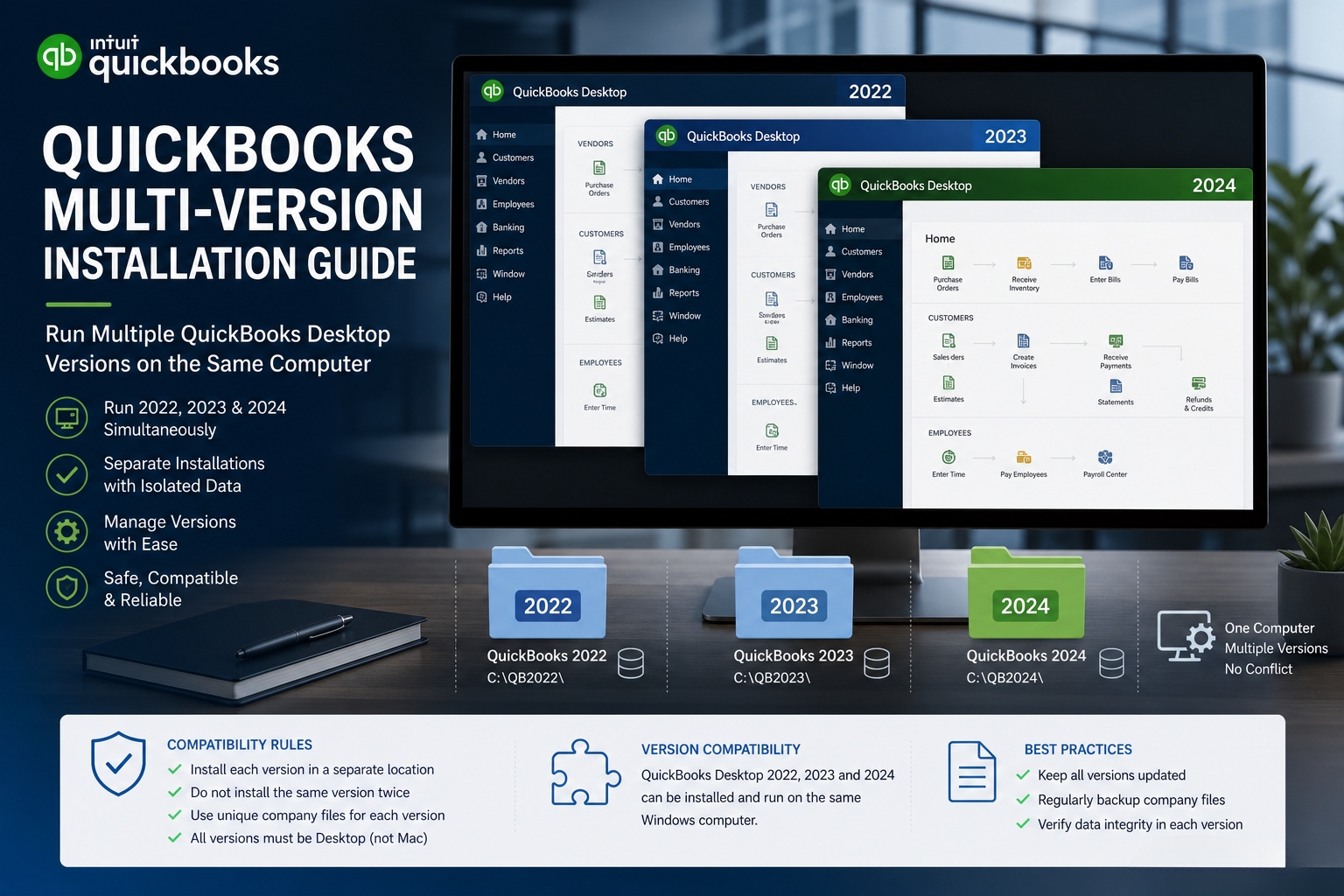
Multiple QuickBooks Desktop versions can be installed on the same computer at the same time. Intuit supports this setup and allows different year versions – such as QuickBooks Desktop 2022, 2023, and 2024 – to coexist on a single machine. Each version installs into its own separate folder and runs independently without interfering with the others.
Accountants who manage clients on different QuickBooks versions, businesses upgrading gradually while keeping the old version available as a reference, and users who want to test a new version before fully switching all benefit from this setup.
The rules for multiple version installation are specific and come directly from Intuit’s documentation. Different year versions of QuickBooks can run at the same time on the same computer. Different editions within the same year – for example, Premier 2024 and Enterprise 2024 – cannot run at the same time. Only one edition can be open at once, and the user must close one before opening the other. Different regions of QuickBooks – such as the US version and the Canada version – cannot be installed on the same computer at all. Understanding these three rules before starting the installation prevents configuration errors that are difficult to reverse.
Company file compatibility is the most important consideration in any multi-version setup. Once a company file is opened in a newer version of QuickBooks, it cannot be opened in an older version. Intuit confirmed this directly: opening a Premier company file in Enterprise is irreversible. This means the versions installed on the computer must be appropriate for the company files that will be used with them. This article covers the exact rules, the installation process, company file management, license requirements, and the specific situations where this setup is correct and where it is not.
Table of Contents

Understanding the Terminology: Version, Edition, Flavor, and Region
Intuit uses four specific terms to describe different types of QuickBooks Desktop products. Confusing them leads to installing combinations that either do not work together or produce results the user did not expect. Each term means something distinct.
Version: The Year Number of the Product
A version is the year-based numeric release of the QuickBooks product. QuickBooks Desktop 2022, QuickBooks Desktop 2023, and QuickBooks Desktop 2024 are three different versions. The version number determines which year’s features, tax tables, and compatibility settings the software includes. Multiple different versions – for example, 2022 and 2024 installed together on the same computer – are what Intuit supports in a multi-version setup. Each version installs into its own separate program folder and does not overwrite the other.
Edition: The Product Tier Within the Same Year
An edition is the product tier that determines the feature set available. QuickBooks Desktop Pro, Premier, and Enterprise are three different editions. Pro has the fewest features, Premier adds industry-specific tools, and Enterprise adds the highest capacity and the most advanced features. Multiple editions from the same year – for example, Premier 2024 and Enterprise 2024 installed on the same computer – can both be installed, but only one can be open and running at a time. The user must close Premier before opening Enterprise, or vice versa.
Flavor: The Industry-Specific Sub-Type of Premier or Enterprise
A flavor is the industry-specific version of QuickBooks Premier or Enterprise – for example, Contractor, Retail, Nonprofit, Manufacturing & Wholesale, or Professional Services. Each year’s Premier or Enterprise installation can only contain one flavor. Only one of QuickBooks Desktop Premier 2024 Retail or Premier 2024 Contractor can be installed on the same system in the same year. The QuickBooks Accountant edition can be adjusted to any other flavor of Premier or Pro, which is why accountants working with clients across multiple industries use the Accountant edition rather than installing multiple flavors.
Region: The Country-Specific Version of the Product
A region is the country-specific release of QuickBooks Desktop – for example, the US version, the Canada version, and the UK version. Intuit’s documentation is explicit: multiple regions of QuickBooks Desktop should not be installed on the same computer. The US and Canada versions of QuickBooks use different tax rules, payroll calculations, and reporting formats. Installing both on the same computer produces conflicts in shared Windows components and registry settings that cause errors in both installations. Intuit recommends using a virtual machine or web hosting service for each regional version that needs to run separately.
What Intuit’s Rules Allow: The Complete Compatibility Reference
Use this table to confirm which combination of QuickBooks Desktop products can be installed together before starting any installation.
| Combination Being Considered | Allowed? | Open at the Same Time? | Key Restriction |
|---|---|---|---|
| Two different year versions (e.g., Pro 2022 + Pro 2024) | Yes – fully supported | Yes – both can run simultaneously | Each must have its own separate license; company files cannot be shared between years |
| Same year, different editions (e.g., Premier 2024 + Enterprise 2024) | Yes – both can be installed | No – must close one before opening the other | Data files cannot be transferred between Enterprise and Pro/Premier |
| Same year, same edition, different flavors (e.g., Premier 2024 Retail + Premier 2024 Contractor) | No – only one flavor per version | N/A | Only one flavor installs per Premier or Enterprise year version |
| Same year, same edition (e.g., Pro 2024 + Premier 2024) | Yes – install files are the same for Pro and Premier | No – only one edition open at a time | Pro and Premier of the same year use the same installer files |
| Different year versions of Enterprise (e.g., Enterprise 2022 + Enterprise 2024) | Yes – fully supported | Yes – different year versions run simultaneously | Each requires a separate Enterprise license; file formats differ by year |
| US version + Canada version on the same computer | No – not supported | N/A | Intuit recommends a virtual machine or web hosting for multiple regions |
| QuickBooks Desktop Mac + QuickBooks Desktop Windows on the same computer | No – separate platforms | N/A | Mac and Windows are separate products requiring separate licenses |
Why Do Accountants and Businesses Need Multiple QuickBooks Versions?
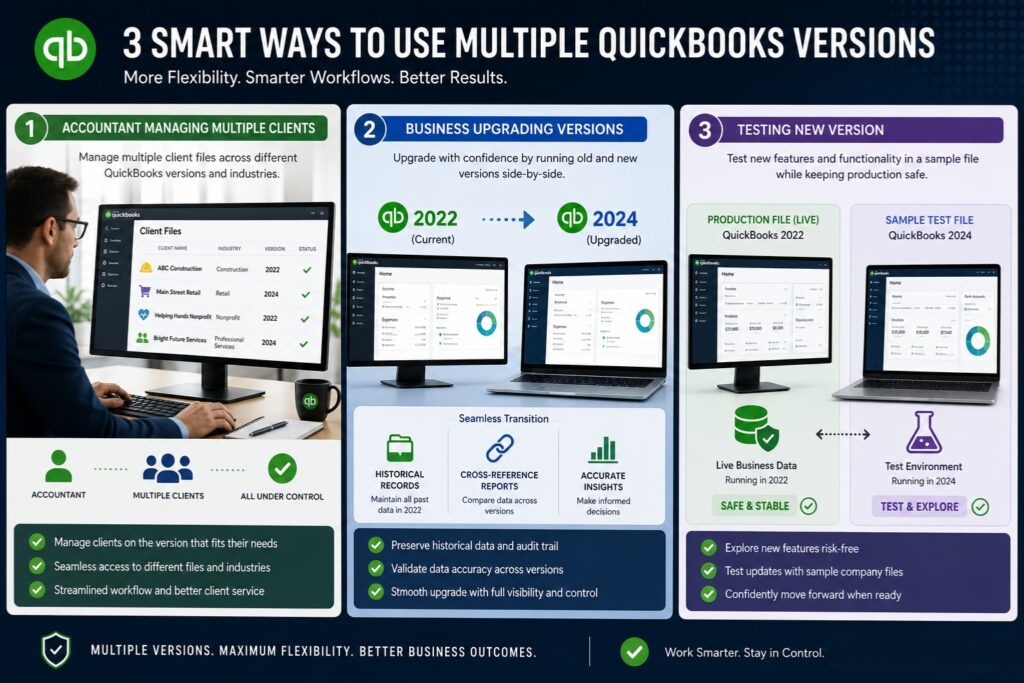
Accountants Managing Multiple Clients on Different Versions
An accountant with 20 clients where some use QuickBooks Desktop 2022 and others use QuickBooks Desktop 2024 cannot manage all clients from a single QuickBooks installation. A company file created in QuickBooks 2024 requires QuickBooks 2024 or a newer version to open – it cannot be opened in QuickBooks 2022. An accountant who has only QuickBooks 2022 installed cannot work with those clients’ 2024 files. Installing both 2022 and 2024 on the same computer allows the accountant to open any client’s file in the correct version without switching computers.
Intuit’s own documentation confirms that different versions of QuickBooks Desktop can run at the same time on one computer, which is the specific capability that makes an accountant’s multi-client workflow practical. The QuickBooks Accountant edition – which Intuit makes available to accounting professionals – can be set to any Premier or Pro flavor, which means an accountant with clients in construction, retail, and nonprofit can work with all three industry editions without installing each flavor separately.
Businesses Upgrading While Keeping the Old Version Active
A business upgrading from QuickBooks Desktop 2022 to QuickBooks Desktop 2024 has a practical reason to keep both installed during the transition period. Historical records in the 2022 format can still be opened in 2022, reports can be cross-referenced between the two versions, and the old version remains available as a reference while the new version is being set up and verified. Once a company file is converted to the 2024 format by being opened in QuickBooks 2024, it cannot be opened in 2022 again – so having both versions installed allows the business to work with the 2022 file in its original format until they are confident the 2024 conversion is complete and accurate.
Testing a New Version Before Full Commitment
Installing a new QuickBooks version alongside the existing one allows a user to test the new version’s features, reports, and interface changes without converting the production company file or disrupting daily accounting operations. QuickBooks comes with sample company files that can be opened in any version for testing without risk. A user can run the new version using the sample file, learn its differences from the current version, and decide whether to upgrade the actual company file – all while the existing version continues to work normally with the real company file.
How to Install a Second QuickBooks Version on the Same Computer?
The steps to install a second quickbooks version on the same computer are given below in four points. They are:
- Step 1: Use the Custom and Network Options Installation Type
- Step 2: Install Each Version One at a Time
- Step 3: Confirm the Installation Folder Is Unique for Each Version
- Step 4: Register Each Version with Its Own License Number
Step 1: Use the Custom and Network Options Installation Type
Intuit’s official installation documentation identifies two installation types: Express install and Custom and Network Options. Express install saves all preferences and installs over the previous version of QuickBooks – this is the correct option for a single-computer setup where only one version is needed. Custom and Network Options installs the new version in a different location, keeps prior versions, and sets up network sharing. Intuit confirms this directly: “Custom and Network Options: This option lets you install the new version in a different location, keep prior versions, and set up network sharing.” Selecting Custom and Network Options is the required step for any multiple-version installation.
Download the installer for the additional QuickBooks version from Intuit’s official Downloads & Updates page. Open the installer file (QuickBooks.exe). When the installation type screen appears, select Custom and Network Options. Click Next. Select I’ll be using QuickBooks Desktop on this computer from the options. Click Next. On the Change the Install Location screen, click Change the install location and click Browse. Navigate to a folder name that identifies the version being installed – for example, C:\Program Files\Intuit\QuickBooks 2024. Click OK > Next > Install. Enter the license number and product number for this version when prompted.
Step 2: Install Each Version One at a Time
Each QuickBooks version must be installed individually – one complete installation must finish before the next one starts. Running two installers simultaneously produces file conflicts in shared Windows components (.NET Framework, MSXML, and Visual C++ libraries) that both installers are trying to update at the same time. Completing one installation, restarting the computer, and then starting the next installation prevents this conflict. Restarting between installations also ensures that any shared components updated by the first installation are correctly registered before the second installation reads them.
Step 3: Confirm the Installation Folder Is Unique for Each Version
The default installation path for QuickBooks Desktop is C:\Program Files\Intuit\QuickBooks [Year] – where [Year] is the version year. The year-specific subfolder name (QuickBooks 2022, QuickBooks 2023, QuickBooks 2024) ensures each version installs into a separate location and does not overwrite the files of another version. Confirming the folder path during the Custom installation step before clicking Install prevents the new version from being accidentally written over the existing one. The correct path for two versions would be C:\Program Files\Intuit\QuickBooks 2022 and C:\Program Files\Intuit\QuickBooks 2024 as two completely separate folders.
Step 4: Register Each Version with Its Own License Number
Each installed QuickBooks version requires its own separate license number and product number. A single QuickBooks Desktop Pro 2024 license covers that version only and cannot be used to activate QuickBooks Desktop 2022 on the same computer. Intuit’s confirmation from its community support page is clear: a license allows installation on that specific version, and each version requires its own activation. License numbers for each version are available through the Intuit Customer Account Management Portal (CAMPS) at camps.intuit.com – log in, go to Products & Services, find each version in the list, and click Details to retrieve the license and product number for that specific version.
Company File Rules When Using Multiple Versions
A Company File Opened in a Newer Version Cannot Go Back
The most important rule in any multi-version QuickBooks setup is the one-way company file conversion: once a company file is opened in a newer version of QuickBooks, it cannot be opened in an older version. Opening a QuickBooks 2022 company file in QuickBooks 2024 converts the file to the 2024 format permanently. From that point forward, the file can only be opened in QuickBooks 2024 or a newer version. Intuit confirmed this directly: “Data files are impossible to share between QuickBooks Desktop Enterprise and other QuickBooks Desktop versions, or between different years’ versions.”
The practical protection against accidental conversion is to create a backup of the company file before opening it in a newer version. The backup – a .QBB file created through File > Back Up Company > Create Local Backup – preserves the file in the original format. A backup made before the conversion can be restored in the older version if the newer version turns out not to be the correct choice. After converting to the new format and confirming the new version works correctly, the backup copy in the old format can be archived rather than deleted, keeping it available as a historical reference.
Data Cannot Transfer Between Enterprise and Pro or Premier
Company files created in QuickBooks Desktop Enterprise cannot be opened in QuickBooks Desktop Pro or Premier, and company files in Pro or Premier cannot be opened in Enterprise without being permanently converted. Intuit confirmed this rule: between QuickBooks Desktop Enterprise and QuickBooks Desktop Pro or Premier, data cannot simply be transferred or company files exchanged. This rule means a business using Pro 2024 and Enterprise 2024 on the same computer has two completely separate databases with no way to move data between them using the company file format. Data transfers between the two require exporting and importing specific data elements.
Same Year Versions of Pro and Premier Share the Same Installer Files
QuickBooks Desktop Pro and Premier for the same year use identical installer files. Installing both Pro 2024 and Premier 2024 on the same computer from two separate downloads will actually install the same software twice, because the downloaded file is the same for both products. The difference between Pro and Premier is unlocked by the license number – a Premier license number activates the Premier feature set, and a Pro license activates the Pro feature set, using the same underlying program installation. Installing the same year of Pro and Premier is therefore redundant – the correct approach is to install the version that matches the higher-tier license.
License Rules: How Many Computers Each License Covers
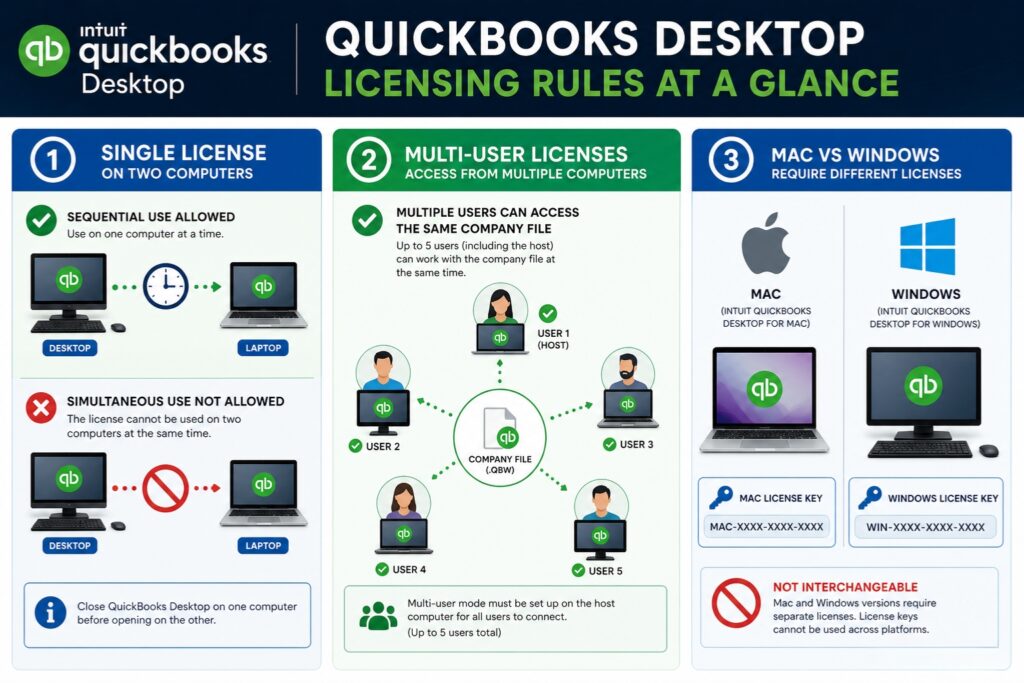
One License Can Be Installed on Two Computers – But Not Used Simultaneously
Intuit’s community support team confirmed the two-computer installation rule directly in multiple forum responses: “You are able to install your license on two different devices as long as you don’t run them at the same time.” A single QuickBooks Desktop Pro Plus 2024 license allows installation on a desktop computer and a laptop, for example, with the same user working on one at a time. Using both computers at the same time with a single-user license is not permitted – that requires a multi-user license.
Multi-User Licenses for Simultaneous Access
A multi-user license allows two or more people to access the same QuickBooks company file at the same time from different computers. QuickBooks Pro Plus and Premier allow up to five people to view QuickBooks data while sharing one license, but for each person to actively use QuickBooks simultaneously, each needs their own license. Pressing F2 inside QuickBooks opens the Product Information window, which shows the number of user licenses currently active on the installation. Adding user licenses is done through Help > Manage My License in the QuickBooks menu.
QuickBooks Desktop for Mac and Windows Require Separate Licenses
QuickBooks Desktop for Mac and QuickBooks Desktop for Windows are two completely separate products with separate feature sets, separate pricing, and separate licenses. Intuit’s community support team confirmed directly: “QBDT for Mac and QBDT for Windows are two different platforms. That said, you need to purchase separate licenses to install them.” A Windows license does not activate QuickBooks for Mac, and a Mac license does not activate QuickBooks for Windows. Running QuickBooks Windows on a Mac computer using a compatibility layer or virtual machine requires a Windows license and a compatible virtual machine application.
The Upgrade Installation: Installing Over the Previous Version
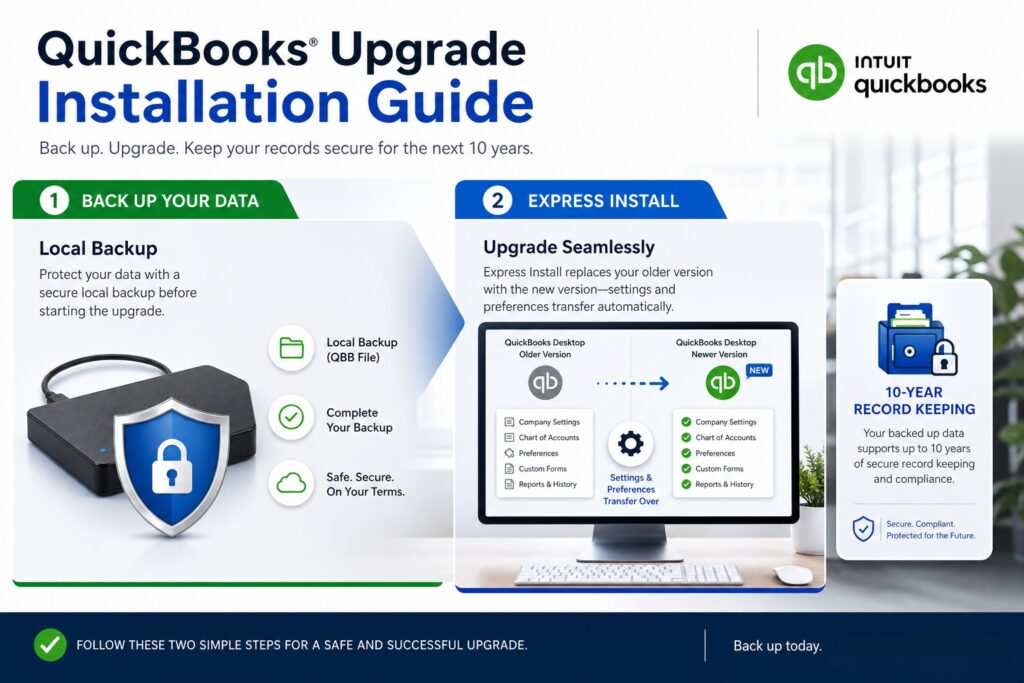
Express Install Replaces the Previous Version
A user who wants only the latest QuickBooks version and does not need to keep older versions installed should select Express install rather than Custom and Network Options during setup. Intuit confirms: “Express install saves all preferences and installs over your previous version of QuickBooks. This is best if you will use QuickBooks on only one computer.” Express install preserves the QuickBooks company file settings and user preferences from the old version and transfers them to the new version automatically, which eliminates the need to reconfigure settings after upgrading.
Before running an Express install that replaces a previous version, create a full backup of the company file through File > Back Up Company > Create Local Backup and save it to an external drive. Intuit’s own installation guide includes this warning: “If you are upgrading or moving your books, create a backup of your data before you install. The IRS requires that 10 years of records be kept, so make sure to keep either your previous accounting system or print-outs of your books.” The backup preserves both the accounting data and the ability to return to the old version if the upgrade produces unexpected results.
All Rules at a Glance: Multi-Version Reference Table
| Rule | Detail | Source |
|---|---|---|
| Different year versions can be installed together | QuickBooks 2022 and 2024 can both be installed and run at the same time | Intuit documentation on multiple version installation |
| Different editions of the same year can be installed but not opened simultaneously | Premier 2024 and Enterprise 2024 can coexist; only one can be open at a time | Intuit multiple version installation rules |
| Only one flavor per year per edition | Only one of Premier 2024 Retail or Premier 2024 Contractor can be installed | Intuit documentation: one flavor per Premier or Enterprise version |
| Multiple regions cannot be installed together | US and Canada versions should not be on the same computer | Intuit: use a virtual system or web hosting for multiple regions |
| One license covers two computers (not simultaneously) | Single license can be installed on two machines; not used at the same time | Intuit community forum: confirmed by Intuit support team |
| Company file opened in newer version cannot go back | Opening a 2022 file in 2024 converts it permanently | Intuit documentation: file upgrade is irreversible |
| Enterprise and Pro/Premier cannot exchange company files | Data files cannot be transferred between Enterprise and other desktop versions | Intuit documentation: file sharing not possible between versions |
| Use Custom and Network Options to keep prior versions | Express install overwrites; Custom install keeps previous versions | Intuit official installation documentation |
| Each version requires its own license number | A 2024 license does not activate the 2022 installation | Intuit licensing rules: separate license per version |
Conclusion
Installing multiple QuickBooks Desktop versions on one computer is fully supported by Intuit and is a practical solution for accountants managing clients on different versions, businesses running a phased upgrade, and users testing a new version before committing. The key rules are straightforward: different year versions can be installed together and run at the same time, different editions of the same year can be installed but only one can be open at once, only one flavor per Premier or Enterprise version is allowed, and different regions cannot be installed on the same computer at all.
The installation process requires selecting Custom and Network Options – not Express install – to keep previous versions intact. Each version must be installed one at a time, into its own uniquely named program folder, and activated with its own separate license number. The most critical company file rule applies regardless of how many versions are installed: once a company file is opened in a newer version, it cannot be opened in an older version. Creating a backup before opening any company file in a new version protects against this permanent conversion.
License rules are equally important to confirm before installation. A single-user license covers installation on two computers but prohibits simultaneous use. Multi-user licenses are required for simultaneous access by multiple people on different computers. QuickBooks for Mac and QuickBooks for Windows are completely separate products that each require their own license. Confirming the license type and the number of available user licenses through the Customer Account Management Portal at camps.intuit.com before setting up a multi-version environment eliminates licensing problems that can lock access to the software after installation is complete.
Frequently Asked Questions
1. QuickBooks 2022 and QuickBooks 2024 are both installed. Can they both be open at the same time?
Yes. Different year versions of QuickBooks Desktop can run at the same time on the same computer. A user can have QuickBooks 2022 open in one window and QuickBooks 2024 open in another window simultaneously. This is the documented behavior confirmed by Intuit: different versions such as QuickBooks Desktop 2022 and 2024 can be used at the same time.
The only versions that cannot run at the same time are different editions within the same year – for example, Premier 2024 and Enterprise 2024 cannot both be open simultaneously because they are editions of the same product year, not different year versions.
2. A client uses QuickBooks Premier 2022. Is it safe to open their company file in QuickBooks Premier 2024 to update it?
Opening a QuickBooks Premier 2022 company file in QuickBooks Premier 2024 will permanently convert the file to the 2024 format, and it will not be openable in Premier 2022 afterward. Before opening the client’s file in 2024, create a backup of the original 2022 file through File > Back Up Company > Create Local Backup and save the backup to an external drive.
The backup preserves the 2022 format. After opening the file in 2024 and allowing the conversion, the file works normally in 2024. The original 2022 backup remains available in the 2022 format for reference or for restoration if the 2024 conversion needs to be reversed for any reason.
3. Two different computers each have QuickBooks 2024 installed with the same single license. Can the company file be accessed from both computers?
The same company file can be accessed from both computers, but not at the same time with a single-user license. Intuit confirmed: a single-user license allows installation on two computers as long as they are not run simultaneously.
To access the company file from both computers at different times, the file needs to be accessible from both machines – either stored on a shared network folder, moved between computers using the Migrator Tool, or accessed through a cloud storage backup restored to each computer as needed. For simultaneous access from both computers at the same time, a multi-user license is required.
4. QuickBooks Premier 2024 is already installed. Is it possible to add Enterprise 2024 to the same computer?
Yes. QuickBooks Desktop Premier 2024 and Enterprise 2024 can both be installed on the same computer. Each installs into its own separate program folder. The restriction is that only one can be open at a time: if Premier 2024 is currently open, it must be closed before Enterprise 2024 can be launched.
Each edition requires its own separate license number. Additionally, company files created in Premier 2024 cannot be opened in Enterprise 2024 without permanently converting them to the Enterprise format – and once converted to Enterprise format, they cannot be opened in Premier. Creating a backup of all Premier company files before opening them in Enterprise protects the original format.
5. Can QuickBooks Desktop US version and QuickBooks Desktop Canada version be installed on the same computer for a business that operates in both countries?
Intuit’s documentation specifically advises against installing multiple regional versions of QuickBooks Desktop on the same computer. The US and Canada versions use different shared Windows components and registry settings, which conflict when both are installed. Intuit’s recommended solution is to use a virtual machine or web hosting service for each regional version.
A virtual machine is a program that creates a separate computer environment inside the main computer – each virtual environment can have its own QuickBooks installation without the two regional versions sharing the same Windows registry. Cloud-based QuickBooks Desktop hosting providers can also run each regional version in its own isolated server environment, which eliminates the hardware requirement for separate physical computers.

Anusmita is a seasoned content writer who brings perspective to words. As a writer, she enriches her work with a journalistic aptitude, utilising her training in Mass Communication and Journalism. She loves to travel and explore, which imparts a greater sense of understanding, maturity, and experience that are reflected in her content.
Beyond her professional work, Anusmita enjoys painting, singing, dancing, and spending time planting. She is also a self-proclaimed foodie who loves exploring different cuisines, an interest that further adds to her curiosity and perspective as a writer.
Leave a Reply