
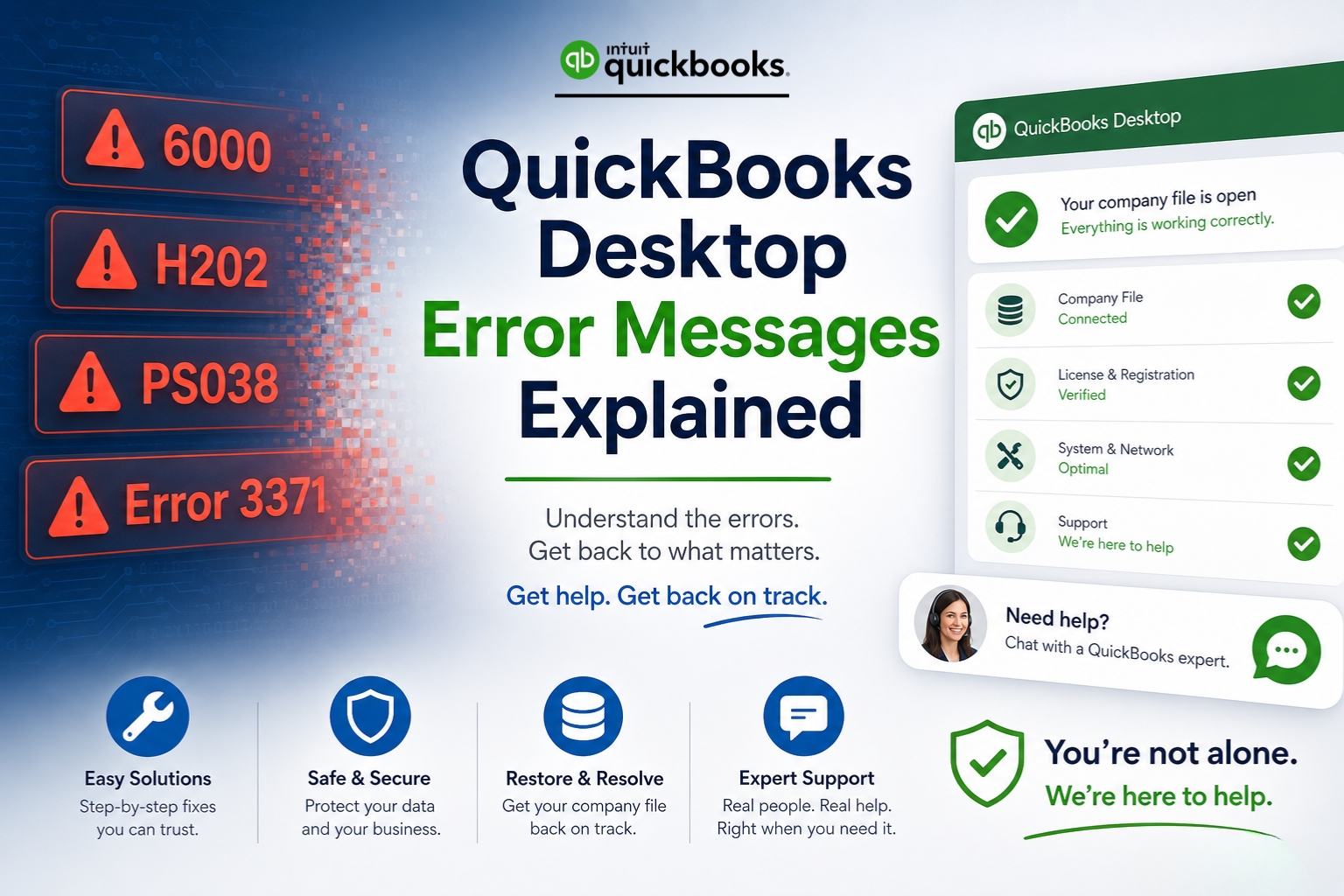
QuickBooks Desktop error messages look intimidating – codes like Error 6000, -83 or H202 or PS038 appear on screen with no plain-English explanation of what went wrong or what to do next. Every QuickBooks error code belongs to a specific family of errors, and each family is caused by a specific category of problem. The code is not random noise. It is QuickBooks’ way of reporting exactly which part of its operation failed, which makes the code the fastest diagnostic tool available once it is understood.
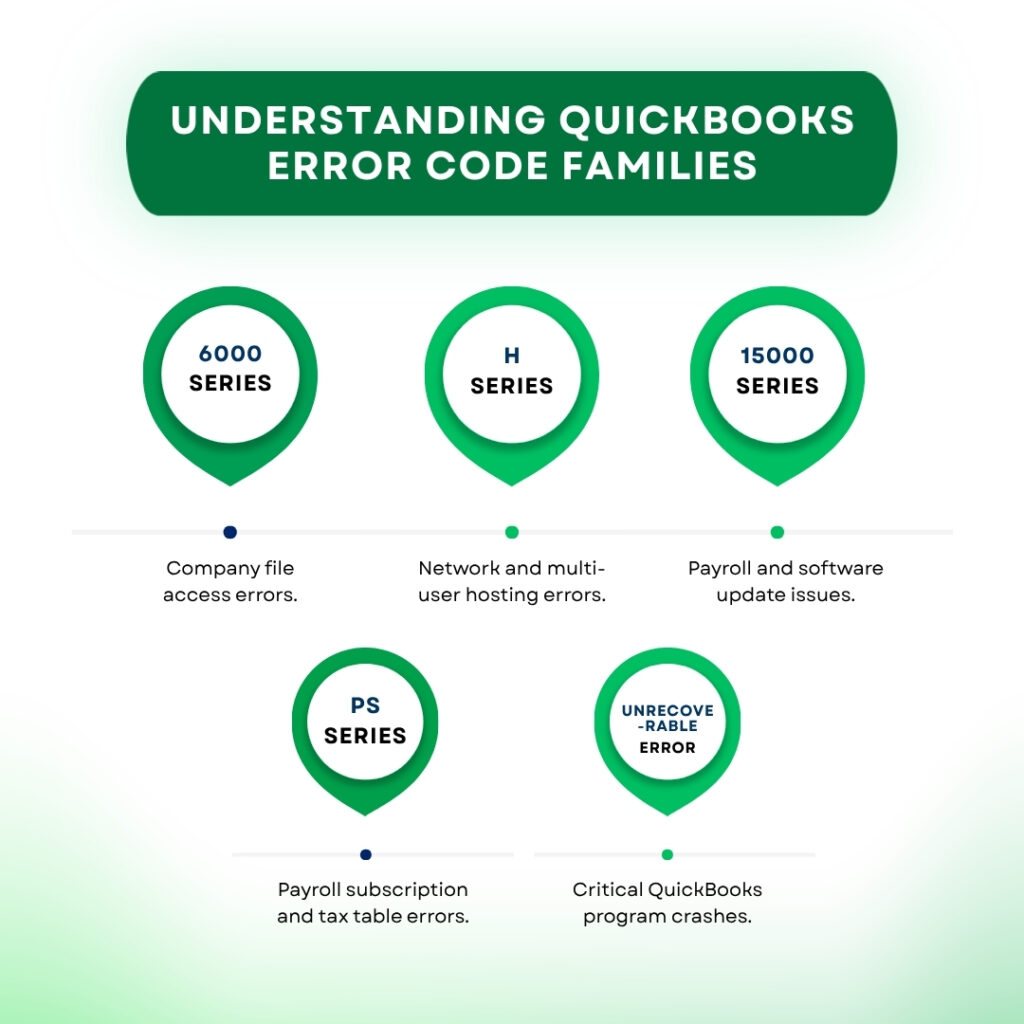
This article translates every major QuickBooks Desktop error family into plain language: what the code means in plain English, what caused it, and exactly what to do. The error families covered are the ones Intuit’s own Tool Hub addresses directly – the 6000 series (company file access errors), the H series (multi-user connection errors), the 15000 series (payroll update errors), the PS series (payroll subscription errors), Error 3371 (license errors), and the Unrecoverable Error (program crash errors). These six families cover the overwhelming majority of QuickBooks Desktop error messages that users encounter.
The QuickBooks Tool Hub is Intuit’s free all-in-one repair application that addresses common errors including Error 6123, Error H202, and “QuickBooks stopped responding” issues. It also handles installation errors, company file issues, networking errors, and PDF or printing problems. This article references it throughout as the starting point for most repairs. Download it once from Intuit’s official support page and keep it installed – it eliminates the need for separate downloads each time an error appears.
Table of Contents
How QuickBooks Error Codes Are Structured?
QuickBooks error codes follow a consistent naming system that reveals what category of problem occurred. Understanding the naming system means seeing any new QuickBooks error code and immediately knowing which family it belongs to and which type of problem it represents, before reading any further detail about the specific code.
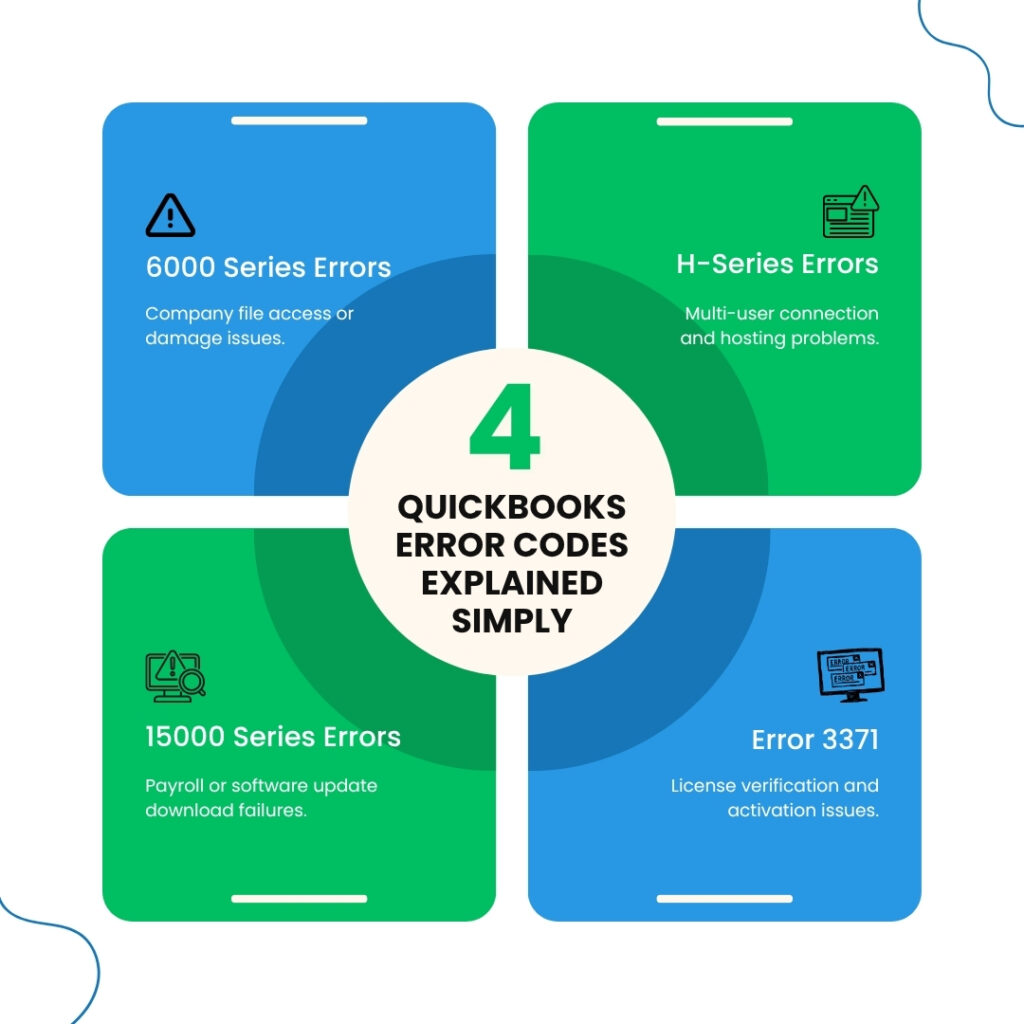
Codes beginning with a number in the 6000 range – such as 6000, -83 or 6000, -77 or 6000, -301 – all belong to the company file access family. The first number (6000) identifies the family, and the second number after the comma identifies the specific sub-type of that access problem. Codes beginning with H – such as H202, H303, or H505 – are all multi-user connection errors. The letter H stands for the hosting configuration that QuickBooks uses when multiple computers access the same company file. Codes in the 15000 range (15222, 15224, 15243) are all related to payroll and software update downloads. Codes beginning with PS (PS033, PS036, PS038) relate to the payroll subscription itself and tax table data. The Unrecoverable Error is its own category: a ten-digit code formatted as two groups of five numbers that reports a program-level crash.
QuickBooks Error Code Master Lookup
Find the error code showing on your screen in this table. The plain-English meaning and the starting fix are in the right columns.
| Error Code | Plain-English Meaning | Main Cause | First Tool to Use |
|---|---|---|---|
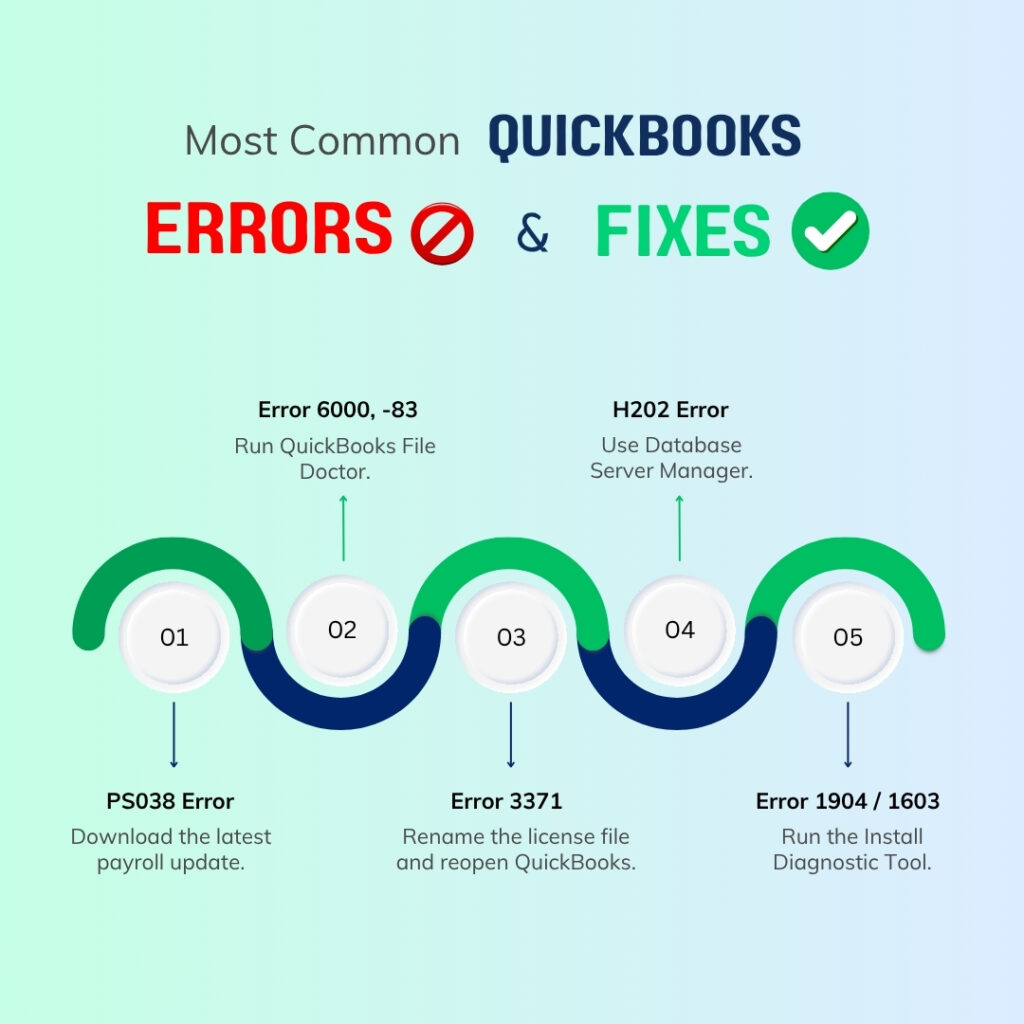
| 6000, -83 | QuickBooks cannot open the company file on this computer | Company file is damaged, or it was restored to a location QuickBooks cannot access properly | QuickBooks File Doctor (Tool Hub > Company File Issues) |
| 6000, -77 | QuickBooks cannot find the company file at the path it is looking for | Company file is stored on a drive that is not connected, or on a cloud storage location QuickBooks cannot reach | Move file to local drive; run File Doctor |
| 6000, -301 | QuickBooks cannot access the company file – access was blocked | Firewall or antivirus is blocking QuickBooks from reading the file, or the file lacks the correct folder permissions | Add firewall exceptions; check folder permissions |
| 6000, -82 or -106 | QuickBooks found a conflict in the company file name or hosting setting | A space in the company file name before the .qbw extension, or hosting is enabled on more than one computer | Remove trailing spaces from filename; disable hosting on workstations |
| H202 | QuickBooks workstation cannot connect to the company file on the server | Firewall blocking the port QuickBooks uses, or the QuickBooks Database Service on the server is not running | Run Database Server Manager scan (Tool Hub > Network Issues) |
| H303 or H505 | Same family as H202 – workstation cannot reach the company file on the server | Incorrect hosting configuration or Windows Firewall blocking the QuickBooks connection port | Same fix as H202 |
| 15222 or 15224 | QuickBooks payroll or software update download failed | Internet connection is being blocked by a security certificate issue or a firewall setting | Set Internet Explorer to TLS 1.2; check firewall settings |
| 15243 or 15103 | QuickBooks cannot connect to Intuit’s update server | Internet security software is blocking the QuickBooks update connection | Add QuickBooks to the internet security program’s allowed list |
| PS038 | Payroll subscription is valid but the tax table update date has passed | The payroll tax table was not updated before the recommended update date, or the update downloaded incorrectly | Download Entire Payroll Update (Employees > Get Payroll Updates) |
| PS033 or PS036 | Payroll subscription information cannot be read | Payroll subscription file (paysub.ini) is damaged or outdated | Delete paysub.ini and revalidate the payroll subscription |
| 3371 or 3371 Status -11118 | QuickBooks cannot verify its license on this computer | License file (EntitlementDataStore.ecml) is damaged or missing | Rename EntitlementDataStore.ecml.old (C:\ProgramData\Intuit\Entitlement Client\v8) |
| Unrecoverable Error (10-digit code) | QuickBooks hit a problem it could not handle and shut itself down | Damaged program files, Windows component conflict, user permission block, or company file damage | Quick Fix My Program (Tool Hub > Program Problems) |
| 6123, 0 | QuickBooks cannot access the company file while restoring or creating a backup | Backup location is not accessible, or the .QBB backup file path is too long | Move backup file to a local folder; check path length |
| 1904 or 1603 | QuickBooks installation or update failed to complete | Installer could not write a required file, or an existing installation is conflicting | Install Diagnostic Tool (Tool Hub > Installation Issues) |
The 6000 Series: Company File Access Errors Explained
What does the 6000 Series Means?
Every error in the 6000 series means the same thing at its core: QuickBooks tried to open or access the company file and was stopped before it could complete the operation. The company file is the .QBW file – the database that holds all of the business’s accounting records. The specific four-digit code after the comma identifies exactly what stopped the access. QuickBooks was able to reach the point of attempting to open the file but then failed at the specific step identified by the second number.
The error message that appears on screen for any 6000 error reads: “Warning: An error occurred when QuickBooks Desktop tried to access the company file. Please try again. If the problem persists, contact Intuit Technical Support and provide them with the following error codes.” This message is identical for every 6000 sub-type – the specific code after the comma is what distinguishes the cause and the fix.
Error 6000, -83: The Most Commonly Seen 6000 Error
Error 6000, -83 appears when QuickBooks cannot open the company file because the file itself is damaged, or because the file was restored to a location on the computer that QuickBooks cannot access with the current permissions. A documented case on Intuit’s community forum showed this error appearing after a computer crash and restore: a user moved QuickBooks to a new computer, restored the backup file, and received Error 6000, -83. The fix required running QuickBooks File Doctor from the Tool Hub, which repaired the file’s accessibility and resolved the error.
Error 6000, -83 also appears when a firewall or antivirus program is blocking QuickBooks from reading the company file. Firewalls – security programs that control which other programs can send and receive data on the computer – sometimes classify QuickBooks file access as suspicious activity and block it. Adding QuickBooks to the firewall’s list of allowed programs, and adding the company file folder to the antivirus exclusion list, removes this block and allows QuickBooks to open the file normally.
Error 6000, -77: File Cannot Be Found
Error 6000, -77 appears when QuickBooks is looking for the company file at a specific path – a file path is the computer’s address for where a file is stored, like C:\Users\Business\Documents\Company.qbw – and the file is not at that location. The most common reason is that the company file is stored on an external hard drive or a network folder that is not connected at the time QuickBooks tries to open it. A second common reason is that the company file is stored in a cloud sync folder like Dropbox or OneDrive, which QuickBooks cannot reliably access because cloud sync services and QuickBooks both try to write to the file simultaneously, which causes access conflicts.
The practical fix for Error 6000, -77 is to copy the company file to a local folder directly on the computer’s main drive (the C: drive) rather than an external or cloud location. A local folder gives QuickBooks direct, uninterrupted access to the file without any network or sync service in between. If the file must stay on a network location, using the full network path (called a UNC path – a specific format that starts with two backslashes, like \\ServerName\FolderName\Company.qbw) instead of a drive letter (like X:\FolderName\Company.qbw) gives QuickBooks a more stable connection to the file.
Error 6000, -301 and Error 6000, -82: Access Blocked or Configuration Conflict
Error 6000, -301 means the company file exists and QuickBooks can see it, but access to the file was actively blocked. The blocker is either a firewall rule that prevents QuickBooks from reading the file, or incorrect folder permissions – settings in Windows that control which programs can read and write files in a specific folder. A company file folder that does not give QuickBooks full read and write access produces this error every time QuickBooks tries to open the file. The fix requires checking the folder’s Security settings in Windows (right-click the folder > Properties > Security tab) and ensuring the user account running QuickBooks has Full Control permission.
Error 6000, -82 or -106 occurs when there is a space in the company file name after the company name and before the .qbw extension – for example, “MyBusiness .qbw” instead of “MyBusiness.qbw.” QuickBooks cannot read a file path with a trailing space in the filename. This error also occurs in multi-user mode when hosting is enabled on more than one computer. In QuickBooks multi-user mode, hosting is a setting that designates one specific computer as the one that serves the company file to all others. Only the server computer should have hosting enabled. Disabling hosting on every other computer (Edit > Preferences > Company Preferences > Host Multi-User Access on this computer) and leaving it enabled only on the server resolves the conflict.
The H Series: Multi-User Connection Errors Explained
What H202, H303, and H505 Mean?
H202, H303, and H505 all belong to the same error family and have the same root cause. According to Intuit’s official help documentation: “QuickBooks Desktop error codes H202 and H505 (as well as H101 and H303) occur when something blocks the multi-user connection to your server computer.” The H in these codes stands for “Hosting” – the configuration that allows multiple computers to access the same company file. The specific number (202, 303, or 505) identifies which aspect of the hosting connection failed, but the fix sequence is the same for all of them.
H202 is the most commonly reported of the three and appears when a workstation – any computer other than the server where the company file is stored – tries to connect to the company file in multi-user mode and the connection is blocked. The block most often comes from Windows Firewall, which prevents the QuickBooks connection from using the specific port it needs. A port is a numbered channel through which computer programs communicate over a network, similar to a radio frequency. QuickBooks uses specific port numbers to communicate between computers: for QuickBooks Desktop 2024, the ports are 8019 and 56728. A firewall that blocks these ports blocks all QuickBooks multi-user connections.
The Specific Fix Sequence for H202, H303, and H505
The QuickBooks Database Server Manager is the background service that runs on the server computer and manages all connections from workstations to the company file. According to Intuit’s documentation, the H series errors occur when this service is not running, when it has lost its configuration after a Windows update, or when the firewall is blocking it. Running the Database Server Manager scan re-establishes the connection configuration and resolves most H series errors.
Open the QuickBooks Tool Hub on the server computer (the computer where the company file is stored). Click Network Issues in the left menu. Click QuickBooks Database Server Manager. Click Scan Folders and add the folder containing the company file if it is not listed. Click Scan. After the scan completes, test QuickBooks from the workstation that was showing the H error.
The Database Server Manager for each QuickBooks version runs as a Windows Service – a program that starts automatically when Windows starts and runs in the background. For QuickBooks Desktop 2024, the service is named QuickBooksDB34. For 2025, it is QuickBooksDB35. For 2026, it is QuickBooksDB36. If this service has stopped running (which happens after some Windows updates), restarting it through the Windows Services panel (press Windows + R, type services.msc, and press Enter) and setting its Startup Type to Automatic resolves H errors caused by the service not running.
The 15000 Series: Payroll and Software Update Errors Explained
What 15XXX Errors Mean?
The 15000 series errors all occur during the same process: downloading a QuickBooks payroll update or a QuickBooks software update from Intuit’s servers. The number after 15 identifies where the download process failed. Error 15222 means the download failed because QuickBooks could not verify the security certificate of Intuit’s update server – a security certificate is a digital document that proves a website is who it says it is, and QuickBooks checks this certificate before downloading anything. Error 15224 is a similar certificate verification failure. Error 15243 means QuickBooks could not reach Intuit’s server at all during the update attempt.
The most common cause of 15000 series errors is that the security settings on the computer are preventing QuickBooks from making the secure connection it needs to download the update. Specifically, many 15000 errors are caused by a setting in Internet Explorer – even on computers that use a different browser daily, QuickBooks uses Internet Explorer’s security settings in the background for its update connections. The setting is called TLS 1.2 (Transport Layer Security version 1.2 – a security protocol that encrypts the connection between QuickBooks and Intuit’s server). QuickBooks requires TLS 1.2 to be enabled in Internet Explorer’s settings to connect to Intuit’s update servers.
How to Fix 15000 Series Errors?
Open Internet Explorer (search for it in the Windows Start menu even if it is not the default browser). Go to Tools > Internet Options > Advanced tab. Scroll down to the Security section. Check the box next to Use TLS 1.2. Uncheck the boxes next to Use SSL 3.0 and Use TLS 1.0 if they are checked. Click Apply > OK. Restart QuickBooks and attempt the update again.
Error 15103 is a related 15000 series error that occurs when QuickBooks cannot find the specific update file it is looking for on Intuit’s servers. This happens when the update file was partially downloaded in a previous attempt and the partial file is now preventing a clean new download. The fix is to go to Help > Update QuickBooks Desktop > Update Now tab > check Reset Update > click Get Updates. The Reset Update checkbox clears any partially downloaded files and starts the download fresh.
The PS Series: Payroll Subscription Errors Explained
What PS038, PS033, and PS036 Mean?
PS038 is the most frequently reported payroll error on Intuit’s community forum. The error message reads: “You’ve retrieved the latest payroll update and validated your payroll subscription. We strongly recommend that you go online again before [date]. [PS038].” This message appears when the date shown has already passed, which means the payroll tax table is overdue for an update and QuickBooks has locked payroll processing until the update is downloaded. QuickBooks locks payroll in this state to prevent the business from running payroll with outdated tax withholding rates, which could result in incorrect paychecks and IRS penalties.
PS033 and PS036 appear when QuickBooks cannot read the payroll subscription information stored on the computer. The subscription information is stored in a file called paysub.ini (a small configuration file that records whether the payroll subscription is active and which payroll features are included). A damaged paysub.ini causes PS033 and PS036 because QuickBooks reads this file every time it accesses payroll and cannot verify the subscription when the file is corrupted. The paysub.ini file is stored in the C:\ProgramData\Intuit\QuickBooks folder and can be renamed to .old (like paysub.ini.old) to force QuickBooks to create a fresh copy, which resolves the damaged file error.
How to Fix PS038 in Three Steps
Step 1: Open QuickBooks and go to Employees > Get Payroll Updates. Select Download Entire Payroll Update (not just the changes – the entire update). Click Update.
Step 2: Run this update in single-user mode – not multi-user mode. Go to File > Switch to Single-User Mode before downloading. Installing payroll updates in multi-user mode – where multiple people access QuickBooks simultaneously – can corrupt the payroll data files. The December 2025 payroll tax table incident confirmed that multi-user mode installations cause payroll data corruption that produces Unrecoverable Errors on subsequent payroll access. Switching to single-user mode before every payroll update is now Intuit’s confirmed recommendation.
Step 3: After the download completes, close QuickBooks completely and reopen it. Go to Employees > Get Payroll Updates and confirm the tax table date now shows the current update. Test payroll by running a preview paycheck for any employee to confirm the tax calculations are processed without the PS038 error.
Error 3371: License Verification Failure Explained
What Error 3371 Means?
Error 3371 – which sometimes appears with the additional detail “Status -11118” – means QuickBooks cannot verify its own license on the computer it is installed on. QuickBooks checks its license every time it opens by reading a file called EntitlementDataStore.ecml. The .ecml extension stands for Entitlement Client Markup Language – it is a file QuickBooks uses to verify its registration with Intuit. A damaged or missing EntitlementDataStore.ecml causes Error 3371 because QuickBooks cannot complete the license check it requires to open.
Error 3371 most commonly appears after a Windows update changes the permissions on the folder where the EntitlementDataStore.ecml is stored, after an interrupted QuickBooks installation left the file in an incomplete state, or after a previous QuickBooks version left behind an incompatible version of the file. This error also commonly appears on computers that received a Windows 11 update that tightened folder permission settings, because the updated permissions prevent QuickBooks from reading the license file it previously accessed without restriction.
How to Fix Error 3371?
Press Windows + R to open the Run dialog. Type C:\ProgramData\Intuit\Entitlement Client\v8 and press Enter. This opens the folder directly – ProgramData is a hidden folder so the Run dialog is the fastest way to reach it. Find the file named EntitlementDataStore.ecml. Right-click it and select Rename. Add .old to the end so it reads EntitlementDataStore.ecml.old. Press Enter. Open QuickBooks – it will create a fresh license file and re-verify with Intuit automatically. An internet connection is required for the re-verification.
The company file, all accounting data, and the QuickBooks license itself are completely unaffected by renaming this file. The EntitlementDataStore.ecml only stores the local copy of the license verification record. QuickBooks recreates it from the license information on Intuit’s servers during the re-verification, which means the file is regenerated correctly regardless of what was in the old version.
The Unrecoverable Error: Program Crash Errors Explained
What the Unrecoverable Error Code Means?
The Unrecoverable Error is a crash that displays a ten-digit error code formatted as two groups of five numbers – for example, 18302 50142 or 14070 43851. The message reads: “We’re sorry. QuickBooks encountered a problem and needs to close.” This error means QuickBooks tried to perform an operation and hit a condition it could not process, so it shut down completely. The specific ten-digit code tells Intuit’s engineers which internal component failed, but for the user, the troubleshooting sequence is the same regardless of which code appears.
According to Intuit’s own community support team, the most common causes of Unrecoverable Errors are: damaged QuickBooks program files that were corrupted during an installation or update, Windows components – specifically .NET Framework and MSXML – that are not compatible with the current QuickBooks version, user permission settings that block QuickBooks from accessing a file or folder it needs, and multi-user environment issues where the database connection is dropping. These four causes are the documented checklist for Unrecoverable Error troubleshooting.
The Correct Response When an Unrecoverable Error Appears
Two buttons appear with the Unrecoverable Error message: Send and Don’t Send. Clicking Send transmits the error details – including the error code, the last operation QuickBooks was performing, and the system configuration – directly to Intuit’s engineering team. Intuit uses this data to identify patterns and release patches for specific error codes. The Send report contains no financial data from the company file – only technical diagnostic information. Clicking Send every time the error appears contributes directly to Intuit releasing a fix.
After clicking Send, open the QuickBooks Tool Hub. Click Program Problems > Quick Fix My Program. This stops all leftover QuickBooks background processes and runs a basic program repair. If Quick Fix My Program does not resolve the error, click Installation Issues in the Tool Hub > QuickBooks Install Diagnostic Tool. This repairs the Windows components (.NET Framework and MSXML) that Unrecoverable Errors most commonly involve. Allow it to run for up to 20 minutes and restart the computer when it finishes.
Error 6123: Backup and Restore Errors Explained
Error 6123, 0 appears during the process of creating a backup or restoring a backup file. The message reads: “Error –6123, 0: Cannot communicate with the company file.” This error means QuickBooks tried to access the backup file location and was blocked. Error 6123 is specifically named in Intuit’s Tool Hub documentation as one of the common errors the Tool Hub is designed to address.
Error 6123 has two specific documented causes: the backup file path – the complete address of where the backup is being saved, including folder names and the file name itself – is too long for Windows to process reliably (Windows has a 260-character limit on file path lengths, and a backup saved deep inside nested folders can exceed this), or the backup is being saved to a location that QuickBooks does not have permission to write to. The fix for both causes is the same: save the backup directly to the Desktop or to a folder at the top level of the C: drive (like C:\QBBackups) rather than inside multiple nested folders, and confirm that QuickBooks is running with administrator rights.
Installation Errors: 1904 and 1603 Explained
Error 1904 appears during QuickBooks installation or update and means one specific file – identified in the error message – failed to register correctly on the computer. The file mentioned in the error message is a program component that QuickBooks needs for a specific function. Error 1603 is a broader installation failure that means the Windows Installer – the Windows program that manages the installation of all software on the computer – could not complete the QuickBooks installation. Both errors are addressed by the QuickBooks Install Diagnostic Tool, available in the QuickBooks Tool Hub under Installation Issues, which repairs the Windows components that QuickBooks depends on and clears conflicts left by incomplete previous installations.
Errors 1904 and 1603 also occur when an antivirus program or security software actively blocks QuickBooks’ installer from writing files during installation. The installer writes dozens of files to protected folders during QuickBooks installation, and security software that intercepts these writes causes the installation to fail partway through. Temporarily disabling the antivirus program during the QuickBooks installation – and re-enabling it immediately after – allows the installer to write all required files without interference.
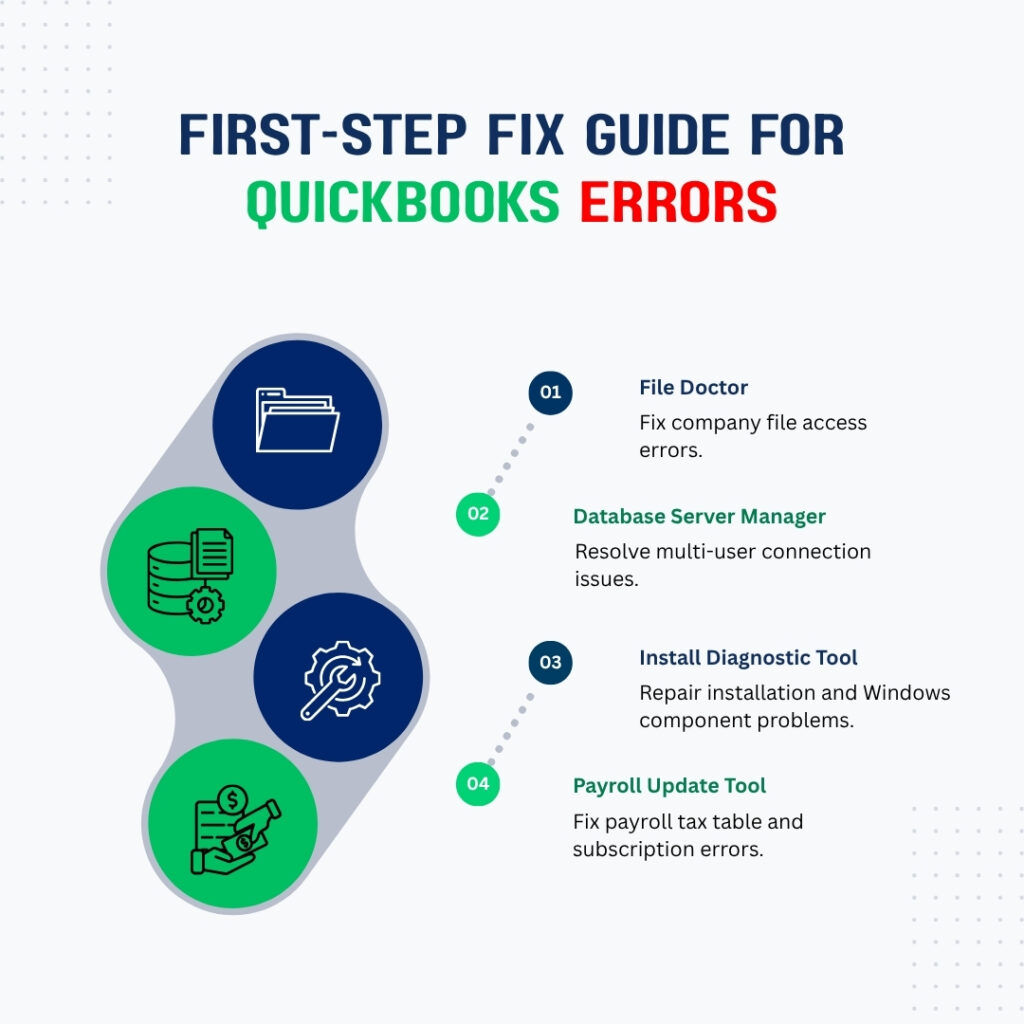
First-Step Fix Guide by QuickBooks Error Type
| Error Family | Plain-English Cause | First Tool to Open | Where in Tool Hub |
|---|---|---|---|
| 6000 series | Company file access blocked or file damaged | QuickBooks File Doctor | Company File Issues > Run QuickBooks File Doctor |
| H202, H303, H505 | Multi-user connection blocked by firewall or service not running | Database Server Manager | Network Issues > QuickBooks Database Server Manager |
| 15000 series | Payroll or software update download blocked by security settings | Internet Explorer TLS settings, then update retry | Help > Update QuickBooks Desktop (in QuickBooks, not Tool Hub) |
| PS038 | Payroll tax table out of date; payroll locked until updated | Download Entire Payroll Update | Employees > Get Payroll Updates (in QuickBooks, single-user mode) |
| PS033, PS036 | Payroll subscription file (paysub.ini) is damaged | Rename paysub.ini.old in C:\ProgramData\Intuit\QuickBooks | No Tool Hub step; manual file rename in File Explorer |
| Error 3371 | License verification file (EntitlementDataStore.ecml) is damaged | Rename EntitlementDataStore.ecml.old | No Tool Hub step; manual file rename via Run dialog |
| Unrecoverable Error | Program-level crash from damaged files or Windows component conflict | Quick Fix My Program, then Install Diagnostic Tool | Program Problems > Quick Fix My Program; Installation Issues > Install Diagnostic Tool |
| Error 6123 | Backup path too long or backup location not accessible | Move backup to shorter path (e.g., C:\QBBackups) | Company File Issues in Tool Hub if file access is also blocked |
| 1904 or 1603 | Installation file failed to write during QuickBooks install or update | Install Diagnostic Tool | Installation Issues > QuickBooks Install Diagnostic Tool |
Conclusion
Every QuickBooks Desktop error code belongs to a family that identifies the specific category of problem: company file access (6000 series), multi-user connection (H series), update downloads (15000 series), payroll subscription (PS series), license verification (Error 3371), and program crashes (Unrecoverable Error). Knowing which family the error code belongs to identifies the correct fix immediately and eliminates the trial-and-error process of applying random fixes until something works.
Intuit’s QuickBooks Tool Hub – free from Intuit’s official support page – addresses the majority of these error families directly with dedicated tools for each one: QuickBooks File Doctor for company file and network errors, the Database Server Manager for multi-user H series errors, Quick Fix My Program for Unrecoverable Errors, and the Install Diagnostic Tool for installation and Windows component errors. Keeping the Tool Hub installed on every computer running QuickBooks Desktop means the right tool is available the moment an error appears, without requiring a new download during an active error event.
Two actions protect against the most common QuickBooks errors recurring: keeping QuickBooks updated to the latest release within 48 hours of any Windows update (which closes the compatibility gap that causes 6000 series and Unrecoverable Errors), and running payroll updates in single-user mode (which prevents the PS series and Unrecoverable Errors that occur when payroll updates install during active multi-user sessions). Both actions take five minutes and eliminate the two most common error families from recurring.
Frequently Asked Questions
1. The same error code appears every few days and then goes away on its own. Does this mean it does not need to be fixed?
An error that appears intermittently and resolves on its own is still a sign of an underlying problem – it just has not reached the point of causing a permanent failure. Intermittent 6000 series errors that resolve on their own most often indicate that a network connection to the company file is unstable, or that an antivirus scan is intermittently intercepting QuickBooks file access.
Intermittent H202 errors that clear on their own indicate that the QuickBooks Database Server service is occasionally stopping and restarting. Setting the QuickBooks Database Service’s Startup Type to Automatic in Windows Services (services.msc) and adding QuickBooks to the antivirus exclusion list are the two fixes that address the most common causes of self-resolving errors before they escalate to permanent failures.
2. QuickBooks shows Error 6000, -83 only when restoring a backup on a new computer. The backup file was created successfully. Why?
Error 6000, -83 during a backup restore on a new computer is a documented scenario on Intuit’s community forum. The error appears because the new computer does not have the folder permissions configured to allow QuickBooks to write the restored file to the chosen location.
The backup file itself is valid – it was created correctly. The restore is failing because of where it is being restored to. Restoring the backup directly to a folder at the top of the C: drive – like C:\QBData – rather than inside the default Documents folder or Program Files folder gives QuickBooks a location with full write access. After a successful restore to C:\QBData, the file can be moved to a preferred location if needed.
3. Error H202 appears only on one workstation but not the others. The other workstations connect fine. What is different about that one computer?
H202 appearing on one specific workstation but not others points to a Windows Firewall rule or security setting on that individual computer that is blocking its QuickBooks connection – not a server or network-wide problem. Each workstation has its own Windows Firewall settings.
The workstation showing H202 likely has a firewall rule that blocks the QuickBooks ports (8019 and the version-specific dynamic port) that the other workstations allow. Go to Windows Settings > Privacy & Security > Windows Security > Firewall & Network Protection > Allow an App Through Firewall on the affected workstation and add QBW32.exe and QBDBMgrN.exe with both Private and Public network access enabled. QBDBMgrN.exe is the QuickBooks Database Server Manager process that workstations use to connect to the company file.
4. PS038 appeared and payroll cannot be run. The business has employees to pay today. What is the fastest way to resolve this?
PS038 locks payroll until the tax table is updated, but the update download takes only 5 to 10 minutes. The fastest resolution: close any other programs to free computer resources, switch QuickBooks to single-user mode (File > Switch to Single-User Mode), go to Employees > Get Payroll Updates, select Download Entire Payroll Update, and click Update. An internet connection is required for this download.
After the download completes, close QuickBooks completely, reopen it, and run the payroll. If the download fails due to a 15000 series error blocking the connection, opening Internet Explorer, going to Tools > Internet Options > Advanced tab, and enabling TLS 1.2 in the Security section resolves the connection block before retrying the payroll update download.
5. An Unrecoverable Error appears only when a specific employee’s paycheck is processed. Other employees’ paychecks process without error. What is causing this?
An Unrecoverable Error that occurs specifically when processing one employee’s paycheck while others process successfully points to damaged data in that employee’s payroll record in the company file – not a program-level error.
The program is working correctly for other employees, so the crash is triggered by the specific data it encounters in the affected employee’s record. Run Verify Data (File > Utilities > Verify Data) with the company file open – Verify Data will identify which records are damaged and which employee records are affected. Run Rebuild Data to repair the damage.
After a successful Rebuild and a second clean Verify Data run, test the affected employee’s paycheck again. If the Unrecoverable Error persists on that specific employee after a clean Verify Data result, the damaged data is in the employee setup record itself rather than a transaction, and re-entering the employee’s setup information after backing up the current record resolves it.

Anusmita is a seasoned content writer who brings perspective to words. As a writer, she enriches her work with a journalistic aptitude, utilising her training in Mass Communication and Journalism. She loves to travel and explore, which imparts a greater sense of understanding, maturity, and experience that are reflected in her content.
Beyond her professional work, Anusmita enjoys painting, singing, dancing, and spending time planting. She is also a self-proclaimed foodie who loves exploring different cuisines, an interest that further adds to her curiosity and perspective as a writer.
Leave a Reply