
QuickBooks Desktop in multi-user mode shares a single company file across several computers at the same time. Every transaction a user saves, every report a user runs, and every list a user scrolls through requires data to travel from the host computer — the computer storing the company file — to the workstation on the network. Slow performance in multi-user mode is always a sign that something in this data-sharing chain is working harder than it should: the hardware, the file size, the network connection, or the software configuration.
Slow QuickBooks in multi-user mode causes real business disruption. Payroll runs take twice as long. Reports time out before they finish. Transactions freeze mid-entry and force users to wait before saving. These slowdowns cost accounting teams significant time every day, and the lost time compounds across every user on the network. A five-person team experiencing ten-minute slowdowns per person per day loses nearly four hours of productive accounting work each week.
This article covers every proven method to improve QuickBooks Desktop speed in multi-user mode — what each method addresses, why it makes QuickBooks faster, and the exact steps to implement it. All performance recommendations are based on Intuit’s official documentation on resolving QuickBooks Desktop performance issues.
Table of Contents
Identify Your Speed Problem Before You Start
QuickBooks slowness in multi-user mode has five distinct causes, and each requires a different solution. Match your symptom below before reading the full sections:
| What You Experience | What Is Causing It | Go to Section |
| Slow on all workstations and the host at the same time | Company file has grown too large for current hardware | Section 2: File Size and Condense Data |
| Slow on workstations only — host runs fine alone | Network connection or network hardware is the bottleneck | Section 3: Network Speed |
| Slow report generation across all users | Host computer RAM is below the minimum for the number of users | Section 4: Host Computer RAM and Hardware |
| QuickBooks freezes or shows Not Responding during saves | Company file stored on external drive, flash drive, or wireless | Section 5: File Storage Location |
| Slow startup and navigation but fast saves | Background programs or antivirus scanning QuickBooks files | Section 6: Background Programs and Antivirus |
| Sudden slowdown after Windows or QuickBooks update | Automatic update settings downloading during business hours | Section 7: Automatic Updates |
Tip: One performance problem can look like another. Work through the sections in order if the symptom match is unclear — the fixes build on each other and stack their improvements.
1. Why Multi-User Mode Is Slower Than Single-User Mode
What Happens to Data in Multi-User Mode?
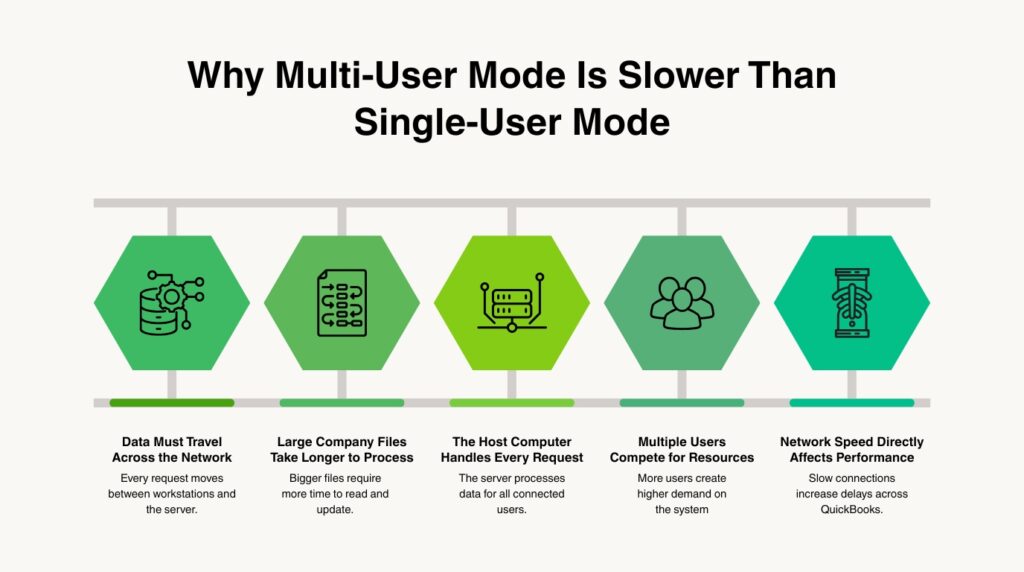
Single-user mode means one person opens the company file directly from the same computer where the file is stored. Every read and write operation happens on the same machine with no network involved. Multi-user mode means several people open the same company file from different computers — and every piece of data those users read or write must travel across the network to and from the host computer that stores the file. That network journey adds time to every operation, and the total slowdown grows with the number of simultaneous users.
Intuit’s documentation on QuickBooks Desktop performance issues states clearly that QuickBooks performance decreases as the size of the company file increases, and that performance issues can happen if the network cannot manage large data files. These two factors — file size and network capacity — are the two most controllable causes of multi-user slowness. Both have documented fixes that Intuit recommends and that produce measurable speed improvements without requiring new software.
The host computer carries a disproportionate share of the work in multi-user mode. The QuickBooks Database Server Manager service on the host reads data from the company file, packages it for network transmission, sends it to each requesting workstation, receives the workstation’s changes, and writes those changes back to the file — all simultaneously for every connected user. A host computer that does not have enough RAM or a fast enough drive for this workload produces slowness that every workstation on the network feels.
The RAM Formula Intuit Uses to Calculate Host Requirements
Intuit’s documentation provides a specific formula for calculating how much RAM the host computer needs in multi-user mode: multiply the company file size in gigabytes by the number of users on the network. A company file that is 500 MB in size — which is 0.5 GB — with six users connected simultaneously requires a minimum of 3 GB of RAM on the host computer dedicated to QuickBooks operations. A host computer with less RAM than this formula requires produces slowness that cannot be fixed by any network or software change.
For terminal server environments — where multiple users connect to a single computer remotely using Remote Desktop Protocol instead of separate physical workstations — Intuit’s documentation requires 0.5 GB of RAM for each user. Five users connecting via terminal server require 2.5 GB of RAM available on the terminal server specifically for QuickBooks. Intuit documents that terminal server mode is only supported for QuickBooks Desktop Enterprise, not for Pro or Premier.
2. Company File Size: The Most Common Cause of Multi-User Slowness
How File Size Slows Down Every User Simultaneously?
The company file is a single database file with a .QBW extension that stores every transaction, customer record, vendor record, account balance, and report setting for the business. Every time a user opens a report, searches a list, or saves a transaction, QuickBooks reads from or writes to this file. A larger file takes longer to read from and write to, and every workstation on the network experiences that slowness simultaneously because they all share the same file on the same host computer.
Intuit’s documentation on file size in QuickBooks Desktop is direct: there is no hard limit on company file size, but performance decreases as the file grows. Intuit’s support team consistently recommends keeping company files for QuickBooks Pro Plus and Premier Plus at or below 250 MB each for reliable performance. Files larger than 500 MB need to be optimized every 6 to 12 months. The Condense Data utility is Intuit’s documented tool for reducing company file size without deleting the business’s accounting data.
How to Use the Condense Data Utility?
Create a full backup of the company file before running Condense Data. Go to the File menu, select Back Up Company, choose Create Local Backup, and complete the backup to a location that is not the same drive as the live company file. The backup gives a clean restore point in case the condense process needs to be reversed. Condense Data is irreversible once completed — the summarized transactions cannot be expanded back to individual entries after the process finishes.
Open the company file on the host computer as the Admin user and confirm no other users are logged in. Go to the File menu, select Utilities, then select Condense Data. QuickBooks presents options for how to condense — the main choice is to remove transactions before a specific date while keeping summary balances for all accounts. QuickBooks shows an estimated file size reduction before the process begins. Select Begin Condense and allow the process to complete. The condense process copies all data into a new file, removes old transaction detail and unwanted temporary data, and reduces file size by 25 to 40 percent according to documented results.
After the condense completes, open QuickBooks Database Server Manager on the host computer and run a scan of the company file folder. The scan rebuilds the .ND file — the Network Descriptor file that records the company file’s network location — to point workstations to the new condensed file correctly. Test the performance from each workstation after the scan. Condense Data is the single most effective step for improving multi-user performance on a system where the company file has grown past the 250 MB recommendation for Pro and Premier.
Company File Size and Performance Reference
| Company File Size | Expected Performance | Recommended Action |
| Under 150 MB | Fast performance in multi-user mode on standard hardware | No action needed — maintain with regular backups |
| 150 MB to 250 MB | Moderate performance — noticeable on older hardware | Monitor size; condense if slowness appears |
| 250 MB to 500 MB | Noticeably slower for Pro and Premier users | Run Condense Data utility; upgrade host RAM |
| Over 500 MB | Significant slowdown across all workstations | Condense every 6 to 12 months; consider Enterprise for large files |
| Over 1 GB | Severe performance issues and increased risk of file damage | Condense immediately; Enterprise only at this size |
3. Network Speed: The Invisible Bottleneck Between Host and Workstations
How the Network Connection Affects QuickBooks Speed?
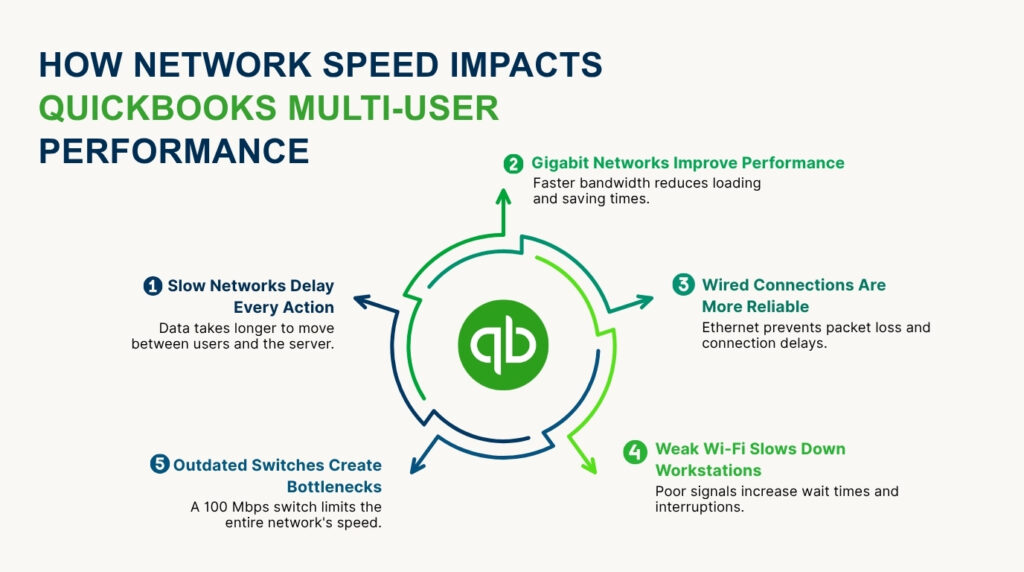
Every byte of accounting data in a multi-user QuickBooks session travels across the network connection between the host computer and each workstation. A slow network connection means that data transfer takes longer, and users experience that delay as QuickBooks hesitating before it opens screens, saves transactions, or returns report results. The network speed between the host and workstations is the ceiling on how fast QuickBooks can operate in multi-user mode — no software optimization can compensate for a network that transfers data slowly.
Intuit’s performance documentation recommends a one gigabit per second network interface card on the server computer to increase bandwidth in multi-user environments. A gigabit network card — often called a 1 Gbps or GbE card — transfers data ten times faster than a standard 100 Mbps card. The difference is directly measurable in QuickBooks: opening a large report that takes 30 seconds on a 100 Mbps connection takes 3 seconds on a gigabit connection, because the report data reaches the workstation ten times faster.
Wired vs. Wireless Connections
The host computer that stores the company file must connect to the network using a wired Ethernet cable. A wireless connection — also called Wi-Fi — drops data packets during normal operation due to signal interference, competing devices, and distance from the router. A dropped packet during a QuickBooks multi-user session causes the workstation to wait for the data to be resent, which appears as a freeze or a Not Responding message. A wired connection does not drop packets under normal conditions, which eliminates the freeze-and-wait cycle that wireless connections produce.
Workstations can use wireless connections with less risk than the host because workstations receive completed data from the host rather than performing file writes directly. However, a workstation on a weak wireless signal still experiences delays because its requests for data from the host take longer to arrive and its confirmations take longer to return. Moving the workstation closer to the wireless access point, or connecting it with an Ethernet cable, produces an immediate speed improvement on that specific workstation without changing anything on the host.
A network switch — a hardware device that connects multiple computers to the same network — handles the traffic between the host and all workstations simultaneously. Intuit’s documentation recommends using a gigabit network switch to handle multiple users efficiently. A network switch that only supports 100 Mbps becomes the bottleneck even if the host computer and workstations both have gigabit network cards, because all traffic passes through the switch before reaching its destination. Replacing a 100 Mbps switch with a gigabit switch is one of the most cost-effective hardware upgrades for a multi-user QuickBooks network.
4. Host Computer Hardware: RAM, Processor, and Storage Drive
RAM: The Most Direct Hardware Impact on Multi-User Speed
RAM — which stands for Random Access Memory — is the temporary working space a computer uses to hold active data while processing it. QuickBooks Desktop uses RAM on the host computer to hold portions of the company file in memory so that workstations do not need to wait for the drive to read the file every time data is requested. The more RAM the host has, the more of the company file it can hold in memory at once, and the faster it responds to data requests from workstations.
Intuit’s system requirements document specific RAM minimums for the host computer based on the number of simultaneous users: 8 GB of RAM for 1 to 5 users, 12 GB for up to 10 users, 16 GB for up to 15 users, and 20 GB or more for 20 or more users. A host computer that falls below these minimums experiences RAM pressure — the computer runs out of working space and starts writing temporary data to the hard drive instead of keeping it in memory. Writing to a hard drive is far slower than reading from RAM, and every workstation on the network experiences the slowdown immediately.
Storage Drive: SSD vs. Hard Disk Drive
Intuit’s official performance documentation states directly: for the best performance, store the QuickBooks data file on a solid-state drive (SSD). An SSD — a solid-state drive — stores data on memory chips with no moving parts. A traditional hard disk drive (HDD) stores data on spinning magnetic platters and uses a mechanical arm to read and write. An SSD reads and writes data approximately 5 to 10 times faster than a traditional hard drive. In a multi-user QuickBooks environment, this difference is visible in every operation that reads from or writes to the company file.
A host computer running the company file on a traditional hard drive and experiencing slowness can resolve much of that slowness by moving the company file to an SSD — either by replacing the existing drive with an SSD or by adding an SSD as a second drive and moving the company file to it. The performance improvement is immediate and requires no changes to QuickBooks settings, user roles, or network configuration. Intuit also documents that using a hard drive with a fast rotational speed of 7,500 or 10,000 RPM provides better performance than a standard 5,400 RPM drive when an SSD is not available.
Processor Speed
Intuit’s system requirements document a minimum processor speed of 2.4 GHz for QuickBooks Desktop. For the host computer in a multi-user setup, a faster clock speed — the measurement in GHz of how many instructions the processor handles per second — directly reduces the time it takes to run QuickBooks reports, process payroll calculations, and respond to simultaneous requests from multiple workstations. Intuit’s performance guidance recommends using a fast clock speed of 2.2 GHz or more and filling all available RAM sockets with the highest-capacity memory chips the motherboard supports.
Host Computer Hardware Requirements by User Count
| Number of Simultaneous Users | Minimum RAM on Host Computer | Storage Drive Recommendation |
| 1 to 5 users | 8 GB RAM | SSD strongly recommended; 7,500+ RPM HDD minimum |
| Up to 10 users | 12 GB RAM | SSD required for reliable performance |
| Up to 15 users | 16 GB RAM | SSD required; dedicated server computer recommended |
| 20 or more users | 20 GB RAM or more | SSD required; QuickBooks Enterprise recommended |
| Terminal server (Enterprise only) | 0.5 GB per user — e.g. 5 users = 2.5 GB | SSD required on terminal server |
5. Company File Storage Location: Where the File Lives Determines How Fast It Runs
Local Drive vs. External Drive vs. Network Storage
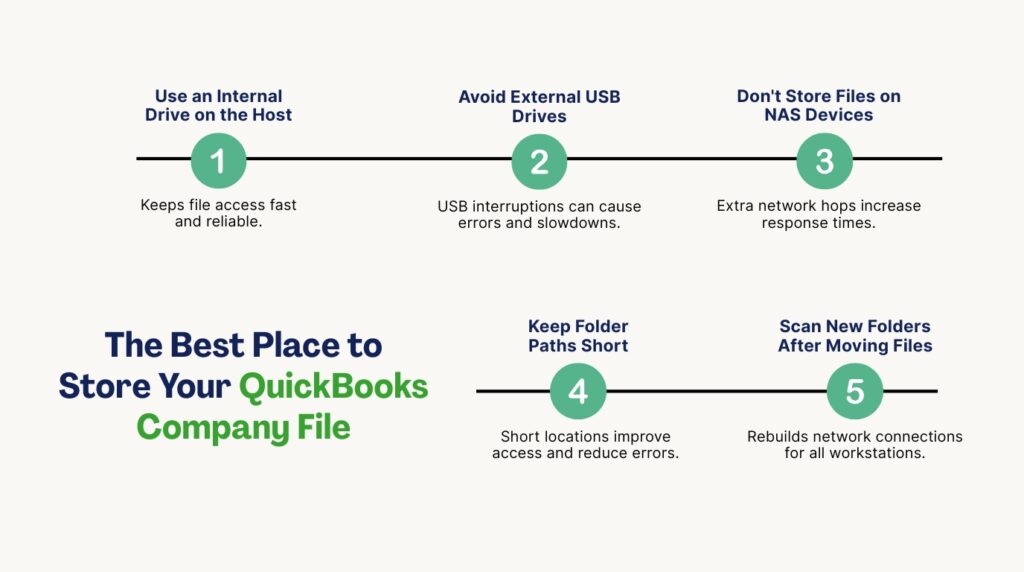
The company file must be stored on the internal hard drive of the host computer — not on an external USB drive, not on a flash drive, and not on a network-attached storage device. Intuit’s documentation on performance states clearly: store the company file on an internal hard drive on a computer on your network. External drives and flash drives connect through a USB port, which adds a slower connection layer between the file and the QuickBooks services that need to access it. Network-attached storage devices add an additional network hop between the file and the Database Server Manager, doubling the network traffic for every read and write operation.
A company file stored on an external drive also risks data corruption more easily than a file on an internal drive. USB connections can drop during normal computer operation — a momentary connection interruption while QuickBooks is writing a transaction to the file leaves that transaction in an incomplete state. Incomplete writes produce 6000-series errors and require the Verify and Rebuild Data utility to repair. Moving the company file from an external drive to the host computer’s internal SSD eliminates this risk entirely and typically produces an immediate and significant speed improvement.
Folder Location on the Local Drive
Intuit recommends storing the company file in a short folder path on the C: drive of the host computer — for example, C:\QBData\CompanyName.QBW. A short path like this is faster for QuickBooks to navigate and reduces the risk of hitting the 210-character path length limit that produces 6000-series errors. Long nested paths like C:\Users\Public\Documents\Intuit\QuickBooks\Company Files\2024\CurrentYear\CompanyName.QBW add unnecessary folder layers that slow down every file operation and push the total path length closer to the limit.
After moving the company file to a new folder, open QuickBooks Database Server Manager on the host computer, add the new folder to the Scan Folders list, and click Start Scan. The scan rebuilds the .ND file with the new folder location. Without the scan, workstations continue pointing to the old folder path and receive connection errors when they try to open the company file. The scan takes less than two minutes and confirms the file is correctly accessible over the network before any workstation opens it.
6. Background Programs and Antivirus: Silent Performance Drains
How Background Programs Slow QuickBooks?
Background programs are applications running on the host computer that are not visible in the foreground but still use RAM, processor time, and network bandwidth. Common background programs that affect QuickBooks performance include antivirus scans, Windows Update downloads, cloud backup services running during business hours, browser tabs left open, and other business applications that share the host computer with the QuickBooks Database Server Manager service. Each background program competing for the same RAM and processor reduces the resources available to QuickBooks.
The most impactful background program on a QuickBooks host computer is real-time antivirus scanning. Antivirus software that scans files as they are read and written — called real-time or on-access scanning — inspects every data operation QuickBooks performs on the company file before allowing it to complete. On a busy multi-user session where dozens of reads and writes happen per minute, antivirus scanning adds a measurable delay to every single one. Intuit’s guidance on QuickBooks performance and antivirus explicitly recommends adding QuickBooks program files and the company file folder to the antivirus exclusion list — the setting that tells the software to skip those files during scanning.
Configuring Antivirus Exclusions for QuickBooks
Add the following items to the exclusion list of the antivirus software on the host computer. The QuickBooks program folder — located at C:\Program Files\Intuit\QuickBooks [Version] — contains the executable files that the antivirus should not scan during operation. The company file folder — wherever the .QBW company file is stored — contains the data file that the antivirus should not inspect during every read and write. The three specific QuickBooks executable files that need exclusions are QBW32.exe, QBDBMgrN.exe, and QBCFMonitorService.exe, all stored in the program folder.
Also add exclusions for the QuickBooks common files folder at C:\Program Files\Common Files\Intuit\QuickBooks. This folder contains shared components that QuickBooks uses during normal operation, and antivirus scanning of these components during multi-user sessions adds unnecessary overhead. After adding all exclusions, restart QuickBooks on the host computer and test the performance from workstations. Antivirus exclusions for QuickBooks files produce a measurable speed improvement on host computers that run real-time protection software during business hours.
7. Automatic Updates Running During Business Hours
How Automatic Updates Consume Resources During Work Hours?
QuickBooks Desktop has an automatic update setting that downloads and prepares software updates in the background while QuickBooks is open. Windows also performs automatic updates that download files, install patches, and restart services — all while users are working. Both types of automatic update consume network bandwidth, RAM, and processor time on the host computer and workstations. A host computer downloading a QuickBooks update while five users are running payroll produces slowness across all five sessions because the download competes with QuickBooks for the same network bandwidth and processor resources.
Intuit’s performance guide includes specific instructions for disabling automatic QuickBooks updates during business hours and installing them manually during off-hours instead. Go to the Help menu, select Update QuickBooks Desktop, click the Options tab, and in the Automatic Updates section, select No. Click Close to save the setting. With automatic updates disabled, QuickBooks no longer downloads updates during business hours. Schedule manual updates — by going to Help, Update QuickBooks, and clicking Get Updates — outside of business hours when no users are in the company file.
Scheduling Windows Updates Outside Business Hours
Windows Update can be configured to download and install updates only during specific hours. On the host computer, open Settings, go to Windows Update, click Advanced Options, and select Active Hours. Set the active hours to match the business day — for example, 8 AM to 6 PM. Windows automatically schedules updates for outside of those hours, preventing update downloads from competing with QuickBooks during the work day. This change takes effect immediately and requires no restart to activate.
8. Quick Fix Steps: Fastest Performance Gains in Order
The steps below produce the highest performance improvement in the least time. Work through them in order — each step builds on the previous one and all of them together produce the maximum speed improvement the current hardware can deliver.
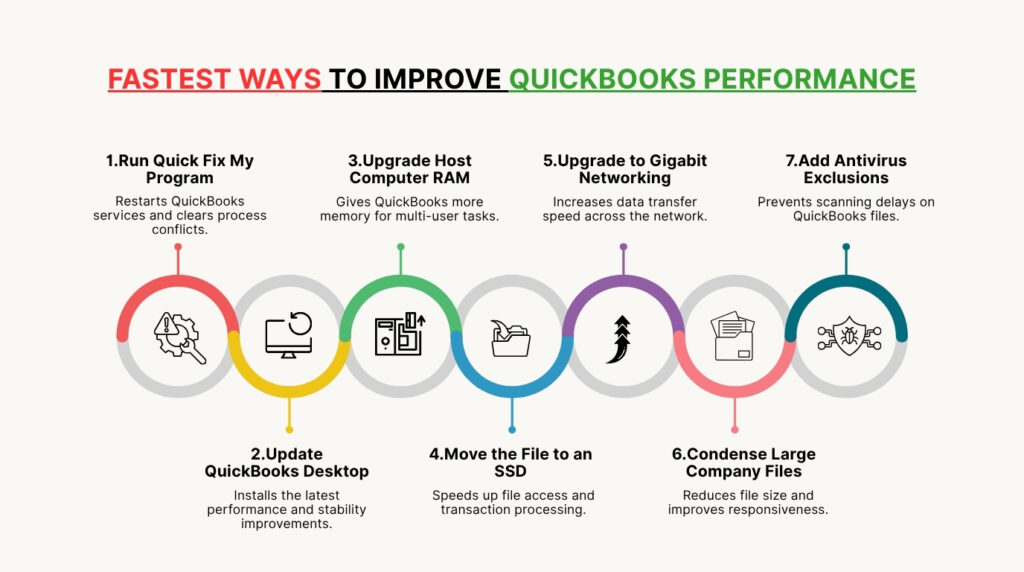
- Run Quick Fix My Program from QuickBooks Tool Hub: Download QuickBooks Tool Hub from Intuit’s official website. Open it, go to Program Problems, and select Quick Fix My Program. This tool closes QuickBooks background processes and restarts them cleanly, resolving resource conflicts and stale processes that slow down every user session without requiring any hardware or configuration changes.
- Update QuickBooks Desktop to the latest release: Go to Help, select Update QuickBooks Desktop, and install all available updates. Intuit releases product updates that include performance improvements for specific operations — report generation, multi-user session management, and large file handling. Running an outdated version means missing those improvements.
- Check and upgrade host computer RAM to meet the Intuit formula: Multiply the company file size in GB by the number of simultaneous users to find the minimum RAM needed. A 500 MB file with 6 users requires 3 GB of RAM dedicated to QuickBooks on the host. If the host has less than this, adding RAM is the single highest-impact hardware change available.
- Move the company file to an internal SSD on the host computer: Intuit recommends storing the QuickBooks data file on an SSD for best performance. Moving the company file from a traditional hard drive or external drive to an internal SSD reduces file read and write times by 5 to 10 times and eliminates the file corruption risk from USB connection drops.
- Replace 100 Mbps network equipment with gigabit hardware: Replace the network switch connecting the host and workstations with a gigabit switch. Also install a gigabit network card in the host computer if it currently uses a 100 Mbps card. Intuit’s performance documentation recommends a 1 Gbps network card on the server to increase bandwidth in multi-user environments.
- Run the Condense Data utility if the company file exceeds 250 MB: Go to File, Utilities, Condense Data on the host computer with no other users logged in. Always create a full backup first. The condense removes old transaction detail while keeping summary balances and reduces the file size by 25 to 40 percent, which directly reduces the amount of data QuickBooks must read and write for every user operation.
- Add QuickBooks files to the antivirus exclusion list on all computers: Exclude the QuickBooks program folder, the company file folder, and the three main QuickBooks executables (QBW32.exe, QBDBMgrN.exe, QBCFMonitorService.exe) from real-time antivirus scanning on both the host computer and all workstations. Real-time scanning of active QuickBooks files adds a measurable delay to every read and write operation.
Conclusion
QuickBooks Desktop speed in multi-user mode depends on four controllable factors: the size of the company file, the capacity of the host computer’s hardware, the speed of the network connection, and the configuration of the software environment. Intuit documents each of these factors and provides specific, measurable guidance for each one — the file size formula, the RAM formula by user count, the SSD recommendation, the gigabit network recommendation, and the Condense Data utility.
Most multi-user slowness traces back to one of two causes: the company file has grown past the performance threshold for the current hardware, or the host computer’s RAM falls below the minimum for the number of connected users. Both causes have straightforward fixes — Condense Data for the file size issue, RAM upgrade for the hardware issue — that produce immediate and significant speed improvements without replacing the entire system.
The fastest path to better performance is the eight-step checklist at the end of this article. Running Quick Fix My Program and updating QuickBooks takes less than 10 minutes and resolves software-level slowness immediately. Checking the RAM formula and moving the company file to an SSD are the two changes that deliver the largest hardware-level gains. Perform those four steps first, then address network equipment and antivirus exclusions if slowness persists. The combination of all eight steps brings multi-user QuickBooks to the best speed the current infrastructure can support.
Frequently Asked Questions
Q1. QuickBooks is slow only when five or more users are logged in — what is the cause?
The slowness at five or more users points to the host computer’s RAM falling below the minimum for that user count. Use Intuit’s RAM formula: multiply the company file size in GB by the number of simultaneous users. A 400 MB file (0.4 GB) with five users requires 2 GB of RAM on the host. Check the host computer’s installed RAM in Windows Settings under System, then About. If the RAM is below the formula result, upgrading the host computer’s RAM is the direct fix for slowness that only appears when multiple users are connected simultaneously.
Q2. Reports take several minutes to generate in multi-user mode — what speeds them up?
Report generation is the most RAM-intensive operation in QuickBooks multi-user mode because reports read large portions of the company file and process the data before displaying results. The two most effective fixes for slow reports are upgrading the host computer’s RAM to meet Intuit’s formula for the number of users, and reducing the company file size using the Condense Data utility. Also check that no antivirus scan is running on the company file folder during business hours — antivirus inspection of each file read during report generation doubles the time every read takes.
Q3. Is it safe to use the Condense Data utility, and what does it do to past transactions?
Condense Data is safe when run with a full backup completed first. The utility removes individual transaction detail for the periods you select — for example, transactions older than two years — while keeping the summary balance for every account for every period. Account totals, customer balances, vendor balances, and financial reports for past periods remain correct. The individual line items within old transactions are no longer viewable after the condense. Intuit documents that condensing is irreversible, which is why creating a backup before starting is a required step.
Q4. Can upgrading the network switch improve QuickBooks speed without changing computers?
Yes. Replacing a 100 Mbps network switch with a gigabit switch is one of the fastest and most affordable network upgrades available. A gigabit switch transfers data ten times faster than a 100 Mbps switch and costs roughly the same price as a standard office network switch. The improvement is immediate and does not require any changes to QuickBooks settings, company file location, or workstation configuration. Combined with a gigabit network card on the host computer, a gigabit switch removes the network as a bottleneck for most multi-user QuickBooks environments.
Q5. QuickBooks runs fast in the morning but slows down significantly by mid-afternoon — what changes during the day?
This pattern indicates a resource problem that builds up over the course of the day rather than a configuration error. The most common cause is RAM on the host computer filling up as more users connect and more data gets loaded into memory. Restart the host computer at the start of each business day to clear any accumulated memory load from the previous day. Also check whether automatic updates or scheduled cloud backups run during business hours — these consume network bandwidth and processor time and are often scheduled for mid-day by default. Move them to overnight hours using the steps in Section 7 of this article.

Anusmita is a seasoned content writer who brings perspective to words. As a writer, she enriches her work with a journalistic aptitude, utilising her training in Mass Communication and Journalism. She loves to travel and explore, which imparts a greater sense of understanding, maturity, and experience that are reflected in her content.
Beyond her professional work, Anusmita enjoys painting, singing, dancing, and spending time planting. She is also a self-proclaimed foodie who loves exploring different cuisines, an interest that further adds to her curiosity and perspective as a writer.
Leave a Reply