
QuickBooks Desktop requires one specific background program to run multi-user mode — the Database Server Manager. This program runs silently on the computer that stores the company file, and it gives all other computers on the network permission to open and edit that same file at the same time. The moment the Database Server Manager stops working, every person on the network loses access to the company file immediately.
Most businesses do not realize they depend on the Database Server Manager until it fails. The error messages that appear — H202, H505, QBDBMgrN not running, or Company File in Use — all point back to a problem with this one program. Understanding what the Database Server Manager does, why it fails, and how to fix each failure is the fastest way to restore access and prevent the problem from coming back.
This article covers every major failure type for the Database Server Manager in a QuickBooks multi-user setup: what each issue means in plain terms, why it happens, what breaks when it is ignored, and the exact steps to fix and prevent it.
Table of Contents
Find Your Issue in 60 Seconds
Match your current symptom to the correct section using the table below.
| What You Are Seeing Right Now | Go to This Section For Solution |
| Error H202 or H505 on a workstation | Section 2 – H-Series Connection Errors |
| Message: QBDBMgrN not running on this computer | Section 3 – Database Server Manager Service Stopped |
| QuickBooks switches back to single-user mode on its own | Section 4 – Hosting Configuration Conflicts |
| Workstations cannot see the company file at all | Section 5 – Folder Permissions and .ND File Problems |
| Multi-user mode breaks after a QuickBooks upgrade | Section 6 – Version Mismatch After an Upgrade |
| Error: Company File in Use – Please Wait | Section 7 – Locked File Errors in Multi-User Mode |
1. What the Database Server Manager Actually Does?
The Role of the Database Server Manager
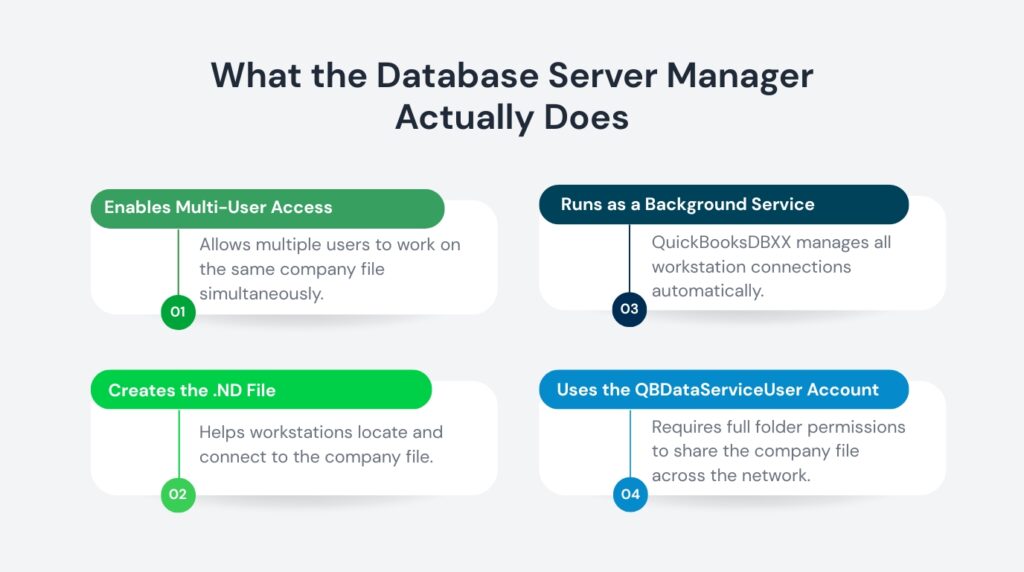
The Database Server Manager — also called QBDSM or QBDBMgrN — is a program that QuickBooks installs on the computer that stores the company file. Its job is to let multiple people open and edit the same company file at the same time from different computers on the same network. Without this program running, QuickBooks can only be used by one person at a time.
According to Intuit, the Database Server Manager runs as a Windows background service named QuickBooksDBXX, where XX is a number that corresponds to the version of QuickBooks installed. For example, QuickBooks Desktop 2023 creates the service QuickBooksDB33. This service starts automatically when the server computer turns on and keeps running as long as the computer is on.
The Database Server Manager also creates a small configuration file called a Network Data file — which has the file extension .ND — alongside every company file it manages. This .ND file works like a directory listing: it tells every other computer on the network exactly where the company file lives and how to connect to it. A missing or damaged .ND file breaks multi-user access even when everything else is working correctly.
The QBDataServiceUser Account
Every time the Database Server Manager is installed, QuickBooks creates a dedicated Windows user account on the server computer. Intuit names this account QBDataServiceUserXX, where XX matches the version number. For example, QuickBooks Desktop 2023 creates the account QBDataServiceUser33. This account is what the Database Server Manager uses internally to open the company file and share it across the network.
For the Database Server Manager to work, this QBDataServiceUser account must have Full Control permission over the folder where the company file is stored. A missing or reduced permission on this account is one of the most common reasons multi-user access breaks after an initial setup.
If you run multiple versions of QuickBooks Desktop on the same server — for example, QuickBooks 2022 and QuickBooks 2024 — you need a separate Database Server Manager installation for each version. Each installation creates its own Windows service and its own QBDataServiceUser account. Running only one Database Server Manager when two QuickBooks versions are active on the network causes access errors for the version that does not have its service running.
2. H-Series Connection Errors (H202, H505, H101, H303)
What These Errors Mean
H-series errors appear on a workstation computer when it tries to open a company file stored on a different computer and cannot reach it. The message that appears — most often H202 or H505 — tells the user that QuickBooks needs help connecting to the computer that holds the company file. These errors never appear in single-user setups; they are exclusively a multi-user network problem.
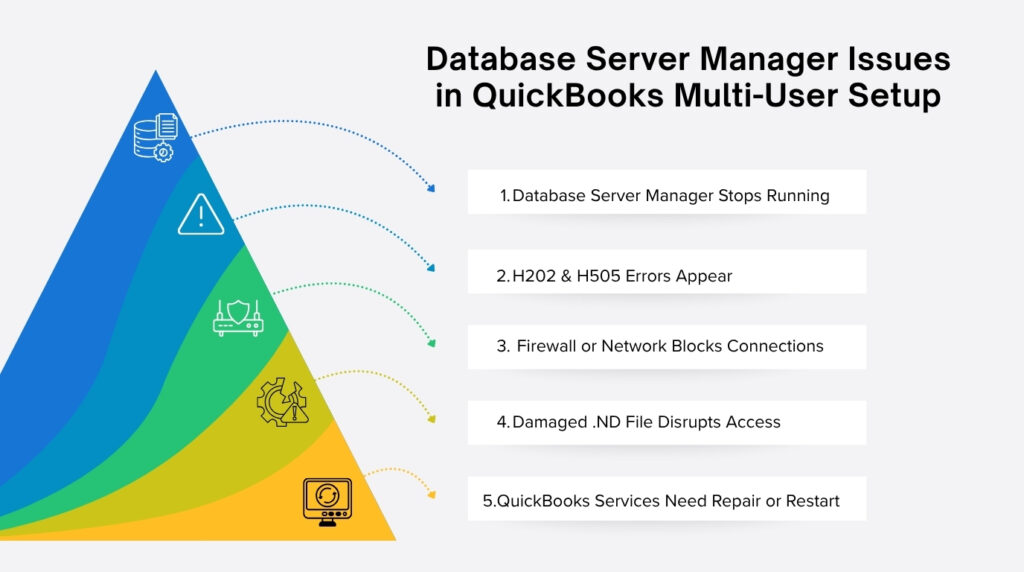
H202 is the most common H-series error. It surfaces when a workstation can see the server on the network but the QuickBooksDBXX service on the server is either not running or is being blocked by a firewall. H505 appears under the same conditions but indicates a more complete connection failure, often caused by a combination of a stopped service and a damaged .ND file.
| Error Code | What It Means | Primary Cause |
| H101 | Workstation cannot reach the host computer | QuickBooksDBXX service not running on server |
| H202 | Host computer found but connection blocked | Firewall blocking QuickBooks ports on host |
| H303 | Incorrect hosting on the network | Multiple computers set to host the company file |
| H505 | No connection to host computer at all | Stopped service + damaged .ND file combined |
Why H-Series Errors Happen
H-series errors have four main causes. The first is that the QuickBooksDBXX service is not running on the server computer — without this service active, no workstation can connect to the company file regardless of what else is configured correctly. The second cause is a Windows Firewall or third-party antivirus program blocking the network ports that QuickBooks uses to send and receive data between computers.
The third cause is incorrect hosting settings. Only one computer on the network should be set to host the company file. Every other computer, including workstations, must be set to Stop Hosting Multi-User Access. The moment a second computer is set to host, both machines compete for control of the company file and workstations lose access. The fourth cause is a damaged .ND file that contains wrong or unreadable path information, pointing workstations to a location that no longer exists.
How to Fix H-Series Errors
Intuit provides a step-by-step process to resolve H-series errors. Start with the QuickBooks Tool Hub, which is a free program available from Intuit that consolidates the most important repair tools in one place.
- Download and install QuickBooks Tool Hub from Intuit’s official website. Open it on the server computer — the one that holds the company file.
- Inside Tool Hub, go to Network Issues and open QuickBooks Database Server Manager.
- Select Start Scan. The Database Server Manager will scan the folder where the company file is stored, rebuild the .ND file, and automatically reconfigure firewall permissions for the QuickBooks service.
- After the scan finishes, go to each workstation where the error appeared and open QuickBooks. Select File, then Switch to Multi-User Mode.
- If the error persists after the scan, go to Tool Hub and select Company File Issues, then Run QuickBooks File Doctor. This tool repairs both the company file and the network configuration together.
3. QuickBooksDBXX Service Stopped or Disabled
What This Error Means
The error message “QBDBMgrN not running on this computer” appears when the QuickBooksDBXX Windows service has stopped running on the server. This service is the engine behind multi-user access. Every time a workstation opens the company file, it sends a request to this service on the server. The moment the service is not running, all those requests fail and nobody can open the file in multi-user mode.
This service can stop for several reasons: a Windows update changed its startup settings, a security program blocked it from running, an upgrade to a newer QuickBooks version did not correctly configure the new service, or someone manually stopped it during troubleshooting and never restarted it. In some businesses using QuickBooks Desktop 2024, Intuit’s own community has documented cases where the service resets from Automatic to Manual startup type on its own after certain system events, requiring manual correction.
How to Restart and Fix the Service
- Open the Windows Start menu. Type Services into the search bar and press Enter to open the Windows Services panel.
- Find the service named QuickBooksDBXX where XX is your version number (for example, QB33 for QuickBooks 2023). Right-click it and select Properties.
- Go to the General tab. Set the Startup Type to Automatic. This ensures the service restarts on its own after every reboot without manual intervention.
- Go to the Log On tab and make sure it is set to Local System Account. If it is set to a specific user account, change it to Local System Account — this is the setting Intuit recommends for stable operation.
- Go to the Recovery tab. Set the First Failure, Second Failure, and Subsequent Failures all to Restart the Service. This tells Windows to automatically restart the service if it crashes rather than leaving it stopped.
- Click Apply and then OK. Go back to the General tab and click Start to restart the service immediately.
- Open QuickBooks Database Server Manager from the Tool Hub, run a scan on the company file folder, and then test multi-user access from a workstation.
4. Hosting Configuration Conflicts
What Happens When Hosting Is Set Up Wrong
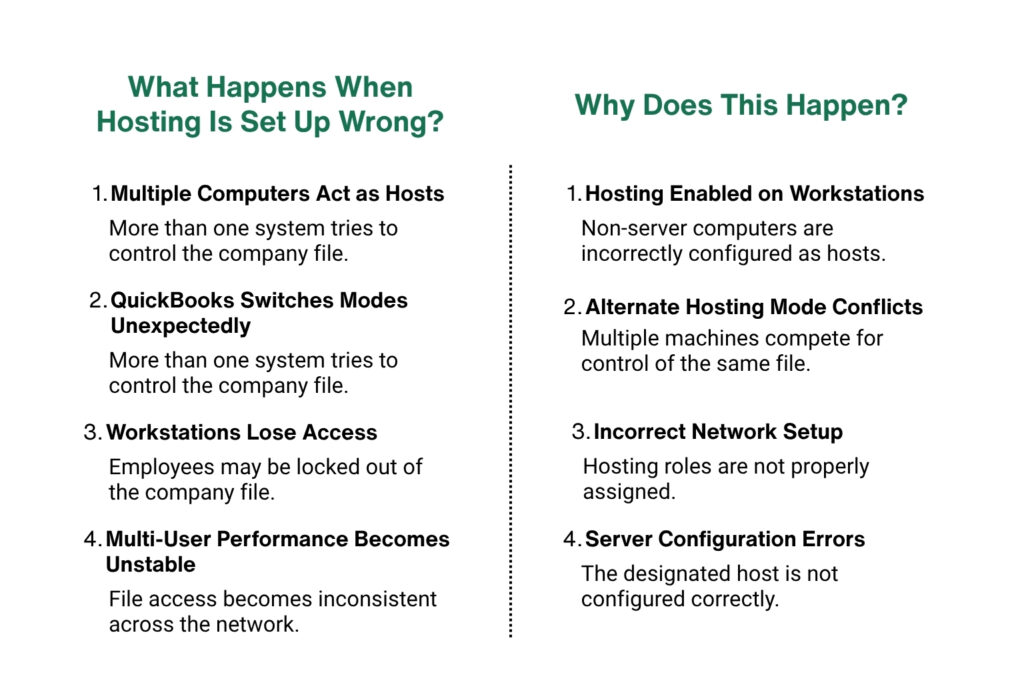
QuickBooks Desktop uses a hosting mode setting to determine which computer on the network has authority to share the company file. Only one computer — the server or host — should have hosting turned on. This computer runs the Database Server Manager and serves the company file to everyone else. Every other computer connected to the network, including the workstations that accountants and bookkeepers use daily, must have hosting turned off.
The hosting conflict happens when more than one computer has hosting enabled at the same time. Intuit describes this as “Alternate Hosting Mode,” and it is one of the most disruptive multi-user problems because it causes the company file to bounce between multiple machines. The result is that QuickBooks keeps switching back to single-user mode unexpectedly, or workstations get locked out while another machine takes over control of the file.
How to Check and Fix Hosting Settings
The fix requires checking every computer that has QuickBooks installed — both the server and every workstation.
- On each workstation (not the server), open QuickBooks Desktop. Go to File, then Utilities. Look for the option that says Host Multi-User Access. If this option is visible and not grayed out, it means that computer currently has hosting turned on.
- Click Stop Hosting Multi-User Access on every workstation. This resets that workstation to normal access mode. Repeat this on every computer except the server.
- On the server computer — the one that holds the company file — open QuickBooks Desktop. Go to File, then Utilities. Confirm that Host Multi-User Access is already enabled. The option that appears should say Stop Hosting Multi-User Access, which confirms hosting is currently active on this machine.
- After confirming hosting is enabled only on the server, restart the QuickBooks Database Server Manager by opening Tool Hub, selecting Network Issues, and running a scan. Then test access from each workstation.
5. Folder Permissions and .ND File Problems
What Folder Permissions Have to Do with Multi-User Access
QuickBooks stores the company file in a specific folder on the server. The Database Server Manager must have permission to read and write to that folder at all times to keep the company file open for all users. This permission is granted through a special Windows user account — QBDataServiceUserXX — that QuickBooks creates during the Database Server Manager installation.
When a network administrator sets restrictive folder permissions on the server, or when a Windows update resets folder security settings, the QBDataServiceUser account can lose its access rights to the company file folder. The result is that the Database Server Manager can no longer open the file for network users, and workstations receive connection errors even when the QuickBooksDBXX service is running normally.
How to Set Correct Folder Permissions
Intuit’s official guidance specifies that the QBDataServiceUserXX account must have Full Control permission on the folder that contains the company file. Here is how to set this correctly:
- Open File Explorer on the server computer. Navigate to the folder where the company file (.QBW) is stored — typically C:\Users\Public\Public Documents\Intuit\QuickBooks\ or the custom folder where your business stores the file.
- Right-click the folder and select Properties. Go to the Security tab.
- Click Edit, then Add. Type in the QBDataServiceUserXX account name for your version (for example, QBDataServiceUser33 for QuickBooks 2023) and click OK.
- In the Permissions section, check the box for Full Control under the Allow column. Click Apply, then OK.
- Also set permissions for Everyone to Full Control on the same folder. This ensures the company file remains accessible when users log in through different Windows accounts.
- After setting permissions, open QuickBooks Database Server Manager, run a new scan on the folder, and test multi-user access from a workstation.
Fixing a Damaged or Missing .ND File
The .ND file is a small text file that QuickBooks creates next to every company file. Its full name matches the company file but ends in .ND instead of .QBW. This file records the server’s name and the network path information that workstations use to locate and connect to the company file. A single instance of the server being renamed, its IP address changing, or the folder being moved is enough to make the .ND file contain wrong information.
The safest and fastest way to fix an .ND file is to delete it and let the Database Server Manager create a fresh one. The .ND file does not contain accounting data, so deleting it does not affect the company file or any transactions. To delete it, go to the folder that contains the company file, find the file with the same name as the company file but ending in .ND, and delete it. Then open QuickBooks Database Server Manager from the Tool Hub, run a scan on the folder, and a new correct .ND file will be created automatically.
6. Version Mismatch After a QuickBooks Upgrade
Why Upgrading QuickBooks Breaks Multi-User Access
Every version of QuickBooks Desktop installs its own version of the Database Server Manager. The version on the server must match or be newer than the version running on the workstations. The moment a workstation is upgraded to a newer QuickBooks version — for example, from QuickBooks 2022 to QuickBooks 2024 — and the server is still running the older Database Server Manager, the connection breaks. The workstation is speaking a newer version of QuickBooks’s internal language, and the server’s older service cannot respond correctly.
Intuit’s own community forum has documented this as a consistent issue following major version upgrades, particularly the upgrade from QuickBooks Enterprise 2022 to Enterprise 2024. Users reported that multi-user access worked fine for several hours after the upgrade and then began failing intermittently — the exact pattern of a version mismatch where the older service can handle some requests but fails under sustained usage.
How to Fix a Version Mismatch
- On the server computer, confirm which version of QuickBooks Database Server Manager is currently installed. Open the Windows Start menu, search for QuickBooks Database Server Manager, and open it. Check the version number displayed at the top of the window.
- Compare this version number to the QuickBooks version installed on the workstations. Both must match — the Database Server Manager on the server should be the same version as or newer than the QuickBooks version on the workstations.
- To update the Database Server Manager, download the latest QuickBooks Desktop installer from Intuit’s official website. Run it on the server computer, select Custom or Network Options as the installation type, and choose the server-only installation option.
- After the installation completes, open the updated Database Server Manager, run a scan on the company file folder, and test multi-user access from each workstation.
- If you run multiple QuickBooks versions on the same network, install the Database Server Manager for each version on the server. Start with the oldest version and finish with the most recent one — this is the order Intuit specifies for multi-version installations.
7. Locked File Errors: Company File In Use
What a Locked File Error Means
The message “Company File in Use — Please Wait” appears when QuickBooks believes another user or process has locked the company file. A lock is a normal part of how QuickBooks protects the file during saves — it temporarily blocks other users from writing to the file while one transaction is being committed. This lock should last for a fraction of a second during normal operation. When it persists for minutes or does not release at all, it indicates that a session ended abnormally without releasing the lock.
This usually happens when a user closes QuickBooks using the X button on the window instead of using File > Exit, when the computer loses power or restarts while QuickBooks is open, or when a network interruption forces a disconnection without QuickBooks being able to clean up the open session. The lock remains in the .ND file until the QuickBooks service clears it. Opening the Database Server Manager and running a scan is the most direct way to force the lock to clear.
How to Clear a Locked File
- Ask all users to log out of the company file before attempting to clear the lock. Go to Company > Set Closing Date in QuickBooks if needed to confirm all sessions are closed.
- On the server computer, open the Task Manager by pressing Ctrl + Shift + Esc. Look for any process named QBW32.exe or qbupdate.exe that is still running. End those processes manually.
- Open the QuickBooks Tool Hub on the server. Go to Company File Issues, then select Run QuickBooks File Doctor. Choose the company file and select Check your file and network when prompted.
- If the file doctor does not resolve the lock, open the folder containing the company file and delete the .ND file — it will be rebuilt automatically on the next scan. Run a scan from the Database Server Manager to regenerate the .ND file.
- After clearing the lock, instruct all users to reopen QuickBooks using File > Open Company and switch to multi-user mode using File > Switch to Multi-User Mode.
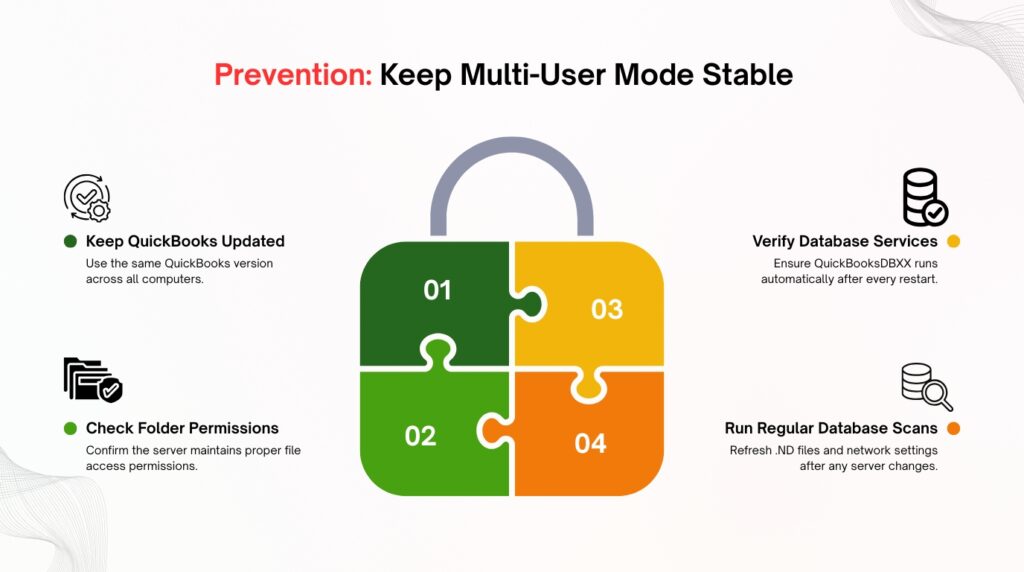
8. Prevention: Keeping Multi-User Mode Stable
The Five Maintenance Rules That Prevent Most Database Server Manager Failures
Most Database Server Manager failures can be prevented with five consistent maintenance actions. These are not complex procedures — they are simple checks that take minutes and eliminate the most common causes of multi-user failure before they appear.
- Keep QuickBooks updated on every computer simultaneously. The server and all workstations must run the same QuickBooks version. An update on one machine without updating the others creates the version mismatch that breaks multi-user access. Go to Help > Update QuickBooks Desktop on every computer at the same time and install all available updates.
- Confirm the QuickBooksDBXX service starts automatically after every reboot. Open Windows Services, find the QuickBooksDBXX service for your version, and confirm its Startup Type is set to Automatic. Set the Recovery options to restart the service on failure so it recovers on its own if it stops unexpectedly.
- Verify folder permissions after any Windows update or server change. Windows updates and server configuration changes can silently reset folder security settings. After any major Windows update on the server, check that the QBDataServiceUserXX account still has Full Control permission on the company file folder.
- Run a Database Server Manager scan after any change to the server. Any time the server is renamed, a new company file is added, the file is moved to a different folder, or a QuickBooks update is applied, run a fresh scan from the Database Server Manager. This rebuilds the .ND file and reconfigures firewall settings automatically.
- Train all users to exit QuickBooks using File > Exit. Closing QuickBooks by clicking the X button skips the clean-up process that releases file locks and saves the transaction log. A forced close is one of the most common sources of locked file errors and .TLG file corruption. Establishing this as a standard operating rule eliminates a large category of avoidable problems.
Conclusion
The Database Server Manager is the single most important component in a QuickBooks Desktop multi-user setup. Every H-series error, every “QBDBMgrN not running” message, every unexpected switch to single-user mode, and every locked company file traces back to this one program either stopping, being blocked, or being configured incorrectly.
The good news is that all of the most common Database Server Manager failures have clear, documented causes and direct fixes. A stopped service can be restarted and set to automatic recovery in minutes. A version mismatch is resolved by running the correct installer on the server. A permission problem is corrected in the folder’s security settings. An .ND file error is fixed by deleting the old file and running a scan to create a fresh one.
Proactive maintenance prevents the majority of these issues from appearing in the first place. Keeping QuickBooks updated on every computer simultaneously, verifying the service runs on automatic startup, and checking folder permissions after any server change eliminates the conditions that cause most multi-user failures. The five prevention rules in Section 8 cover every major failure type documented in this article.
Frequently Asked Questions
Does every computer on the network need the Database Server Manager installed?
No. The Database Server Manager must be installed only on the server — the computer that physically stores the company file. The workstations that accountants and bookkeepers use do not need the Database Server Manager. They only need a standard QuickBooks Desktop installation. Installing the Database Server Manager on a workstation and then enabling hosting on that machine is one of the most common causes of the hosting conflict that triggers H-series errors.
Multi-user mode worked for years and suddenly stopped after an upgrade. What changed?
A QuickBooks version upgrade on any computer on the network can break multi-user access if the Database Server Manager on the server is not also upgraded to match. The workstations upgraded to the new version send requests that the older Database Server Manager cannot process. Download the latest QuickBooks Desktop installer from Intuit’s website, run it on the server using the Custom or Network Options path, and install the matching Database Server Manager version. After installation, run a scan and test access from the workstations.
The Database Server Manager scan finishes but the error still appears. What next?
If a Database Server Manager scan does not resolve the error, the problem is most likely either incorrect folder permissions or a firewall rule that is actively blocking the QuickBooks network ports. Check the QBDataServiceUserXX account permissions on the company file folder first — confirm Full Control is set. Then check the Windows Firewall inbound and outbound rules on the server computer. The Port Monitor tab inside the Database Server Manager shows the exact port numbers assigned to your QuickBooks version. Add those ports as exceptions in the firewall and test again.
Can QuickBooks run in multi-user mode over a VPN?
QuickBooks Desktop multi-user mode is designed for computers on the same local area network. VPN connections can work but are significantly less reliable because QuickBooks uses real-time data communication between the server and workstations, and VPN connections introduce latency and intermittent drops that cause session interruptions and locked file errors. Intuit recommends using a cloud hosting solution for reliable remote multi-user access rather than a VPN connection to an on-premises server.
How do I know which version number to look for in the QuickBooksDBXX service?
Each version of QuickBooks Desktop corresponds to a specific service number. QuickBooks Desktop 2023 uses QuickBooksDB33. QuickBooks Desktop 2022 uses QuickBooksDB32. QuickBooks Desktop 2021 uses QuickBooksDB31. The pattern is consistent: the two-digit number goes up by one for each new annual version. You can confirm the exact service name by opening the Windows Services panel and searching for QuickBooks — all installed Database Server Manager services appear in the list with their full names.

Anusmita is a seasoned content writer who brings perspective to words. As a writer, she enriches her work with a journalistic aptitude, utilising her training in Mass Communication and Journalism. She loves to travel and explore, which imparts a greater sense of understanding, maturity, and experience that are reflected in her content.
Beyond her professional work, Anusmita enjoys painting, singing, dancing, and spending time planting. She is also a self-proclaimed foodie who loves exploring different cuisines, an interest that further adds to her curiosity and perspective as a writer.
Leave a Reply