
A QuickBooks company file over 1 gigabyte (GB) in size creates a performance problem that grows steadily worse over time. A gigabyte is a unit of file size — a 1 GB file contains roughly eight times more data than a 125-megabyte (MB) file. As the company file stores more invoices, payments, payroll records, and transaction history over the years, it grows larger, and QuickBooks must read and process more data every time a report is opened, a transaction is saved, or a list is loaded. The result is that actions that once took one second begin taking 30 seconds, then a minute, then longer.
Intuit’s own performance documentation states the relationship directly: “QuickBooks’ performance decreases as the size of the company file increases.” The same documentation confirms that there is no hard limit on how large a company file can grow, but performance problems become severe when the file exceeds the hardware and network capacity available to serve it. For Pro and Premier, performance issues appear as early as 150–200 MB. For Enterprise, the threshold is around 1 GB, but files over 1 GB running on hardware below Intuit’s recommended specifications will slow down significantly regardless of the edition.
This article covers every documented cause of large-file slowdown and every fix in the correct order — from the fastest no-cost changes to the more involved hardware and structural changes. Each fix includes what it does, why it works for a large file specifically, and the exact steps to complete it. All fixes apply to QuickBooks Desktop Pro, Premier, and Enterprise on Windows. No fix in this article deletes any financial data unless the instructions specifically state that a step involves removing historical transactions, and those steps include a clear warning before they begin.
Table of Contents
Why Does a Large Company File Slows QuickBooks Down?
How QuickBooks Reads the Company File During Normal Work?
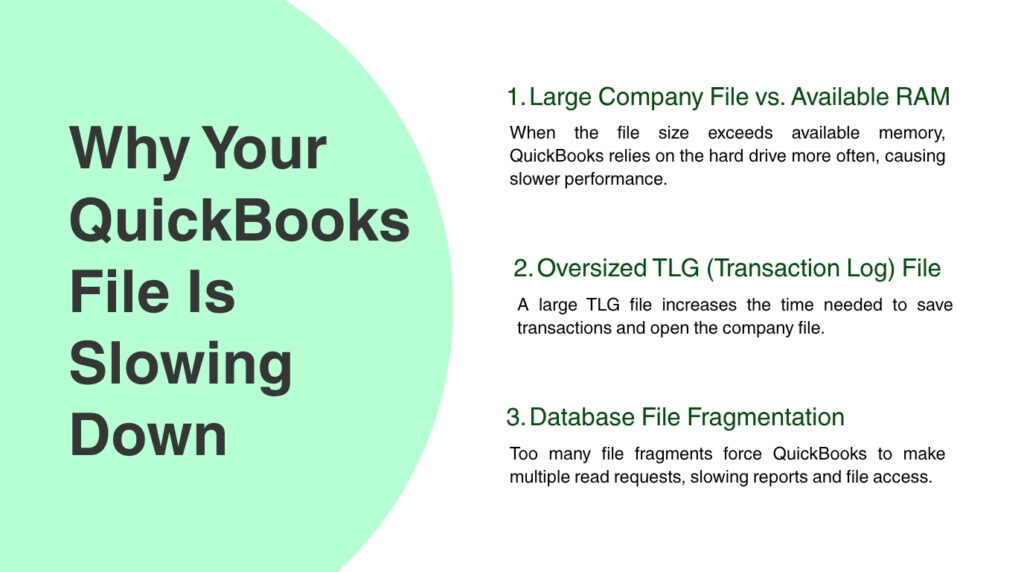
Every action in QuickBooks — opening a report, saving an invoice, searching for a customer — requires the software to read data from the company file stored on the hard drive. RAM (random-access memory) is the fast, temporary workspace a computer uses to hold data it is actively working with. When the company file fits comfortably in RAM, QuickBooks can read and write data extremely quickly because RAM is much faster than any hard drive. When the company file is larger than the available RAM, the computer must constantly go back to the hard drive to fetch data — and hard drives, even fast ones, are significantly slower than RAM.
Intuit’s support documentation provides a specific formula for calculating how much RAM a server needs for a large company file in multi-user mode: multiply the file size in gigabytes by the number of users connected to the server. A 1 GB file with 5 users requires 5 GB of RAM on the server dedicated to QuickBooks. Intuit’s official Enterprise technical specifications confirm the server RAM requirements: 8 GB for up to 5 users, 12 GB for 10 users, 16 GB for 15 users, and 20 GB or more for 20+ users. A 1 GB+ company file running on a server below these RAM levels will be slow regardless of any other changes made.
The TLG File: The Hidden Performance Drain That Grows Every Day
Every QuickBooks company file has a companion file stored in the same folder called the TLG file — short for Transaction Log file. The TLG file records every change made to the company file since the last backup was run. It is not the company file itself; it is a running log of additions and edits. Intuit’s performance documentation confirms: “Large TLG files can cause performance issues.” In businesses that run QuickBooks daily but only back up weekly or monthly, the TLG file grows to hundreds of megabytes. QuickBooks must read and write to this file constantly during normal use, and a large TLG file adds measurable delay to every transaction save and every time the company file is opened.
The correct fix for a large TLG file is to run a full manual backup with verification, not to delete the TLG file. Intuit’s documentation states this clearly: “Do not delete the TLG file. Instead, make a manual backup with full verification to reset the TLG.” Running a manual backup through File > Back Up Company > Create Local Backup, with the “Verify data integrity” option selected, completes the backup and resets the TLG file to zero. The TLG file then starts building again from an empty state. Businesses that back up daily will never have a TLG performance problem — the daily backup resets it automatically every night.
Database File Fragments: Why a Defragmented Hard Drive Alone Does Not Fix Slow QuickBooks
A database file fragment is a piece of the company file that has been separated from the rest of the file on the hard drive. Fragmentation happens naturally as files grow and the hard drive stores new pieces of the file wherever empty space is available, rather than in one continuous block. QuickBooks must make multiple separate read requests to retrieve all the fragments of the company file every time it opens the file or runs a report. Intuit’s performance documentation confirms that excessive database file fragments slow down QuickBooks directly: “Excessive DB File Fragments can degrade the performance of your computer.”
The number of database file fragments is visible inside QuickBooks by pressing F2 to open the Product Information window. The Product Information window shows the company file’s size, location, and the number of DB file fragments in the File Information section. A file with hundreds or thousands of fragments will open noticeably slower than the same file with few fragments. Reducing fragments requires running the Windows defragmentation tool on the drive that stores the company file — but only on a traditional spinning hard drive (HDD). Solid-state drives (SSDs) do not fragment in the same way and do not benefit from defragmentation; instead, the correct solution for an SSD is to move the company file to one if it is not already stored on one.
Quick Diagnosis: Match the Situation to the Correct QuickBooks Fix
Find the description that matches the current situation before applying any fix. Starting at the right fix avoids unnecessary changes to the system or company file.
| What Is Happening | Most Likely Cause | Start Here |
| QuickBooks takes 30–60+ seconds to open a report that used to open instantly | Company file has grown too large for the available server RAM and hard drive speed to process quickly | Fix 1: Check file size with F2, reset the TLG file by running a manual backup, reduce DB file fragments |
| The program shows “QuickBooks is not responding” while switching between windows or entering transactions | The file size exceeds 1 GB and the computer’s RAM is below the level needed for that file size and number of users | Fix 2: Calculate the RAM needed using the file size × users formula, upgrade server RAM if below that number |
| Reports are slow for every user on the network but fast when opened directly on the server | The network connection cannot move 1 GB+ of data quickly enough between the server and workstations | Fix 3: Verify the network runs at 1 Gbps wired, move the company file to an SSD on the server |
| QuickBooks slows down as the day progresses and is fastest right after being opened | The TLG (transaction log) file is growing large during the session and not being reset | Fix 1: Run a manual backup with full verification to reset the TLG file |
| Search and list-loading inside QuickBooks are slow even though reports are fast | The Search Index folder linked to the company file has grown very large | Fix 4: Turn off automatic Search Index updates in Edit > Preferences > Search |
| Performance was fine until the company file was moved to a new folder or drive | The company file is now stored on a traditional spinning hard drive instead of an SSD | Fix 3: Move the company file back to an SSD — Intuit specifically states that SSD storage is required for best performance |
| Every action is slow despite a powerful server and fast network, and the file is over 1 GB | The file has accumulated years of detailed transactions and exceeds the practical size where Condense is recommended | Fix 5: Run the Condense Data utility to reduce file size |
QuickBooks Fixes for Large Company File Performance Problems
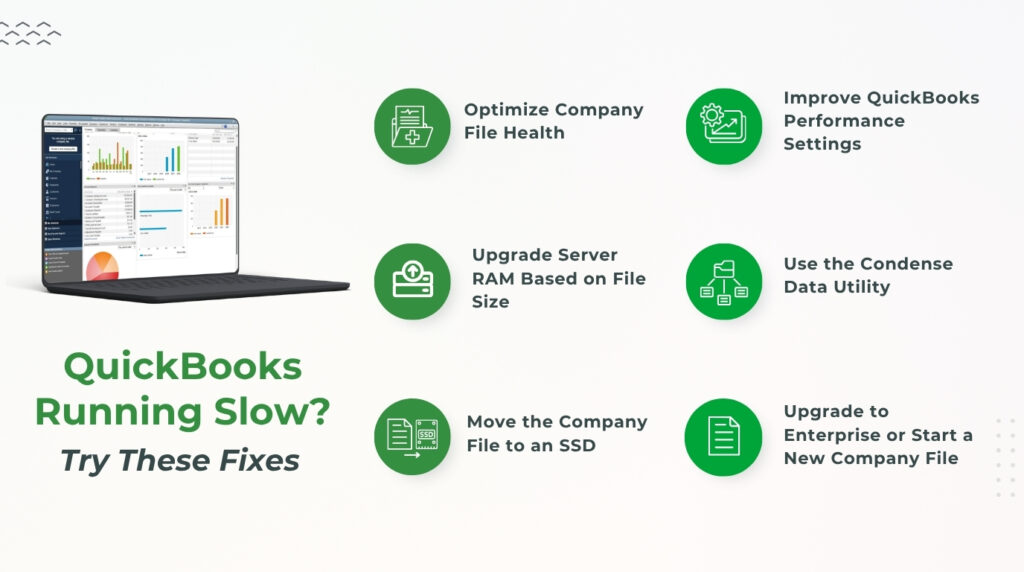
Fix 1: Check the File Size, Reset the TLG File, and Reduce DB File Fragments
These three steps together address the most common causes of sudden or gradual slowdown in a QuickBooks company file that has grown large over time. They take 20 to 30 minutes, require no hardware changes, and do not modify any financial data. Running them in order — check size first, reset the TLG second, reduce fragments third — establishes a clean performance baseline before any more involved changes are considered.
- Step 1 — Check the file size: Open QuickBooks with the company file. Press F2 on the keyboard to open the Product Information window. Find the File Information section. The size shown is the current company file size. Note the number of DB file fragments shown in the same section. Close the Product Information window.
- Step 2 — Reset the TLG file: Go to File > Back Up Company > Create Local Backup. Select Local Backup and click Options. Make sure Verify data integrity before saving backup is selected — this full-verification backup is what resets the TLG file. Choose a save location and save the backup with a new name (do not overwrite an existing backup). After the backup completes, open File Explorer and check the TLG file in the company file folder — it should now be very small (a few kilobytes), confirming the reset worked.
- Step 3 — Reduce DB file fragments: Only do this step if the company file is stored on a traditional spinning hard drive (HDD), not an SSD. Open the Windows Start menu and search for Defragment and Optimize Drives. Open the tool. Select the drive that holds the company file and click Optimize. After optimization completes, reopen QuickBooks and press F2 again to confirm the DB fragment count has decreased.
Fix 2: Calculate the Required Server RAM and Upgrade if Below That Level
Server RAM is the fast working memory in the computer that stores and shares the company file on the network. QuickBooks loads the company file from the hard drive into RAM when it opens, and every user on the network reads data from that RAM. A 1 GB company file shared across 5 users requires the server to hold at least 5 GB of RAM dedicated to QuickBooks operations. Running below that level forces the server to repeatedly go back to the hard drive to fetch data that should already be in memory — and this constant back-and-forth is the primary cause of slow performance in multi-user QuickBooks environments with large files.
Intuit’s official Enterprise technical specifications set clear server RAM requirements based on the number of users: 8 GB for 1–5 users, 12 GB for 10 users, 16 GB for 15 users, and 20 GB or more for 20+ users. These figures are minimum requirements for standard file sizes. A file over 1 GB requires more than these minimums. The formula Intuit provides for calculating the exact requirement is: file size in GB multiplied by the number of users. A 1.5 GB file with 8 users requires 12 GB of RAM on the server. The total RAM installed on the server must exceed this number to maintain fast performance.
- Steps: Check the current server RAM by right-clicking the Windows Start menu on the server computer and selecting System. The Installed RAM figure shows the total RAM. Calculate the required RAM using the formula: company file size (in GB) × number of QuickBooks users on the network. Compare the current RAM to the calculated requirement. If the server RAM is below the calculated requirement, add RAM to the server. Intuit’s performance documentation confirms that adding RAM to available empty sockets or upgrading existing RAM chips to higher-capacity ones are both valid approaches. After upgrading, restart the server and reopen QuickBooks to measure the improvement.
Fix 3: Move the Company File to an SSD and Verify the Network Runs at 1 Gbps
An SSD (solid-state drive) is a type of storage device that reads and writes data much faster than a traditional HDD (hard disk drive). A hard disk drive uses spinning magnetic plates to store data — accessing data requires the drive’s read head to physically move to the correct position on the spinning plate, which takes time. An SSD stores data on memory chips with no moving parts, so it accesses any piece of data almost instantly. Intuit states this directly in its official documentation and system requirements: “Store your QuickBooks data file on a solid-state drive (SSD) for the best performance.” For a 1 GB+ company file, the difference between an HDD and an SSD is measurable in seconds on every report and transaction.
The network connection between the server and workstations is the second hardware factor that determines QuickBooks speed in multi-user mode. A 1 Gbps (gigabit per second) wired network connection can transfer 125 MB of data per second. A 1 GB company file can be transferred from the server to a workstation in about 8 seconds on a 1 Gbps wired connection. On a 100 Mbps connection — one tenth the speed — that same transfer takes 80 seconds. Intuit’s performance documentation confirms that 1 Gbps network interface cards are the correct specification for servers hosting large QuickBooks files. Wi-Fi connections, regardless of their advertised speed, add latency (delay) on every request and are not suitable for hosting a large QuickBooks file in multi-user mode.
- Steps: Confirm whether the company file is on an SSD or HDD by opening File Explorer, right-clicking the drive that contains the company file, selecting Properties, and checking the drive type — or by using the Windows search to open Defragment and Optimize Drives, which lists each drive and its type (“Solid State Drive” or “Hard Disk Drive”). If the file is on an HDD, copy it to an SSD on the same server. After copying, open QuickBooks and confirm the file opens from the new SSD location. For the network, check the server’s network adapter speed through Device Manager > Network Adapters. The adapter’s properties window shows its connection speed — it should show 1.0 Gbps or higher. A wired Cat 6 Ethernet cable between the server and the router or switch is required to achieve 1 Gbps; Wi-Fi cannot reliably sustain this speed.
Fix 4: Turn Off Automatic Search Indexing and Re-Sort Lists Weekly
QuickBooks Desktop includes a Search Index feature that automatically updates a searchable index of every name, transaction, and item in the company file so that pressing F3 to search returns results quickly. This automatic update runs in the background during normal QuickBooks use and consumes additional system resources while it runs. On a large company file, the Search Index folder itself becomes very large and takes significant time to update. Intuit’s performance documentation provides specific guidance: “Turn off the built-in search indexing in QuickBooks Desktop (Edit > Preferences > Search > Company Preferences > Uncheck ‘Update Automatically’)” to stop this background process from competing with active QuickBooks operations.
Re-sorting the lists inside QuickBooks — the Master Name List (customers, vendors, employees, and other names), the Chart of Accounts, and the Item List — is a second performance step that Intuit’s documentation recommends performing weekly for large files. Lists accumulate deleted and inactive entries over time, and QuickBooks reads through the entire list every time it needs to find or display a name or account. Re-sorting removes the deleted entries from active list positions and puts the remaining entries back in the correct order, which speeds up every action that involves displaying or searching a list.
- Steps — Turn off Search Index: Open QuickBooks. Go to Edit > Preferences > Search > Company Preferences tab. Uncheck the box labeled “Update Automatically”. Click OK. Note: QuickBooks will still search the company file when F3 is pressed, but it will search the file directly rather than using the index — this is slower for searches but eliminates the background indexing overhead during normal work. If search speed becomes a problem, this setting can be turned back on at any time.
- Steps — Re-sort the Master Name List: Go to Lists > Customer & Supplier Center. Click the Name column header to sort alphabetically. Click View > Re-sort List. Repeat this process for the Chart of Accounts (Lists > Chart of Accounts > Name column > View > Re-sort List) and the Item List (Lists > Item List > Name column > View > Re-sort List).
Fix 5: Run the Condense Data Utility to Reduce the Company File Size
The Condense Data utility reduces the company file size by replacing detailed individual transactions before a selected date with summary journal entries that preserve the account balances without keeping every transaction’s details. A journal entry is a single accounting record that shows the total debit and credit amounts for an account — instead of 2,000 individual invoice records from 2019, the condensed file holds one journal entry showing the total amount posted to each account for that year. The detailed invoices from 2019 are removed from the active company file, which reduces the file size. The account balances remain exactly correct because the summary journal entries capture the same total amounts.
Intuit’s performance documentation confirms that the Condense utility achieves a 20–40% reduction in company file size. A 1.5 GB file can drop to between 900 MB and 1.2 GB after condensing. The utility is found at File > Utilities > Condense Data. Condensing is irreversible — the detailed transactions before the selected date cannot be recovered from the condensed file. This is why Intuit requires creating a backup before condensing and why the backup from immediately before condensing must be kept permanently as the archive of the removed historical detail.
- Steps: Before starting, create a full backup through File > Back Up Company > Create Local Backup. Label this backup clearly — for example, “BeforeCondense_[date].QBB” — and store it permanently in a separate location. Close all other users’ connections by switching to single-user mode through File > Switch to Single-User Mode. Go to File > Utilities > Condense Data. Select “Remove the transactions you select” and choose a cutoff date — all transactions before that date will be summarized. A common choice is three to five years ago, which removes the oldest data while keeping all recent detail fully intact. Follow the on-screen prompts. After the condense completes, press F2 to confirm the file size has decreased. Run Verify Data through File > Utilities > Verify Data to confirm the condensed file has no errors.
Fix 6: Upgrade to QuickBooks Enterprise or Create a New Annual Company File
QuickBooks Pro and Premier are designed for smaller company file sizes. Intuit’s community documentation and Intuit’s own support team have confirmed that Pro and Premier files start experiencing significant performance problems at 150–200 MB, and files approaching 250 MB are at the edge of what these editions handle reliably. A company file over 1 GB in Pro or Premier is running far outside the intended operating range of those editions. Upgrading to QuickBooks Enterprise, which handles larger files and supports more users with higher RAM and faster processing, is the correct structural solution for businesses whose file has grown beyond what Pro or Premier can serve.
Creating a new company file for the current fiscal year is a second option for businesses that need to keep historical data accessible without it slowing down current-year work. The current year’s data is entered in the new file starting from opening balances as of the first day of the new year. The old file remains intact and available for historical reference — it is simply not used for day-to-day work anymore. This approach completely eliminates the large-file performance problem for current operations because the new file starts at zero size and grows only with the current year’s activity.
- Steps — Upgrade to Enterprise: Contact Intuit or an authorized QuickBooks reseller to obtain a QuickBooks Enterprise license. After installation, open the existing company file in Enterprise — Enterprise reads Pro and Premier company files directly without any file conversion step. After confirming the file opens correctly in Enterprise, run Verify Data to check file integrity, and then run the Condense utility if the file is still over 1 GB to bring it within a more manageable range for Enterprise as well.
- Steps — New annual file: At the end of the fiscal year, run a full Profit & Loss report and Balance Sheet for the closing year and save them as PDF records. Note the ending balance for every account on the Balance Sheet — these become the opening balances in the new file. Go to File > New Company and set up the new company with the same Chart of Accounts as the old file. Enter the Balance Sheet ending balances as opening balances in the new file through Company > Make General Journal Entries. Keep the old file accessible in read-only mode on the server for historical reference.
All QuickBooks Fixes at a Glance
| Fix | What It Addresses | Time |
| Fix 1: Check file size, reset TLG file, reduce DB fragments | Removes the most common causes of day-to-day slowdown without changing any transaction data | 20–30 min |
| Fix 2: Calculate and upgrade server RAM | Gives the server enough memory to hold the large company file in active use without constantly reading from the drive | 30–60 min (hardware) |
| Fix 3: Move the company file to an SSD and verify the network runs at 1 Gbps | Eliminates the two hardware bottlenecks that cause the most severe slowdowns with large files | 30–90 min |
| Fix 4: Turn off automatic Search Index and re-sort lists | Stops background processes from consuming system resources during active QuickBooks use | 10–15 min |
| Fix 5: Run the Condense Data utility | Reduces the company file size by summarizing old transactions, achieving a 20–40% size reduction | 30–90 min |
| Fix 6: Upgrade to QuickBooks Enterprise or archive to a new file | Addresses file size limits that Pro and Premier cannot handle, or creates a fresh file for current-year work | 1–4 hours |
QuickBooks Prevention: Stop Large File Performance Problems Before They Start
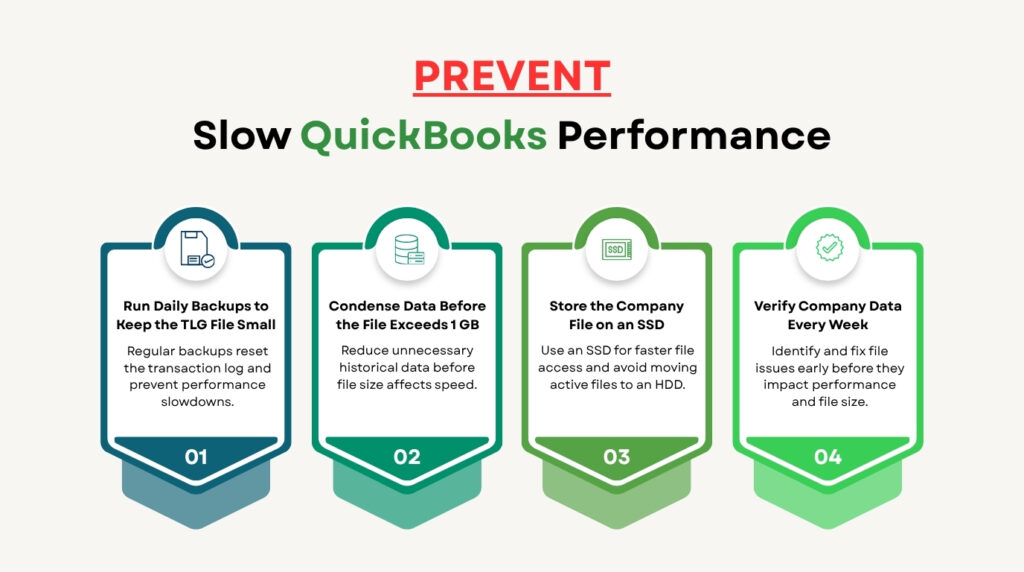
- Back Up Daily to Reset the TLG File Every Night
A daily backup resets the TLG file every night, which means the TLG never grows large enough to slow down QuickBooks during the working day. The backup must use the full-verification option — found in the backup options menu under “Verify data integrity before saving backup” — because only a full-verification backup resets the TLG. A quick backup or an auto-backup without verification does not reset the TLG and does not provide the same TLG size benefit. Setting up automatic daily backups through File > Back Up Company > Set Up Automatic Backup and selecting the full-verification option takes five minutes and eliminates TLG-related slowdown permanently.
- Run Condense Data Before the File Reaches 1 GB
The Condense utility is faster, less risky, and more effective when the company file is 500 MB than when it is 1.5 GB. Condensing a smaller file takes less time to complete, produces a cleaner result, and leaves more room for future growth before the next condense is needed. Waiting until the file is already over 1 GB and causing severe performance problems means the condensing process itself will be slower and may take several hours on a large file. Checking the file size monthly through the F2 Product Information window and scheduling a condense when the file approaches 500 MB for Pro/Premier or 800 MB for Enterprise keeps the file in the performance-safe range consistently.
- Store the Company File on an SSD and Never Move It to an HDD
Intuit’s official system requirements state that storing the QuickBooks data file on an SSD is required for best performance. An HDD becomes increasingly slow as the company file grows larger, because larger files require more read operations, and each read operation on an HDD involves a physical mechanical movement that an SSD completes almost instantly. The performance gap between HDD and SSD for a 1 GB+ file can be 10 to 30 seconds on every report. Keeping the company file on an SSD permanently — and ensuring any server upgrade or replacement includes an SSD for the company file location — prevents the HDD bottleneck from ever appearing.
- Verify Data Weekly and Address Errors Before They Add to File Size
Data errors inside the company file — broken links between transactions, damaged records, out-of-order entries — cause QuickBooks to work harder when reading the file because it must navigate around or re-attempt damaged sections. In a large file, this extra work on every read adds measurable time to every action. Running Verify Data weekly through File > Utilities > Verify Data catches errors while they are minor and before they multiply. Addressing errors immediately by running Rebuild Data keeps the file clean and prevents the performance impact of accumulated damage. A clean 1 GB file runs significantly faster than a damaged 1 GB file on the same hardware.
Conclusion
A QuickBooks company file over 1 GB slows down because the hardware serving it — server RAM, hard drive type, and network speed — must meet specific requirements that scale with file size. Intuit’s own documentation confirms the performance formula: server RAM must equal the file size in gigabytes multiplied by the number of users. A 1 GB file shared by 5 users needs 5 GB of server RAM. Running below this level forces the server to constantly read from the hard drive instead of from fast RAM, which adds delay to every action. The hard drive must be an SSD — Intuit states this as the required storage type for best performance — and the network must run at 1 Gbps on a wired connection.
The TLG file and database file fragments are the two maintenance factors that cause large-file slowdown even on correctly configured hardware. The TLG file grows every day QuickBooks is used without a full-verification backup, and a large TLG slows every transaction save and file open. Running a full-verification backup daily resets the TLG every night. Database file fragments accumulate on traditional hard drives and force QuickBooks to make multiple separate read requests for every file operation — reducing them through Windows defragmentation (on HDDs only) removes this overhead. Both fixes take under 30 minutes and require no hardware changes.
The Condense Data utility is the correct tool when the file has grown beyond the point where hardware and maintenance fixes alone are sufficient. Condense achieves a 20–40% file size reduction by replacing old transaction detail with summary journal entries. Running Condense before the file reaches 1 GB — rather than after — produces better results with less risk and less time. For Pro and Premier users whose files have grown beyond 200 MB and are approaching or exceeding 1 GB, upgrading to QuickBooks Enterprise provides a higher capacity platform designed to handle the larger file sizes and user counts that Enterprise businesses require.
Frequently Asked Questions
1. The company file is 1.3 GB and QuickBooks is very slow, but the server has 32 GB of RAM and an SSD. Why is it still slow?
A file that is slow despite adequate RAM and SSD storage is most likely experiencing one of three issues:
First, check the TLG file size in the company file folder by right-clicking it and selecting Properties — a TLG file over 100 MB is large enough to cause noticeable slowdown and needs to be reset with a full-verification backup.
Second, press F2 inside QuickBooks and check the DB file fragment count — a very high fragment count on the SSD means the file structure has become disorganized and the portable company file method (File > Create Copy > Portable Company File, then restore it) can restructure it.
Third, check that the automatic Search Index is not running constantly in the background through Edit > Preferences > Search. Turning off automatic Search Index updates removes significant background processing load from a 1 GB+ file.
2. After running Condense Data, the file is still 900 MB. Did it work?
The Condense utility does not remove all transaction data — it summarizes only the transactions before the selected cutoff date that meet certain conditions. Transactions that are part of open (unpaid) invoices or bills, payroll transactions, transactions in periods that have not been closed, and transactions linked to currently active estimates or purchase orders are excluded from condensing and remain in the file in full detail.
Intuit’s documentation warns that Condense will report which transactions it cannot condense before the process completes. If a large portion of the file’s transactions were excluded from condensing, the remaining file size reflects those excluded transactions. Closing all open invoices and bills, completing all open payroll periods, and closing the books through Company > Set Closing Date before running Condense reduces the number of excluded transactions and produces a larger size reduction.
3. The company file is on an SSD and the network is 1 Gbps wired, but workstations are still slow while the server runs QuickBooks fast. What is different about the workstations?
A workstation that is slow while the server is fast points to a network or workstation-specific issue, not a server or file problem. Each workstation opens its own connection to the server and retrieves data over the network for every action. Check that the workstation’s network cable is plugged into a wired port — not connected via Wi-Fi — and that the network switch or router between the workstation and server also supports 1 Gbps connections (older 100 Mbps switches create a bottleneck even when the server and workstation both have 1 Gbps cards). Also check the workstation’s own RAM: Intuit’s system requirements recommend 8 GB of RAM on workstations (16 GB for optimal performance), and a workstation with only 4 GB of RAM will be slow opening and processing reports from a large company file even on a fast network.
4. The Condense Data option is grayed out and cannot be selected. Why?
The Condense Data option in the File > Utilities menu is grayed out for two documented reasons. First, the company file must be in single-user mode for Condense to be available — if any other user is connected to the file, switch to single-user mode through File > Switch to Single-User Mode and then check the menu again. Second, the Condense Data feature is not available in all QuickBooks Desktop editions or regional versions — it is confirmed to be available in the US versions of QuickBooks Pro, Premier, and Enterprise, but is not available in the Canadian version of QuickBooks Desktop, as confirmed by Intuit’s community team. If single-user mode is already active and the option remains grayed out, update QuickBooks to the latest release and check again — some Condense-related updates are delivered through version updates.
5. The company file was condensed one year ago and has already grown back to over 1 GB. Does Condense need to run every year?
A company file that returns to over 1 GB within a year generates roughly 1 GB of new transaction data per year — which means the business volume is very high and Condense alone is not a long-term solution. Intuit’s community documentation confirms that for very active files that consistently exceed 500 MB per year of operation, upgrading to QuickBooks Enterprise or archiving to a new annual company file are the correct structural approaches. Running Condense every year is possible but becomes increasingly time-consuming as each condense run works through a larger file. The two permanent solutions — Enterprise with its higher capacity design, or a new annual file that starts fresh each fiscal year — prevent the file from ever returning to the 1 GB+ slowdown range, rather than reducing it temporarily through periodic condensing.

Anusmita is a seasoned content writer who brings perspective to words. As a writer, she enriches her work with a journalistic aptitude, utilising her training in Mass Communication and Journalism. She loves to travel and explore, which imparts a greater sense of understanding, maturity, and experience that are reflected in her content.
Beyond her professional work, Anusmita enjoys painting, singing, dancing, and spending time planting. She is also a self-proclaimed foodie who loves exploring different cuisines, an interest that further adds to her curiosity and perspective as a writer.
Leave a Reply