
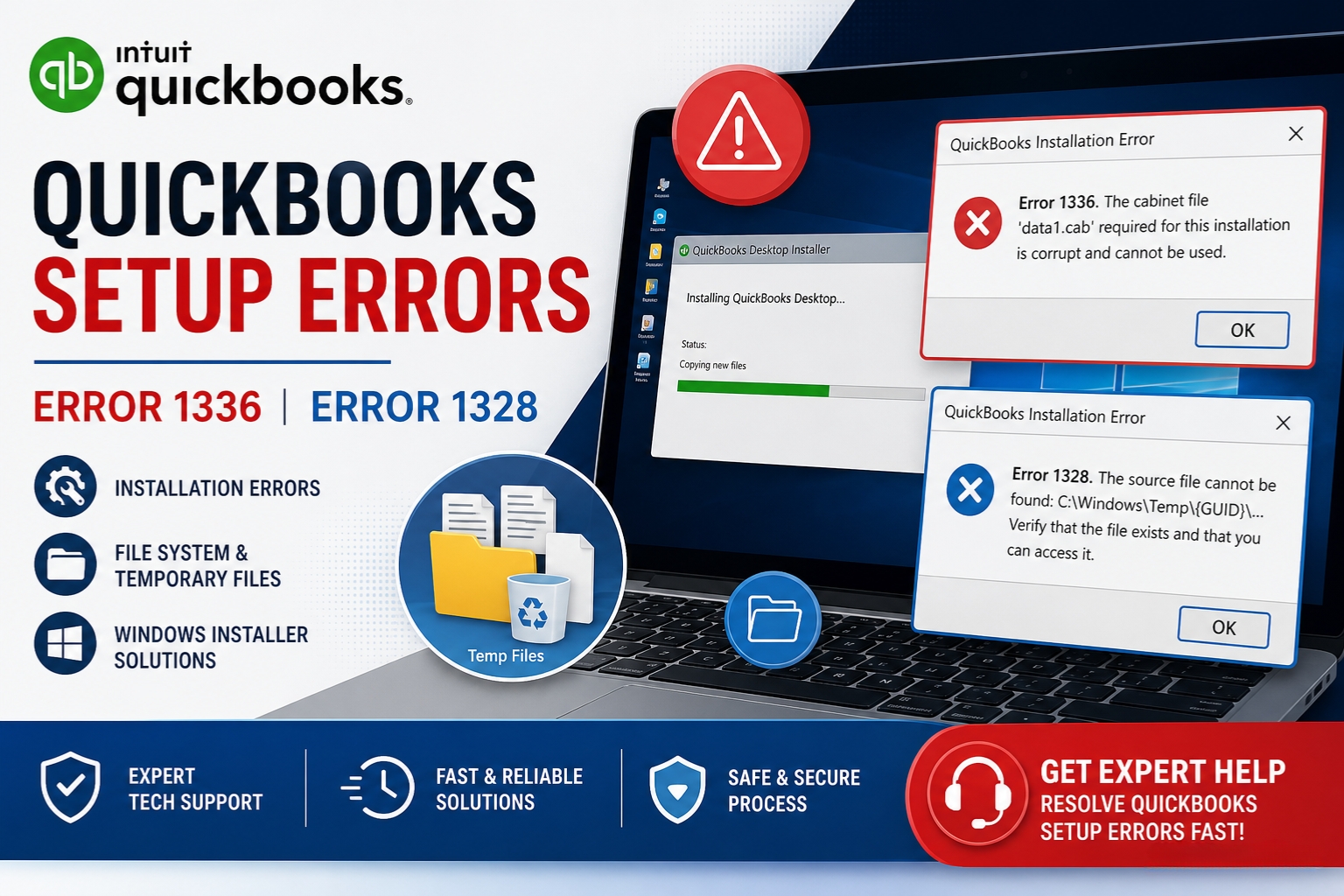
QuickBooks setup errors 1336 and 1328 both stop the installation or update process, but they point to different problems. Error 1336 means the installer could not create a temporary file it needed during setup. Error 1328 means the installer encountered a problem while trying to update a specific file — and it names that exact file in the error message. Both errors appear during installation, during a QuickBooks update patch, or during the repair installation process that runs when QuickBooks is damaged. Knowing which error appeared and at which step is the starting point for resolving it.
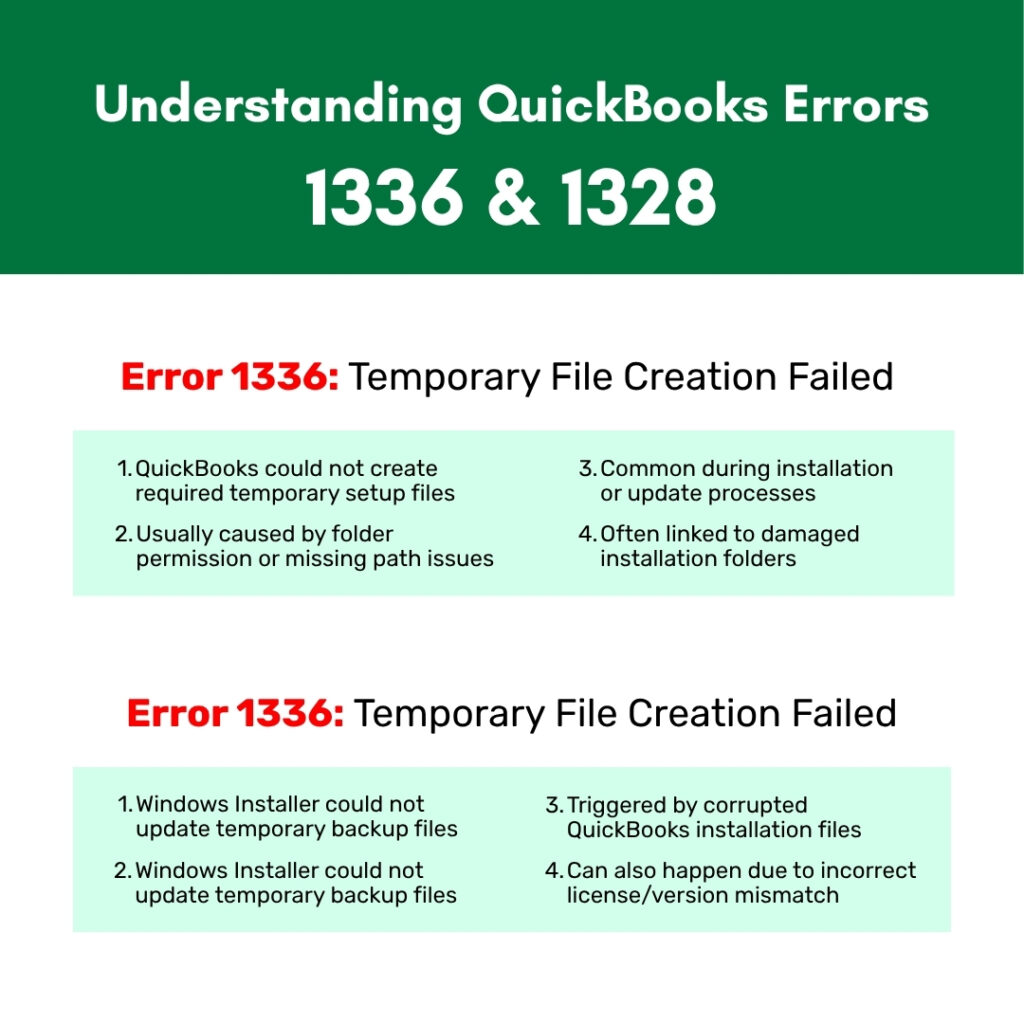
Intuit’s own support documentation confirms that Error 1328 appears when installing, uninstalling, updating, or repairing QuickBooks Desktop. The documented error message reads: “Error updating file C:\Config.Msi\PTXXX.tmp” or “Error 1328. Error updating file C:\Config.Msi\PT62C7.tmp.” The Config.Msi folder mentioned in this error message is a Windows folder — located at C:\Config.Msi — that the Windows Installer service uses to store temporary backup files during software updates. The installer creates these temporary files so it can reverse a failed update if needed. Error 1328 appears when the installer cannot write to or read from this folder.
Error 1336 has its own documented message: “There was an error creating a temporary file that is needed to complete this installation. Folder: C:\Users\Public\Desktop. System error code: 2.” A documented real case on Intuit’s community forum showed this exact message appearing alongside Error 1712 and Error 1603 during a QuickBooks Desktop uninstall and reinstall attempt. System error code 2 means “The system cannot find the file specified” in Windows error language — the installer tried to create a temporary file at the Desktop location and Windows reported that the path could not be found or accessed. Both errors are fixable without data loss to the company file.
Table of Contents
QuickBooks Error 1336 and Error 1328: What Each QuickBooks Error Means?
QuickBooks Error 1336: The Temporary File Could Not Be Created
Error 1336 produces this message: “There was an error creating a temporary file that is needed to complete this installation.” A temporary file is a file that the installer creates for its own use during setup — it is not a permanent program file and it is deleted after the installation completes. The installer uses temporary files to store setup progress, configuration data, and rollback information (the data needed to reverse the installation if it fails). Error 1336 means the installer tried to create one of these temporary files and the operating system blocked it or returned an error.
The error message includes the specific folder where the installer was trying to create the temporary file. In the documented case on Intuit’s community forum, the folder was C:\Users\Public\Desktop\ with System error code 2. System error code 2 in Windows means “The system cannot find the file specified” — which in the context of a folder write means the specified destination path does not exist, the folder is not accessible, or the current user account does not have write permission to create files in that folder. Error 1336 also appears when the installation folder is damaged: corrupt folders in the QuickBooks installation directory can provoke Error 1336 alongside other installation error codes including 1935.
QuickBooks Error 1328: The Update File Could Not Be Written
Error 1328 produces the message: “Error 1328. Error updating file C:\Config.Msi\PTXXX.tmp.” The Config.Msi folder at C:\Config.Msi is a Windows system folder — a folder that Windows itself creates and uses, not one that QuickBooks creates. The Windows Installer service uses this folder to store temporary backup files during software update operations. The backup files are named with a PT prefix followed by random characters and the .tmp extension (temporary file extension). Error 1328 appears when the Windows Installer cannot create, access, or write to these temporary backup files in the Config.Msi folder.
Error 1328 is specifically listed by Intuit as appearing “when you install, uninstall, update, or repair QuickBooks Desktop.” The corruption within the QuickBooks installation folder is confirmed as the primary root cause — when files in the existing QuickBooks installation are damaged, the Windows Installer cannot perform the update correctly because the source files it is trying to replace are in an inconsistent state. An incorrect installation license number that does not match the QuickBooks version being installed also triggers Error 1328, because the installer encounters a mismatch when it tries to verify the installation against the license data.
Quick Diagnosis: Match the Situation to the Correct QuickBooks Error Fix
Identify the specific situation before applying any fix. The context in which the error appeared determines the fastest path to resolution.
| When and Where the Error Appeared | Error | Root Cause | Start With This Fix |
| During a fresh QuickBooks installation on a new computer | 1336 | Damaged Microsoft components or temp folder access blocked | Fix 1: Install Diagnostic Tool; Fix 3: Temp folder permissions |
| During a QuickBooks update patch (not a fresh install) | 1328 | Corrupted existing installation files or Config.Msi folder blocked | Fix 2: Rename QuickBooks folders; Fix 1: Install Diagnostic Tool |
| During uninstalling QuickBooks | 1328 | Damaged installation records that the uninstaller cannot read cleanly | Fix 5: Clean Install Tool to remove all traces before reinstalling |
| During a QuickBooks repair installation | 1328 | Corrupted files in the QuickBooks installation folder that repair cannot fix | Fix 2: Rename installation folders; Fix 5: Clean Install Tool |
| Error message includes a specific file path with Config.Msi in it | 1328 | Config.Msi folder is hidden, read-only, or lacks write permissions | Fix 4: Make Config.Msi folder visible and accessible |
| Error message shows C:\Users\Public\Desktop\ with System error code 2 | 1336 | Temp file folder path does not exist or lacks write permission | Fix 3: Verify Public Desktop folder; Fix 6: Run as administrator |
| Multiple errors including 1336, 1712, and 1603 appeared together | 1336 and others | Multiple simultaneous Windows component and permission failures | Fix 1: Install Diagnostic Tool; then Fix 5: Clean Install sequence |
| Error appeared after a Windows update was recently installed | Both | Windows update changed components or reset folder permissions | Fix 7: Install Windows Updates; then Fix 1: Install Diagnostic Tool |
Fix 1: Run the QuickBooks Install Diagnostic Tool
What This Tool Does and Why It Is the First Fix?
The QuickBooks Install Diagnostic Tool repairs the three Windows software components that QuickBooks setup depends on: Microsoft .NET Framework (a software layer Windows provides that QuickBooks uses to run its setup screens and register its program files), MSXML (Microsoft XML Core Services, which the installer uses to read its configuration and license files), and Microsoft Visual C++ Redistributable files (shared program libraries that both the installer and the installed QuickBooks program use). Damaged versions of any of these three components cause Error 1336 by preventing the installer from creating the temporary files it needs, and cause Error 1328 by preventing the update process from writing correctly to the Config.Msi folder.
Damaged Microsoft components (.NET Framework and MSXML) are confirmed as a primary cause of Error 1336. Corruption within the QuickBooks installation folder is confirmed as a primary cause of Error 1328. The Install Diagnostic Tool addresses both by repairing the component layer that the installer uses and by helping the installer re-establish correct access to the folders it needs. Running this tool takes 15 to 20 minutes and is the correct first step for both errors before any other fixes are applied.
Download the QuickBooks Tool Hub version 1.6.0.8 from Intuit’s official support page. Open it. Click Installation Issues in the left menu. Click QuickBooks Install Diagnostic Tool. Allow it to run without interruption — up to 20 minutes. Restart the computer when it finishes. Retry the QuickBooks installation, update, or repair that produced the error.
Fix 2: Rename the QuickBooks Installation Folders
Why Renaming Folders Resolves Error 1328 During Updates?
Corrupt folders in the QuickBooks installation directory are a confirmed cause of Error 1328 during software updates. The specific reason is that QuickBooks stores its installation files in several folders on the computer, and the update installer reads from these folders to identify which files need to be replaced. A folder that contains corrupted data prevents the update installer from completing its file comparison, which triggers Error 1328 when the installer tries to write the update file. Renaming these folders forces QuickBooks to create new, clean versions of them during the next update or startup, which eliminates the corrupted folder data that was blocking the update.
Intuit’s confirmed fix for Error 1328 involves renaming the QuickBooks installation folders. The folders are located in hidden locations on the computer, so enabling hidden file visibility in File Explorer is required before they can be found. The QuickBooks program folders that need to be renamed are the ones stored at C:\ProgramData\Intuit\QuickBooks, C:\Program Files\Intuit\QuickBooks, and C:\Users[Username]\AppData\Local\Intuit\QuickBooks. Renaming each folder adds the word “OLD” to the end of the folder name, which prevents QuickBooks from finding and using the corrupted folder data while allowing the original data to be referenced if needed.
Open File Explorer. Click View > Show > Hidden Items to make hidden folders visible. Navigate to each of these locations and rename the QuickBooks folder inside it by right-clicking and selecting Rename, then adding OLD to the end: C:\ProgramData\Intuit\QuickBooks [Year] (rename to QuickBooks [Year]OLD); C:\Program Files (x86)\Intuit\QuickBooks [Year] (rename to QuickBooks [Year]OLD); C:\Users[Username]\AppData\Local\Intuit\QuickBooks [Year] (rename to QuickBooks [Year]OLD). Restart the computer. Open QuickBooks to trigger the recreation of clean folder versions. Test whether the error is resolved.
Fix 3: Verify and Restore the Temp File Folder Permissions
Why the Temp Folder Causes Error 1336?
Error 1336 specifically requires that the installer be able to create temporary files in the folder listed in the error message. The documented error message points to C:\Users\Public\Desktop\ as the folder where the installer tried to create a temporary file and failed with System error code 2. This folder — the Public Desktop, which is a shared Desktop folder accessible to all Windows user accounts on the computer — may have restricted write permissions if a Windows update changed its access settings, or if the folder was manually restricted by an administrator.
The C:\Users\Public\Desktop folder requires Full Control permission for the current user account and for the SYSTEM account (the internal Windows account that runs background installation processes). A folder that allows only Read permission blocks the installer from creating the temporary file, which produces Error 1336. Checking and restoring Full Control permission for both accounts resolves this specific cause.
Open File Explorer. Navigate to C:\Users\Public. Right-click the Desktop folder and select Properties. Click the Security tab. Click Edit to change permissions. Find SYSTEM and Users in the list. Select each one and check Full Control under the Allow column. Click Apply > OK. Retry the QuickBooks installation.
Fix 4: Make the Config.Msi Folder Visible and Accessible
What the Config.Msi Folder Is and Why It Matters for Error 1328?
The Config.Msi folder is a hidden Windows system folder located at C:\Config.Msi. Windows creates this folder automatically and uses it to store backup files during software update operations. The Windows Installer service writes temporary .tmp files to this folder during every software update, including QuickBooks updates. If the Config.Msi folder is hidden, marked as read-only, or has restricted permissions, the Windows Installer cannot write to it and Error 1328 appears. Making the folder visible and ensuring it has the correct permissions allows the Windows Installer to complete its update file operations.
The Config.Msi folder is hidden by default in Windows because it is a system folder that should not be modified by users. Its hidden status does not prevent programs from accessing it under normal circumstances, but Windows permission changes introduced by updates or security software can sometimes make the folder read-only or inaccessible to the Windows Installer service. Restoring normal access requires temporarily making hidden folders visible through File Explorer and modifying the folder’s permission settings.
Open File Explorer. Click View > Show > Hidden Items to display hidden folders. Navigate to the root of the C: drive (C:). Find the Config.Msi folder. Right-click it and select Properties. Click the Security tab. Click Edit. Confirm that SYSTEM and Administrators both have Full Control permission checked under the Allow column. If the folder is set to Read-Only, click the General tab, uncheck the Read-Only attribute, and click Apply. Retry the QuickBooks update.
Fix 5: Use the QuickBooks Clean Install Tool
When and Why a Clean Install Is Required?
A clean install is required when Error 1328 appears during an uninstall attempt — not just during an installation. The documented trigger for Error 1328 during uninstall is corrupted installation records that the uninstaller cannot read or process correctly. The standard Windows uninstall reads these records to know which files to remove and where they are located. Corrupted records stop the uninstall at the point of failure. The QuickBooks Clean Install Tool removes QuickBooks more completely than the standard Windows uninstall by locating and deleting all QuickBooks files and registry entries using its own removal process, bypassing the corrupted records that blocked the standard uninstall.
A clean install is also the correct next step when Fix 2 (renaming QuickBooks folders) did not resolve Error 1328 during an update. Renaming folders addresses folder-level corruption. The Clean Install Tool addresses installation record corruption and orphaned registry entries that folder renaming does not reach. According to Intuit’s own help article on Error 1328: “Solution 1: Reinstall QuickBooks.” This confirms that a complete reinstallation using the Clean Install Tool process is Intuit’s primary documented fix for persistent Error 1328.
Record the QuickBooks license number and product key (Help > About QuickBooks or from the original purchase email). Download the QuickBooks Clean Install Tool from Intuit’s official support page. Open Control Panel > Programs > Programs and Features. Right-click QuickBooks and select Uninstall. If the uninstall produces Error 1328, skip to running the Clean Install Tool directly — it performs its own removal process. Run the Clean Install Tool. Restart the computer. Download a fresh QuickBooks installer from Intuit’s official Downloads & Updates page. Right-click the installer and select Run as administrator. Follow the installation prompts.
Fix 6: Run the QuickBooks Installer as a Built-In Administrator
Why Are Standard Administrator Rights Not Always Sufficient?
Error 1336 is also triggered by a Windows user account that does not have sufficient permission to create files in the folders the installer needs to access. A standard Windows administrator account — the type most users work from — is subject to User Account Control (UAC) restrictions.
UAC is a Windows security feature that requires confirmation before allowing any program to make changes to the computer, including writing files to protected locations. Even when a user accepts the UAC prompt, some protected Windows folders still block writes from standard administrator accounts. Running the installer from the built-in Administrator account — a hidden Windows account that bypasses UAC entirely — gives the installer unrestricted access to all folder locations it needs for temporary file creation.
Press Windows, type cmd, right-click Command Prompt, select Run as administrator. Type: net user administrator /active:yes and press Enter. A message reading “The command completed successfully” confirms the account is active. Click Start, click the user account icon, and select Sign Out. On the login screen, select Administrator (no password is required). Log in. Right-click the QuickBooks installer and select Run as administrator. After installation completes, return to the standard account and disable the built-in admin: open administrator Command Prompt and type net user administrator /active:no. Press Enter.
Fix 7: Install in Selective Startup Mode
Why Background Programs Cause Both Errors?
Third-party programs running in the background — including antivirus software, browser helpers, update services, and security tools — can intercept the QuickBooks installer’s attempts to create temporary files and write to the Config.Msi folder. An antivirus program that classifies the installer’s temporary file creation as suspicious activity blocks it, which produces Error 1336. A security program that marks the Config.Msi folder as protected prevents write operations to it, which produces Error 1328. Selective Startup mode starts Windows with only essential Microsoft services running, removing all third-party programs from memory for the duration of the installation.
Press Windows + R, type msconfig, press Enter. Click the General tab. Select Selective Startup. Uncheck Load Startup Items. Click the Services tab. Check Hide All Microsoft Services. Click Disable All. Click Apply > OK. Restart. Right-click the QuickBooks installer and select Run as administrator. After installation completes successfully, open msconfig again, select Normal Startup, click Apply > OK, and restart.
Fix 8: Verify the License Number Matches the QuickBooks Version
Why an Incorrect License Triggers Error 1328?
A QuickBooks license number that does not match the version being installed triggers Error 1328 because the installer verifies the license against its version data during the update process. Using a license number that is not compatible with the version of QuickBooks being installed is confirmed as a specific cause of Error 1328. The installer reads the license number from the Windows registry where it was stored during the original installation, compares it to the version of the update being applied, and stops with Error 1328 if they do not match. This mismatch most commonly occurs when a user reinstalls a different version of QuickBooks but leaves the old version’s license information in the registry.
The license number for each installed QuickBooks version is confirmed by pressing F2 (or Ctrl + 1) inside QuickBooks, which opens the Product Information window and shows the current license number and product number. The license for a specific version can also be retrieved by logging into the Intuit Customer Account Management Portal at camps.intuit.com, going to Products & Services, and finding the license associated with each version purchased. Confirming the license matches before running an update or repair eliminates this cause.
Fix 9: Run the Windows System File Checker
How Damaged System Files Contribute to Both Errors?
A virus, malware attack, or interrupted Windows update can damage the core Windows system files that the Windows Installer service uses to perform its file write operations. Corrupted system files produce Error 1336 by preventing the Windows Installer from creating the temporary files it needs, and produce Error 1328 by blocking the Config.Msi folder write operations. The Windows System File Checker — a built-in Windows tool accessed by typing sfc /scannow in an administrator Command Prompt — scans all protected Windows system files and replaces any that are damaged with correct versions from Windows’ own component store.
Press Windows, type cmd, right-click Command Prompt, select Run as administrator. Type: sfc /scannow and press Enter. Allow the scan to complete — 15 to 30 minutes. If the scan reports repaired files, restart the computer and retry the QuickBooks installation or update. If the scan reports errors it cannot repair, run Windows Update (Settings > Windows Update > Check for Updates), install all available updates, restart, and run sfc /scannow again.
All QuickBooks Fixes at a Glance
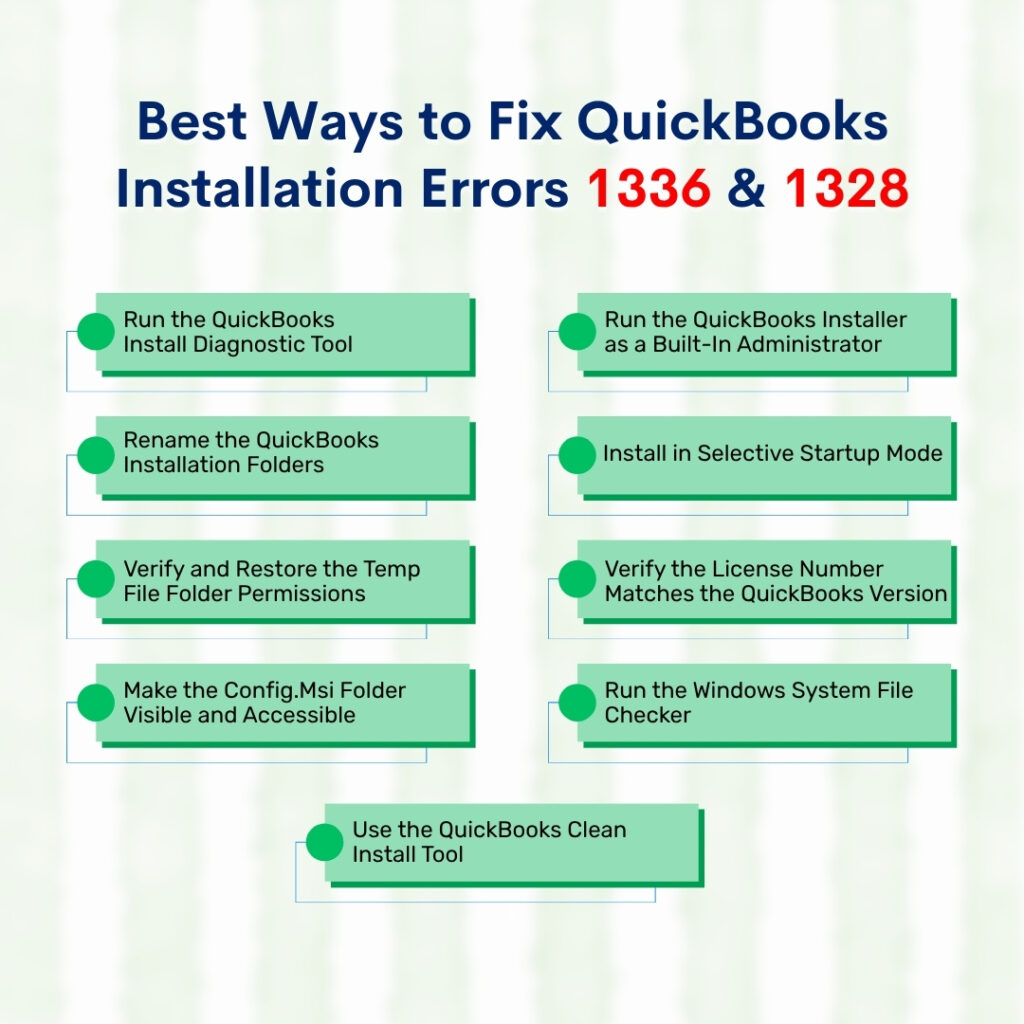
| Fix | Error | What It Resolves | Time Required |
| Fix 1: QuickBooks Install Diagnostic Tool | 1336 and 1328 | Damaged .NET Framework, MSXML, or Visual C++ components | 15–20 min |
| Fix 2: Rename QuickBooks installation folders | 1328 | Corrupt QuickBooks installation folders blocking the update | 10 min |
| Fix 3: Restore permissions on Public Desktop folder | 1336 | C:\Users\Public\Desktop lacks write permission for temp file creation | 10 min |
| Fix 4: Make Config.Msi folder visible and accessible | 1328 | Config.Msi folder is hidden, read-only, or lacks write permissions | 10 min |
| Fix 5: QuickBooks Clean Install Tool | 1328 | Corrupted installation records blocking uninstall or repair | 30–60 min |
| Fix 6: Built-in Administrator account installation | 1336 | Standard administrator account lacking permission to write temp files | 10 min |
| Fix 7: Selective Startup installation | 1336 and 1328 | Background apps blocking temp file creation or Config.Msi writes | 15 min |
| Fix 8: Verify license number matches QuickBooks version | 1328 | License mismatch causing version verification to fail during update | 5 min |
| Fix 9: Windows System File Checker (sfc /scannow) | 1336 and 1328 | Damaged Windows core system files blocking Installer write operations | 20–30 min |
QuickBooks Prevention: Stop Errors 1336 and 1328 From Recurring
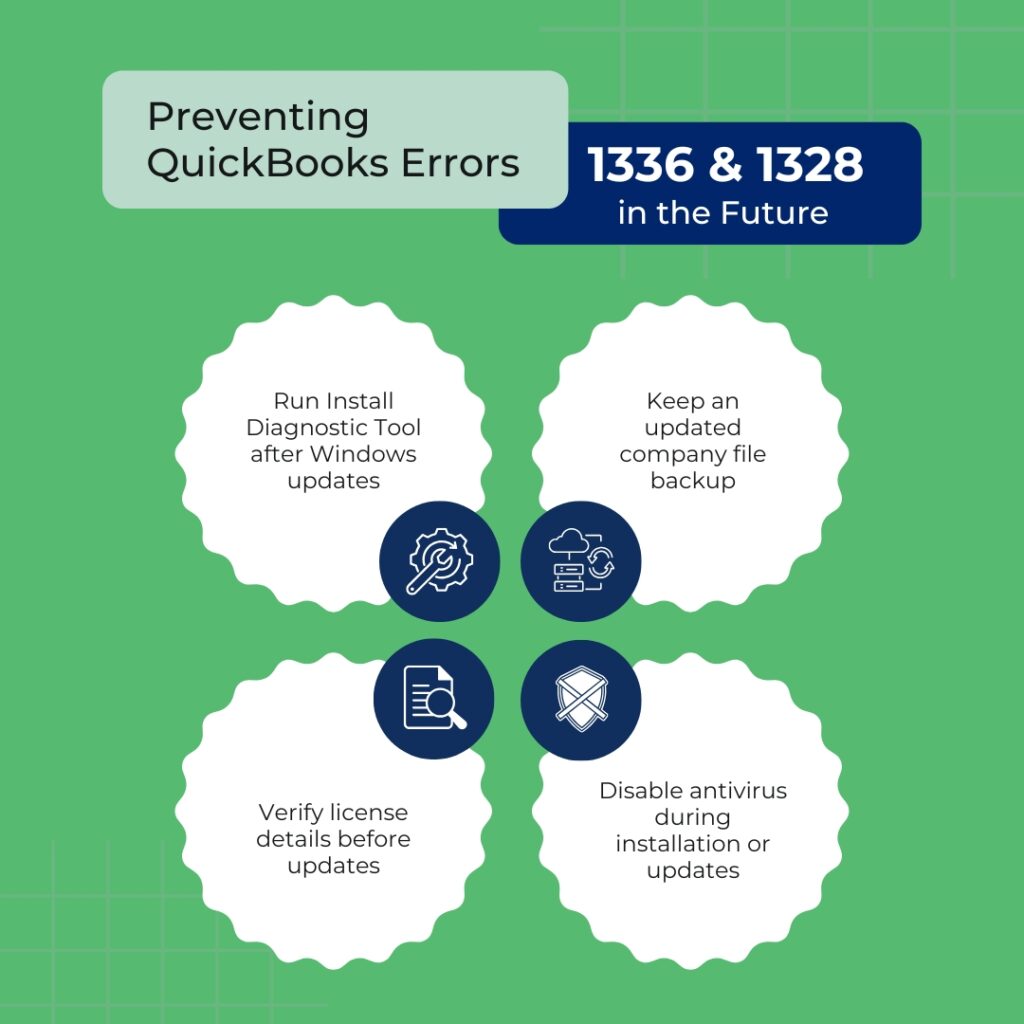
- Run the QuickBooks Install Diagnostic Tool After Every Major Windows Update
A major Windows update can change .NET Framework, MSXML, or Visual C++ component versions in ways that damage the QuickBooks installer’s ability to create temporary files and write to update folders. Running the QuickBooks Install Diagnostic Tool from the Tool Hub (Installation Issues > QuickBooks Install Diagnostic Tool) after every major Windows update proactively repairs any component mismatches before they produce Error 1336 or 1328 during the next QuickBooks update. This takes 20 minutes and eliminates the most common cause of both errors recurring after Windows updates.
- Keep a Current Backup of the Company File
Errors 1336 and 1328 are installation and update errors that do not directly damage the company file, but the repair steps required to fix them — including the Clean Install Tool and folder renaming — change the QuickBooks program environment in ways that could affect access to the company file if something goes wrong during the repair process. Creating a full company file backup through File > Back Up Company > Create Local Backup before applying any fix ensures a clean restore point exists. A backup to an external drive or cloud storage location protects accounting data from any unexpected outcome during the repair process.
- Always Verify the License Number Before Running Updates or Repairs
Error 1328 caused by a license mismatch is entirely preventable by confirming the license number before running any QuickBooks update or repair. Press F2 inside QuickBooks to open the Product Information window and note the license number shown. Compare it to the license associated with the version being updated, available at camps.intuit.com. A matching license and version number guarantees the update installer will not encounter the license verification failure that triggers Error 1328. This takes 30 seconds and eliminates one of the specific documented causes of the error.
- Disable Antivirus Real-Time Protection During Any QuickBooks Installation or Update
Antivirus real-time protection intercepts file write operations in the Windows Temp folder and the Config.Msi folder, producing Error 1336 and Error 1328 by blocking the temporary file creation and update file write operations. Disabling real-time protection through Windows Security > Virus & Threat Protection > Manage Settings > Real-Time Protection > Off for the duration of any QuickBooks installation or update prevents this interference. Re-enabling protection immediately after the installation or update completes is essential. Adding the QuickBooks installation folder and the Config.Msi folder to the antivirus exclusion list after installation prevents the same interference from recurring during future updates.
Conclusion
Error 1336 and Error 1328 both stop the QuickBooks setup process by blocking the temporary file and update file write operations that the Windows Installer needs to complete. Error 1336 is blocked at the temporary file creation step, with the specific folder listed in the error message identifying where the permission problem is. Error 1328 is blocked at the Config.Msi folder update step, where the Windows Installer writes its backup files during every software update. Both errors respond to the same core set of fixes: repairing Windows components with the Install Diagnostic Tool, restoring folder permissions, removing conflicting installation files with the Clean Install Tool, and installing in Selective Startup mode to prevent background program interference.
Intuit’s primary documented solution for Error 1328 is a reinstallation using the Clean Install Tool sequence, which removes all corrupted installation records and registry entries before a fresh installation is applied. For Error 1336, restoring write permissions on the specific folder named in the error message combined with the Install Diagnostic Tool addresses the two documented root causes in one pass. The QuickBooks Tool Hub — free from Intuit’s official support page — provides the Install Diagnostic Tool and access to the Clean Install Tool, making both of Intuit’s primary fix paths available from one application.
Neither error affects the company file. The .QBW file that holds all accounting data is not touched by installation or update operations and remains intact through any installation failure. After the error is resolved and the installation or update completes, the company file opens from File > Open or Restore Company exactly as it was before the error appeared.
Frequently Asked Questions
1. Error 1328 appeared when trying to uninstall QuickBooks. The standard uninstall stopped mid-way. What resolves a failed uninstall?
An Error 1328 during uninstall means the uninstaller encountered corrupted installation records and could not continue removing files. The correct tool for this situation is the QuickBooks Clean Install Tool, which performs its own complete removal process rather than using the standard Windows Installer uninstall sequence. Download the Clean Install Tool from Intuit’s official support page and run it directly — it does not require the standard uninstall to have completed first.
The Clean Install Tool finds and removes QuickBooks files and registry entries using its own detection method, bypassing the corrupted records that stopped the standard uninstall. After the Clean Install Tool finishes, restart the computer, download a fresh installer from Intuit, and reinstall QuickBooks fresh.
2. Error 1336 shows System error code 2 in the message. What does System error code 2 mean and how does it help diagnose the problem?
System error code 2 in Windows means “The system cannot find the file specified.” In the context of Error 1336, this code does not mean a program file is missing — it means the installer tried to create a temporary file at the folder path listed in the error message and the operating system reported that the destination path cannot be accessed.
There are two reasons this happens: the folder path in the error message exists but has permission settings that block the installer from writing to it, or the folder path does not exist on the computer. Checking whether the folder in the error message (C:\Users\Public\Desktop, in the documented case) exists in File Explorer and then verifying its write permissions for the SYSTEM and Users accounts identifies which of the two reasons applies.
3. QuickBooks was updated successfully for months and Error 1328 suddenly appeared. Nothing was changed deliberately. What caused it to start now?
A sudden appearance of Error 1328 during an update that previously worked without errors is most commonly caused by a Windows update that was applied in the background. Windows updates sometimes change the permission settings on system folders including the Config.Msi folder, or they update .NET Framework, MSXML, or Visual C++ components in ways that introduce a compatibility gap with the current QuickBooks update process.
Checking Windows Update history (Settings > Windows Update > Update History) for an update installed in the days before Error 1328 first appeared confirms the timing. Running the QuickBooks Install Diagnostic Tool immediately after any Windows update, before the next QuickBooks update is applied, prevents this timing-based appearance of Error 1328.
4. The Config.Msi folder is not visible even after enabling hidden items in File Explorer. Where else can it be found?
The Config.Msi folder is a protected system folder that requires two settings to be enabled before it becomes visible in File Explorer: Hidden Items must be enabled (View > Show > Hidden Items), and Protected Operating System Files must also be set to visible. To make protected system files visible: open File Explorer, click Options (or the three dots at the top right), select View, uncheck the box labeled “Hide protected operating system files.”
A warning message will appear — click Yes to confirm. The Config.Msi folder will then appear at C:\Config.Msi (directly at the root of the C: drive). After the permission fix is complete, re-hiding protected system files by reversing this setting is recommended to protect Windows system folders from accidental modification.
5. Both Error 1336 and Error 1328 appeared during the same installation attempt. Is this two separate problems or one?
Both errors appearing during the same installation confirm the computer has multiple overlapping problems in its Windows installation environment — not just one specific issue. Error 1336 appeared at one step of the installation and Error 1328 appeared at a different step, meaning the installer encountered separate blocks at two different points. Fixing only one error allows the installation to proceed until the second block is hit, where the second error appears.
The correct approach is to apply all component-level fixes first (Install Diagnostic Tool), then all permission fixes (Config.Msi folder access, Public Desktop permissions), then retry the installation in Selective Startup mode. Applying all fixes before retrying avoids the cycle of resolving one error only to encounter the next one immediately.

Anusmita is a seasoned content writer who brings perspective to words. As a writer, she enriches her work with a journalistic aptitude, utilising her training in Mass Communication and Journalism. She loves to travel and explore, which imparts a greater sense of understanding, maturity, and experience that are reflected in her content.
Beyond her professional work, Anusmita enjoys painting, singing, dancing, and spending time planting. She is also a self-proclaimed foodie who loves exploring different cuisines, an interest that further adds to her curiosity and perspective as a writer.
Leave a Reply