
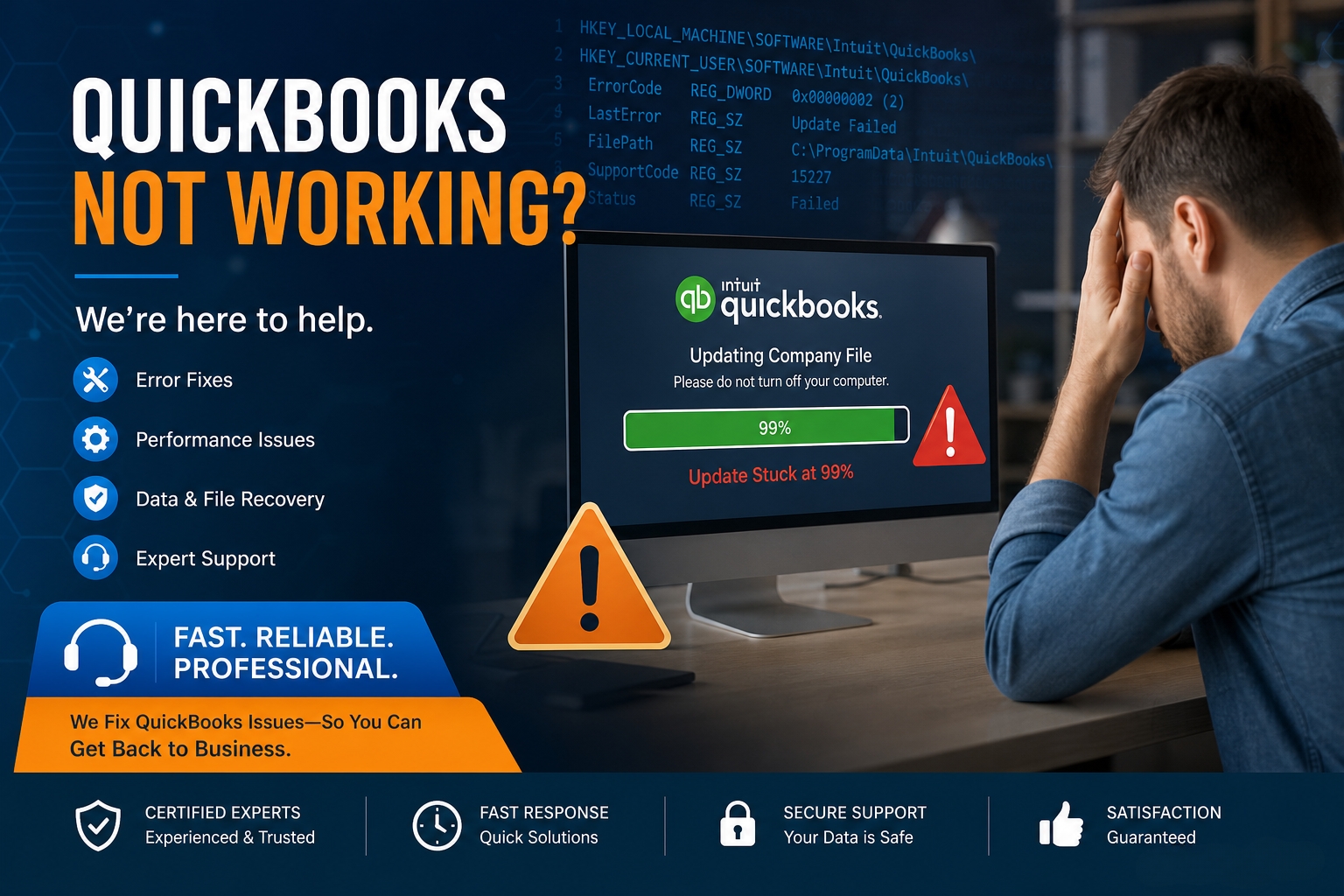
QuickBooks Desktop installation sticking at 99% is one of the most frustrating installation problems because the progress bar shows the process is nearly complete – yet the installer stops advancing and the computer sits unresponsive for minutes or hours. The 99% freeze is not a random event. The installer stopped at a specific, identifiable step.
The most commonly reported freeze point in QuickBooks is the step labeled “Writing System Registry Values,” which is the step where QuickBooks adds its program file locations and settings to the Windows registry – the database where Windows stores configuration information for all installed software. A second documented freeze point is the “Installing ABS PDF Driver” window, which is the step where QuickBooks installs its internal PDF printing component.
Intuit’s community support team confirmed the primary causes of the installation freezing at the registry-writing stage: “There’s a good chance that antivirus or security software interference is causing the error in writing registry values on your system.” The same community thread confirmed that multiple instances of QuickBooks being installed, damaged .DLL and .OCX files – which are shared program library files that Windows programs use – an incorrectly installed QuickBooks program, and invalid date and time settings on the computer all contribute to the freeze. Each of these causes has a specific fix, and this article covers all of them.
The company file is not affected by a 99% installation freeze. The .QBW file that holds all of the business’s accounting data is stored separately from the QuickBooks program installation and is never written to during the installation process. An installation that stalls at 99% leaves the company file completely intact. This article covers every documented cause and every fix for the 99% freeze, applied in the correct sequence from fastest to most thorough.
Table of Contents
Why the QuickBooks Desktop Installation Specifically Freezes at 99%?
What Happens at the 99% Step?
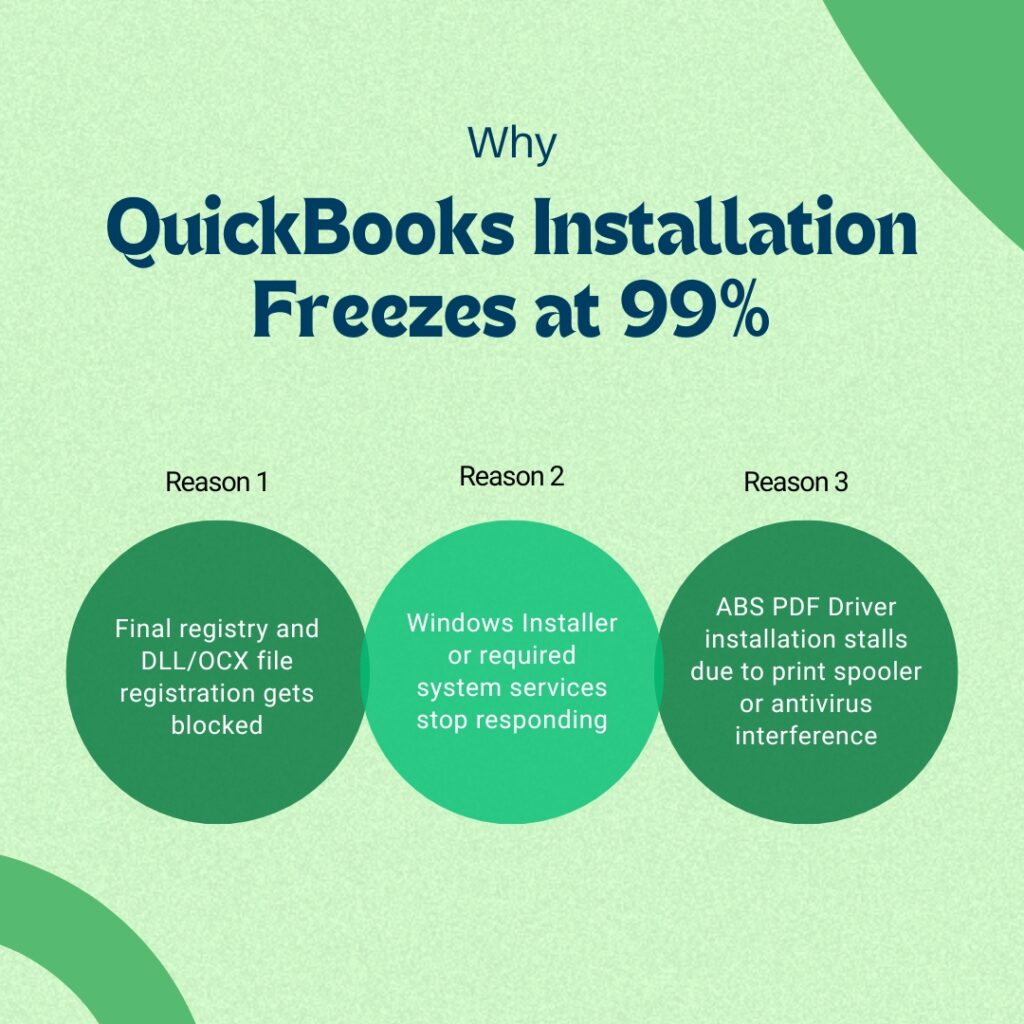
The 99% mark in the QuickBooks installation progress bar corresponds to the final registration steps where the installer writes QuickBooks’ program file locations into the Windows registry and registers shared Windows library files (.DLL files – Dynamic Link Library files – which are pre-built code files that multiple programs share, and .OCX files – which are ActiveX control files that programs use for specific interface elements). These registration steps require the installer to communicate with the Windows Installer service, to have write access to specific protected registry locations, and to complete without interference from any background program that might be scanning or blocking the files being written.
A freeze at this specific step confirms the installation succeeded at writing all program files to the computer’s hard drive – which is why the progress bar reached 99%. Only the final registry write and file registration steps remain. The freeze happens because one of the steps in this final sequence is being blocked, is taking longer than Windows allows, or is waiting for a response from a Windows component that is not available. Understanding this distinction is important because it means the fix does not require restarting the entire installation from scratch – in most cases, addressing the specific block at this stage allows the installer to complete.
The ABS PDF Driver Freeze: A Separate Documented Freeze Point
A second documented freeze point at approximately 99% is the “Installing ABS PDF Driver” progress window. The ABS PDF Driver – also called the QuickBooks PDF Converter or the Amyuni Document Converter – is QuickBooks’ internal component for converting forms, reports, and invoices into PDF files. The ABS PDF Driver installation is one of the last steps in the QuickBooks setup process, which is why it appears near or at 99%. A documented case described QuickBooks Desktop installation stopping specifically at this step, with the installer showing the ABS PDF Driver progress window and not advancing past it.
The ABS PDF Driver installs as a virtual printer – a program that Windows registers as a printer driver but produces PDF files instead of physical prints. Installing a printer driver requires Windows Installer service access, write permission to the Windows print spooler (the background service that manages all printing on a Windows computer), and a functioning Windows print driver architecture. An antivirus program that intercepts the printer driver installation, or a Windows print spooler service that is stopped, causes the ABS PDF Driver installation to stall and the progress bar to freeze at that point.
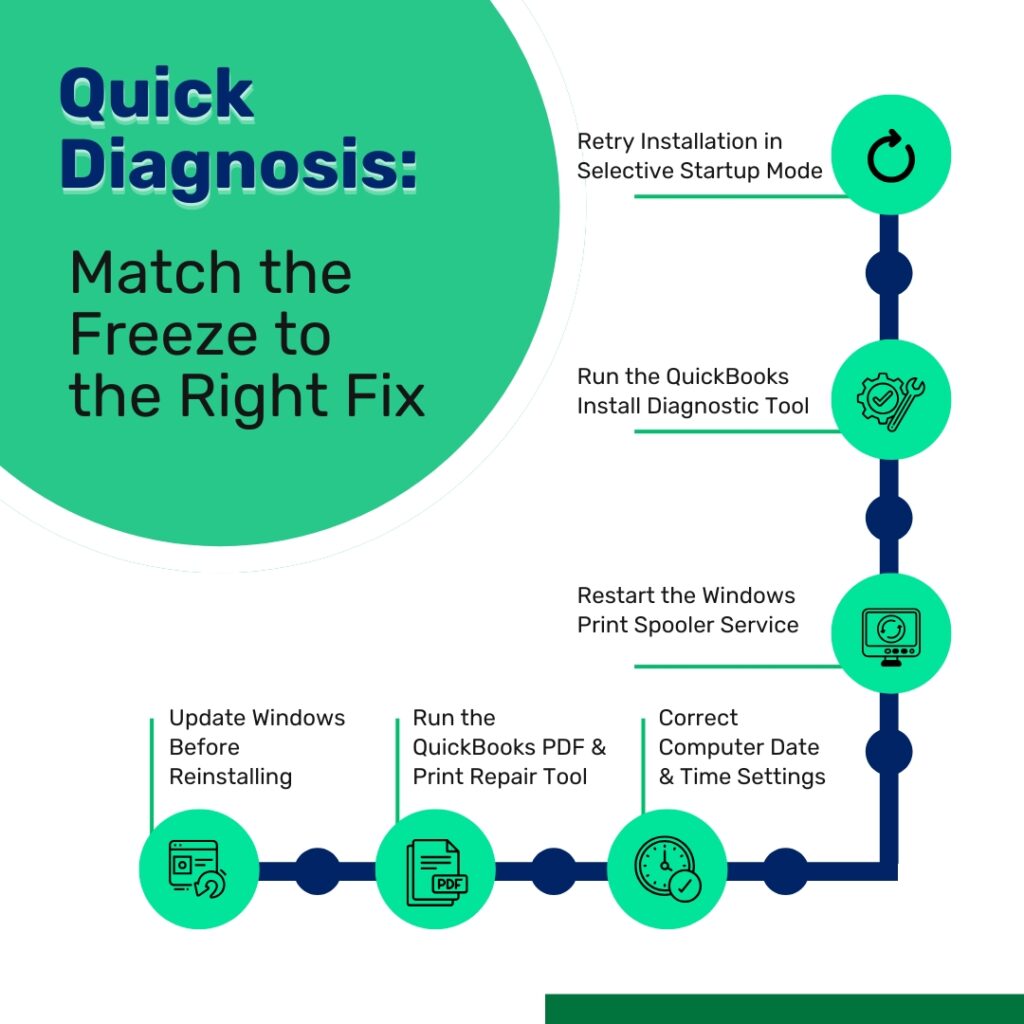
Quick Diagnosis: Match the QuickBooks Desktop Freeze Situation to the Correct Fix
Identify the specific situation before applying any fix. The freeze at 99% can appear in slightly different ways, and each variation points to a different starting fix.
| What the Screen Shows When Frozen | What It Indicates | Start With This Fix |
|---|---|---|
| Progress bar frozen at 99% with ‘Writing System Registry Values’ on screen | Antivirus blocking registry writes, or multiple QuickBooks versions conflicting | Fix 2: Selective Startup installation |
| Progress bar frozen at 99% with ‘Installing ABS PDF Driver’ on screen | Windows print spooler blocked, or antivirus intercepting printer driver installation | Fix 4: Restart Windows Print Spooler; Fix 2: Selective Startup |
| Progress bar frozen at 99%, no specific step label visible | Corrupted .DLL or .OCX shared library files, or damaged Windows Installer service | Fix 3: Install Diagnostic Tool; Fix 1: End installer task and retry |
| Installation of a QuickBooks update (not fresh install) freezes at 99% | Antivirus blocking the update’s registry write, or incorrect date/time settings | Fix 5: Check date and time; Fix 2: Selective Startup |
| Installer appears to finish but QuickBooks will not open after installation | The ABS PDF Driver or another final component did not complete registration | Fix 6: Run QuickBooks PDF and Print Repair Tool from Tool Hub |
| 99% freeze appeared after a Windows update was recently installed | Windows update changed shared components; digital signature on installer not verified | Fix 7: Verify digital signature; Fix 3: Install Diagnostic Tool |
| Computer slows significantly while frozen at 99% | Antivirus running a full scan of installer files during the registration step | Fix 2: Selective Startup; add QuickBooks to antivirus exclusions first |
Fix 1: Wait, Then End the Installer Task and Retry in Selective Startup
Why Waiting First Is the Correct First Step?
The QuickBooks installer’s progress bar freezing at 99% does not always mean the installation has failed. The “Writing System Registry Values” step involves writing thousands of individual registry entries, and on a computer with a slower processor or a mechanical hard drive (a traditional spinning hard drive rather than a Solid State Drive with no moving parts), this step can take 5 to 15 minutes without the progress bar moving. Waiting 15 to 20 minutes before taking any action confirms whether the installer is genuinely stuck or simply working slowly. Ending the installer task before the writing is complete can leave the installation in a partially registered state that requires the Clean Install Tool to resolve.
After waiting 15 to 20 minutes with no progress: press Ctrl + Shift + Esc to open Task Manager (the Windows program that shows all currently running processes). Click the Processes tab. Find the QuickBooks setup process in the list – it will appear as QuickBooks.exe, Setup.exe, or a similarly named installer process. Right-click it and select End Task. Also end any msiexec.exe processes visible in the list – msiexec.exe is the Windows Installer service process that the QuickBooks installer uses to write files. Restart the computer after ending these processes, then proceed to Fix 2 to install QuickBooks in Selective Startup mode.
Fix 2: Run the Installation in Selective Startup Mode
What Selective Startup Mode Is?
Selective Startup mode is a Windows state where the computer starts with only the essential Microsoft services and programs running. All third-party programs – including antivirus software, browser extensions, system utilities, and background update services – are disabled. Intuit’s own community support response to the documented “Writing System Registry Values” freeze confirmed this as the primary fix: “There’s a good chance that antivirus or security software interference is causing the error in writing registry values on your system.” Selective Startup removes the antivirus entirely from memory during installation, which prevents it from intercepting the registry write operations that it was blocking.
This fix is also the correct approach when multiple QuickBooks versions or instances are conflicting during installation. Another cause of the 99% freeze is having multiple instances of the same QuickBooks Desktop version installed – a situation that produces file conflicts during the registry-writing step because two sets of QuickBooks file registrations are being reconciled simultaneously. Selective Startup prevents any existing QuickBooks background processes from running during the new installation, which eliminates this conflict.
Press Windows + R, type msconfig, press Enter. Click the General tab. Select Selective Startup. Uncheck Load Startup Items. Click the Services tab. Check Hide All Microsoft Services. Click Disable All. Click Apply > OK. Click Restart. After the computer restarts in Selective Startup mode, right-click the QuickBooks installer file and select Run as administrator. Follow the installation prompts. After QuickBooks installs successfully, open msconfig, select Normal Startup, click Apply > OK, and restart the computer.
Fix 3: Run the QuickBooks Install Diagnostic Tool
What the Tool Repairs?
The QuickBooks Install Diagnostic Tool repairs three Windows components that the final registration step of the QuickBooks installation depends on: Microsoft .NET Framework (a software layer Windows provides that QuickBooks uses to run its setup screens and register program files), MSXML (Microsoft XML Core Services, which the installer uses to read its configuration and license files during registration), and Microsoft Visual C++ Redistributable files (shared program libraries that the installer uses to complete the .DLL and .OCX file registrations). A damaged version of any of these components stops the installer at the 99% step because the registration cannot complete without them.
Damaged .DLL and .OCX files not being properly registered is confirmed as a specific cause of the installation freezing at 99%. The Install Diagnostic Tool specifically addresses this cause by repairing the Windows components that the registration process uses. Running the tool before retrying the installation corrects the component damage and allows the registration step to complete normally.
Download the QuickBooks Tool Hub version 1.6.0.8 from Intuit’s official support page. Open it. Click Installation Issues in the left menu. Click QuickBooks Install Diagnostic Tool. Allow it to run – up to 20 minutes. Do not close the tool while it is running. Restart the computer when it finishes. Then install QuickBooks in Selective Startup mode (Fix 2 steps) immediately after the restart, before returning the computer to Normal Startup.
Fix 4: Restart the Windows Print Spooler Service
Why Does the Print Spooler Affect the ABS PDF Driver Installation?
The Windows Print Spooler service is a Windows background program that manages all printer and printer driver installations on the computer. The ABS PDF Driver – which QuickBooks installs as a virtual printer during setup – must go through the Print Spooler service to register itself with Windows. A Print Spooler service that has stopped running, or that is in a hung state (started but not processing requests), causes the ABS PDF Driver installation step to freeze. The installer tries to communicate with the Print Spooler to register the PDF driver, the Print Spooler does not respond, and the installation sits at 99% waiting for a response that never comes.
The Windows Print Spooler service sometimes stops after a Windows update or after a printer was removed incorrectly. Restarting it through the Windows Services panel – the tool that manages all background Windows services – restores it to a working state. After restarting the Print Spooler, the QuickBooks installer can complete the ABS PDF Driver registration step without freezing.
Press Windows + R, type services.msc, press Enter. The Windows Services panel opens. Scroll down to find Print Spooler in the list. Right-click it and select Restart. If Restart is greyed out, right-click and select Start. Confirm the Status column shows Running. Close the Services panel. Retry the QuickBooks installation. If the installation freezes at the ABS PDF Driver step again, also run the QuickBooks PDF and Print Repair Tool from the Tool Hub (Fix 6) before retrying.
Fix 5: Verify and Correct the Computer’s Date and Time Settings
How Incorrect Date and Time Cause a 99% Freeze?
QuickBooks installer validates its digital signature during the final registration step. A digital signature is an electronic certificate that confirms the installer file was created by Intuit and has not been tampered with. The digital signature contains a validity date range. A computer whose date and time settings are significantly incorrect – set to a date in the past or future – causes the digital signature validation to fail because the installer’s signature appears to be outside its valid date range on the computer’s clock. This validation failure stops the installation at exactly the 99% registration step with no visible error message.
Invalid or incorrect time zone settings on the computer are confirmed as a cause of QuickBooks update and installation freezing at the registry-writing step. A computer that shows the correct time but is set to the wrong time zone is effectively running on an incorrect time from the installer’s perspective, because the digital signature check uses the time zone to calculate the current time relative to the signature’s validity window.
Press Windows + I to open Windows Settings. Go to Time & Language > Date & Time. Turn on Set time automatically and Set time zone automatically. If the time shown is still incorrect after enabling automatic settings, click Sync now to force an immediate time synchronization with the internet. Confirm the time shown matches the actual current local time. Retry the QuickBooks installation.
Fix 6: Verify the Digital Signature of the QuickBooks Installer
What a Digital Signature Is and Why the Installer Must Be Valid?
A digital signature on a program file is an electronic stamp that confirms who created the file and that it has not been changed since it was created. The QuickBooks installer carries a digital signature issued by Intuit. Windows checks this signature during the final installation step to confirm the installer is genuine. A corrupted installer file, an incomplete download, or a file modified by antivirus quarantine produces a broken digital signature. Windows detects the broken signature during the registry-writing step and stops the installation, which shows as a freeze at 99% with no error message.
A specific fix guide documented by a QuickBooks technical resource confirms the digital signature verification as a specific step in resolving the 99% installation freeze: navigate to the QuickBooks .EXE installer file, right-click it, select Properties, go to the Digital Signatures tab, select Intuit in the signature list, click Details, click View Certificate, and then click Install Certificate. This process imports the Intuit certificate into the Windows certificate store, which allows Windows to validate the signature during the next installation attempt.
Right-click the QuickBooks installer file (QuickBooks.exe) on the Desktop. Select Properties. Click the Digital Signatures tab. In the signature list, select Intuit. Click Details. In the Digital Signature Details window, click View Certificate. In the Certificate window, click Install Certificate. Select Local Machine as the store location. Click Next. Select Automatically select the certificate store. Click Next > Finish. Close all windows. Right-click the installer and select Run as administrator. Follow the installation prompts.
Fix 7: Run the QuickBooks PDF and Print Repair Tool
Why the PDF and Print Repair Tool Resolves the ABS PDF Driver Freeze?
The QuickBooks PDF and Print Repair Tool specifically repairs the ABS PDF Driver – the QuickBooks internal PDF printing component – and the associated printer registration entries in Windows. This tool is the correct fix when the installation appears to complete (the progress bar disappears) but QuickBooks will not open, or when the installation freezes specifically at the ABS PDF Driver step and cannot be resolved by restarting the Print Spooler service alone. The tool re-registers the PDF driver with Windows without requiring a full reinstallation.
Open the QuickBooks Tool Hub. Click Program Problems in the left menu. Click QuickBooks PDF & Print Repair Tool. Wait approximately one minute for it to complete. Restart the computer. Open QuickBooks and confirm the installation is complete by opening the program and checking the Help > About QuickBooks screen to confirm the version and release number.
Fix 8: Clean Up Old QuickBooks Instances Before Reinstalling
Why Multiple QuickBooks Installations Cause the 99% Freeze?
Having multiple instances of the same QuickBooks Desktop version installed on the computer is documented as a specific cause of the installation freezing at 99%. An instance in this context means a separate, possibly incomplete installation of the same version – for example, a QuickBooks 2024 installation that failed partway through and was not fully removed, alongside a second QuickBooks 2024 installation attempt. The two instances create conflicting registry entries when the installer tries to write its program locations to the Windows registry, causing the writing process to stall.
The correct solution is to use the QuickBooks Clean Install Tool to remove all existing QuickBooks installations and their registry entries before attempting a new installation. The Clean Install Tool removes more completely than the standard Windows uninstall, specifically targeting the orphaned registry entries and shared component registrations that a failed installation leaves behind. After the Clean Install Tool completes its removal, a fresh installation has no conflicting entries to resolve during the registry-writing step.
Download the QuickBooks Clean Install Tool from Intuit’s official support page. Before running it, record the QuickBooks license number and product key from the original purchase email or the Intuit Customer Account Management Portal at camps.intuit.com. Open Control Panel > Programs > Programs and Features. Right-click every QuickBooks entry in the list and select Uninstall. After all QuickBooks entries are removed, run the Clean Install Tool to remove residual files and registry entries. Restart the computer. Download a fresh installer from Intuit’s official Downloads & Updates page. Run the installer in Selective Startup mode (Fix 2 steps).
Fix 9: Update Windows Before Retrying the Installation
Why Pending Windows Updates Cause Registry-Writing Failures?
Windows updates include updated versions of the Windows Installer service, .NET Framework, MSXML, and Visual C++ files that the QuickBooks installer uses during the registry-writing step. Running the QuickBooks installation on a computer that has not received recent Windows updates means the installation runs against older versions of these components that may contain bugs already fixed in pending updates. The registry-writing step at 99% is the most demanding step on these components, which is why an installation can appear to run normally through 98% of progress and then freeze at the final step where these components are most heavily used.
Go to Windows Settings > Windows Update > Check for Updates. Install all available updates. Restart the computer after updates are installed. Check for updates again to catch any secondary updates that become available after the first round. After all updates are installed and the computer has restarted fully, run the QuickBooks Install Diagnostic Tool (Fix 3) once to repair any component mismatches the update may have introduced, then retry the QuickBooks installation in Selective Startup mode (Fix 2).
All QuickBooks Desktop Fixes at a Glance
| Fix | What It Resolves | Time Required | When to Use It |
|---|---|---|---|
| Fix 1: Wait 15 min, then end installer task | Confirms genuine freeze vs slow progress; clears stuck installer process | 20–25 min | Always the first step before applying any other fix |
| Fix 2: Selective Startup installation | Antivirus blocking registry writes; conflicting background processes | 15 min | Primary fix for ‘Writing System Registry Values’ freeze |
| Fix 3: Install Diagnostic Tool | Damaged .NET, MSXML, or C++ components causing registration failure | 15–20 min | When Fix 2 alone does not resolve the freeze |
| Fix 4: Restart Windows Print Spooler | Print Spooler stopped; ABS PDF Driver cannot register | 5 min | Specifically for ‘Installing ABS PDF Driver’ freeze at 99% |
| Fix 5: Correct date and time settings | Invalid date/time causing digital signature validation to fail | 5 min | When the freeze occurs during an update or after a clock change |
| Fix 6: Verify installer digital signature | Corrupted installer file or broken Intuit certificate in Windows | 10 min | When installer downloaded from unofficial source or antivirus modified it |
| Fix 7: PDF and Print Repair Tool | ABS PDF Driver not registered; QuickBooks opens but cannot print or email | 5 min | When installation completes but PDF/print functions fail |
| Fix 8: Clean Install Tool before reinstalling | Multiple conflicting QuickBooks installations causing registry conflicts | 45–60 min | When two or more QuickBooks instances are present on the computer |
| Fix 9: Install Windows Updates | Outdated Windows components causing registry-writing step to fail | 20–40 min | Before any installation attempt on a computer with pending updates |
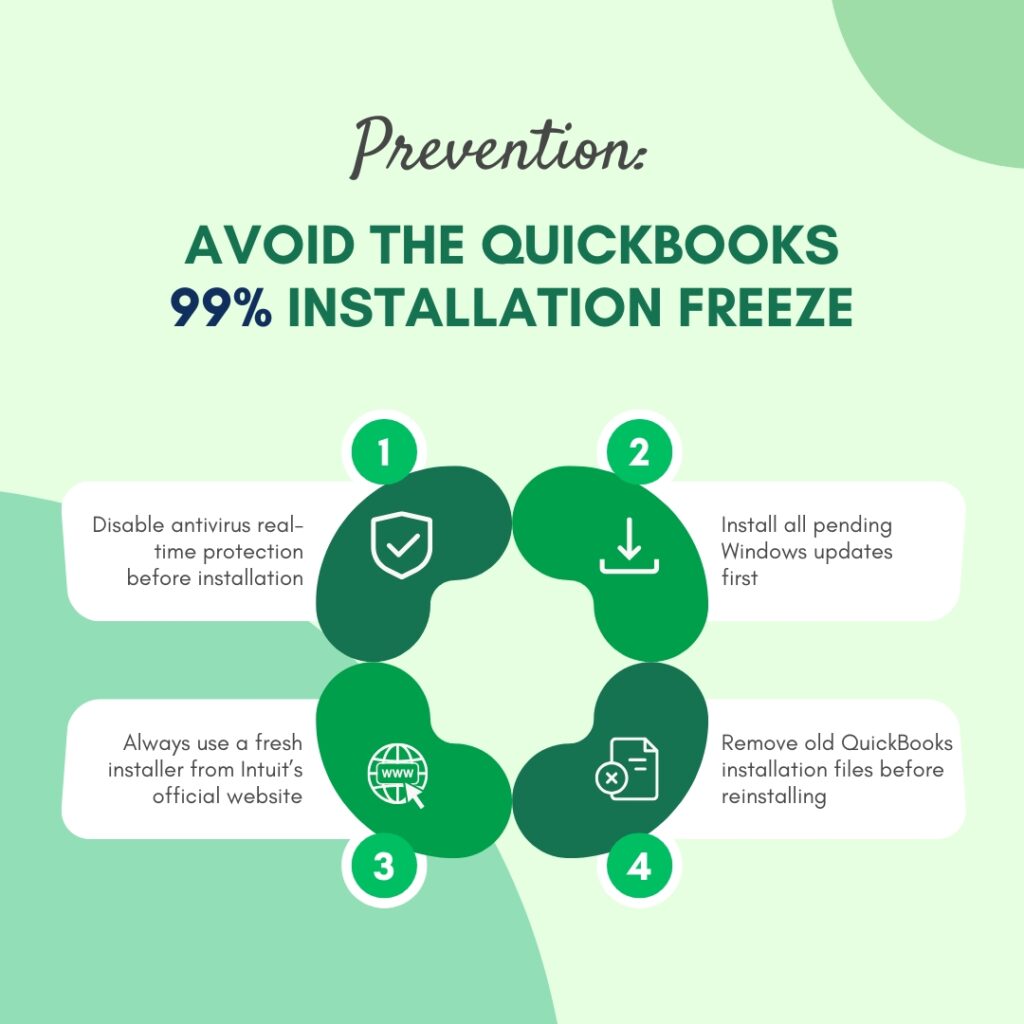
QuickBooks Desktop Prevention: Stop the 99% Freeze From Recurring
- Disable Antivirus Real-Time Protection Before Every Installation
Antivirus real-time protection – the continuous background process that scans every file being written to the computer – is the single most documented cause of the QuickBooks installation freezing at the registry-writing step. Disabling real-time protection through Windows Security > Virus & Threat Protection > Manage Settings > Real-Time Protection > Off before starting any QuickBooks installation or update allows the registry-writing step to complete without interference. Re-enabling protection immediately after the installation completes is essential – do not leave the computer unprotected beyond the duration of the installation.
- Keep Windows Updated Before Every QuickBooks Installation
Windows updates fix bugs in the Windows Installer service and in the .NET Framework, MSXML, and Visual C++ components that the QuickBooks installer’s registry-writing step depends on. A computer with pending Windows updates runs the QuickBooks installation against older, potentially buggy component versions that may cause the 99% freeze. Checking for and installing all available Windows updates through Settings > Windows Update > Check for Updates and restarting the computer before starting any QuickBooks installation eliminates this cause.
- Always Use a Fresh Installer Downloaded From Intuit’s Official Page
A QuickBooks installer file that was downloaded weeks or months earlier, or that was saved from an unofficial source, may contain incomplete or modified data that produces a broken digital signature. A broken digital signature causes the installer to freeze at the 99% registry-writing step when Windows fails to validate it. Downloading a fresh installer from Intuit’s official Downloads & Updates page immediately before installation guarantees a complete, unmodified file with a valid Intuit digital signature. Save the downloaded file directly to the Desktop to avoid the Windows 260-character file path limit that can cause extraction failures from deeply nested folders.
- Remove All Previous QuickBooks Installations Completely Before Reinstalling
A clean start before each QuickBooks installation eliminates the registry entry conflicts that cause the 99% freeze when multiple instances of the same version are present. After any failed installation attempt, use the QuickBooks Clean Install Tool to remove all QuickBooks files and registry entries before retrying. This takes 30 to 45 minutes but prevents the recurring 99% freeze that appears when an incomplete previous installation left conflicting registry entries behind.
Conclusion
A QuickBooks Desktop installation stuck at 99% is stopped at the final registry-writing or PDF driver registration step – not at a random point in the process. The most common cause is antivirus software intercepting the registry write operations that the installer performs at this final step. Intuit’s community support team confirmed this directly, and the confirmed fix is installing QuickBooks in Selective Startup mode, which disables all antivirus and third-party programs for the duration of the installation. This fix resolves the 99% freeze in the majority of cases and takes about 15 minutes.
The ABS PDF Driver freeze – the second documented 99% freeze point – is caused by a stopped Windows Print Spooler service or antivirus interference with the printer driver installation. Restarting the Print Spooler service through the Windows Services panel (services.msc) and then retrying the installation in Selective Startup mode resolves this specific variant. After the installation completes, running the QuickBooks PDF and Print Repair Tool from the Tool Hub confirms the ABS PDF Driver registered correctly.
Other causes – incorrect date and time settings, a broken digital signature on the installer, damaged Windows components, and multiple conflicting QuickBooks instances – each have direct fixes documented in this article. Applying them in the correct sequence and combining the Install Diagnostic Tool with a Selective Startup installation covers all identified causes of the 99% freeze. Intuit’s QuickBooks Tool Hub – free from Intuit’s official support page – contains the Install Diagnostic Tool, the PDF and Print Repair Tool, and Quick Fix My Program, making it the most useful single download for resolving this specific installation problem.
Frequently Asked Questions
1. The installation stayed at 99% for two hours before the computer was restarted. Now the installer will not run again. What is the correct next step?
An installer that was running at 99% for two hours and then was stopped by a computer restart left the installation in a partially registered state. Registry entries from the partial installation exist alongside an incomplete program file set, which prevents the same installer from completing when run again.
The correct next step is to use the QuickBooks Clean Install Tool to remove all traces of the incomplete installation before retrying. The Clean Install Tool finds and removes the partial registry entries and any installer files left behind, giving the new installation attempt a clean starting point. After the Clean Install Tool finishes, restart the computer, then install in Selective Startup mode using a freshly downloaded installer.
2. The installation froze at 99% and was ended through Task Manager. QuickBooks now appears in the Control Panel programs list. Should it be uninstalled before retrying?
Yes. QuickBooks appearing in the Control Panel programs list after a failed installation that was ended through Task Manager means the installer wrote enough to the Windows registry for Windows to recognize it as an installed program, but not enough to make it fully functional. Attempting to install QuickBooks again without removing this partial entry will produce the same 99% freeze or a different error.
Uninstall the partial installation through Control Panel > Programs and Features > right-click QuickBooks > Uninstall. After the uninstall completes, run the QuickBooks Clean Install Tool to remove any residual registry entries, restart the computer, and then install in Selective Startup mode using a fresh installer downloaded from Intuit.
3. The date and time on the computer are correct and Selective Startup mode was used, but the installer still freezes at 99%. What has not been addressed?
A 99% freeze that persists through Selective Startup installation and correct date/time settings points to damaged Windows components as the cause – specifically .NET Framework, MSXML, or Visual C++ files that the registry-writing step depends on. Run the QuickBooks Install Diagnostic Tool from the Tool Hub (Installation Issues > QuickBooks Install Diagnostic Tool) to repair these components.
After the tool runs and the computer is restarted, retry the installation in Selective Startup mode. If the freeze still occurs after the Diagnostic Tool, run the Windows System File Checker by typing sfc /scannow in an administrator Command Prompt. The System File Checker repairs damaged Windows core system files that the Diagnostic Tool does not address.
4. The installation completed past 99% and finished, but QuickBooks will not open after installation. Is this related to the 99% freeze?
QuickBooks finishing the installation but then failing to open is typically caused by the ABS PDF Driver not registering correctly during the final installation step. The progress bar completed because the main program files were written, but the PDF driver registration – which happens at the end of the installation – silently failed.
The QuickBooks PDF and Print Repair Tool in the Tool Hub (Program Problems > QuickBooks PDF & Print Repair Tool) re-registers the ABS PDF Driver without requiring a reinstall. Run this tool, restart the computer, and then try opening QuickBooks again. If QuickBooks still will not open after the PDF repair, use Quick Fix My Program from the Program Problems tab to clear any stale background processes and run a basic program repair.
5. The QuickBooks update – not a fresh installation – freezes at 99% every time. The installation from scratch works fine. Why does only the update freeze?
A QuickBooks update that consistently freezes at 99% while a fresh installation works correctly indicates that the update installer is conflicting with the existing QuickBooks installation during the registry-writing step. The update’s installer tries to overwrite specific registry entries that the current installation has locked or that an antivirus is protecting as trusted program entries.
The confirmed fix for this specific pattern is to use the Reset Update option in QuickBooks before retrying the update: go to Help > Update QuickBooks Desktop > Update Now tab > check Reset Update > click Get Updates. The Reset Update checkbox deletes all partial update downloads and downloads the complete update package fresh. Running this update download in Selective Startup mode, so the antivirus is not running, resolves the 99% freeze on updates that the fresh installation did not encounter.

Anusmita is a seasoned content writer who brings perspective to words. As a writer, she enriches her work with a journalistic aptitude, utilising her training in Mass Communication and Journalism. She loves to travel and explore, which imparts a greater sense of understanding, maturity, and experience that are reflected in her content.
Beyond her professional work, Anusmita enjoys painting, singing, dancing, and spending time planting. She is also a self-proclaimed foodie who loves exploring different cuisines, an interest that further adds to her curiosity and perspective as a writer.
Leave a Reply