
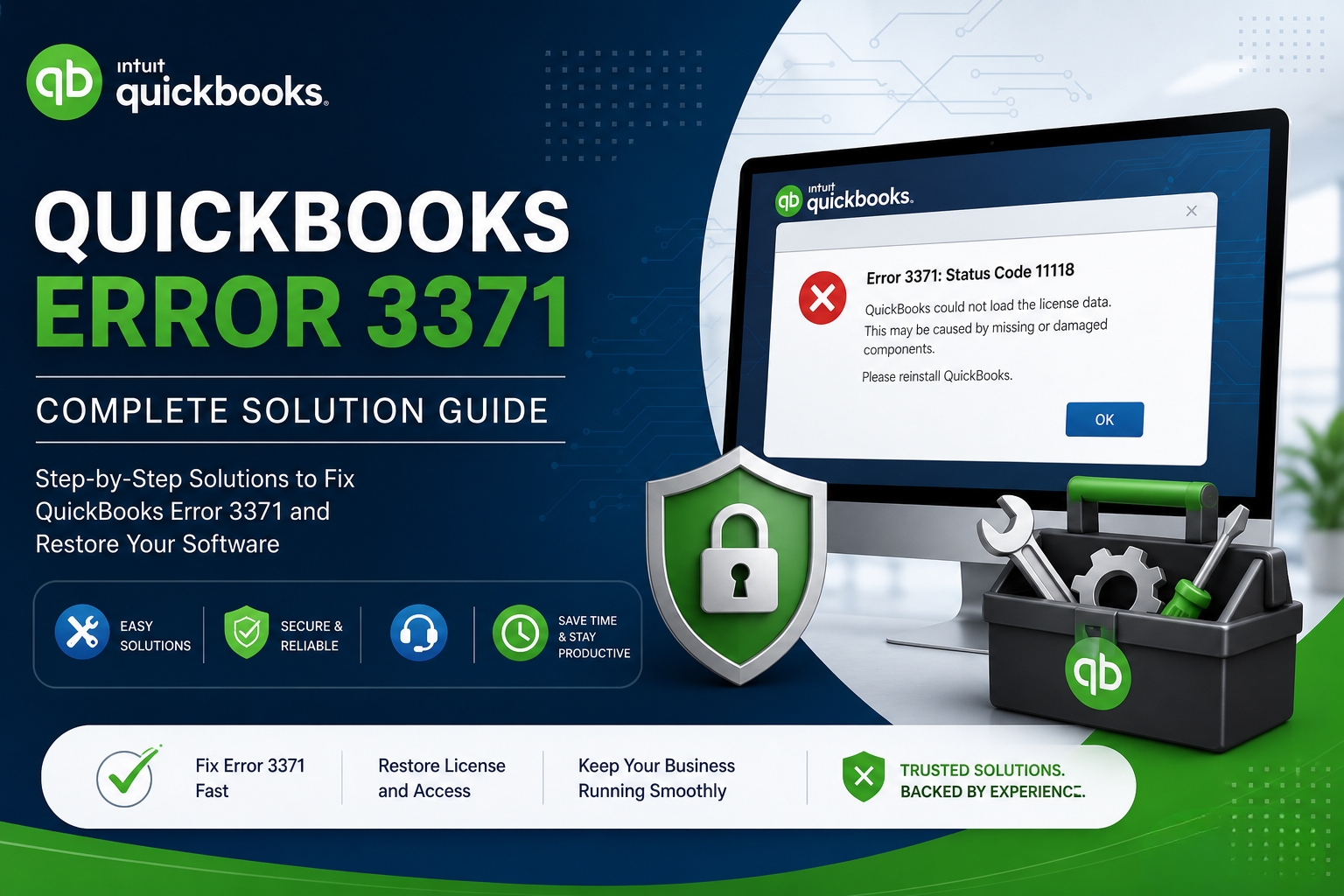
Error 3371 Status Code 11118 stops QuickBooks from opening entirely. The full error message that appears on screen reads: “Could not initialize license properties. [Error 3371, Status Code –11118] QuickBooks could not load the license data. This may be caused by missing or damaged files.” This message means QuickBooks started its launch process, reached the point where it checks that the software is properly licensed, and failed because the file containing that license information is either damaged or unreadable. The program cannot proceed past this check, so it closes and displays this error.
The error appears in three documented situations: when a user opens QuickBooks for the first time on a computer (activation), when QuickBooks is re-opened after a Windows update that changed file access settings, or when QuickBooks is opened after the computer was shut down incorrectly while QuickBooks was still running. All three situations share a common outcome – the license data file on the computer is in a state that QuickBooks cannot read correctly. Intuit’s own community support team confirmed this directly in a long-running Intuit forum thread: an older version of QuickBooks and a damaged EntitlementDataStore.ecml file are the primary triggers for this error.
Error 3371 is fully fixable without data loss. The accounting data stored in the company file – the .QBW file – is completely separate from the license file and is not affected by this error. This error only affects QuickBooks’ ability to verify its license. The company file stays intact, and once the license data is restored, QuickBooks opens and accesses the company file normally. This article covers every documented cause, the complete fix sequence, and the specific steps for situations where the standard fix resolves the error for one day but brings it back the next.
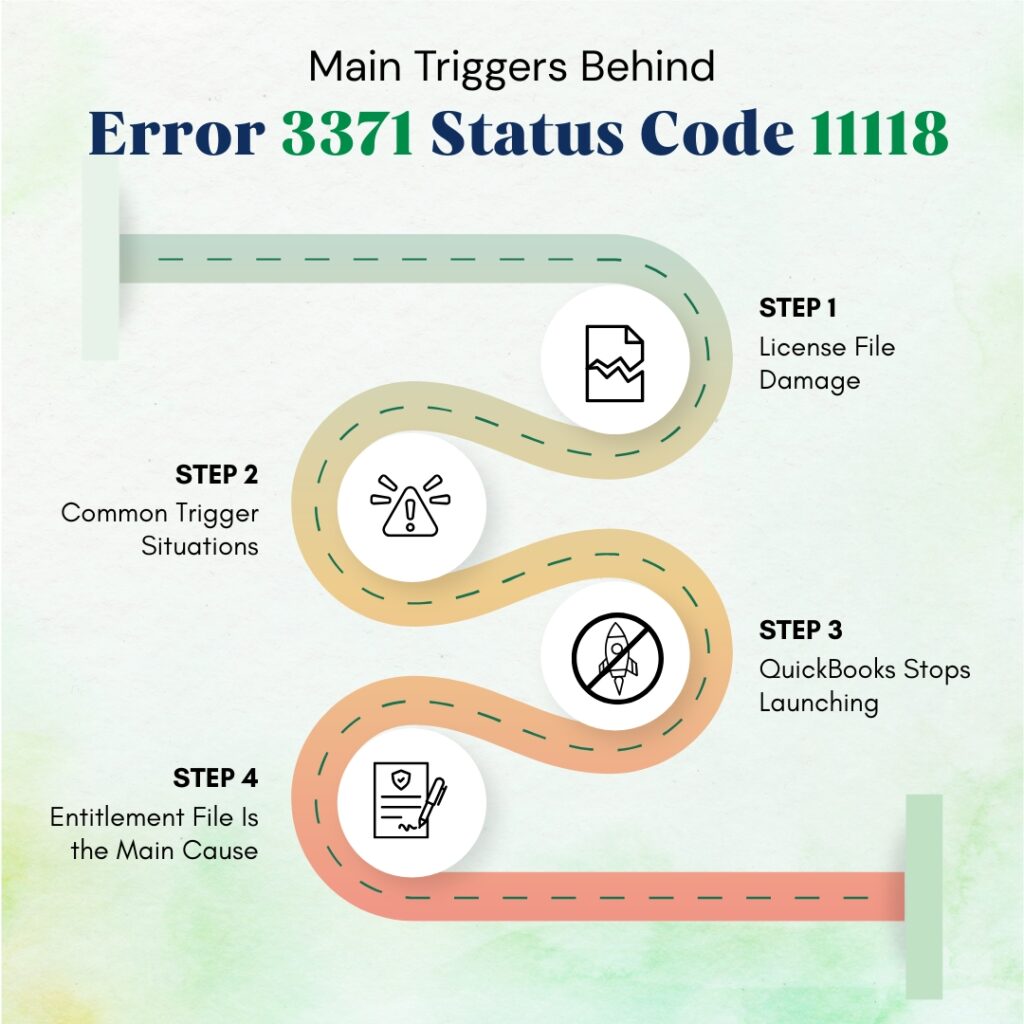
Table of Contents
The Three Files Involved in QuickBooks Error 3371
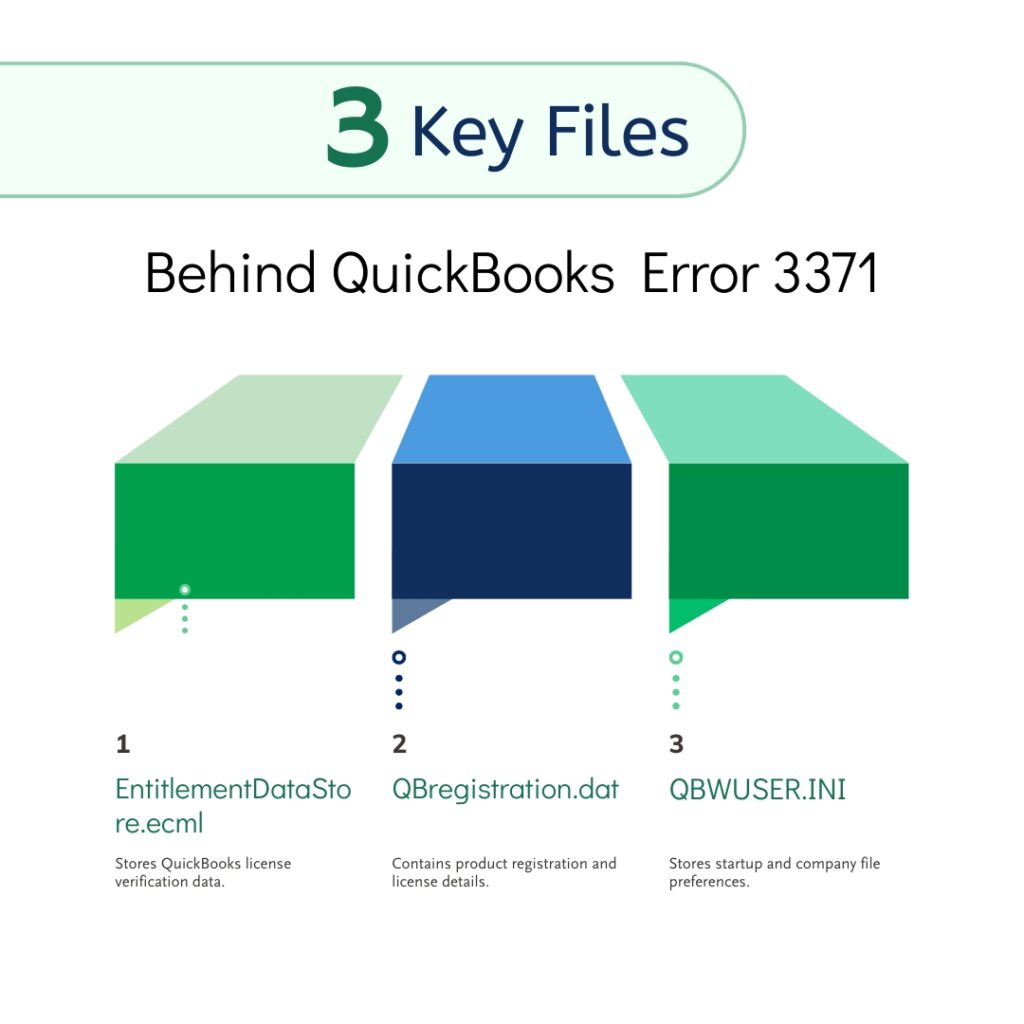
Error 3371 involves three specific files that QuickBooks uses to verify its license. Understanding what each file does explains exactly why the error appears and why renaming or deleting a specific file resolves it.
- File 1: EntitlementDataStore.ecml
- File 2: QBregistration.dat
- File 3: QBWUSER.INI
File 1: EntitlementDataStore.ecml
The EntitlementDataStore.ecml file is the primary license verification file that QuickBooks checks every time the program opens. The file extension .ecml stands for Entitlement Client Markup Language – it is a structured data file that stores a record of QuickBooks’ product registration on the specific computer. QuickBooks reads this file during startup to confirm that the software installed on this computer has been properly registered with Intuit. The file is stored at C:\ProgramData\Intuit\Entitlement Client\v8 – on newer QuickBooks versions – or at C:\ProgramData\Intuit\Entitlement Client\v6 on older versions.
The ProgramData folder is a hidden folder in Windows, meaning it does not appear in normal File Explorer browsing. Hidden folders are folders that Windows conceals from regular view to protect system files from accidental modification. To access ProgramData, the user must either type the path directly into the Windows Run dialog (Windows + R) or enable the “Hidden Items” option in File Explorer’s View menu. A damaged EntitlementDataStore.ecml file causes Error 3371 because QuickBooks cannot read a corrupted file and interprets the failure as a missing or invalid license.
File 2: QBregistration.dat
The QBregistration.dat file is the registration data file that stores QuickBooks’ license number, product number, and registration status in XML format – XML (Extensible Markup Language) is a structured text format that programs use to organize and store data. QuickBooks uses this file alongside the EntitlementDataStore.ecml to validate its license. The QBregistration.dat file is stored at C:\ProgramData\Common Files\Intuit\QuickBooks. A damaged QBregistration.dat file causes Error 3371 because QuickBooks cannot retrieve the license information it needs to complete the validation check.
QuickBooks depends on the MSXML component – Microsoft XML Core Services, a Windows software library that handles reading and writing XML-formatted files – to access the QBregistration.dat file. A damaged MSXML component prevents QuickBooks from reading the QBregistration.dat file even when the file itself is intact. This is why Error 3371 has two separate repair paths: one that addresses the license file directly, and one that addresses the Windows component used to read the file.
File 3: QBWUSER.INI
The QBWUSER.INI file is a settings file that stores QuickBooks’ startup preferences, including which company file was last opened. A damaged QBWUSER.INI does not directly cause the license data error, but it frequently appears alongside it. A computer that had an incorrect shutdown while QuickBooks was open can damage both the QBWUSER.INI and the EntitlementDataStore.ecml at the same time. If the standard EntitlementDataStore.ecml fix resolves Error 3371 but QuickBooks then fails to open the company file, resetting the QBWUSER.INI is the next step.
Quick Diagnosis: Which Cause Applies to This Situation
Find the description that matches the situation before applying any fix.
| Situation When Error 3371 Appeared | Most Likely Cause | Start With This Fix |
| Error appeared after a Windows update | Windows update changed folder permissions, preventing QuickBooks from reading the EntitlementDataStore.ecml file | Fix 1: Rename EntitlementDataStore.ecml |
| Error appeared after moving QuickBooks to a new computer | The EntitlementDataStore.ecml from the old computer was not transferred, or the new computer’s file is for a different system | Fix 1: Rename EntitlementDataStore.ecml; then re-register QuickBooks |
| Error appeared after cloning or imaging the hard drive | The EntitlementDataStore.ecml is tied to the original computer’s hardware ID; it cannot be cloned to a new computer | Fix 1: Delete EntitlementDataStore.ecml; re-register on new hardware |
| Error appeared after an incorrect system shutdown | Both the EntitlementDataStore.ecml and the QBWUSER.INI were not written correctly during the interrupted shutdown | Fix 1, then Fix 5 if company file does not open |
| Error appeared when opening QuickBooks for the first time | QuickBooks has not yet been registered; the EntitlementDataStore.ecml does not exist yet on this computer | Register QuickBooks directly; Fix 1 if registration fails |
| Error resolves for one day then comes back after restart | Antivirus or a security policy is deleting or blocking the EntitlementDataStore.ecml after each session | Fix 3: Antivirus exclusions; Fix 4: Check Group Policy |
| Error appeared after QuickBooks update | QuickBooks update changed or deleted the EntitlementDataStore.ecml as part of the update process | Fix 1, then update QuickBooks again after re-registration |
| Error shows for all users on the computer | The EntitlementDataStore.ecml is damaged at the system level – affects all user accounts equally | Fix 1 and Fix 2 in sequence |
QuickBooks Fix 1: Rename or Delete the EntitlementDataStore.ecml File
What This Fix Does and Why It Works?
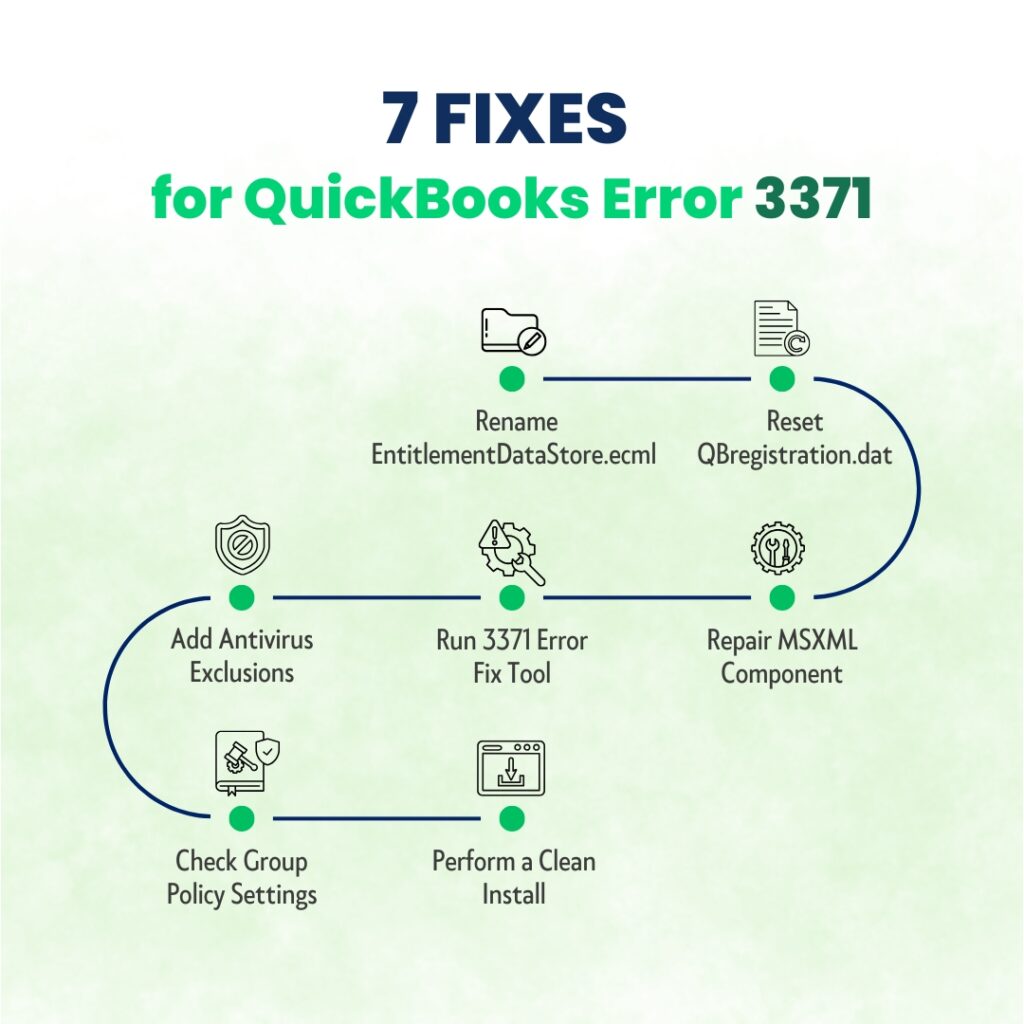
Renaming or deleting the EntitlementDataStore.ecml file forces QuickBooks to create a brand-new, clean version of it on the next startup. QuickBooks automatically generates a new EntitlementDataStore.ecml when it detects the file is missing. The new file is created with no damage, and QuickBooks can then complete its license check successfully. The accounting data in the company file is completely unaffected by this process. The only information the EntitlementDataStore.ecml holds is the license registration record – QuickBooks will ask for the license number again after the file is recreated, which is why the license number must be noted before starting.
Renaming (adding .old to the end of the filename) is safer than deleting because the renamed file stays on the computer and can be referenced if needed. Deleting produces the same result but permanently removes the old file. Both approaches are confirmed fixes in Intuit’s own community support responses. Multiple Intuit community forum users confirmed: “I was able to fix it by deleting the ECML file located in C:\ProgramData\Intuit\Entitlement Client\v8 and run/register QB once again.”
Before Starting: Record the License Information
QuickBooks will ask for the license number and product number after the EntitlementDataStore.ecml is removed, because the record that confirmed this computer’s registration no longer exists. Note the license number and product number from Help > About QuickBooks (if QuickBooks can still be opened to this screen) or from the original purchase email, the Intuit account at camps.intuit.com, or the original product packaging. Having this information ready before starting prevents having to stop mid-process to locate it.
Step-by-Step: How to Rename or Delete the File?
Press Windows + R on the keyboard to open the Run dialog. Type C:\ProgramData\Intuit\Entitlement Client\v8 and press Enter. If this path does not open a folder, try C:\ProgramData\Intuit\Entitlement Client\v6. The ProgramData folder is hidden – if neither path works, open File Explorer, click View > Show > Hidden Items, and then manually navigate to C: > ProgramData > Intuit > Entitlement Client > v8.
Find the file named EntitlementDataStore.ecml in the folder. Right-click it and select Rename. Add .old to the end of the filename so it reads EntitlementDataStore.ecml.old. Press Enter. Close File Explorer. Open QuickBooks. QuickBooks will display the registration window. Enter the license number and product number when prompted and complete the registration. QuickBooks creates a new EntitlementDataStore.ecml automatically during this process.
After the registration completes, open the company file and confirm QuickBooks works normally. The error should not reappear. If it does reappear after the next computer restart, the EntitlementDataStore.ecml is being deleted or modified after each session by an antivirus or security program. Proceed to Fix 3.
QuickBooks Fix 2: Reset the QBregistration.dat File
What This Fix Does and Why It Works?
The QBregistration.dat file holds QuickBooks’ license and product registration data in XML format. A damaged QBregistration.dat file means QuickBooks reaches the license check, reads the file, encounters corrupted data, and fails with Error 3371 – even when the EntitlementDataStore.ecml is intact. Renaming the QBregistration.dat file forces QuickBooks to recreate it from the registration information that Intuit’s servers hold for this license. An internet connection is required for QuickBooks to contact Intuit’s servers and recreate the file.
This fix is the correct second step when Fix 1 did not resolve Error 3371, or when the error returned after Fix 1 was applied. If renaming the EntitlementDataStore.ecml produced a new clean file but the error still appeared, the QBregistration.dat is also damaged and needs to be reset.
Open File Explorer. Navigate to C:\ProgramData\Common Files\Intuit\QuickBooks. Find the file named QBregistration.dat. Right-click it and select Rename. Change the name to QBregistration.old. Press Enter. Open QuickBooks. Follow the on-screen prompts to re-register the software – QuickBooks will contact Intuit’s servers and recreate the QBregistration.dat file automatically during this process. Enter the license number and product number when prompted.
QuickBooks Fix 3: Add Antivirus Exclusions for QuickBooks License Files
Why Antivirus Programs Cause Error 3371 to Return After Each Restart?
A documented pattern on Intuit’s community forum shows Error 3371 returning every time the computer restarts – even after the EntitlementDataStore.ecml has been deleted and recreated successfully. The reported behavior: delete the file, open QuickBooks without the error, register successfully, shut down the computer, restart the next day, and the error appears again. This recurring pattern is caused by an antivirus program that detects the EntitlementDataStore.ecml as suspicious and quarantines it (moves it to a restricted area where it cannot be accessed by other programs) after each session.
A documented community forum response described exactly this situation: one user found that the standard fix of deleting the ECML file worked for one day but failed after every restart. Another user in the same thread found that choosing the “register later” option after deletion – rather than completing registration immediately – gave 30 days of stable operation. The correct long-term fix is adding the EntitlementDataStore.ecml file and its folder to the antivirus exclusion list so the antivirus stops treating it as a threat.
Which Folders and Files to Add to the Antivirus Exclusion List?
Open the antivirus program’s settings and find the Exclusions, Exceptions, or Protected Folders section. The location of this setting varies by antivirus program – it is typically under Settings > Virus & Threat Protection > Exclusions in Windows Security, or under Settings > Exceptions in third-party antivirus programs.
- C:\ProgramData\Intuit\Entitlement Client\v8 (the folder containing EntitlementDataStore.ecml)
- C:\ProgramData\Common Files\Intuit\QuickBooks (the folder containing QBregistration.dat)
- C:\Program Files\Intuit\QuickBooks [Year] (the QuickBooks installation folder)
- QBW32.exe (the main QuickBooks program file, located in the installation folder)
After adding all four exclusions, delete or rename the EntitlementDataStore.ecml file again (Fix 1) and re-register QuickBooks. The new EntitlementDataStore.ecml file will now be excluded from antivirus scanning and will not be quarantined after the next restart.
QuickBooks Fix 4: Run the 3371 Error Fix Tool in the QuickBooks Tool Hub
What the 3371 Error Fix Tool Does?
The QuickBooks Tool Hub – a free program from Intuit that provides several repair tools in one application – includes a specific tool called the 3371 Error Fix. This tool was added specifically to address Error 3371 because it is one of the most frequently reported QuickBooks Desktop errors. The 3371 Error Fix tool searches for the damaged license files on the computer, removes them, and prompts QuickBooks to recreate them. It performs the same file deletion and recreation as Fix 1 but does so automatically without requiring manual navigation to the hidden ProgramData folder.
Download the QuickBooks Tool Hub version 1.6.0.8 from Intuit’s official support page. Open it. Click Installation Issues in the left menu. Click 3371 Error Fix. Click OK when prompted. Restart QuickBooks Desktop. Log in to the company file and check whether the error is resolved.
QuickBooks Fix 5: Repair the MSXML Windows Component
Why MSXML Damage Causes Error 3371?
MSXML – Microsoft XML Core Services – is a Windows software library that programs use to read and write XML-formatted files. QuickBooks uses MSXML specifically to access the QBregistration.dat file, which is stored in XML format. A damaged or incorrectly registered MSXML component means QuickBooks cannot read QBregistration.dat even when the file is intact, producing Error 3371 because the license data retrieval process fails at the MSXML reading step. This cause of Error 3371 is different from a damaged license file – it is a damaged reading tool.
MSXML damage is caused by Windows updates that change the MSXML version, by incomplete QuickBooks installations that damaged the MSXML configuration, or by other software that overwrote the MSXML registration. On 64-bit Windows systems (which is what Windows 11 requires), MSXML must be registered using a specific 32-bit compatibility tool called SysWOW64 – a folder in Windows that handles running 32-bit programs and components on a 64-bit system. Registering MSXML through the standard system folder on a 64-bit computer does not work and produces an error.
How to Re-register MSXML on a 64-Bit Windows System?
Press Windows, type cmd, right-click Command Prompt, and select Run as administrator. In the Command Prompt window, type: cd\windows\syswow64 and press Enter. This changes the working directory to the SysWOW64 folder – the 32-bit compatibility folder in Windows 11. Then type: regsvr32 MSXML6.dll and press Enter. The regsvr32 command registers a .dll file (a shared program library) with Windows so that programs can find and use it. A message reading “DllRegisterServer in MSXML6.dll succeeded” confirms successful registration. Restart the computer and open QuickBooks.
If the MSXML6.dll registration produces an error message, run the QuickBooks Install Diagnostic Tool from the QuickBooks Tool Hub (Installation Issues > QuickBooks Install Diagnostic Tool). The Diagnostic Tool specifically repairs MSXML, .NET Framework, and Visual C++ components in one automated pass that takes 15 to 20 minutes. This is the more comprehensive MSXML repair option and handles MSXML versions 3, 4, and 6 simultaneously.
QuickBooks Fix 6: Check the Group Policy Setting That Blocks License File Access
What Group Policy Is and How It Affects Error 3371?
Group Policy is a Windows system that IT administrators use to apply rules to a computer – rules about which files programs can access, which settings users can change, and which programs can run. A Group Policy setting can be configured to prevent certain programs from reading or writing to specific folders. If the folder containing the EntitlementDataStore.ecml – C:\ProgramData\Intuit\Entitlement Client – has been restricted by a Group Policy rule, QuickBooks cannot read the file even after it has been recreated. This produces Error 3371 that returns after every restart because the Group Policy restriction keeps blocking access.
This cause is most relevant for computers in business environments managed by an IT department, where Group Policy settings are applied from a central server. The Group Policy Editor – the tool used to view and change these settings – is available on Windows 11 Pro and Enterprise editions by typing gpedit.msc in the Run dialog (Windows + R). On Windows 11 Home edition, Group Policy restrictions can only be set through the Windows Registry, which requires IT expertise. On Home edition, a Group Policy restriction is unlikely to be the cause unless specialized software applied registry-based restrictions.
How to Check and Reset the Group Policy Setting?
Press Windows + R, type gpedit.msc, and press Enter. Navigate to: Computer Configuration > Administrative Templates > Windows Components. Look for a policy named Prohibit User Installs. Double-click it. If it shows Enabled, change it to Not Configured and click Apply > OK. Additionally, look for any policies under Computer Configuration > Windows Settings > Security Settings > File System that restrict access to the ProgramData folder. Any access denial rule applied to C:\ProgramData must be removed for QuickBooks to read and write its license files.
QuickBooks Fix 7: Perform a Clean Install of QuickBooks
When a Clean Install Is the Correct Step for Error 3371?
A clean install resolves Error 3371 when the problem is not just the license data files but the QuickBooks program installation itself. A damaged QuickBooks installation can prevent QuickBooks from generating a valid new EntitlementDataStore.ecml even after the old one is deleted, because the part of QuickBooks that writes the new file is itself corrupted. In this case, renaming the ECML file allows QuickBooks to open once but produces an invalid new ECML file that fails again on the next launch. A clean install replaces all QuickBooks program files with clean versions and resolves this deeper installation damage.
Download the QuickBooks Clean Install Tool from Intuit’s official support page. Record the license number and product key from Help > About QuickBooks. Open Control Panel > Programs > Programs and Features. Right-click QuickBooks and select Uninstall. After the uninstall completes, run the Clean Install Tool to remove residual files. Restart the computer. Download a fresh QuickBooks installer from Intuit’s official website and run it as administrator. Enter the license number and product number during the activation process. QuickBooks will create a new EntitlementDataStore.ecml automatically during the first activation.
When Error 3371 Returns Every Day: The Recurring Pattern Explained
Why Error 3371 Returns After Each Restart?
A documented Intuit community forum thread that collected responses from dozens of users showed that Error 3371 returning after each restart is a separate and distinct problem from a one-time Error 3371. The standard fix – deleting or renaming the EntitlementDataStore.ecml – works once and allows QuickBooks to open. But after the computer restarts, the error reappears. This happens because something on the computer modifies or removes the EntitlementDataStore.ecml between sessions. Three documented causes produce this pattern: antivirus quarantine, a Group Policy restriction, and a user account permission change applied by a Windows update.
One documented community forum workaround for recurring Error 3371 was confirmed by multiple users: after deleting the EntitlementDataStore.ecml, open QuickBooks and choose the “register later” option when QuickBooks asks to register. Do not close QuickBooks by exiting the program – instead, go to File > Close Company/Logoff to close only the company file while keeping QuickBooks open. This approach was documented as giving reliable access for 30 days in some cases where the full registration caused the file to be quarantined. The correct permanent fix remains adding antivirus exclusions and checking Group Policy.
The Complete Recurring Error Checklist
Use this checklist in order if Error 3371 keeps coming back after the standard ECML deletion fix:
- Add C:\ProgramData\Intuit\Entitlement Client\v8 to antivirus exclusions (Fix 3 above)
- Add C:\ProgramData\Common Files\Intuit\QuickBooks to antivirus exclusions (Fix 3 above)
- Check Windows Security quarantine history: Windows Security > Virus & Threat Protection > Protection History. Look for any quarantined files named EntitlementDataStore.ecml and restore them, then add the exclusion.
- Run the 3371 Error Fix tool in the QuickBooks Tool Hub (Fix 4 above)
- Check Group Policy for folder access restrictions if the computer is on a business domain (Fix 6 above)
- Perform a clean install if the ECML file is generating correctly but QuickBooks immediately marks it as invalid (Fix 7 above)
| All QuickBooks Fixes at a Glance | |||
| Fix | What It Addresses | Time to Apply | When to Use It |
| Fix 1: Rename EntitlementDataStore.ecml | Damaged or unreadable license verification file | 5 minutes | First fix to try for any Error 3371 |
| Fix 2: Rename QBregistration.dat | Damaged license data storage file | 5 minutes | When Fix 1 did not resolve the error |
| Fix 3: Add antivirus exclusions | Antivirus deleting ECML file after each session | 10 minutes | When error returns after every restart |
| Fix 4: 3371 Error Fix tool (Tool Hub) | License file damage – automated version of Fix 1 | 5 minutes | Alternative to Fix 1 for users not comfortable with File Explorer navigation |
| Fix 5: Re-register MSXML | Damaged Windows XML reading component | 10–20 minutes | When Fix 1 and Fix 2 both failed to resolve the error |
| Fix 6: Check Group Policy | IT policy blocking access to license file folder | 10 minutes | When error recurs on a business domain computer |
| Fix 7: Clean install | Damaged QuickBooks installation preventing valid ECML creation | 45–90 minutes | When all previous fixes did not produce a lasting resolution |
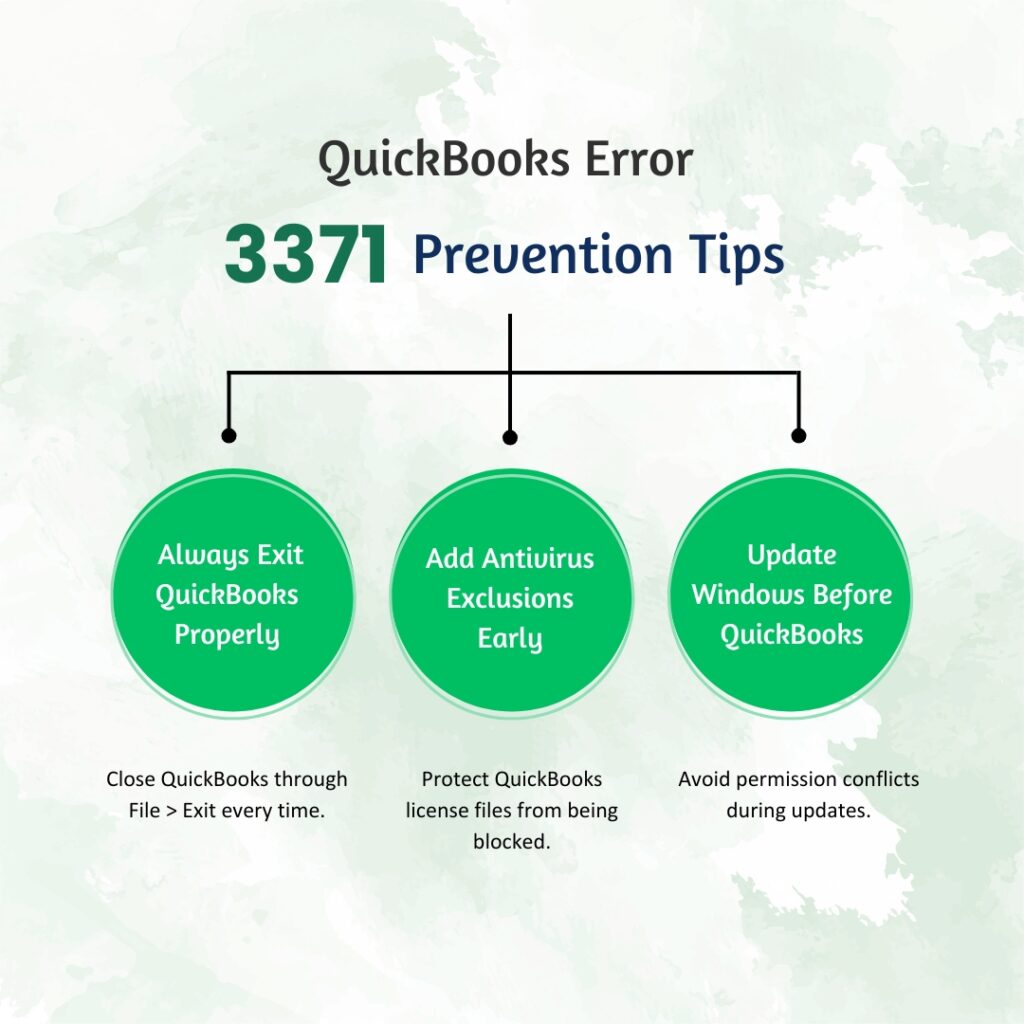
QuickBooks Prevention: Stop Error 3371 From Occurring Again
- Always Exit QuickBooks Through File > Exit
The EntitlementDataStore.ecml file is updated by QuickBooks during normal operation and written to correctly when QuickBooks closes through File > Exit. Closing QuickBooks by clicking the X button on the window title bar, shutting down the computer while QuickBooks is open, or force-closing QuickBooks through Task Manager prevents the file from being written correctly. Each incorrect shutdown leaves the EntitlementDataStore.ecml in an incomplete state. After multiple incorrect shutdowns, the file accumulates enough damage to produce Error 3371. Using File > Exit every session takes three seconds and keeps the file in a healthy, readable state.
- Add QuickBooks License File Folders to Antivirus Exclusions During Initial Setup
Adding the EntitlementDataStore.ecml file location to antivirus exclusions at the time QuickBooks is first installed prevents the recurring error pattern before it starts. The two folders that must be excluded are C:\ProgramData\Intuit\Entitlement Client\v8 and C:\ProgramData\Common Files\Intuit\QuickBooks. Adding them during initial setup means the antivirus never has the opportunity to quarantine the license files between sessions. This is a one-time five-minute task that eliminates the most common cause of recurring Error 3371 permanently.
- Keep Windows Updated Before Updating QuickBooks
Windows updates sometimes change the folder permission settings for the ProgramData directory, which can prevent QuickBooks from writing to the EntitlementDataStore.ecml location after the update. Installing all pending Windows updates and restarting the computer before installing any QuickBooks update ensures the Windows permissions are in their most current state before QuickBooks writes new license data. Running Windows Update through Settings > Windows Update > Check for Updates before any QuickBooks installation or major update eliminates permission conflicts introduced by applying both changes simultaneously.
Conclusion
Error 3371 Status Code 11118 is a license verification failure – QuickBooks cannot read its own license data file and stops opening. The error is resolved in the vast majority of cases by renaming or deleting the EntitlementDataStore.ecml file located at C:\ProgramData\Intuit\Entitlement Client\v8 and re-registering QuickBooks. This fix takes five minutes, requires only the license number and product key, and leaves all accounting data completely untouched. The company file is stored separately and is never affected by this error.
The recurring version of Error 3371 – where the standard fix works for one day but the error comes back after the next restart – is caused by an antivirus program quarantining the newly created license file. Adding the Intuit Entitlement Client folder to the antivirus exclusion list stops the quarantine and allows the license file to persist between sessions. This fix is permanent and eliminates the cycle of deleting and recreating the file daily.
Intuit’s QuickBooks Tool Hub version 1.6.0.8 – free from Intuit’s official support page – includes a dedicated 3371 Error Fix tool in the Installation Issues tab that automates the ECML file repair without requiring manual folder navigation. The Tool Hub also includes the Install Diagnostic Tool that repairs MSXML, .NET Framework, and Visual C++ in cases where the MSXML component is the underlying cause. Keeping the Tool Hub installed on every computer running QuickBooks Desktop means the correct fix tool is available immediately when Error 3371 appears.
Frequently Asked Questions
1. Error 3371 appeared after moving QuickBooks to a new computer by cloning the hard drive. Why does the fix not work permanently on the cloned drive?
The EntitlementDataStore.ecml file is linked to the specific hardware configuration of the computer it was created on – the hardware ID, a unique identifier Windows generates from the combination of the processor, motherboard, and storage drive. Cloning a hard drive copies the EntitlementDataStore.ecml from the original computer’s hardware ID to a new computer that has a different hardware ID.
QuickBooks detects the mismatch between the file’s recorded hardware ID and the current computer’s hardware ID and rejects the license file, producing Error 3371. The fix is to delete the cloned EntitlementDataStore.ecml on the new computer and register QuickBooks fresh on the new hardware, which creates a new ECML file tied to the new computer’s hardware ID.
2. Error 3371 appeared after a Windows security update. The file was renamed and QuickBooks was re-registered, but the error came back the next day. What is the specific Windows change that caused this?
Windows security updates sometimes change the access permissions for folders in the ProgramData directory. A permission change that removes the “Write” permission for the C:\ProgramData\Intuit\Entitlement Client\v8 folder means QuickBooks can delete the old EntitlementDataStore.ecml but cannot write the new one back to the folder after registration.
QuickBooks opens without error for that session because the file check passes with the empty folder, but on the next start, QuickBooks looks for the ECML file, finds the folder is empty, and produces Error 3371 again because no file was successfully written. Right-clicking the Entitlement Client folder, going to Properties > Security tab, and confirming that the current Windows user account has Full Control permission resolves the write-blocking permission issue.
3. QuickBooks is used on a hosted server through a remote desktop connection. Error 3371 appears when connecting from a specific workstation but not others. What is different about that workstation?
Error 3371 appearing only from a specific workstation in a hosted QuickBooks environment points to a WebConnect file handling issue. A documented fix specifically for QuickBooks Enterprise users on cloud hosting platforms confirms: if a user opens a WebConnect file – a .QBO file used to import bank transactions – directly without saving it first to the server’s local storage, QuickBooks Enterprise produces Error 3371.
The workstation where the error appears is the one where a user opened a WebConnect import file directly rather than saving it first. The fix is to save the WebConnect file to the server’s local drive before importing it into QuickBooks, which allows QuickBooks to process it without triggering the license check failure.
4. The 3371 Error Fix tool in the Tool Hub ran but the error still appears. What are the remaining options?
A 3371 Error Fix tool run that does not resolve the error means the ECML file is either being recreated incorrectly due to a damaged QuickBooks installation, or MSXML damage is preventing QuickBooks from reading the newly created file. The next step is to re-register MSXML on the computer using the regsvr32 MSXML6.dll command in an administrator Command Prompt (Fix 5 in this article).
If re-registering MSXML does not resolve it, run the Install Diagnostic Tool from the Tool Hub (Installation Issues > QuickBooks Install Diagnostic Tool) which repairs .NET Framework, MSXML, and Visual C++ simultaneously. If the error persists after both MSXML fixes, proceed to a clean install of QuickBooks – the program installation itself is damaged and is preventing valid ECML file creation.
5. Error 3371 only appeared after a QuickBooks update was installed. The update appeared to complete successfully. Why would an update cause this?
QuickBooks updates modify program files during installation, and some updates also reset or replace the EntitlementDataStore.ecml as part of the update process. An update that completes the program file replacement correctly but fails during the ECML regeneration step leaves QuickBooks with a new program version and a missing or corrupted license file, producing Error 3371 on the first launch after the update.
The fix is the same as for any Error 3371: rename the EntitlementDataStore.ecml and re-register QuickBooks. After re-registration, go to Help > Update QuickBooks Desktop and confirm the latest update is installed – if the update that triggered the error is not shown as the current version, run the update again after the re-registration to ensure the program is fully updated.

Anusmita is a seasoned content writer who brings perspective to words. As a writer, she enriches her work with a journalistic aptitude, utilising her training in Mass Communication and Journalism. She loves to travel and explore, which imparts a greater sense of understanding, maturity, and experience that are reflected in her content.
Beyond her professional work, Anusmita enjoys painting, singing, dancing, and spending time planting. She is also a self-proclaimed foodie who loves exploring different cuisines, an interest that further adds to her curiosity and perspective as a writer.
Leave a Reply