The QuickBooks company file is the database that holds every transaction, invoice, payroll record, customer balance, bank reconciliation, and financial report the business has ever created.
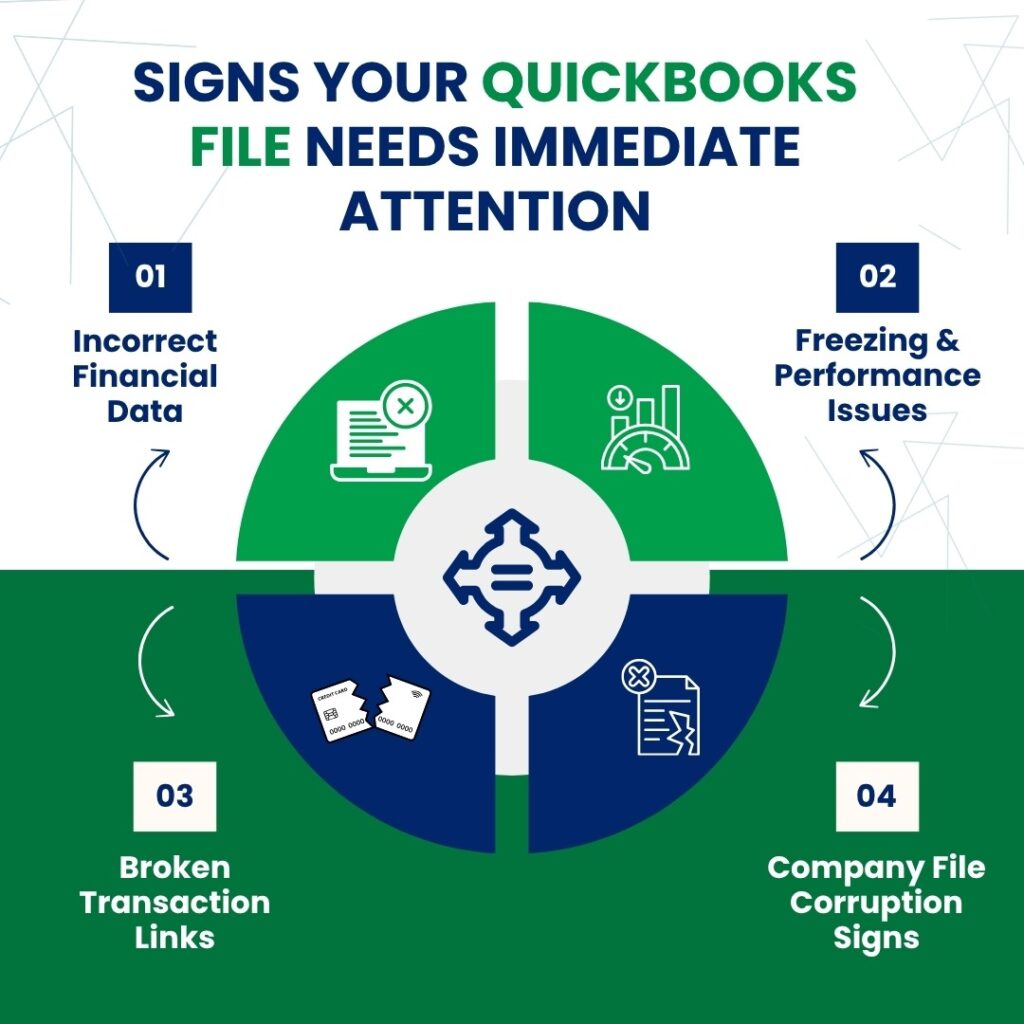
A damaged company file does not always announce itself with a crash or an error message – it often sends smaller signals first. Paid invoices that show as unpaid, a balance sheet that does not balance, transactions missing from a list that was correct last week, or QuickBooks freezing specifically when saving a single transaction are all documented signs that the company file has internal damage and needs attention now.
According to Intuit’s own documentation, data damage in a QuickBooks company file means the file can no longer be read correctly. Each company file damage type produces different visible symptoms, and knowing which type is present speeds up the repair. Intuit categorizes company file damage into four specific types:
- List Damage (the Chart of Accounts, customer list, vendor list, or employee list has errors or incorrect entries),
- Transaction Damage (one or more individual transactions contain corrupted data),
- Link Damage (the connections between related transactions are broken, producing reports that do not match),
- Structural Damage (the underlying database table that stores a category of data has a damaged header or corrupted structure).
The company file can be damaged by a power outage while QuickBooks was saving data, a network drop in multi-user mode during a transaction write, a hard drive error on the computer storing the file, an interrupted QuickBooks update, an antivirus program that modified the file during a real-time scan, or the file growing beyond the size range where QuickBooks operates reliably. Every one of these causes has been documented. This article covers every visible sign of company file damage, what each sign specifically indicates, and the correct action to take immediately.
Table of Contents
Quick Reference: Signs, Their Meaning, and Urgency Level
Match what you are seeing in QuickBooks to this table before reading the detailed sections. The urgency level indicates how quickly action is needed.
| What You Are Seeing in QuickBooks | What It Indicates | Urgency |
|---|---|---|
| Paid invoices or bills showing as unpaid | Link Damage – connections between payment and invoice records are broken | High – act today |
| Balance sheet totals do not balance (Total Assets ≠ Liabilities + Equity) | Structural or Link Damage affecting account balance calculations | Critical – act immediately |
| Transactions missing from a list that were present before | Transaction Damage or List Damage causing records to become unreadable | High – act today |
| Negative balances in transaction history that should not be negative | Transaction Damage – data in the affected transaction is corrupted | High – act today |
| An account name preceded by an asterisk (*) in the Chart of Accounts | QuickBooks created a placeholder account because the original account is damaged | High – act today |
| QuickBooks crashes or shuts down when saving or deleting a specific transaction | Transaction Damage in the record being saved | Critical – act immediately |
| Reports that show different totals for the same period depending on which report is run | Link Damage – broken connections between transactions are producing inconsistencies | High – act today |
| Verify Data reports “Your data has lost integrity” | Confirmed internal damage detected by QuickBooks’ own scan tool | Critical – act immediately |
| The company file takes noticeably longer to open each week | File has grown too large or has accumulated database fragments | Medium – act this week |
| QuickBooks crashes every time a specific type of report is run | Damaged records in the date range or category that report reads | High – act today |
| Error: “A data problem prevents QuickBooks from continuing” | QuickBooks encountered damage severe enough to stop the current operation | Critical – act immediately |

Understanding the Four Types of Company File Damage in QuickBooks
Intuit’s official documentation on data damage errors identifies four distinct types of damage that can affect a QuickBooks company file. Knowing which type is present matters because each type produces different symptoms, requires different repair steps, and carries a different risk of data loss if left unaddressed. The Four Types of Company File Damage are:
- Company File Damage Type 1: List Damage
- Company File Damage Type 2: Transaction Damage
- Company File Damage Type 3: Link Damage
- Company File Damage Type 4: Structural Damage
Company File Damage Type 1: List Damage
List Damage affects the lists that QuickBooks uses to organize data: the Chart of Accounts (the organized list of every income, expense, asset, liability, and equity account the business uses), the Customer list, the Vendor list, the Employee list, and the Items list (the list of products and services the business sells or buys).
According to Intuit, List Damage occurs when the order of records in a list is disrupted, when duplicate entries appear for a unique record, or when a list entry references another record that no longer exists in the file. List Damage produces the asterisk (*) sign in front of account names in the Chart of Accounts – QuickBooks creates a replacement account with that asterisk marker when it detects that the original account is damaged and needs a stand-in.
List Damage also produces the symptom where a customer name, vendor, or item appears twice in a list, or where a list item that the user knows exists cannot be found. A specific documented symptom of List Damage is the error message “LVl_ERROR – Error: Verify Names List: Index XXX record XXX,” which appears in the QBwin.log file – QuickBooks’ internal activity log – when Verify Data finds a problem with a list record. Re-sorting the list (using the Lists menu > Re-sort List option) resolves minor List Damage. Verify and Rebuild Data repairs more significant List Damage automatically.
Company File Damage Type 2: Transaction Damage
Transaction Damage means one or more individual transaction records in the company file contain corrupted data. A transaction is any recorded financial event: an invoice, a bill, a payment, a paycheck, a journal entry, a bank deposit, or a purchase order.
Transaction Damage produces visible symptoms including negative balances in transaction history that should not be negative, a transaction that causes QuickBooks to crash every time the user tries to save or delete it, and open balances that show incorrect amounts. Intuit’s documentation confirms: “Sudden or abrupt shutdown of QuickBooks when trying to save or delete a transaction” is a direct sign of Transaction Damage in the record being affected.
The QBwin.log file records exactly which transaction is damaged and what type of damage it contains. The log entry appears as “LVL_ERROR” followed by a description of the specific verification failure. A Certified Advanced QuickBooks ProAdvisor with data recovery experience advises that when Verify Data after a Rebuild still shows the same error for a specific transaction, the correct step is to delete and re-enter that transaction – but always after consulting with a professional first, because deleting a reconciled transaction triggers a re-reconciliation requirement for the affected account.
Company File Damage Type 3: Link Damage
Link Damage occurs when the connection between two related transactions is broken. QuickBooks links related transactions together automatically: a payment is linked to the invoice it pays, a bill payment is linked to the bill it covers, a credit memo is linked to the customer account it offsets. These links are what allows QuickBooks to show an invoice as “paid” or a bill as “closed.” According to Intuit, Link Damage “can be challenging to determine” because the damage is not in the transaction records themselves but in the connections between them. The user may need to open the affected transaction directly to see where the link is broken.
Link Damage produces two of the most commonly reported signs of a damaged company file: paid invoices that show as unpaid, and reports that do not match each other for the same period. A Profit and Loss report and a Balance Sheet that show different net income figures for the same date range, or an accounts receivable aging report that shows a balance for a customer who has already paid in full, are classic Link Damage symptoms. Intuit’s documentation specifically states: “Reports that do not match may also be caused by a damaged link.”
Company File Damage Type 4: Structural Damage
Structural Damage affects the underlying database tables that QuickBooks uses to store organized groups of data. A QuickBooks company file is a database – a structured collection of tables, each of which holds a specific category of information (all invoices, all bills, all payroll records, etc.). Structural Damage happens when the header of one of these tables – the part of the table that tells QuickBooks what type of data is stored there – becomes corrupted. Intuit identifies specific error codes associated with Structural Damage: Error -6105, Error -1006, and Error 6000, -301. These errors appear when QuickBooks tries to access a table whose structure is damaged.
Structural Damage is the most severe type of company file damage because it can make an entire category of data inaccessible. A business that experiences Error 6000, -301 when opening the company file is encountering Structural Damage at the file level. Verify and Rebuild Data resolves most Structural Damage. Severe structural damage that Rebuild cannot fix requires sending the file to Intuit’s Data Services team, which can perform deeper repairs using specialized tools not available to end users.

The Eleven QuickBooks Company File Signs That Require Immediate Action
QuickBooks Company File signs that require immediate action are given below in eleven points:
- Sign 1: Paid Invoices Show as Unpaid
- Sign 2: The Balance Sheet Does Not Balance
- Sign 3: Transactions Missing From a List
- Sign 4: Negative Balances in Transaction History
- Sign 5: An Asterisk (*) Appears Before an Account Name
- Sign 6: QuickBooks Crashes When Saving or Deleting a Specific Transaction
- Sign 7: Reports Show Different Totals for the Same Period
- Sign 8: Verify Data Reports ‘Your Data Has Lost Integrity’
- Sign 9: The Company File Takes Noticeably Longer to Open Each Week
- Sign 10: QuickBooks Crashes Consistently on a Specific Report
- Sign 11: The Error ‘A Data Problem Prevents QuickBooks from Continuing’
Sign 1: Paid Invoices Show as Unpaid
An invoice that the business received payment for and recorded as paid but shows as open and outstanding in the Accounts Receivable aging report indicates Link Damage between the payment record and the invoice record. QuickBooks links the payment transaction to the specific invoice it covers during the payment entry process. A broken link means QuickBooks can no longer recognize that the payment is associated with the invoice, so it displays the invoice as still open. This is not a user entry error – if the payment transaction exists in the register and the invoice also exists, and both were entered correctly, a broken link is the cause.
The same symptom applies to bills: a bill that was paid and recorded but still appears in the Accounts Payable aging report as unpaid indicates a broken link between the bill payment and the bill. This is confirmed as a direct sign of data damage by multiple sources citing Intuit’s documentation. Running Verify Data (File > Utilities > Verify Data) will identify the specific broken link. Rebuild Data then repairs most link damage automatically.
Sign 2: The Balance Sheet Does Not Balance
The Balance Sheet is a financial report that shows what the business owns (Assets), what it owes (Liabilities), and the difference between the two (Equity). In accounting, Total Assets must always equal Total Liabilities plus Total Equity – this is the fundamental accounting equation that every transaction is built on. A Balance Sheet in QuickBooks that shows Total Assets not equaling Total Liabilities plus Equity is a confirmed sign of internal company file damage, because QuickBooks constructs the Balance Sheet directly from the transaction records in the file. A Balance Sheet that does not balance in QuickBooks means damaged records are producing incorrect account balances.
This symptom requires immediate attention because an unbalanced Balance Sheet means every financial decision made from that report is based on incorrect numbers. Tax filings, loan applications, investor presentations, and management decisions that rely on the Balance Sheet are all affected. The Balance Sheet not balancing is listed as a direct sign of data damage in documentation covering company file data damage. Verify Data identifies the specific damaged records causing the imbalance, and Rebuild Data repairs most of them automatically.
Sign 3: Transactions Missing From a List
A transaction or list entry that the user knows was entered in QuickBooks but no longer appears in the relevant list – the customer transaction list, the vendor transaction register, or any account register – is a sign of Transaction Damage or List Damage. The record still exists in the company file database but the damage prevents QuickBooks from reading and displaying it correctly. This is distinguished from a user deletion: if the entry was intentionally deleted, it will appear in the Audit Trail (a log of all changes made to the QuickBooks file, accessed through Reports > Accountant & Taxes > Audit Trail). A missing entry that does not appear in the Audit Trail was not deleted – it has become unreadable due to damage.
Missing payroll transactions are particularly serious because they affect payroll tax calculations and year-end W-2 forms. If an employee’s paycheck appears to have disappeared from the payroll register, the business must act immediately before the end of the payroll quarter – because payroll tax forms (Form 941 for federal payroll taxes) are filed quarterly and the missing record will produce an incorrect filing. Verify Data and Rebuild Data recover most missing transaction records. Records that cannot be recovered through Rebuild require re-entry using the most recent backup as a reference for the original amounts.
Sign 4: Negative Balances in Transaction History
A negative balance in a transaction history where the balance should logically be zero or positive is a direct sign of Transaction Damage. For example, an inventory item whose transaction history shows a negative quantity on hand at a date when the business had stock in hand, or a customer whose transaction history shows a negative outstanding balance when they had never overpaid, indicates that one or more transaction records for that item or customer contain corrupted data. QuickBooks’ own documentation lists “negative balance in the transaction history” as a specific, confirmed sign of data damage in the company file.
Negative inventory values specifically cause cascading downstream problems in QuickBooks because inventory items feed into the Cost of Goods Sold account and the Inventory Asset account on the Balance Sheet. A negative inventory transaction corrupts both accounts and makes the Profit and Loss statement (which shows income and expenses over a period) and the Balance Sheet both produce incorrect totals. Verify and Rebuild Data repair most negative transaction balance errors. If Rebuild cannot fix the specific transaction, the damaged transaction must be identified in the QBwin.log and corrected manually.
Sign 5: An Asterisk (*) Appears Before an Account Name
An asterisk (*) appearing immediately before an account name in the Chart of Accounts – for example, *Accounts Receivable or *Sales Income – means QuickBooks created that account automatically as a replacement for an account that was damaged or missing. Intuit’s documentation confirms directly: an asterisk before an account name means QuickBooks created that account because the original account was missing or damaged. The asterisked account is a placeholder – it holds transactions that QuickBooks could not assign to the original account because the original account’s record is unreadable.
Any transaction that QuickBooks has rerouted to an asterisked account is counted in the wrong financial category, which distorts every report that includes that account. A business with asterisked accounts in its Chart of Accounts is producing financial reports with incorrect totals, even if the reports appear to open without error messages. The fix requires identifying which original account was damaged, restoring or recreating the original account, and re-linking the transactions that were routed to the asterisked placeholder.
Sign 6: QuickBooks Crashes When Saving or Deleting a Specific Transaction
QuickBooks crashing specifically when a user tries to save or delete one particular transaction – while all other transactions save and delete normally – is a direct sign of Transaction Damage in that specific record. This symptom is confirmed in Intuit’s own documentation as a sign of data damage: “Sudden or abrupt shutdown of QuickBooks when trying to save or delete a transaction.” The crash happens because QuickBooks encounters corrupted data in that transaction during the save or delete operation and cannot complete it.
The correct immediate action is to stop trying to save or delete that transaction until a backup has been created. Force-closing QuickBooks after a crash from this type of error leaves the transaction log file (.TLG) in an incomplete state, which adds a layer of damage to the file on top of the existing transaction damage. Creating a backup before any further action gives a clean restore point. Running Verify Data after the backup identifies the specific transaction causing the crash, and the QBwin.log file records its exact location in the database so it can be targeted for repair.
Sign 7: Reports Show Different Totals for the Same Period
Two QuickBooks reports that should show the same total for the same date range but produce different numbers confirm Link Damage. The most common version of this sign is a Profit and Loss report and an Income by Customer Summary report that show different total income figures for the same quarter. Another common version is an Accounts Receivable aging report that shows a different total than the Balance Sheet’s Accounts Receivable account balance for the same date. Intuit’s documentation confirms this directly: “Reports that do not match may also be caused by a damaged link.”
Report mismatches caused by Link Damage are particularly deceptive because the individual reports themselves appear to open and display without error. The numbers look plausible but are simply wrong. A business that uses these reports for tax preparation, bank reconciliation, or financial planning is working with inaccurate data without a visible warning that the data is wrong. Running Verify Data immediately after discovering a report mismatch identifies the broken links. Most link damage is repaired by Rebuild Data in a single run.
Sign 8: Verify Data Reports ‘Your Data Has Lost Integrity’
The Verify Data tool (File > Utilities > Verify Data) scans the company file and produces a specific message when it finds internal damage: “Your data has lost integrity.” This message confirms that one or more of the four damage types – List, Transaction, Link, or Structural – is present in the company file. Verify Data also produces a Verify Results window that lists each specific error it found and provides a “See Online Article” link for each one. Clicking the link for each error opens Intuit’s documented fix for that specific type of damage.
Receiving the “Your data has lost integrity” message from Verify Data requires an immediate response in a specific order: first, create a backup of the company file before taking any other action. Second, run Rebuild Data (File > Utilities > Rebuild Data) to repair the damage Verify Data identified. Third, run Verify Data again after the rebuild to confirm the repair succeeded. Intuit’s documentation confirms this sequence is mandatory: Verify confirms damage, Rebuild repairs it, and the second Verify confirms the repair. A second Verify that still shows errors means additional repair steps are needed.
Sign 9: The Company File Takes Noticeably Longer to Open Each Week
A company file that takes significantly longer to open with each passing week – not triggered by a specific event but growing progressively slower – indicates either file size growth approaching the performance threshold or database fragment accumulation. Database fragments are pieces of data inside the company file that have become separated from each other as the file grows and changes. QuickBooks reads these fragments at startup, and the more fragments that exist, the longer the startup takes. This symptom was documented in a real case on Intuit’s community forum where a QuickBooks Desktop Pro Plus 2024 user reported the program taking six minutes to start, with Intuit’s support team confirming that database file fragments were a primary contributor.
For Pro Plus and Premier files, the documented performance threshold is approximately 150 to 250 MB – files above this range take progressively longer to open, run reports, and process payroll. Enterprise files experience similar slowdowns above 500 to 750 MB. Checking the file size by pressing F2 inside QuickBooks (which opens the Product Information window showing File Information including the current size) confirms whether the file has grown into the problem range. The Condense Data utility (File > Utilities > Condense Data) reduces the active file size, and defragmenting the hard drive where the file is stored reduces database fragment accumulation.
Sign 10: QuickBooks Crashes Consistently on a Specific Report
A crash that occurs every time the user runs one specific report but does not occur for any other report points to damaged records in the data range that report reads. For example, a Profit and Loss report for January through March that crashes QuickBooks every time it is run, while a Profit and Loss for other date ranges runs successfully, indicates damaged records within the January through March period. Narrowing the date range of the crashing report to a shorter period – one month instead of three, or one week instead of one month – helps isolate which specific date range contains the damaged records.
Running Verify Data after a report-specific crash confirms whether the crash is caused by data damage or by program-level issues. A clean Verify Data result after a report-specific crash points to a program problem rather than a company file problem. A Verify Data result that shows damage points to the data as the cause. Rebuild Data then repairs the damage and the report should run without crashing after the rebuild completes and a second Verify Data confirms the file is clean.
Sign 11: The Error ‘A Data Problem Prevents QuickBooks from Continuing’
The error message “A data problem prevents QuickBooks from continuing” appears when QuickBooks encounters damage severe enough to stop the current operation entirely. This message appears in the Verify Data utility when it finds damage it cannot pass over, and it also appears during normal QuickBooks use when the program encounters a damaged record mid-task. The specific variant “Verify Target: Values in minor do not match major” is a related error message that appears in the QBwin.log file when Verify Data finds a record whose internal data values are inconsistent. Both messages indicate confirmed damage and require immediate action.
The immediate action when this error appears is to stop the current operation, close QuickBooks through File > Exit, and create a backup before reopening. The error indicates QuickBooks reached a damaged record during an active operation. Force-closing QuickBooks at this point without using File > Exit adds .TLG file damage on top of the existing company file damage. Backing up immediately after seeing this error preserves the most recent clean state of the data before any further operations can extend the damage.

The Correct Response Sequence for a Damaged Company File
The correct response sequence for a damaged company file is mentioned in five steps. They are:
- Step 1: Stop All Active Work and Create a Backup
- Step 2: Run Verify Data to Confirm and Catalog the Damage
- Step 3: Run Rebuild Data to Repair What Verify Found
- Step 4: Use QuickBooks File Doctor for Errors That Rebuild Cannot Fix
- Step 5: Send the File to Intuit Data Services for Severe Damage
Step 1: Stop All Active Work and Create a Backup
The first action when any of the eleven signs appear is to stop all active accounting work and create a backup immediately. Do not close transactions that are open, do not run additional reports, and do not attempt to correct any entries manually before backing up.
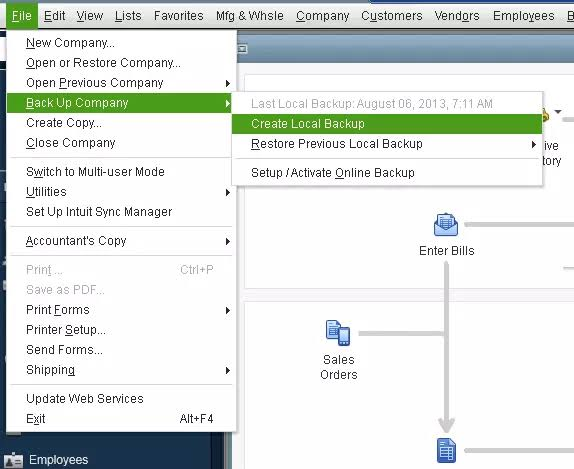
The backup file – stored as a .QBB file (QuickBooks Backup) – is a complete, compressed copy of the company file in its current state. A backup created before any repair steps gives a restore point that can be returned to if a repair step produces an unexpected result. Go to File > Back Up Company > Create Local Backup and save the backup to an external drive or a network folder.
Step 2: Run Verify Data to Confirm and Catalog the Damage
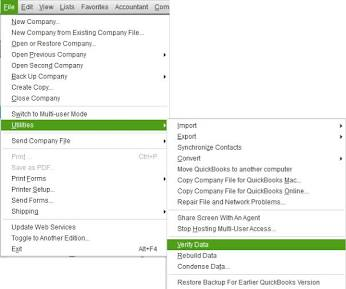
After the backup is saved, go to File > Utilities > Verify Data. Allow the scan to complete fully. In the Verify Results window, click Expand All to see every error found. Each error entry may include a See Online Article link that opens Intuit’s specific fix instructions for that error type. Note which errors appear and which damage type they correspond to (List, Transaction, Link, or Structural) before proceeding to the next step.
Step 3: Run Rebuild Data to Repair What Verify Found
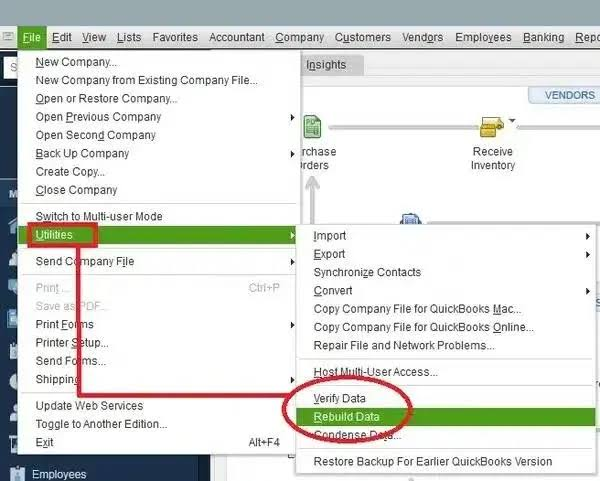
After Verify Data completes and the errors are noted, go to File > Utilities > Rebuild Data. Follow the prompts. Rebuild Data may take 10 to 30 minutes for a large file. QuickBooks may appear unresponsive during the rebuild – this is normal as long as the mouse pointer still moves. Do not close QuickBooks while Rebuild is running. After Rebuild completes, run Verify Data again. A clean result on the second Verify confirms the repair succeeded. Errors still present after the second Verify require additional steps.
Step 4: Use QuickBooks File Doctor for Errors That Rebuild Cannot Fix
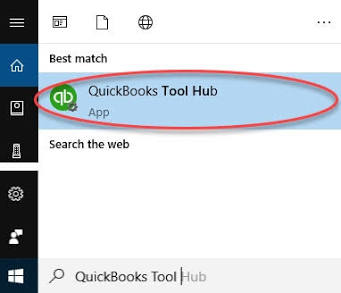
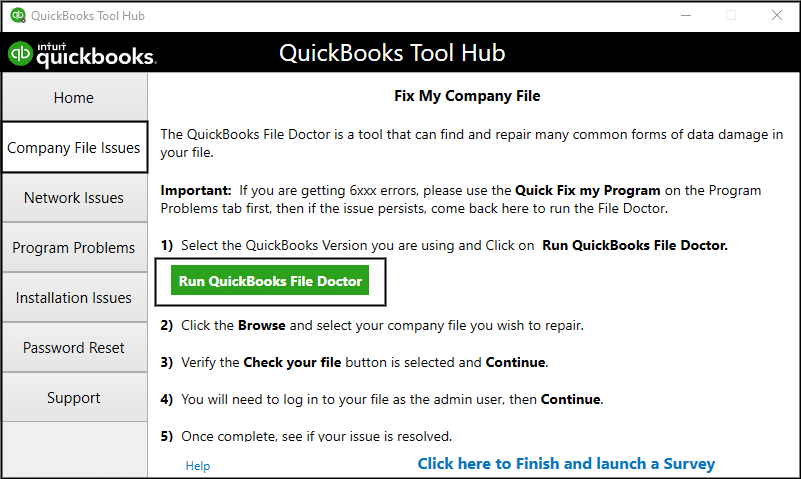
QuickBooks File Doctor is a tool in the QuickBooks Tool Hub (available free from Intuit’s support page) under Company File Issues. It performs a deeper repair than Rebuild Data by diagnosing and fixing both internal file corruption and network configuration issues that affect multi-user access. Run File Doctor after Rebuild Data if the second Verify Data still shows errors. File Doctor scans the file, identifies the specific damage it can repair, and applies fixes automatically. It takes 5 to 15 minutes depending on file size.
Step 5: Send the File to Intuit Data Services for Severe Damage
Damage that persists after Rebuild Data and File Doctor – specifically Structural Damage in the database tables, or a Masterkey error that appears when the Admin user (the main administrator account in QuickBooks) runs Verify Data – requires sending the company file to Intuit’s Data Services team.
Intuit’s own documentation states: “If the Admin user receives the Masterkey error, only send your file to Data Services.” The Masterkey is the core encryption key that QuickBooks uses to protect the company file. A Masterkey error means the file’s fundamental access structure is damaged, which is beyond what the user-facing repair tools can address.

Prevention: Stop Company File Damage Before It Starts
- Run Verify Data Monthly, Before Any Issues Appear
Company file damage accumulates silently between visible symptoms. A power outage that interrupted a save last month may have introduced small damage that will not produce a visible sign for another two months. Running Verify Data (File > Utilities > Verify Data) on the first business day of every month catches damage at the early stage where Rebuild Data can repair it completely.
Intuit’s community support team recommends Verify Data as standard monthly maintenance, not only as a response to problems. A monthly run that reports “QuickBooks detected no problems with your data” is confirmation that the file is clean – which is valuable information in itself.
- Always Back Up Before and After Verify and Rebuild
Creating a backup before running Rebuild Data protects the file if Rebuild produces an unexpected result. Creating a backup after a successful Rebuild – after the second Verify Data confirms the file is clean – preserves a confirmed clean copy of the file. This means the business always has a backup that was made when the file was verified clean, rather than only backups made before a problem was known. A clean-verified backup is the most reliable restore point available because it is confirmed to be free of the damage types that Verify Data can detect.
- Keep the Company File Below the Performance Threshold
Pro Plus and Premier company files should be kept below 250 MB for stable performance. Enterprise files should be kept below 500 to 750 MB. Checking the file size monthly by pressing F2 inside QuickBooks and monitoring it against these thresholds gives enough lead time to schedule a Condense Data operation before the file reaches the range where performance issues and data damage risk both increase. A file that is growing by 10 to 20 MB per month will reach the 250 MB threshold in a predictable number of months, allowing the Condense Data operation to be planned during a low-activity period rather than during payroll or month-end close.
- Never Store the Active Company File on Cloud Sync Services
Storing the active QuickBooks company file – the .QBW file that QuickBooks opens and writes to during every session – on a cloud storage service like Dropbox, OneDrive, or Google Drive causes data damage. Cloud storage services continuously monitor and upload files they are assigned to sync. QuickBooks also writes to the company file continuously while it is open. These two simultaneous write processes conflict, producing file locking errors that damage the company file.
A documented Intuit community forum case showed a QuickBooks user who stored the company file in Dropbox for years without incident, then encountered a company file corruption when the Dropbox sync and a QuickBooks save operation collided. Intuit’s own best practices documentation advises against storing the active company file in cloud storage.
Conclusion
The eleven signs covered in this article – paid invoices showing as unpaid, a balance sheet that does not balance, missing transactions, negative transaction balances, asterisked account names, crashes when saving a specific transaction, mismatched report totals, Verify Data’s integrity warning, progressively slower startup times, report-specific crashes, and the “A data problem prevents QuickBooks from continuing” error – are all documented, confirmed signs that the company file needs immediate attention. Each sign corresponds to one of the four types of data damage Intuit identifies: List, Transaction, Link, and Structural.
The response sequence is always the same regardless of which sign appears: back up immediately, run Verify Data to confirm and catalog the damage, run Rebuild Data to repair it, run Verify Data again to confirm the repair, and if errors persist, run QuickBooks File Doctor. Damage that survives all four steps requires Intuit’s Data Services team. None of these steps should be attempted without a backup created first, because Rebuild Data modifies the company file and a backup is the only way to return to the pre-repair state if a step produces an unexpected result.
Monthly Verify Data runs are the most effective single prevention measure available. A business that runs Verify Data on the first of every month and acts immediately when it reports damage will catch every instance of company file damage at the early, repairable stage – before it compounds into report mismatches, missing transactions, or a balance sheet that no longer balances. The QuickBooks Tool Hub from Intuit – free from Intuit’s official support page – provides QuickBooks File Doctor, Quick Fix My Program, and the Install Diagnostic Tool in one application, ready to use the moment a sign of damage appears.
Frequently Asked Questions
1. Verify Data found errors and Rebuild Data was run, but the second Verify Data still shows the same errors. What does this mean?
A second Verify Data that shows the same errors after Rebuild Data ran confirms that the damage in those specific records is beyond what Rebuild Data can automatically repair.
Intuit’s documentation describes this scenario specifically: if errors persist after two Rebuild runs, the affected transactions may need to be corrected manually or deleted and re-entered. Before taking either action, open the QBwin.log file by pressing Ctrl + 1 then Ctrl + 2 inside QuickBooks to open the Tech Help window, then finding and opening QBWIN.LOG.
The log file identifies the specific transaction or record that Rebuild could not fix, including its transaction type, date, and document number. With that information, the transaction can be located, corrected, and re-entered from a backup reference. Consulting a Certified Advanced QuickBooks ProAdvisor before manually deleting and re-entering reconciled transactions is strongly recommended.
2. The Balance Sheet shows that Total Assets do not equal Total Liabilities plus Equity. Can this be fixed without losing data?
A Balance Sheet that does not balance in QuickBooks is caused by damaged records producing incorrect account balances – most commonly Link Damage or Transaction Damage. Verify Data and Rebuild Data repair most cases of this type without any data loss. The repair process does not delete transactions; it corrects the internal links and record values that are producing the incorrect totals.
After a successful Rebuild, run both the Balance Sheet and the Profit and Loss report and compare the net income figure in both reports – they must agree. A balance that is restored by Rebuild but does not agree across both reports indicates remaining Link Damage that needs a second Rebuild or File Doctor to resolve. Data loss only occurs if the specific damaged transaction cannot be repaired and must be deleted and re-entered.
3. Transactions are missing from a customer’s record. The Audit Trail does not show them as deleted. Where did they go?
Missing transactions that do not appear in the Audit Trail were not deleted by a user – they have become unreadable due to Transaction Damage. The Audit Trail (Reports > Accountant & Taxes > Audit Trail) records every change made to every transaction, including deletions.
A transaction absent from both the customer record and the Audit Trail is a confirmed data damage situation, not a user error. Verify Data will identify which records are damaged. Rebuild Data repairs most cases of missing transactions by fixing the corrupted data that made the record unreadable. If Rebuild cannot recover the specific transaction, the most recent backup that predates the missing transaction is the reference for re-entering the data.
4. The company file has been getting slower for months. At what specific size does it become a problem for QuickBooks Pro Plus?
For QuickBooks Pro Plus and Premier files, documented thresholds confirm: the 250 MB range is where performance noticeably declines and data damage risk increases. Pro Plus and Premier files at 500 MB are at a level where sluggish performance is consistently reported.
Enterprise files remain stable at higher sizes but experience similar performance declines above 500 to 750 MB. Checking the file size by pressing F2 inside QuickBooks (the Product Information window shows File Information including file size) gives the current number in kilobytes – divide by 1,024 to convert to megabytes. A file at or above the threshold should be condensed using the Condense Data utility before performance problems become severe enough to affect daily operations.
5. QuickBooks shows an error ‘A corrupt transaction link has been encountered. Try to fix this problem by rebuilding your company file.’ Is this serious?
This error message confirms Link Damage – a broken connection between two related transactions. QuickBooks itself identifies the correct first step in the error message: rebuild the company file. Go to File > Utilities > Rebuild Data and allow it to complete. After Rebuild finishes, run Verify Data to confirm the link was repaired.
If this error message appeared during normal use (not during a Verify Data run), it means QuickBooks encountered a broken link while processing a transaction in real time. Creating a backup before running Rebuild is essential in this case, because the error appeared during active use and there may be a partially written transaction in the file from the moment the error appeared. The backup preserves the state immediately before Rebuild modifies the file.


Leave a Reply