QuickBooks Desktop Freezes During Invoicing or Payroll

[contact-form-7 id="38f6811" title="Download Area Form"]
Featured image showing a laptop with a frozen QuickBooks Desktop screen displaying “Not Responding” beside the headline “QuickBooks Desktop Freezes During Invoicing or Payroll” in a clean modern office setup.

QuickBooks Desktop freezing during invoicing or payroll is one of the most disruptive problems a business can face, because both tasks are time-sensitive and tied directly to cash flow and legal deadlines. An invoice freeze delays getting paid. 

A payroll freeze risks missing pay dates, which has legal consequences in many US states. Both situations require the same diagnostic approach: identify exactly when and where the freeze happens, then apply the specific fix for that trigger point.

The freeze is not random. QuickBooks freezes during invoicing and payroll at identifiable trigger points — printing an invoice, emailing a paystub, accessing the payroll center, processing a tax table update, or switching from single-user to multi-user mode. Each trigger point points to a different root cause, and each root cause has a documented fix. A documented case on Intuit’s community forum showed a business spending over nine hours on the phone with QuickBooks support for a payroll paystub freeze, trying every major repair tool, before discovering the fix was a single two-minute change: setting a default printer on the computer. That case is covered in detail in this article.

This guide covers every documented cause of QuickBooks freezing specifically during invoicing and payroll, with precise step-by-step fixes for each one. The causes and fixes are organized separately for invoicing and payroll, because the two functions freeze for different reasons — though some fixes apply to both. Working through the guide in order, starting with the quick-diagnosis table, produces the fastest resolution.

Table of Contents

Quick Diagnosis: Match Your Freeze to Its Exact Trigger

Identify the exact moment QuickBooks freezes before applying any fix. The trigger point determines which section of this guide to start with.

Exact Freeze TriggerRoot CauseGo to This Fix
Freezes when printing an invoiceNo default printer set, damaged QBprint.qbp file, or damaged invoice templateInvoice Fix 1, 2, or 3
Freezes when emailing an invoice through OutlookOutlook conflict or damaged invoice template with embedded logoInvoice Fix 3 and 4
Freezes when clicking Email on Send Forms > Paystubs screenNo default printer set on the computerPayroll Fix 1
Freezes when accessing the Payroll CenterDamaged CPS payroll data folder or antivirus blocking payroll filesPayroll Fix 2 and 3
Freezes during payroll tax table update in multi-user modePayroll tax table update 22601 conflict in multi-user mode (December 2025 incident)Payroll Fix 4
Freezes specifically when switching from multi-user to single-user modeCompany file still marked in use by another sessionPayroll Fix 5
Freezes on invoicing or payroll only for one Windows user loginCorrupted Windows user profileGeneral Fix 3
Freezes on both invoicing and payroll randomly throughout the dayAntivirus intercepting QuickBooks file writes or low RAMGeneral Fix 1 and 2

Why Invoicing and Payroll Specifically Cause QuickBooks to Freeze?

Invoicing and payroll are the two QuickBooks functions that involve the most simultaneous activity. Both require QuickBooks to read from the company file, write updated records back to it, communicate with a printer or email program, access external data (payroll tax tables from Intuit’s servers), and manage permissions for file access — all at the same time. Any interruption in any one of these simultaneous activities causes QuickBooks to stop and wait, and if the wait exceeds what QuickBooks can handle, the program freezes.

Invoicing freezes specifically because of the print and email step. Creating an invoice record in QuickBooks rarely causes a freeze — the freeze almost always happens at the moment the user clicks Print or Email. At that point, QuickBooks must communicate with the printer driver (the software that tells the computer how to send data to the printer), the PDF driver (the internal QuickBooks software that creates PDF files for emailing), and if using Outlook, with Microsoft Outlook’s email engine simultaneously. Any of these three communication points can fail and cause the freeze.

Payroll freezes specifically because payroll requires QuickBooks to access the CPS folder — the Common Payroll Setup folder — which is a separate folder on the computer that stores all payroll configuration files and downloaded tax table data. The tax tables in this folder contain the current federal and state withholding rates that QuickBooks uses to calculate employee paychecks. Payroll also requires an active connection to Intuit’s servers for tax table verification. A problem with the CPS folder, the server connection, or the tax table data all stop payroll mid-process and produce a freeze.

Illustration of a laptop displaying a frozen QuickBooks invoice screen with a “Not Responding” alert beside the headline “Invoice Freeze Fixes: Solutions Of QuickBooks Desktop Freezes During Invoicing” in a clean modern office setting with troubleshooting icons.

Invoice Freeze Fixes: Solutions Of QuickBooks Desktop Freezes During Invoicing

The solutions of QuickBooks Desktop Freezes during invoicing are given below in five fixes. They are:

  • Invoice Fix 1: Set a Default Printer on the Computer
  • Invoice Fix 2: Reset the QBprint.qbp Printer Configuration File
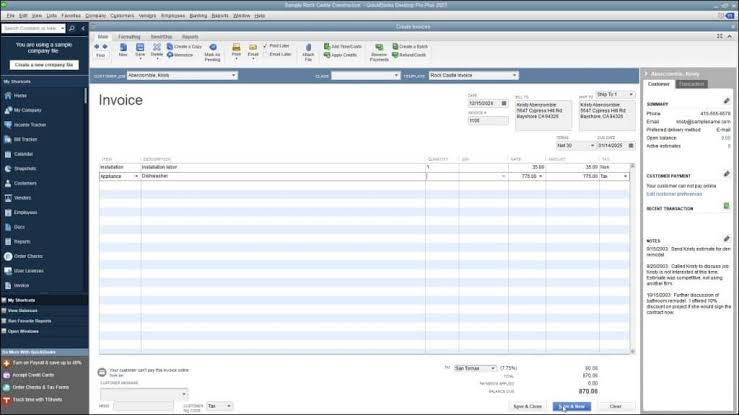
  • Invoice Fix 3: Delete and Recreate the Damaged Invoice Template
  • Invoice Fix 4: Repair the Outlook Integration for Email Invoices
  • Invoice Fix 5: Run the QuickBooks PDF and Print Repair Tool

Invoice Fix 1: Set a Default Printer on the Computer

QuickBooks requires a default printer to be set on the computer before it can print invoices, paystubs, or save documents as PDFs. A default printer is the printer that Windows uses automatically when no specific printer is selected. QuickBooks checks for the default printer during the print and PDF process — even when the user intends to save a PDF rather than physically print. A computer with no default printer set causes QuickBooks to hang at exactly the moment it initiates the print or PDF command, because it cannot find where to send the output.

This is confirmed by a real documented case on Intuit’s community forum: a business spent over nine hours with QuickBooks support trying to fix a paystub-sending freeze, running every major repair tool (Verify and Rebuild, QuickBooks Tool Hub, driver updates) with no success. The actual fix was setting a default printer. The user reported: “The problem was that whenever I tried to print paystubs, QuickBooks was looking for a default printer. As soon as I set one of the printers as default, it works again.” The same cause applies to invoice printing and PDF saving.

Press Windows + I to open Windows Settings. Go to Bluetooth & devices > Printers & scanners. Select the printer to use as the default. Click Set as default. If no physical printer is connected, select Microsoft Print to PDF as the default — this is a built-in Windows virtual printer that allows QuickBooks to process PDF operations without a physical printer connected. Open QuickBooks and test the invoice print or email.

Invoice Fix 2: Reset the QBprint.qbp Printer Configuration File

The QBprint.qbp file is a configuration file that QuickBooks stores on the computer. It records all of the printer settings for each form type QuickBooks prints — invoices, statements, purchase orders, paychecks, and others. QuickBooks reads this file every time it initiates a print job. A damaged QBprint.qbp file causes QuickBooks to freeze at the moment it tries to read the print settings for the invoice, because the file contains corrupted instructions that QuickBooks cannot process.

The QBprint.qbp file is stored at C:\ProgramData\Intuit\QuickBooks 20XX — where 20XX is the QuickBooks version year (for example, C:\ProgramData\Intuit\QuickBooks 2024). ProgramData is a hidden folder in Windows, so it requires enabling Hidden Items in File Explorer before it becomes visible. Renaming the QBprint.qbp file forces QuickBooks to create a new, clean version of it the next time it opens a print job. A documented fix on Intuit’s community forum confirmed this worked for a user with QuickBooks Desktop Enterprise 2023 who could not print or email invoices.

Open File Explorer. Click View > Show > Hidden Items. Navigate to C:\ProgramData\Intuit\QuickBooks 20XX (replace 20XX with the QuickBooks year). Right-click the file named QBprint.qbp and select Rename. Add .old to the end so it reads QBprint.qbp.old. Open QuickBooks and go to File > Printer Setup. Select any form from the Form Name list and click OK. This creates a new clean QBprint.qbp file. Test the invoice print.

Invoice Fix 3: Delete and Recreate the Damaged Invoice Template

QuickBooks Desktop allows businesses to use customized invoice templates — modified versions of the standard invoice form that include a company logo, custom fonts, column arrangements, or specific layout changes. These templates are stored inside the company file. A customized template that was working correctly can become damaged after a QuickBooks update, a Windows update that changes how graphics files are rendered, or after an unusual file write event.

A damaged template causes QuickBooks to freeze specifically when that template is used to print or email an invoice. The freeze happens because QuickBooks tries to render the damaged element in the template — most often a company logo image embedded in the template — and cannot complete the rendering. A documented case on Intuit’s community forum confirmed this directly: a QuickBooks Premier Desktop user had been using a customized invoice template with a logo for almost a year without issues. Suddenly, every print attempt froze QuickBooks. Removing the logo from the template allowed the invoice to print correctly. The user found that even deleting the logo and re-adding a fresh copy of the same image still caused the freeze — meaning the template itself had to be recreated from scratch.

Open QuickBooks. Go to Lists > Templates. Find and open the invoice template currently in use. Click Manage Templates. Highlight the template and click Copy to create a duplicate. Delete the original damaged template by clicking Delete. Use the copied template for invoices and test. If the copy also freezes, delete it and create a completely new template by selecting New in the Templates menu, choosing a base template, and customizing from scratch.

An important confirmation step: test whether the freeze happens with a standard Intuit-provided template before creating a new one. Go to the invoice screen, change the template dropdown to one of QuickBooks’ built-in templates (listed as “Intuit Product Invoice,” “Intuit Service Invoice,” or similar), and attempt to print. A standard template that prints successfully confirms the customized template is the problem, not the printer or PDF driver.

Invoice Fix 4: Repair the Outlook Integration for Email Invoices

A documented case on Intuit’s community forum described a business where three users on three different computers all experienced the same invoice-emailing freeze through Outlook. QuickBooks would freeze when sending an invoice by email, forcing the user to end the program and start over. Outlook also crashed separately in some instances. In some sessions, the entire computer froze and required a restart. After Intuit’s support team investigated, the business was added to an open support case with investigation number INV-0671, confirming it was a known issue between QuickBooks Desktop and a specific Outlook configuration.

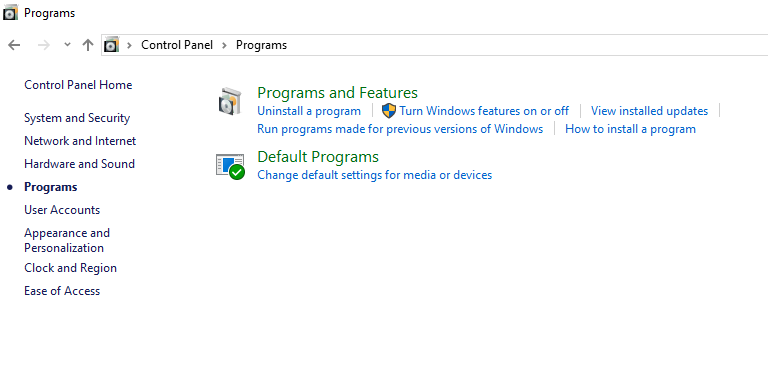
The practical resolution for Outlook-related invoice email freezing is a two-step process. First, repair the Outlook installation: open Control Panel > Programs > Programs and Features. Find Microsoft Office or Microsoft 365 in the list, right-click it, and select Change. Choose Quick Repair and allow it to run. A damaged Outlook installation produces communication failures with QuickBooks during the email handoff. Second, check whether the invoice template has an embedded logo — documented cases show that a logo in the template can cause the Outlook email process to stall when Outlook tries to attach the rendered invoice.

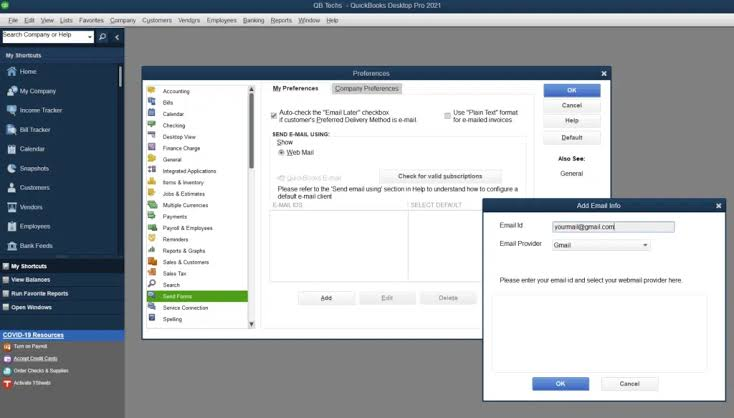
To set Outlook as the default email in QuickBooks: go to Edit > Preferences > Send Forms > My Preferences tab. Select Outlook as the email method. Click OK. Test by emailing one invoice. If the freeze persists with Outlook, switch temporarily to QuickBooks Email (Intuit’s built-in email server) by selecting it in the same Preferences screen. A successful email through QuickBooks Email but not Outlook confirms the Outlook integration is the specific cause.

Invoice Fix 5: Run the QuickBooks PDF and Print Repair Tool

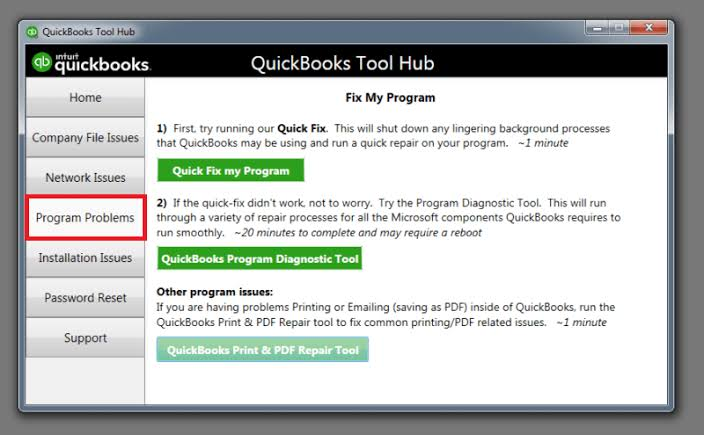
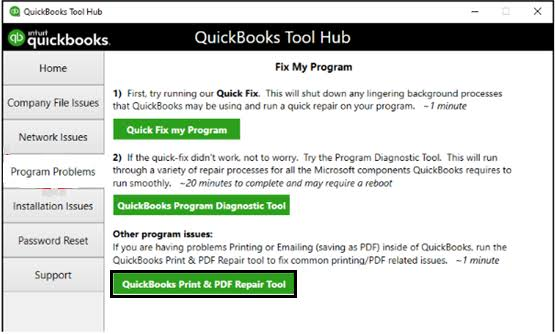
The QuickBooks PDF and Print Repair Tool, available in the QuickBooks Tool Hub under Program Problems, specifically repairs the internal QuickBooks PDF driver — the software component that converts QuickBooks forms into PDF files for emailing and saving. This driver is separate from any external PDF software like Adobe Acrobat. A damaged PDF driver causes QuickBooks to freeze specifically when any print or save-as-PDF action is triggered, because QuickBooks cannot complete the conversion process.

QuickBooks Desktop on Windows 11 specifically uses the Microsoft XPS Document Writer as part of its PDF processing chain. XPS (XML Paper Specification) is a document format that Windows uses as an intermediate step in the PDF creation process. A Windows 11 update that disables or reconfigures the XPS Document Writer breaks this PDF chain and produces a freeze on every print or PDF attempt. The PDF and Print Repair Tool addresses this by re-registering the XPS Writer and repairing the QuickBooks PDF converter.

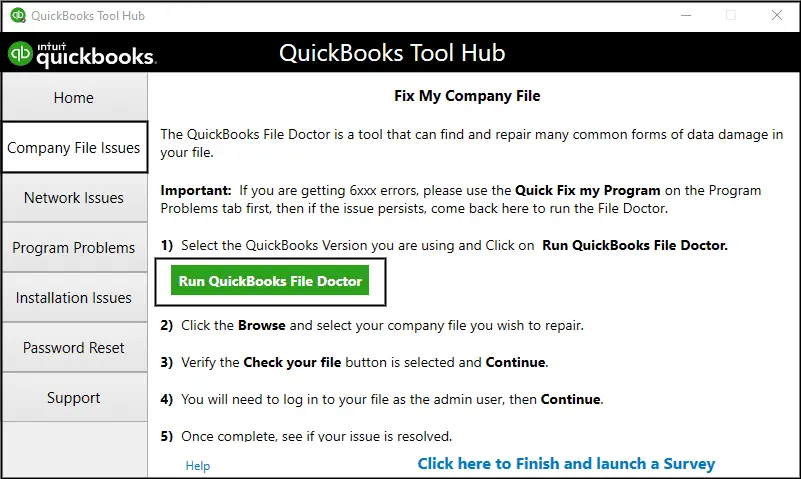
Open the QuickBooks Tool Hub. Click Program Problems in the left menu. Click QuickBooks PDF & Print Repair Tool. Wait approximately one minute for it to finish. Restart the computer. Open QuickBooks and test printing or emailing an invoice.

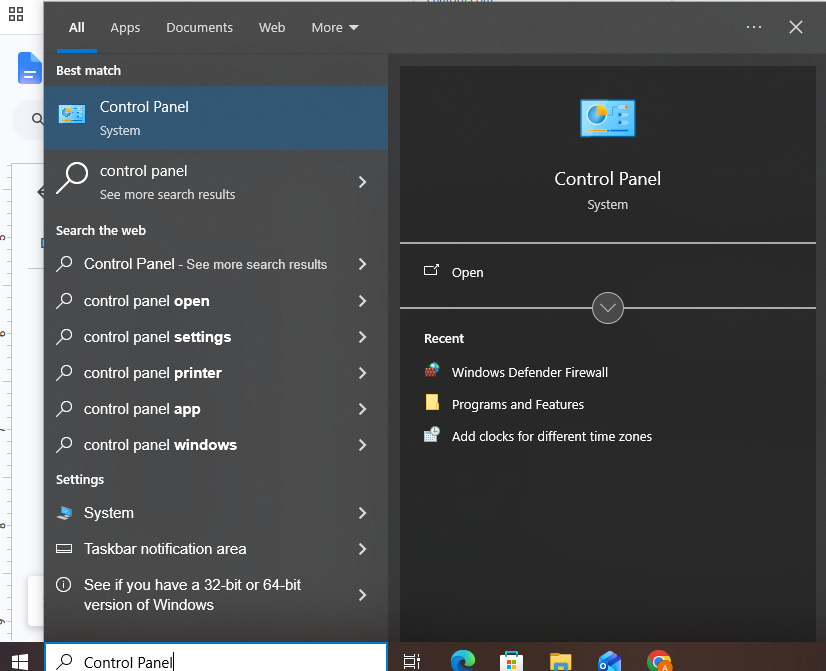
If the PDF and Print Repair Tool does not resolve the issue, manually enable the Microsoft XPS Document Writer: go to Control Panel > Programs > Turn Windows Features On or Off. Scroll down to find Microsoft XPS Document Writer. Check the box next to it and click OK. Restart the computer. This restores the XPS component that QuickBooks uses as part of its PDF process.

Featured image showing a laptop with a frozen QuickBooks payroll processing screen displaying “Not Responding” beside the headline “Payroll Freeze Fixes: Solutions Of QuickBooks Desktop Freezes During Payroll” in a clean modern office workspace.

Payroll Freeze Fixes: Solutions Of QuickBooks Desktop Freezes During Payroll 

The solutions of QuickBooks Desktop Freezes during payroll are given below in six fixes. They are:

  • Payroll Fix 1: Set a Default Printer Before Accessing Payroll
  • Payroll Fix 2: Add the CPS Payroll Folder to Antivirus Exclusions
  • Payroll Fix 3: Update Payroll Tax Tables to Resolve Data Damage
  • Payroll Fix 4: Fix the December 2025 Payroll Tax Table 22601 Crash
  • Payroll Fix 5: Resolve the Multi-User to Single-User Mode Freeze
  • Payroll Fix 6: Create a New Windows User to Bypass Profile Corruption

Payroll Fix 1: Set a Default Printer Before Accessing Payroll

The exact same default printer requirement that causes invoice printing freezes also causes payroll paystub freezing. QuickBooks checks for a default printer when the user clicks Email on the Send Forms > Paystubs screen. The documented nine-hour support call case on Intuit’s community forum was specifically about paystub emailing — not invoice printing. The user tried Verify and Rebuild, Tool Hub, and driver updates across multiple machines and multiple company files, all without success. Setting a default printer on the computer resolved it in two minutes.

The reason the default printer affects paystub emailing is that QuickBooks generates paystubs as PDF files before attaching them to the email. The PDF generation step requires a default printer to be registered on the computer, because Windows’ internal PDF conversion process uses the printer registry to set up the output format. A computer with no registered default printer causes QuickBooks to freeze during the PDF generation step, before the email is ever sent. Setting Microsoft Print to PDF as the default printer — using the same steps described in Invoice Fix 1 — resolves this without requiring a physical printer to be connected.

Payroll Fix 2: Add the CPS Payroll Folder to Antivirus Exclusions

The CPS folder — Common Payroll Setup — is stored at C:\ProgramData\Intuit\QuickBooks. It contains all of the payroll configuration files and downloaded tax table data that QuickBooks uses to calculate employee paychecks. QuickBooks writes to this folder every time payroll is processed and every time payroll is updated. An antivirus program that scans the CPS folder in real time while QuickBooks is writing payroll data intercepts the write, holds the file for scanning, and causes QuickBooks to wait for access to be returned. The wait produces a freeze in the payroll center.

Intuit’s community support team confirmed in a documented thread that antivirus programs scanning QuickBooks files during payroll processing can cause the type of repeated payroll crashes that persist through standard repair steps. Adding the CPS folder and the QuickBooks program files to the antivirus exclusion list removes this interference. The exclusion tells the antivirus to allow QuickBooks’ writes through without scanning them in real time, while still protecting all other files on the computer.

Add the following items to the antivirus exclusion list (Settings > Exclusions or Exceptions in the antivirus program):

  • CPS payroll folder: C:\ProgramData\Intuit\QuickBooks
  • QuickBooks installation folder: C:\Program Files\Intuit\QuickBooks [Year]
  • Company file folder: wherever the .QBW company file is stored
  • QuickBooks program files: QBW32.exe, QBDBMgrN.exe, QBCFMonitorService.exe

Payroll Fix 3: Update Payroll Tax Tables to Resolve Data Damage

QuickBooks Desktop payroll uses tax table files — data files downloaded from Intuit’s servers that contain the current federal and state payroll tax rates for each pay period. These files are stored in the CPS folder and are updated by Intuit regularly as tax rates change. A partially downloaded or corrupted tax table file causes QuickBooks to freeze when it tries to read the file during payroll processing, because the file contains incomplete data that QuickBooks cannot process.

Downloading the latest payroll tax table update replaces any corrupted or partial tax table files with a complete, clean version. According to Intuit’s payroll update documentation, the latest payroll tax table can be downloaded by going to Employees > Get Payroll Updates > Download Entire Payroll Update. This downloads the full tax table package rather than just the changes since the last update, which replaces any damaged file in the CPS folder completely.

Open QuickBooks. Go to Employees > Get Payroll Updates. Select Download Entire Payroll Update from the options. Click Update. Wait for the full download to complete. Restart QuickBooks and test payroll processing. Run the update in single-user mode — not multi-user mode — for all payroll update downloads.

Payroll Fix 4: Fix the December 2025 Payroll Tax Table 22601 Crash

In December 2025, Intuit released payroll tax table update 22601. A confirmed incident occurred where installing this update in multi-user mode caused company file corruption that produced an Unrecoverable Error every time payroll was accessed afterward. Intuit posted a service notification at 21:44 Pacific Standard Time on December 22, 2025 indicating the incident was in “Monitoring” status. Intuit advised affected users to perform a QuickBooks Payroll Update — specifically the corrected version released after the incident — while in single-user mode, not multi-user mode.

This incident affected thousands of QuickBooks Desktop users. The Unrecoverable Error appeared every time payroll was accessed after the corrupted update installed. The root cause was corruption introduced specifically by installing a payroll update while multiple users were connected to the company file simultaneously — the multi-user connection interfered with the payroll update writing its files correctly, leaving the CPS folder in a partially updated state.

The confirmed fix sequence: Log into QuickBooks Desktop as the Admin user. Go to File > Switch to Single-User Mode. Confirm all other users are disconnected from the company file. Go to Employees > Get Payroll Updates and run a Complete Payroll Update. After the update completes, close QuickBooks completely. Reopen QuickBooks and test payroll. All future payroll updates should be installed in single-user mode, not multi-user mode.

Payroll Fix 5: Resolve the Multi-User to Single-User Mode Freeze

A documented case on Intuit’s community forum described QuickBooks freezing specifically when switching from multi-user mode to single-user mode during payroll. Multi-user mode is the setting that allows multiple computers to access the same company file simultaneously. Switching to single-user mode — required for certain payroll operations, including running payroll updates — requires all other users to disconnect from the company file first. QuickBooks freezes during this switch when another user’s session is still connected to the file but has not been properly closed, leaving the file marked as “in use.”

The freeze occurs because QuickBooks cannot switch modes while the file is locked by another active connection. Confirming that all other users have closed QuickBooks on their computers before initiating the switch to single-user mode resolves this. On the host computer, open Task Manager (Ctrl + Shift + Esc) and check for any QBW32.exe or QBDBMgrN.exe processes still running. QBDBMgrN.exe is the QuickBooks Database Server Manager — the process that manages all network connections to the company file. End any remaining QuickBooks processes on the host computer, then attempt the mode switch again.

Payroll Fix 6: Create a New Windows User to Bypass Profile Corruption

A documented case on Intuit’s community forum showed QuickBooks crashing during payroll specifically when one Windows user account was logged in, but working correctly for a different user account on the same computer. The fix was creating a new Windows user account. Creating a new account gives QuickBooks a clean user profile — the set of Windows settings and permissions stored for each user — that does not contain the corrupted data causing the payroll freeze.

Go to Windows Settings > Accounts > Family & Other Users > Add Someone Else to This PC. Create a new local account with administrator rights. Log into the new account. Open QuickBooks and test payroll. A successful payroll run under the new account confirms the original Windows user profile was the cause. The fix reported on Intuit’s forum as Solution 1 resolved the problem on all workstations and PCs where it was applied.

Professional featured image showing a laptop with a frozen QuickBooks Desktop screen and repair icons beside the headline “General Fixes That Apply to Both Invoicing and Payroll Freezes in QuickBooks Desktop” in a clean modern office environment.

General Fixes That Apply to Both Invoicing and Payroll Freezes in QuickBooks Desktop

The general fixes that apply to both invoicing and payroll freezes in QuickBooks Desktop are given below. The three general fixes are:

  • General Fix 1: Run Quick Fix My Program
  • General Fix 2: Verify and Rebuild the Company File
  • General Fix 3: Update QuickBooks to the Latest Release

General Fix 1: Run Quick Fix My Program

Quick Fix My Program, available in the QuickBooks Tool Hub under Program Problems, automatically stops all QuickBooks background processes that are still running from a previous session and runs a basic program repair. Stale background processes compete with the active QuickBooks session for computer memory and processing resources, which produces freezes during memory-intensive operations like payroll calculation and invoice rendering. This fix takes two minutes and resolves the most common background process conflicts.

Download the QuickBooks Tool Hub from Intuit’s official support page. Open it and click Program Problems in the left menu. Click Quick Fix My Program. Wait for it to complete. Open QuickBooks, open the company file, and test the function that was freezing.

General Fix 2: Verify and Rebuild the Company File

A company file with internal data damage freezes QuickBooks during the tasks that read the most data — payroll processing and invoice generation. QuickBooks’ Verify Data tool scans the company file for damaged records and reports which ones are affected. Rebuild Data then repairs the damage. According to Intuit, both tools must be run in sequence: Verify first to confirm damage exists, Rebuild to repair it, and Verify again to confirm the repair succeeded. Creating a backup before running Rebuild Data is required because Rebuild modifies the company file.

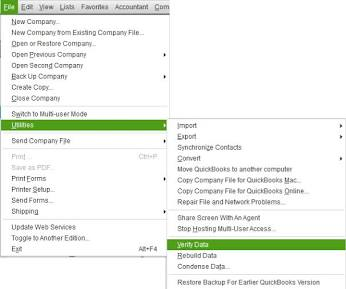
Open QuickBooks and the company file. Go to File > Back Up Company > Create Local Backup and complete the backup. Then go to File > Utilities > Verify Data. If it reports data integrity loss, go to File > Utilities > Rebuild Data and follow the prompts. Run Verify Data again after the rebuild to confirm the repair succeeded. Payroll must be run in single-user mode for Verify and Rebuild to work correctly.

General Fix 3: Update QuickBooks to the Latest Release

Intuit releases QuickBooks Desktop updates specifically to fix freezing issues identified since the previous release. A QuickBooks version that is one or more releases behind the current version may contain a known bug that the latest release already fixed. Intuit’s support team lists updating to the latest release as a mandatory step before any other troubleshooting, because it eliminates the possibility that the freeze is a known issue with a published fix.

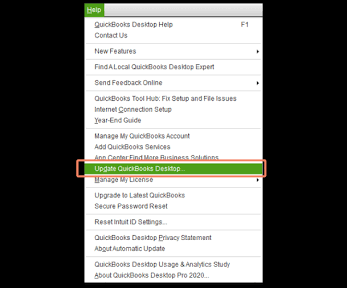
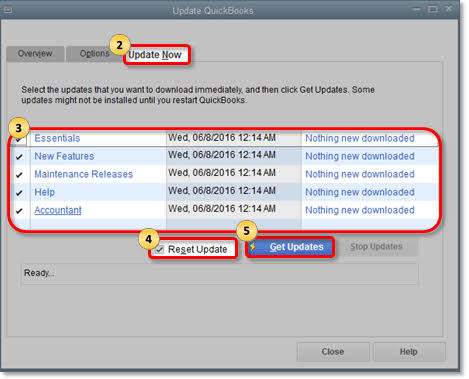
Open QuickBooks. Go to Help > Update QuickBooks Desktop > Update Now tab > check Reset Update > click Get Updates. When the download finishes, close QuickBooks and reopen it. Click Yes when prompted to install the update. Restart the computer after installation completes.

Invoicing and Payroll Freeze Fixes at a Glance

Freeze ScenarioRoot CauseCorrect FixTime to Apply
Invoice freezes when printingNo default printer / damaged QBprint.qbp / damaged templateInvoice Fix 1, 2, or 32–10 min
Invoice freezes when emailing through OutlookDamaged Outlook installation or logo in templateInvoice Fix 3 and 415–30 min
Invoice freezes on any print or PDF actionDamaged QuickBooks PDF driver or XPS componentInvoice Fix 55–10 min
Paystubs freeze when clicking EmailNo default printer set on the computerPayroll Fix 12 min
Payroll center freezesDamaged CPS folder or antivirus blocking payroll filesPayroll Fix 2 and 310–20 min
Payroll crashes after December 2025 tax table updateTax table update 22601 installed in multi-user modePayroll Fix 415–20 min
Freezes when switching to single-user mode for payrollOther users still connected to the company filePayroll Fix 55–10 min
Payroll or invoicing freezes for one user onlyCorrupted Windows user profilePayroll Fix 610–15 min
Both functions freeze randomly throughout the dayBackground processes or antivirus interferenceGeneral Fix 1 and 210–20 min

Prevention: Stop Invoicing and Payroll Freezes From Recurring

  • Always Install Payroll Updates in Single-User Mode

The December 2025 payroll tax table 22601 incident — confirmed by Intuit’s own service notification — demonstrated that installing payroll updates in multi-user mode can corrupt the CPS payroll folder. Intuit’s confirmed recommendation from that incident was to perform payroll updates in single-user mode going forward. Before every payroll update: log in as the Admin user, go to File > Switch to Single-User Mode, confirm all other users have closed QuickBooks on their computers, and then proceed with the update. This one-step process prevents the multi-user installation conflict that caused the December 2025 incident.

  • Run Quick Fix My Program Before Every Payroll Run

Running Quick Fix My Program from the QuickBooks Tool Hub before processing payroll clears all stale background processes and ensures QuickBooks has the full computer resources available for the memory-intensive payroll calculation. Payroll requires QuickBooks to simultaneously access employee records, tax tables, company financial accounts, and the CPS folder. Running Quick Fix My Program takes two minutes and eliminates background process conflicts as a cause of mid-payroll freezes. Setting a calendar reminder before each payroll date to run Quick Fix My Program first builds this habit without requiring additional planning.

  • Set and Verify a Default Printer Every Time the Computer Is Reconfigured

The default printer setting on a Windows computer can be reset by Windows updates, by connecting and disconnecting printers, or by changing user profiles. The documented nine-hour support call case shows how much time a missing default printer can cost before the problem is identified. After any Windows update, any change to the printer setup, or any computer reconfiguration: verify that a default printer is still set by going to Settings > Bluetooth & devices > Printers & scanners and confirming a default is marked. Microsoft Print to PDF is the reliable fallback option for computers without a physical printer connected.

  • Keep the Invoice Template Clean by Removing Embedded Logos When Freezes Occur

A customized invoice template with an embedded company logo is a documented cause of recurring print and email freezes after QuickBooks or Windows updates change how graphics are rendered. The logo itself is not the permanent problem — it becomes a problem when the template stores a damaged version of the logo image. Whenever invoice printing or emailing begins freezing after an update, test by temporarily switching to a standard Intuit template and printing from there. A successful print with the standard template confirms the customized template needs to be rebuilt. Recreating the template from scratch and re-adding the logo as a fresh image resolves the freeze and prevents the same issue from recurring with the old damaged template.

Conclusion

QuickBooks Desktop freezes during invoicing and payroll for specific, identifiable reasons that each have a direct fix. Invoicing freezes almost always trace back to the print and email step: a missing default printer, a damaged QBprint.qbp printer configuration file, a damaged invoice template with a corrupted embedded logo, an Outlook integration issue, or a damaged QuickBooks PDF driver. Payroll freezes trace back to a different set of causes: a missing default printer for paystub emailing, antivirus interference with the CPS payroll folder, corrupted tax table files, the December 2025 payroll update conflict in multi-user mode, or a corrupted Windows user profile.

The single most overlooked fix across both invoicing and payroll freezes is setting a default printer on the computer. The documented nine-hour support call case on Intuit’s community forum is proof that this fix — which takes two minutes — is not being checked first by most users or support representatives. Checking the default printer setting is the correct first step whenever QuickBooks freezes at any point that involves printing, PDF creation, or emailing a form.

Intuit’s confirmed recommendation from the December 2025 payroll incident — always run payroll updates in single-user mode — applies permanently, not just as a response to that specific incident. Payroll updates change files in the CPS folder that multiple simultaneous users can conflict with during the download. Single-user mode prevents this conflict for every future payroll update. The QuickBooks Tool Hub from Intuit, kept installed on every computer running QuickBooks, provides Quick Fix My Program, the PDF and Print Repair Tool, and QuickBooks File Doctor in one application — covering the three most common technical causes of invoicing and payroll freezes without requiring separate downloads during an active freeze event.

Frequently Asked Questions

1. QuickBooks freezes when printing invoices but prints reports without any problem. What is different about invoices?

Invoice printing uses a different print pathway in QuickBooks than report printing. Reports print through a standard Windows print dialogue that uses the default system printer driver. Invoice printing goes through QuickBooks’ own PDF conversion layer first — it converts the invoice to a PDF-ready format using the QuickBooks PDF driver before sending it to the printer.

This extra PDF conversion step means invoice printing depends on both the printer driver and the QuickBooks PDF driver working correctly. A damaged QBprint.qbp file, a damaged invoice template, or a problem with the QuickBooks PDF driver affects invoice printing but not report printing. The first test is to print a standard Intuit invoice template — not the customized one — to isolate whether the template or the PDF driver is the cause.

2. QuickBooks freezes only when emailing invoices, not when printing them. Why would emailing cause a freeze but printing does not?

Emailing an invoice requires QuickBooks to complete three steps simultaneously: convert the invoice to a PDF file, attach that PDF to an email message, and communicate with the email program (Outlook or the QuickBooks Email server). Printing only requires the first step. A freeze that happens specifically on emailing but not on printing points to the second and third steps — the attachment or the email program communication.

A documented case on Intuit’s community forum showed exactly this: QuickBooks froze when emailing invoices through Outlook but sent successfully through the QuickBooks Email server. That difference confirmed Outlook integration was the specific cause. Repairing the Outlook installation through Control Panel > Programs and Features resolved the freeze for that user.

3. Payroll has been crashing for over a month and every repair tool has been tried. What is left to do?

A payroll crash that persists for over a month through standard repair steps is exactly the pattern documented in a real case on Intuit’s community forum. The user tried Fix My File, Tool Hub, and Rebuild Data without success. Intuit’s support team recommended running Quick Fix My Program and the Install Diagnostic Tool — specifically because the payroll crash was a program-level issue, not a data issue.

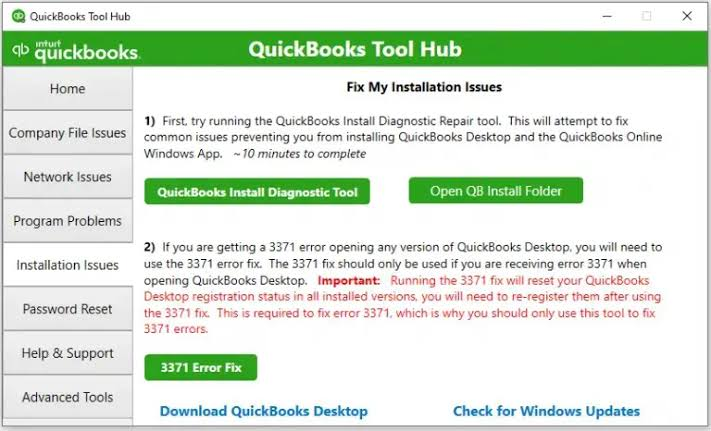
The Fix My File and Rebuild tools address data problems in the company file, while Quick Fix My Program and the Install Diagnostic Tool address the program installation itself. For a crash that survives all data-focused repair tools, the correct next step is the Install Diagnostic Tool (QuickBooks Tool Hub > Installation Issues) followed by a clean install if the Diagnostic Tool does not resolve it.

4. QuickBooks froze during payroll in December 2025 after a payroll update. Is the data recoverable?

The December 2025 payroll tax table 22601 incident, confirmed by Intuit’s service notification, caused an Unrecoverable Error during payroll access but did not cause company file data loss in the documented cases. The corruption affected the CPS payroll folder — which stores tax table and payroll configuration data — not the main company file that holds accounting records.

The confirmed fix sequence is: log in as Admin, switch to single-user mode, run a Complete Payroll Update (Employees > Get Payroll Updates > Download Entire Payroll Update), close QuickBooks, and reopen. This replaces the corrupted CPS folder files with the corrected version Intuit released after the incident.

5. QuickBooks freezes when sending paystubs for some employees but works fine for others. Why would it freeze on specific employees?

A paystub freeze that affects specific employees but not others points to data damage in those employees’ payroll records in the company file — not to a program-level or printer issue. QuickBooks tries to generate the paystub for the affected employee, reaches a damaged record in that employee’s payroll history, and freezes because it cannot process the damaged data.

Run Verify Data (File > Utilities > Verify Data) on the company file — it will identify which specific records are damaged. After running Verify Data, run Rebuild Data to repair the damage. If Rebuild cannot fix the specific employee records, the affected employees’ payroll data may need to be corrected manually by deleting and re-entering the damaged transactions, which Intuit’s support team can assist with through a screen-share session.


Comments

Leave a Reply

Your email address will not be published. Required fields are marked *