
QuickBooks Desktop keeps crashing because of a damaged company file, corrupted program files, or conflicts with other software. To fix this issue install the QuickBooks Tool Hub, run the QuickBooks Install Diagnostic Tool, and then update QuickBooks to the latest release.
This article explains every documented cause of QuickBooks Desktop crashes in versions 2021 through 2025 and walks you through the fixes, starting with the quickest solutions and progressing to advanced troubleshooting if the problem continues.
Table of Contents
How QuickBooks Desktop Crashing Shows Up?
QuickBooks Desktop crashes take three distinct forms. Identifying the form narrows down the root cause faster.
- Unrecoverable Error
An Unrecoverable Error displays a pop-up with a 10-digit numeric code, formatted as five digits, a space, and five more digits (example: 19740 43064). The code identifies the failed component. QuickBooks closes instantly and loses unsaved work. Damaged Windows components, corrupted program files, and insufficient permissions cause most Unrecoverable Errors.
- Silent Crash
A silent crash closes QuickBooks from the screen and taskbar without any error message. Windows Event Viewer and the qbwin.log file record silent crashes automatically. Checking these logs reveals what QuickBooks was doing at the moment of closure.
- Freeze-Then-Crash
A freeze-then-crash starts with QuickBooks showing “Not Responding” in the title bar, then closes once Windows determines recovery has failed. Resource shortages, company file damage, and background process conflicts cause most freeze-then-crashes.
Root Causes: Why QuickBooks Desktop Keeps Crashing?
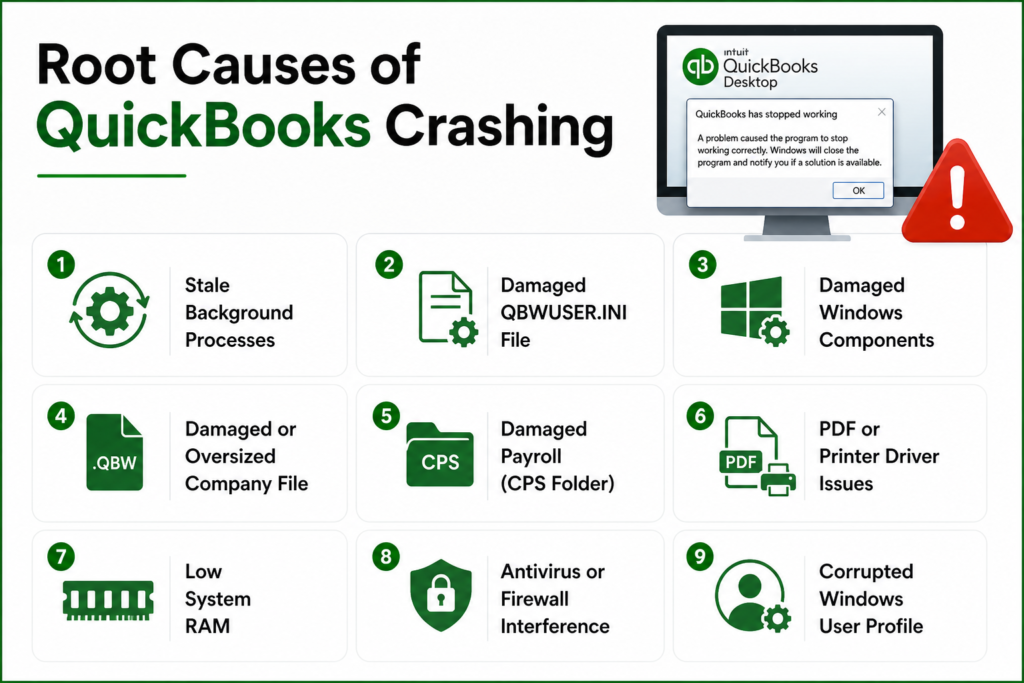
Nine specific root causes create QuickBooks Desktop crashing. The root causes are:
1. Stale Background Processes From a Previous Session
QBW32.exe runs as QuickBooks Desktop’s core process. Forced shutdowns and Task Manager force-closes leave QBW32.exe running after QuickBooks closes. The next QuickBooks launch collides with the leftover QBW32.exe process and crashes at startup. Power outages and unexpected shutdowns trigger this cause most often.
2. Damaged QBWUSER.INI Settings File
QBWUSER.INI stores the last-opened company file path. QuickBooks reads QBWUSER.INI first at every launch. Force-closes, failed updates, and Windows permission errors damage QBWUSER.INI and cause an immediate startup crash. QBWUSER.INI location: C:\Users\[Username]\AppData\Local\Intuit\QuickBooks\[Year].
3. Damaged Windows Components That QuickBooks Depends On
QuickBooks Desktop depends on three Windows components: Microsoft .NET Framework, MSXML (Microsoft XML Core Services), and Microsoft Visual C++ Redistributable files. Windows updates replace these components regularly, and replacement versions sometimes break QuickBooks compatibility. Incomplete QuickBooks installations and interrupted updates also damage these components. Unrecoverable Errors with 10-digit codes are the most common symptom of damaged components.
4. Damaged or Oversized Company File
The company file (.QBW) holds all accounting records and causes crashes more often than any other single factor. Power outages, network drops during multi-user saves, and disk errors damage company files. QuickBooks crashes each time it reaches a damaged record. Pro and Premier files exceeding 200 to 300 MB show increasing freezing, slow reports, and crashes. Enterprise files above 500 MB need condensing every 6 to 12 months.
5. Damaged Payroll Data Folder (CPS Folder)
The CPS folder (Common Payroll Setup) stores payroll configuration files and downloaded tax table data. QuickBooks crashes when payroll is accessed and the CPS folder is damaged. Interrupted payroll tax table downloads corrupt the CPS folder. CPS folder location: C:\ProgramData\Intuit\QuickBooks.
6. PDF Driver or Printer Driver Conflict
QuickBooks Desktop generates PDF files using its own internal PDF driver, separate from external PDF software. Windows updates and interrupted QuickBooks updates damage the PDF driver. A damaged PDF driver crashes QuickBooks specifically during printing, emailing, or saving as PDF, while every other task runs normally.
7. Insufficient System RAM
QuickBooks Desktop 2024 and 2025 require 8 GB minimum RAM, with 16 GB recommended for larger files or multi-User setups. Low available RAM prevents Windows from giving QuickBooks the memory needed to complete a task. Large reports, payroll for many employees, and multi-user mode trigger RAM-related crashes most often.
8. Antivirus or Windows Firewall Blocking QuickBooks Processes
Windows Firewall and antivirus programs scan QuickBooks files during read and write operations. QuickBooks writes continuously to the company file, the transaction log (.TLG), and the payroll folder while running. Antivirus scans intercepting these writes delay QuickBooks and trigger a crash once the wait exceeds a timeout.
9. Corrupted Windows User Profile
Crashes limited to one Windows user account, while other accounts run QuickBooks normally, point to a corrupted Windows user profile. A Windows user profile stores user-specific settings that QuickBooks reads at launch. Corruption in the profile isolates crashes to that account only.
How to Fix QuickBooks Desktop Crashing: Step-by-Step Solutions
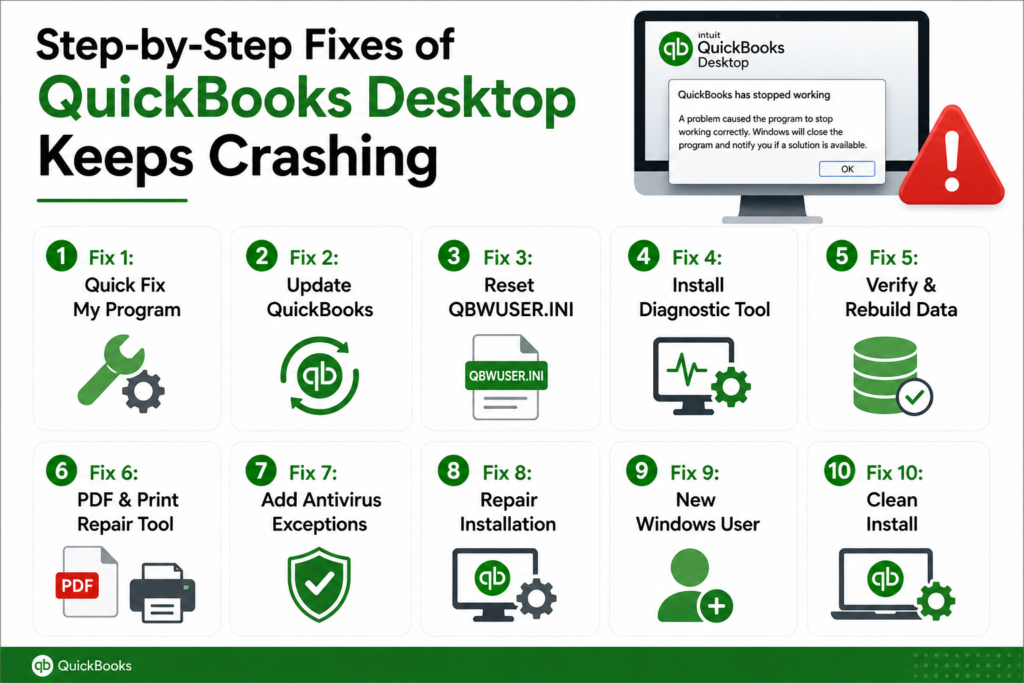
To fix QuickBooks Desktop Crashing follow the ten solutions given below in detailed steps. They 10 fixes are:
- Fix 1: Run Quick Fix My Program from the QuickBooks Tool Hub
- Fix 2: Update QuickBooks Desktop to the Latest Release
- Fix 3: Reset the QBWUSER.INI File
- Fix 4: Run the QuickBooks Install Diagnostic Tool
- Fix 5: Verify and Rebuild the Company file
- Fix 6: Run the QuickBooks PDF and Print Repair Tool
- Fix 7: Add QuickBooks Exceptions to Antivirus and Firewall Settings
- Fix 8: Repair the QuickBooks Desktop Installation
- Fix 9: Test With a New Windows User Profile
- Fix 10: Perform a Clean Install of QuickBooks Desktop
Fix 1: Run Quick Fix My Program from the QuickBooks Tool Hub
Quick Fix my Program closes stuck QuickBooks background processes and repairs common program issues that prevent QuickBooks from opening or responding correctly.
Steps
- Download the latest version of QuickBooks Tool Hub from Intuit’s official support page.
- Close QuickBooks Desktop if it is currently running.
- Double-click the downloaded QuickBooksToolHub.exe file.
- Follow the on-screen instructions to install QuickBooks Tool Hub.
- Click Finish after the installation completes.
- Double-click the QuickBooks Tool Hub icon on your desktop to open the application.

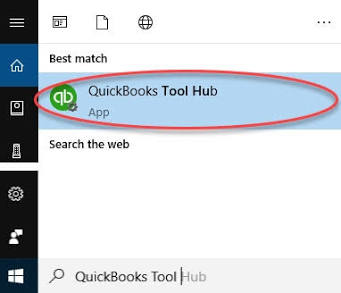
- In the left navigation pane, click Program Problems.
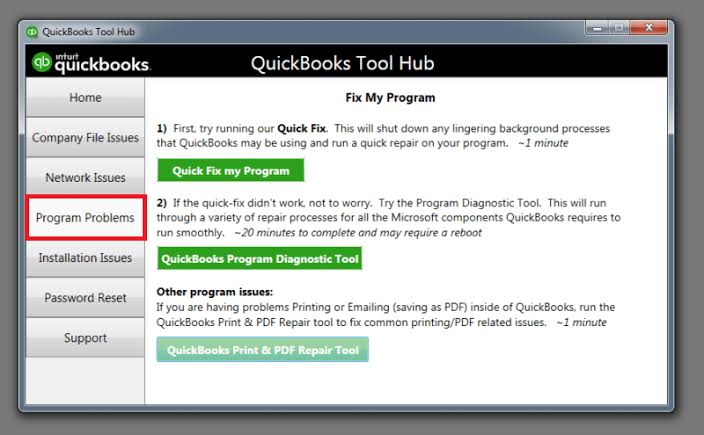
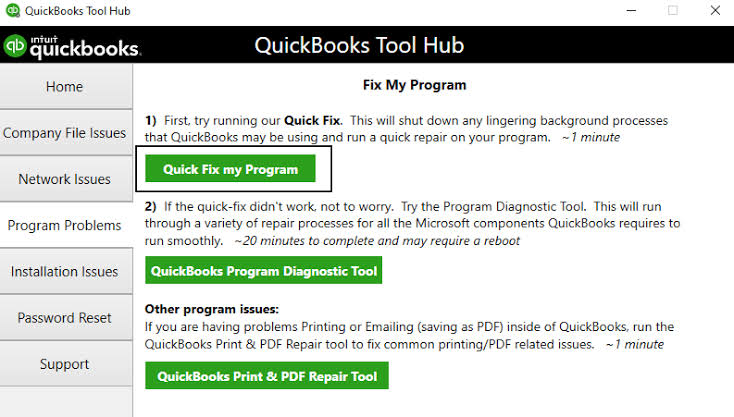
- On the Program Problems screen, click Quick Fix my Program.
- Wait for the repair to complete. The process usually takes 1–2 minutes.
- Close QuickBooks Tool Hub.
- Open QuickBooks Desktop.
- Open your company file and verify that QuickBooks responds without freezing.
Fix 2: Update QuickBooks Desktop to the Latest Release
Updating QuickBooks installs the latest maintenance release, bug fixes, security updates, and Windows compatibility improvements released by Intuit.
Steps
- Open QuickBooks Desktop.
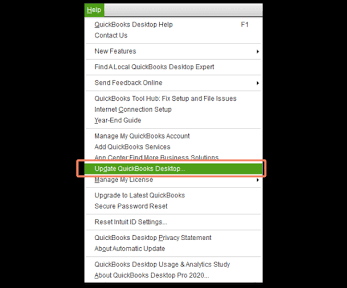
- Click Help from the top menu bar.
- Select Update QuickBooks Desktop.
- Click the Update Now tab.
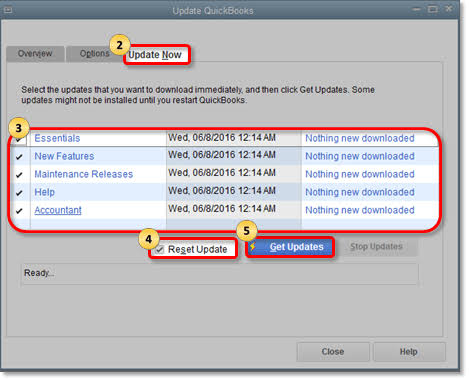
- Select the Reset Update checkbox to remove previously downloaded update files.
- Click Get Updates.
- Wait for QuickBooks to download the available updates. The download time depends on your internet connection.
- Close QuickBooks Desktop after the download completes.
- Reopen QuickBooks Desktop.
- Click Yes when prompted to install the downloaded updates.
- Wait for the installation to complete.
- Restart your computer if prompted.
- Open QuickBooks Desktop.
- Open your company file and verify that QuickBooks no longer freezes.
Note: If QuickBooks freezes before it opens, download the latest update for your QuickBooks version from Intuit’s official Downloads & Updates page. Run the downloaded update file as Administrator, restart your computer, and then open QuickBooks again.
Fix 3: Reset the QBWUSER.INI File
The QBWUSER.INI file stores QuickBooks startup settings, including the last company file that was opened. Renaming this file forces QuickBooks to create a new startup configuration file without deleting your company data.
Steps
- Close QuickBooks Desktop completely.
- Press Windows + E to open File Explorer.
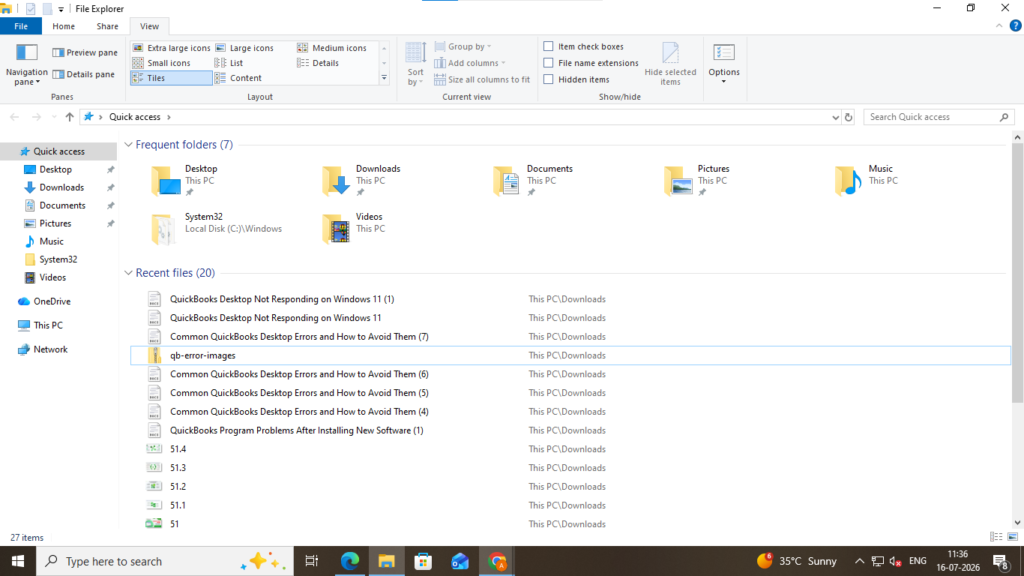
- Click View from the File Explorer toolbar.
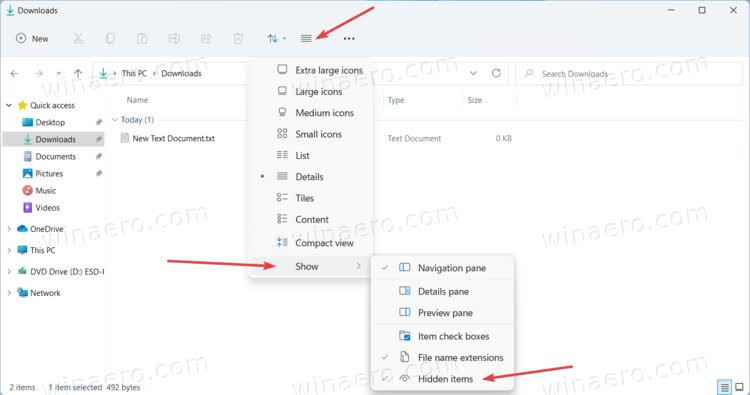
- Select Show, then click Hidden items to display hidden folders.
- In the File Explorer address bar, enter the following path and press Enter:
C:\Users\YourUserName\AppData\Local\Intuit\QuickBooks\20XX - Replace YourUserName with your Windows user account name and 20XX with your QuickBooks version (for example, 2024 or 2025).
- Locate the QBWUSER.INI file.
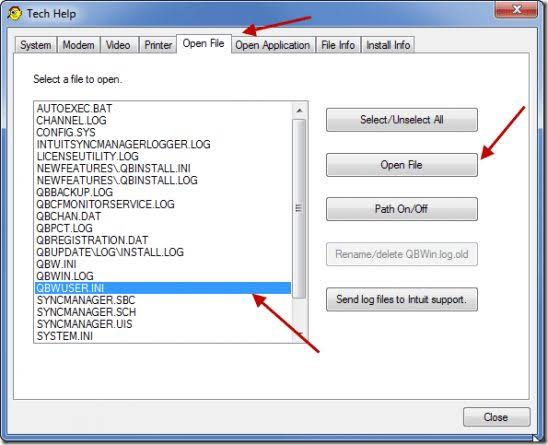
- Right-click QBWUSER.INI, then select Rename.
- Rename the file to QBWUSER.INI.old.
- Press Enter to save the new file name.
- Close File Explorer.
- Open QuickBooks Desktop.
- Wait while QuickBooks creates a new QBWUSER.INI file automatically.
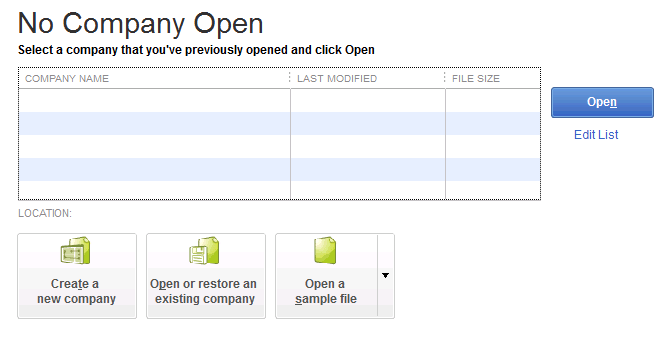
- When the No Company Open window appears, click Open or Restore an Existing Company.
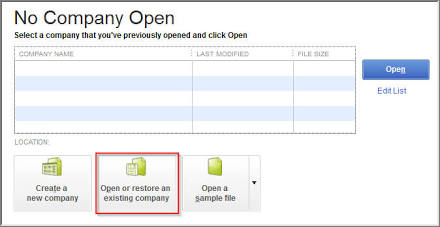
- Select Open a company file, then click Next.
- Browse to the folder that contains your QuickBooks company file (.QBW).
- Select the company file, then click Open.
- Verify that the company file opens without freezing.
Fix 4: Run the QuickBooks Install Diagnostic Tool
The QuickBooks Install Diagnostic Tool automatically repairs Microsoft components required by QuickBooks, including .NET Framework, MSXML, and Microsoft Visual C++ Redistributable.
Steps
- Close QuickBooks Desktop completely.
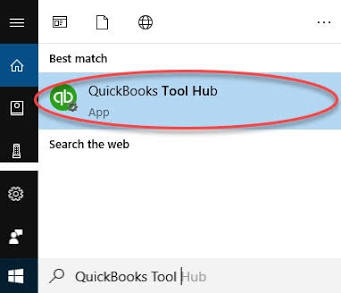
- Open QuickBooks Tool Hub.
- In the left navigation pane, click Installation Issues .
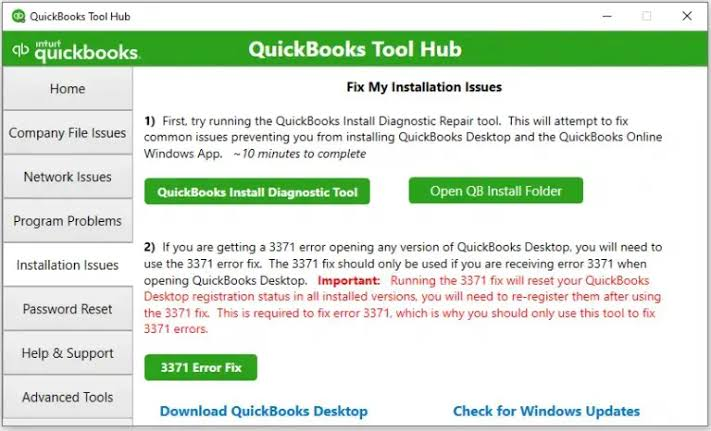
- Click QuickBooks Install Diagnostic Tool.
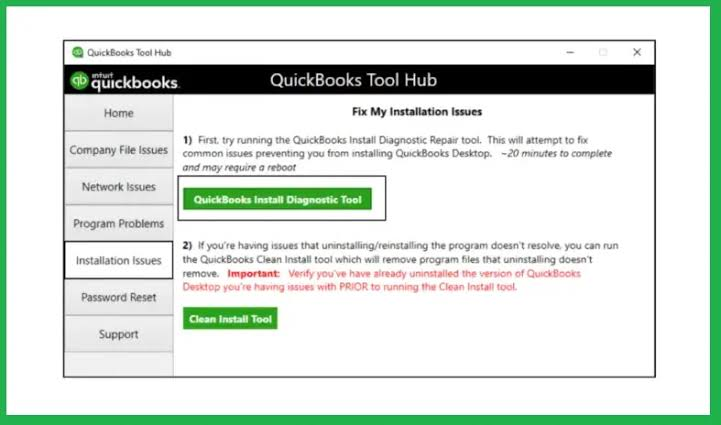
- Wait for the tool to scan and repair the required Windows components. The repair may take up to 20 minutes.
- Do not close the tool or restart your computer while the repair is in progress.
- Close QuickBooks Tool Hub after the repair completes.
- Restart your computer.
- Open QuickBooks Desktop.
- Open your company file and verify that QuickBooks no longer freezes.
Fix 5: Verify and Rebuild the Company File
Verify Data scans the company file for data damage. Rebuild Data repairs the issues found during the verification process.
Steps
- Open QuickBooks Desktop.
- Open the company file that is freezing.
- Click File from the top menu bar.
- Select Back Up Company, then click Create Local Backup.
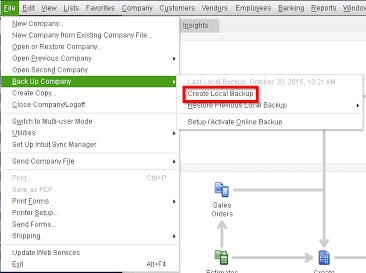
- Follow the on-screen instructions to create a backup of the company file before repairing it.
- After the backup is complete, click File.
- Select Utilities.
- Click Verify Data.
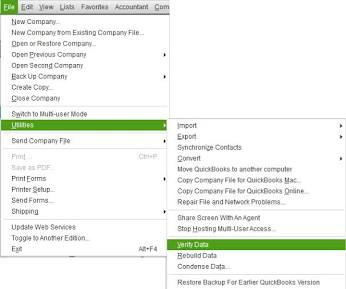
- Wait for QuickBooks to complete the verification process.
- Review the verification results.
Note: Continue with the next steps only if Verify Data reports “Your data has lost integrity.”
- Click File.
- Select Utilities.
- Click Rebuild Data.
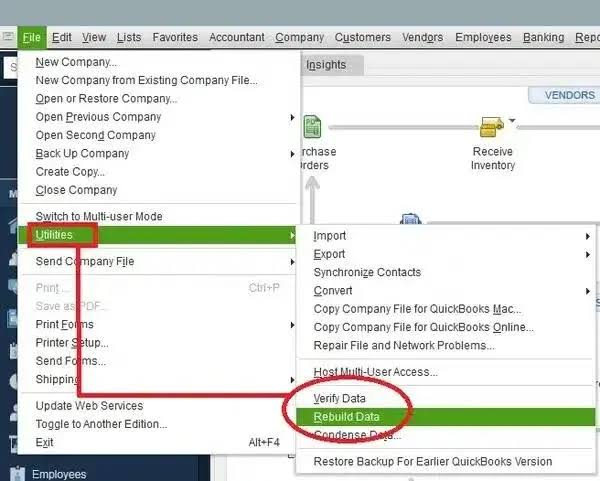
- Follow the on-screen instructions to rebuild the company file.
- Wait until QuickBooks displays the message “Rebuild has completed.”
- Click OK.
- Click File again.
- Select Utilities.
- Click Verify Data.
- Confirm that Verify Data no longer reports data integrity errors.
- Open the company file and verify that QuickBooks no longer freezes.
Fix 6: Run the QuickBooks PDF and Print Repair Tool
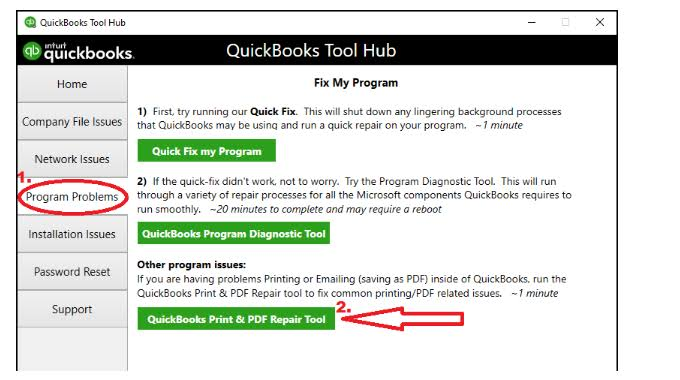
The QuickBooks PDF & Print Repair Tool repairs the QuickBooks PDF converter and resolves common PDF and printing issues that can cause QuickBooks to freeze.
Steps
- Close QuickBooks Desktop completely.
- Open QuickBooks Tool Hub.
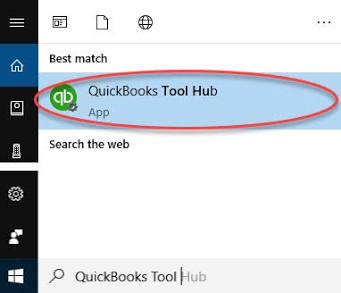
- In the left navigation pane, click Program Problems.
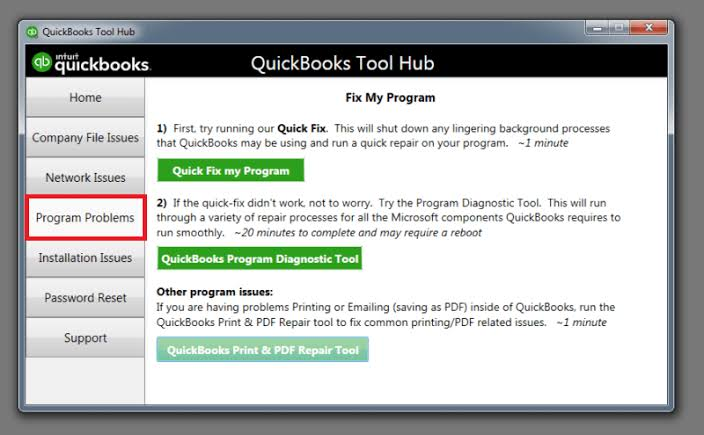
- Click QuickBooks PDF & Print Repair Tool.
- Wait for the tool to complete the repair. The process usually takes about 1 minute.
- Close QuickBooks Tool Hub after the repair finishes.
- Restart your computer.
- Open QuickBooks Desktop.
- Open your company file.
- Print a report, invoice, or form, or save a report as a PDF to verify that QuickBooks no longer freezes.
Fix 7: Add QuickBooks Exceptions to Antivirus and Firewall Settings
Adding QuickBooks folders and program files to your antivirus and Windows Firewall exceptions prevents security software from blocking QuickBooks processes and access to company files.
Step 1: Add QuickBooks to Antivirus Exclusions
The steps vary depending on your antivirus software. Open your antivirus application and add the following QuickBooks folders and files to the Exclusions, Exceptions, or Allowed Items list.
Exclude these folders
| Folder | Typical Location |
| QuickBooks installation folder | C:\Program Files\Intuit\QuickBooks 20XX |
| Company file folder | Folder containing your .QBW company file |
| QuickBooks program data folder | C:\ProgramData\Intuit\QuickBooks |
Exclude these program files
- QBW32.exe
- QBDBMgrN.exe
- QBCFMonitorService.exe
Note: Save the changes in your antivirus software before continuing.
Step 2: Allow QuickBooks Through Windows Firewall
- Press Windows + I to open Settings.
- Click Privacy & security.
- Click Windows Security.
- Click Firewall & network protection.
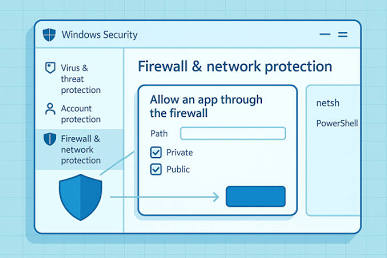
- Click Allow an app through the firewall.
- Click Change settings.
- Click Allow another app.
- Click Browse.
Navigate to the QuickBooks installation folder. The default location is:
C:\Program Files\Intuit\QuickBooks 20XX
- Select QBW32.exe, then click Open.
- Click Add.
- Select both the Private and Public checkboxes for QuickBooks.
- Click OK to save the changes.
- Restart your computer.
- Open QuickBooks Desktop.
- Open your company file and verify that QuickBooks no longer freezes.
Fix 8: Repair the QuickBooks Desktop Installation
The Windows Repair option replaces damaged QuickBooks program files without removing QuickBooks or deleting your company files.
Steps
- Close QuickBooks Desktop completely.
- Press Windows + R to open the Run dialog box.
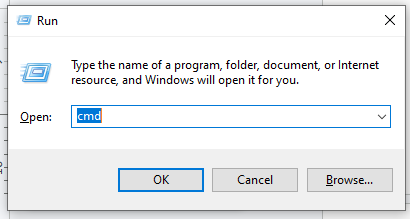
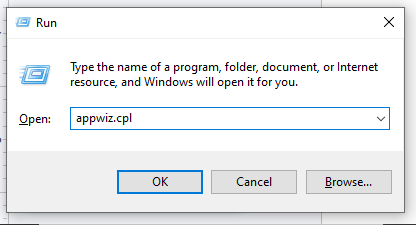
- Type appwiz.cpl, then click OK.
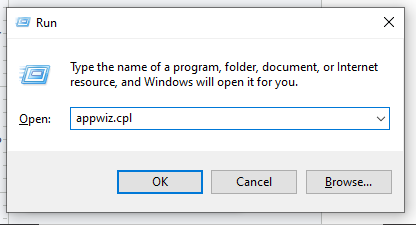
- This opens the Programs and Features window.
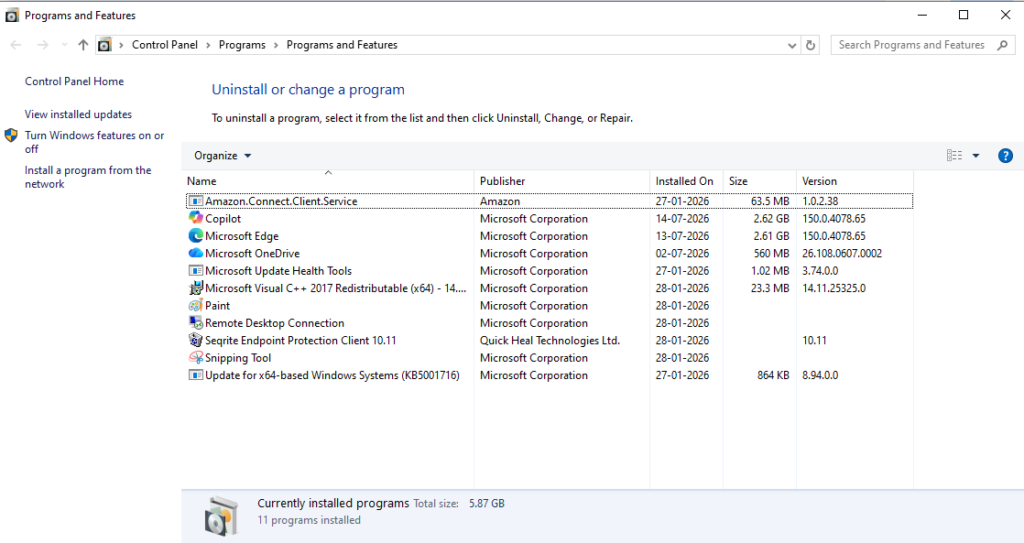
- Locate QuickBooks Desktop in the list of installed programs.
- Select QuickBooks Desktop, then click Uninstall/Change from the toolbar. On some Windows versions, you may need to right-click QuickBooks Desktop and select Uninstall/Change.
- Select Repair, then click Next.
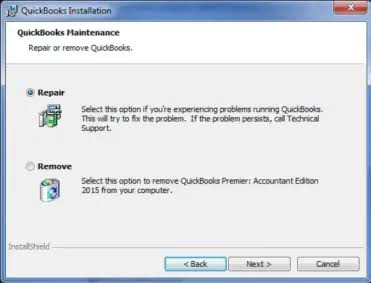
- Follow the on-screen instructions to complete the repair process.
- Wait for Windows to repair the QuickBooks installation.
- Restart your computer after the repair is complete.
- Open QuickBooks Desktop.
- Open your company file and verify that QuickBooks no longer freezes.
Fix 9: Test With a New Windows User Profile
Creating a new Windows user profile helps determine whether the issue is caused by your current Windows profile or by QuickBooks itself.
Steps
- Close QuickBooks Desktop completely.
- Press Windows + I to open Settings.
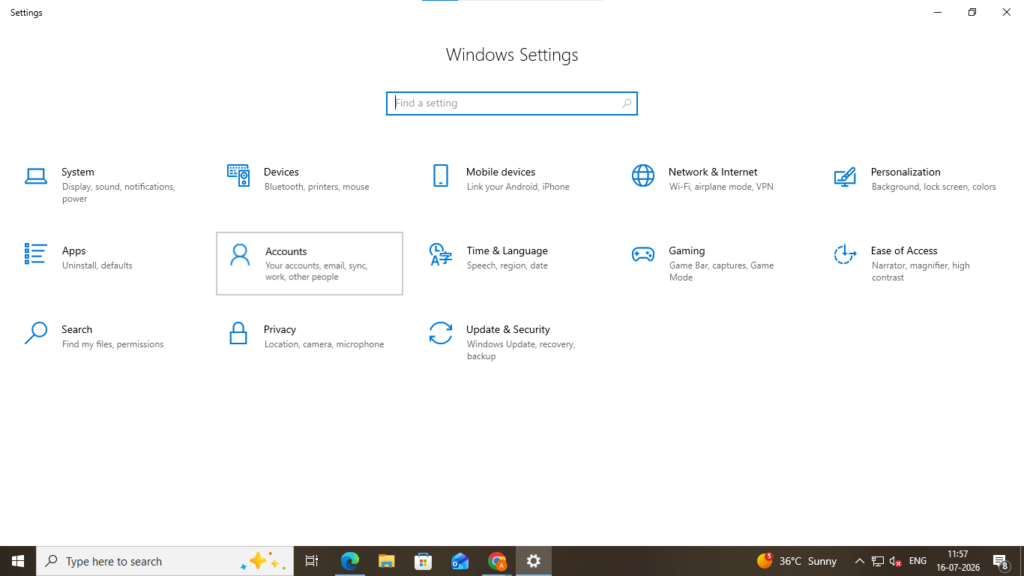
- Click Accounts.
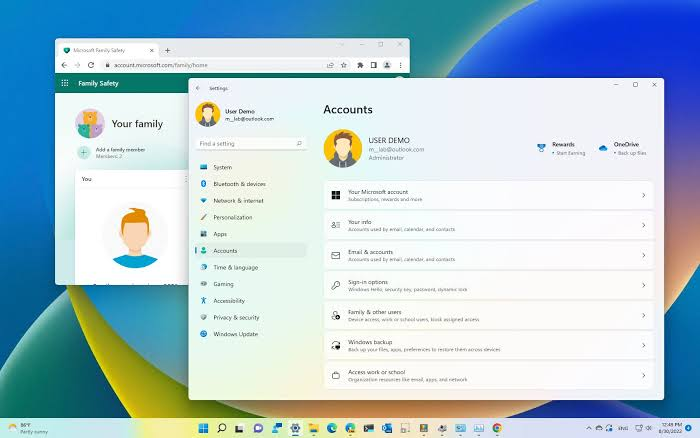
- Click Other users. (On some Windows versions, select Family & other users.)
- Under Other users, click Add account.
- Click I don’t have this person’s sign-in information.
- Click Add a user without a Microsoft account.
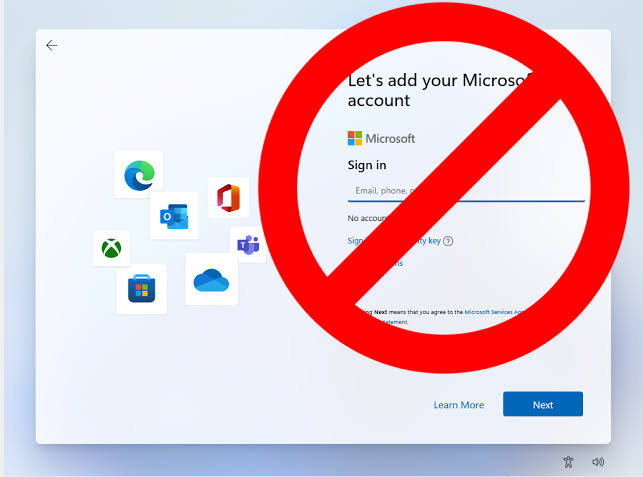
- Enter a username for the new local account.
- Enter a password and password hint if prompted, then click Next.
- Sign out of your current Windows account.
- Sign in using the newly created Windows user account.
- Open QuickBooks Desktop.
- Open your company file and verify whether QuickBooks operates without freezing.
Fix 10: Perform a Clean Install of QuickBooks Desktop
A clean install removes the existing QuickBooks installation, renames the remaining installation folders, and installs a fresh copy of QuickBooks Desktop. Your company files remain unchanged because they are stored separately from the program files.
Steps
- Open QuickBooks Desktop if it still opens.
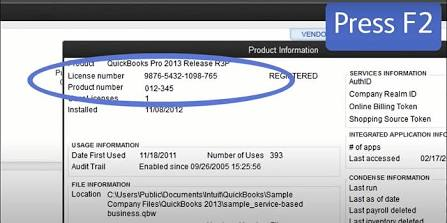
- Press F2 or Ctrl + 1 to open the Product Information window.
- Record your License Number and Product Number. You will need them during reinstallation.
- Close QuickBooks Desktop.
- Create a backup of your company file if you can still access it.
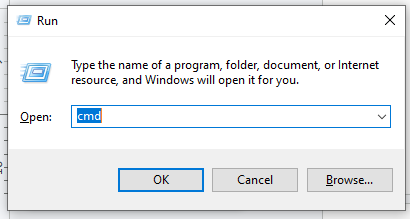
- Press Windows + R, type appwiz.cpl, then click OK.
- Locate QuickBooks Desktop in the list of installed programs.
- Select QuickBooks Desktop, then click Uninstall/Change.
- Select Remove, then follow the on-screen instructions to uninstall QuickBooks.
- Restart your computer after the uninstall is complete.
- Download and install the latest version of QuickBooks Tool Hub if it is not already installed.
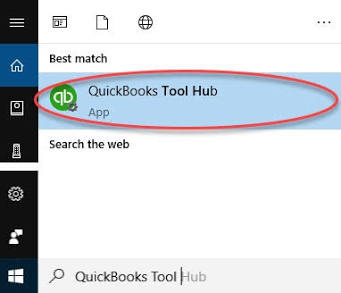
- Open QuickBooks Tool Hub.
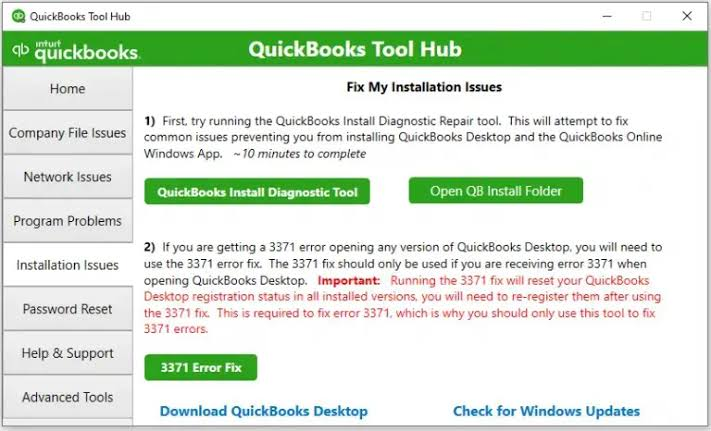
- Click Installation Issues.
- Click Clean Install Tool.
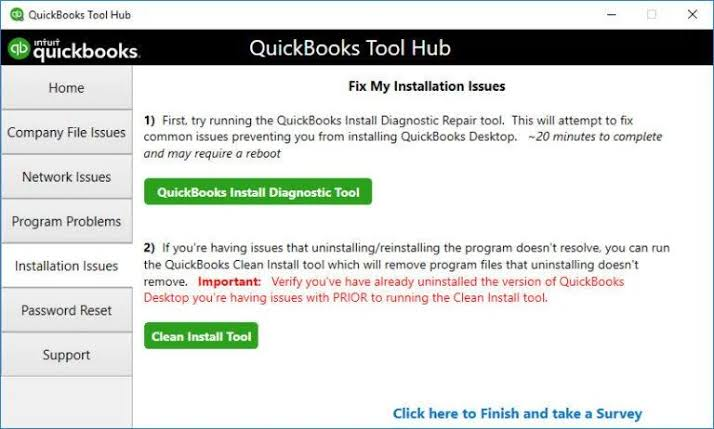
- Follow the on-screen instructions to rename the existing QuickBooks installation folders.
- Download the QuickBooks Desktop installer for your version from Intuit’s official Downloads & Updates page.
- Right-click the installer file and select Run as administrator.
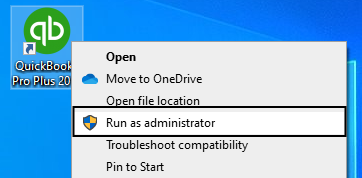
- Follow the on-screen instructions to install QuickBooks Desktop.
- Enter your License Number and Product Number when prompted.
- Open QuickBooks Desktop after the installation is complete.
- Open your existing company file. If it does not appear automatically, click Open or Restore a company file, browse to your .QBW file, and click Open.
- Verify that QuickBooks opens and operates without freezing.
Prevention: How to Stop QuickBooks Desktop From Crashing Again
Five habits prevent QuickBooks Desktop crashes from returning.
- Always Exit QuickBooks Through File > Exit
File > Exit saves the transaction log (.TLG) file correctly and closes background processes in order. Closing through the X button or shutting down the computer while QuickBooks is open damages the .TLG file and triggers startup crashes in the next session.
- Run Quick Fix My Program Once a Week
Weekly Quick Fix My Program runs clear accumulated background processes before crashes start. Weekly runs take about two minutes and prevent Root Cause 1 from recurring.
- Run Verify Data Every Month
Monthly Verify Data runs (File > Utilities > Verify Data) catch company file damage early, while Rebuild Data can still repair it. Damage caught late, after compounding over months, may exceed what Rebuild Data can fix.
- Keep the Company File Below a Manageable Size
Company file performance and stability decline as file size grows. Pro and Premier files approaching 200 to 300 MB benefit from Condense Data (File > Utilities > Condense Data), which archives prior-year transactions without deleting accounting history. Solid State Drives reduce disk errors that corrupt company file records.
- Update QuickBooks Immediately After Every Windows Update
Windows updates change the .NET Framework, MSXML, and C++ Redistributable components QuickBooks depends on. Installing the QuickBooks update within days of a Windows update closes the compatibility gap before Unrecoverable Errors appear. Update path: Help > Update QuickBooks Desktop > Update Now > Get Updates.
Conclusion
QuickBooks Desktop crashes trace to nine documented root causes, each with a direct fix. Matching the crash pattern to its cause resolves the crash faster than random troubleshooting. QuickBooks Tool Hub provides Quick Fix My Program, Install Diagnostic Tool, PDF and Print Repair Tool, and QuickBooks File Doctor in one download. Five habits keep QuickBooks Desktop stable long-term: File > Exit every session, weekly Quick Fix My Program, monthly Verify Data, manageable company file size , and QuickBooks updates after every Windows update.
Identifying the crash pattern first helps apply the correct solution more efficiently. Following the preventive practices outlined above reduces recurring crashes and improves long-term stability.
Frequently Asked Questions
1. QuickBooks Desktop crashes only with one company file. What does that mean?
A crash affecting only one company file usually indicates damage within that file rather than the QuickBooks installation. Open a different company file or the sample company file to compare the behavior. A successful test confirms that troubleshooting should focus on repairing the affected company file instead of reinstalling QuickBooks.
2. Where can I find information about a QuickBooks crash?
Windows records QuickBooks crashes in Event Viewer under Windows Logs > Application. QuickBooks records additional diagnostic information in the qbwin.log file. Reviewing these logs helps identify the module or process that failed and provides useful information before advanced troubleshooting or contacting Intuit Support.
3. Why does QuickBooks crash only in Multi-User Mode?
Crashes that occur only in Multi-User Mode usually indicate a network communication issue, damaged Network Data (.ND) files, firewall restrictions, or problems with QuickBooks Database Server Manager. Testing the company file in Single-User Mode helps determine whether the issue is network-related or specific to the company file.
4. Is it safe to continue using QuickBooks after repeated crashes?
Repeated crashes increase the risk of company file corruption and incomplete transactions. Create a backup before continuing work, identify the underlying cause, and resolve the issue before entering additional accounting data.
5. When should I contact Intuit Support?
Contact Intuit Support when QuickBooks continues to crash after completing all recommended troubleshooting steps, when the company file cannot be repaired, when payroll data remains inaccessible, or when repeated Unrecoverable Errors continue after reinstalling QuickBooks and repairing Windows components.

Anusmita is a seasoned content writer who brings perspective to words. As a writer, she enriches her work with a journalistic aptitude, utilising her training in Mass Communication and Journalism. She loves to travel and explore, which imparts a greater sense of understanding, maturity, and experience that are reflected in her content.
Beyond her professional work, Anusmita enjoys painting, singing, dancing, and spending time planting. She is also a self-proclaimed foodie who loves exploring different cuisines, an interest that further adds to her curiosity and perspective as a writer.
Leave a Reply