
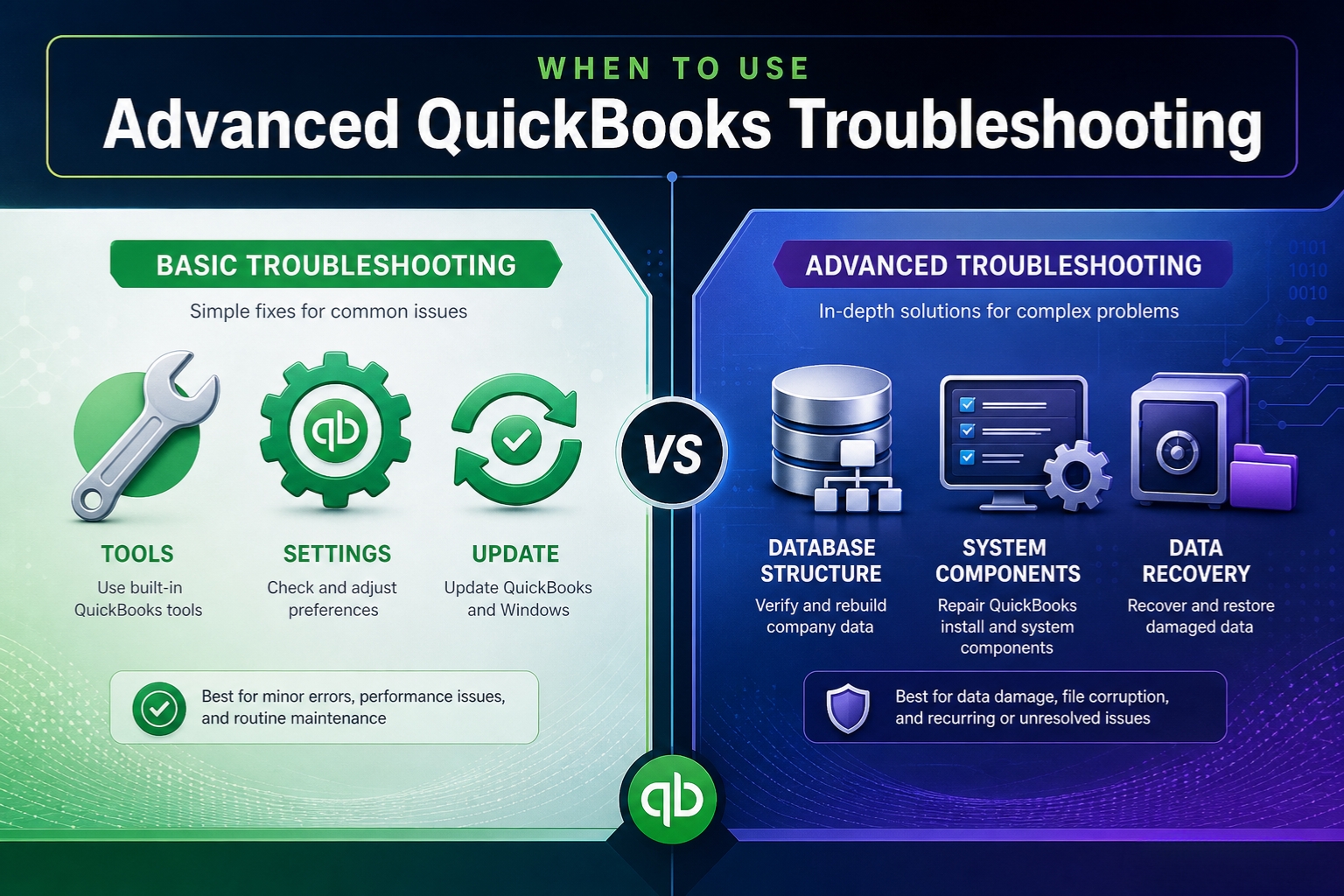
Basic QuickBooks fixes resolve most problems in under ten minutes. Restarting the program, running Quick Fix My Program, updating to the latest release, or renaming a settings file often solves common issues. But advanced troubleshooting is a different category entirely.
Advanced troubleshooting is appropriate when:
- basic fixes have already been applied correctly and the problem still returns,
- the issue involves the company file’s internal database structure,
- Windows components QuickBooks depends on are damaged beyond what standard tools can repair, or
- data has already been lost or become inaccessible.
Using advanced troubleshooting on a problem that only needs a basic fix wastes time. But relying on basic fixes when a problem requires advanced repair can allow damage to grow worse.
The difference between basic and advanced troubleshooting is not simply technical difficulty. Many advanced steps are not much harder once you know they are necessary. The real difference is scope and risk. Advanced troubleshooting changes the company file, the QuickBooks installation, or Windows system components in ways that may not be reversible without a backup. Basic troubleshooting usually does not.
This guide explains exactly when advanced troubleshooting is necessary, which tools belong in each level of repair, and when it is time to stop and contact Intuit Data Services, a Certified ProAdvisor, or an IT professional.
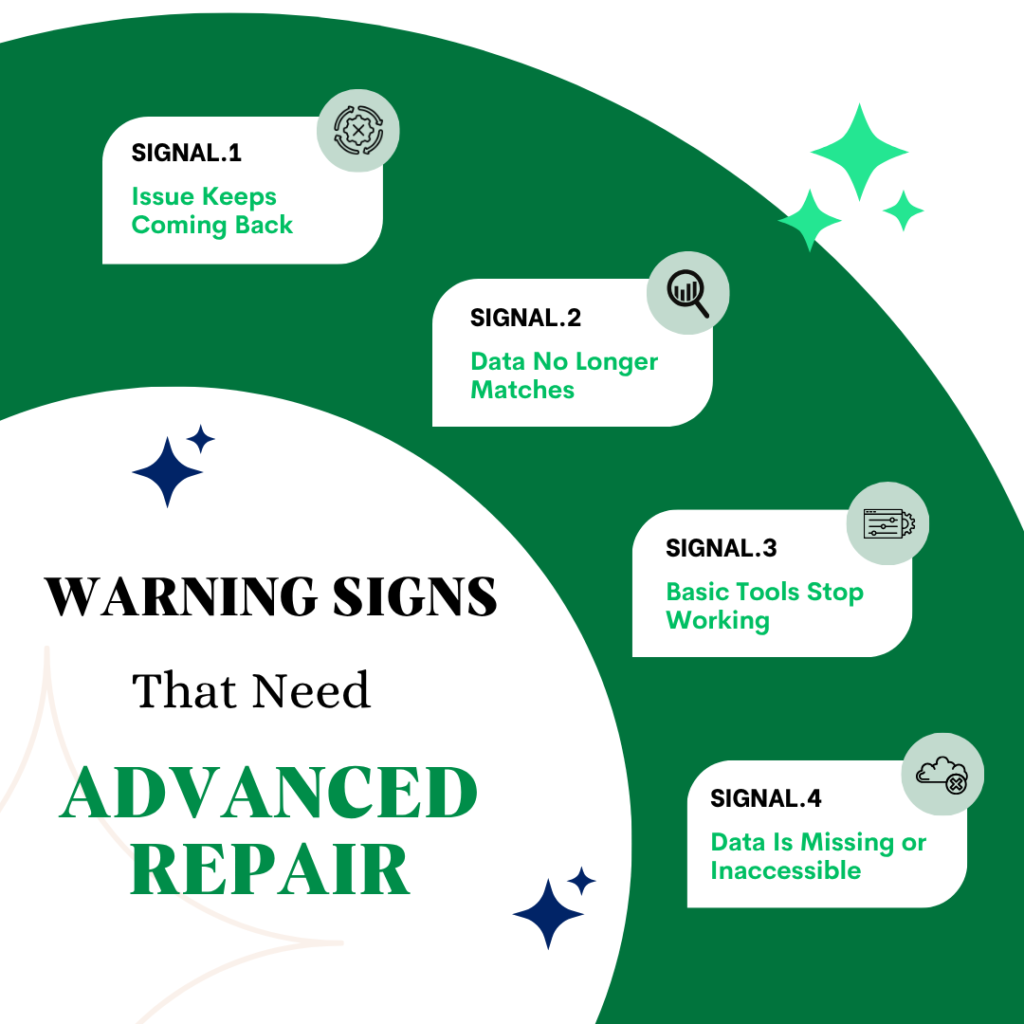
The article is structured around four clear signals:
- the problem returns after basic fixes,
- data inconsistencies appear,
- the issue is outside the scope of basic tools, or
- data has become inaccessible.
Each signal points to a specific advanced repair path.
Table of Contents
The Basic vs. Advanced QuickBooks Troubleshooting Distinction
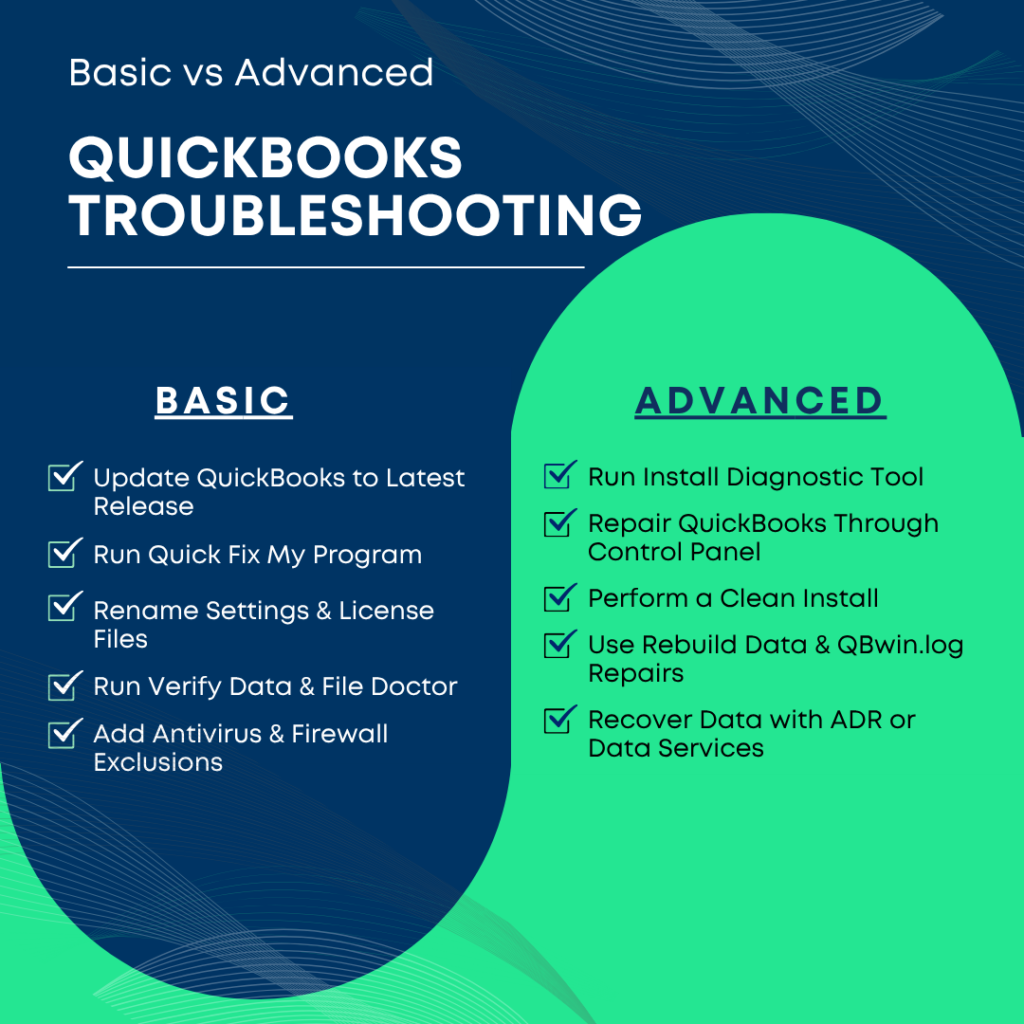
Basic troubleshooting includes the standard first-line fixes that Intuit commonly recommends:
- updating QuickBooks to the latest release,
- running Quick Fix My Program from the QuickBooks Tool Hub,
- clearing background processes,
- renaming the QBWUSER.INI settings file,
- renaming the EntitlementDataStore.ecml license file,
- running Verify Data,
- running QuickBooks File Doctor, and
- adding antivirus exclusions.
These steps solve the majority of crashes, errors, and slowdowns because they address common causes such as background conflicts, damaged user settings, licensing glitches, antivirus interference, and minor file corruption.
Advanced troubleshooting begins where those steps stop working.
For program-related problems, the usual repair sequence is:
- Quick Fix My Program
- Install Diagnostic Tool
- Repair QuickBooks through Control Panel
- Clean install
For data-related problems, the repair sequence is:
- Verify Data
- Rebuild Data
- QuickBooks File Doctor
- Auto Data Recovery (ADR)
- Intuit Data Services
| Basic vs. Advanced at a Glance | |||
| Level | Tools Used | Risk Level | What It Addresses |
| Basic | Quick Fix My Program, update QuickBooks, rename settings files, Verify Data, File Doctor, antivirus exclusions | Low – usually reversible | Background conflicts, settings corruption, antivirus interference, minor data damage |
| Advanced – Program | Install Diagnostic Tool, Control Panel repair, Clean Install Tool | Medium – changes program files | Damaged Windows components, damaged QuickBooks installation |
| Advanced – Data | Rebuild Data, manual correction through QBwin.log, ADR | High – changes company file | Confirmed data damage, unresolved transaction or list issues |
| Professional / Escalation | Intuit Data Services, Certified ProAdvisor, IT specialist | Varies | Structural file damage, Masterkey errors, physical drive failure, network infrastructure problems |
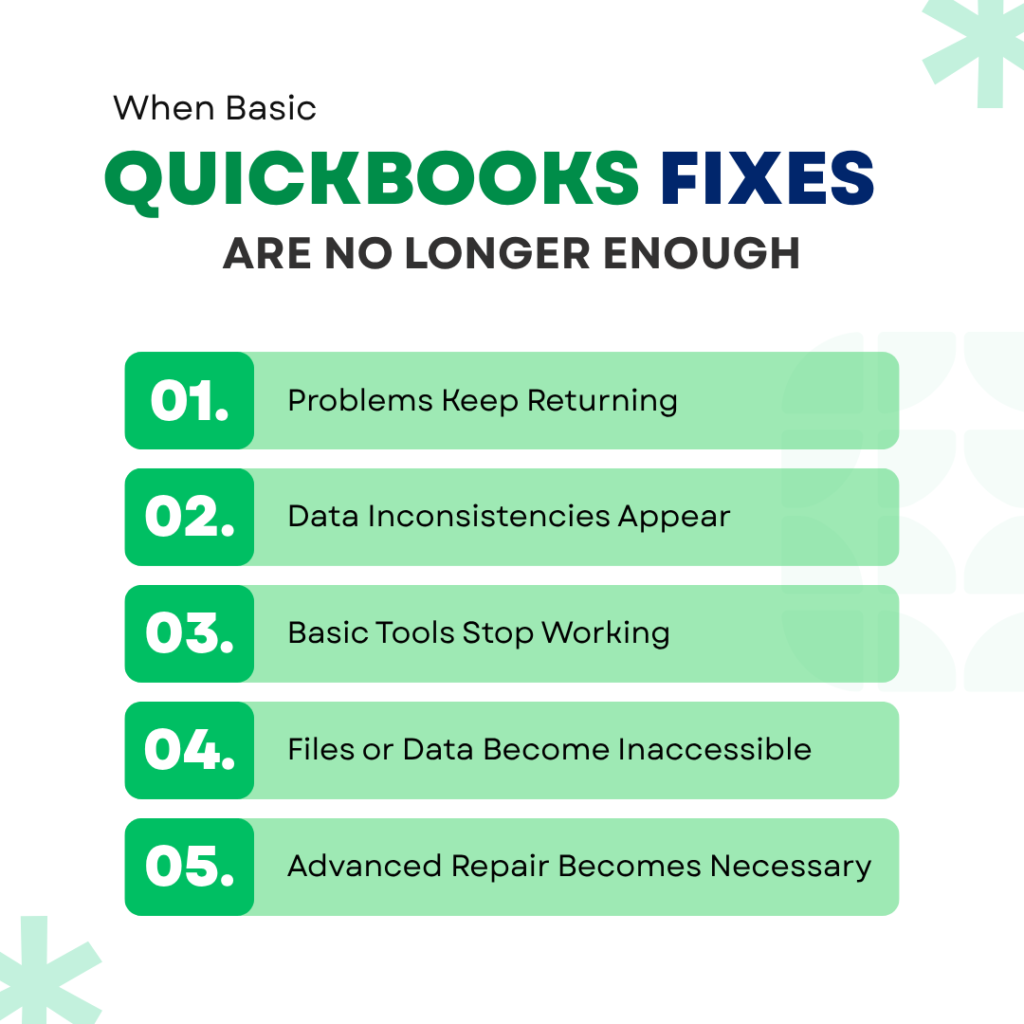
Signal 1: The Problem Returns After Basic Fixes Have Been Applied
What “Returns After Basic Fixes” Really Means
If a QuickBooks problem comes back within days or weeks after a basic fix, the basic fix did not truly solve it. It only masked the real cause.
For example, Quick Fix My Program shuts down QuickBooks background processes and performs a small program repair. If QuickBooks crashes again later for the same reason, rerunning Quick Fix may help temporarily again. But repeating the same step over and over only confirms that the underlying issue was never resolved.
The right response to a recurring problem is to move up the repair hierarchy-not to repeat the same entry-level fix indefinitely.
The Advanced Program Repair Sequence
Step 1: Use the Install Diagnostic Tool
The Install Diagnostic Tool is the first advanced repair step for recurring program problems.
It repairs Windows components that QuickBooks relies on but that Quick Fix My Program cannot repair directly:
- .NET Framework – a Windows software layer QuickBooks uses internally,
- MSXML – Microsoft XML Core Services, used for reading and exchanging data,
- Visual C++ Redistributables – shared program libraries used by QuickBooks and Windows.
These components are sometimes damaged by Windows updates or by incomplete installations.
How to run it:
- Open the QuickBooks Tool Hub.
- Select Installation Issues.
- Click QuickBooks Install Diagnostic Tool.
- Let it run completely. It may take up to 20 minutes.
- Restart the computer.
- Open QuickBooks and test again.
Step 2: Repair the QuickBooks Installation
If the Install Diagnostic Tool does not resolve the issue, the next step is a QuickBooks installation repair through Windows.
This process scans QuickBooks program files and replaces damaged or missing files without uninstalling the software or deleting company files.
How to do it:
- Close QuickBooks.
- Press Windows + R.
- Type control panel and press Enter.
- Go to Programs > Programs and Features.
- Find QuickBooks in the list.
- Right-click it and choose Repair.
- Follow the prompts.
- Restart the computer.
A recurring crash that survives Quick Fix and the Install Diagnostic Tool often points to damaged QuickBooks program files, which is exactly what this repair is meant to address.
Step 3: Perform a Clean Install
If repair still does not work, the next level is a clean install.
A normal uninstall can leave behind residual program files and configuration fragments. These leftovers can cause the same issue to reappear even after reinstalling. Intuit’s Clean Install Tool removes those remnants more completely.
Before you begin:
- record your license number and product key,
- create a backup of the company file.
Then:
- Run the Clean Install Tool.
- Remove the current QuickBooks installation.
- Download and reinstall QuickBooks fresh.
- Open the company file from the No Company Open window.
If the same problem still exists after a clean install, the problem is likely no longer a QuickBooks program issue. At that point, the focus should shift to the company file itself, Windows, or the surrounding network environment.
Signal 2: Basic Fixes Resolved the Error but Data Inconsistencies Appeared
What Data Inconsistencies Mean
A data inconsistency occurs when QuickBooks is technically working again, but the numbers or records no longer match reality.
Common examples include:
- two reports that should show the same total now showing different totals,
- a transaction you know was entered no longer appearing in the register,
- a payment and invoice no longer properly linked,
- list entries behaving abnormally.
These problems often follow:
- a QuickBooks crash,
- a power outage during a save,
- a network interruption in multi-user mode.
In those cases, the data write was interrupted. Some records were saved correctly, while others were only partially updated.
The program error may be gone, but the company file is no longer internally consistent.
The Correct Sequence for Data-Level Repair
The correct order is always:
- Back up the file first
- Run Verify Data
- Run Rebuild Data
- Run Verify Data again
If the second Verify still reports damage, that means Rebuild Data found the issue but could not fully repair it automatically.
At that point, the next step is to inspect QBwin.log.
Using QBwin.log
The QBwin.log file records remaining data errors in detail.
To access it:
- Press Ctrl + 1 inside QuickBooks.
- Then press Ctrl + 2.
- Open the Tech Help window.
- Open QBWIN.LOG.
This log shows the type of damaged record, its date, and often the document number.
Typical manual fixes include:
- re-sorting lists when Customer, Vendor, or Item lists are damaged,
- deleting and re-entering specific transactions,
- repairing broken links between payments and invoices.
Always create another backup before performing manual corrections.
When to Stop Manual Repairs and Use Auto Data Recovery?
Auto Data Recovery (ADR) is a QuickBooks feature that stores a background copy of the company file. QuickBooks updates this copy approximately every 12 hours while the program is running.
The ADR copy is stored in a hidden folder named QuickBooksAutoDataRecovery in the same directory as the company file.
ADR should be used only after standard repair steps have been exhausted.
It becomes appropriate when:
- Rebuild Data does not fully repair the file,
- manual corrections are not restoring the missing records,
- important recent data has disappeared.
ADR Recovery Scenarios
ADR supports several recovery approaches:
- Current .TLG + ADR company file
Used to restore the most recent transactions. - ADR copies of both the company file and the .TLG
Used to recover data, typically losing no more than the last 12 hours. - ADR version of the transaction log with ADR company file
Often the most complete option when recent corruption is severe.
ADR can often recover all or nearly all lost data, but it is still considered a last resort because it may replace the current file with an older background version.
Signal 3: The Problem Is One That Basic Tools Explicitly Cannot Fix
Problems Outside the Scope of Basic Troubleshooting
Some QuickBooks problems are not truly QuickBooks problems at all. They happen in Windows or in the network environment that QuickBooks depends on.
In those cases, the Tool Hub and standard QuickBooks repair utilities have limited value.
Examples include:
- Windows Installer service failures,
- multi-user hosting issues,
- server connectivity errors,
- DNS resolution problems,
- packet loss across the network,
- errors such as H202, 6000, -77, or 6176 when caused by infrastructure rather than by the file itself.
Multi-User Errors Often Require Network-Level Investigation
If multiple workstations are experiencing the same issue, and especially if the problem persists across new installations or new hardware, the cause may lie in:
- the server,
- the network,
- firewall rules,
- name resolution,
- operating system interaction,
- security software,
- or a broader environment-level conflict.
If a sample QuickBooks file also fails in the same environment, that is a strong sign that the company file is not the main problem.
At that point, the correct next step is usually an IT or network investigation, not more QuickBooks reinstallations.
When the Windows Installer Service Has Failed
QuickBooks setup and updates depend on the Windows Installer service.
If that service is not running correctly, QuickBooks installation or updates may fail with errors such as 1603 or 1904.
To check the service:
- Press Windows + R
- Type services.msc
- Press Enter
- Locate Windows Installer
- Right-click it
- Choose Start or Restart
If the service cannot be started, the problem is in Windows itself and may require Microsoft-level support or an experienced technician.
Signal 4: Data Has Become Inaccessible or Lost
The Masterkey Error: The Clearest Escalation Signal
The Masterkey error is one of the strongest indicators that self-service troubleshooting should stop.
The Masterkey is part of the company file’s encryption and access structure. If that key is damaged, QuickBooks may no longer be able to open or interpret the file correctly.
If the Admin user receives a Masterkey error, that strongly suggests the corruption is deep inside the file’s database structure-not just in a specific transaction or list.
This is the point where the file should be sent to Intuit Data Services.
What Intuit Data Services Is For
Intuit Data Services handles file corruption that tools such as:
- Rebuild Data,
- File Doctor,
- and ADR
cannot successfully repair.
These cases may require specialized repair utilities not available to standard support or end users.
The downside is that the process can take time, and access to the company file may be interrupted during the repair.
That is why current backups are so important.
When ADR Cannot Recover the Data
ADR depends on the company file and its log files still being physically accessible.
If the hard drive itself has failed, both the main file and the ADR folder may become unreadable.
A physical hard drive failure is not a QuickBooks troubleshooting issue. It is a hardware-level data recovery issue.
In that situation, the first step is to use a professional data recovery service that can recover raw files from a failed drive. Only after the files are recovered should QuickBooks repair tools be attempted.
When a Restore Is Better Than a Repair
If Verify Data still finds errors after Rebuild, and there is no documented path to repair them, the right next step may be to restore a clean backup.
To restore a backup:
- Go to File
- Choose Open or Restore Company
- Select Restore a Backup Copy
- Choose Local Backup
- Browse to the .QBB file
- Restore it under a new file name first
- Test the restored file before replacing the original
This is safer than overwriting the damaged file immediately.
The tradeoff, of course, is that transactions entered after the backup date must be re-entered manually.
The Decision Framework: Basic or Advanced?
Use the following questions in order. The first answer pointing to advanced troubleshooting tells you where to stop and escalate.
| Question | Answer Pointing to Basic Troubleshooting | Answer Pointing to Advanced Troubleshooting |
| Has QuickBooks been updated to the latest release? | No – update first | Yes – continue |
| Has Quick Fix My Program been run? | No – run it first | Yes, and the issue returned – move to Install Diagnostic Tool |
| Has Verify Data been run? | No – run it first | Yes, and it found damage – move to Rebuild Data |
| Did Rebuild Data clear all Verify errors? | Yes – basic repair succeeded | No – manual fixes or ADR may be required |
| Is the problem happening on one computer only? | Yes – likely local program/profile issue | No – multiple systems affected suggests network or environment problem |
| Did the Admin user receive a Masterkey error? | No – continue standard repair | Yes – stop and escalate to Data Services |
| Did a clean install fail to fix the issue? | Not yet tried – still part of repair path | Yes – likely environment-level or file-level issue |
When to Stop Self-Service Troubleshooting and Contact Intuit?
The Four Situations That Call for Professional Help
Self-service troubleshooting should usually stop when any of the following is true:
- The Admin user receives a Masterkey error
This should go to Intuit Data Services. - The problem survives a full clean install and is immediately reproducible
This points to an environment, server, or network issue. - Rebuild Data fails repeatedly or cannot finish after two attempts
This may require Data Services or a Certified ProAdvisor. - The hard drive containing both the company file and the backup has physically failed
This requires a hardware data recovery specialist before QuickBooks repair can begin.
What to Have Ready Before Contacting Support?
Before reaching out, gather:
- your QuickBooks version and release number,
- the exact error code or full error message,
- a list of all troubleshooting steps already completed,
- the QBwin.log file if the issue is data-related,
- and, if relevant, the time the crashes occurred.
That information can shorten the troubleshooting process significantly.
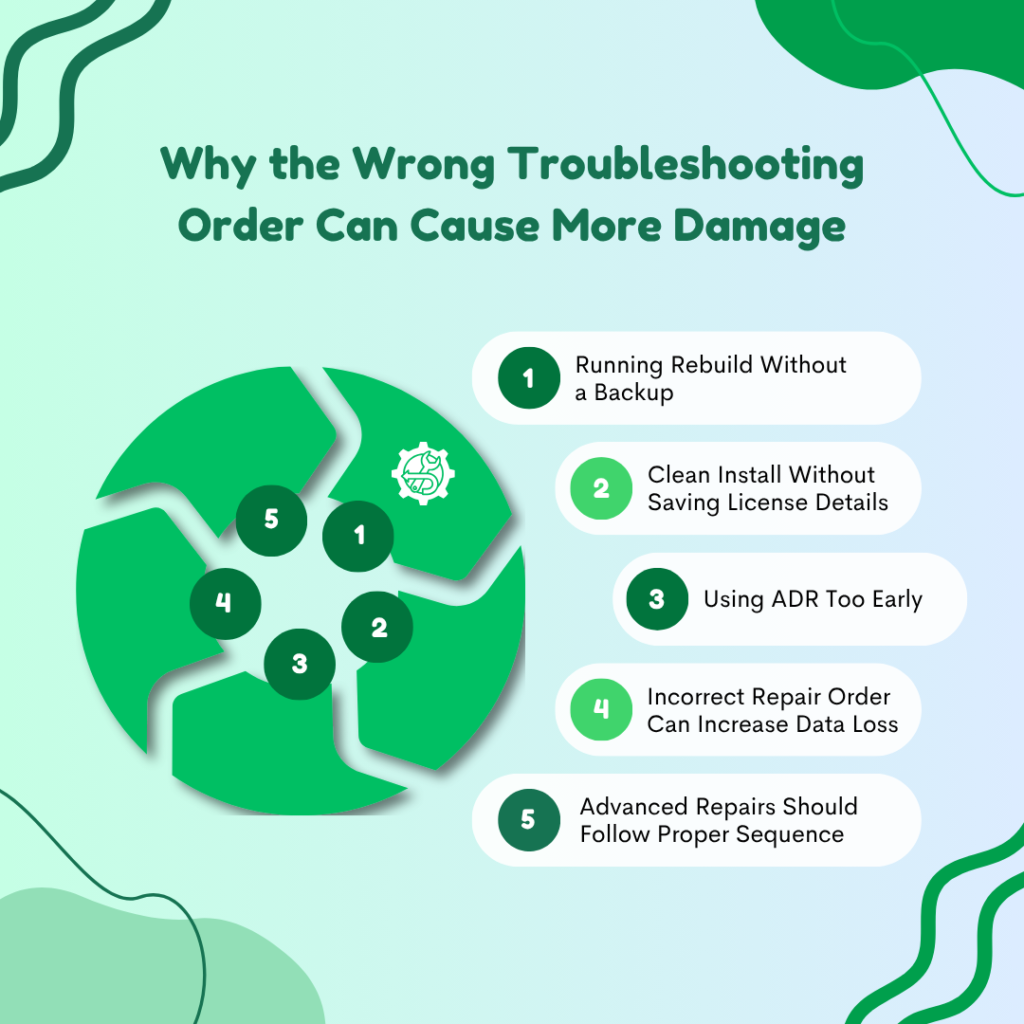
Why Applying Advanced Troubleshooting in the Wrong Order Causes Harm
- Rebuild Without a Backup
Running Rebuild Data without first creating a backup is one of the most dangerous mistakes in QuickBooks troubleshooting.
Rebuild changes the company file directly. If it produces an unexpected result, there is no safe rollback unless a backup exists.
- Clean Install Without Recording the License
Performing a clean install before recording the license number and product key can create a new problem: QuickBooks may reinstall, but the user may not be able to reactivate it without contacting Intuit.
That small preparation step prevents unnecessary downtime.
- ADR Used Too Early
Using Auto Data Recovery before fully exhausting Verify/Rebuild and documented manual fixes can also create unnecessary loss.
ADR may replace the file with a version that is up to 12 hours older. If standard repair could have fixed the current file without losing any transactions, using ADR prematurely sacrifices data needlessly.
Order matters.
Conclusion
The decision to use advanced QuickBooks troubleshooting should be based on four clear signals:
- the problem returns after basic fixes,
- data inconsistencies appear,
- the issue falls outside the scope of QuickBooks self-service tools,
- or data has become inaccessible.
Each signal points to a different repair path:
- recurring program issues move from Quick Fix to the Install Diagnostic Tool, then to repair, then to clean install;
- data issues move from Verify to Rebuild, then to QBwin.log-based manual correction, then to ADR;
- network or Windows infrastructure failures shift the investigation to IT support;
- structural file corruption or Masterkey errors require Intuit Data Services.
The order of operations matters just as much as the tools themselves:
- back up before Rebuild,
- record the license before a clean install,
- exhaust standard repair before ADR,
- and stop self-service troubleshooting when the evidence shows the file or environment is beyond it.
Advanced troubleshooting is not simply “more troubleshooting.” It is a different category of action-one that affects the program, the data, or the system environment at a deeper level. Knowing when to move into that category is what prevents repeated downtime, further corruption, and avoidable data loss.
Frequently Asked Questions
1. Quick Fix My Program resolved the error, but Verify Data found damage. Does the file still need advanced repair?
Yes. If Verify Data reports damage, the company file needs Rebuild Data, even if QuickBooks appears to be working normally again. Data corruption does not always show immediate symptoms. It may stay hidden until a certain transaction, report, or payroll item is accessed later. Leaving the damage in place gives it time to spread into linked records.
2. The Install Diagnostic Tool ran successfully, but QuickBooks still crashes. What comes next?
The next step is usually a QuickBooks installation repair through Programs and Features in Windows. The Install Diagnostic Tool repairs shared Windows components. It does not repair QuickBooks program files directly. If the crash continues, the QuickBooks installation itself may be damaged.
3. Rebuild Data completed, but the second Verify still shows errors. What does that mean?
That means Rebuild identified the problem but could not fully repair it automatically. The remaining errors should be reviewed in QBwin.log. From there, the repair may require a documented manual fix such as: re-sorting a list, deleting and re-entering a damaged transaction, or reconnecting broken transaction links.
4. QuickBooks crashed during Rebuild Data and now the company file will not open. What should be done?
The immediate step is to restore the backup created before the Rebuild started. If no backup exists, the next recovery path is ADR. Because the crash interrupted a repair already in progress, the file may now be in a partially rebuilt and more unstable state.
5. QuickBooks Enterprise on a server still crashes after a full clean install on a brand-new server. What kind of problem is that?
That is no longer likely to be a QuickBooks installation problem. If the crash survives fresh hardware, a fresh Windows installation, and a fresh QuickBooks installation, the likely causes are: the company file, the network infrastructure, firewall or DNS configuration, or another environment-level conflict. At that stage, testing with a sample file and involving an IT professional or an Advanced QuickBooks ProAdvisor is the most appropriate next move.