
QuickBooks 6000 series errors are company file access errors. Every error code in this series – 6000-77, 6000-82, 6000-83, 6150, 6177, 6189, and others – means QuickBooks tried to open or access the company file and was stopped before it could complete the operation.
- QuickBooks Error 6000-77 points to a company file location or permission issue.
- QuickBooks Error 6000-82 is related to network communication or firewall interference.
- QuickBooks Error 6000-83 indicates an incorrect hosting setup or damaged file path.
- QuickBooks Error 6150 appears when the company file is damaged or invalid.
- QuickBooks Error 6177 occurs when QuickBooks cannot locate or use the company file path.
- QuickBooks Error 6189 appears when another process is blocking access to the company file.
QuickBooks stores all accounting data in a .QBW company file, and every 6000 series error means QuickBooks was blocked from reading, opening, or writing that file. The error codes in 6000 series are the most frequently reported and each has its own specific cause. None of these errors are permanent in the majority of cases.
The company file itself is intact in most 6000 series error situations – the error means QuickBooks could not reach the file, not that the file is gone.
This article covers every documented cause and every fix for all three specific error codes, organized so the fastest fix is applied first. The company file backup (.QBB file) should be verified before starting any repair step.
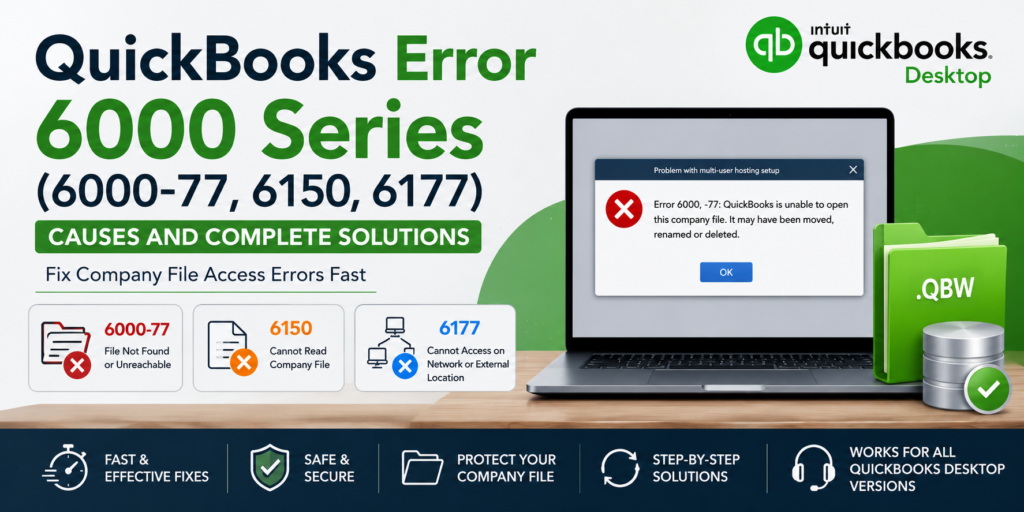
Table of Contents
Understanding the QuickBooks 6000 Series: What the Two Numbers Mean?
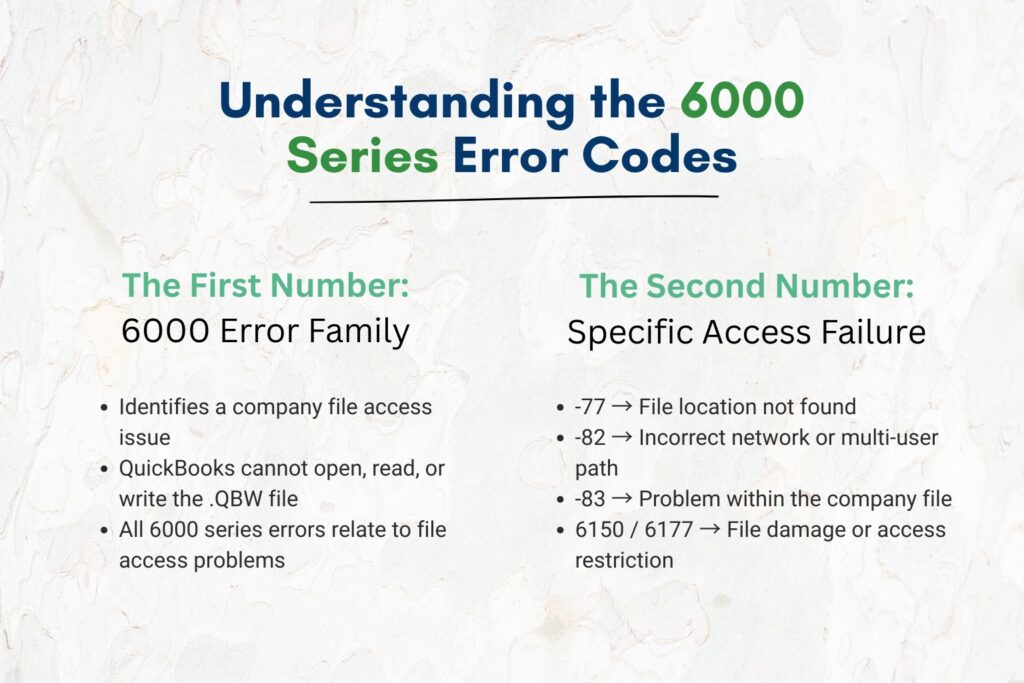
The First Number: The Error Family
The number 6000 identifies the error as a company file access error. QuickBooks uses this number for every error that occurs when it tries to open, read, write, or close a company file. The error family does not change regardless of the sub-code – every error in the 6000 range is fundamentally about QuickBooks being unable to access the company file. This is important because it means the company file is at the center of every fix: the troubleshooting always involves finding the file, moving it, repairing it, or restoring correct access to it.
The Second Number: The Specific Type of Access Failure
The number after the dash or comma identifies the specific type of access failure. The most commonly encountered sub-codes and their meanings:
- -77 means the system failed to find the company file at the specified location (the file is missing from where QuickBooks is looking);
- -82 means QuickBooks failed to communicate with the company file because of an incorrect location – most common in multi-user environments where the file path is wrong;
- -83 means QuickBooks opened the file but encountered a problem with the file itself;
- -1006 means the company file has structural damage (a corrupted database table header); and
- 6150 and 6177 are complete error codes by themselves, not sub-codes, and carry their own distinct meanings covered in detail in this article.
Quick Diagnosis: Match the QuickBooks Error Code to Its Cause
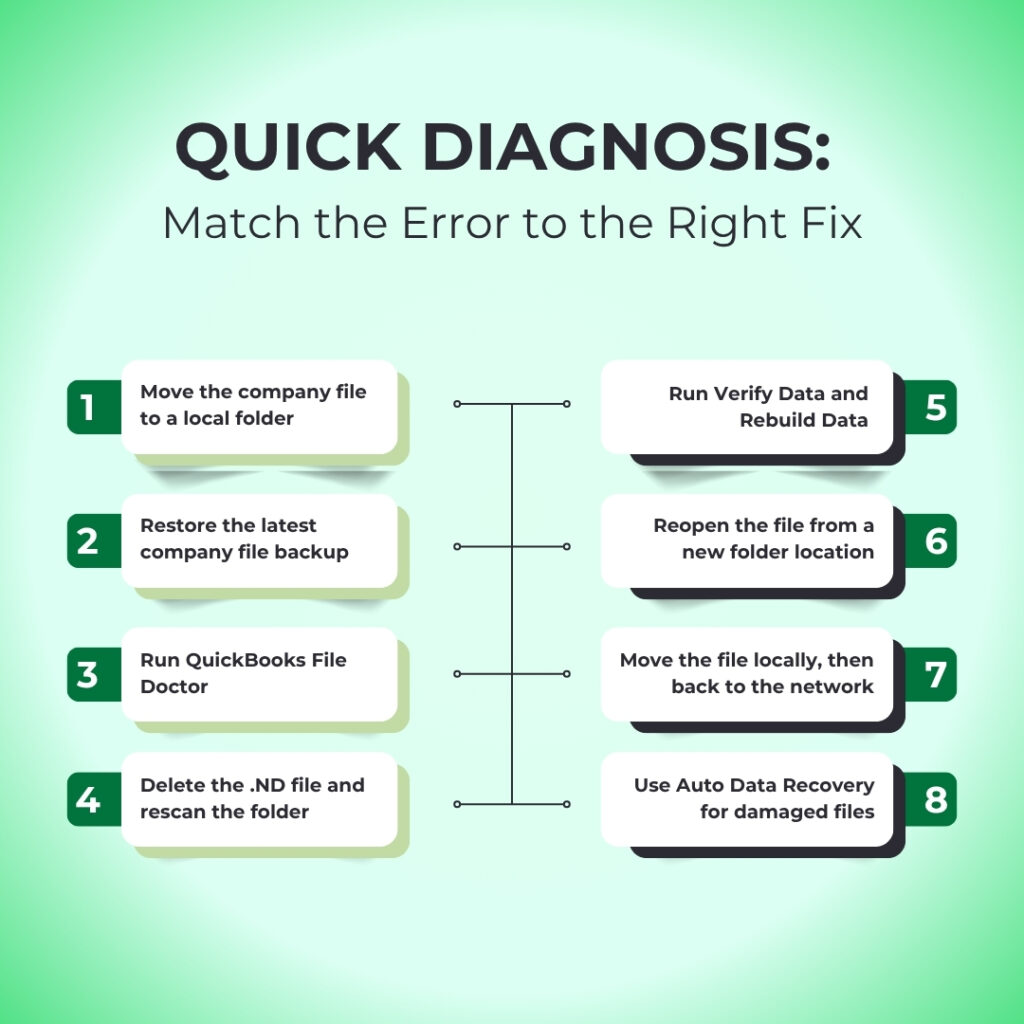
Find the exact error code on screen and match it to the table before applying any fix. Starting with the right fix saves significant time.
| Error Code | Meaning | Most Common Cause | Start With This Fix |
| 6000-77 | QuickBooks cannot find the company file at the path it is looking for | File is on an external drive that is not connected, on a cloud sync service, or the path stored by QuickBooks is outdated | Fix 1: Move the company file to a local folder on the C: drive and reopen |
| 6000-82 | QuickBooks cannot communicate with the company file due to incorrect location | Multi-user setup with wrong network path, or file stored in an incompatible cloud sync location | Fix 1 and Fix 4: Move file to local drive; check multi-user hosting settings |
| 6000-83 | QuickBooks opened the file but encountered internal damage | Company file is damaged from an interrupted save, power outage, or disk error | Fix 3: QuickBooks File Doctor; Fix 5: Verify and Rebuild Data |
| 6150 (full code) | QuickBooks found the file but cannot read its contents | Company file is damaged, encrypted (ransomware), or the file is not actually a .QBW company file | Fix 3: File Doctor; check for ransomware encryption first; Fix 5: Rebuild |
| 6177 (full code) | QuickBooks cannot use the company file at its current location | File is stored on a network drive, external drive, or cloud storage that QuickBooks cannot access as a local file | Fix 1: Move to local C: drive; Fix 6: Delete the .ND file and rescan |
| 6000-1006 | Structural damage to the company file’s internal database | Hard drive error, incomplete update, or disk error during a write operation | Fix 5: Verify and Rebuild; Fix 7: Restore from backup if Rebuild fails |
| 6189-77 | Corrupted QuickBooks data files or software installation damage | Damaged company file combined with damaged QuickBooks program files | Fix 3: File Doctor; if unresolved, Fix 8: Clean reinstall of QuickBooks |
QuickBooks Error 6000-77: Company File Cannot Be Found
What Causes QuickBooks Error 6000-77 Specifically?
Error 6000-77 appears with this message: “Warning: An error occurred when QuickBooks Desktop tried to access the company file. Please try again. Error codes: (-6000, -77).” The error appears when QuickBooks cannot find the company file at the path it has stored in the QBWUSER.INI settings file.
The QBWUSER.INI file is a settings file that QuickBooks creates and reads at every startup to remember which company file to open. Error 6000-77 fires when the path stored in QBWUSER.INI leads to a location that is empty, inaccessible, or no longer exists.
The three most common situations that produce Error 6000-77. All three situations produce the same error code because from QuickBooks’ perspective, the file is not at the expected location:
- the company file is stored on an external hard drive that is not currently connected to the computer;
- the company file is stored on a cloud sync service like Dropbox, OneDrive, or Google Drive and the sync service is currently uploading or modifying the file; or
- the company file was moved to a new folder since QuickBooks last recorded its location, making the stored path outdated.
Fix 1: Move the Company File to a Local Folder
Moving the company file to a local folder on the computer’s main C: drive is Intuit’s documented first solution for Error 6000-77 and Error 6177. A local folder is a folder stored directly on the computer’s own hard drive, not on an external drive, a network drive, or a cloud sync folder.
Local storage gives QuickBooks direct, uninterrupted access to the company file without any network or sync service in between. Intuit’s own support article on Error 6177 confirms this directly: “If you keep your company file on a server, an external hard drive, or in the cloud, you should change its location. Use these steps to move it to your local drive.”
Open File Explorer. Navigate to the current location of the company file (.QBW file). If the .QBW file is on an external drive, first ensure the external drive is connected. Right-click the .QBW file and select Copy. Navigate to C:\Users\Public\Documents\Intuit\QuickBooks.
If the .QBW folder does not exist, create a new folder directly on the C: drive by right-clicking inside C:\ and selecting New > Folder. Name it QB_Company. Paste the .QBW file into this new local folder (Ctrl + V). Open QuickBooks. Go to File > Open or Restore Company > Open a Company File > navigate to the new local folder > select the .QBW file > Open.
Also move the .TLG file (Transaction Log – a file with the same name as the company file but with .TLG extension, stored in the same folder as the .QBW file) to the new local folder alongside the .QBW file. QuickBooks reads the .TLG file alongside the company file at startup. Leaving the .TLG file at the old location can cause QuickBooks to report it as missing and prompt a recovery process that is not needed.
QuickBooks Error 6150: Company File Found But Cannot Be Read
What QuickBooks Error 6150 Means?
Error 6150 is a distinct error code that does not follow the XXXX-YY format of other 6000 series errors. Error 6150 appears when QuickBooks locates the company file at the expected path but cannot read the file’s contents.
The sub-codes that commonly appear alongside 6150 identify the type of read failure: -1006 means the file’s internal database structure has a corrupted header (a damaged record at the top of the database table that tells QuickBooks what type of data the table contains). According to a documented technical resource, Error 6150 is usually encountered because of an infected company file or a damaged QuickBooks Desktop installation.
Before applying any repair tools to a company file showing Error 6150, check whether the file has been encrypted by ransomware. Ransomware is malicious software that locks files and demands payment to unlock them. A ransomware attack on the computer can encrypt the company file, which produces Error 6150 because QuickBooks cannot read the encrypted contents.
Open the folder containing the company file in File Explorer and look for any .txt or .html files named DECRYPT_INSTRUCTIONS, HOW_TO_DECRYPT, or similar. If such files are present, stop immediately and contact a cybersecurity specialist – do not attempt to repair the file. If no such files exist, the cause is data damage rather than encryption and the repair steps below apply.
Fix 2: Restore the Company File From the Most Recent Backup
A company file that Error 6150 identifies as unreadable due to internal damage should be restored from the most recent clean backup before any repair tools are applied. A backup file – the .QBB file created through File > Back Up Company > Create Local Backup – is a complete, compressed copy of the company file that can be restored to any compatible computer.
Restoring from backup bypasses the damaged file entirely and replaces it with a known-good version. This is faster than attempting to repair severe 6150 damage and produces a reliable result when a current backup exists.
Go to File > Open or Restore Company > Restore a Backup Copy > Local Backup. Browse to the .QBB backup file. Click Open. On the Save Company File As screen, save the restored file to the local C: drive folder. Do not overwrite the existing damaged .QBW file – save the restored version with a different name first. Open the restored file and run Verify Data (File > Utilities > Verify Data) to confirm it is clean before replacing the damaged version.
QuickBooks Error 6177: Company File Location Is Not Accessible
What QuickBooks Error 6177 Means Specifically?
Intuit’s official help article on Error 6177 states: “Seeing Error -6177,0? If so, here’s how to fix it. You just need to move your company file.” Error 6177 appears specifically when the company file is stored on a server, an external hard drive, or in a cloud location, and QuickBooks cannot establish the correct connection to that location from the current computer.
The error is more specific than Error 6000-77: it means QuickBooks found the location stored in its settings but cannot open the file there because QuickBooks does not have a valid connection to that storage location at startup.
Error 6177 commonly appears when QuickBooks on a laptop is opened at home while the company file is on the office server. The laptop can remember the server’s location from the last time it was in the office, but at home the server is not reachable.
Error 6177 also appears when cloud sync services actively sync the company file while QuickBooks is trying to open it – the sync service locks the file momentarily to upload it, and QuickBooks cannot open a locked file. Intuit’s solution: move the file to the local drive, open it there, and then move it back to the original location.
Fix 3: Run QuickBooks File Doctor
QuickBooks File Doctor is Intuit’s own first-response tool for all 6000 series errors. It performs two checks simultaneously: it scans the company file for internal damage and repairs what it finds, and it checks the network configuration for multi-user setups.
Intuit’s official documentation for Error 6177 confirms File Doctor as one of the core resolution steps: “Download and use File Doctor. It will scan and clean up your company file. This also refreshes the location.” File Doctor runs from the QuickBooks Tool Hub and takes 5 to 15 minutes depending on the file size.
Open the QuickBooks Tool Hub. Click Company File Issues in the left menu. Click Run QuickBooks File Doctor. In the File Doctor window, select the company file from the dropdown list. If the file is not in the list, click Browse and navigate to it. Choose Check your file. Enter the QuickBooks administrator password when prompted. Allow File Doctor to run. Restart QuickBooks and test whether the file opens after File Doctor completes.
Fix 4: Delete the .ND File and Rescan the Company File Folder
What the .ND File Is and Why Deleting It Fixes QuickBooks Error 6177?
The .ND file – Network Data file – is a configuration file that QuickBooks creates automatically in the same folder as the company file. It stores the settings QuickBooks uses to connect to the company file over a network in multi-user mode.
The .ND file has the same name as the company file but with .ND added to the extension (for example, CompanyName.qbw.nd). Intuit’s own Error 6177 support article confirms the fix: “Find the file with your company name and ND at the end… Right-click the ND file and select Delete. Don’t worry, this won’t affect your accounting data.”
Deleting the .ND file works because QuickBooks automatically regenerates it the next time it opens the company file. The regenerated .ND file contains fresh, current network configuration settings instead of the outdated or corrupted settings that were producing Error 6177. After deleting the .ND file, the Database Server Manager must scan the company file folder to generate a new .ND file before QuickBooks can open the file in multi-user mode.
Open File Explorer and navigate to the folder containing the company file. Find the file named [CompanyFileName].qbw.nd. Right-click it and select Delete. Open the QuickBooks Tool Hub on the server computer (the computer that stores the company file). Click Network Issues > QuickBooks Database Server Manager > Scan Folders. Add the folder containing the company file if it is not listed. Click Scan. After the scan finishes, a new .ND file is created automatically. Test opening the company file.
Fix 5: Run Verify Data and Rebuild Data
When to Use Verify and Rebuild for QuickBooks 6000 Series Errors?
Verify Data and Rebuild Data are QuickBooks’ built-in tools for finding and fixing internal damage to the company file. Verify Data scans the file and reports which records are damaged. Rebuild Data then repairs the damaged records. These tools are the correct fix for Error 6000-83 (where QuickBooks accessed the file but found internal damage) and Error 6000-1006 (where a database table structure is corrupted). The sequence must always be: Verify first to confirm and document the damage, Rebuild to repair it, and Verify again to confirm the repair succeeded.
Create a backup first: File > Back Up Company > Create Local Backup. Then go to File > Utilities > Verify Data. Allow the scan to complete. If it reports “Your data has lost integrity,” go to File > Utilities > Rebuild Data and follow the prompts. After Rebuild completes, run Verify Data again. A clean result on the second Verify confirms the repair succeeded. If errors still appear after the second Verify, the specific damaged records noted in the QBwin.log file (accessible through Tech Help at Ctrl + 1, then Ctrl + 2) need manual correction.
Fix 6: Move the File to Local Drive, Open It, Then Move It Back
Intuit’s Documented Move-and-Return Method for QuickBooks Error 6177
Intuit’s official Error 6177 support page documents a specific technique for companies that must keep the company file on a server but keep encountering Error 6177. The technique is: move the company file to the local drive, open it there to refresh the QuickBooks location settings, then move it back to the server. This process resets the location stored in the QBWUSER.INI settings file and in the .ND network data file, giving QuickBooks a fresh, correct connection path to the server location.
Open File Explorer. Copy the .QBW file and its .ND and .TLG associated files from the server location to a local folder on the C: drive (for example, C:\QB_Temp). Open QuickBooks. Go to File > Open or Restore Company > Open a Company File. Navigate to the local C: drive folder and open the file. Confirm it opens correctly. Then close QuickBooks. Move (not copy) the .QBW, .ND, and .TLG files back to the original server location. Open QuickBooks again and open the company file from the server location. Run the Database Server Manager scan (Tool Hub > Network Issues > QuickBooks Database Server Manager > Scan Folders) on the server computer after moving the file back.
Fix 7: Create a New Folder and Re-Open the Company File From There
When a Damaged Folder Is Causing the 6000-77 Error?
A corrupted folder – a folder whose Windows permission settings or file system entries have been damaged – produces Error 6000-77 even when the company file inside it is intact. The folder’s damage prevents QuickBooks from reading the company file’s location correctly. Creating a new folder with a fresh, clean set of Windows permissions and opening the company file from there eliminates the folder-level damage as a cause. This is Intuit’s documented Solution 1 for Error 6000-77: re-create the damaged folder.
Right-click on the Desktop or inside the C: drive and select New > Folder. Name the folder QB_Company. Copy the .QBW company file from its current location and paste it into the new folder. Open QuickBooks. Go to File > Open or Restore Company > Open a Company File. Navigate to the new QB_Company folder. Select the .QBW file and click Open. If the file opens successfully, this location can be used permanently or the file can be moved back to a corrected version of the original folder after its permissions are reset.
Fix 8: Use Auto Data Recovery When the File Cannot Be Opened
What Auto Data Recovery Is and When It Applies?
Auto Data Recovery – abbreviated as ADR – is a QuickBooks feature that keeps an automatically updated background copy of the company file, updated every 12 hours while QuickBooks runs. The ADR copies are stored in a hidden folder named QuickBooksAutoDataRecovery, located in the same folder as the company file. When neither File Doctor, Verify/Rebuild, nor backup restoration can recover the company file from a 6150 error, ADR provides an alternative recovery path using the 12-hour-old copy combined with the current transaction log file.
ADR should only be used after all other repair options have been tried, because it uses the current .TLG transaction log file to reconstruct recent transactions. Intuit’s own ADR documentation confirms it can recover “all or nearly all” recent data in most cases. To access the ADR files: open the QuickBooksAutoDataRecovery folder in the same location as the company file and follow Intuit’s official ADR recovery steps, available by searching for “QuickBooks Auto Data Recovery” on Intuit’s support site.
All QuickBooks Fixes at a Glance
| Fix | Error Codes It Resolves | What It Does | Time Required |
| Fix 1: Move company file to local C: drive | 6000-77, 6000-82, 6177 | Eliminates network, external drive, and cloud sync access problems | 5–10 min |
| Fix 2: Restore from .QBB backup | 6150, 6000-83, 6000-1006 | Replaces damaged file with last known clean copy | 5–15 min (restore time) |
| Fix 3: QuickBooks File Doctor | All 6000 series, 6150, 6177 | Scans and auto-repairs both file damage and network configuration | 5–15 min |
| Fix 4: Delete .ND file and rescan | 6177, 6000-82 | Removes corrupted network configuration file; QuickBooks creates a fresh one | 5 min |
| Fix 5: Verify Data and Rebuild Data | 6000-83, 6000-1006, 6150 | Finds and repairs internal company file record damage | 10–30 min |
| Fix 6: Move file to local drive, open, move back | 6177 | Resets the stored file path and network connection settings | 10–15 min |
| Fix 7: Create new folder and open from there | 6000-77 | Eliminates damaged folder permissions as the access blocker | 5–10 min |
| Fix 8: Auto Data Recovery (ADR) | 6150, severe 6000-83 | Recovers data using QuickBooks’ automatic 12-hour background copies | 30–60 min |
Multi-User Environments: Additional Steps for the QuickBooks 6000 Series
Why QuickBooks 6000 Series Errors Are More Common in Multi-User Setups?
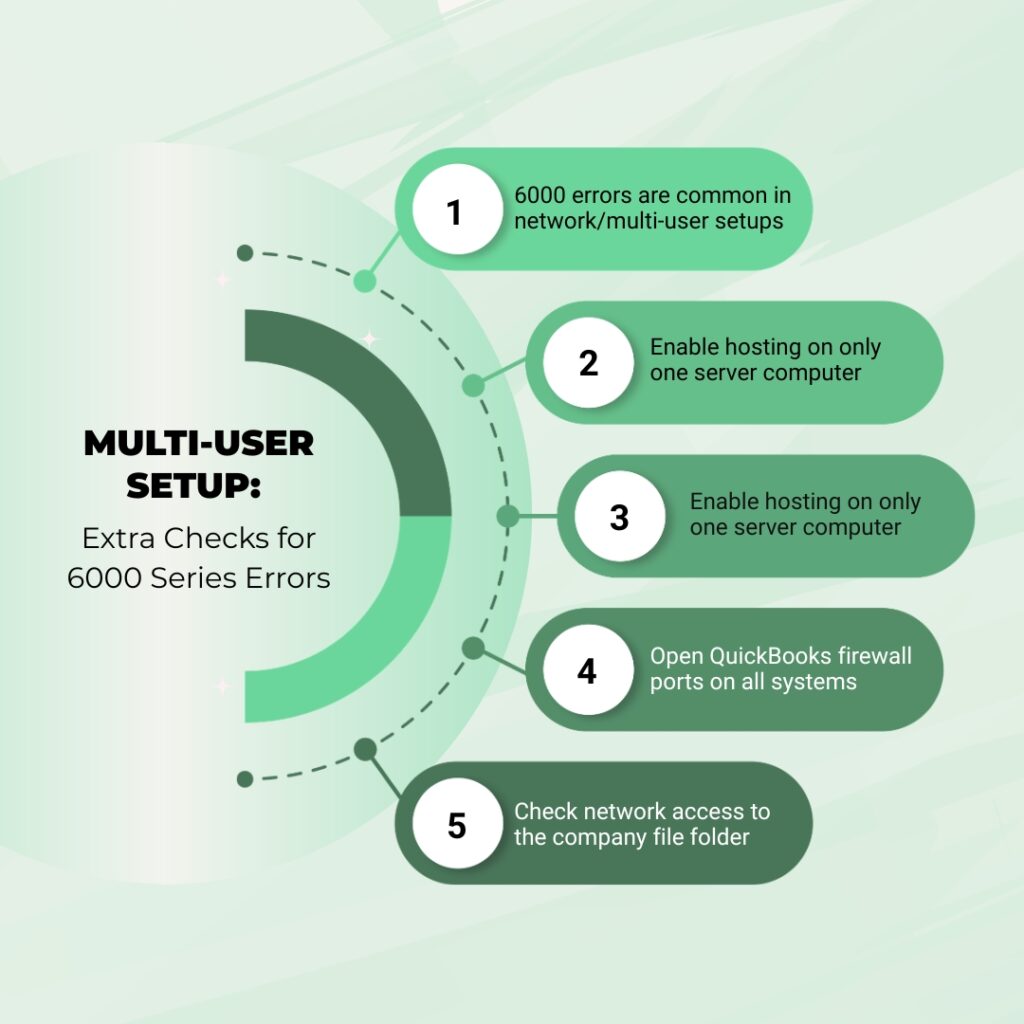
QuickBooks multi-user mode – where multiple computers access the same company file stored on a server or host computer – introduces additional causes of 6000 series errors beyond what single-user setups face. In multi-user mode, the company file is accessed over the office network, and every network-related factor – firewall rules, network drive letter assignments, QuickBooks Database Server Manager configuration, and hosting settings – can produce 6000 series errors on workstations while the host computer works fine. A workstation showing Error 6000-77 or 6177 while the host computer opens the file normally is almost always a multi-user configuration problem.
Confirm Only One Computer Is Set as the Host
In QuickBooks multi-user mode, only one computer should have hosting enabled. Hosting is the setting that designates one computer as the server that serves the company file to all other computers on the network. Enabling hosting on more than one computer causes Error 6000-82 by creating a conflict where two computers are each trying to serve the same file. Intuit confirmed this directly: hosting should be enabled only on the computer that stores the company file. On all other computers (the workstations), go to File > Utilities and confirm that “Host Multi-User Access” is shown (not “Stop Hosting Multi-User Access”). If “Stop Hosting” appears on a workstation, click it to disable hosting on that workstation.
Check Firewall Rules for QuickBooks Ports
Windows Firewall and third-party firewall programs block network communication between QuickBooks workstations and the server when the QuickBooks communication ports are not open. QuickBooks Desktop uses specific ports for each version: QuickBooks 2024 uses ports 8019 and 56728; QuickBooks 2025 uses ports 8019 and 56731. A firewall that blocks these ports blocks workstations from connecting to the company file, producing Error 6000-77 or 6177 on every workstation while the host computer opens fine. Adding these ports as Inbound and Outbound rules in Windows Firewall (Settings > Windows Firewall > Advanced Settings > New Rule > Port) resolves the firewall-caused variant of these errors.
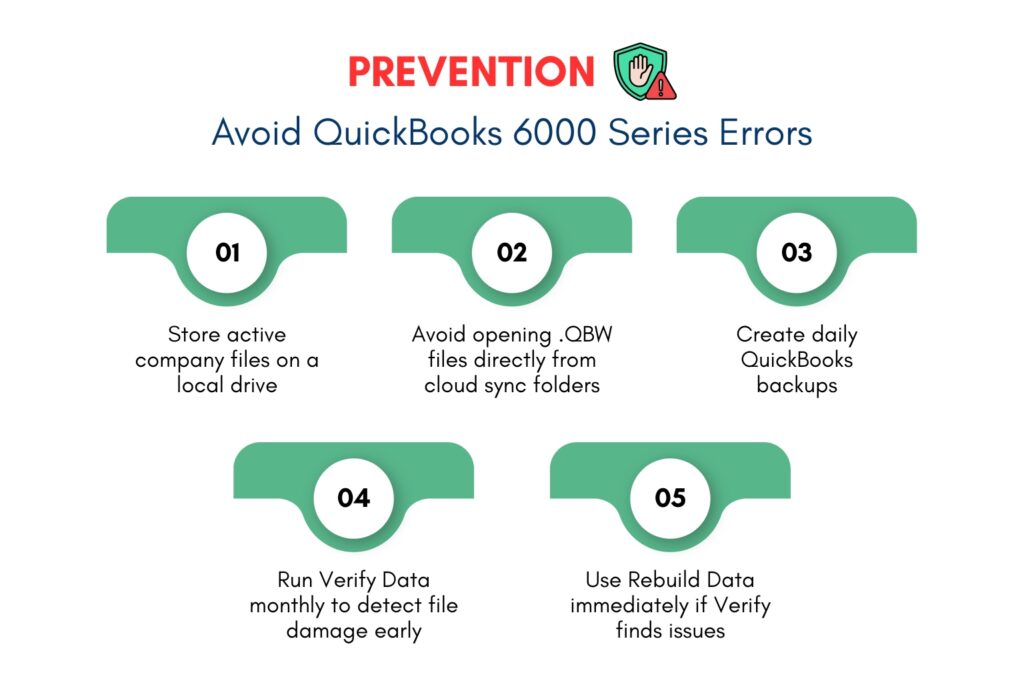
QuickBooks Prevention: Keep the QuickBooks 6000 Series Errors From Recurring
- Store the Company File on a Local Drive and Back Up to External or Cloud Storage
Intuit’s own guidance confirms the correct storage approach: keep the active company file on a local hard drive for fastest, most reliable access, and store backup copies on external drives or cloud storage. Cloud sync services like Dropbox, OneDrive, and Google Drive should not be used as the primary storage location for the active .QBW file because these services continuously sync the file by uploading changes in real time. QuickBooks also writes to the file continuously while it is running. Two simultaneous write operations on the same file – one from QuickBooks and one from the cloud sync service – corrupt the file and produce 6000 series errors.
- Back Up Daily and Verify Data Monthly
A daily backup through File > Back Up Company > Create Local Backup limits the data at risk to one day’s transactions in the event of a 6150 error caused by file damage. Monthly Verify Data runs (File > Utilities > Verify Data) catch internal company file damage before it grows severe enough to produce a 6150 or 6000-83 error. A monthly Verify run that reports clean data confirms the file is healthy. A Verify run that reports damage can be followed by Rebuild Data, which repairs most damage at the early stage when it is detected, before it compounds into the more severe damage that produces 6000 series errors.
Conclusion
QuickBooks 6000 series errors – 6000-77, 6150, and 6177 among others – are all company file access errors. They each mean QuickBooks encountered a specific obstacle when trying to open or read the company file. Error 6000-77 means the file cannot be found at the stored path. Error 6150 means the file was found but its contents cannot be read – due to damage, encryption, or the file not being a valid QuickBooks company file. Error 6177 means QuickBooks cannot access the file from its current location because it is on a network, external drive, or cloud sync service that QuickBooks cannot reach at startup.
The fastest resolution for all three errors is moving the company file to a local folder on the C: drive (Fix 1). This eliminates network path problems, external drive connectivity problems, and cloud sync conflicts simultaneously. For files that have actual internal damage after being moved, QuickBooks File Doctor (Fix 3) and Verify/Rebuild Data (Fix 5) repair most damage automatically. For files where damage is too severe for these tools, restoring from the most recent backup (Fix 2) is the most reliable path to resuming operations.
Intuit’s QuickBooks Tool Hub – free from Intuit’s official support page – contains QuickBooks File Doctor and the Database Server Manager in one application. QuickBooks File Doctor resolves most 6000 series errors automatically by combining file damage repair with network configuration repair in a single tool. Keeping the Tool Hub installed on every computer running QuickBooks means the primary repair tool for the 6000 series is always available the moment an error appears.
Frequently Asked Questions
1. QuickBooks Error 6000-77 appeared after moving the company file to a new computer. The file is visible in File Explorer on the new computer. Why can QuickBooks not find it?
The company file being visible in File Explorer but producing Error 6000-77 in QuickBooks means QuickBooks is looking for the file at the old path (the path from the previous computer) stored in the QBWUSER.INI settings file that was transferred with the migration.
QuickBooks reads this stored path first at startup and reports Error 6000-77 when it follows the stored path and finds nothing.
The fix is to open QuickBooks and go to File > Open or Restore Company > Open a Company File, then navigate manually to the folder where the company file is now stored on the new computer and open it directly. QuickBooks then updates its stored path to the new location and opens correctly on subsequent startups without producing the error.
2. QuickBooks Error 6150 appeared but there are no ransomware files in the folder. What other reasons cause a company file to become unreadable?
Without ransomware files present, Error 6150 is caused by one of three situations:
the company file has internal data damage from an interrupted save (caused by a power outage, network drop during a save in multi-user mode, or a forced QuickBooks shutdown during a transaction);
the company file was opened in a version of QuickBooks that is significantly newer than the version currently installed (the file format was upgraded and the current QuickBooks installation cannot read the newer format); or
the file that QuickBooks is trying to open is not actually a .QBW company file – it may be a backup file (.QBB), a portable file (.QBM), or a file with a .QBW extension that is actually a different type of document.
Running QuickBooks File Doctor distinguishes between these causes automatically and identifies the correct recovery path.
3. QuickBooks Error 6177 appears every time QuickBooks opens on a laptop that connects to the office server when in the office but is used at home without the server connection. Is there a fix that keeps both scenarios working?
Intuit’s confirmed documentation addresses this exact scenario. The fix is to keep a local copy of the company file on the laptop for use at home, and sync changes back to the server when back in the office. The laptop workflow: when at the office, open the company file from the server. When leaving, create a backup through File > Back Up Company > Create Local Backup and save it to the laptop’s local drive.
At home, restore that backup to the laptop’s local drive and work from the restored copy. When back in the office, restore the updated laptop backup to the server. This workflow avoids Error 6177 entirely because each location – the server and the laptop – only opens a copy of the file that is locally stored on that computer.
4. QuickBooks File Doctor ran and found no errors, but Error 6000-77 still appears. What is the next step?
A clean File Doctor result after Error 6000-77 means the company file itself is not damaged and the network configuration is not the cause. The error is being produced by the path stored in QuickBooks’ settings files – specifically the QBWUSER.INI file that stores the company file location. Resetting the QBWUSER.INI file forces QuickBooks to forget the incorrect stored path and ask for the file location fresh.
Navigate to C:\Users[Username]\AppData\Local\Intuit\QuickBooks[Year] (enabling Hidden Items in File Explorer first). Right-click QBWUSER.INI and rename it to QBWUSER.INI.old. Open QuickBooks – it will open to the No Company Open window. Navigate to the company file manually and open it. QuickBooks creates a new, correct QBWUSER.INI automatically.
5. QuickBooks Error 6000-1006 appeared and Rebuild Data could not fix it. The error still appears after the rebuild. What are the remaining options?
Error 6000-1006 that persists after Rebuild Data indicates Structural Damage – the internal database table header (a record at the beginning of a database table that tells QuickBooks what type of data the table contains and how it is organized) is corrupted beyond what Rebuild Data can auto-repair. Intuit’s documentation on Structural Damage states directly: if damage persists after Rebuild, send the file to Intuit Data Services.
Intuit Data Services is Intuit’s own professional data recovery team that uses specialized tools not available to end users to repair damage that self-service tools cannot address. Before sending to Data Services, attempt Auto Data Recovery (ADR) using the QuickBooksAutoDataRecovery folder, as ADR sometimes recovers data that Rebuild cannot fix. Restoring from the most recent clean backup is also faster than Data Services recovery and should be the first option when a current backup exists.