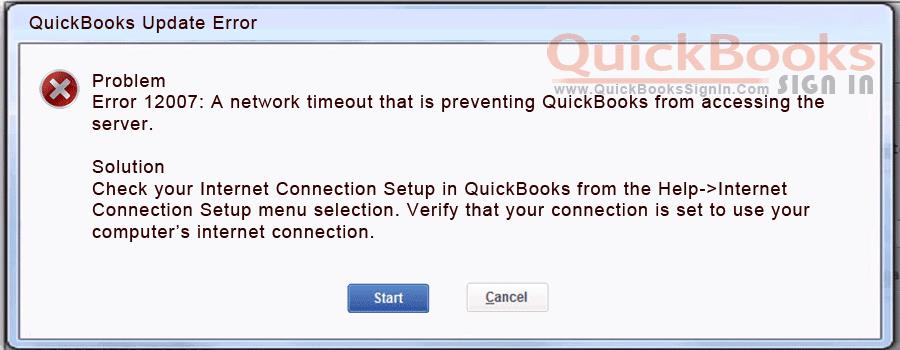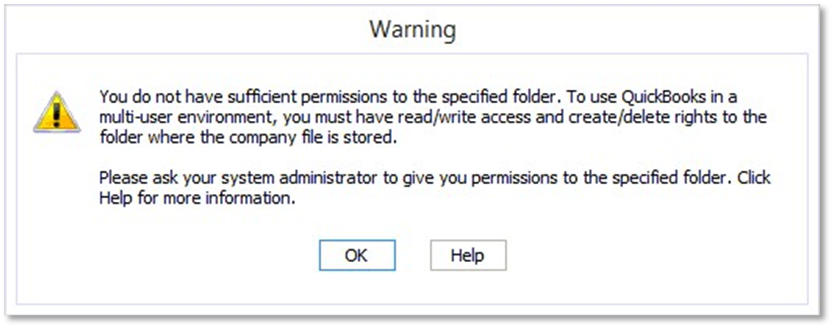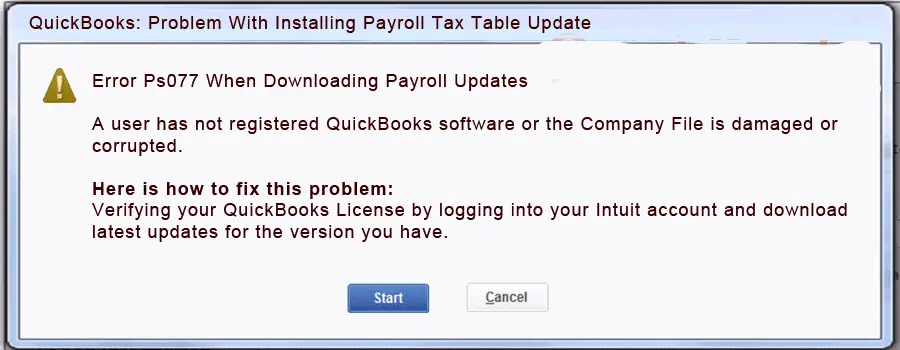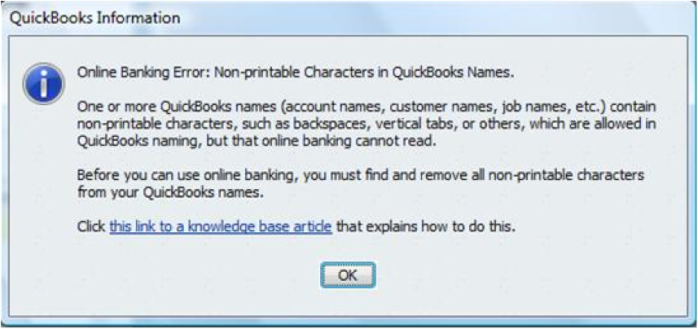
QuickBooks Desktop errors appear across six major categories – company file errors (6000 series), installation and update errors (1600 series), payroll errors (PSXXX series), multi-user and network errors (H series), data damage errors, and performance errors. Each category has its own error codes, its own root causes, and its own fix.
QuickBooks Desktop errors mostly lead to the following broad categories of issues:
- Accessing company file
- Data integrity in the company file
- Issues related to QuickBooks update and installation
- Payroll related issues
- Accessing updated taxation tables
- Reconciling errors
- Network access to QuickBooks resources and specially company file
- Slowing down of QuickBooks desktop software
The reason QuickBooks Desktop keeps recurring for many businesses is not a software defect – it is a predictable pattern of neglected maintenance. Outdated software, improperly configured firewalls, damaged network files, large unarchived company files, and missing Windows components are responsible for the overwhelming majority of QuickBooks Desktop errors. Addressing these conditions before an error appears is faster and less disruptive than repairing the damage after payroll stops or a company file locks up.
This article covers every major QuickBooks Desktop error category: what each error means in simple terms, why it occurs, what damage it causes if ignored, and the specific steps that prevent it from appearing in the first place.
Table of Contents
Identify Your QuickBooks Error in 60 Seconds
Before diving into technical explanations, identify your issue based on what you’re experiencing right now:
| If you are facing this issue | Go to this section |
| Company file won’t open / shows error (-6000, -6177, -6190) | Company File Errors (6000 Series) |
| QuickBooks fails to install or update (Error 1603, 1722, 1904) | Installation Errors (1600 Series) |
| Payroll not updating / subscription error (PS033, PS036, PS107) | Payroll Errors (PSXXX Series) |
| Multi-user mode not working / H202, H505 error | Network Errors (H Series) |
| Reports incorrect / missing transactions / balance mismatch | Data Damage Errors |
| QuickBooks freezing, crashing, or running slow | Performance Errors |
Tip: If you see an error code, match the number series first. It immediately tells you where the problem lies.
Understanding QuickBooks Desktop Errors
QuickBooks Desktop errors are system-generated failure codes that appear when the software cannot complete a task when it was instructed to perform. These tasks include opening a company file, installing an update, connecting multiple computers to a shared file, processing payroll, and saving accounting data. Each error code directly identifies the component that failed, which is what makes them useful for diagnosing and fixing problems.
Most QuickBooks Desktop errors originate from five core system conditions:
- file integrity failures (where a company file or program file contains damaged data),
- configuration problems (where network, firewall, or hosting settings are incorrect),
- security software restrictions (where antivirus or Windows Firewall blocks QuickBooks processes),
- an outdated software environment (where the QuickBooks version or Windows components no longer match what the software requires), and
- resource limitations (where the computer does not have enough memory or disk space to run QuickBooks properly).
Understanding which category an error falls into is the first step toward fixing it. Identifying the category eliminates guesswork and directs troubleshooting to the right component immediately.
- A 6000 series error always points to a company file problem.
- An H series error always points to a network or multi-user configuration problem.
- A 1600 series error always points to an installation failure.
Categories of Common QuickBooks Desktop Errors
1. Company File Errors (6000 Series)
What They Are?
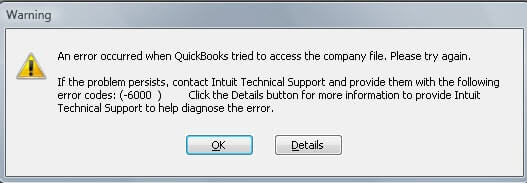
The 6000 series errors appear when QuickBooks Desktop cannot open, access, or restore a company file – the .QBW file that stores all of a business’s accounting data. Common codes include -6000, -6000 77, -6000 82, -6000 83, -6177, and -6190. Each secondary code after the dash narrows down the specific cause.
For example, -6000 83 means the company file is being accessed by another user or process that has locked it, while -6177 means QuickBooks cannot find the file at the path it last used.
Root Causes
The root causes for Company File Errors (6000 Series) are given below:
- A damaged .ND file (Network Descriptor file), which is a small configuration file QuickBooks creates alongside every company file to tell the software how to find and connect to it on a network – when this file is corrupted, QuickBooks loses its connection path to the company file.
- A corrupted .TLG file (Transaction Log file), which records every accounting entry in real time as a safety backup – damage to this file causes QuickBooks to reject the company file as untrustworthy.
- The company file is stored on an external drive, USB device, or unstable network location that QuickBooks cannot reliably access.
- Firewall or antivirus software blocking the QuickBooks Database Server Manager service, which is the background process that manages multi-user access to the company file.
- Incorrect hosting configuration where more than one computer on the network is set to host the company file, creating a conflict over which machine has authority.
Impact
Company file errors stop all accounting work immediately. Nobody on the team can open the file, enter transactions, generate reports, or run payroll until the error is resolved. In a multi-user office, this can lock out an entire accounting team during critical periods such as month-end close or tax filing deadlines. Prolonged inability to access the company file also risks data loss if the underlying file corruption is not caught early.
Prevention
Undertake following preventive measures to avoid performance issues in QuickBooks Desktop. These measures will help to avoid freezing and slow performance of QuickBooks Desktop.
- Store the company file on a dedicated server or the main host computer’s local hard drive – never on a USB drive, external hard drive, or directly on a network-attached storage device.
- Use QuickBooks File Doctor (available free from Intuit’s QuickBooks Tool Hub) at least once a month to scan and repair .ND and .TLG files before they cause a 6000 series error.
- Configure the firewall to allow the QuickBooks Database Server Manager through – this service must run unblocked on the host computer for multi-user connections to work.
- Set hosting to “local files only” on every workstation and enable it only on the one computer that physically stores the company file, preventing the hosting conflict that triggers many 6000 errors.
- Always exit QuickBooks using File > Exit rather than closing the window directly or turning off the computer while the file is open, as abrupt closures corrupt .TLG files.
2. Installation & Update Errors (1600 Series)
What They Are?
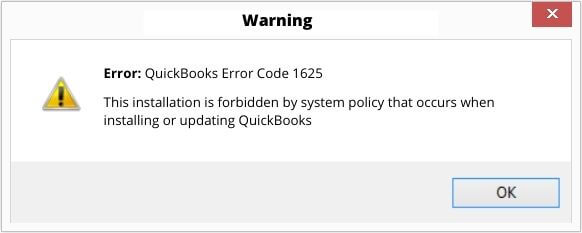
The 1600 series errors appear during QuickBooks Desktop installation or software updates. Common codes include 1603, 1612, 1722, and 1904. Error 1603 is the most frequent and displays the message “The update installer has encountered an internal error.”
1600 series errors stop QuickBooks from installing new versions, applying maintenance releases, or updating components – leaving the software on an outdated build that is incompatible with current payroll updates and operating system features.
Root Causes
The root causes for Installation & Update Errors (1600 Series) are mentioned below:
- Damaged or missing Microsoft .NET Framework components – .NET Framework is a Windows software layer that QuickBooks depends on to run its installation process, and without it working correctly, the installer stops partway through.
- Corrupted MSXML (Microsoft XML Core Services) or Microsoft C++ Redistributable files, both of which QuickBooks uses internally to process data during installation.
- An interrupted installation caused by a power outage, forced computer shutdown, or antivirus program terminating the installer mid-process.
- Insufficient Windows administrator permissions, meaning the user account running the installation does not have the rights to write files to protected system folders.
- Outdated Windows operating system components that are no longer compatible with the QuickBooks version being installed.
Impact
Installation and update errors leave QuickBooks stuck on an old version. Older versions cannot process the latest payroll tax tables released by Intuit, creating immediate compliance risk for businesses that run payroll.
Missing features, incompatibility with newer Windows updates, and unstable performance are all consequences of running an installation that could not complete successfully. In some cases, a failed partial installation corrupts the existing QuickBooks program files, making the software unusable until a clean reinstall is performed.
Prevention
Undertake following preventive measures to avoid performance issues in QuickBooks Desktop. These measures will help to avoid freezing and slow performance of QuickBooks Desktop.
- Always run the QuickBooks installer or update process from a Windows administrator account – right-click the QuickBooks icon and choose “Run as Administrator” to ensure the installer has the permissions it needs.
- Keep Windows fully updated before installing or updating QuickBooks, paying specific attention to .NET Framework updates listed under Windows Update, as these are prerequisites for the installer.
- Download and run the QuickBooks Install Diagnostic Tool from Intuit’s Tool Hub before any major installation – this tool repairs .NET Framework, MSXML, and C++ Redistributable files automatically.
- Temporarily disable antivirus software during the installation process only, then re-enable it immediately after, to prevent security software from terminating the installer.
- Download QuickBooks installation files only from Intuit’s official website to guarantee the package is complete and unmodified.
3. Payroll Errors (PSXXX Series)
What They Are?
The PSXXX payroll errors appear when QuickBooks Desktop cannot download tax table updates, validate the payroll subscription, or connect to Intuit’s payroll servers. The most common codes are PS033, PS036, PS058, PS101, and PS107.
PS033 means QuickBooks cannot read files in the CPS folder (the internal folder that stores payroll setup data). PS036 means the payroll subscription cannot be verified. PS058 means the update files failed to install due to corruption. PS101 means the connection to Intuit’s servers was blocked. PS107 means an internal file became unreadable during the update process.
Root Causes
The root causes for Payroll Errors (PSXXX Series) are given below:
- A corrupted CPS folder – the CPS (Common Payroll Setup) folder stores payroll configuration files and tax table data on the local computer; damage from an interrupted update or an abrupt shutdown makes these files unreadable.
- An inactive, expired, or incorrectly configured payroll subscription, where Intuit’s servers cannot confirm the account is paid and active.
- Firewall or antivirus software blocking QuickBooks from reaching Intuit’s payroll servers, specifically blocking outbound traffic on ports 80 and 443.
- An outdated QuickBooks Desktop version that cannot process the format of the newer payroll update package Intuit is delivering.
- Windows User Account Control (UAC) settings preventing QuickBooks from writing updated payroll files to protected folders.
Impact
Payroll errors stop tax table downloads and freeze payroll processing. Tax tables contain the current federal and state withholding rates for income tax, Social Security, and Medicare.
Running payroll with an outdated tax table produces wrong withholding amounts on every paycheck, which creates IRS penalties for under-withholding and employee disputes over overpayment. Businesses using direct deposit are also affected because deposit file submissions also require a live server connection to Intuit.
Prevention
Undertake following preventive measures to avoid performance issues in QuickBooks Desktop. These measures will help to avoid freezing and slow performance of QuickBooks Desktop.
- Update QuickBooks Desktop to the latest release immediately when Intuit releases one – go to Help > Update QuickBooks Desktop and install all available updates.
- Verify the payroll subscription is active quarterly by going to Employees > My Payroll Services > Account/Billing Information and confirming the status shows Active and the payment method is current.
- Add QuickBooks to the Windows Firewall exception list and configure antivirus software to exclude the CPS folder and the QuickBooks installation directory from real-time scanning.
- Never close QuickBooks or shut down the computer while a payroll update is downloading, as this is the primary cause of CPS folder corruption.
4. Multi-User & Network Errors (H Series)
What They Are?
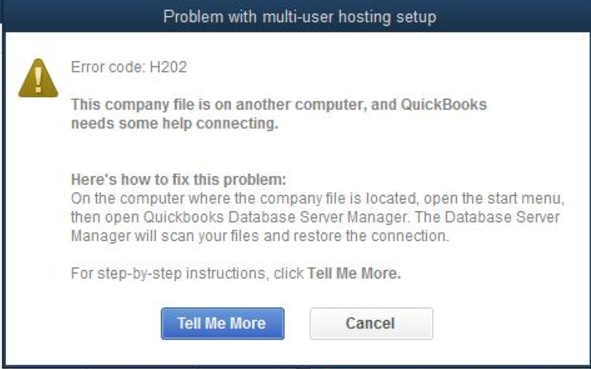
The H series errors appear when a workstation computer tries to open a company file stored on another computer (the host) and cannot establish a connection. The most common codes are H202 and H505. Error H202 displays the message: “This company file is on another computer, and QuickBooks needs some help connecting.”
H series errors are exclusively multi-user mode problems – they do not appear when only one person uses QuickBooks on a single computer.
Root Causes
The root causes for Multi-User & Network Errors (H Series) are mentioned below:
- The QuickBooksDBXX service (the Database Server Manager background service that manages multi-user file access) is not running on the host computer, preventing workstations from making a connection.
- Incorrect hosting configuration where multiple computers on the network are set to host the company file simultaneously, creating a conflict.
- Firewall settings on the host computer blocking the ports QuickBooks uses for multi-user communication – specifically the dynamic ports assigned by QuickBooks Database Server Manager for each software version.
- A damaged .ND file that contains incorrect or unreadable network path information, pointing workstations to the wrong location for the company file.
- DNS resolution problems on the network where workstations cannot reliably resolve the host computer’s name to its IP address, breaking the connection before it starts.
Impact
H series errors lock out all workstations from the company file while the host computer can still access it locally. In a multi-user accounting environment, this means the entire accounting team – accounts payable, accounts receivable, payroll staff – loses access simultaneously. Team productivity stops completely. Any work that must be completed by a deadline – payroll runs, vendor payments, month-end reporting – cannot proceed until the network connection is restored.
Prevention
Undertake following preventive measures to avoid performance issues in QuickBooks Desktop. These measures will help to avoid freezing and slow performance of QuickBooks Desktop.
- Install QuickBooks Database Server Manager on the host computer and confirm the QuickBooksDBXX service is set to start automatically in Windows Services – right-click the service, go to Properties, and set Startup Type to Automatic.
- Set hosting to local files on every workstation (Utilities > Stop Hosting Multi-User Access) and enable it only on the server or host computer that stores the company file.
- Open the required firewall ports for your QuickBooks version – Intuit publishes the exact port numbers for each version – and add exceptions for the QuickBooks executable and Database Server Manager service.
- Run QuickBooks File Doctor from the Tool Hub whenever an H series error appears, as it automatically detects and repairs .ND file corruption and hosting configuration problems.
5. Data Damage Errors
What They Are?
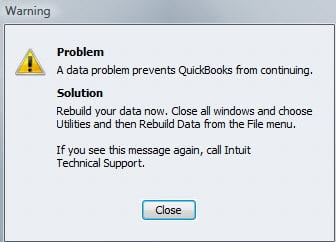
Data damage errors occur when the QuickBooks company file contains internal inconsistencies – records that contradict each other, transactions that reference accounts that no longer exist, or file structures that QuickBooks cannot read.
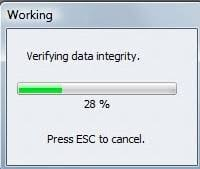
Data damage errors do not always display a single error code. Instead, they surface as balance sheet totals that do not balance, reports that show incorrect figures, transactions that disappear or duplicate, or the software crashing when running specific reports. Intuit’s Verify Data tool (File > Utilities > Verify Data) is the diagnostic that identifies data damage and reports it with the message “Your data has lost integrity.”
Root Causes
The root causes for Data Damage Errors are given below:
- Power outages or computer shutdowns while QuickBooks is open and actively writing data to the company file, leaving a transaction partially recorded.
- A company file that has grown too large without archiving old data – Intuit recommends keeping QuickBooks Pro and Premier files below 200–300 MB to avoid performance and corruption risks.
- Hard disk errors or failing storage hardware that writes data incorrectly or reads it back with errors.
- Network instability in multi-user mode where a dropped connection interrupts a transaction as it is being saved, leaving incomplete data in the file.
- Malware or virus infections that modify or delete data inside the company file.
Impact
Data damage produces financial reporting errors that can go undetected for months. A balance sheet that does not balance, an accounts receivable total that does not match individual invoice records, or payroll tax figures that contradict the general ledger are all symptoms of underlying data corruption.
If left unrepaired, data damage errors affect more over time – each new transaction that references a corrupted record adds more inconsistencies until the file becomes too unstable to open or rebuild.
Prevention
Undertake following preventive measures to avoid performance issues in QuickBooks Desktop. These measures will help to avoid freezing and slow performance of QuickBooks Desktop.
- Run the Verify Data tool monthly (File > Utilities > Verify Data) and immediately follow it with the Rebuild Data tool if it reports data integrity loss – always create a backup before running Rebuild Data.
- Use a wired network connection for all computers that access QuickBooks in multi-user mode, as wireless connections drop more frequently and create more incomplete write operations.
- Set QuickBooks to create an automatic backup before every session (File > Back Up Company > Create Local Backup > Options) so that a clean restore point is always available.
- Archive old transactions annually using the Condense Data feature to keep the company file below Intuit’s recommended size limits for your QuickBooks version.
- Store the company file on a reliable solid-state drive (SSD) rather than an aging mechanical hard drive to reduce the risk of disk read/write errors corrupting the file.
6. Performance Errors (Freezing & Crashing)
What They Are?
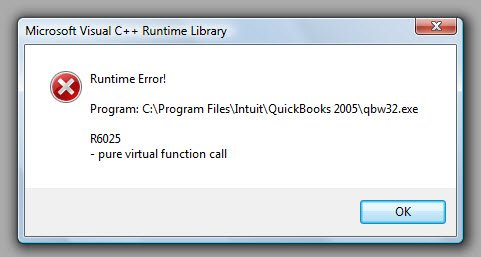
Performance errors include QuickBooks freezing mid-task, crashing with an “Unrecoverable Error” message followed by a 10-digit error code, loading extremely slowly, or becoming completely unresponsive when opening reports or switching between windows.
Performance errors are not caused by a single broken component – they are the visible result of multiple compounding issues: an oversized company file, insufficient system memory, background process conflicts, or a damaged QBWUSER.ini file. The QBWUSER.ini file is a small settings file QuickBooks uses to remember the last-opened company file; when it is damaged, QuickBooks crashes on startup before the file even opens.
Root Causes
The root causes for Performance Errors (Freezing & Crashing) are given below:
- A company file that has grown too large for the available system memory, causing QuickBooks to run out of RAM while trying to load or process data.
- Too many background applications running simultaneously consuming CPU and memory that QuickBooks needs to function without freezing.
- A damaged or outdated QuickBooks installation where program files have been partially overwritten by a failed update, causing specific functions to crash.
- Incompatibility between the QuickBooks version and a recent Windows update that changed the behavior of a system component QuickBooks depends on Microsoft .NET Framework, MSXML, or critical Windows APIs, that can disrupt core application functions.
- A corrupted QBWUSER.ini file that causes QuickBooks to crash immediately on startup when it tries to open the last-used company file.
Impact
Performance errors interrupt work without warning and can cause data loss if QuickBooks crashes while a transaction is being saved. An Unrecoverable Error closes QuickBooks instantly – any unsaved work is lost and must be re-entered.
Chronic freezing, where QuickBooks becomes unresponsive during routine tasks, often forces users to close the program manually. This increases the risk of company file corruption, as QuickBooks cannot properly save the .TLG transaction log. Over time, repeated forced closures commonly lead to 6000 series company file errors.
Prevention
Undertake following preventive measures to avoid performance issues in QuickBooks Desktop. These measures will help to avoid freezing and slow performance of QuickBooks Desktop.
- Ensure the computer running QuickBooks meets Intuit’s minimum hardware requirements for the installed version – at least 8 GB of RAM is recommended for smooth performance, with 16 GB preferred for large company files.
- Close unnecessary applications before opening QuickBooks to free up memory and CPU capacity for the software.
- Keep QuickBooks updated to the latest release so that incompatibilities introduced by Windows updates are patched by Intuit promptly.
- If QuickBooks crashes on startup, rename the QBWUSER.ini file (found at C:\Users\[Username]\AppData\Local\Intuit\QuickBooks) to QBWUSER.ini.old, which forces QuickBooks to create a fresh settings file on the next launch.
- Run Quick Fix My Program from the Program Problems tab in the QuickBooks Tool Hub before starting QuickBooks each morning to clear stale background processes that accumulate overnight and slow performance.
QuickBooks Error Categories at a Glance
| Error Category | What Breaks | Root Cause | First Tool to Use |
| 6000 Series | Company file access | File corruption / network | File Doctor |
| 1600 Series | Installation/update | Windows components | Install Diagnostic Tool |
| PSXXX Series | Payroll | Subscription / connection | Update + Tool Hub |
| H Series | Multi-user | Network / hosting | Database Server Manager |
| Data Damage | Reports/data | File integrity | Verify & Rebuild |
| Performance | Speed/crash | Memory / file size | Quick Fix My Program |
System-Level Causes Behind Most QuickBooks Desktop Errors
Across all six error categories, the same five system-level failures appear repeatedly as root causes. Fixing individual errors without addressing these underlying conditions guarantees the errors will return.
1. File Integrity Failures
Corrupted or damaged files – whether the company file (.QBW), the network descriptor file (.ND), the transaction log file (.TLG), or internal program files – prevent QuickBooks from reading data correctly.
File corruption is the root cause of 6000 series errors, data damage errors, and performance crashes. Intuit’s Verify Data tool and File Doctor are the primary instruments for detecting and repairing file integrity problems.
2. Configuration Problems
Incorrect hosting settings, wrong network paths, misconfigured firewall rules, and improper Windows permissions all prevent QuickBooks from finding or connecting to the resources it needs.
H series multi-user errors and 6000 series errors are almost always configuration problems at their core. Correcting the configuration – rather than just restarting the software – is what prevents these errors from repeating.
3. Security Software Restrictions
Windows Firewall and third-party antivirus programs are designed to block unknown or suspicious outbound connections. QuickBooks processes like QBW32.exe, QBCFMonitorService.exe, and QuickBooksDBXX.exe all make regular outbound connections to Intuit’s servers and to other computers on the local network.
When security software blocks QBW32.exe, QBCFMonitorService.exe, and QuickBooksDBXX.exe regular outbound connections without an explicit exception, the result is payroll errors (PS101), multi-user errors (H202), and update failures (1603).
4. Outdated Software Environment
Intuit releases QuickBooks Desktop updates to maintain compatibility with current Windows versions, current payroll tax rates, and current security standards.
A QuickBooks version that is more than one release behind becomes progressively more likely to fail – payroll updates will not install, new Windows components will conflict with old program files, and Intuit’s servers may stop accepting connection requests from unsupported versions.
According to Intuit, QuickBooks Desktop versions are supported for approximately three years before reaching end-of-life status.
5. Resource Limitations
QuickBooks Desktop requires adequate RAM, disk space, and CPU headroom to operate reliably. A computer that meets the minimum requirements when QuickBooks is the only program running will struggle to maintain stability when other applications are also consuming resources.
Large company files worsen performance issues by requiring more memory and processing power for every operation. This increased demand often leads to slow performance, freezing, or crashes if the system resources are insufficient.
Upgrading hardware and archiving old data are essential for maintaining long-term stability and performance in QuickBooks Desktop.
Prevention Framework: How to Avoid QuickBooks Desktop Errors
1. Maintain an Updated Software Environment
Every QuickBooks Desktop release from Intuit includes fixes for known errors, compatibility updates for current Windows versions, and security improvements. Running an outdated version is the single most predictable path to recurring errors. Go to Help > Update QuickBooks Desktop each month, select the Update Now tab, and click Get Updates to install every available release.
Windows updates are equally important because QuickBooks depends on Microsoft components – .NET Framework, MSXML, and C++ Redistributable – that Windows updates maintain. Keeping Windows fully patched ensures these components remain compatible with QuickBooks and eliminates a major cause of 1600 series installation errors.
2. Implement File Management Best Practices
The company file is the most critical asset in a QuickBooks environment. Store it on a dedicated host computer’s local hard drive, not on a USB drive, external disk, or shared network folder. Set up automatic backups before each session (File > Back Up Company) so that every day’s work is protected before it begins. Keep at least two backups – one local and one off-site or in a secure cloud storage location.
Archive old transactions annually using the Condense Data feature to keep the file size manageable. Large company files – over 200 MB for Pro and Premier, and over 1 GB for Enterprise – are a documented source of freezing, crashing, and data corruption. Condensing removes closed transaction detail while preserving summary balances, reducing file size without losing accounting history.
3. Optimize Security Configurations
QuickBooks requires outbound access on ports 80 (standard web traffic) and 443 (encrypted web traffic) to connect to Intuit’s servers. Add QuickBooks executable files and the QuickBooks Database Server Manager as explicit exceptions in Windows Firewall. Go to Control Panel > System & Security > Windows Defender Firewall > Allow an App through Firewall and add QuickBooks with both private and public network access enabled.
Configure antivirus software to exclude the QuickBooks installation directory, the company file folder, and the CPS folder from real-time scanning. Real-time scanning that inspects QuickBooks files as they are being written causes write failures that corrupt data and trigger errors across all six error categories.
4. Use Built-In Diagnostic Tools
The QuickBooks Tool Hub is a free utility from Intuit that consolidates the most important repair tools into one application. The Program Problems tab contains Quick Fix My Program, which stops all QuickBooks background processes and restarts the application with a clean state – this resolves most freezing and crashing issues in under two minutes. The Network Issues tab runs the QuickBooks Database Server Manager to repair H series multi-user errors. The Company File Issues tab opens QuickBooks File Doctor, which repairs .ND and .TLG files and resolves 6000 series errors. The Installation Issues tab runs the Install Diagnostic Tool, which repairs .NET Framework and other Microsoft components that cause 1600 series errors.
Run Quick Fix My Program before starting a payroll run, before downloading a major update, and any time QuickBooks has been running slowly. This clears accumulated background process conflicts before they escalate into visible errors.
5. Monitor System Performance
QuickBooks Desktop performance degrades when the computer runs out of available memory or CPU capacity. Check Task Manager (Ctrl + Shift + Esc) while QuickBooks is open to see how much RAM and CPU the system is using. If QuickBooks consistently consumes more than 80% of available RAM, the computer needs a memory upgrade or the company file needs to be condensed. Intuit recommends a minimum of 8 GB of RAM for QuickBooks Desktop, with 16 GB preferred for large files or multi-user environments.
Avoid running other resource-intensive applications – such as antivirus scans, video conferencing software, or large spreadsheet files – simultaneously with QuickBooks. These programs compete for the same memory and CPU that QuickBooks needs to process transactions and generate reports without freezing.
6. Establish Routine Maintenance
Run the Verify Data tool (File > Utilities > Verify Data) every month to scan the company file for internal inconsistencies. This scan takes only a few minutes and catches data corruption before it produces visible errors in financial reports. If Verify Data reports data integrity loss, run the Rebuild Data tool immediately. According to Intuit’s own support documentation, Verify and Rebuild should always be run in sequence – verify first to identify problems, rebuild to repair them, then verify again to confirm the repair was successful.
Check the qbwin.log file – a text log QuickBooks writes automatically that records errors and warnings – when recurring problems appear without a clear cause. This log is stored in the QuickBooks installation folder and contains the technical description of every error QuickBooks encountered, providing a trail for diagnosing persistent issues that do not display a user-facing error code.

| QuickBooks Maintenance Checklist | |
| Daily | Open QuickBooks using proper exit/close processAvoid forced shutdownsPreferably use windows admin account to access QuickBooks |
| Weekly | Run Quick Fix My ProgramCheck for QuickBooks updates |
| Monthly | Run Verify & Rebuild DataBackup company fileReview file size |
| Quarterly | Verify payroll subscriptionReview firewall & antivirus settings |
Risk Assessment: What Happens If Errors Are Ignored?
QuickBooks Desktop errors do not resolve themselves over time. Each unaddressed error creates the conditions for the next, more severe failure. The business consequences of ignoring error codes extend well beyond the technical inconvenience of a frozen screen.
- Company file errors left unrepaired grow into file corruption – what starts as a damaged .ND file that prevents multi-user access escalates into a 6000 series error that blocks the file entirely, and eventually into data corruption that requires restoration from backup
- Payroll errors that stop tax table downloads cause every subsequent payroll run to use outdated withholding rates, creating underpayment or overpayment of federal and state taxes that the IRS will identify during a payroll tax audit
- Installation errors that prevent updates from completing leave QuickBooks on an old version that Intuit’s servers may eventually stop accepting connections from, breaking payroll updates, bank feeds, and subscription validation simultaneously
- Data damage that is not caught by Verify Data and allowed to grow for months or years may eventually exceed the Rebuild Data tool’s ability to repair it, leaving restoration from the last clean backup as the only option – and losing all data entered since that backup was created
- Performance errors that cause repeated forced closures of QuickBooks progressively corrupt the .TLG transaction log file with each abrupt shutdown, eventually triggering 6000 series company file errors that were entirely preventable
Errors tend to escalate over time, turning minor configuration issues into critical system failures. Addressing them at first appearance costs minutes. Addressing them after they compound costs hours, days, or data.
Conclusion
Common QuickBooks Desktop errors – across the 6000, 1600, PSXXX, H, data damage, and performance categories – share a common thread: they are predictable failures caused by identifiable conditions that maintenance prevents. A damaged company file, a misconfigured firewall, an expired subscription, an outdated software version, or insufficient system resources will each produce a specific, documented error code that points directly to the fix.
Consistent updates, proper file storage, correctly configured security software, routine use of Intuit’s diagnostic tools, and monthly Verify and Rebuild scans eliminate the root causes behind the vast majority of QuickBooks Desktop errors before they interrupt accounting operations.
The QuickBooks Tool Hub provides every major repair utility in one place – Quick Fix My Program, File Doctor, Install Diagnostic Tool, and Database Server Manager – making routine maintenance fast and accessible for any user.
A well-maintained QuickBooks Desktop environment is not defined by how quickly errors are fixed – it is defined by how rarely they appear. Businesses that treat maintenance as an ongoing process rather than an emergency response keep their accounting data accurate, their payroll compliant, and their team productive without recurring disruptions.
Frequently Asked Questions
1. Why does QuickBooks work on my server but fail on all other workstation computers?
This is the classic symptom of a hosting conflict or an H-series error. While the host computer can access the file locally, workstations rely on a network path. If your workstations can’t connect, it usually means the QuickBooks Database Server Manager service has stopped on the host, or the host’s firewall is blocking the specific dynamic ports required for “talking” to the workstations. Restoring the connection requires checking the server’s background services, not the workstations themselves.
2. Can I use a wireless (Wi-Fi) connection to access my QuickBooks company file?
Technically yes, but it is highly discouraged for data safety. Unlike a web browser, QuickBooks requires a constant, uninterrupted stream of data to write to the company file. Even a split-second drop in a Wi-Fi signal can result in a “partially written” transaction. This is the primary trigger for .TLG file corruption and data damage errors that eventually lead to the dreaded 6000 series error codes.
3. Does “forcing” QuickBooks to close via Task Manager actually damage my data?
Yes. When you use “End Task” or a hard reset on a frozen QuickBooks screen, the software cannot properly close the Transaction Log (.TLG) file. This file acts as the bridge between your entries and the permanent database. Forcing a shutdown often leaves the log in an “open” or “corrupted” state, which is why your file may fail to open the next morning, showing a -6000 series error.
4. Will upgrading my computer’s RAM or switching to an SSD fix QuickBooks freezing?
It depends on the root cause. If QuickBooks freezes while running large reports, an upgrade to 16GB of RAM and an SSD will significantly improve speed. However, if the freezing happens when opening the file or switching users, the issue is likely a damaged .ND (Network Descriptor) file or a file size that has exceeded the 200–300 MB threshold. Hardware upgrades cannot fix internal file structure damage.
5. Why can’t I just manually enter tax rates instead of fixing Payroll Update errors?
QuickBooks Desktop is designed to use calculated logic from encrypted tax tables to ensure compliance with federal and state regulations. Manually overriding rates doesn’t fix the underlying subscription validation issue. If the PSXXX error isn’t resolved, QuickBooks may eventually disable the payroll module entirely, and manual entries will not generate the necessary tax forms (like 941s or W-2s) accurately, leading to high-risk IRS audit penalties.