
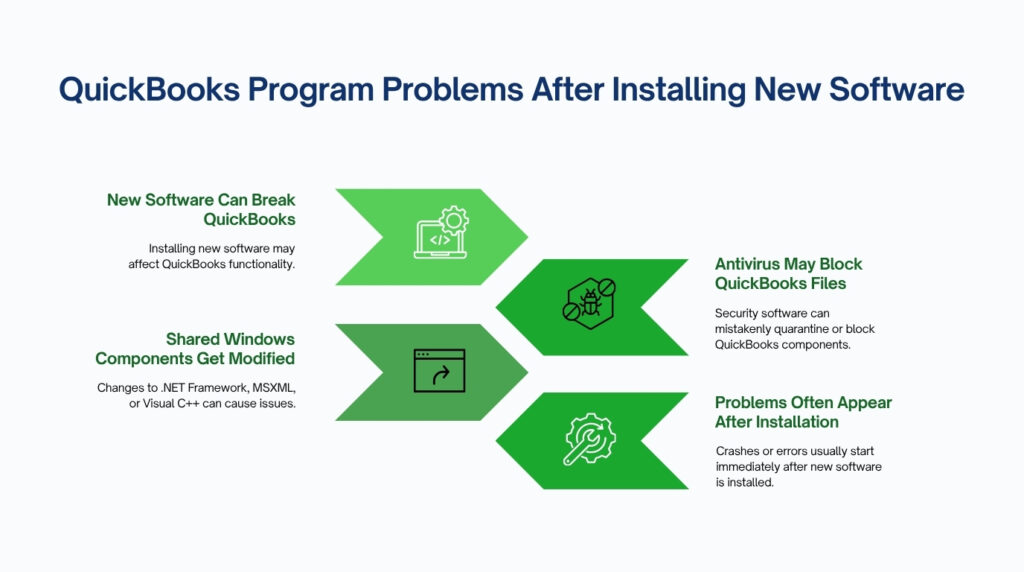
QuickBooks Desktop breaks after new software is installed because both QuickBooks and the new program share the same underlying Windows components — and the new software can damage, overwrite, or block those components during its own installation. The most common components affected are Microsoft .NET Framework, Microsoft MSXML, and Microsoft Visual C++ Redistributable — three sets of files that QuickBooks depends on to open, display screens, and process company file data. Antivirus and security tools cause a separate but equally common problem: they block QuickBooks files in real time, treating them as unknown threats immediately after they are installed.
The connection between new software and a QuickBooks problem is not always obvious because the damage is not visible — QuickBooks looks the same, but a critical file it depends on is missing, blocked, or replaced with an incompatible version. A QuickBooks crash that starts the day after a new program was installed almost always traces back to one of these shared Windows components being changed by the new installation.
This article explains why new software breaks QuickBooks, identifies the specific Windows components involved, and provides the exact steps to fix every category of problem — based on Intuit’s official guidance.
Table of Contents
Diagnose Your Problem in 60 Seconds
Match your specific symptom and the timing of when it started to identify the most likely cause before working through any fixes.
| What You Are Seeing | When It Started | Most Likely Cause |
| QuickBooks crashes immediately on launch | Right after installing new software | New software damaged .NET Framework or MSXML — the Windows components QuickBooks runs on |
| QuickBooks opens but freezes mid-task | After a new antivirus or security tool was installed | Antivirus is blocking QuickBooks files in real time |
| QuickBooks shows an Unrecoverable Error code | After a Windows update installed alongside new software | QBWUSER.ini configuration file is damaged |
| QuickBooks opens but can’t connect to company file | After installing a new networking or firewall tool | New software is blocking the ports QuickBooks uses to access the company file |
| A specific QuickBooks feature stopped working (print, PDF, payroll) | After new print software or a system tool was installed | New software is conflicting with a QuickBooks component that handles that specific function |
| QuickBooks was working fine but now won’t open at all | After a new program was removed | The uninstaller removed a shared Windows component that QuickBooks also depends on |
Why Installing New Software Breaks QuickBooks?
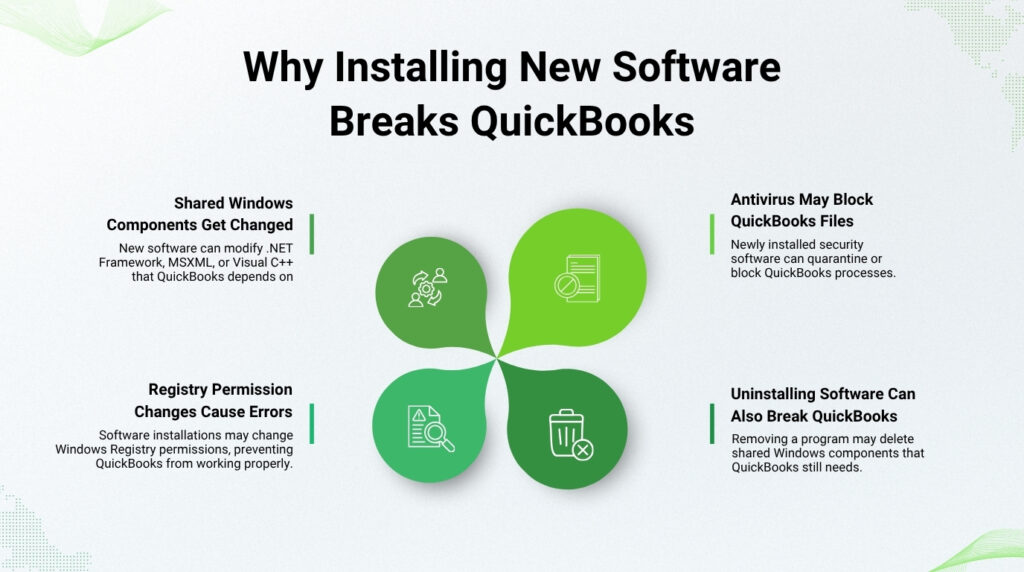
New Software Changes Shared Windows Components
QuickBooks Desktop does not run on its own — it runs on top of a group of Windows components that Microsoft provides and that multiple programs share. These shared components include .NET Framework, MSXML, and Visual C++ Redistributable. A new program installed on the same computer can update, replace, or partially damage these shared components as part of its own setup process. The new program may work perfectly after its installation, but QuickBooks — which needed a specific version of a shared component — now finds that version gone or changed.
Intuit’s documentation confirms that QuickBooks Desktop uses Microsoft .NET Framework to run web-based apps and internal program functions. Intuit explicitly states: “If .NET Framework has an issue, QuickBooks may not work properly.” This means any installation that alters .NET Framework — even a Windows update — has the potential to stop QuickBooks from working correctly.
New Antivirus and Security Tools Block QuickBooks Files
Antivirus software works by monitoring every file that is opened, written, or executed on the computer and checking each one against a database of known threats. A newly installed antivirus program applies this monitoring immediately — which means every QuickBooks file that runs is checked in real time. QuickBooks opens and writes dozens of files every time a transaction is saved, every time a report is generated, and every time the company file is accessed. An antivirus program that has not yet identified QuickBooks files as safe can block or quarantine them, causing QuickBooks to crash, freeze, or fail to open.
Intuit’s documentation on installation errors directly identifies antivirus and antispyware programs as third-party apps that may block the installation and also block QuickBooks from running after installation. The recommended solution from Intuit is to install QuickBooks while in Selective Startup — a Windows mode that disables non-Microsoft programs — to eliminate this interference.
New Software Modifies Windows Registry Permissions
The Windows Registry is a central database that Windows uses to store settings for every program installed on the computer. QuickBooks reads and writes registry entries every time it opens, every time it saves a transaction, and every time an update is installed. Some software installations change the access permissions on registry keys — the individual entries inside the registry — so that other programs can no longer read or write to them. Intuit’s error documentation for Error 1402 confirms this directly: the error appears when the QuickBooks installer could not read or write a Windows Registry entry, and it is one of the most common installation errors that appears after new software changes registry settings.
The registry change made by new software is not malicious — it is a side effect of the new program securing its own registry entries. The result for QuickBooks, however, is an inability to access the settings it needs, which stops installation updates from completing and causes feature errors during normal use.
Uninstalling New Software Can Also Break QuickBooks
Removing a newly installed program carries the same risk as installing it. Many programs install shared Windows components as part of their own setup, and their uninstallers sometimes remove those shared components when the program is removed — even if other software on the computer still depends on them. QuickBooks can stop working after a new program is uninstalled because the uninstaller removed a version of .NET Framework, Visual C++, or MSXML that QuickBooks was relying on.
This is why QuickBooks problems that start the day after removing a recently installed program follow the same diagnostic and fix path as problems that start the day after installing new software. Both situations damage the same underlying components.
The Windows Components QuickBooks Depends On
Understanding which Windows components QuickBooks uses — and what breaks without each one — helps you identify which fix to apply. The table below explains each component in plain language.
| Windows Component | What It Does | What Breaks in QuickBooks Without It |
| Microsoft .NET Framework | Runs the internal programs and screens inside QuickBooks — it is the software layer that makes QuickBooks windows and buttons work | QuickBooks stops opening, crashes during installation, or stops responding mid-task |
| Microsoft MSXML | Processes and organises data in a structured format called XML that QuickBooks uses to read company file records and communicate internally | Company file data cannot be read correctly — QuickBooks crashes when opening transactions or generating reports |
| Microsoft Visual C++ Redistributable | Provides a set of files that QuickBooks’ core program uses to run its calculations and display information on screen | QuickBooks displays a runtime error and closes, or specific functions (like payroll calculations) stop working |
| Windows Installer | The Windows service that manages how software is installed, updated, and removed on the computer | QuickBooks cannot install updates, showing Error 1628 or 1603 — the update stops partway through |
Intuit provides the QuickBooks Install Diagnostic Tool specifically to repair all of these components automatically. This tool — available inside the QuickBooks Tool Hub — scans for damaged .NET Framework, MSXML, and Visual C++ files and repairs them without requiring manual steps. Intuit’s documentation states the tool “can take up to 20 minutes” to complete its scan and repair, which reflects how thorough the component check is.
Error Codes That Appear After New Software Is Installed
These error codes from Intuit’s official documentation appear most often after a new program changes the Windows environment QuickBooks runs in. Match your error code to the correct first fix before running general repair steps.
| Error Code | What It Means | First Fix to Try |
| 1603 | QuickBooks update or installation failed — a third-party program blocked the process or a Windows component is damaged | Run Install Diagnostic Tool from the Tool Hub, then try installing in Selective Startup |
| 1722 | A small program embedded in the QuickBooks installer failed to run — caused by damaged .NET Framework, MSXML, or antivirus blocking | Run Install Diagnostic Tool — it repairs .NET, MSXML, and Visual C++ automatically |
| 1402 | The QuickBooks installer could not read or write a Windows Registry entry — new software changed the registry permissions | Run Install Diagnostic Tool and, if needed, install QuickBooks in Selective Startup |
| 1628 | A Windows service called Windows Installer is not working correctly — can be disrupted by new software that modifies Windows services | Contact an IT expert or Microsoft — this error requires fixing the Windows Installer service |
| Unrecoverable Error (random number codes) | QuickBooks was forced to close because a core file it needed was missing or inaccessible | Run Quick Fix My Program, then rename QBWUSER.ini to QBWUSER.ini.old and reopen QuickBooks |
| QBWC1039 | A third-party application connected to QuickBooks via Web Connector lost its authorisation after a software change | Re-authorise the application in Edit > Preferences > Integrated Applications > Company Preferences |
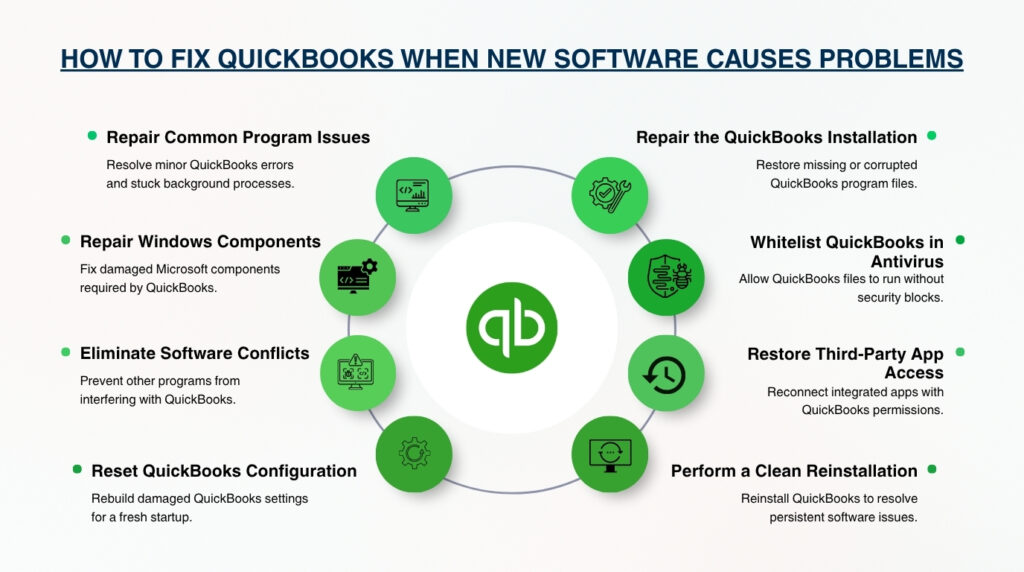
Fix 1: Run Quick Fix My Program — the Starting Point for Every Problem
Quick Fix My Program is a repair tool inside the QuickBooks Tool Hub. It closes every background process QuickBooks is running — including any that may be stuck or conflicting with new software — and runs an automatic repair on the QuickBooks program files. Intuit’s documentation describes this tool as the first step for resolving issues that cause QuickBooks Desktop to stop working, including crashes, freezes, and failures to open. It takes less than two minutes to run and requires no technical knowledge.
Download the latest version of the QuickBooks Tool Hub from Intuit’s official website. Close QuickBooks completely before opening the Tool Hub — if QuickBooks is frozen, use Windows Task Manager (press Ctrl + Shift + Esc) to end the QBW32.exe process first. Open the Tool Hub, go to Program Problems, and select Quick Fix My Program. After it finishes, restart your computer and open QuickBooks again before trying any other fix.
Quick Fix My Program resolves the majority of post-installation crashes that are caused by program file damage or stuck background processes. Run it first, regardless of what the specific symptom is — it addresses several root causes simultaneously and takes less time than any other repair step.
Fix 2: Run the QuickBooks Install Diagnostic Tool to Repair Windows Components
The QuickBooks Install Diagnostic Tool is the dedicated repair tool for .NET Framework, MSXML, and Visual C++ problems. Intuit’s documentation confirms this tool “automatically diagnoses and fixes issues with Microsoft components the QuickBooks program uses.” This makes it the correct fix for every problem caused by new software altering these shared Windows components — which covers the majority of post-installation crashes and errors.
Open the QuickBooks Tool Hub and go to Installation Issues. Select QuickBooks Install Diagnostic Tool. The tool runs a full scan of the three Windows components QuickBooks depends on and repairs anything it finds damaged. Intuit’s documentation states this process can take up to 20 minutes — do not close the window or interrupt the scan, as stopping it partway through leaves components in an incomplete state. After the tool finishes, restart the computer before opening QuickBooks.
After the computer restarts, open QuickBooks and test the specific feature that was failing. Most post-installation component problems are resolved at this step. If the same error appears after the computer restarts and QuickBooks has been updated, proceed to Fix 3.
Fix 3: Install QuickBooks in Selective Startup to Bypass Conflicting Software
Selective Startup is a Windows mode that starts the computer with only Microsoft’s own services running — it disables all third-party programs, including the newly installed software that may be conflicting with QuickBooks. Intuit’s documentation confirms this mode is specifically designed to “get around third-party apps that may block the installation, like antivirus and antispyware programs.” Use Selective Startup when QuickBooks cannot be repaired or updated while other software is running, or when the Install Diagnostic Tool did not resolve the problem.
Press Windows + R on the keyboard to open the Run window. Type msconfig and press Enter to open the System Configuration tool. In the General tab, select Selective startup and check Load system services. Go to the Services tab, check Hide all Microsoft Services, then click Disable all. Uncheck Hide all Microsoft Services again and find Windows Installer in the list — check it to make sure it remains enabled. Click OK and restart the computer.
After the computer restarts in Selective Startup, open the QuickBooks installer or run the repair process. With third-party software disabled, QuickBooks can install or repair its components without interference. After the installation or repair finishes, open System Configuration again, switch back to Normal startup under the General tab, and restart the computer. QuickBooks should now open and function correctly.
Fix 4: Rename the QBWUSER.ini File to Fix Unrecoverable Errors and Launch Failures
QBWUSER.ini is a configuration file that QuickBooks creates and uses to store personal settings — including the list of company files you have recently opened and your saved QuickBooks preferences. Intuit’s documentation lists a “damaged or missing QBWUSER.ini file” as one of the primary causes of QuickBooks stopping working unexpectedly. New software or a Windows update can damage this file by altering the folder permissions that control which programs can read and write to it.
Open Windows File Explorer and go to: C:\Users\[Your Windows Username]\AppData\Local\Intuit\QuickBooks [Year]. The AppData folder is hidden by default — enable hidden folders by opening File Explorer, clicking View, and checking Hidden items. Right-click the file named QBWUSER.ini and select Rename. Add .old to the end so the file name becomes QBWUSER.ini.old. Do the same for the file named EntitlementDataStore.ecml — rename it to EntitlementDataStore.ecml.old.
Renaming these files forces QuickBooks to create fresh, undamaged versions of both files the next time it opens. The only consequence of this step is that the list of your recently opened company files is cleared — you will need to browse to your company file manually the first time you open QuickBooks after this fix. No accounting data in the company file is affected. After renaming both files, open QuickBooks and test whether it launches correctly.
Intuit’s guidance specifies testing with a sample company file after renaming QBWUSER.ini. Go to the No Company Open window (the screen that appears before a company file is opened) and select Open a Sample File. Opening a sample file confirms whether the problem is with QuickBooks itself or with your specific company file. A sample file that opens correctly means QuickBooks is working — the issue is with your company file’s folder or permissions, not the program. A sample file that also fails means the QuickBooks installation itself needs to be repaired or reinstalled.
Fix 5: Repair the QuickBooks Installation Through Windows
A repair installation replaces every QuickBooks program file with a fresh copy from the original installer without removing your company file or your QuickBooks settings. This fix addresses damage to QuickBooks program files that the Install Diagnostic Tool and Quick Fix My Program could not resolve — typically caused by a new program overwriting a QuickBooks file with an incompatible version of its own.
Close QuickBooks. Open the Windows Start menu, search for Control Panel, and open it. Go to Programs and Features, then Uninstall a Program. Find QuickBooks in the list, click it, and select Uninstall/Change. A repair option appears in the window that opens — select Repair and follow the on-screen steps. The repair process takes 5 to 15 minutes and requires no user input once it starts.
After the repair finishes, restart the computer and open QuickBooks. Intuit’s documentation confirms that after running the repair, you should also update QuickBooks to the latest release — go to Help > Update QuickBooks Desktop and install all available updates. Updates restore any component fixes that were released after your original QuickBooks version was installed and ensure the repaired files are current.
Fix 6: Add QuickBooks to the Antivirus Exclusion List
An antivirus exclusion list — also called a whitelist — tells the antivirus software to skip scanning specific files and folders. Adding QuickBooks to this list stops the antivirus from blocking or quarantining QuickBooks files during normal use. This fix is specifically for problems caused by a newly installed antivirus or security tool, where QuickBooks was working correctly before the security software was installed.
Add the following locations to your antivirus exclusion list: the QuickBooks installation folder — C:\Program Files\Intuit\QuickBooks [Year] — the company files folder — C:\Users\Public\Documents\Intuit\QuickBooks\Company Files — and the QuickBooks data folder — C:\Users\Public\Documents\Intuit\QuickBooks. The process for adding exclusions is different for each antivirus product. Check your antivirus software’s own documentation or support pages for the steps specific to your product.
Antivirus exclusions do not make the computer less secure — they tell the antivirus to trust files from a specific location that has already been verified as safe, which is exactly the right approach for established commercial software like QuickBooks. After adding the exclusions, restart QuickBooks and test the function that was failing. Most antivirus-related crashes resolve immediately after the exclusions are saved.
Fix 7: Re-Authorise Third-Party Applications Connected to QuickBooks
QuickBooks uses a feature called Web Connector to allow third-party applications — such as e-commerce platforms, CRM software, or industry-specific tools — to share data with QuickBooks automatically. Each connected application must be authorised by the QuickBooks Admin user. Installing new software, or changing any QuickBooks setting, can remove that authorisation, causing the connected application to stop working and display the error code QBWC1039. Intuit’s documentation confirms this error appears when the QuickBooks Administrator hasn’t allowed access to the third-party app.
Re-authorise the affected application by signing in to QuickBooks as the Admin user. Go to File > Switch to Single-User Mode if you are in Multi-User Mode. Open Edit > Preferences > Integrated Applications > Company Preferences. Uncheck Don’t allow any applications to access this company file. Select the third-party application from the list, click Properties, and enable Allow this application to log in automatically. Click OK. The connected application should now reconnect to QuickBooks without further errors.
Re-authorisation is required every time any software change affects the QuickBooks installation or company file settings. This includes QuickBooks updates, Windows updates, new software installations, and antivirus software changes. If the Web Connector error persists after re-authorising, contact the third-party application’s support team — they can confirm whether the issue is on their side or with the QuickBooks connection settings.
Fix 8: Perform a Clean Reinstall of QuickBooks
A clean reinstall removes every file, folder, and registry entry that the current QuickBooks installation left on the computer, then installs a completely fresh copy of QuickBooks. This is the correct fix when all other repair steps have failed and QuickBooks remains broken after new software was installed. A clean reinstall is more thorough than a repair installation because it removes the damaged files rather than attempting to repair them in place.
Create a backup of your company file before starting — go to File > Back Up Company > Create Local Backup and save the backup to a location outside the QuickBooks program folders, such as your desktop or an external drive. Then uninstall QuickBooks through Control Panel > Programs and Features. After uninstalling, rename the remaining Intuit program folders by adding .OLD to their names so the new installation does not pick up damaged files from the old one. Download a fresh copy of QuickBooks from Intuit’s official website using your licence and product number, and reinstall.
Intuit recommends installing the fresh copy in Selective Startup (the steps are in Fix 3 above) to prevent the software that caused the original problem from interfering with the new installation. After the clean install finishes, switch back to Normal startup, restart the computer, open QuickBooks, and restore your company file backup. Update QuickBooks immediately after opening it by going to Help > Update QuickBooks Desktop to apply all current fixes.
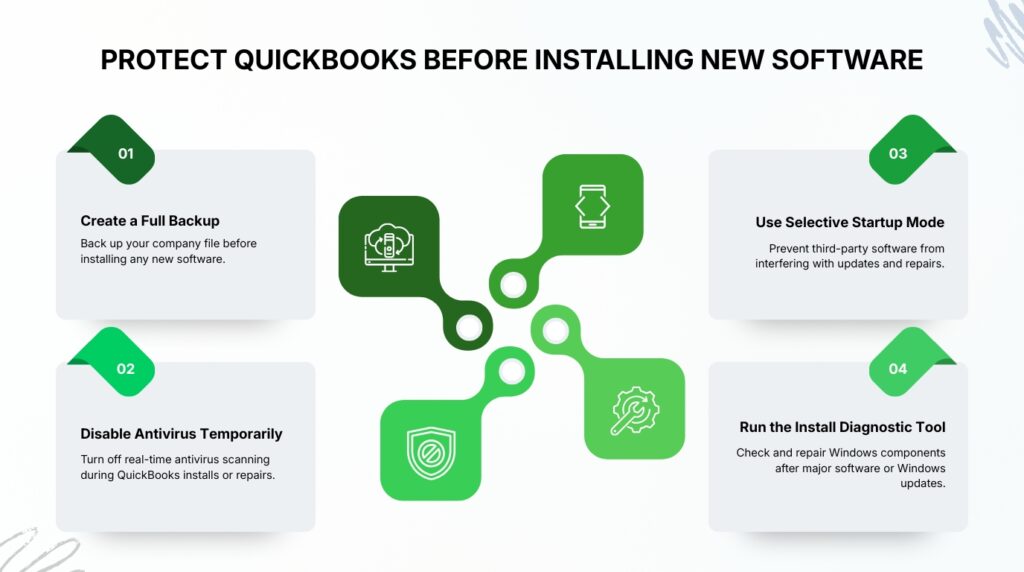
Protecting QuickBooks Before Installing New Software in the Future
Create a Full Company File Backup Before Any New Software Installation
Go to File > Back Up Company > Create Local Backup before installing any new software on the computer that runs QuickBooks. This backup becomes your recovery point if the new software damages QuickBooks components or the company file. The backup takes 5 to 10 minutes and gives you a guaranteed way to restore your data to its exact state before the new installation, regardless of what goes wrong.
Temporarily Disable Real-Time Antivirus Scanning During QuickBooks Installation or Repair
Turn off real-time antivirus scanning for the duration of any QuickBooks installation, update, or repair process. Antivirus software monitoring files in real time is the most common cause of interrupted QuickBooks installations. Re-enable the antivirus immediately after the installation or repair is complete. This temporary disabling is not a security risk — it covers only the minutes the installation is actively running, and QuickBooks is a verified commercial product from Intuit.
Use Selective Startup for All QuickBooks Updates and Repairs
Installing QuickBooks updates and running repair tools in Selective Startup — the Windows mode that disables third-party programs — prevents newly installed software from interfering with QuickBooks maintenance. This takes an extra two minutes to set up but eliminates the most common cause of failed QuickBooks updates on computers where new software has recently been installed. Return to Normal startup immediately after the update or repair is complete.
Run the QuickBooks Install Diagnostic Tool After Any Major Windows or Software Change
Run the Install Diagnostic Tool from the QuickBooks Tool Hub after any major software installation, Windows update, or program removal — even if QuickBooks appears to be working normally. The tool checks .NET Framework, MSXML, and Visual C++ for damage that may not yet be causing visible problems. Catching component damage early prevents the sudden crashes that occur when QuickBooks attempts an operation that exposes the underlying damage.
When to Contact Intuit Support?
Contact Intuit Support directly if QuickBooks still does not open or function correctly after completing all fixes in this article. The situations that require Intuit’s advanced diagnostic tools are: the QuickBooks installation fails repeatedly even in Selective Startup; the Install Diagnostic Tool reports repaired components but the same error appears immediately after the computer restarts; or the company file cannot be opened after a clean reinstall of QuickBooks.
Reach Intuit support through Help > QuickBooks Desktop Help / Contact Us inside the QuickBooks application. If QuickBooks will not open at all, go to Intuit’s support website directly. Intuit’s Data Services team handles cases where the company file itself has been damaged by the conditions that also broke QuickBooks — they can repair the file using tools not available through the standard Tool Hub.
Bring the exact error code or error message to the support conversation — every error code listed in this article has a specific entry in Intuit’s support documentation, which allows the support agent to go directly to the right diagnostic path without needing to repeat the basic steps you have already completed.
Frequently Asked Questions
1. Can installing unrelated software really cause QuickBooks Desktop to stop working?
Yes. Many Windows applications rely on shared system components such as Microsoft .NET Framework, MSXML, and Visual C++ Redistributable. If a newly installed program updates, replaces, or damages one of these shared components, QuickBooks may begin crashing, freezing, or displaying installation errors even though the new software itself works normally.
2. Should I uninstall the newly installed software if QuickBooks stops working afterward?
Not necessarily. Uninstalling the software may not resolve the issue and, in some cases, can remove shared Windows components that QuickBooks still needs. It’s generally better to diagnose the root cause first using QuickBooks repair tools, such as Quick Fix My Program or the QuickBooks Install Diagnostic Tool, before deciding whether to remove the recently installed application.
3. What’s the difference between Quick Fix My Program and the QuickBooks Install Diagnostic Tool?
Although both tools are available in the QuickBooks Tool Hub, they serve different purposes. Quick Fix My Program repairs QuickBooks program files and closes background processes that may be causing crashes or freezing. The QuickBooks Install Diagnostic Tool, on the other hand, repairs Microsoft components like .NET Framework, MSXML, and Visual C++ Redistributable that QuickBooks depends on to run correctly. Using the appropriate tool depends on the underlying cause of the problem.
4. Can Windows updates cause the same QuickBooks issues as installing new software?
Yes. Windows updates can modify the same shared system components that QuickBooks relies on, making them capable of triggering similar problems. If QuickBooks starts failing immediately after a Windows update, the troubleshooting steps are often the same as those used after installing new software, including repairing Microsoft components and verifying the QuickBooks installation.
5. How can I reduce the risk of QuickBooks problems before installing new software?
The safest approach is to create a verified backup of your company file, ensure QuickBooks is fully updated, and temporarily disable real-time antivirus scanning while installing or repairing QuickBooks if recommended by Intuit. Installing major software changes one at a time also makes it easier to identify the source of any compatibility issues should they occur.

Anusmita is a seasoned content writer who brings perspective to words. As a writer, she enriches her work with a journalistic aptitude, utilising her training in Mass Communication and Journalism. She loves to travel and explore, which imparts a greater sense of understanding, maturity, and experience that are reflected in her content.
Beyond her professional work, Anusmita enjoys painting, singing, dancing, and spending time planting. She is also a self-proclaimed foodie who loves exploring different cuisines, an interest that further adds to her curiosity and perspective as a writer.
Leave a Reply